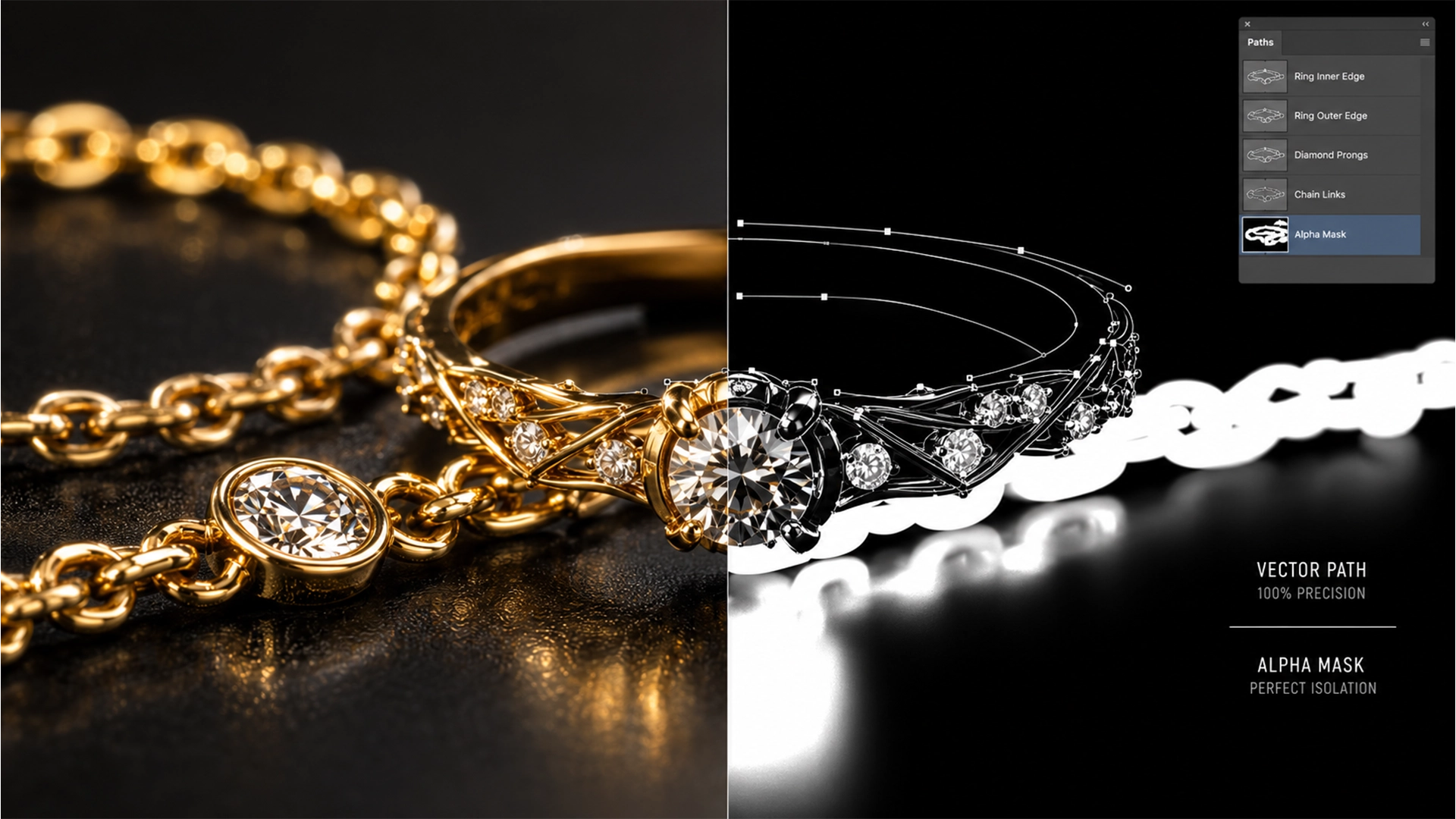

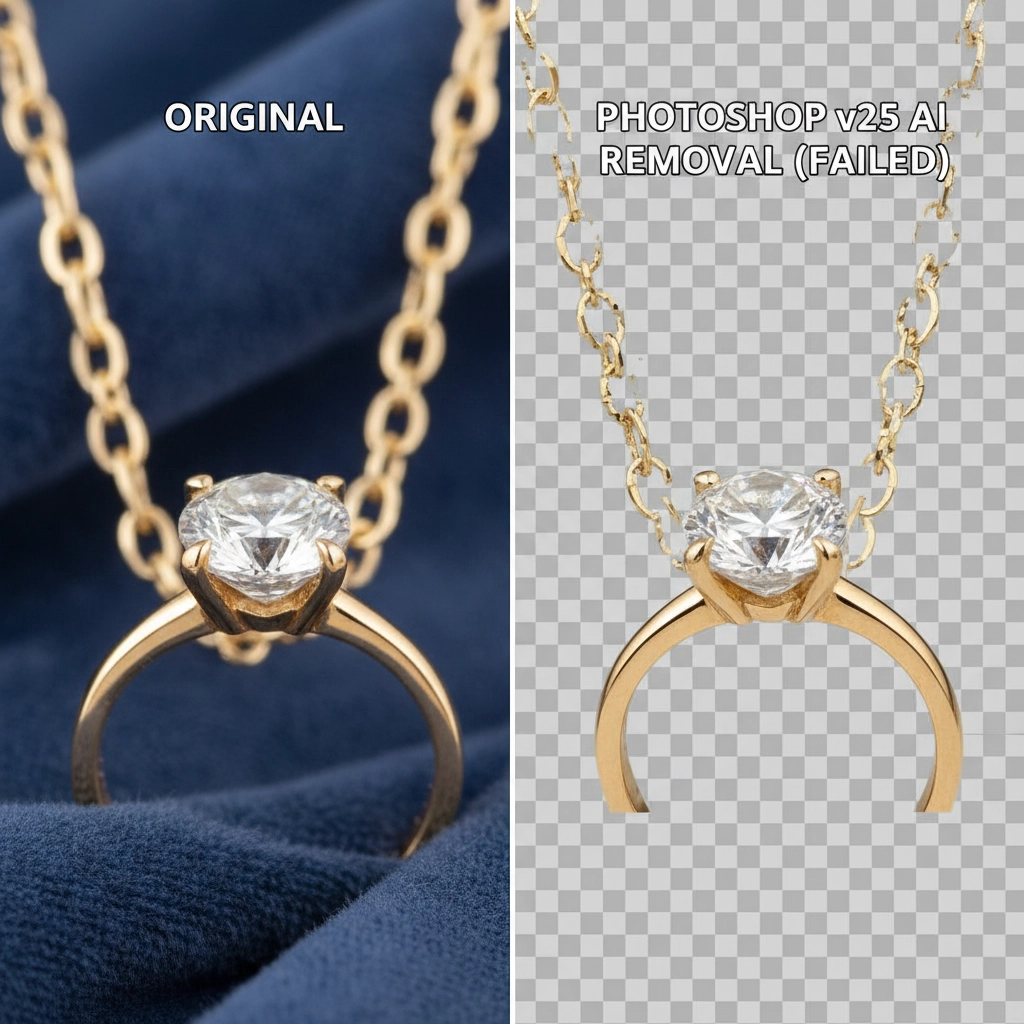
You click “Remove Background” in Adobe Photoshop v25, expecting instant magic. Instead, the AI completely eats your delicate gold micro-chain and dissolves the sharp prongs holding a diamond. Sound familiar?
While modern AI-driven edge detection algorithms are incredible for high-contrast, contiguous objects like people or cars, they fail miserably on macro jewelry photography. If you are tired of losing hours trying to fix pixel bleed and ruined edges, you are not alone.
In this guide, we will break down exactly why this happens and show you a professional hybrid masking workflow for recovering micro-chain details from AI background removal, ensuring your jewelry photography retains its premium, high-end appeal.
Why AI Background Removal Fails on Intricate Jewelry
In Adobe Photoshop v24.x and v25.x, the machine learning models powering “Select Subject” and “Remove Background” rely heavily on edge contrast.
When applied to jewelry, these algorithms run into three major roadblocks:
- Low Micro-Contrast: The reflections on metal often blend seamlessly with the background studio sweep.
- Chromatic Aberration: Color fringing around microscopic chain links confuses the AI.
- Transparency Calculation Errors: The AI’s inability to calculate micro-contrast alpha transparency accurately without manual thresholding results in missing links and dissolved prongs.
To fix this, you cannot rely on a single automated click. You need a multi-tiered approach.
3 Ways to Fix Eaten Edges and Recover Micro-Chain Details
Depending on the severity of the AI’s mistake and the required layer mask density, here are three progressive methods to restore your jewelry’s intricate details.
Method 1: The Quick Fix (Select and Mask Workspace)
If the AI only missed a few links, you can force the algorithm to recalculate specific areas.
- Apply the standard AI Remove Background.
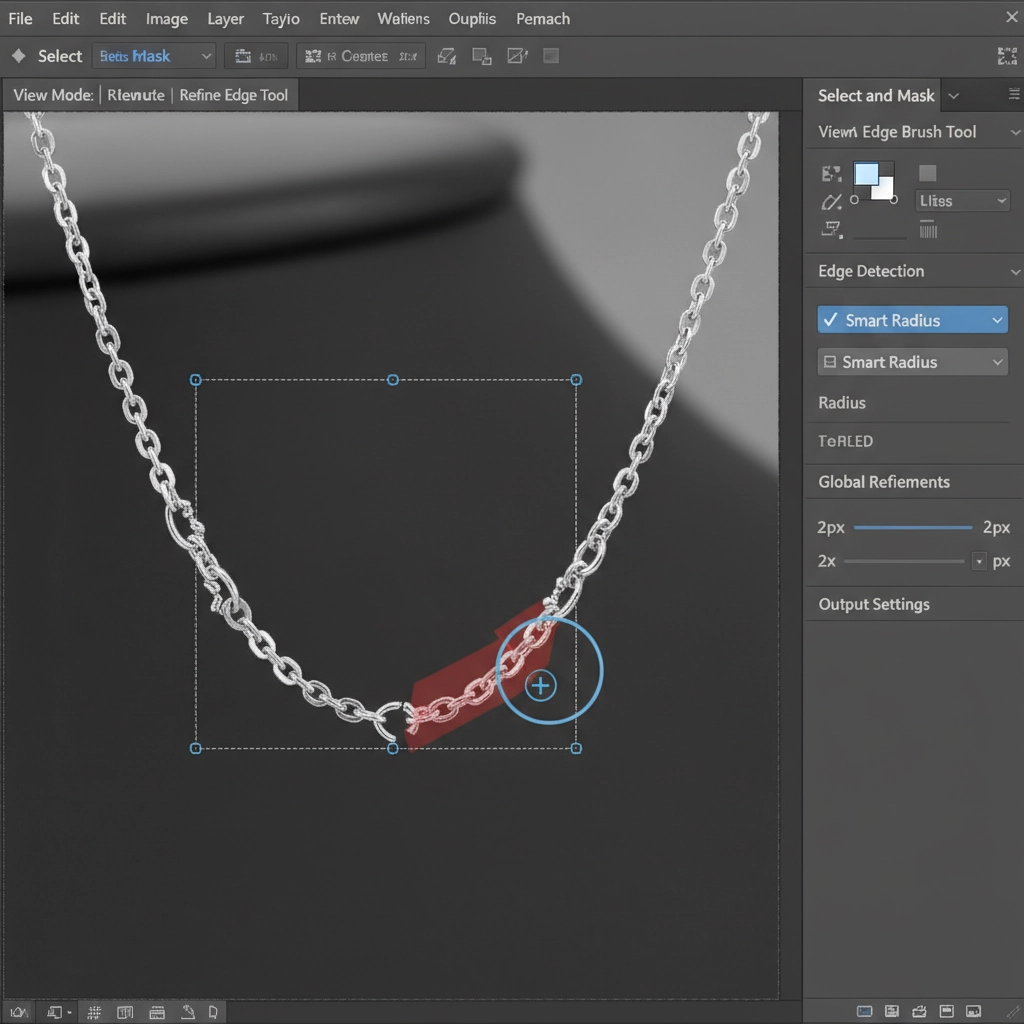
- Open the Properties panel and click Select and Mask.
- Select the Refine Edge Brush Tool (Shortcut: R).
- Check the Smart Radius box.
- Using a tiny 1-2px radius, carefully paint over the missing micro-chains and dissolved prongs.
This forces Photoshop to re-evaluate the edge pixels, often bringing back minor details that were initially ignored.
Method 2: The Pro Workaround (Hybrid Masking)
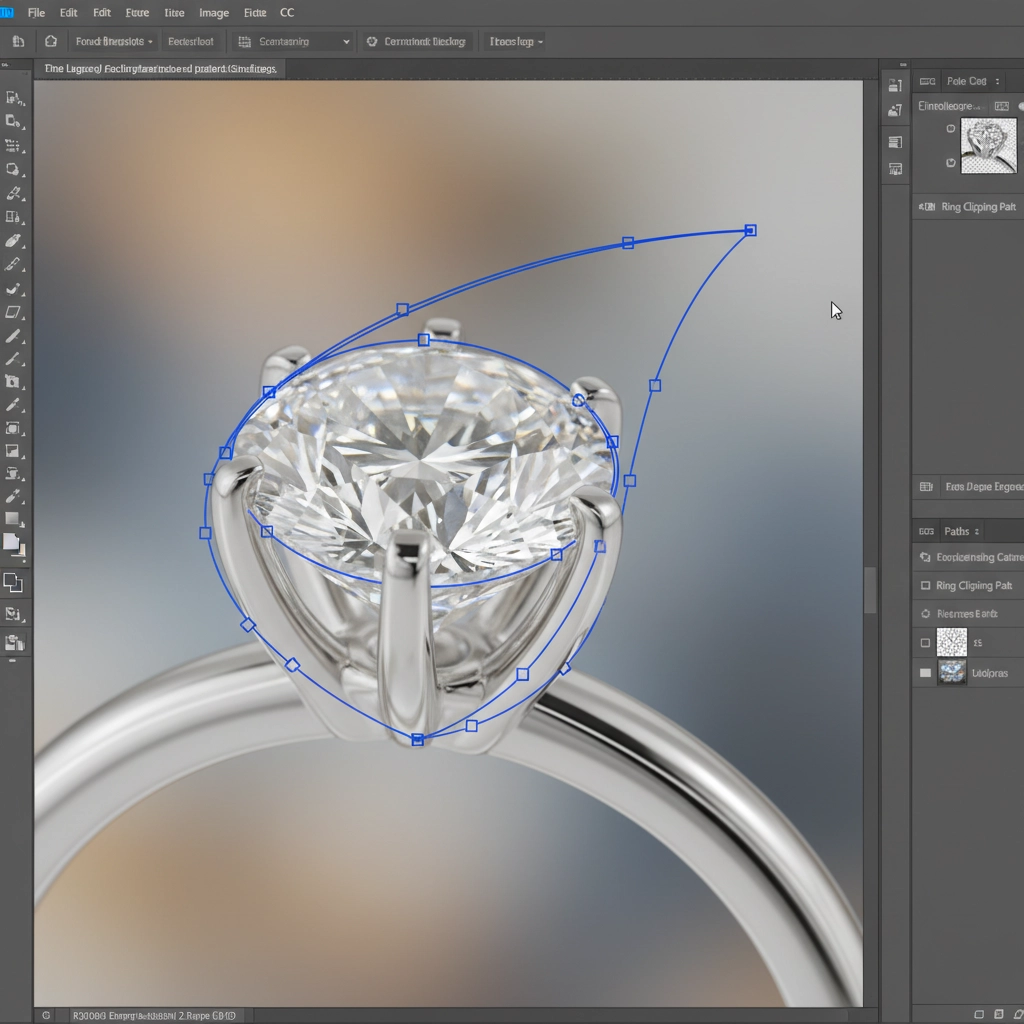
When the Refine Edge brush fails, professional retouchers switch to hybrid masking—combining the speed of AI with the precision of manual tools.
- Run the AI background removal to clear out the bulk of the negative space.
- Group the layer (Ctrl/Cmd + G).
- For the Prongs: Select the Pen Tool (Shortcut: P). Draw a strict vector path specifically around the hard-edged prongs and gemstones. Apply this as a vector mask to guarantee razor-sharp, mathematical edges.
- For the Chains: Use Select > Color Range to isolate the specific metal tones (e.g., gold or silver). Apply this selection to a heavily feathered Brush (Shortcut: B) on a raster mask to gently restore the micro-chains without catching the background.
By separating the hard edges (prongs) from the soft edges (chains), you completely eliminate pixel bleed.
Method 3: The Technical Deep-Dive (Channel Masking)
For the most complex, intertwined micro-chains where AI and Color Range both fail, you must build a custom alpha channel.
- Duplicate your base image layer.
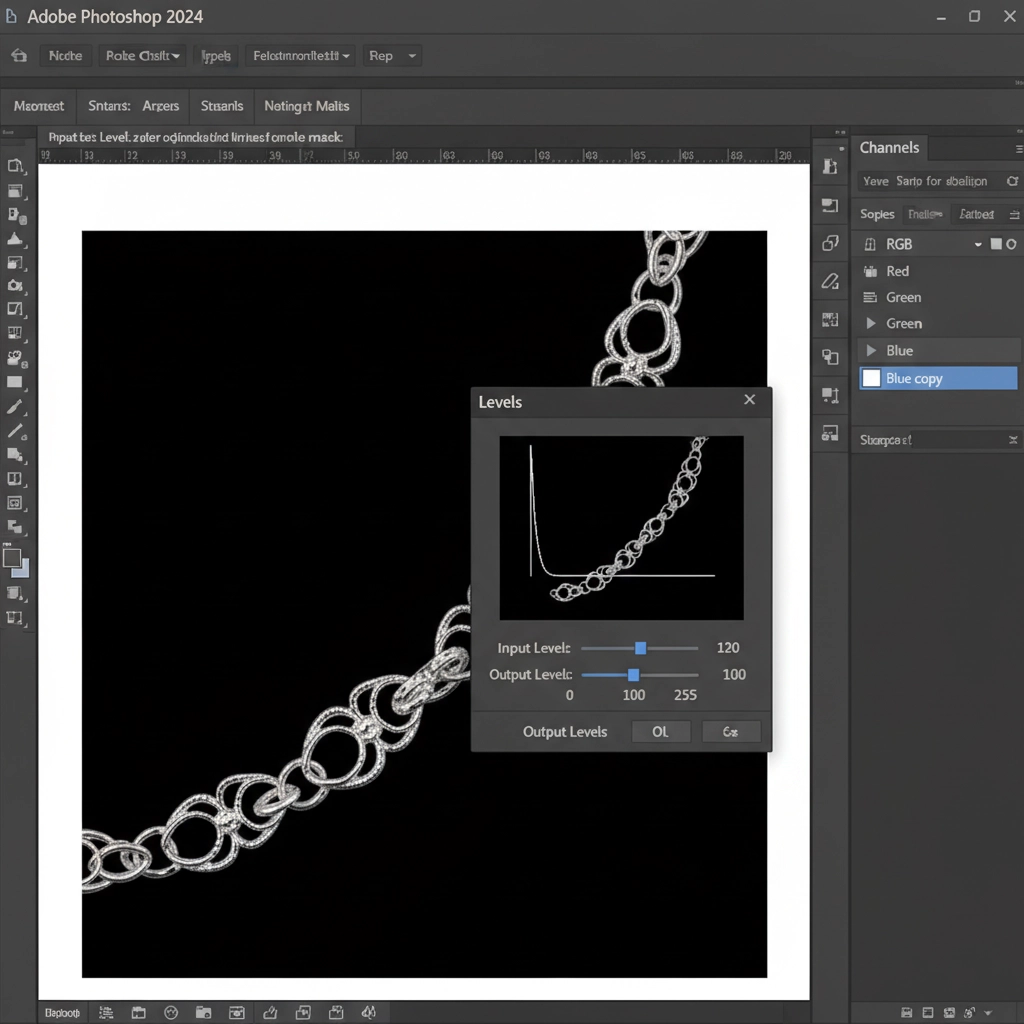
- Open the Channels Panel and inspect the Red, Green, and Blue channels. Duplicate the channel with the highest contrast against the background (usually Blue for gold jewelry, Red for silver).
- Open Image > Adjustments > Levels (Ctrl/Cmd + L).
- Crush the blacks and push the whites aggressively. Your goal is to create a strict, binary black-and-white silhouette of the jewelry.
- Ctrl/Cmd-click this new high-contrast channel to load it as a selection.
- Apply this selection as a precise raster mask on your original layer.
This method relies on raw pixel luminosity rather than edge detection algorithms, allowing you to preserve every microscopic link with flawless layer mask density.
Stop Wasting Time on High-Volume Jewelry Masking
Recovering micro-chain details from AI background removal is entirely possible using hybrid masking, vector paths, and alpha channels. However, if you are processing hundreds or thousands of e-commerce jewelry images, manually drawing clipping paths around microscopic prongs is a massive drain on your time and resources.
Struggling with high-volume jewelry masking? Stop wasting hours fixing AI mistakes.
At Image Work India and Cloud Retouch, our dedicated teams specialize in pixel-perfect clipping paths, advanced channel masking, and premium jewelry retouching at scale. We don’t rely on flawed automated algorithms; we deliver flawless, handcrafted precision so your jewelry shines exactly as it should.
Contact Cloud Retouch today to streamline your post-production workflow and let our precision experts handle the heavy lifting.




