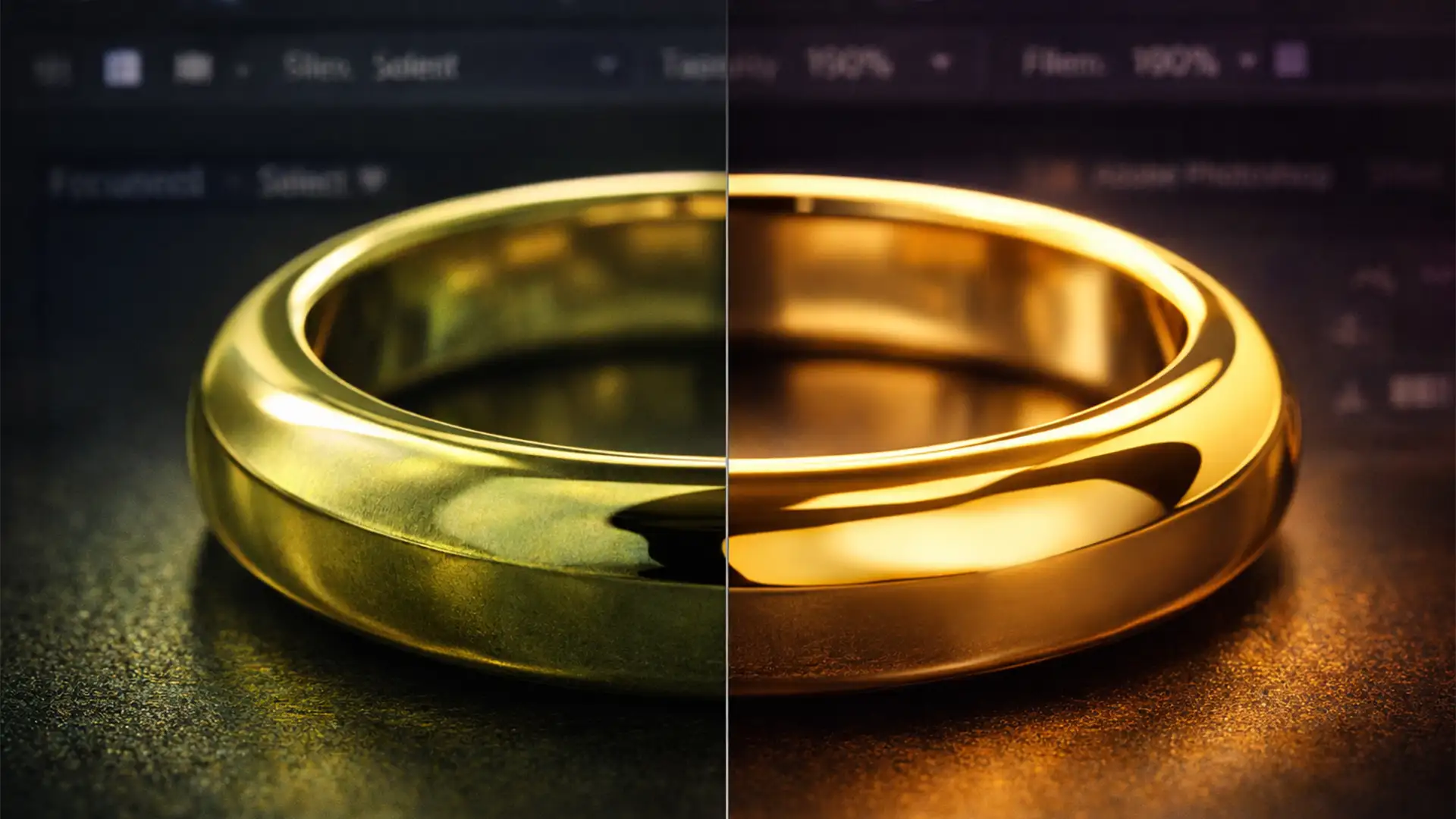

You spent hours setting up the perfect lighting for a macro jewelry shoot, but when you open the files in Photoshop, the gold looks cheap. Instead of a luxurious, high-end shine, you are staring at a brassy, harsh orange, or even a greenish color cast.
This persistent issue is usually caused by mixed lighting environments, improper in-camera white balance, or environmental reflections bouncing off highly reflective metallic surfaces. If you want to elevate your e-commerce catalog to a luxury standard, you must learn how to fix brassy gold jewelry photos in Photoshop without making the metal look flat or painted.
Here is your definitive guide to achieving that flawless Cartier look in Adobe Photoshop v25.x through v27.x.
Why Does Gold Photography Look Brassy or Green?
Before jumping into the software, it is crucial to understand the physics of the shoot. Gold is highly specular. It acts like a curved mirror, reflecting everything in the room-including your clothing, the walls, and the subtle color temperature differences between your strobes and ambient light.
When yellow hues skew too far toward green or become oversaturated with harsh oranges, the product loses its premium appeal. Resolving this requires precise, selective color grading rather than global adjustments. The goal is to neutralize the brassiness while ensuring the metal retains its inherent specularity and luxury aesthetic.
Method 1: The Quick Fix Using Hue/Saturation
If you need to process a batch of images quickly and the color contamination is relatively mild, a targeted Hue/Saturation adjustment is your best starting point.
Step-by-Step Workflow:
- Open your image in Photoshop and add a Hue/Saturation adjustment layer.
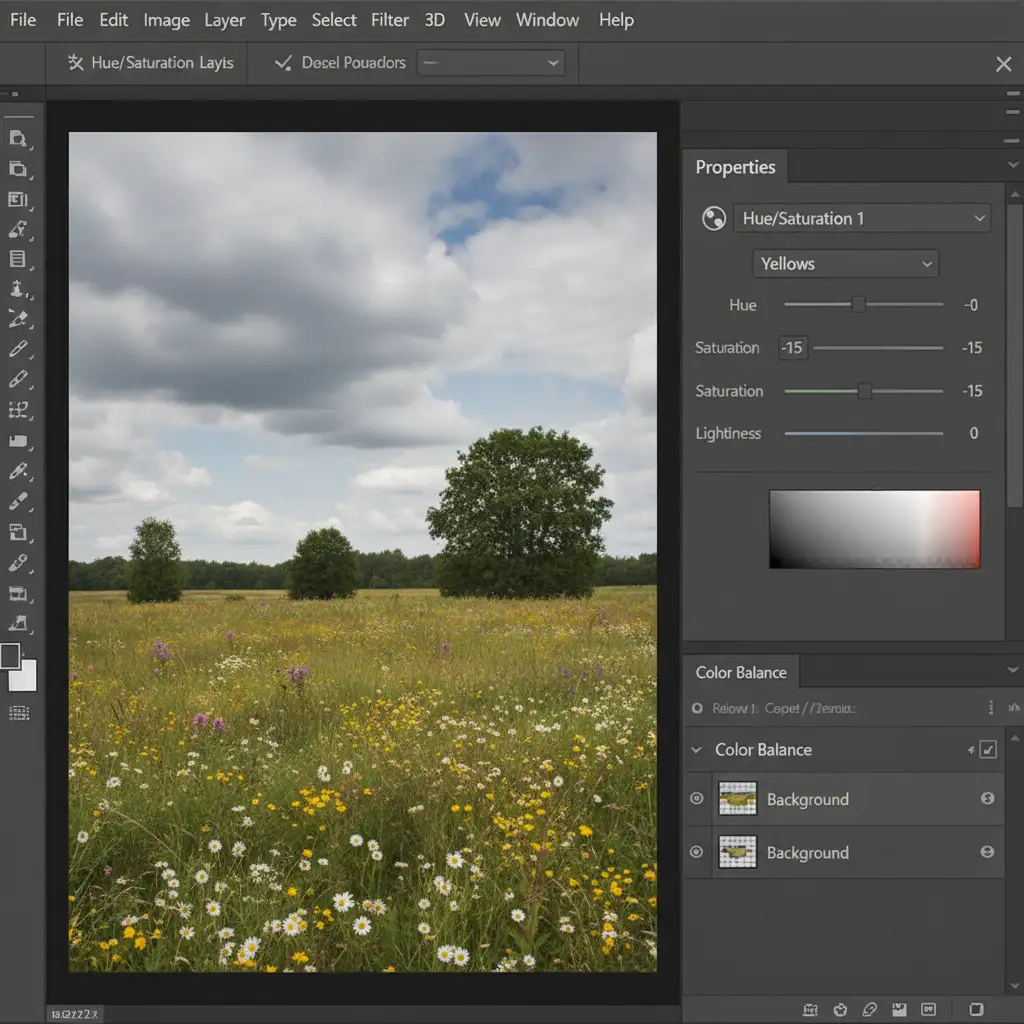
- By default, the panel targets the ‘Master’ channel. Click the dropdown and select Yellows.
- Slightly shift the Hue slider to the left (towards red). This immediately neutralizes any sickly green tint.
- Reduce the Saturation by 10–15 points to remove the harsh, cheap brassiness.
Method 2: The Pro Workaround with Color Blend Modes
When dealing with severe environmental reflections where the gold has absorbed distinct colors from the room, you need to manually paint back the ideal gold tone.
Step-by-Step Workflow:
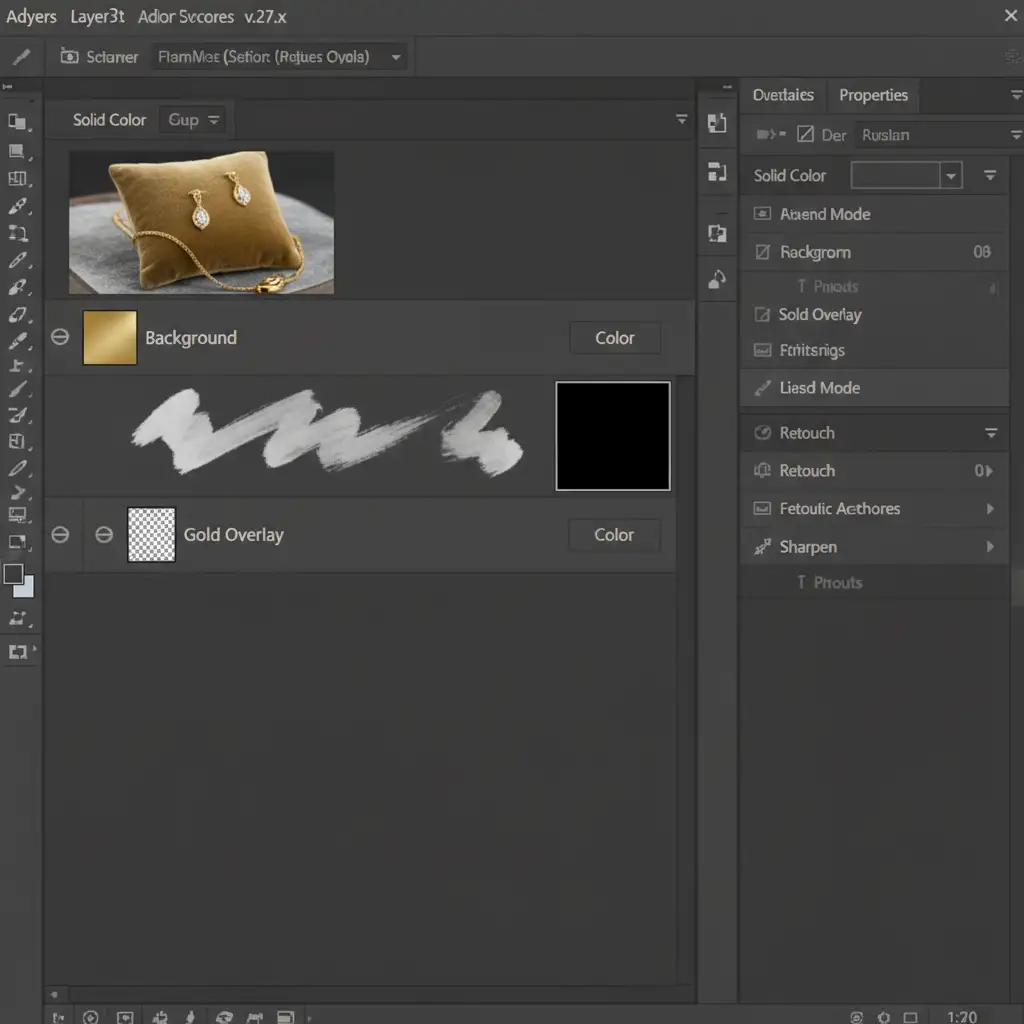
- Create a Solid Color fill layer. Choose a sampled, ideal luxury gold color (e.g., hex code #D4AF37).
- Change the layer blend mode from ‘Normal’ to Color (or ‘Hue’, depending on the contrast of your base image).
- Select the white layer mask attached to the Solid Color layer and invert it by pressing Ctrl+I (Windows) or Cmd+I (Mac). The mask will turn black, hiding the gold fill.
- Select a soft brush tool, set your foreground color to white, and manually paint the clean gold color exclusively over the brassy, discolored areas of the jewelry.
Method 3: The Technical Deep-Dive Using Camera Raw Filter
For the ultimate control in high-end retouching, the Camera Raw Filter offers the most sophisticated color engine for neutralizing brassy tones without destroying the natural micro-contrast of the metal.
Step-by-Step Workflow:
- Right-click your jewelry layer and select Convert to Smart Object. This ensures your edits remain non-destructive.
- Go to Filter > Camera Raw Filter.
- Navigate to the Color Mixer panel.
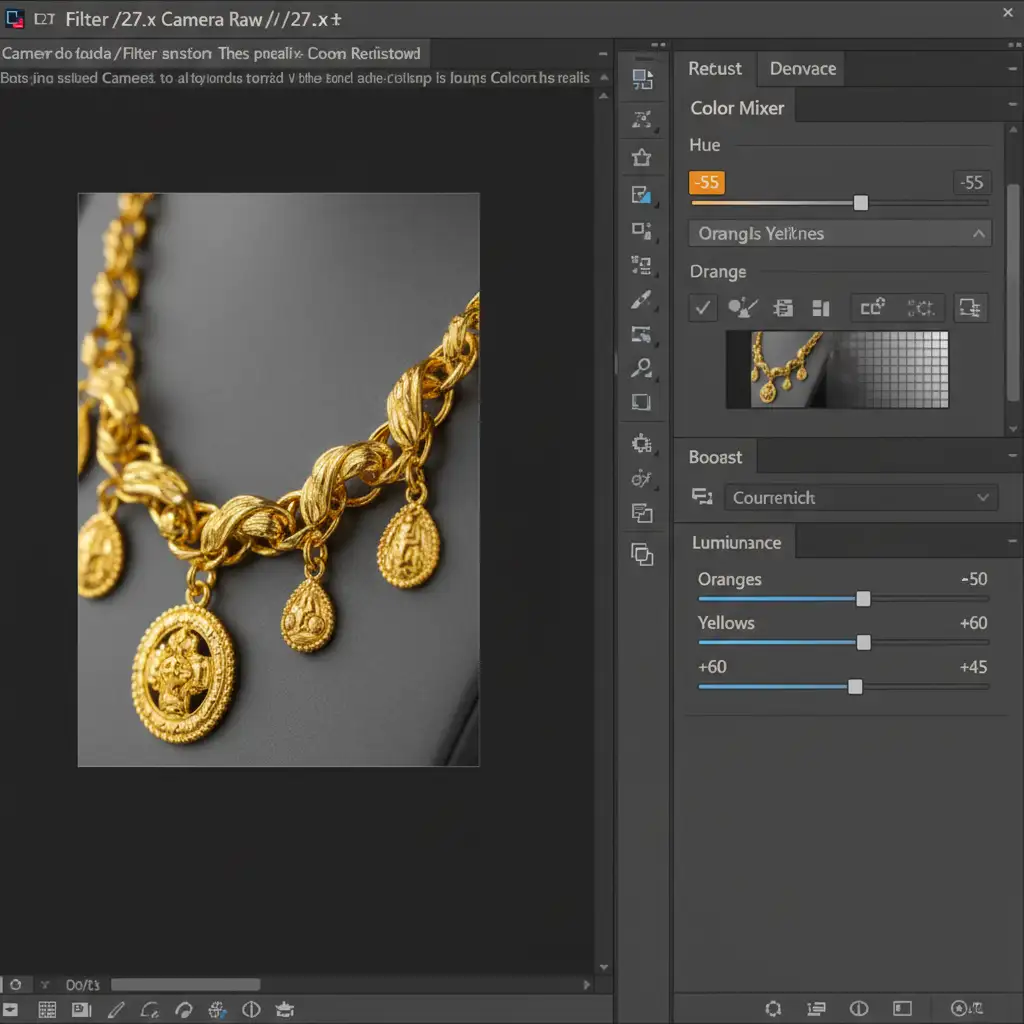
- Under the Hue tab, shift the Yellows slightly towards orange to warm up the metal correctly.
- Under the Luminance tab, boost the Yellows and Oranges. This adds a brilliant, luxury shine to the highlights.
- The Secret Step: Scroll down to the Calibration panel. Adjust the Blue Primary saturation slider. Tweaking the Blue Primary naturally neutralizes deep brassy shadows and enriches the gold tones without making the image look over-processed.
Scale Your Luxury Retouching with the Experts
Learning how to fix brassy gold jewelry photos in Photoshop is essential for any product photographer. However, applying these intricate Hue/Saturation shifts, masking techniques, and Camera Raw adjustments across a catalog of 500+ items is incredibly time-consuming.
Struggling to get that flawless Cartier gold finish across hundreds of catalog images? You don’t have to do it alone.
Hire Image Work India and Cloud Retouch for expert, high-volume jewelry retouching. Our specialized team understands the exact color science behind luxury metals. We provide precise color matching, flawless dust and scratch removal, and consistent, high-end color grading that turns browsers into buyers. Contact us today to elevate your jewelry imagery to a world-class standard.




