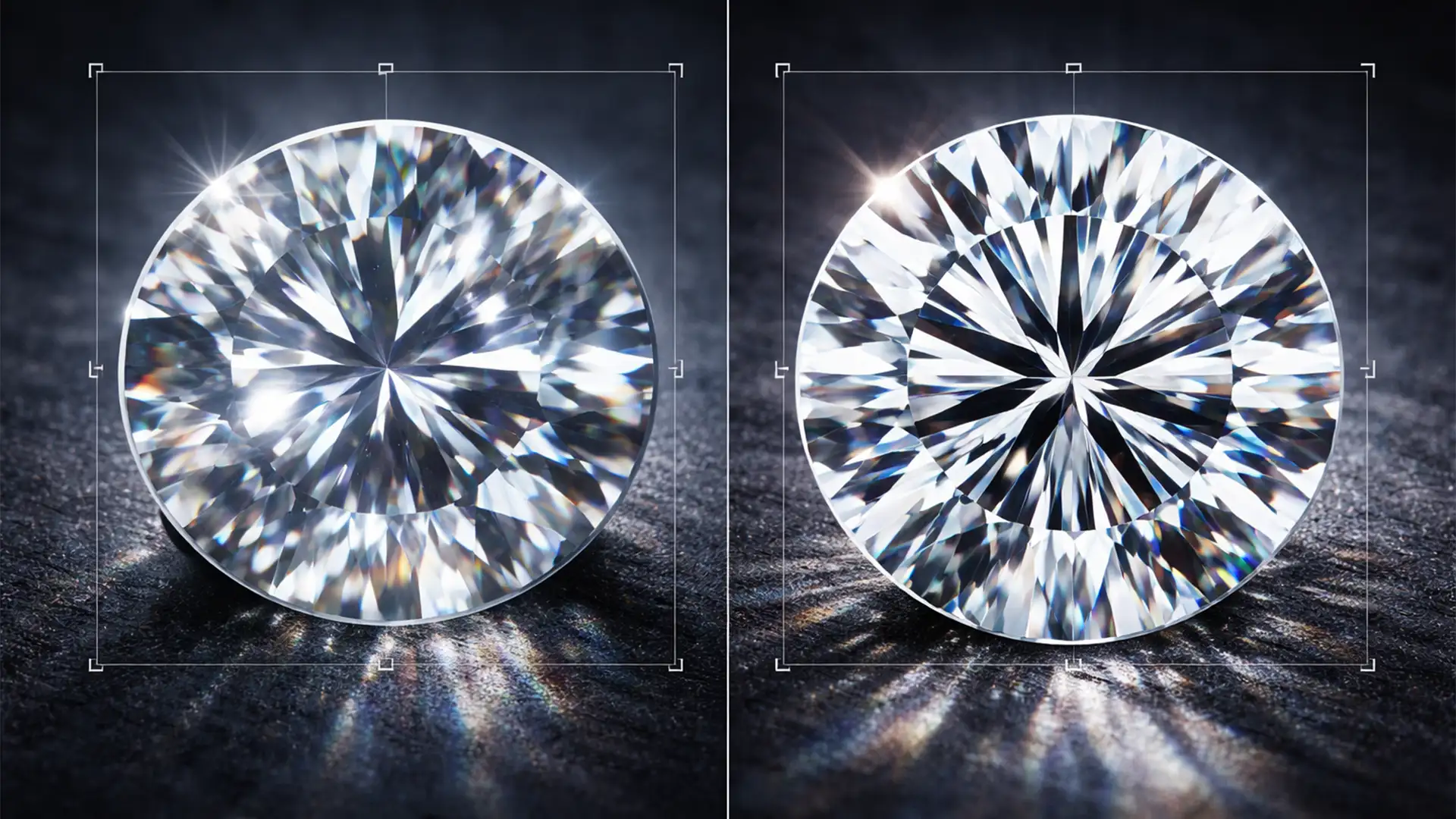

You just used Photoshop’s Generative Fill to create a stunning new background for a high-end jewelry shoot. The ambient lighting looks incredible, but there’s a massive problem: the AI completely destroyed the center diamond. Instead of crisp, mathematically perfect edges and accurate light refraction, you are left with a melted, blurry mess that looks more like cheap glass than a precious stone.
While Adobe Firefly in Photoshop v25.0+ excels at generating natural textures, it fundamentally struggles with the precise geometries of cut gemstones. If you are tired of AI artifacts ruining your product photography, here is exactly how to fix AI distorted gemstone facets in Photoshop and restore your jewelry’s flawless sparkle.
Why Generative Fill Destroys Gemstone Geometry
Generative AI models are trained on vast datasets of varying image quality. When you prompt Photoshop to alter an image containing a diamond, emerald, or sapphire, the AI tries to “guess” how the light should behave.
Unfortunately, gemstones rely on strict mathematical cuts to achieve their brilliance. The AI cannot calculate accurate refractive indexes or maintain perfect symmetry. The result? Melted edges, warped micro-facets, and a loss of the structural integrity that makes high-end jewelry look expensive. To fix this, you must rely on advanced compositing techniques that protect the original stone while allowing the AI to manipulate the surrounding pixels.
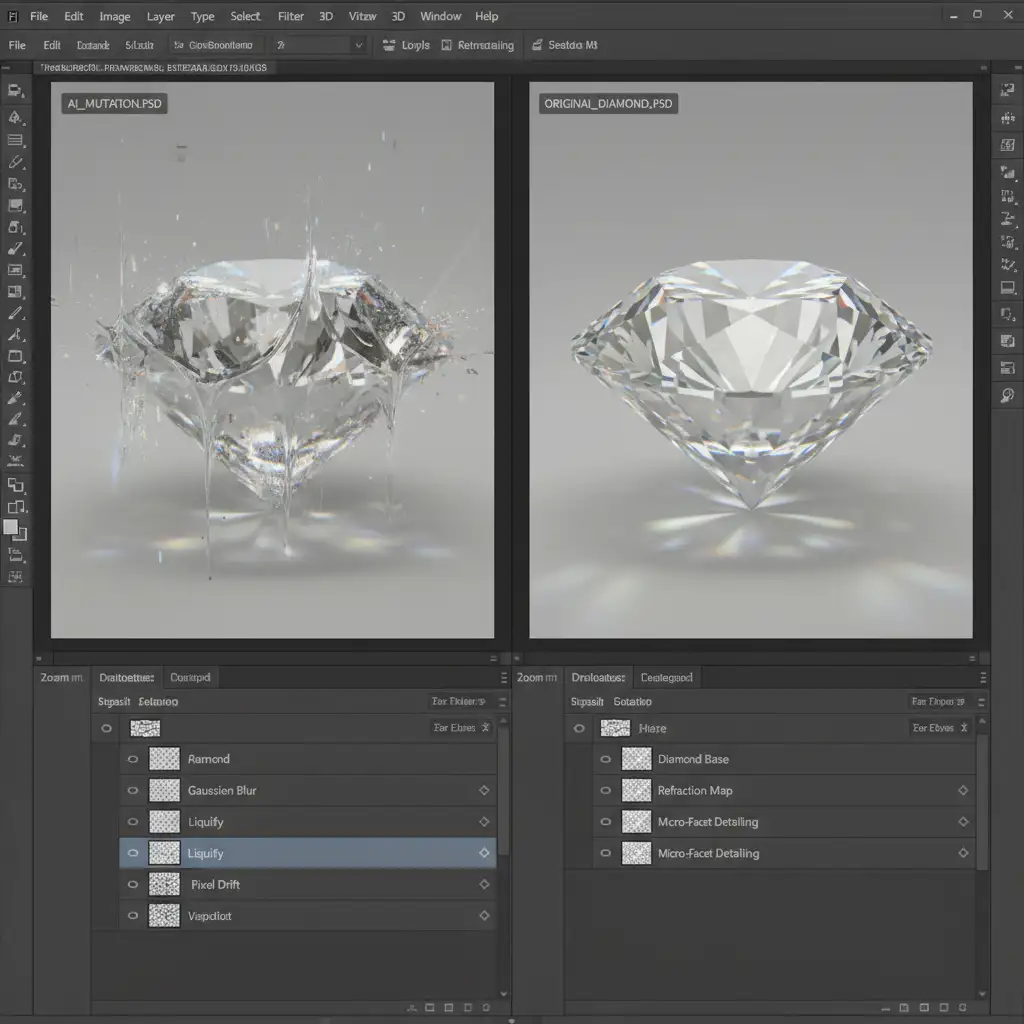
How to Fix Distorted Gemstone Facets in Photoshop (3 Methods)
Depending on the complexity of your jewelry piece, you can use one of these three workflows to bypass AI limitations and preserve your stone’s integrity.
Method 1: The Quick Fix (Object Selection & Layer Masking)
If you only need to change the background and your gemstone has distinct contrast, this is the fastest way to prevent AI distortion.
- Select the Object Selection Tool and drag a box around your gemstone.
- Go to Select > Inverse so only the background is highlighted.
- Apply your Generative Fill prompt.
- Because AI can sometimes bleed over selection boundaries, inspect the edges of your gemstone.
- If the AI has softened the edges, click the Layer Mask on your Generative Fill layer.
- Select a hard black brush and manually paint over the gemstone to hide the AI artifacts and reveal the razor-sharp original stone underneath.
Method 2: The Pro Workaround (Pen Tool Paths & Vector Masks)
For high-end commercial jewelry retouching, the Object Selection Tool is rarely accurate enough. To guarantee the AI doesn’t touch your micro-facets, you need surgical precision.
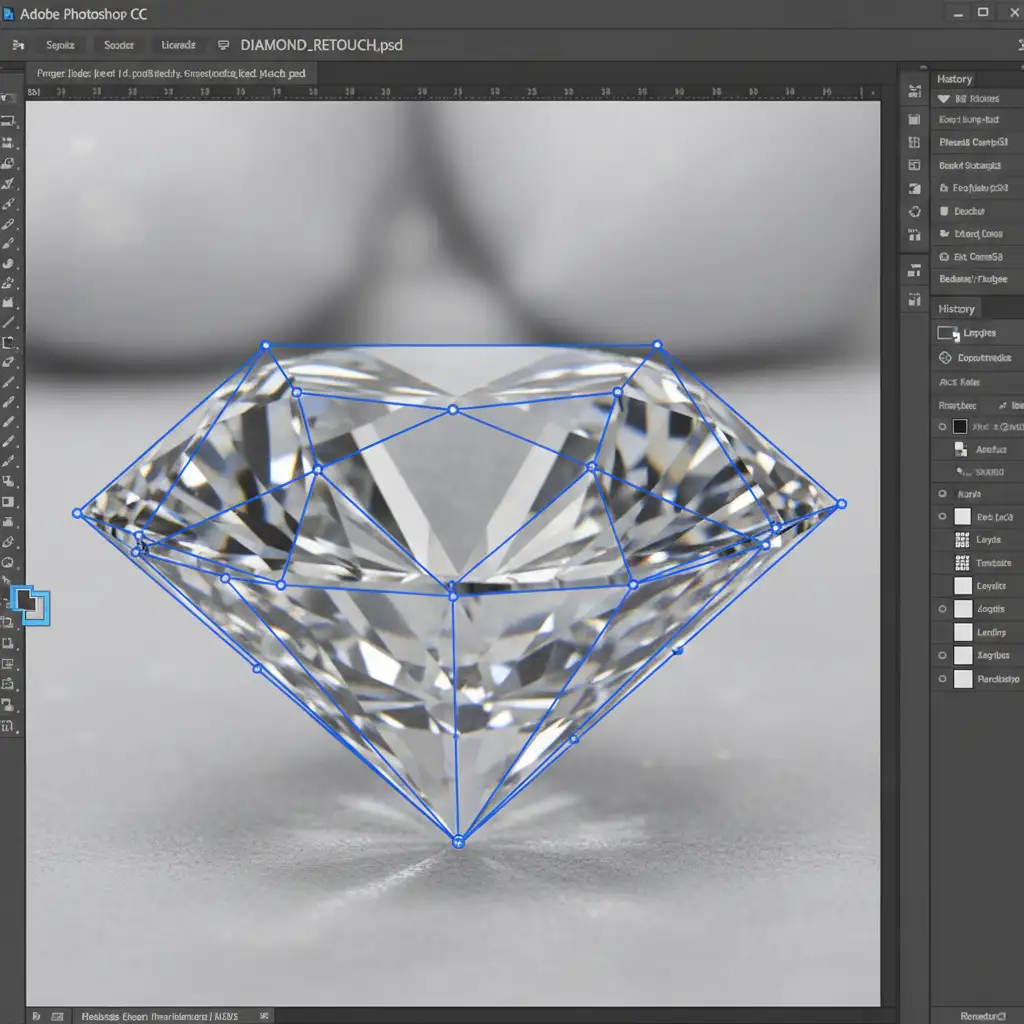
- Select the Pen Tool and carefully trace the exact geometric outline of the gemstone, ensuring you capture every point of the crown and pavilion.
- Convert your Pen Tool paths into a precise selection.
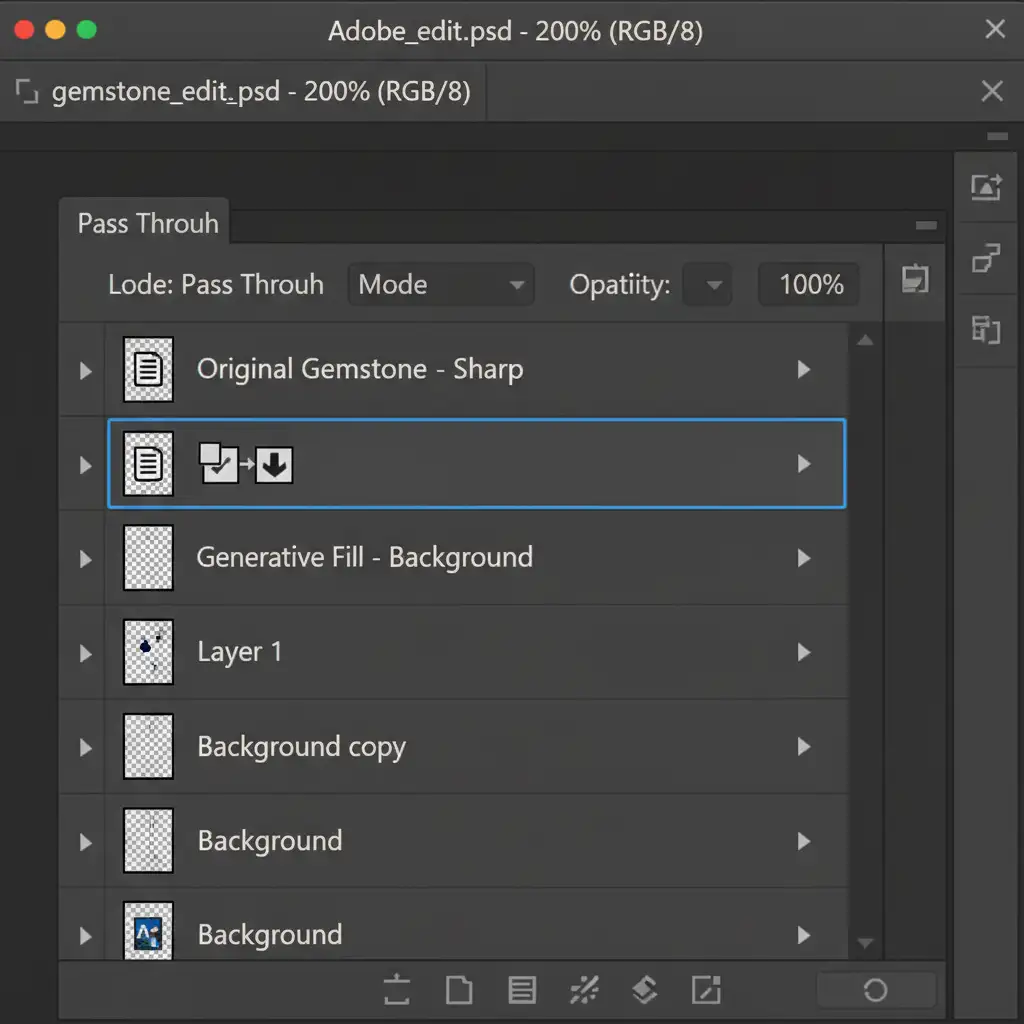
- Duplicate your original background layer, convert it into a Smart Object, and apply a Vector Mask using your path.
- Drag this isolated, perfectly masked gemstone layer to the very top of your layer stack.
- You can now freely use Generative Fill on the layers below. Let the AI do whatever it wants to the background or the ring band-your gemstone remains mathematically perfect and completely protected at the top of the stack.
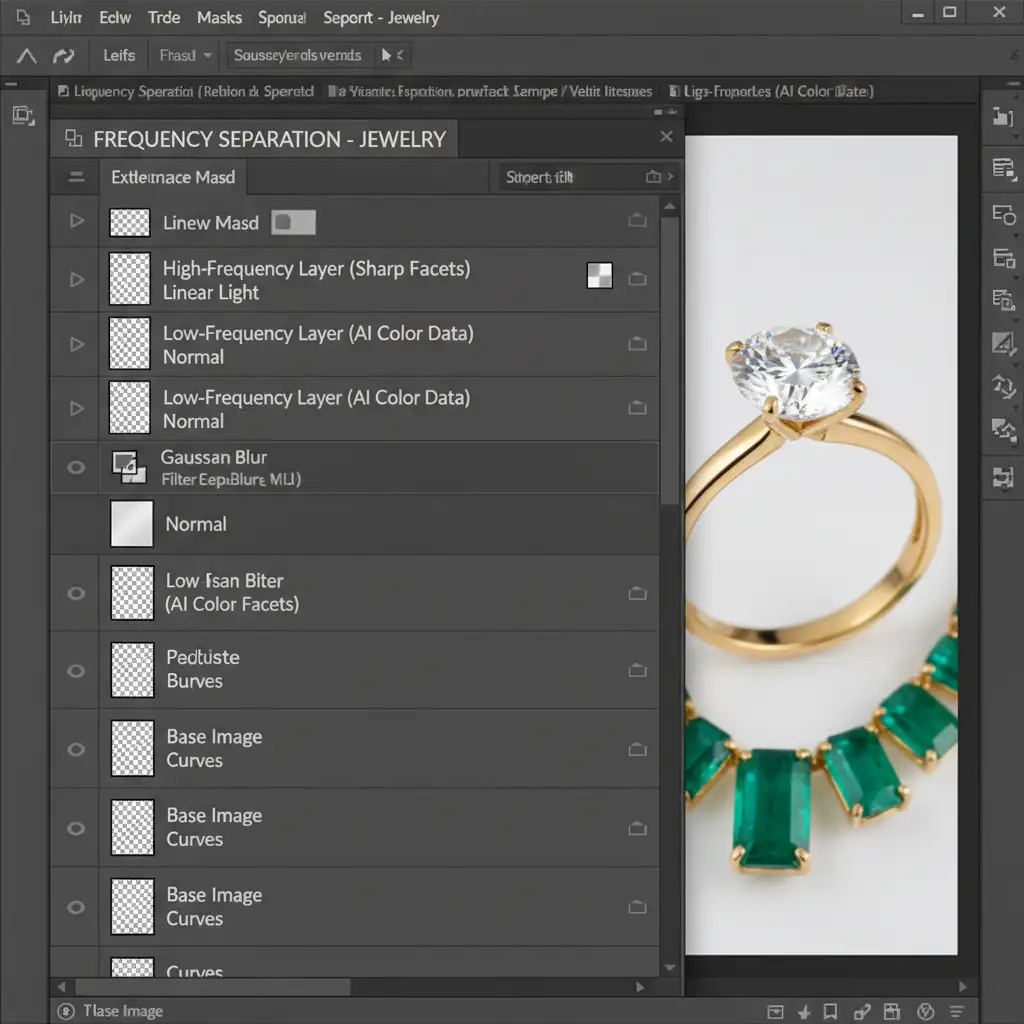
Method 3: The Technical Deep-Dive (Frequency Separation)
Sometimes, you want the AI to generate new reflections, colors, or light rays inside the stone to match a new background environment. But doing so will inevitably warp the structural lines. The solution is Frequency Separation.
- Run your Generative Fill to create the new color and lighting inside the stone.
- Set up a Frequency Separation group.
- Place the new AI-generated color and light data on the Low-Frequency Layer (which controls color and tone).
- Place the original, unedited gemstone on the High-Frequency Layer (which controls sharp textures and structural lines).
- By blending these, you get the new AI colors with the original sharp facet lines.
- If any structural lines still look misaligned, select the Polygonal Lasso Tool on the High-Frequency Layer. Grab clean edges from the original stone and use the Clone Stamp to manually rebuild the micro-facets perfectly.
Stop Fighting AI-Get Flawless Jewelry Retouching Every Time
AI tools like Generative Fill are incredible for speeding up certain workflows, but when it comes to the mathematical perfection required for high-end jewelry, AI can only do so much before it ruins product accuracy. Fixing distorted gemstone facets, rebuilding light refraction, and masking micro-facets takes hours of tedious, manual labor.
If you are struggling to get flawless jewelry photos and don’t have the time to surgically mask every diamond in your catalog, let the experts handle it.
Outsource your image editing to Image Work India and Cloud Retouch. Our team of professional retouchers specializes in pixel-perfect, manual jewelry compositing. We guarantee your gemstones will sparkle with perfect geometry, accurate color, and stunning realism-no melted AI artifacts in sight.
[Contact Image Work India Today for a Free Jewelry Retouching Trial]




