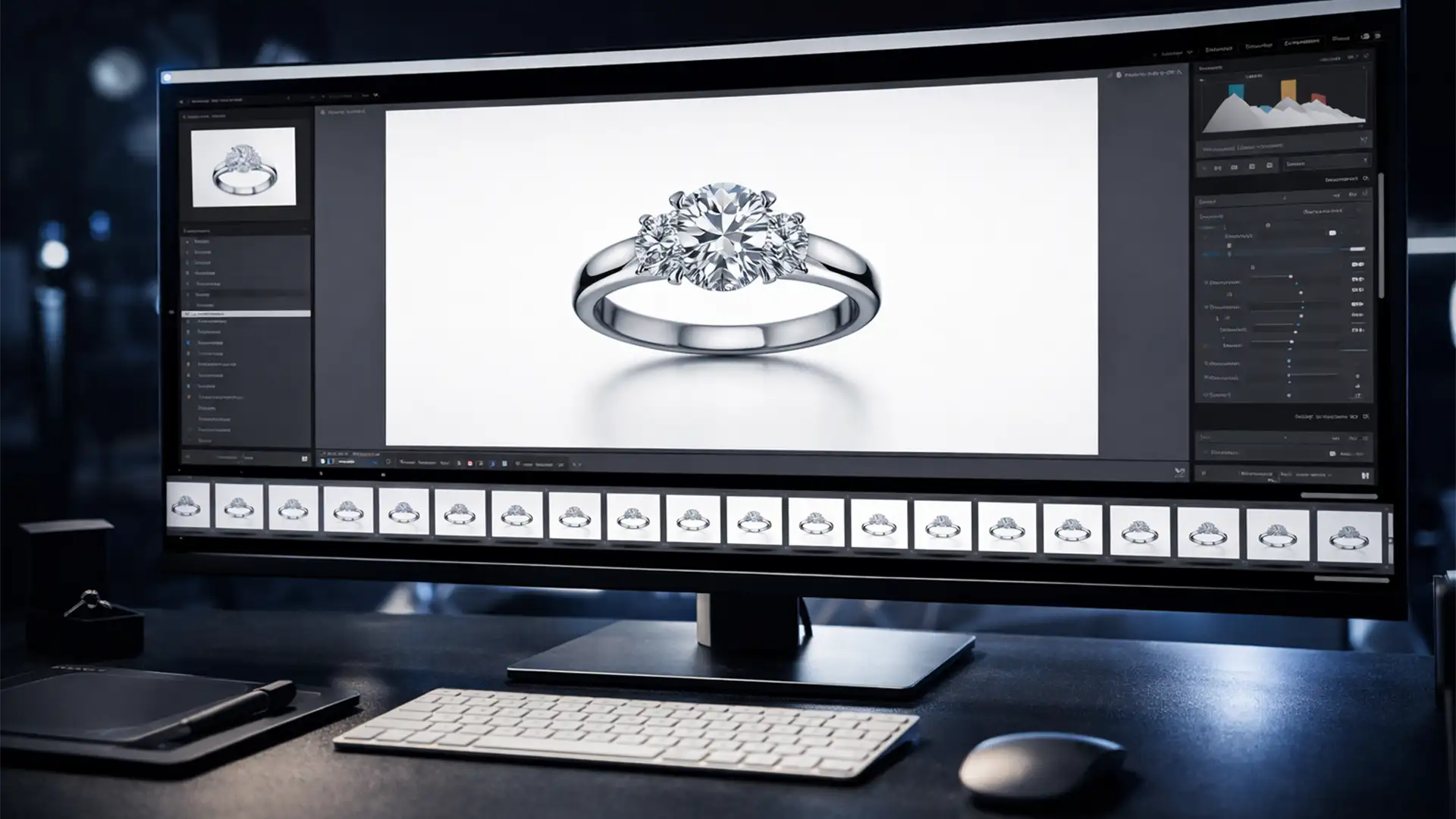

Shooting 360-degree jewelry photography is only half the battle. When you import 36 to 72 sequential frames per SKU into your editing software, the real challenge begins. Even minor variations in auto-exposure or subtle shifts caused by macro lens breathing can introduce a jarring “flicker” into your final Shopify 360 viewer. If your white balance shifts or your object alignment is off by a single pixel, the illusion of a smooth rotation is broken.
To successfully batch edit 360 jewelry photos for Shopify, you need a bulletproof pipeline that locks in rendering intent across every single frame. Here is the technical workflow for processing high-volume sequential frames using Lightroom Classic and Photoshop without compromising on quality.
Method A: The Quick Fix Using Lightroom Sync Settings
When dealing with raw files, your first line of defense against flicker is Adobe Lightroom Classic (v13.x) or Adobe Camera Raw. Proper color calibration must be applied uniformly. If your camera was left on auto-white balance during capture, you will see noticeable color shifts as the jewelry rotates.
Standardizing Raw Data
- Import your sequence (typically 36 or 72 frames) into Lightroom.
- Select your “hero” frame—usually the direct front-facing angle.
- Apply your foundational adjustments: set the exact white balance, lock in exposure, apply lens corrections, and add baseline sharpening.
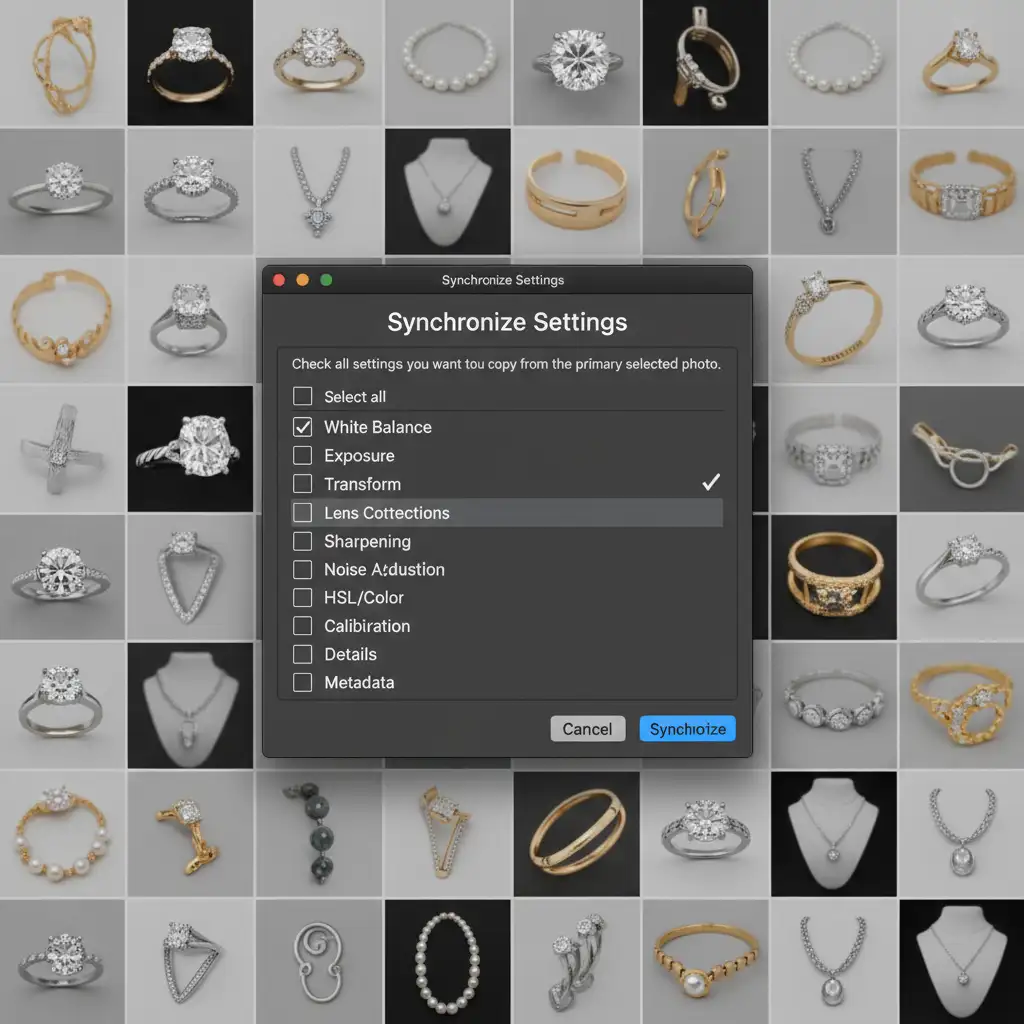
- Select all frames in the sequence, click Sync, and ensure your primary adjustments are checked.
Using the sync settings feature guarantees that your baseline raw data is identical across the entire rotation, eliminating the most common causes of exposure flicker.
Method B: The Pro Workaround with Photoshop Droplets
While Lightroom handles raw processing perfectly, jewelry requires advanced retouching. You often need to apply frequency separation to clean up metal scratches, or execute global dodging and burning to enhance the gems. Doing this manually on 72 frames is impossible at scale.
Automating with Actions and Droplets
To maintain efficiency, build a standardized action in Photoshop (v25.x).
- Open a synchronized frame from Lightroom in Photoshop.
- Open the Actions panel and record a new macro.
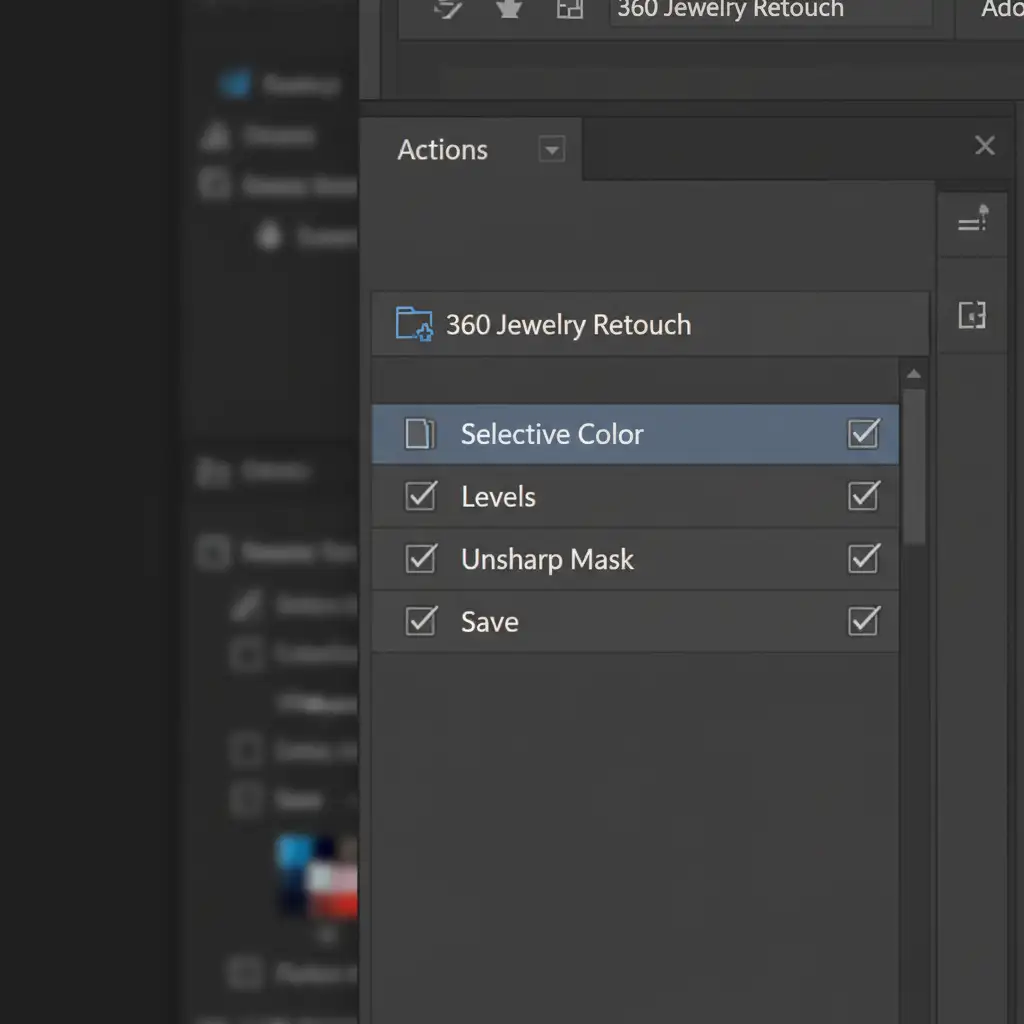
- Apply your standard jewelry enhancements: a selective color adjustment layer to neutralize yellow casts in silver/white gold, a precise levels adjustment for contrast, and a final Unsharp Mask to make the facets pop.
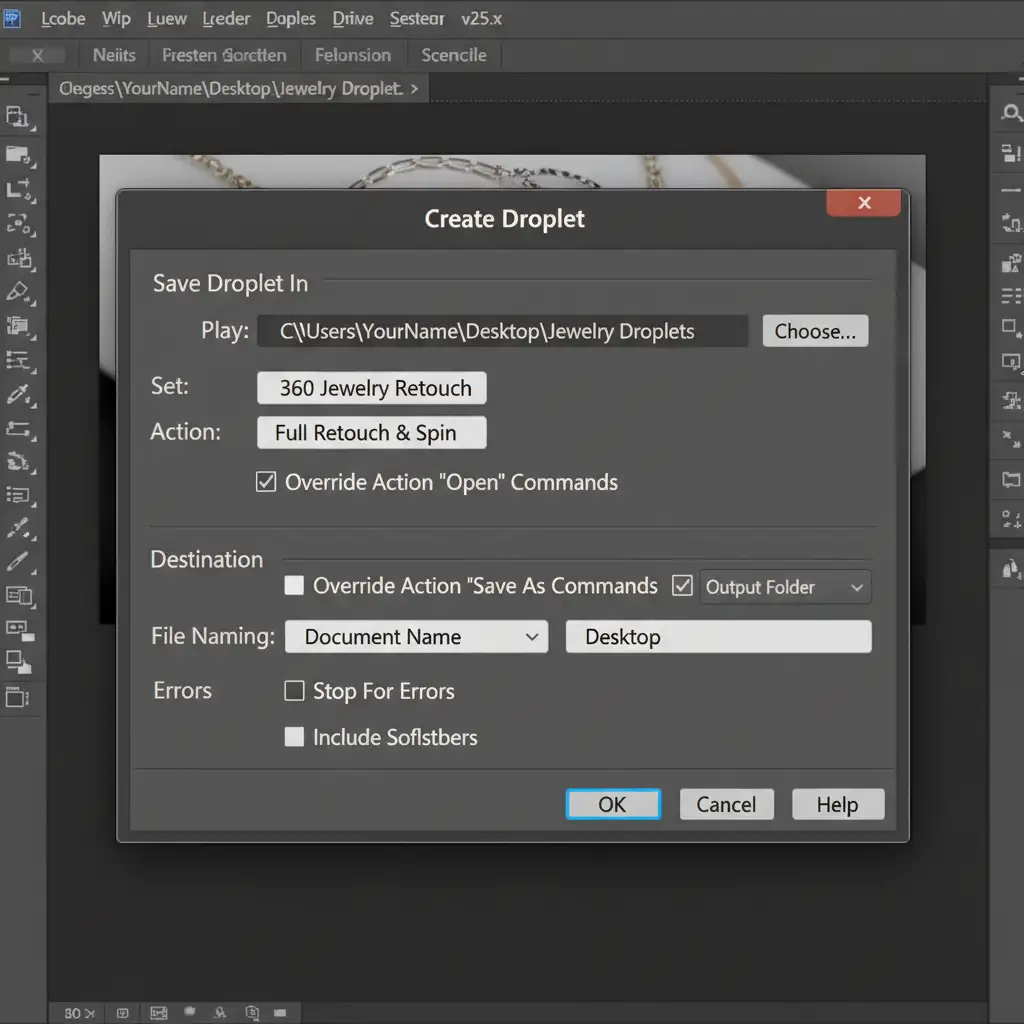
- Stop recording. Navigate to File > Automate > Create Droplet.
Save this Droplet to your desktop. Now, you can simply drag the entire folder of your 72 exported frames directly onto the Photoshop droplet. Photoshop will automatically open, process, and save every image using your exact specifications, executing complex batch processing without requiring manual input.
Method C: The Technical Deep-Dive using Image Processor Pro
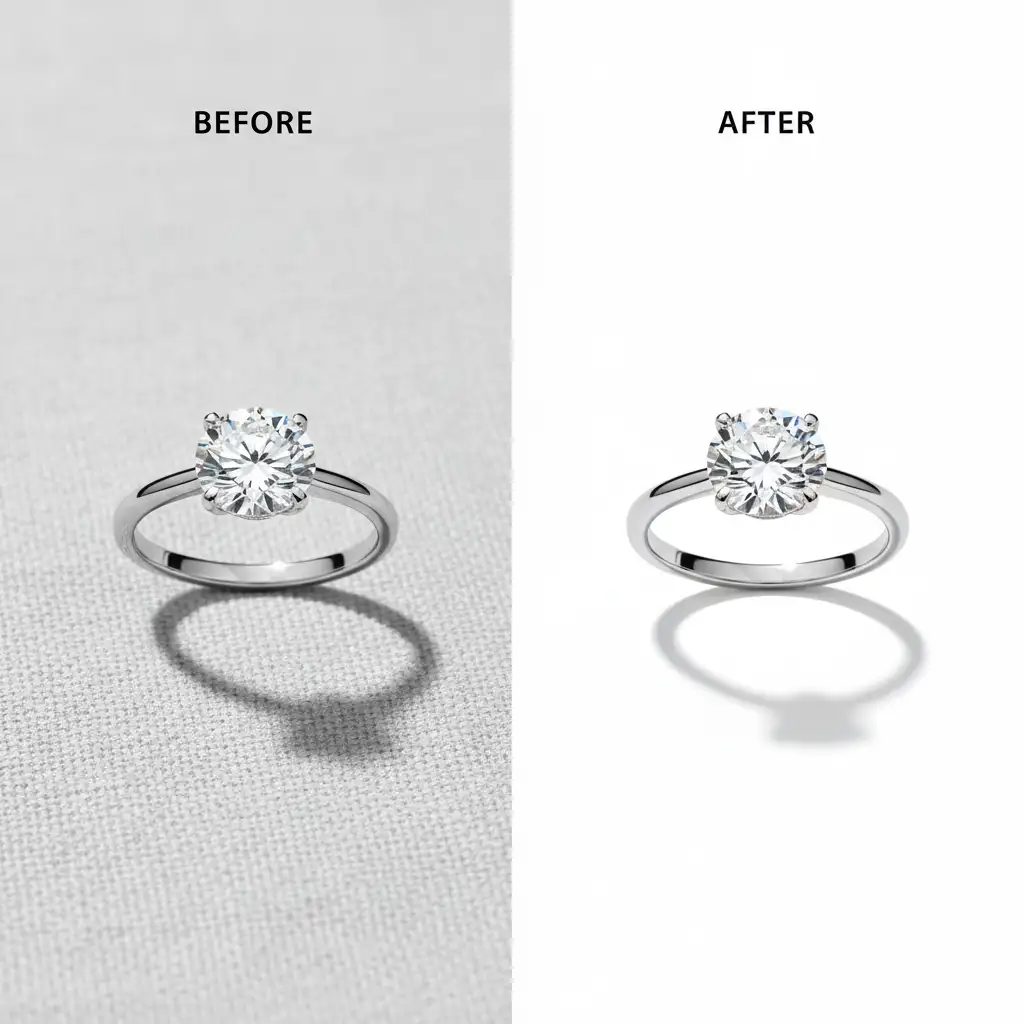
For Shopify, a true pure white background (RGB 255, 255, 255) is non-negotiable. However, automatically extracting 72 frames to pure white while retaining the natural drop shadow—which grounds the jewelry and prevents it from looking like it’s floating—is highly technical.
Standard background removal tools often fail on complex focus stacking results or highly reflective metallic surfaces.
Scripting for Consistency
Instead of relying on basic batch commands, install the Image Processor Pro script for Photoshop. This allows for multi-threaded processing and the execution of advanced layer masking actions.
- Create a Photoshop Action that utilizes “Select Subject” combined with a precise color range mask to isolate the jewelry.
- Add a step that fills the background layer with RGB 255 white.
- Add a step that isolates the original shadow, setting its blend mode to Multiply.
- Run Image Processor Pro, selecting your input folder of 72 frames and applying your masking action.
Image Processor Pro handles the heavy lifting, ensuring that the background is perfectly uniform across the entire rotation, preventing any grey flickering at the edges of your Shopify 360 viewer.
Stop Fighting Flicker: Scale Your Production
Learning to batch edit 360 jewelry photos for Shopify requires deep technical knowledge of Adobe’s automation tools. If your team is struggling to eliminate flicker, spending hours fixing macro lens breathing issues, or failing to hit true RGB 255 pure white backgrounds across hundreds of frames, it is time to outsource the bottleneck.
Image Work India and Cloud Retouch specialize in high-volume, pixel-perfect batch editing for e-commerce. We handle the complex masking, color calibration, and synchronization required for flawless 360-degree spins, allowing you to focus on shooting. Contact us today to streamline your Shopify jewelry workflow.




