

You’ve just spent hours shooting a stunning 24-frame 360-degree product spin. You run the sequence through an AI background removal tool, upload it to WebRotate 360, and hit play. The result? A jittery, distracting “spin wobble.”
Instead of a premium rotation, your product bounces around the frame. Why? Because AI evaluates each image in isolation, shifting edge detection by a few pixels per frame. In this guide, we will show you how to master 360-degree product spin clipping path consistency in Photoshop CC v25.x to achieve mathematically perfect, professional product animations.
The Root Cause of 360° Spin Wobble
When preparing an image sequence for 360-degree viewers, consistency is everything. The primary user pain point—spin wobble or jitter—manifests when editors rely on automated AI tools to isolate the subject.
Because AI generates a fresh mask for every single frame (whether you are processing 24 or 72 images), the resulting bounding box shifts by 1 to 3 pixels per frame. This lack of mathematical consistency destroys the illusion of a smooth rotation. Resolving this defect requires manually aligning the rotational axis and ensuring pixel-perfect continuity in your vector paths to create a flawless transparent background.
How to Achieve 360-Degree Product Spin Clipping Path Consistency
To guarantee a seamless spin, you must abandon the unpredictable “marching ants” of automated selections and utilize structured, manual techniques. Here are three proven methods to stabilize your animations in Photoshop CC v25.x.
Method 1: The Quick Fix – Photoshop Actions for Bounding Box Control
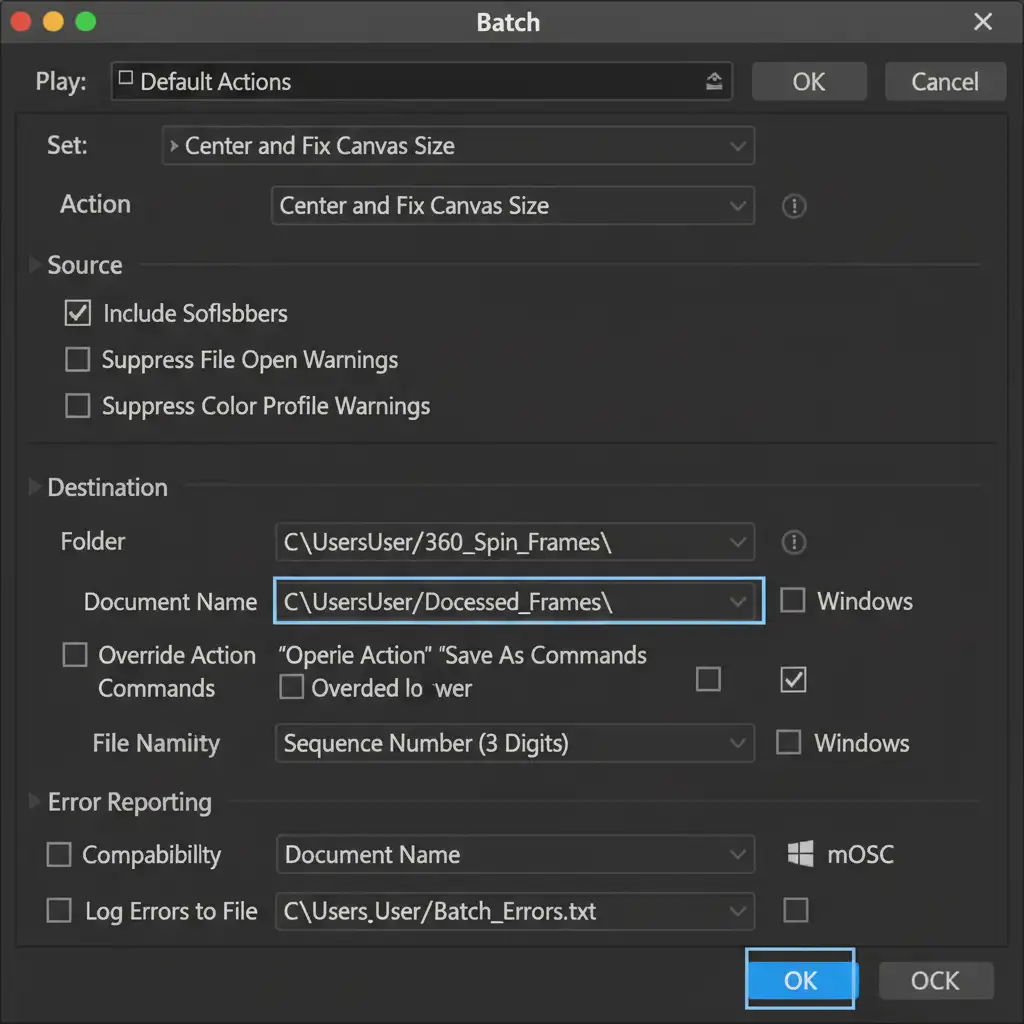
If your paths are relatively clean but your product is still shifting, you can use Photoshop Actions to establish a strict, immovable bounding box.
- Open your base frame.
- Record a new Action.
- Use Subject Select to isolate and center the product.
- Apply a fixed canvas size (e.g., expanding a 2000px image to a rigid 2500px square) to ensure the product axis does not shift.
- Stop recording and use batch processing to apply this action across your entire image folder.
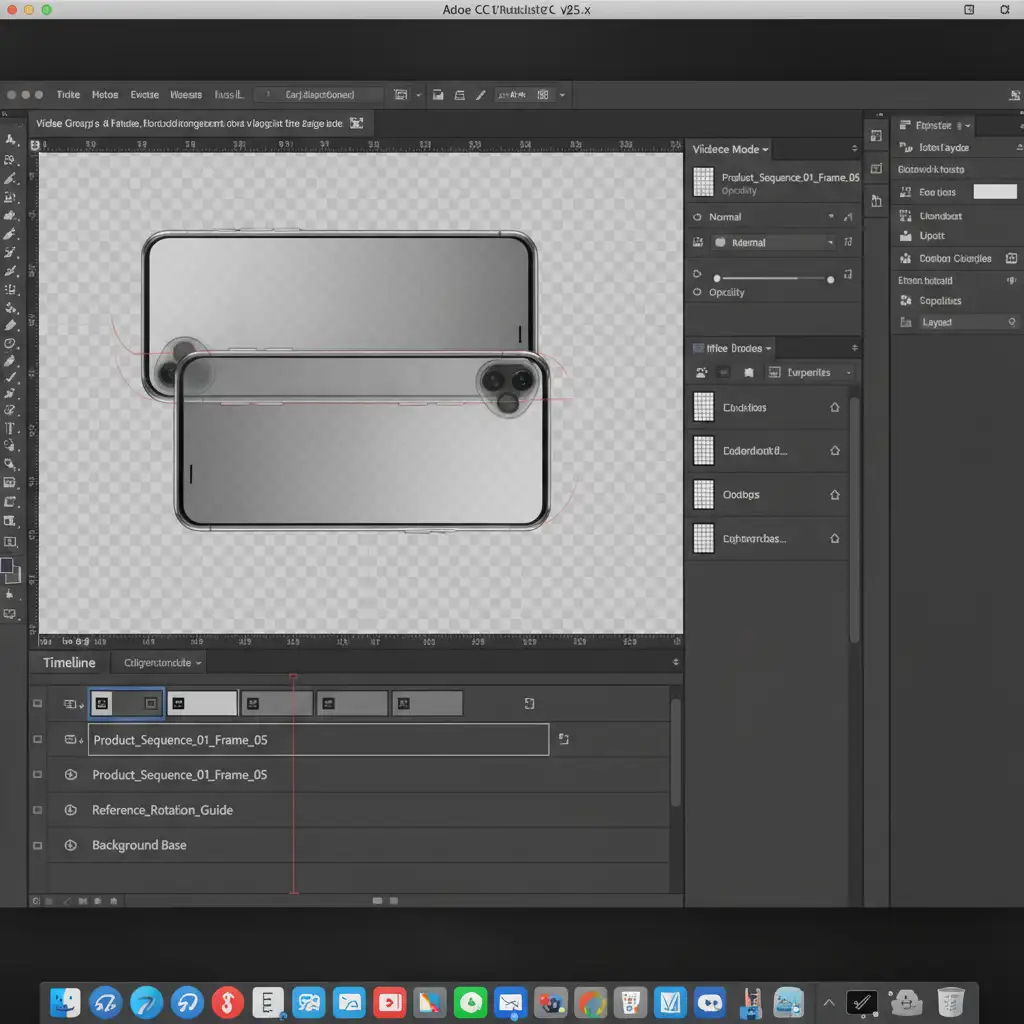
Method 2: The Pro Workaround – Onion Skinning in Timeline Mode
For complex shapes where the silhouette changes drastically as the product rotates, the onion skinning technique is invaluable. This allows you to reference the exact geometry of the previous frame while drawing your new path.
- Enable Timeline mode in Photoshop CC v25.x.
- Place your sequential frames on layered tracks.
- Lower the opacity of your current working layer to 50 percent.
- Draw your vector path using the layer beneath it as a precise geometric reference.
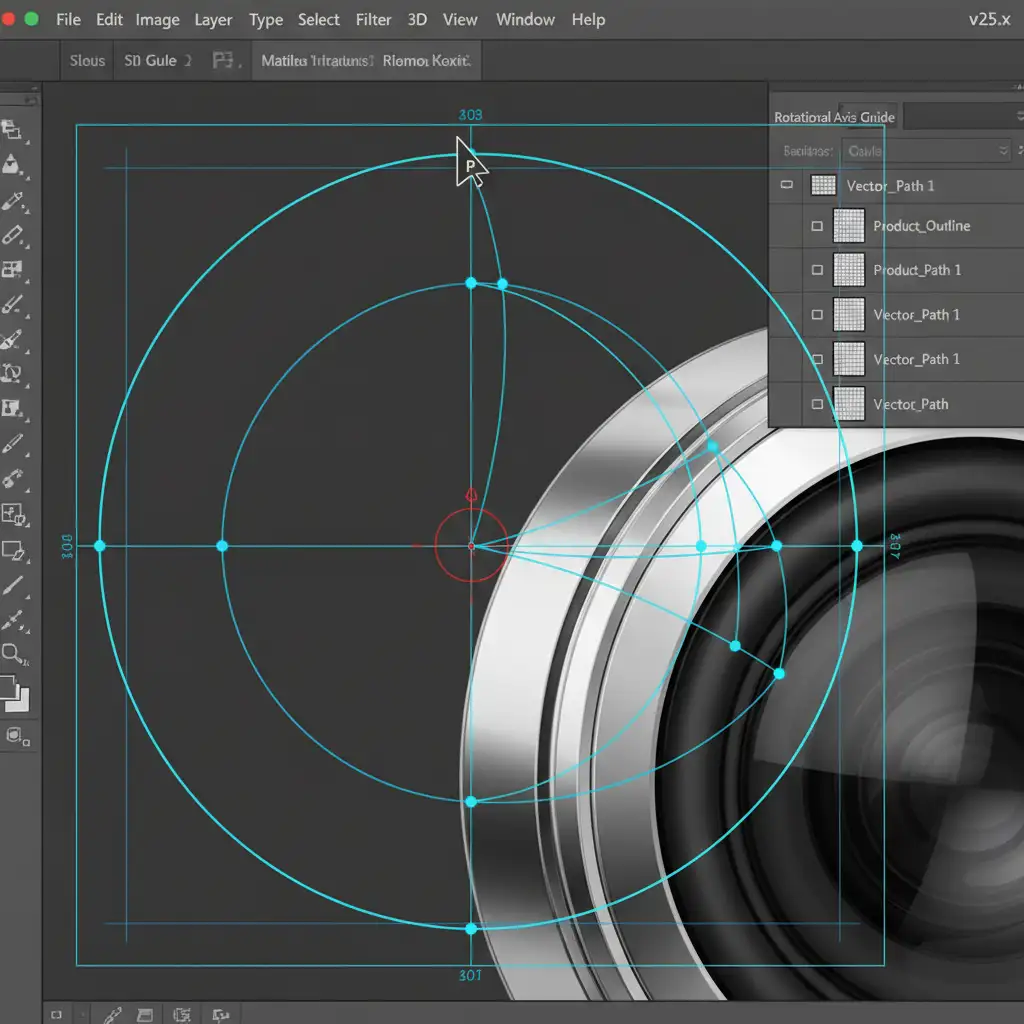
Method 3: The Technical Deep-Dive – Standardizing Anchor Nodes
To achieve the ultimate 360-degree product spin clipping path consistency, you must standardize how your path is constructed from frame to frame.
Instead of drawing a brand-new path for every image, create Custom Guide Layouts. Snap these guides to the exact rotational center of your canvas. Draw your base path using the Pen Tool, carefully placing your anchor points.
For the next frame in the image sequencing process, duplicate this exact path. Instead of redrawing, use the Direct Selection Tool to adjust only the specific bezier curves where the perspective shifts. This prevents the micro-jitters that ruin anti-aliasing on the edges of your product.
Why Manual Clipping Paths Beat Automated Tools
Automated tools are great for single, static images. But when creating 360-degree spins, the relationship between frames is more important than the individual frame itself.
Manual clipping paths ensure that the anti-aliasing along the edges remains identical, preventing flickering. By duplicating paths and adjusting bezier curves manually, you maintain a mathematical relationship between every frame, resulting in a buttery-smooth rotation that automated AI simply cannot replicate.
Stop the Wobble with Image Work India & Cloud Retouch
Achieving true 360-degree product spin clipping path consistency is a highly technical, time-consuming process. If you are processing dozens of products, manually adjusting anchor points across 72 frames per item can quickly drain your studio’s resources.
Stop relying on inconsistent automated tools that ruin your final output. Let the experts handle the heavy lifting. Image Work India and Cloud Retouch specialize in high-volume, pixel-perfect manual clipping paths tailored specifically for 360-degree product animations. Our dedicated retouchers guarantee mathematically perfect rotational axes, flawless vector paths, and zero spin wobble.
Ready to elevate your eCommerce presentation? Contact Image Work India and Cloud Retouch today to get a custom quote for your 360-degree image sequencing needs.




