

You are on a tight deadline, ready to use Adobe Firefly AI to seamlessly extend a background. You click “Generate,” but instead of seeing your edits, you get slapped with the Generative AI Terms of Use popup. You click “Accept.” You try again. The popup returns.
You are officially stuck in the Photoshop Generative Fill Terms of Use loop.
This infuriating bug halts your workflow completely. Fortunately, this infinite loop is not a permanent roadblock. Whether it is a simple Adobe ID sync issue or a corrupted UXP cache, we have the exact steps to fix it and get your tools working again.
Why Does the Generative AI Terms of Use Loop Happen?
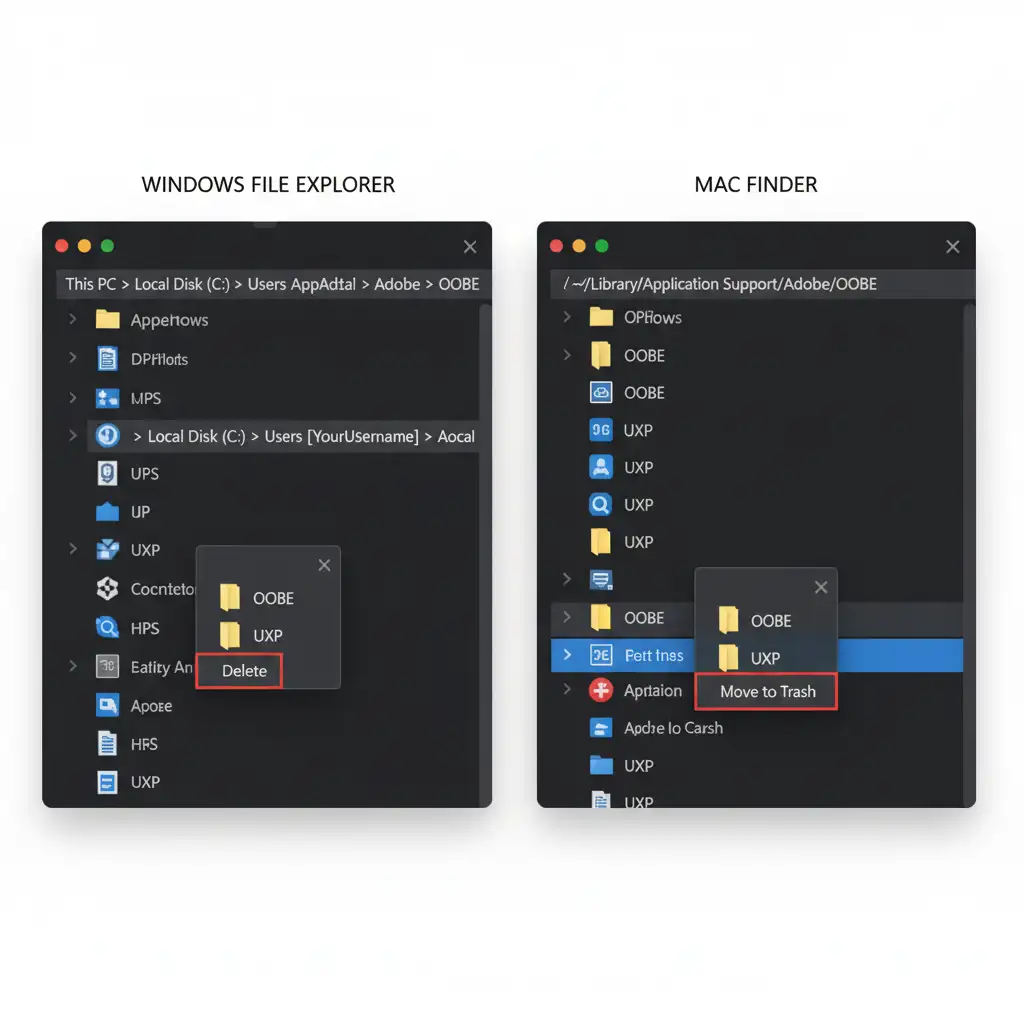
This problem occurs primarily in Photoshop v25.0+ and the Photoshop Beta applications. Because the Adobe Firefly AI integration relies heavily on live cloud authentication, your local software must constantly communicate with Adobe’s servers.
When you click ‘Accept’ on the AI Terms of Use popup via the Contextual Task Bar, the system occasionally fails to register the agreement. This creates a recurring loop that blocks all AI-powered features, including Generative Fill and Generative Expand.
Typically, this failure is caused by three culprits:
- A breakdown in Adobe ID sync between the Creative Cloud app and Photoshop.
- Hidden age restrictions on your Adobe profile.
- A corrupted local OOBE or UXP Cache.
Here is how to troubleshoot and resolve the loop, starting from the easiest fix to the most technical.
Step-by-Step Fixes for the Terms of Use Loop
Method A: The Quick Fix (Creative Cloud Re-Sync)
Often, the Adobe Creative Cloud Desktop App simply loses its handshake with Photoshop. Forcing a manual re-sync is the fastest way to register your Terms of Use agreement.
- Save your work and close Photoshop completely.
- Open the Adobe Creative Cloud Desktop App.
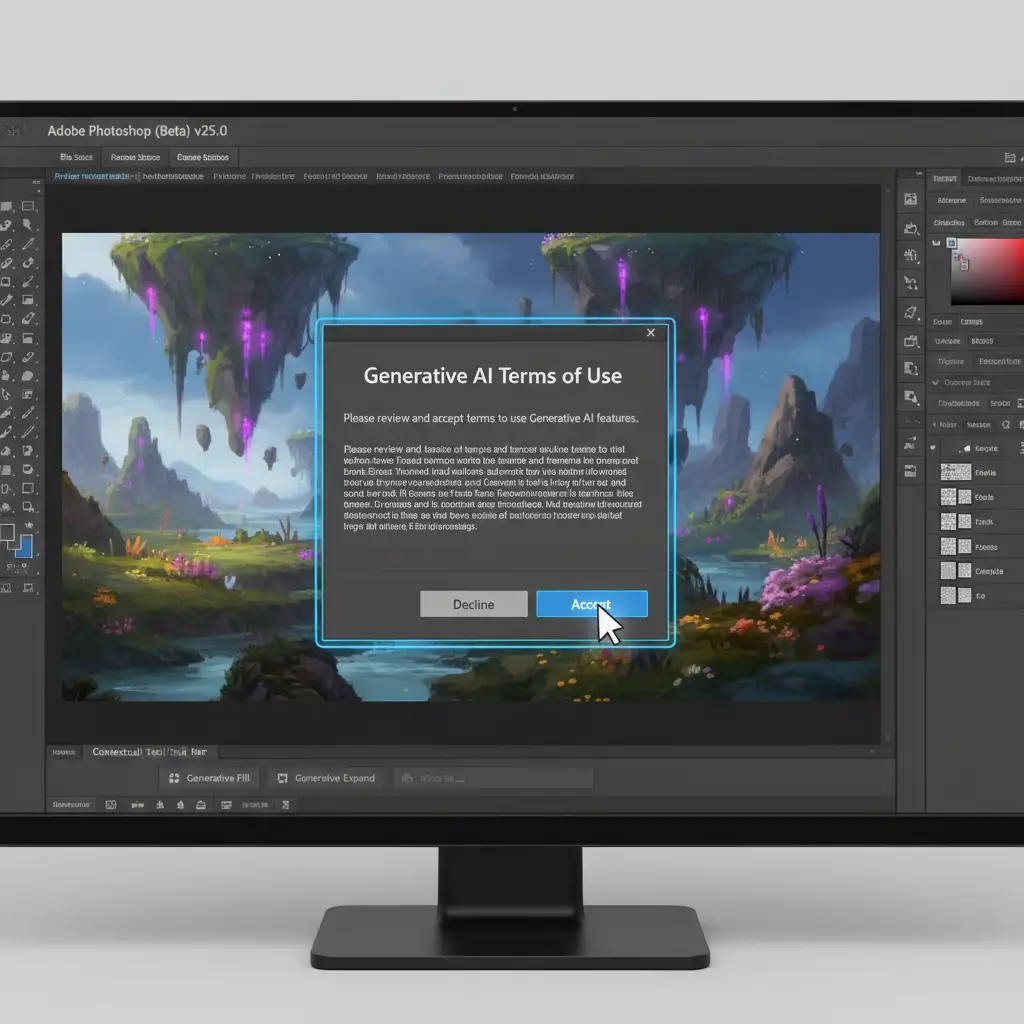
- Click your profile picture in the top right corner.
- Select Sign Out.
- Wait a few seconds, then sign back in with your Adobe credentials.
- Launch Photoshop, trigger Generative Fill, and accept the terms once more.
Method B: The Pro Workaround (Age Verification)
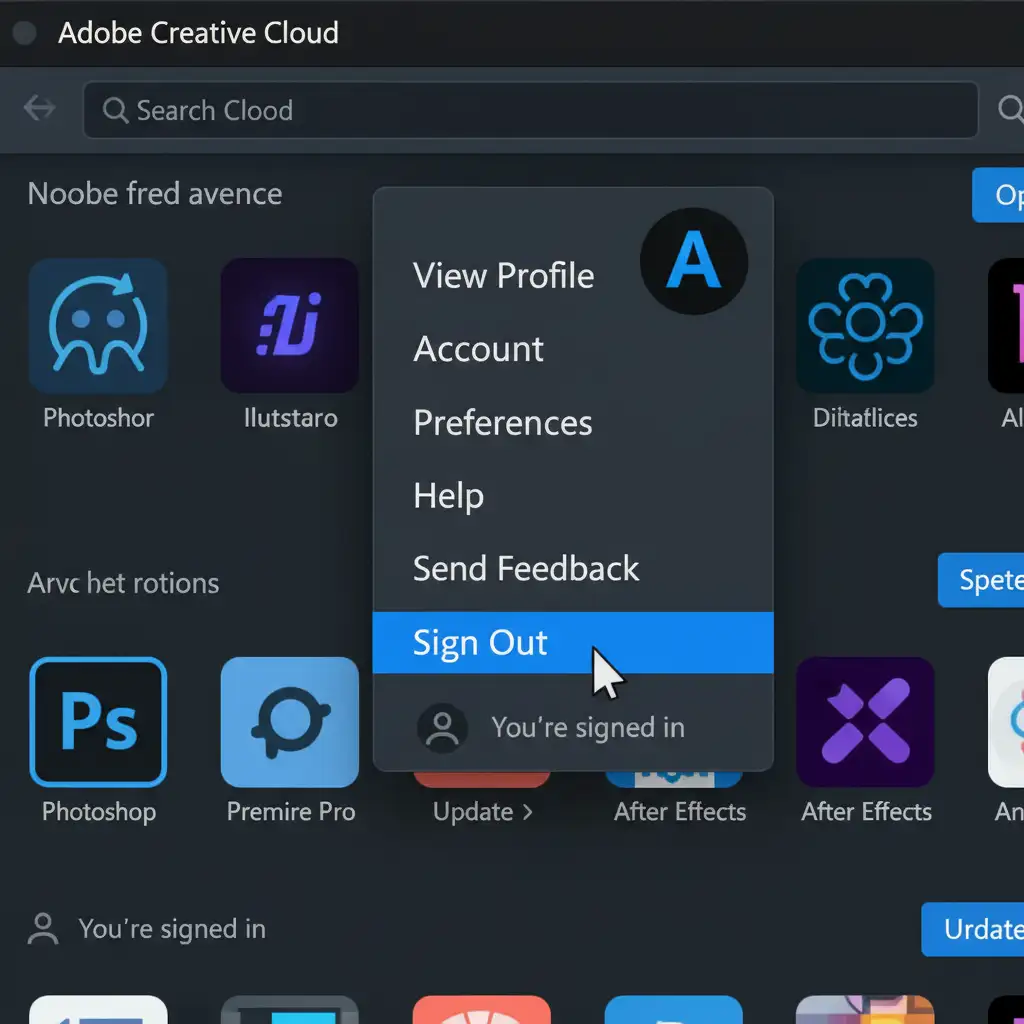
Adobe strictly restricts Firefly AI features to users who are at least 18 years old. If your account is missing a Date of Birth, or if the system mistakenly flagged your age, it will silently trap you in the terms loop without explaining why.
- Open your web browser and log into your Adobe Account online (or your linked Behance profile).
- Navigate to your Account Profile or Personal Information settings.
- Locate the Date of Birth field.
- Ensure your birthdate is entered correctly and verifies you are over 18.
- Save your changes, restart your computer, and test Generative Expand or Fill in Photoshop.
Method C: The Technical Deep-Dive (Clearing OOBE and UXP Cache)
If the quick sync and age verification fail, you have a corrupted local cache. The OOBE folder handles out-of-box licensing and login data, while the UXP Cache manages Photoshop’s modern user interface elements (like the Contextual Task Bar). Force-clearing these folders resets the authentication cycle.
Step 1: Close all Adobe tasks Ensure Photoshop and the Creative Cloud app are closed. Use Task Manager (Windows) or Activity Monitor (Mac) to end any background processes labeled “Adobe” or “Creative Cloud.”
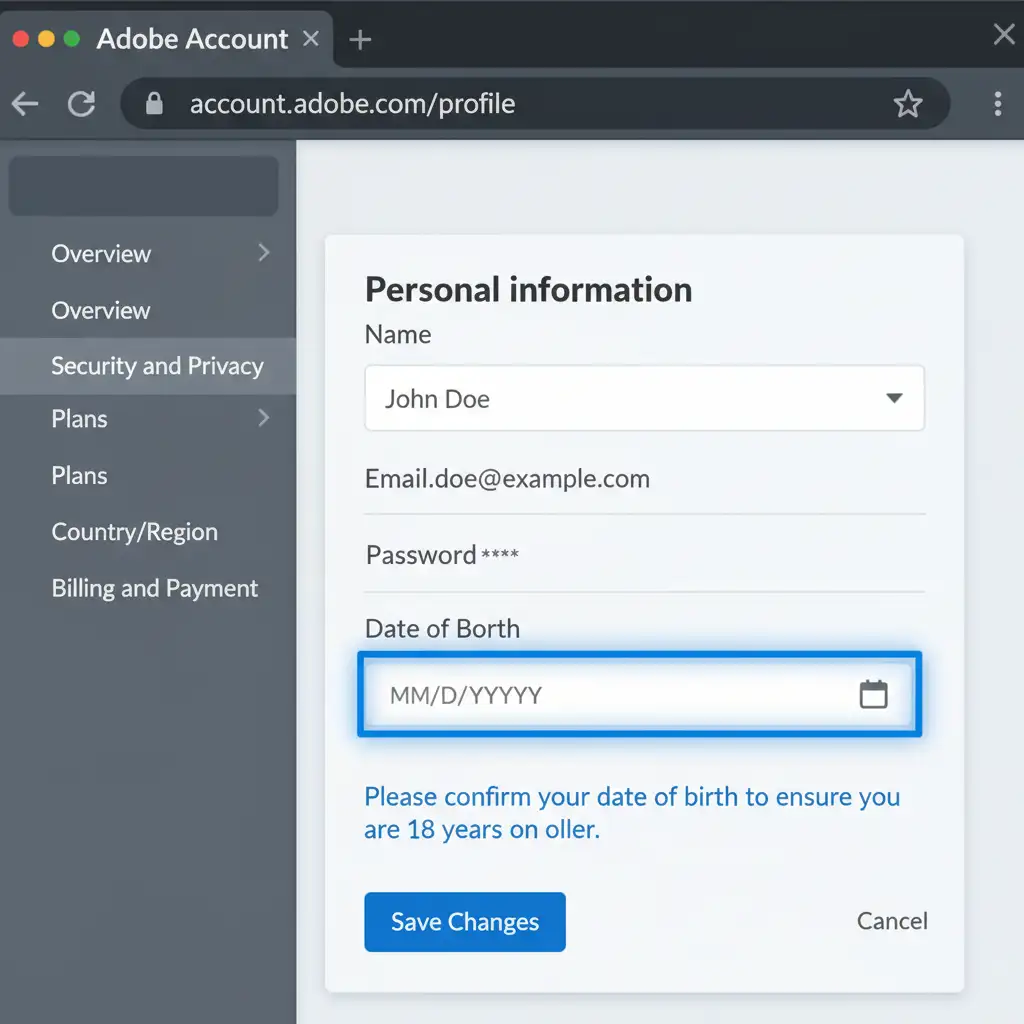
Step 2: Delete the OOBE Folder
- On Windows: Open File Explorer. Go to C:\Users\[Your Username]\AppData\Local\Adobe\OOBE. (Note: AppData is a hidden folder, so ensure “Show hidden files” is enabled). Delete all contents inside the OOBE folder.
- On Mac: Open Finder. Press Cmd + Shift + G and paste ~/Library/Application Support/Adobe/OOBE. Delete the contents of this folder.
Step 3: Delete the UXP Folder Navigate to the same Adobe directory path mentioned above, locate the folder named UXP, and delete its contents.
Step 4: Reboot and Test Restart your machine, open the Creative Cloud Desktop App, log back in, and launch Photoshop. The Photoshop Generative Fill Terms of Use loop fix should now be complete.
Stop Fighting Software Bugs. Start Scaling Your Output.
Troubleshooting the Photoshop Generative Fill Terms of Use loop fix is frustrating when you have clients waiting on final deliverables. Software updates, cache corruptions, and Adobe ID sync errors can drain hours from your creative schedule.
Why waste time fighting your post-production tools?
At Image Work India and Cloud Retouch, we handle the heavy lifting so you do not have to. Our expert retouchers provide flawless, high-volume image editing, clipping paths, and advanced compositing services tailored for professional photographers and e-commerce brands.
Stop letting software bugs slow down your workflow. Let our dedicated team deliver pixel-perfect results on time, every time. Contact Image Work India and Cloud Retouch today to streamline your post-production process.




