
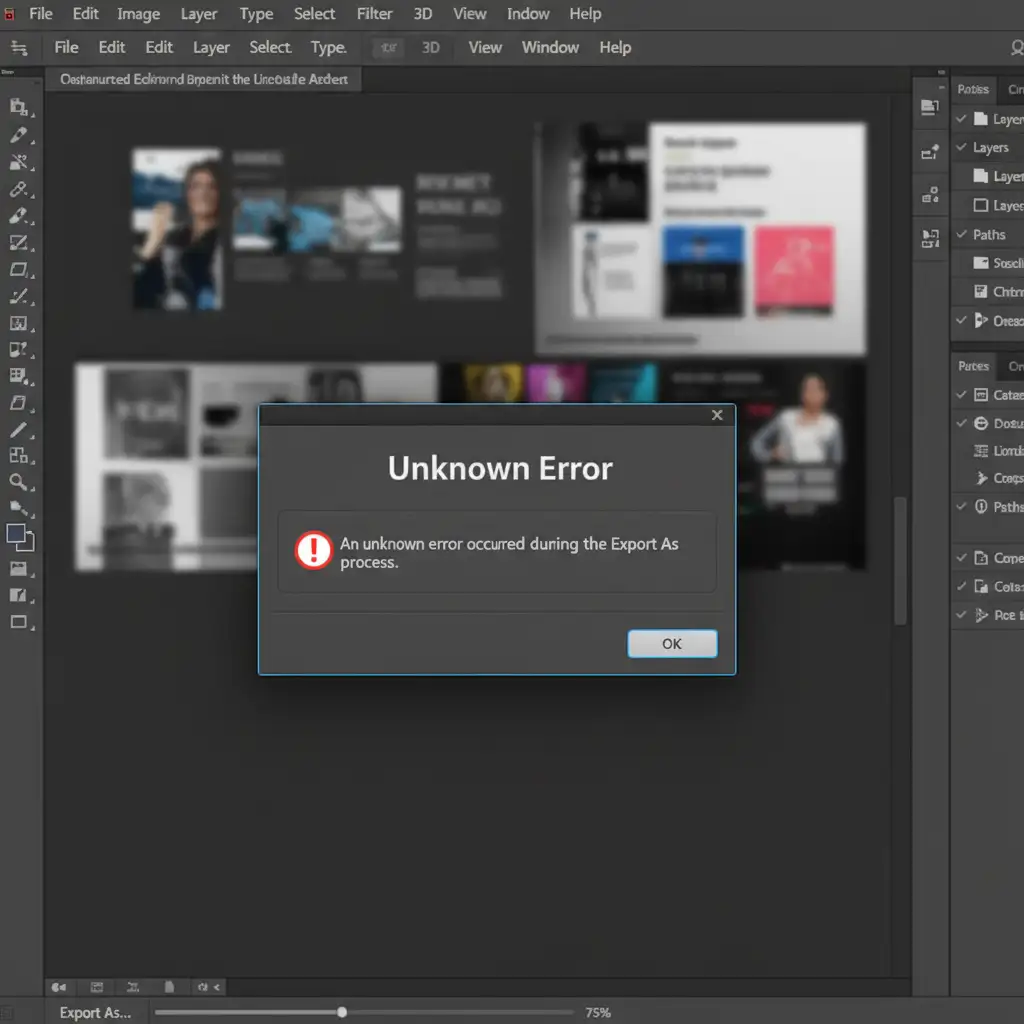
You have spent hours designing a massive web UI or a multi-platform social media campaign. You hit your usual shortcut to batch export your artboards, and suddenly-Photoshop throws a frustrating “Unknown Error.” Your workflow instantly grinds to a halt.
The Photoshop 27.4 artboard export unknown error is a documented bug driving designers crazy. It typically triggers when the Generator plugin chokes on specific naming conventions, or when the software’s GPU compositing engine clashes with the Export As dialog. Fortunately, you do not have to wait for an official Adobe patch to get your files out. Below are three proven workarounds to bypass this bug and successfully export your designs.
Why is the Export As Dialog Failing in Photoshop 27.4?
Before diving into the fixes, it helps to understand why the crash occurs. In version 27.4, the “Unknown Error” or general Export As failure when exporting multiple Artboards to JPG or PNG formats stems from a few specific bottlenecks:
- Generator Plugin Conflicts: The background engine responsible for generating image assets struggles to parse artboards containing special characters (like slashes or asterisks) in their names.
- GPU Compositing Clashes: The graphics processor rendering engine occasionally miscommunicates with the export module.
- Memory Allocation: Running a heavy batch export maxes out available RAM, causing the process to hang.
- OS Character Limits: The destination folder path exceeds operating system character limits.
Method 1: The Quick Fix (Legacy Save for Web)
If you only need to export a single artboard and need to bypass the bug immediately, avoid the modern Export As dialog entirely.
Step-by-Step Fix
- Select the specific artboard you want to export in your Layers panel.
- Use the Legacy Save for Web shortcut: Press Ctrl+Alt+Shift+S (Windows) or Cmd+Opt+Shift+S (Mac).
- Choose your desired JPG or PNG settings and save manually.
This method completely bypasses the buggy Generator plugin, allowing you to force the export through Adobe’s older, highly stable rendering engine.
Method 2: The Pro Workaround (Artboards to Files Script)
When you need to perform a true batch export of multiple artboards, the Legacy Save for Web method is too slow. Instead, use Photoshop’s built-in scripting tool.
Step-by-Step Fix
- Navigate to your top menu bar.
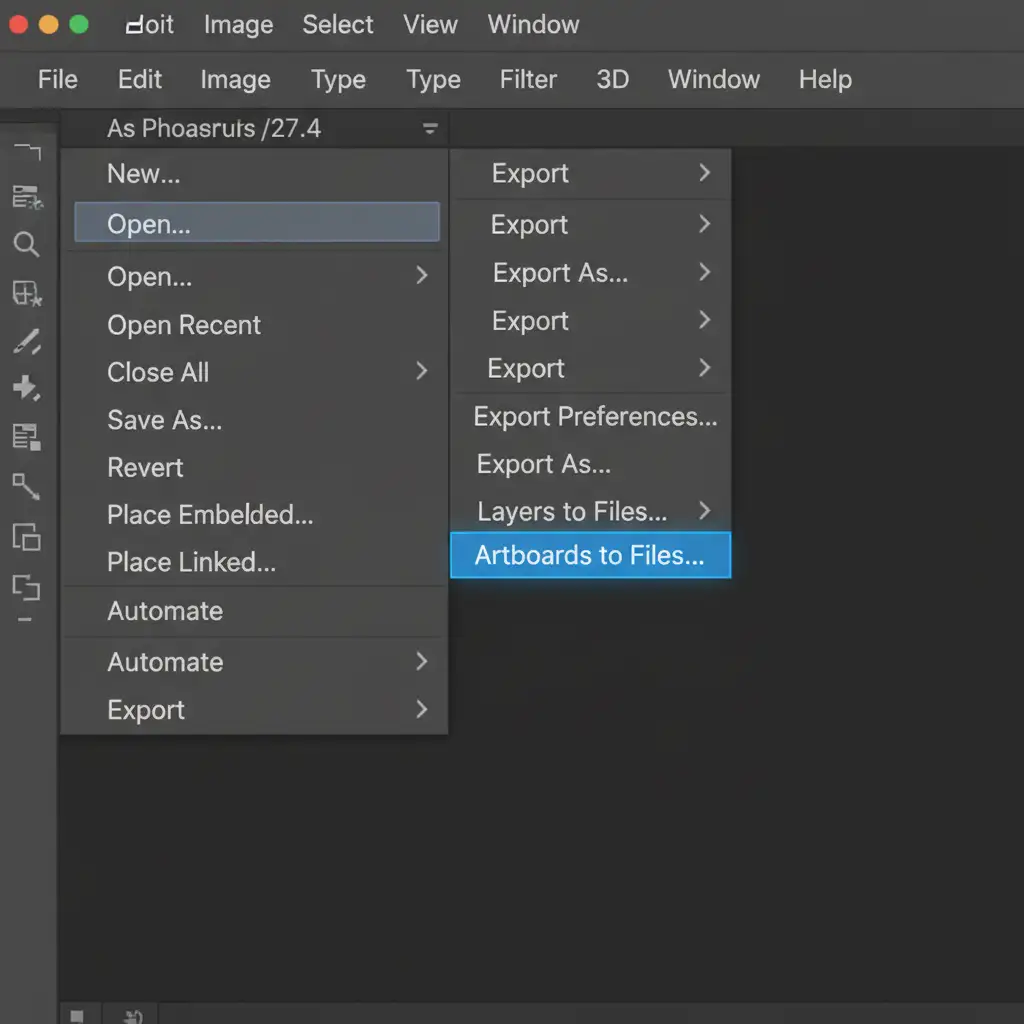
- Go to File > Export > Artboards to Files.
- Choose your destination folder.
- Crucial Step: Uncheck the Include Background in Export box. Leaving this checked is known to cause rendering hang-ups during the script execution.
- Click Run.
Method 3: The Technical Deep-Dive
If you want to permanently stabilize your Photoshop environment and continue using the standard Export As dialog, you need to adjust your system settings and layer organization.
1. Disable GPU Compositing
The most common hardware fix for the Photoshop 27.4 artboard export unknown error is disabling a specific graphics setting.
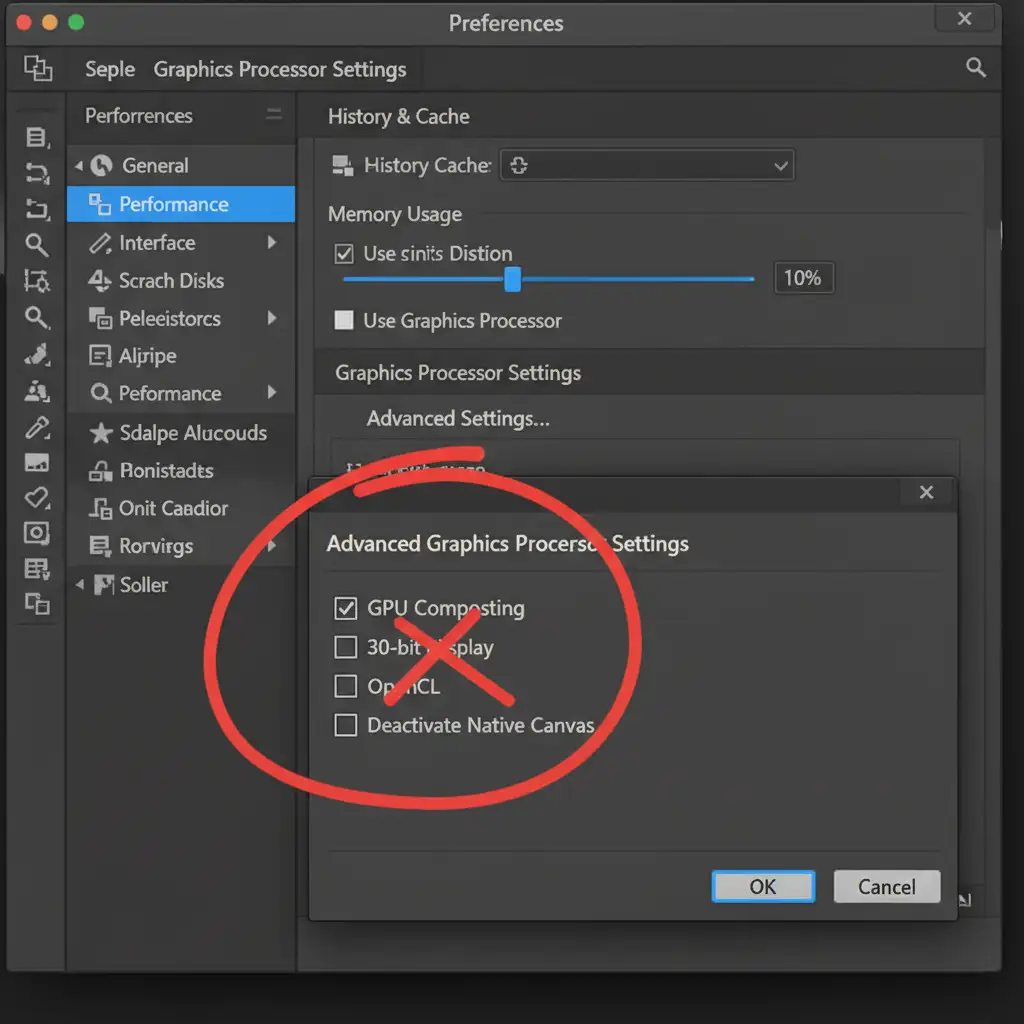
- Go to Edit > Preferences > Performance (On Mac, navigate to Photoshop > Settings > Performance).
- Click the Advanced Settings button under the Graphics Processor Settings section.
- Uncheck the box labeled GPU compositing.
- Click OK to save your Preferences Performance changes.
2. Clean Up Naming Conventions
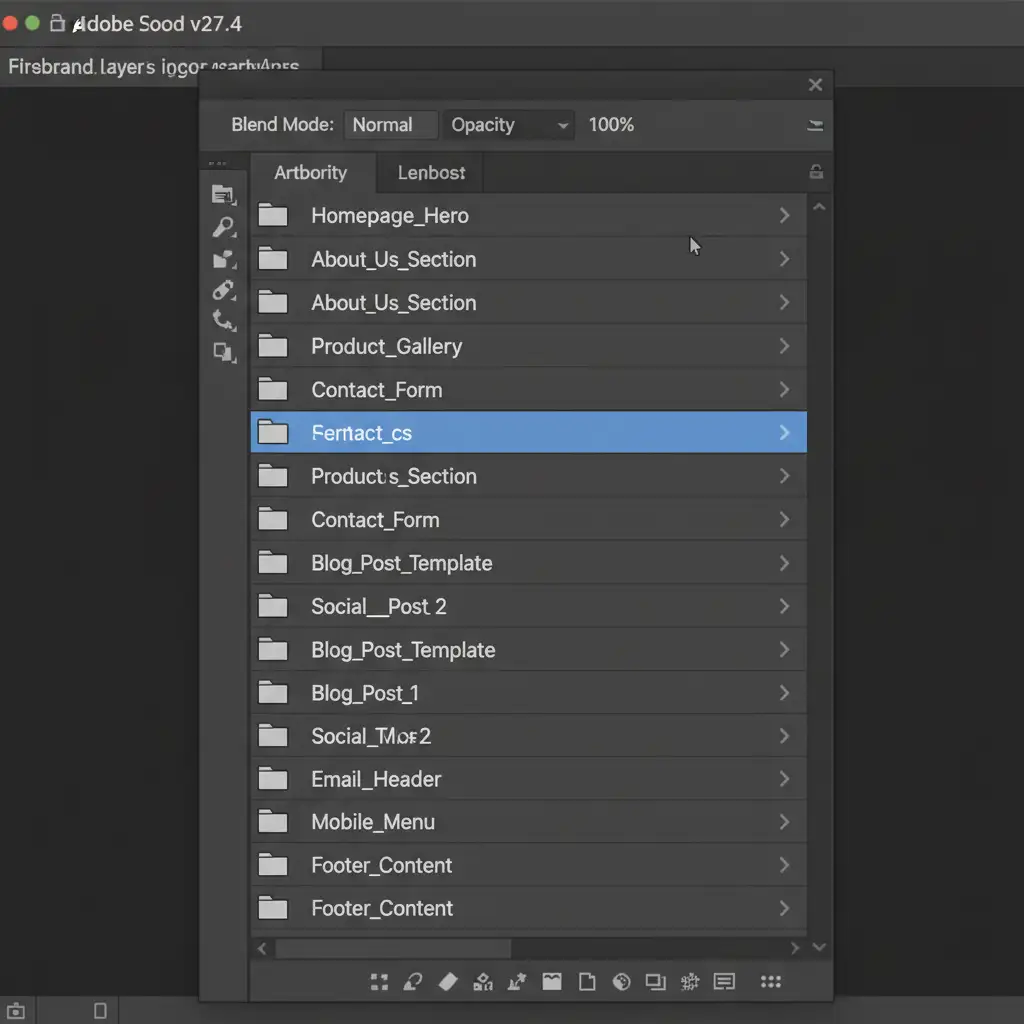
The Generator plugin will crash if it encounters illegal characters. Review your Layers panel and rename any artboard layers. Ensure they contain absolutely no special characters (remove all slashes, asterisks, question marks, or emojis). Stick to standard alphanumeric text and underscores.
3. Perform a Cache Purge
If memory allocation is causing the failure, you need to dump the stored data.
- If you have complex vector smart objects, you may want to Rasterize them to save memory before exporting.
- Go to Edit > Purge > All to execute a full cache purge.
- Restart Photoshop v27.4 to apply all changes.
Stop Fighting Software Bugs. Let the Experts Handle Your Image Processing.
Dealing with the Photoshop 27.4 artboard export unknown error is a massive drain on your productivity. When you are managing high-volume design campaigns, e-commerce catalogs, or complex batch exports, you shouldn’t have to waste time troubleshooting software bugs and memory crashes.
Image Work India and Cloud Retouch provide elite, high-volume image editing, formatting, and retouching services. Need flawless, large-scale image formatting without the software headaches? Outsource your batch exporting, clipping paths, and professional retouching to our dedicated team of experts. We guarantee pixel-perfect delivery, formatted exactly to your specifications, so you can focus on creating-not troubleshooting.
Contact Image Work India today to streamline your production workflow.




