
If you are processing thousands of e-commerce product photos, you already know the nightmare of masking fine hair. While modern AI tools are incredible for blocking out distinct shapes, batch AI background removal often fails miserably on hair details when the subject and background share similar pixel luminosity.
The result? Unprofessional halos, chopped-off strands, and hours wasted on manual corrections. You cannot scale a high-volume studio relying on jagged automated selections. But what if you could force Adobe Sensei AI to see those invisible edges perfectly during batch automation?
Enter the High-Contrast Pre-Pass-a professional technique that guarantees flawless layer masking without slowing down your workflow.
Why Photoshop AI Struggles with Fine Hair
In Photoshop v25.x and newer, tools like Select Subject and Remove Background rely heavily on machine-learning edge detection algorithms. These algorithms look for contrast to map the boundaries of an object.
When a model with dark hair is photographed against a dark grey background-or blonde hair against a brightly lit white cyclorama-the AI loses the edge. Because the pixel luminosity is too similar, the AI generates a compromised alpha channel, resulting in a mask that either cuts too deep into the hair or leaves muddy background artifacts.
To fix this, we need to temporarily manipulate the histogram to feed the AI a perfect, high-contrast silhouette.
The Ultimate Fix: The High-Contrast Pre-Pass Action
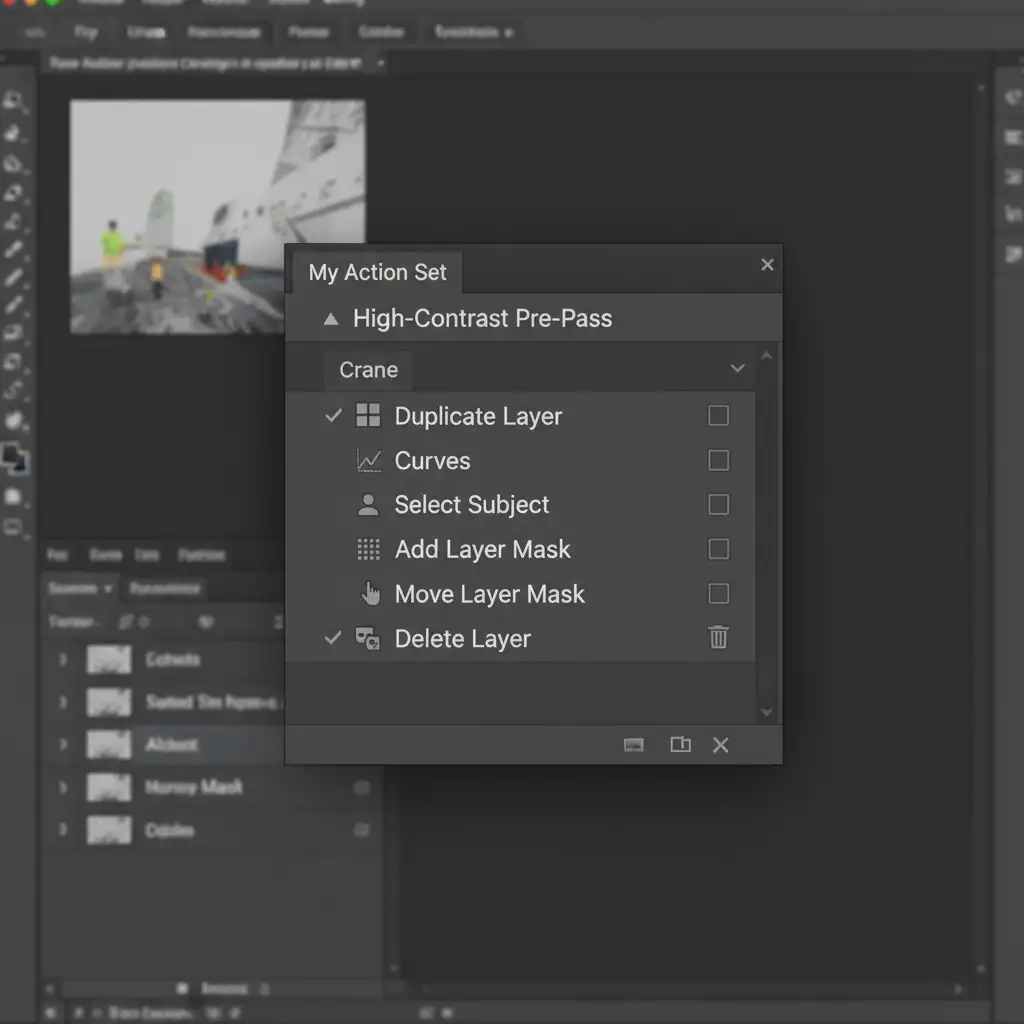
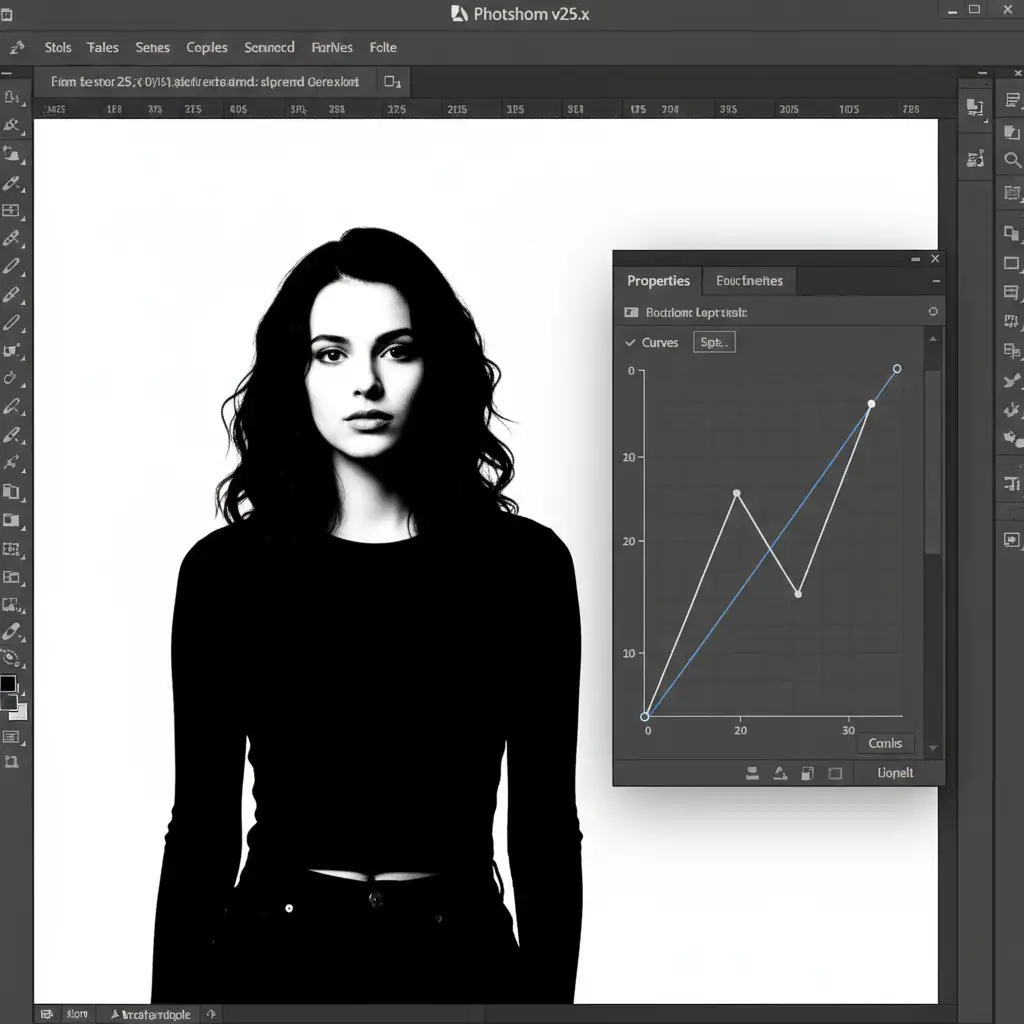
By recording a specific sequence in your Photoshop Actions, you can temporarily crush the shadows and blow out the highlights of an image. This gives the AI a razor-sharp edge to detect. Once the mask is generated, we simply apply it back to the original, unedited layer.
Method 1: The Pro Workaround for Batch Automation
To set up flawless batch automation, follow these steps to record your High-Contrast Pre-Pass action:
- Open your Actions panel and click Create New Action. Name it “High-Contrast Pre-Pass”.
- Duplicate the original image layer (Ctrl/Cmd + J).
- Apply an extreme Levels or Curves adjustment directly to this duplicated layer. You want to crush the shadows (make the hair pitch black) and blow out the highlights (make the background pure white).
- Run the Select Subject command on this high-contrast layer. The edge detection will now perfectly trace the fine hair strands.
- Save the active selection as a Layer Mask.
- Click and drag this new Layer Mask down to your original image layer.
- Delete the temporary high-contrast layer.
- Stop recording your Action.
You can now navigate to File > Automate > Batch, select your new Action, and run it across an entire folder of e-commerce images. The AI will perfectly map the hair on every single shot.
Method 2: The Cloud AI Processing Deep-Dive
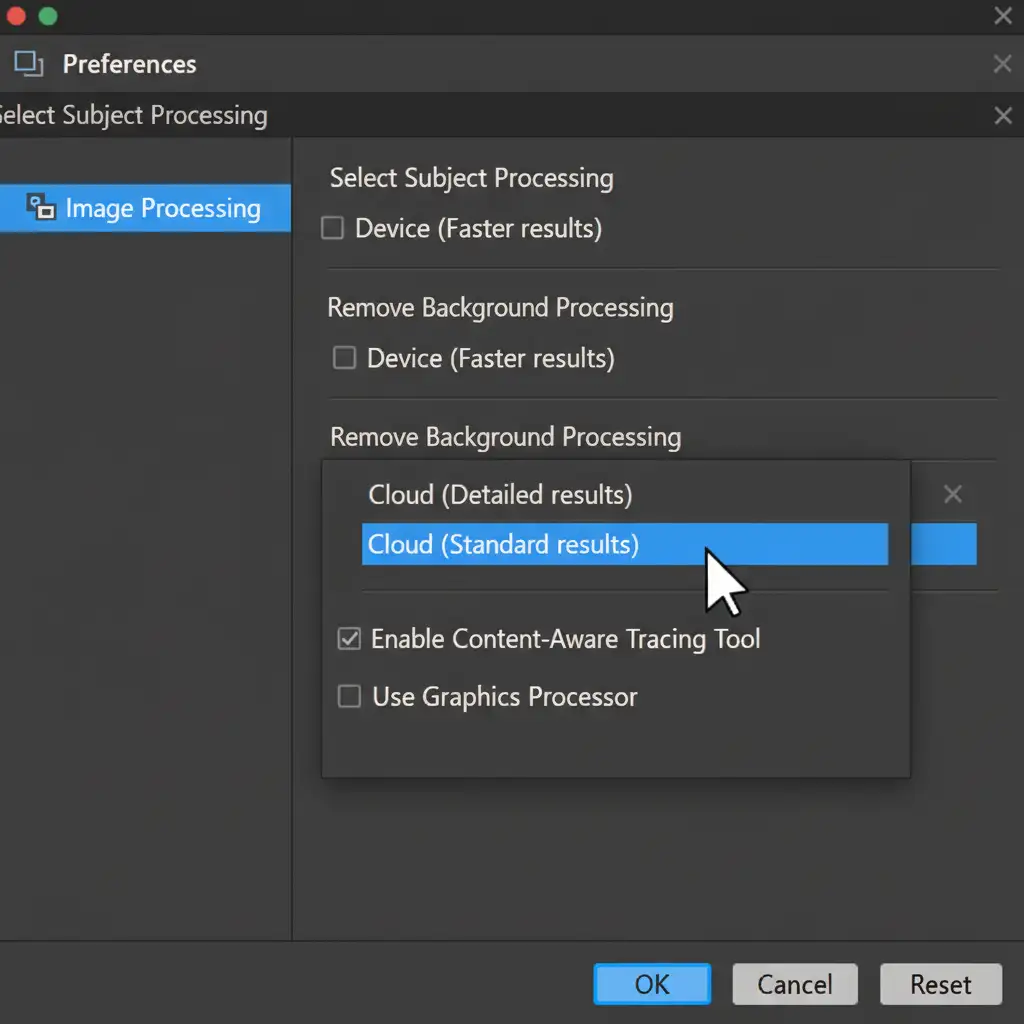
If your batch automation is still missing a few micro-strands, your local hardware might be limiting the AI’s processing power. You can optimize AI edge detection by forcing Photoshop to use Adobe’s cloud servers.
- Navigate to Preferences > Image Processing.
- Locate the Select Subject Processing dropdown menu.
- Change the setting from Device (Quicker results) to Cloud (Detailed results).
This routes the edge detection task through advanced Cloud AI Processing, drastically improving the accuracy of fine hair masking during your batch runs.
Method 3: The Quick Fix for Individual Images
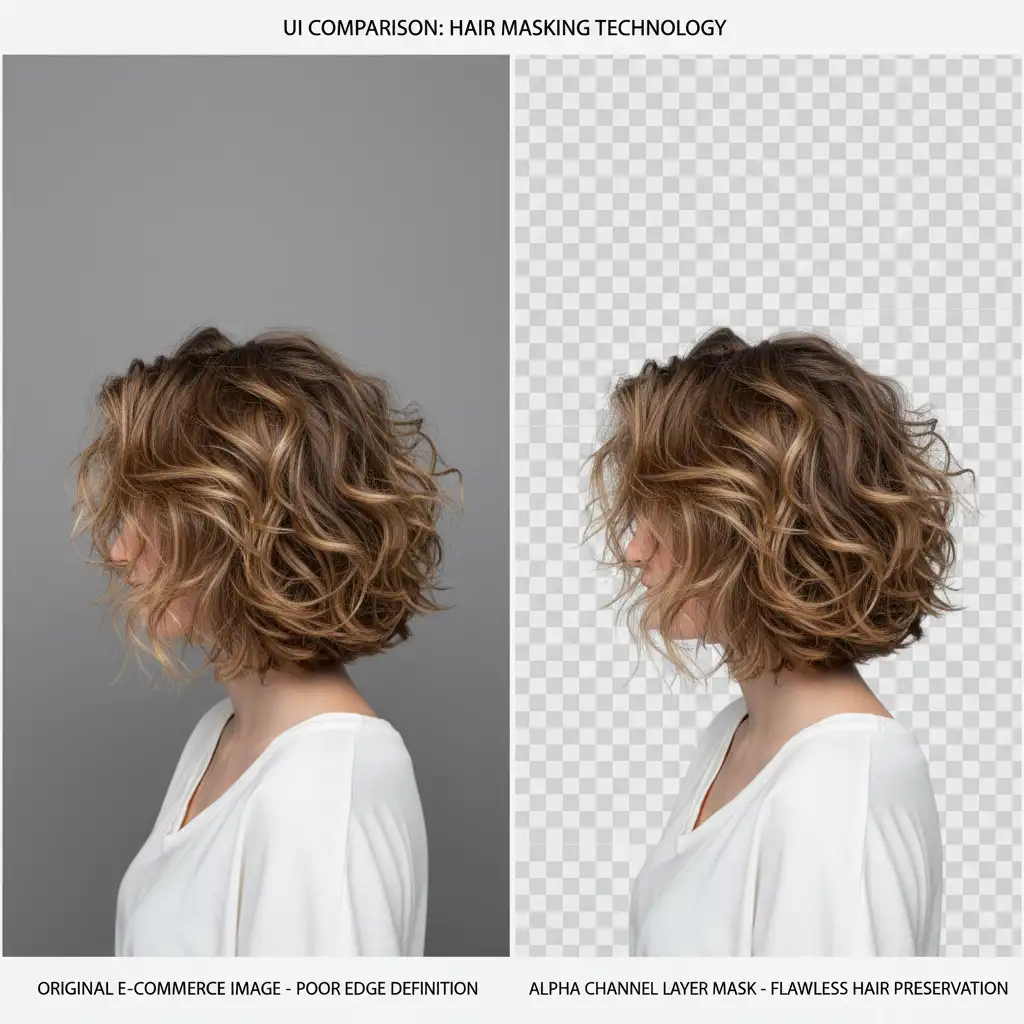
If you only have one or two images that need fixing and don’t want to build a batch action, you can use the dedicated workspace tools.
- Make your initial selection and open the Select and Mask workspace.
- Click the Refine Hair button in the top options bar. Adobe Sensei AI will attempt a second pass specifically targeted at hair textures.
- If stubborn background pixels remain, select the Refine Edge Brush Tool and paint over the problematic halos.
Scale Your E-Commerce Image Editing Effortlessly
Mastering the High-Contrast Pre-Pass will save you hours of manual Pen Tool work, but managing batch AI background removal hair details across thousands of SKUs still requires massive computing power and strict quality control.
If you need thousands of e-commerce images processed overnight without sacrificing a single strand of hair, let the professionals handle it. Image Work India and Cloud Retouch provide flawless, high-volume background removal and premium retouching services. Our expert team leverages custom AI workflows and meticulous manual QA to deliver pixel-perfect results, every single time.
Stop fighting with layer masks. Contact Image Work India and Cloud Retouch today and let us scale your post-production workflow seamlessly.




