
If you make a living creating flawless clipping paths for e-commerce products, you rely on the Pen Tool acting exactly as you command. But if you have recently upgraded to Adobe Photoshop 2025 (v26.x or v27.x), you might have noticed a frustrating issue: your bezier curves are suddenly acting “bubbly,” lagging, or over-smoothing your micro-movements. Instead of sharp, pixel-perfect corners, the path rendering feels slippery and imprecise.
This Photoshop 2025 pen tool precision bug is a nightmare for professional silhouetting, slowing down workflows and compromising quality. Fortunately, you do not have to downgrade your software to get your accuracy back. Here is the definitive guide to restoring your tool’s precision.
Understanding the Photoshop 2025 Pen Tool Precision Bug
Before applying the fixes, it helps to understand why your anchor points are misbehaving. The issue stems from recent updates to Photoshop’s under-the-hood architecture.
In versions 26.x and 27.x, Adobe introduced updates to the Native Canvas rendering API and altered how GPU acceleration protocols interact with default Pen Tool parameters. Because of these changes, the software occasionally misinterprets the micro-movements of your mouse or stylus. It treats these tiny, deliberate adjustments as “jitter” and aggressively applies auto-smoothing. The result? It destroys the sharp corner precision required for high-end product retouching and leaves you with bubbly, inaccurate curves.
Here are the three proven methods to neutralize this bug and restore your workflow.
How to Fix the “Bubbly” Pen Tool Bug
Method 1: The Quick UI Fix (Neutralizing Smoothing)
The first step is to strip away the software’s attempts to “help” you draw. By default, Photoshop applies a degree of smoothing that conflicts with the new rendering engine.
- Select the Pen Tool (P).
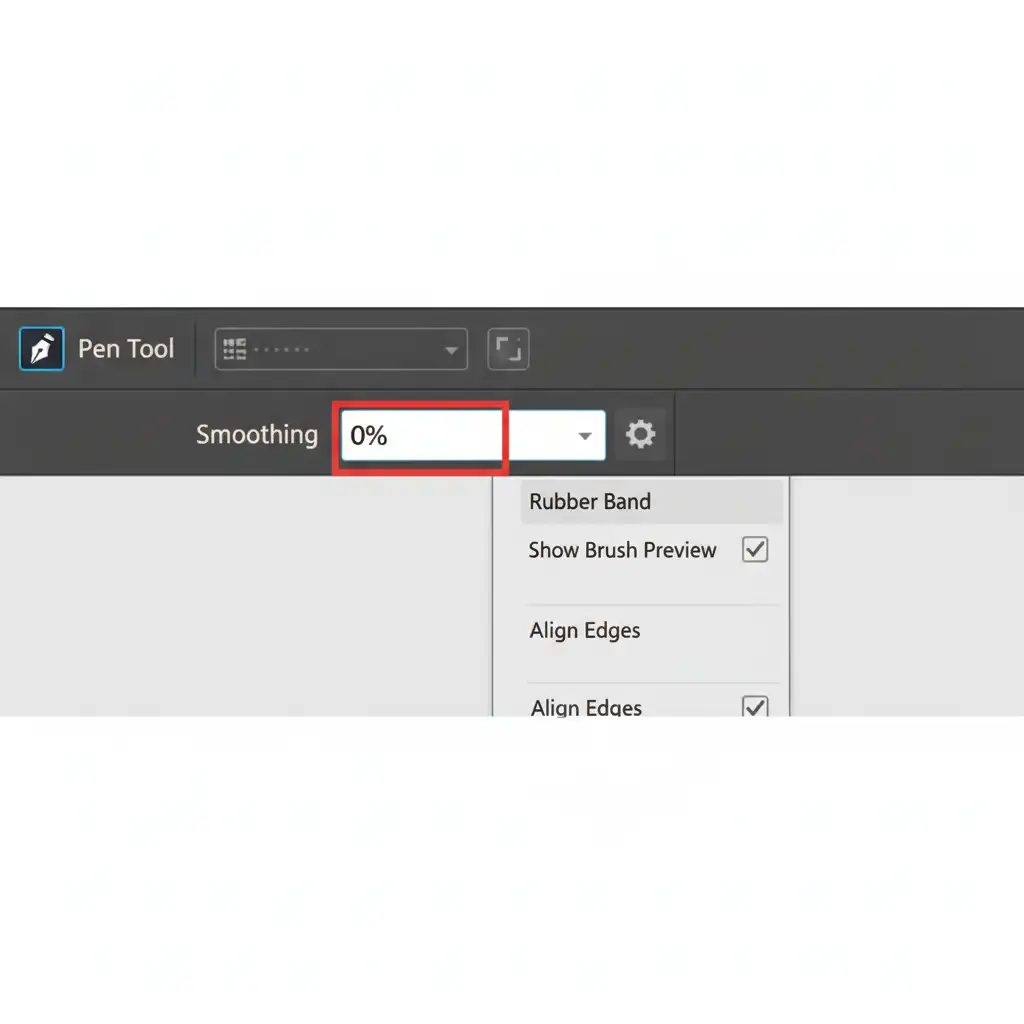
- Look at the top Options bar. Locate the Smoothing parameter and type in 0%.
- Click the Gear Icon in the Options bar to open path settings.
- Uncheck the Rubber Band option, which is known to cause visual lag during path rendering.
- Ensure Auto Add/Delete is toggled on so you maintain total control over your anchor points without the software second-guessing your clicks.
Method 2: The Pro Workaround (Pixel Snapping & Vector Masks)
If adjusting the basic tool parameters doesn’t entirely fix the bubbly curves, you need to force the software into hard-edge alignment. This method is highly effective for e-commerce products that require absolute structural rigidity.
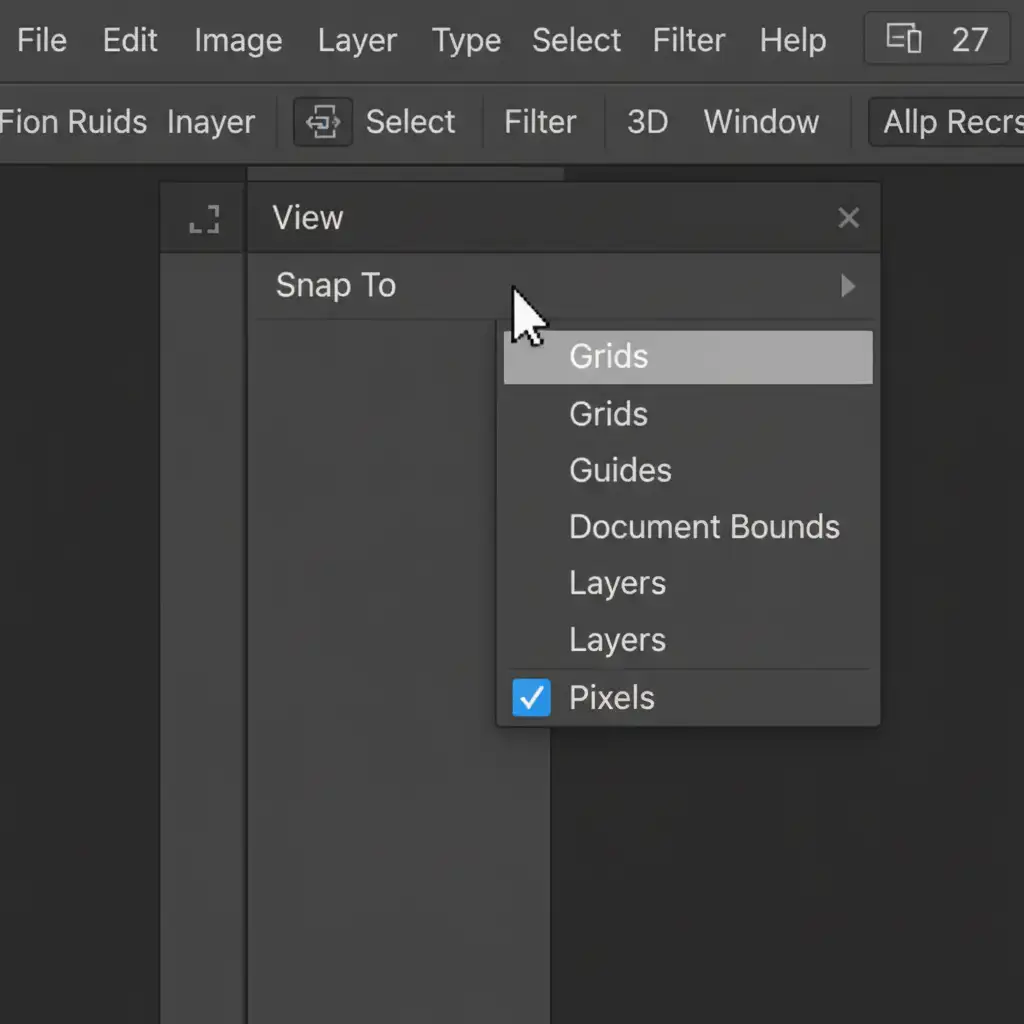
- Navigate to the top menu and select View > Snap To.
- Ensure Pixels is checked. This enables pixel snapping, forcing your anchor points to align with the actual pixel grid rather than floating in sub-pixel space.
- Instead of relying solely on standard paths, convert your work into a Vector Mask. Vector masks interact differently with the rendering engine and force hard-edge pixel alignment during complex curves, bypassing the anti-aliasing blur that sometimes accompanies the bug.
Method 3: The Technical Deep-Dive (Graphics Processor & Native Canvas)
If you are still experiencing lag or over-compensation, the root cause is a direct conflict between your graphics card and Photoshop’s updated rendering API. You need to rebuild the graphics rendering engine.
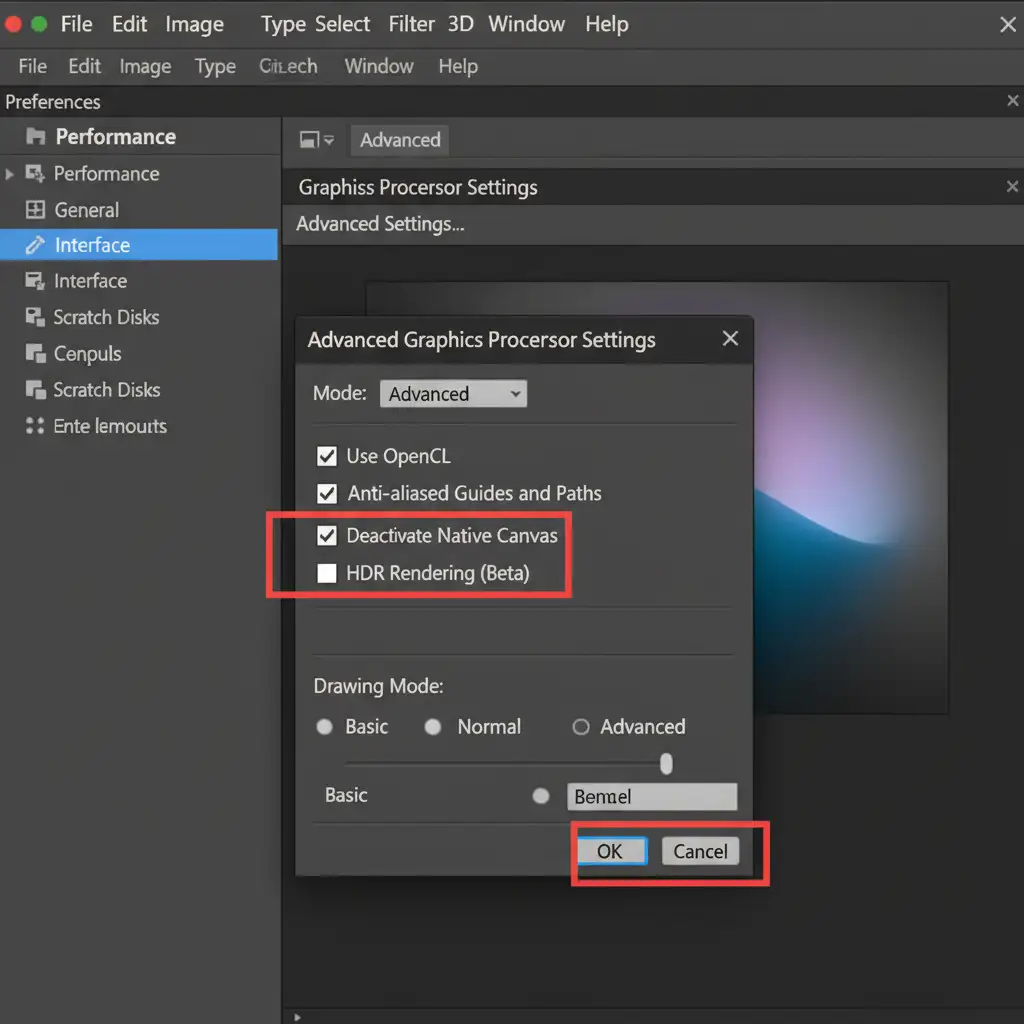
- Go to Edit > Preferences > Performance (Windows) or Photoshop > Settings > Performance (Mac).
- In the Performance window, look under the Graphics Processor Settings section and click the Advanced Settings button.
- In the dialog box that appears, look for Deactivate Native Canvas. Check this box to disable the new API.
- Alternatively, try toggling the OpenCL setting off or on, depending on your specific GPU hardware.
- Click OK, and restart Photoshop. This forces the software to rebuild the graphics engine upon reboot, effectively bypassing the precision bug.
Why Precision Matters for E-commerce Silhouetting
When you are preparing images for an e-commerce catalog, close enough is never good enough. A bubbly path or a sloppy corner can make a premium product look cheap. Whether you need to rasterize a layer for final export or maintain a scalable vector mask for future edits, the foundation of your image relies entirely on the accuracy of your initial path.
Battling GPU acceleration issues and software bugs eats into your profit margins and drains your daily productivity. While the fixes above will restore your tool’s functionality, managing high-volume image editing requires immense time and resources.
Outsource Your Clipping Paths to the Experts
Struggling to maintain quality while battling constant software updates and bugs? You don’t have to manage it all in-house.
At Image Work India and Cloud Retouch, our dedicated teams of professional retouchers specialize in flawless, pixel-perfect clipping paths. We navigate the technical hurdles so you don’t have to. Whether you have a batch of 50 images or a catalog of 5,000, we guarantee sharp corners, perfect curves, and rapid turnaround times.
Stop fighting the Photoshop 2025 pen tool precision bug. Let us handle the heavy lifting. Contact Image Work India and Cloud Retouch today to streamline your e-commerce post-production workflow.




