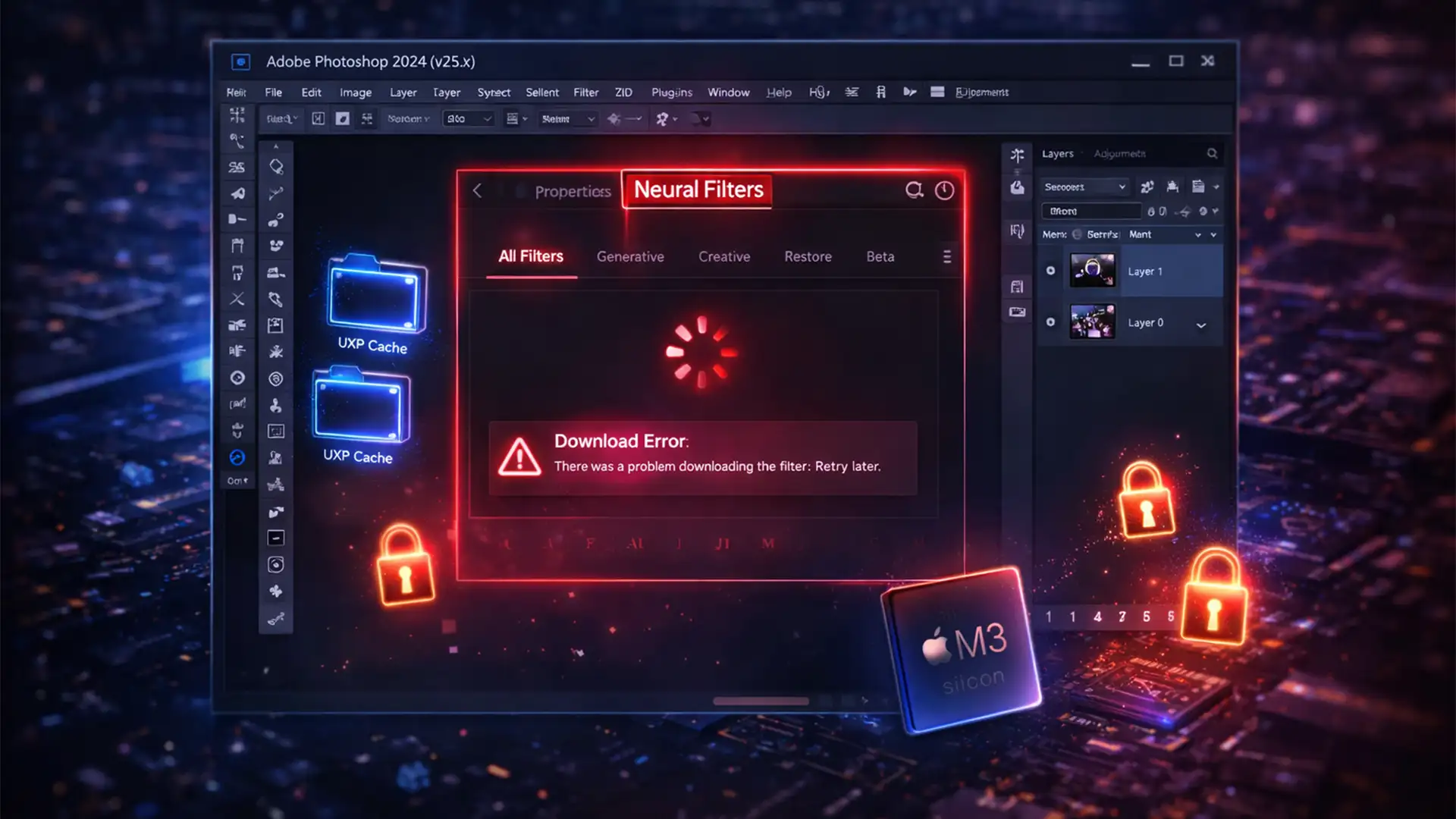

You’re on a tight deadline, ready to apply a quick Skin Smoothing or Smart Portrait adjustment, but you hit a wall: the Photoshop Neural Filters download error 2024 strikes again. Instead of a seamless AI editing experience, you’re staring at a greyed-out menu, a “Filter not available” warning, or an infinite loading spinner that never actually downloads the required AI models.
This frustrating bottleneck usually points to corrupted local cache files, cloud synchronization failures, or strict OS-level permissions blocking background downloads. Fortunately, getting your smart filters back online is a straightforward process. In this guide, we will walk you through exactly how to troubleshoot and fix these download errors so you can get back to editing.
Why Are My Neural Filters Greyed Out in Photoshop 2024?
In Adobe Photoshop 2024 (v25.x), Neural Filters rely heavily on cloud-based processing and local file downloads. When you try to use a filter for the first time, Photoshop must download the specific AI model from Adobe’s servers.
If this process fails, it is typically due to three technical bottlenecks:
- Corrupted UXP Cache: The Unified Extensibility Platform (UXP) cache files have become corrupted, preventing the interface from loading properly.
- Sync Failures: The Creative Cloud Desktop app is failing to authenticate your session with Adobe’s servers.
- Architecture & Permission Blocks: On Apple Silicon (M1/M2/M3) Macs, certain legacy plugin components require Rosetta 2 translation. Additionally, strict OS-level firewalls can block background downloaders like the Adobe CEF Helper.
Here is how to resolve the issue, from the easiest quick fix to a deeper technical reset.
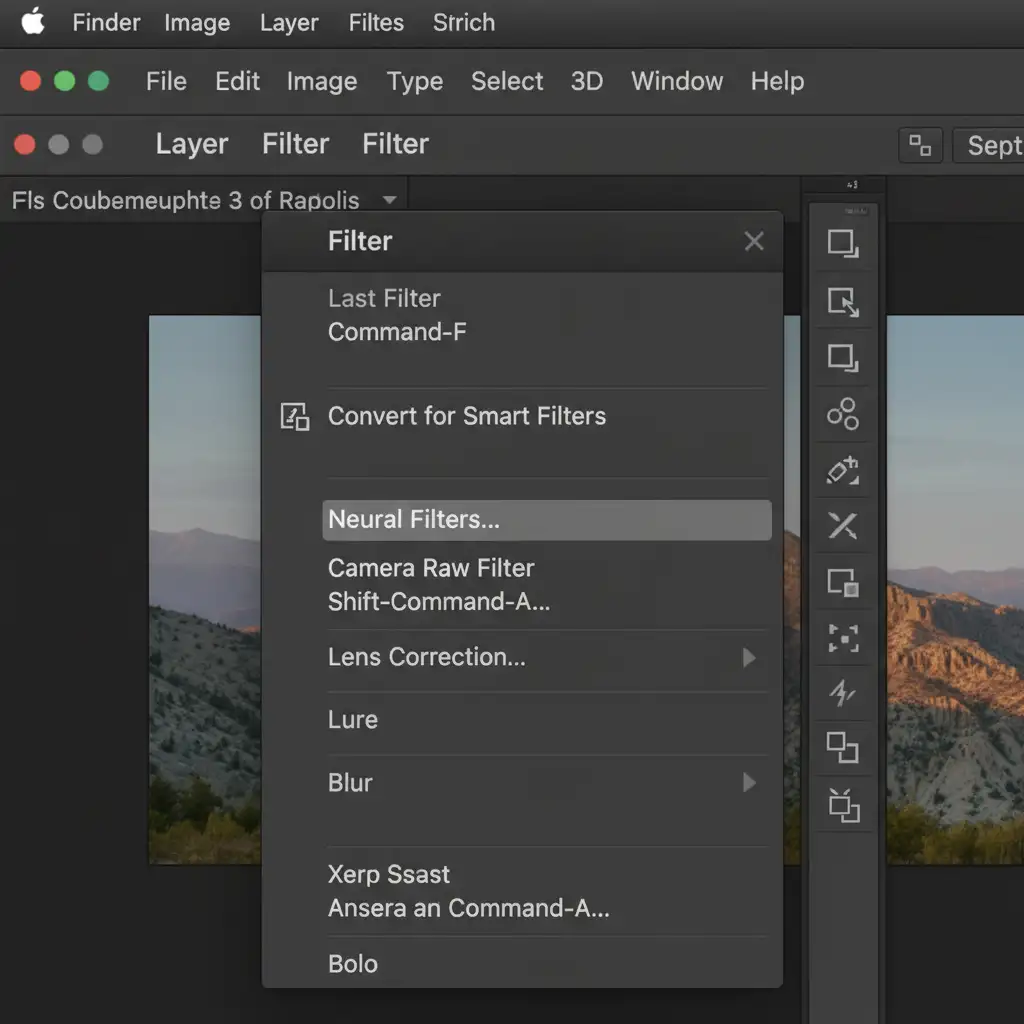
Method 1: The Quick Fix (Reset Creative Cloud Sync)
Before digging into system files, force a server sync. Often, the connection between Photoshop and the Creative Cloud Desktop app simply times out, preventing the filters from authenticating and downloading.
- Save your work and close Photoshop entirely.
- Open the Creative Cloud Desktop application.
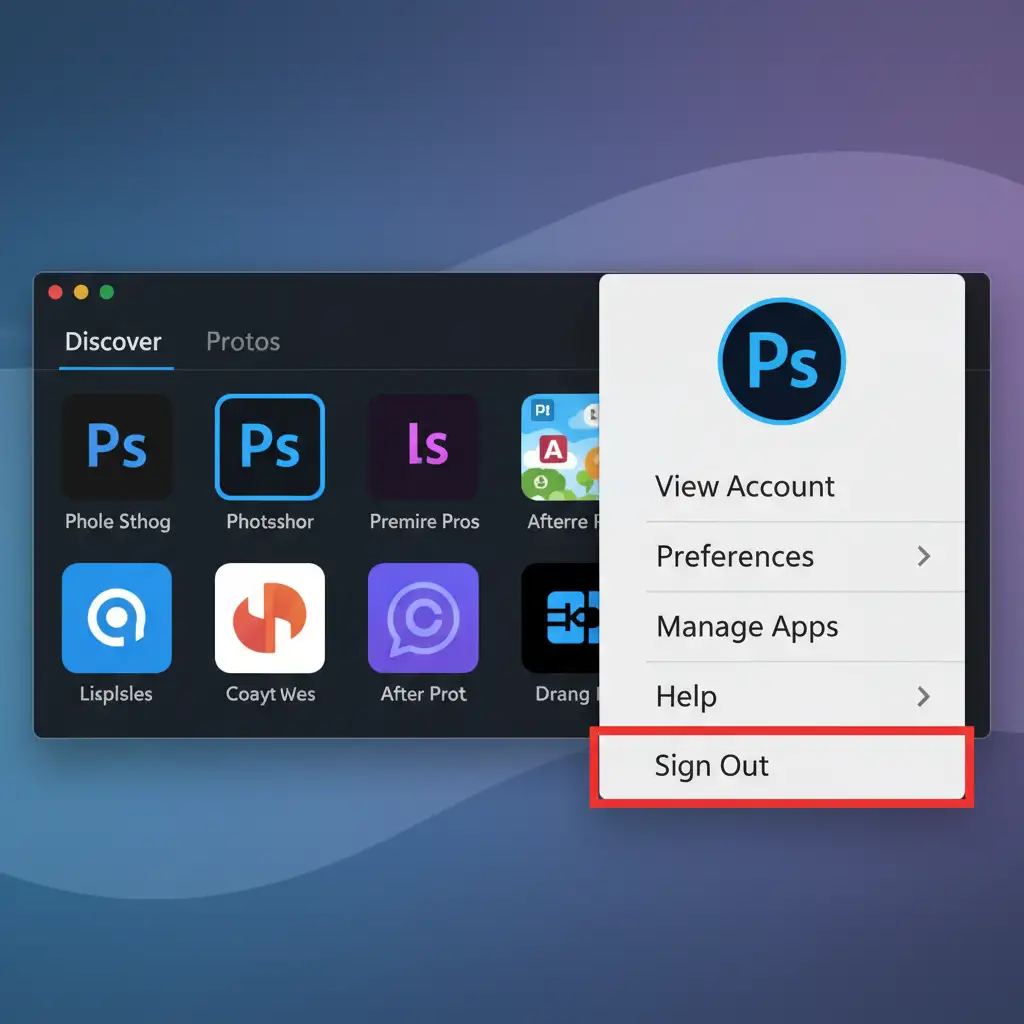
- Click on your profile icon in the top right corner and select Sign Out.
- Restart your computer to clear temporary active memory.
- Relaunch Creative Cloud, sign back in, and open Photoshop v25.x to test the filters.
Method 2: The Pro Workaround (Clear the Corrupted UXP Cache)
If resetting your connection didn’t work and you are still staring at a greyed-out menu, you likely have a corrupted local cache.
To fix this, you need to manually delete the corrupted cache folder. Photoshop will automatically rebuild a fresh, clean version of this directory the next time you open the software.
For Windows Users:
- Close Photoshop.
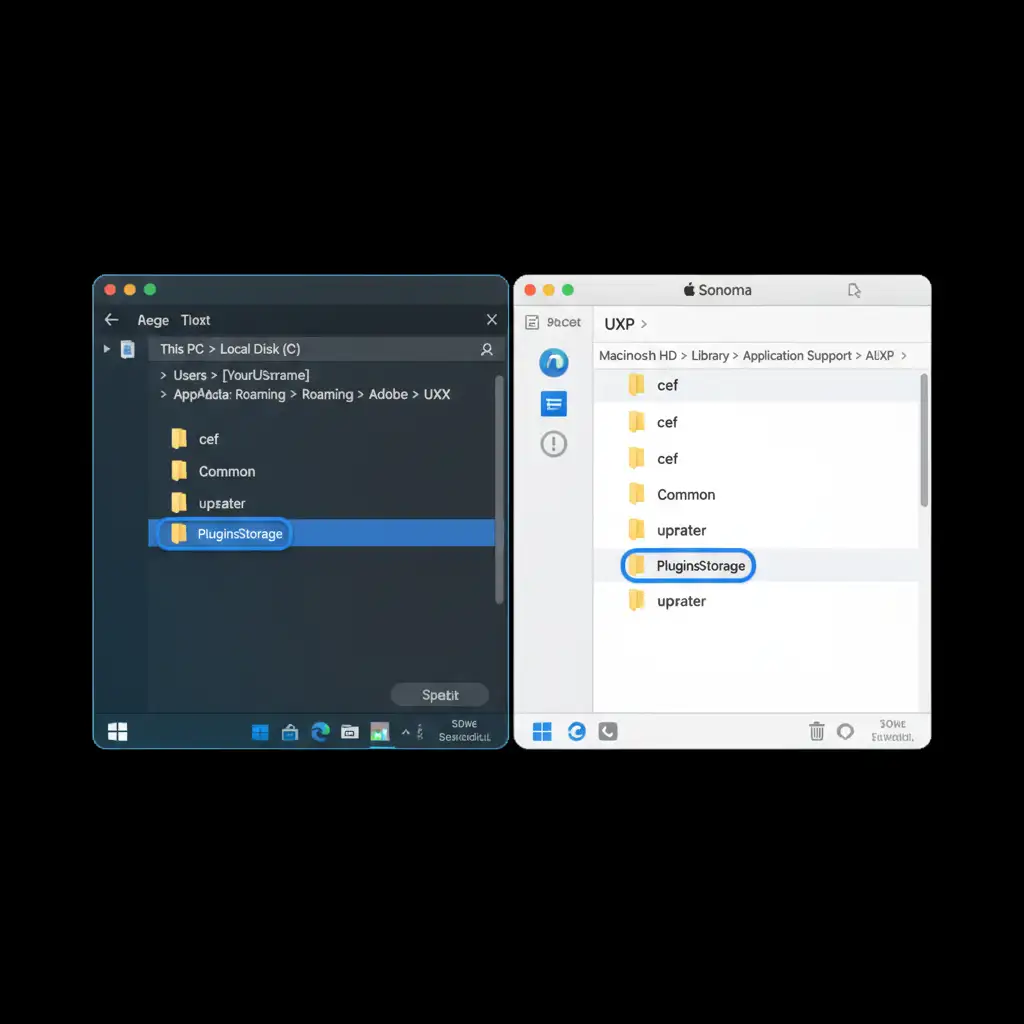
- Open File Explorer and navigate to: C:\Users\[YourUsername]\AppData\Roaming\Adobe\UXP (Note: You may need to enable “Hidden Items” in the View tab to see the AppData folder).
- Locate the folder named PluginsStorage and delete it.
For Mac Users:
- Close Photoshop.
- Open Finder, click Go in the top menu bar, hold the Option key, and click Library.
- Navigate to: Application Support/Adobe/UXP
- Move the PluginsStorage folder to the Trash.
Method 3: The Technical Deep-Dive (Permissions & Architecture)
If you’ve cleared the UXP folder and are still experiencing the Photoshop Neural Filters download error 2024, the issue lies within your operating system’s permissions or architecture settings.
Fixing Apple Silicon Compatibility (Mac Only)
Some background components of Neural Filters still rely on legacy architecture. If you are using an M1, M2, or M3 Mac, forcing Photoshop to open using Rosetta 2 translation often solves the download stall.
- Close Photoshop.
- Open Finder and navigate to your Applications folder.
- Open the Adobe Photoshop 2024 folder.
- Right-click the actual Adobe Photoshop 2024 app icon and select Get Info.
- Check the box that says Open using Rosetta.
- Relaunch Photoshop and attempt the download again.
Fixing OS-Level Firewalls and Disk Access (Mac & Windows)
Strict security settings can block the Adobe CEF Helper from downloading the necessary AI models in the background.
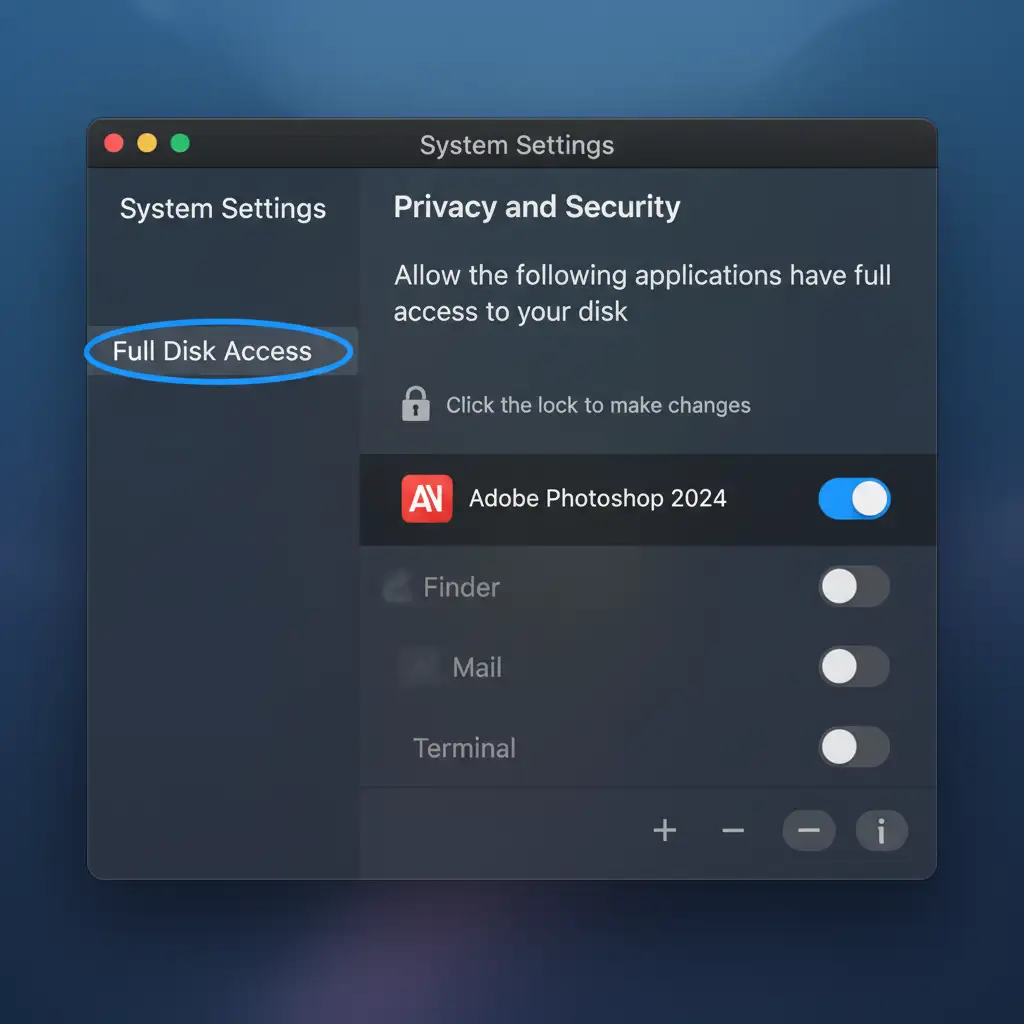
On Mac (Full Disk Access):
- Open System Settings > Privacy & Security > Full Disk Access.
- Ensure the toggle next to Adobe Photoshop 2024 is turned ON. If it isn’t listed, click the “+” icon and add it from your Applications folder.
On Windows (Firewall Permissions):
- Search for Windows Defender Firewall in your Start menu.
- Click Allow an app or feature through Windows Defender Firewall.
- Ensure that Adobe Photoshop and Adobe CEF Helper are checked for both Private and Public networks.
Still Struggling with Adobe Errors? Let the Experts Handle It
Troubleshooting the Photoshop Neural Filters download error 2024 can eat up hours of your valuable time-time that should be spent acquiring new clients, shooting, or growing your business. When plugin permissions, corrupted cache files, and software bugs get in the way of your workflow, it’s time to outsource the heavy lifting.
At Image Work India and Cloud Retouch, we specialize in high-end, bulk photo editing and retouching services. Whether you need flawless skin retouching, complex clipping paths, or advanced AI-driven enhancements, our team of expert retouchers delivers pixel-perfect results with rapid turnaround times.
Stop fighting with software errors and let us streamline your post-production workflow. [Contact Cloud Retouch today] to learn how we can handle your bulk editing needs!




