
You have just spent hours perfecting a high-end beauty campaign. On your 4K studio monitor, the skin transitions look buttery smooth. But the moment your client views that same file on a new 8K display (7680×4320 pixels), the illusion shatters. Suddenly, severe color banding emerges in the shadows, gradients look fragmented, and harsh micro-blemishes become glaringly obvious.
If you are still relying on a standard 8-bit workflow in Photoshop v25.x, your high-end retouching for 8K displays is mathematically guaranteed to fail. Ultra-HD screens expose the critical lack of color depth in traditional editing techniques. Gradients that survive on 1080p monitors are stretched beyond their limits on 8K screens, requiring a fundamental shift in how we handle bit-depth, workspace color profiles, and hardware rendering.
Here is exactly how to upgrade your workflow to maintain flawless pixel integrity on the next generation of displays.
Step-by-Step: Upgrading to an 8K-Ready Retouching Workflow
To eliminate banding and fragmentation, you must address the problem at three levels: document setup, localized retouching techniques, and hardware optimization.
Method A: The Quick Fix – Expanding Color Gamut and Bit-Depth
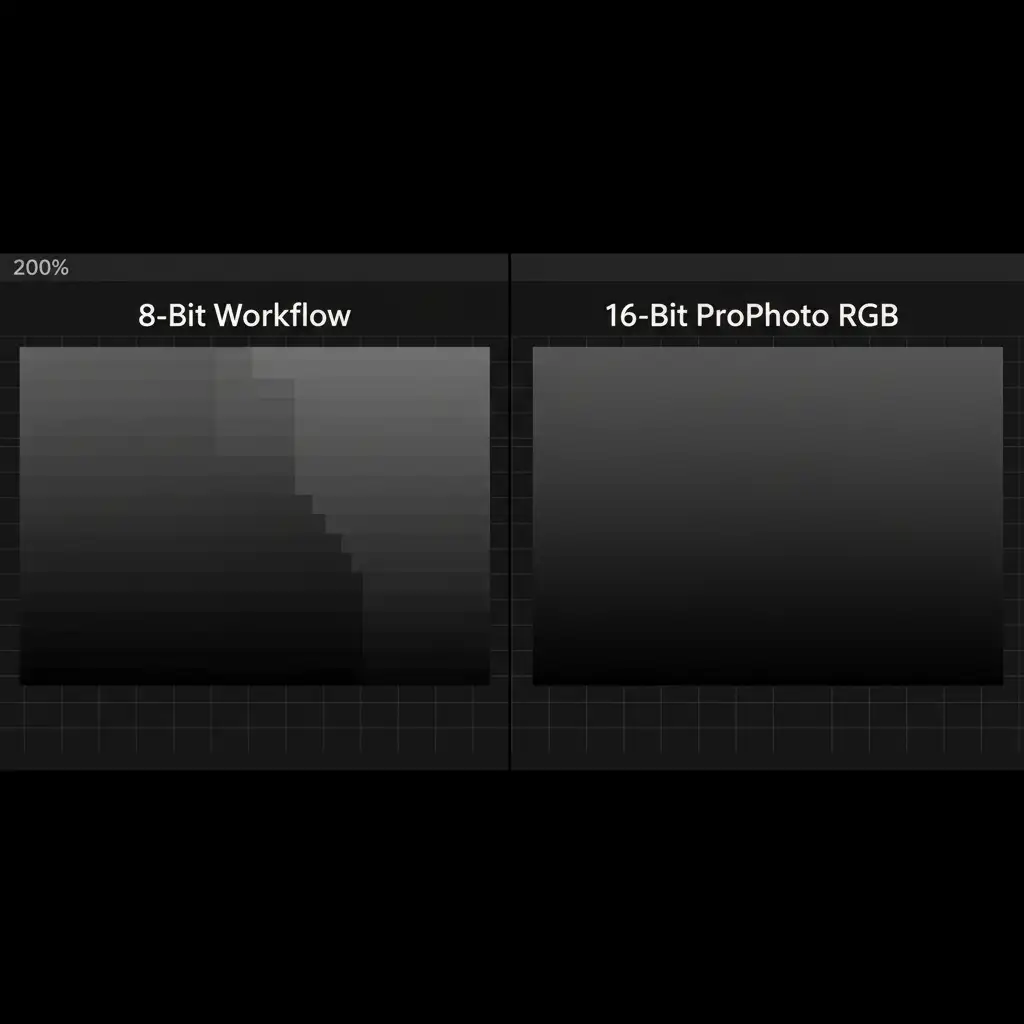
The most immediate cause of banding on an 8K screen is a lack of available colors to render smooth gradients. An 8-bit file only holds 256 shades per color channel. By upgrading to a 16-bit color depth, you expand that to 65,536 shades per channel.
- Open your image in Photoshop v25.x.
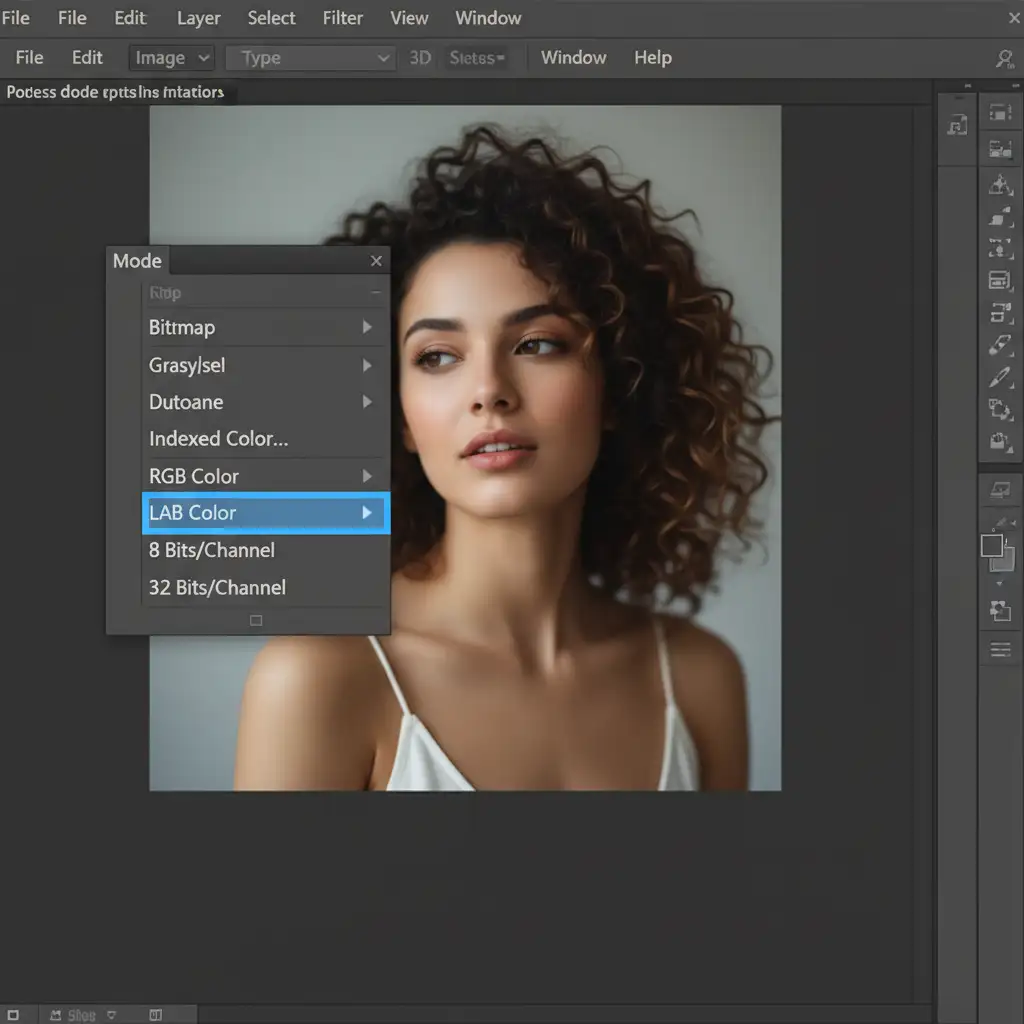
- Navigate to Image > Mode and select 16 Bits/Channel.
- Next, expand your color gamut by going to Edit > Convert to Profile and selecting ProPhoto RGB. This ensures your file has the maximum possible tonal range to stretch across 7680×4320 pixels without tearing.
Method B: The Pro Workaround – Micro-Dodge & Burn with Dithering
While macro-smoothing techniques like frequency separation are great for general cleanup, they often fail under the extreme scrutiny of 8K, sometimes introducing unnatural textures. To master high-end retouching for 8K displays, you must transition to precise micro-transitions.
- Micro-Dodge and Burn: Create a new layer, fill it with 50% gray, and set the blend mode to Soft Light. Use a soft brush at a very low flow (1-2%) to manually dodge and burn micro-blemishes. This non-destructive method avoids pushing pixels to the point of degradation.
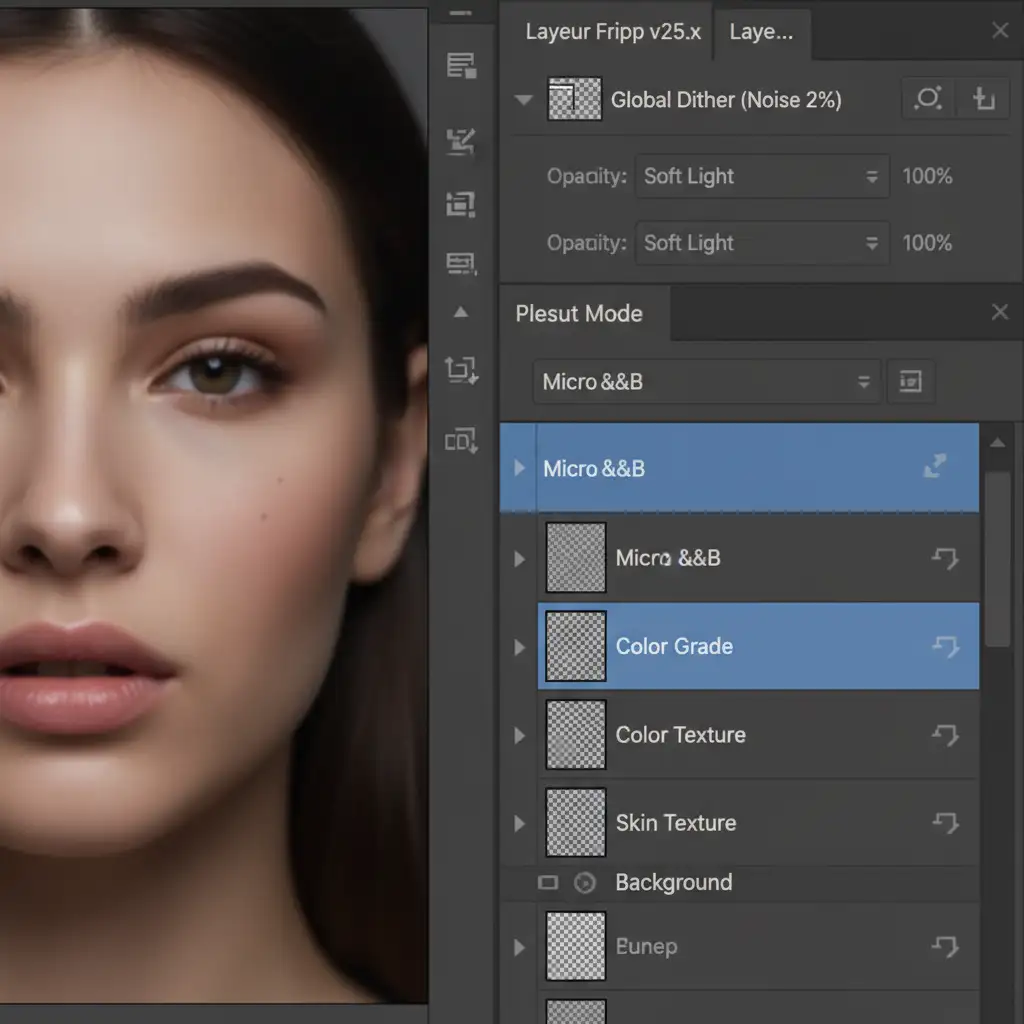
- Apply a Dither: Even in 16-bit, 8K displays can sometimes reveal residual gradient stepping. To fix this, add a uniform layer of fine monochromatic grain at the very top of your layer stack.
- Create a new layer, fill with 50% gray, set to Soft Light.
- Go to Filter > Noise > Add Noise. Set the amount to 1–2%, choose Gaussian, and check Monochromatic. This acts as a dither, scrambling the harsh edges of gradient bands and tricking the eye into seeing perfectly smooth transitions.
Method C: The Technical Deep-Dive – Hardware Rendering Optimization
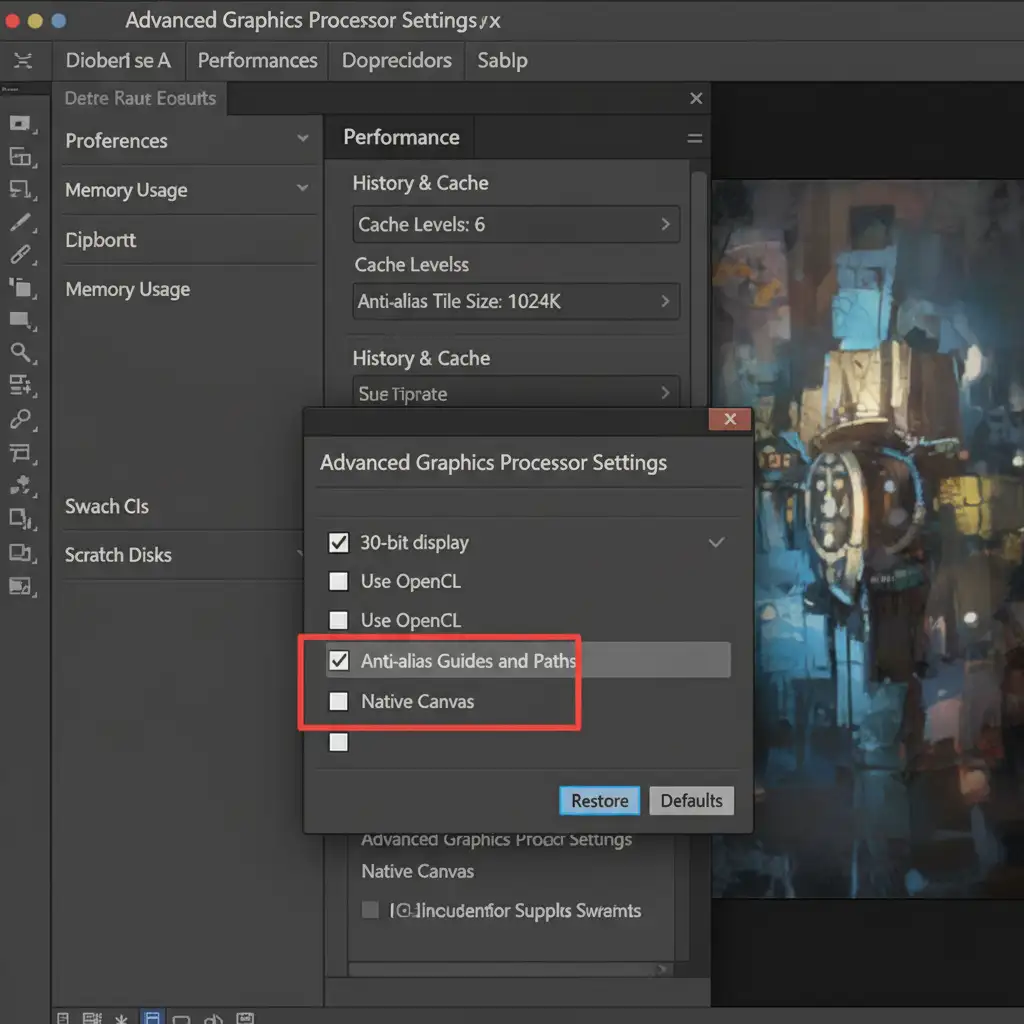
Your file might be 16-bit, but if Photoshop isn’t communicating properly with your graphics card and monitor, you will still see banding on your screen. You must enable GPU acceleration for ultra-HD rendering.
- Navigate to Edit > Preferences > Performance (or Photoshop > Settings > Performance on Mac).
- Under the Graphics Processor Settings, click Advanced Settings.
- Check the box for a 30-bit display. This crucial setting allows Photoshop to send 10-bit per channel color directly to your supported GPU and 8K monitor, ensuring true gradient rendering.
- To handle the massive file sizes associated with 8K, increase your Cache Levels to 6 and your Cache Tile Size to 1024K.
Stop Fighting Artifacts: Let the Experts Handle Your 8K Retouching
Transitioning your workflow to accommodate the massive data requirements and zero-tolerance precision of ultra-HD screens is incredibly time-consuming. If your studio is struggling with color banding, massive file lag, or tedious micro-dodging, you don’t have to tackle it alone.
At Image Work India and Cloud Retouch, our expert retouchers specialize in future-proofed, ultra-high-resolution image editing. We utilize advanced 16-bit ProPhoto RGB workflows, precise micro-transitions, and top-tier GPU hardware to ensure your campaigns look flawless-whether they are viewed on a smartphone or a massive 8K commercial display.
Don’t let technical limitations ruin your creative vision. Contact Image Work India and Cloud Retouch today to outsource your high-end retouching and guarantee pixel-perfect results for every client.




