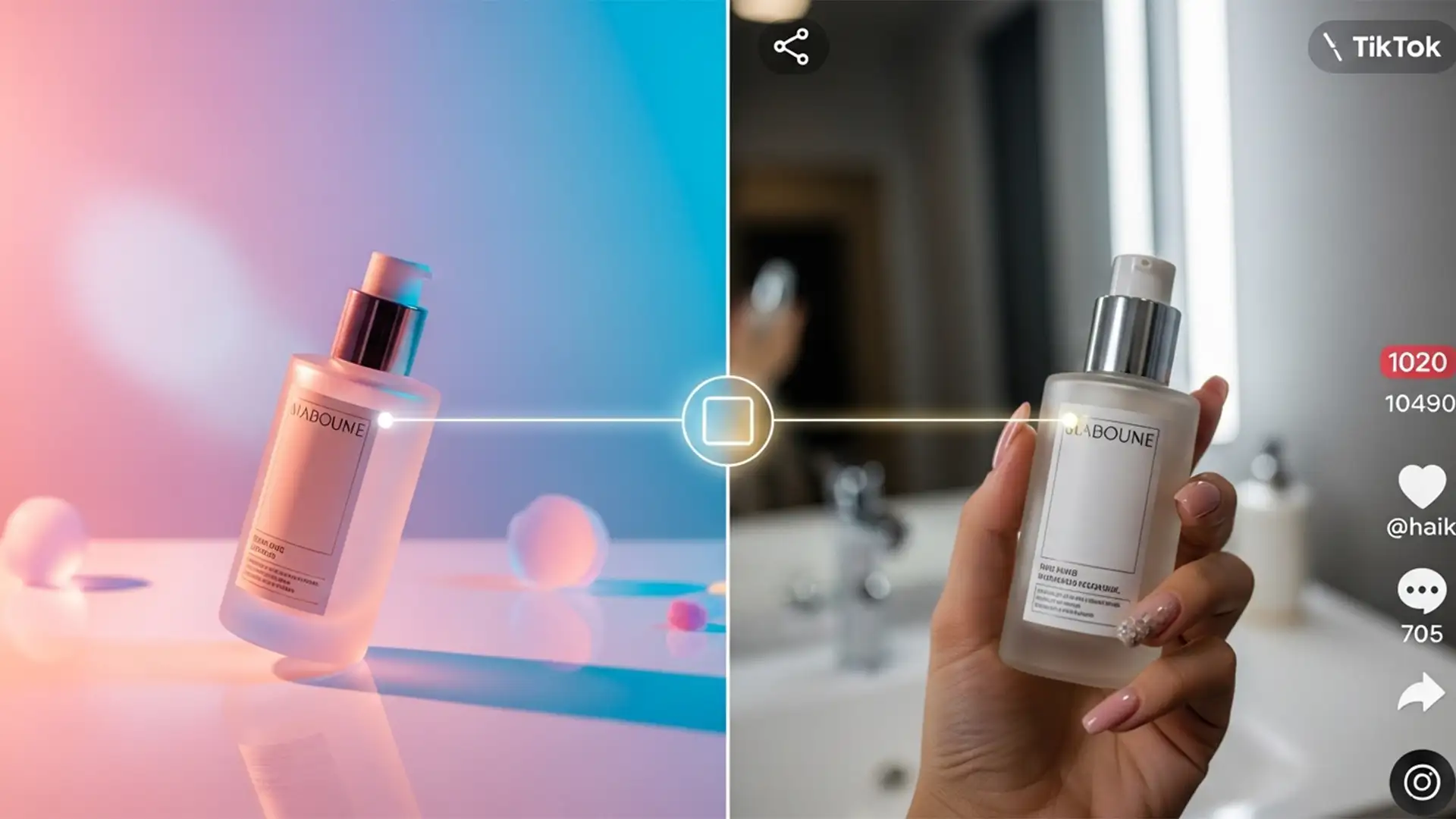

You spent thousands on crisp, high-dynamic-range studio product photography. But when you launch your social commerce campaign, your pristine images look completely disconnected from your trendy user-generated content (UGC) and native video marketing. Why? TikTok and Instagram Reels video compression algorithms, combined with mismatched device color profiles (like mobile Display P3 versus studio sRGB), cause massive color shifts. When your social grid looks like a mismatched puzzle, it damages brand trust.
In this guide, we will show you exactly how to color match product photos to TikTok video stills in Photoshop CC 2024 so your e-commerce presence stays flawlessly cohesive.
The Technical Disconnect: Why Video Stills and Studio Photos Clash
Before diving into the fixes, it is crucial to understand the technical gap between flat, compressed video stills and high-end photography.
Studio product photography is typically captured in RAW and processed in wide color gamuts before being exported to sRGB for web. Conversely, mobile video content often utilizes Display P3 or Rec.709 color spaces. When you upload a video to TikTok or Instagram Reels, aggressive video compression algorithms crush the dynamic range, altering the contrast and saturation.
Attempting to place a compressed video still next to a perfectly lit product photo highlights this discrepancy. To fix it, you need precise color grading and profile harmonization.
How to Color Match Product Photos to TikTok Video Stills
Depending on your timeline and the exactness required, Photoshop CC 2024 offers three distinct workflows to bridge the gap between video and photography.
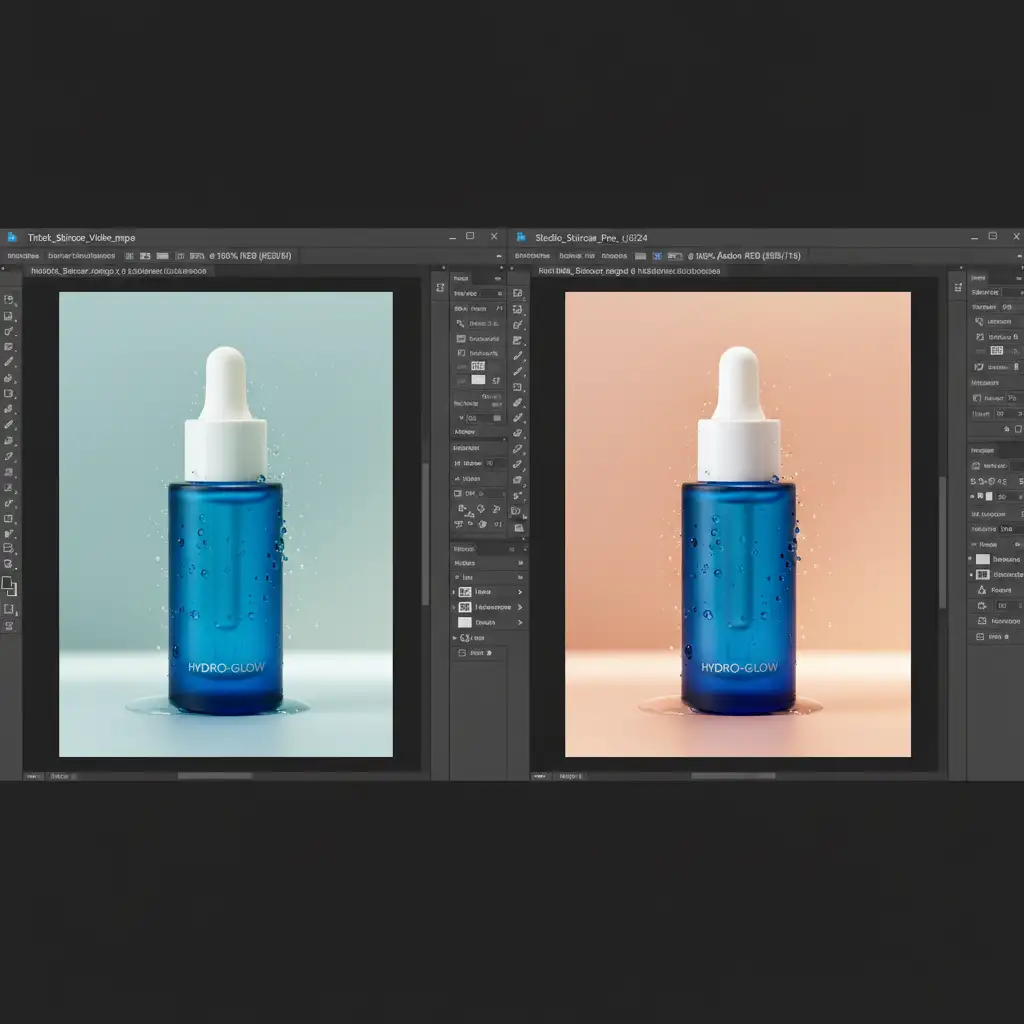
Method 1: The Quick Fix Using ‘Match Color’
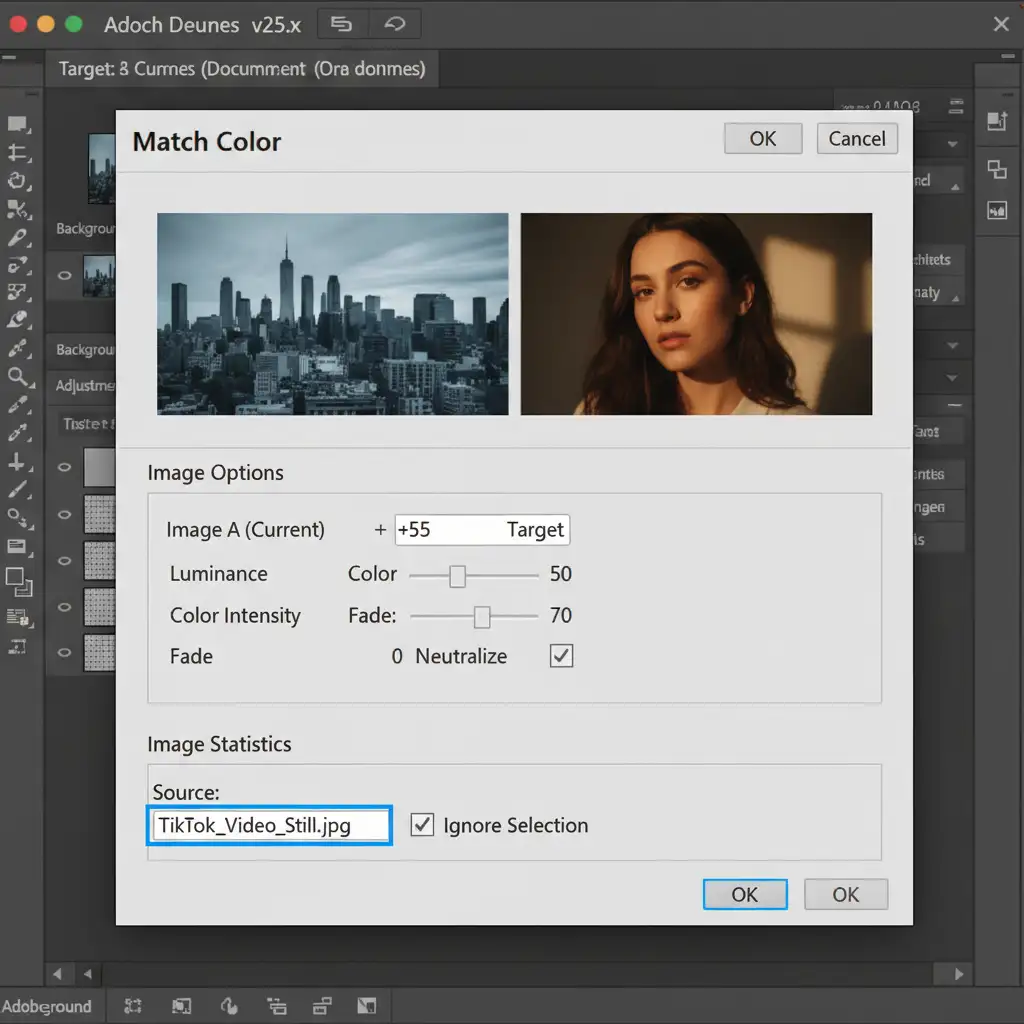
If you need to rapidly synchronize visuals for a daily social post, Photoshop’s native Match Color tool is your fastest option.
- Open both your TikTok video still and your studio product photo in Photoshop.
- Navigate to your product photo document.
- Go to Image > Adjustments > Match Color.
- In the dialog box, navigate to the “Image Statistics” section and set the Source dropdown to your video still document.
- Adjust the Luminance and Color Intensity sliders until the product photo adopts the compressed, stylized look of the UGC video.
- Click OK.
Method 2: The Pro Workaround Using Curves Adjustment Layers
For professional retouchers who need granular control over shadows, midtones, and highlights, a Curves Adjustment layer provides mathematical precision.
- Place your video still on a layer directly next to your product photo for easy visual reference.
- Add a Curves Adjustment layer above your product photo.
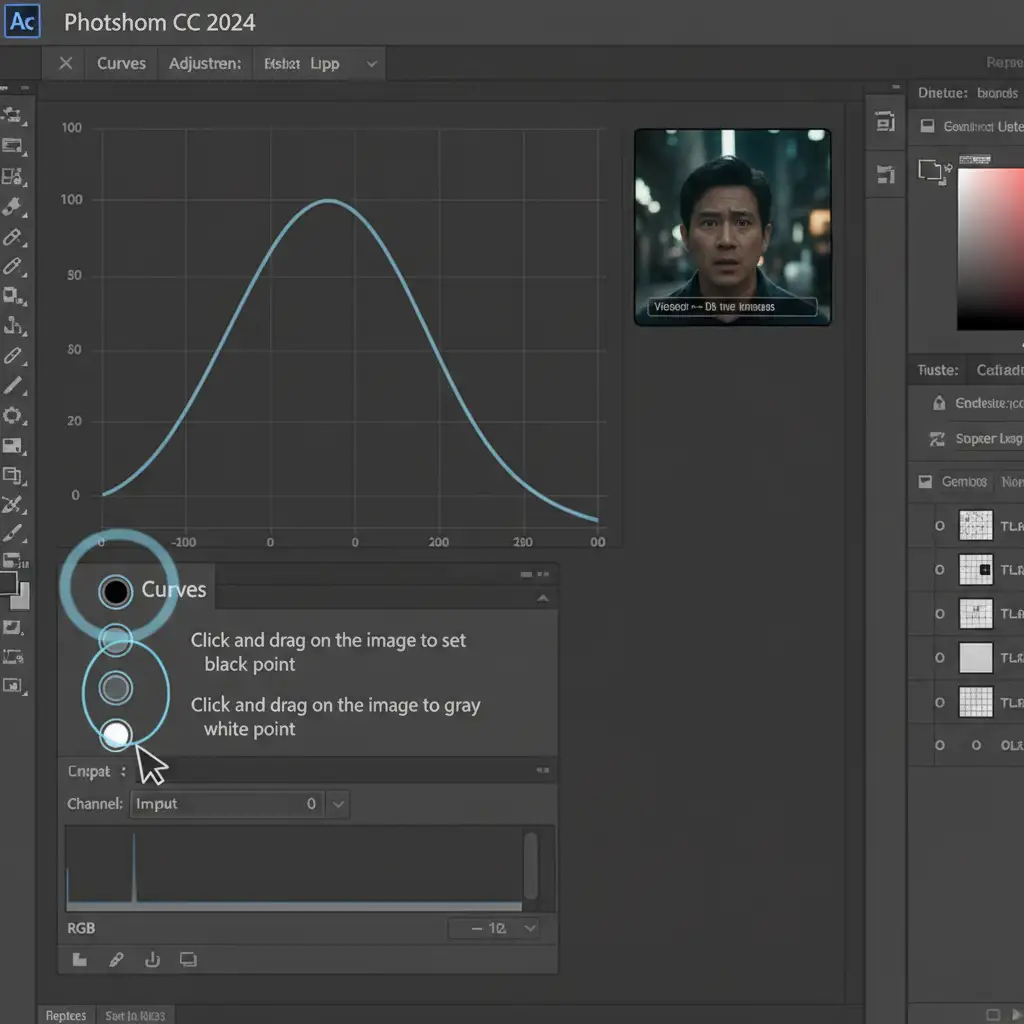
- In the Curves Properties panel, you will see three eyedropper tools on the left side (Black Point, Gray Point, and White Point).
- Double-click the black eyedropper and sample the darkest shadow in your video still. Repeat this process: use the gray eyedropper for the midtones, and the white eyedropper for the brightest highlight in the video still.
- Finally, click on the corresponding shadow, midtone, and highlight areas of your product photo. Photoshop will instantly map the exact tonal values from the video to your high-res image.
Method 3: The Technical Deep-Dive Using Camera Raw & Color Profiles
When dealing with massive e-commerce catalogs, you need a non-destructive workflow that prevents gamut clipping and can be saved as a preset (like a LUT (Look-Up Table) or XMP file) for batch processing.
Step 1: Harmonize Color Profiles
First, you must ensure both files are operating in the same mathematical color space.
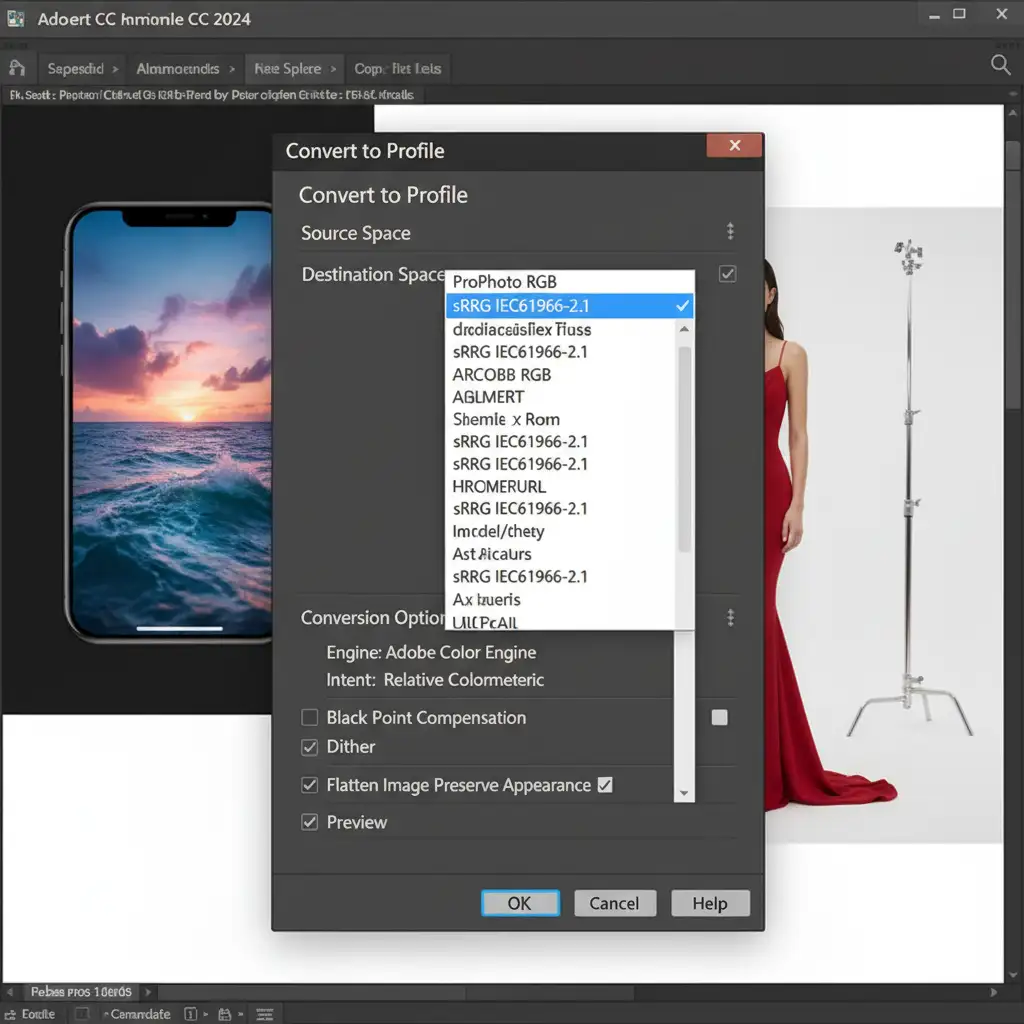
- Go to Edit > Convert to Profile.
- Set the Destination Space to sRGB IEC61966-2.1. This prevents the harsh color clipping that occurs when Display P3 mobile videos clash with standard web profiles.
Step 2: Fine-Tune with Camera Raw Filter
While newer tools like Neural Filters offer AI adjustments, the Camera Raw filter remains the industry standard for precise matching.
- Right-click your product photo layer and select Convert to Smart Object.
- Go to Filter > Camera Raw Filter.
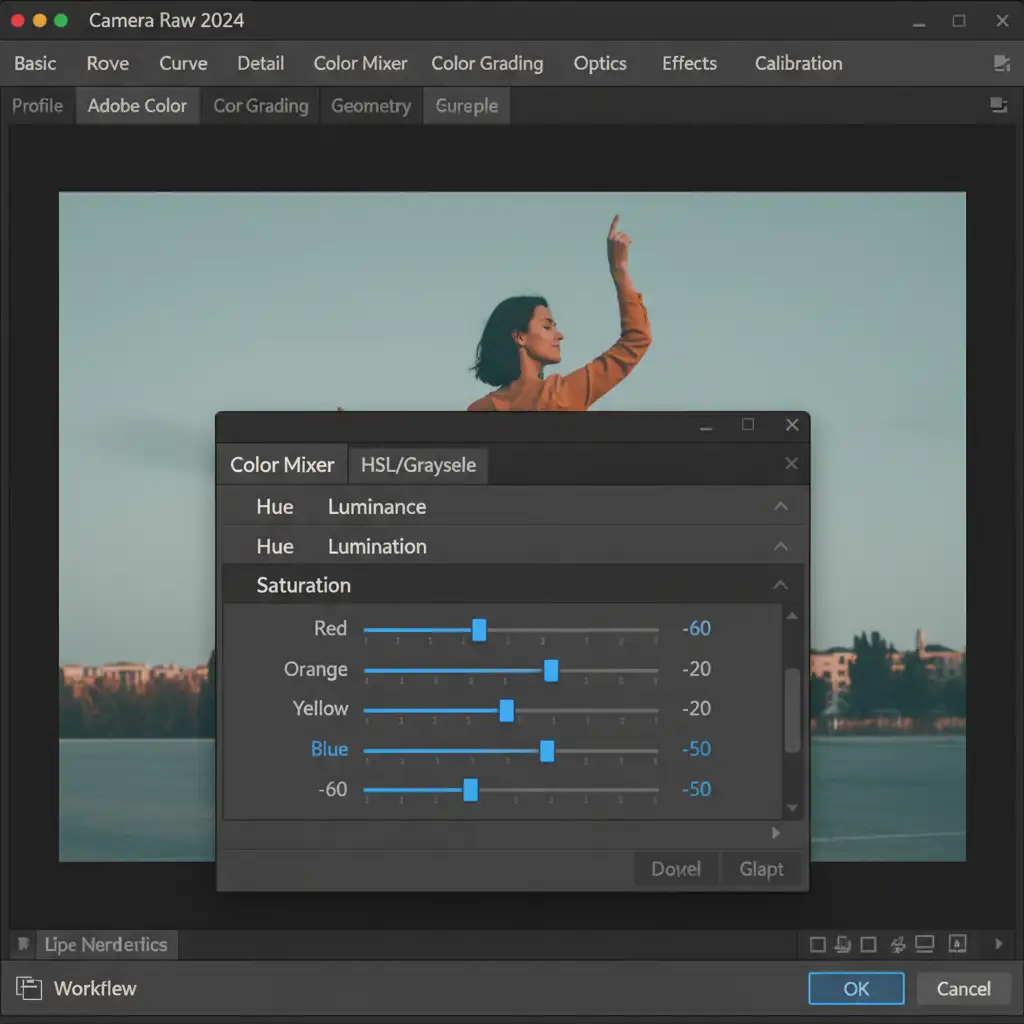
- Open the Color Mixer tab.
- Use the Hue/Saturation/Luminance (HSL) sliders to specifically target and shift individual colors. If the TikTok compression made the reds more orange and desaturated the blues, replicate those exact shifts here.
- Once matched, click the three dots on the right panel and select “Save Settings” to create a custom XMP preset for future batch processing.
Scale Your E-Commerce Visuals with Image Work India
Knowing how to color match product photos to TikTok video stills is essential for maintaining a premium brand identity. However, manually adjusting curves, matching color profiles, and building custom XMP presets for hundreds of SKUs is incredibly time-consuming.
You should be focused on scaling your social commerce strategy, not fighting with Photoshop sliders.
At Image Work India and Cloud Retouch, our expert retouching teams specialize in high-volume, pixel-perfect color grading. Whether you need your studio catalogs harmonized with your latest influencer UGC, or require complex color space conversions for cross-platform consistency, we deliver flawless results at scale.
Stop letting video compression ruin your brand aesthetic. Contact Image Work India and Cloud Retouch today to streamline your e-commerce imagery and keep your visuals perfectly on-brand across every platform.




