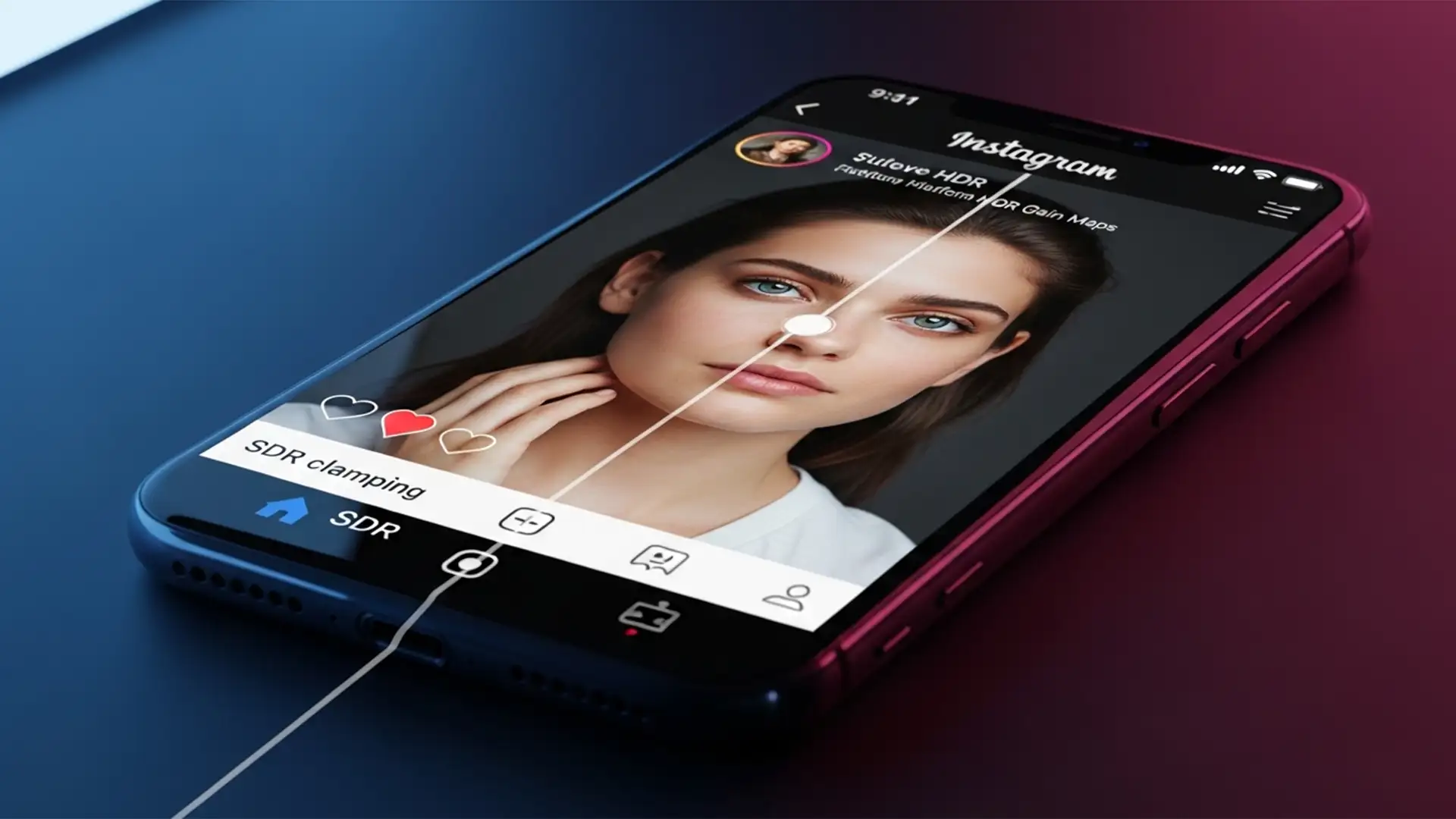

You spend hours perfecting a color grade in Photoshop, export it to your phone, and upload it to Instagram. Suddenly, your subtle highlights are glowing like a neon sign, and the skin tones look completely overexposed.
If this sounds familiar, you aren’t alone. As mobile displays evolve, Instagram’s aggressive auto-HDR rendering is ruining professional color correction. To stop instagram hdr color blowout 2026 platform updates from destroying your portfolio, you need to understand how social algorithms handle modern image files.
Here is the definitive guide to fixing your export workflow, mastering color space conversion, and ensuring your photos look exactly as you intended on every device.
Why Instagram is Ruining Your Colors (The HDR Problem)
In recent versions of iOS and Android (circa 2025-2026), Instagram implemented automatic processing for HDR gain maps. This primarily affects files saved in the HEIC format rendering pipeline or modern JPEGs exported from software like Photoshop v26 and v27.
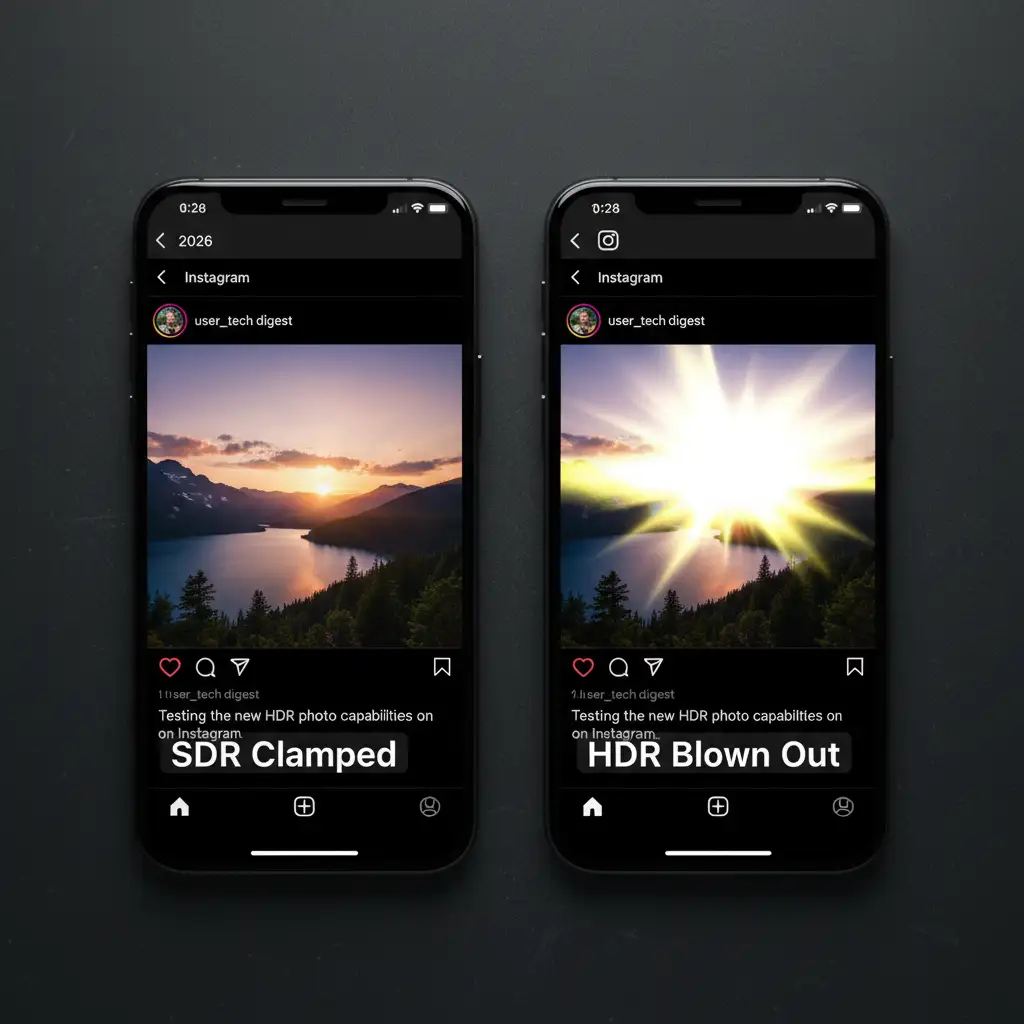
When you edit a photo in a wide color gamut like the Display P3 gamut and export it using standard “Quick Export” settings, the file often retains hidden HDR metadata. When Instagram’s compression algorithm detects this metadata, it aggressively boosts the luminance of the highlights to utilize the maximum brightness of modern OLED smartphone screens.
The result? Unnatural, neon highlights and a completely ruined color grade.
How to Stop Instagram HDR Color Blowout (3 Proven Methods)
To fix this issue, you must force the image into a standard dynamic range (SDR) before it ever reaches the Instagram app. Here are three professional workflows to achieve perfect color space conversion.
Method 1: The Quick Fix (Save for Web Legacy)
If you are using Photoshop v26 or v27, the standard “Quick Export as PNG/JPEG” often fails to strip the problematic metadata. The easiest way to bypass the platform’s HDR trigger is to use the legacy export module.
- Turn off any “View in HDR” display settings on your mobile device before uploading.
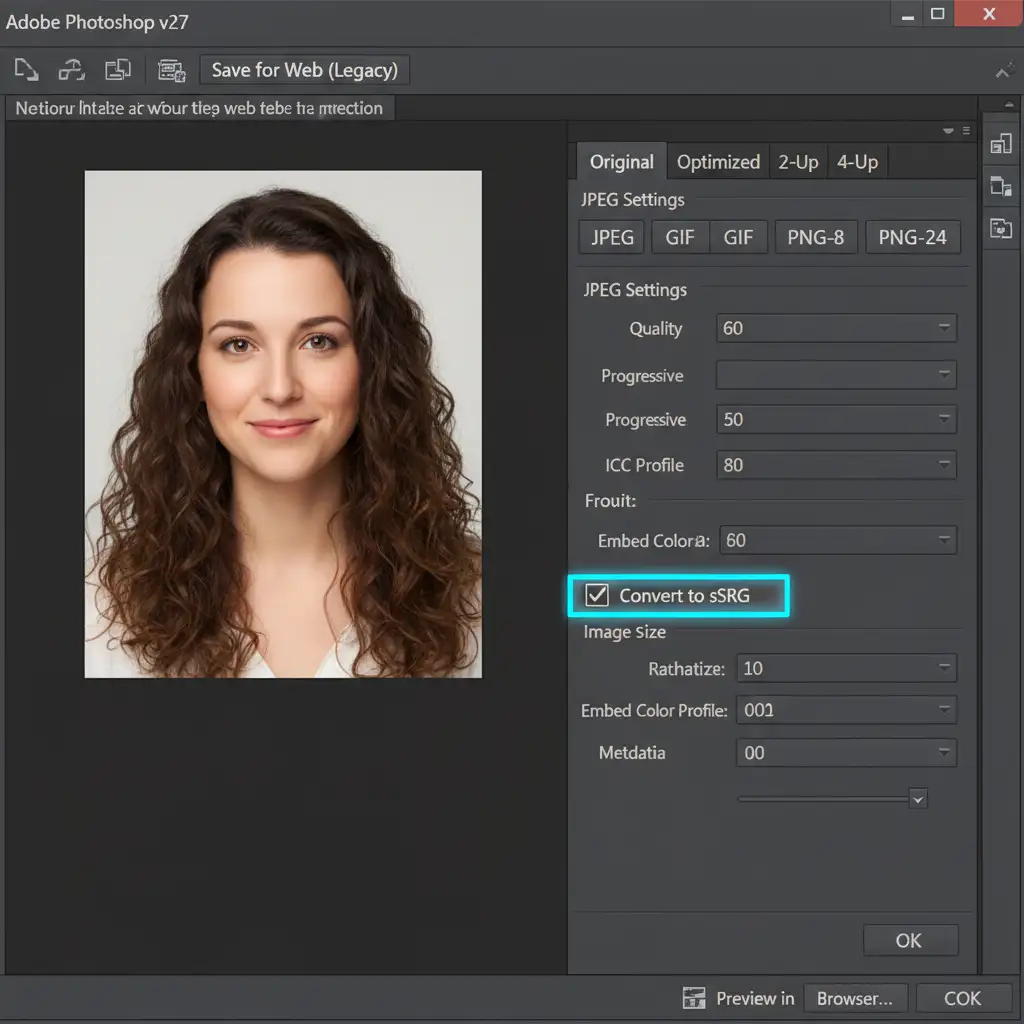
- In Photoshop, navigate to File > Export > Save for Web (Legacy).
- In the dialog box, ensure the Convert to sRGB checkbox is ticked.
- Save your JPEG. This effectively performs basic SDR clamping and prevents the platform from misinterpreting your highlights.
Method 2: The Pro Workaround (Soft Proofing & Metadata Stripping)
For high-end retouchers who work strictly in wide color spaces, you need a more controlled method of metadata stripping before sending files to a mobile device.
- Open your finished file in Photoshop.
- Go to View > Proof Setup > Custom.
- Set the Device to Simulate to sRGB IEC61966-2.1. This allows you to see exactly how the colors will compress.
- Make any final adjustment layers to correct color shifts caused by the proofing.
- Flatten the entire image (Layer > Flatten Image).
- Export the file. Flattening the image while proofed to sRGB strips the embedded HDR gain map metadata, ensuring the file remains in SDR when uploaded.
Method 3: The Technical Deep-Dive (Adobe Camera Raw SDR Clamping)
For the ultimate control over how your highlights roll off, you should manage the HDR-to-SDR conversion directly inside Adobe Camera Raw (ACR v16 or v17).
- Open your raw file or TIFF in Adobe Camera Raw.
- Navigate to the newly updated HDR panel on the right-hand side.
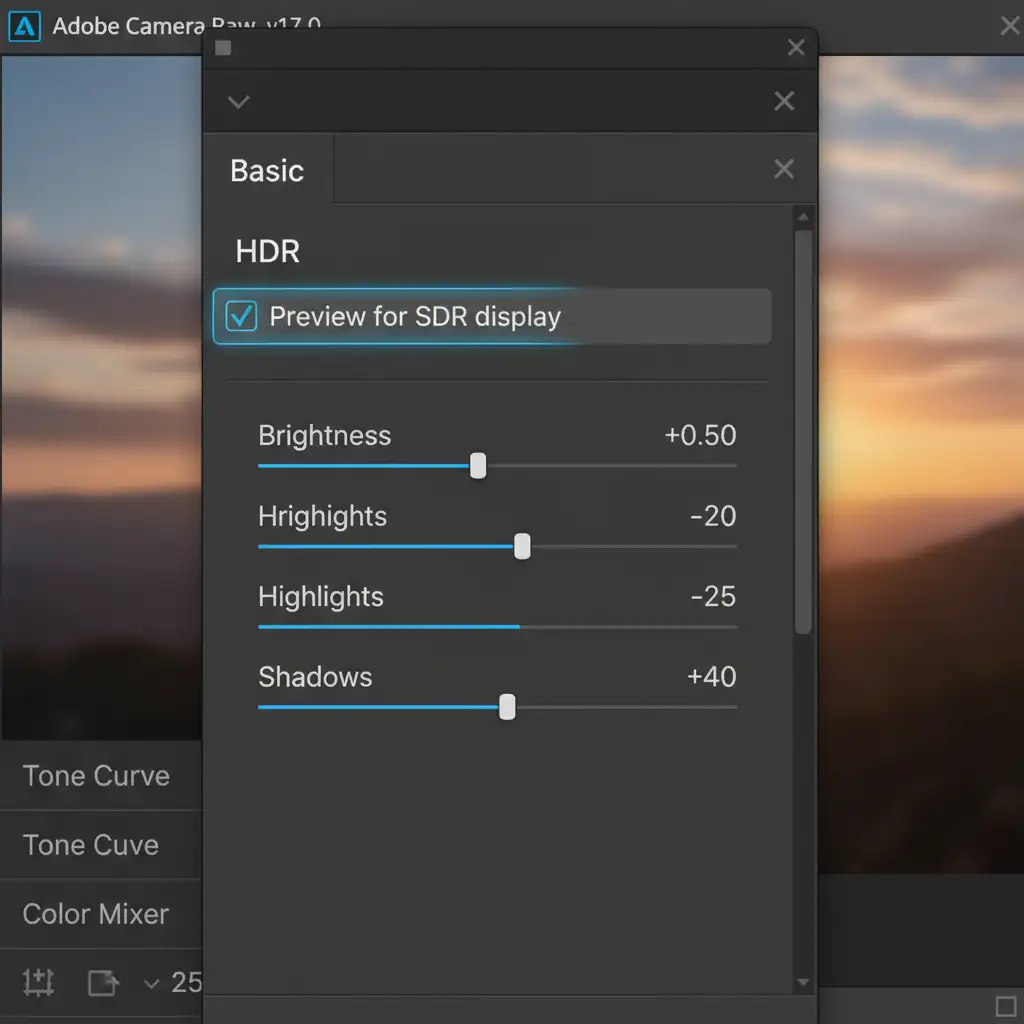
- Check the box for Preview for SDR display.
- Use the SDR rendition sliders to manually clamp the highlights, shadows, and contrast so they match your intended output.
- Click the Export button (the save icon) and ensure Remove HDR Metadata is checked in the export dialog.
Let the Experts Handle Your Color Correction
Staying ahead of social media algorithm changes, hidden metadata, and shifting color space standards is a full-time job. If you are spending more time fighting with platform compression than actually shooting or editing, it’s time to outsource.
At Image Work India and Cloud Retouch, our dedicated teams of professional retouchers understand the exact technical requirements for every digital platform. Whether you need high-volume e-commerce editing, advanced skin retouching, or flawless color correction that looks perfect on every screen—from an SDR desktop monitor to an HDR iPhone display—we have you covered.
Don’t let platform algorithms ruin your hard work. Contact Image Work India or Cloud Retouch today for expert, platform-ready image editing services.




