

You just spent hours isolating a product, placing it on a pristine background, and firing up Photoshop’s Generative Fill to create a premium glass reflection. The progress bar finishes, and the result? A warped, double-edged, physically impossible mess.
If you are dealing with ghosting and perspective distortion when generating shadows and reflections, you are not alone. While Photoshop’s AI is powerful, it relies on diffusion models that lack a fundamental understanding of 3D physics, spatial awareness, and ray-tracing.
In this guide, we are going to break down exactly why these errors happen and show you three professional methods for fixing Photoshop Generative Fill reflection artifacts so your e-commerce editing remains flawless.
The Problem: Why Diffusion Models Fail at Reflections
When you type “reflection” into Generative Fill, Photoshop isn’t calculating the angle of your light source or the geometric density of your product. Instead, its diffusion models are pattern-matching based on millions of 2D images.
Because it lacks spatial awareness, the AI frequently generates:
- Ghosting: Double edges or blurry, overlapping pixels.
- Perspective Distortion: Reflections that angle the wrong way or ignore the camera’s focal length.
- Physics Failures: Light behaving incorrectly, especially on complex surfaces like acrylic, glass, or water.
To achieve commercial-grade results, you must combine AI generation with traditional compositing techniques like Smart Objects, layer masking, and blending modes.
3 Methods for Fixing Photoshop Generative Fill Reflection Artifacts
Method 1: The Quick Fix (Refined Selections and Prompts)
The most common mistake editors make is selecting only the empty space beneath the product. If the AI doesn’t have enough context, it guesses—and usually guesses wrong.
The Fix:
- Grab the Lasso Tool.
- Select the entire area where the reflection should go, but intentionally overlap the bottom 5 percent of the product’s base.
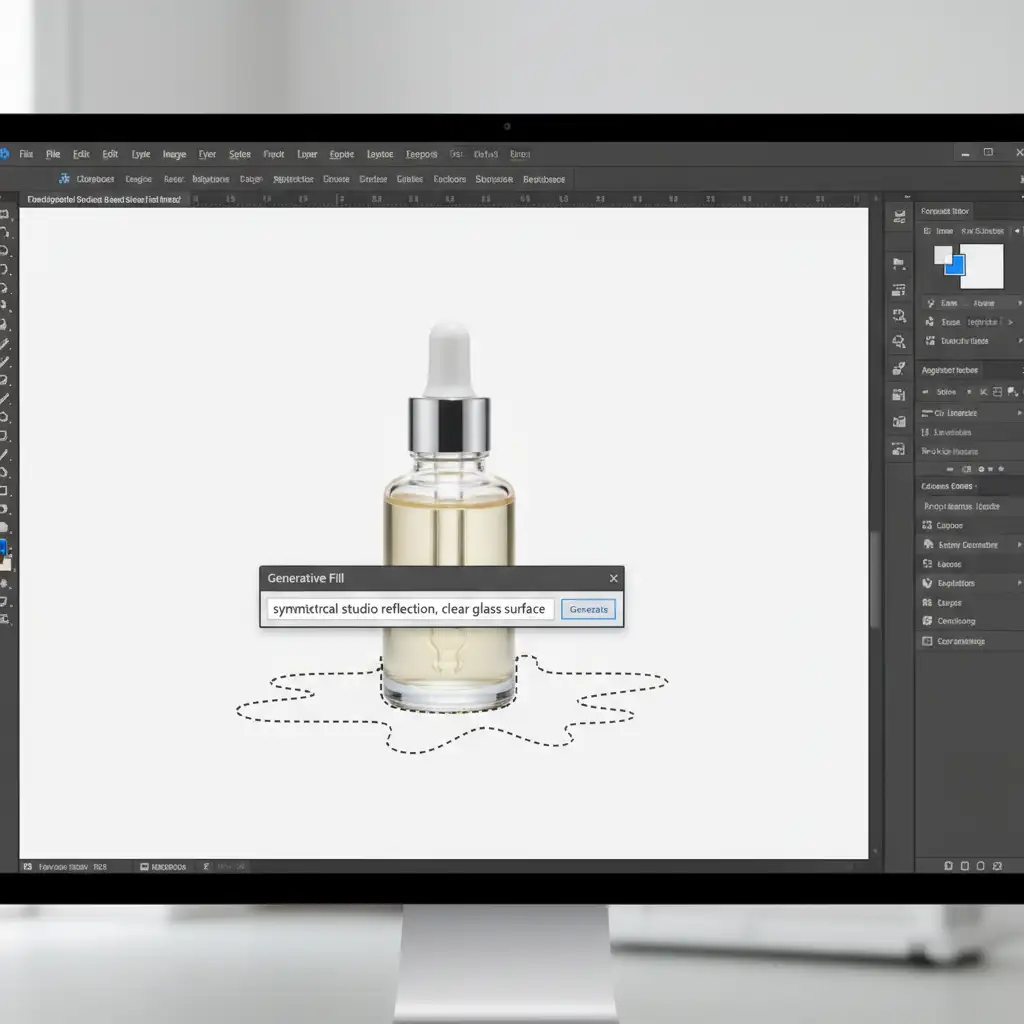
- Ditch generic prompts. Instead of typing “reflection,” use highly specific, physics-based prompts like: “symmetrical studio reflection, clear glass surface” or “sharp acrylic floor reflection.”
Method 2: The Pro Workaround (The Hybrid Method)
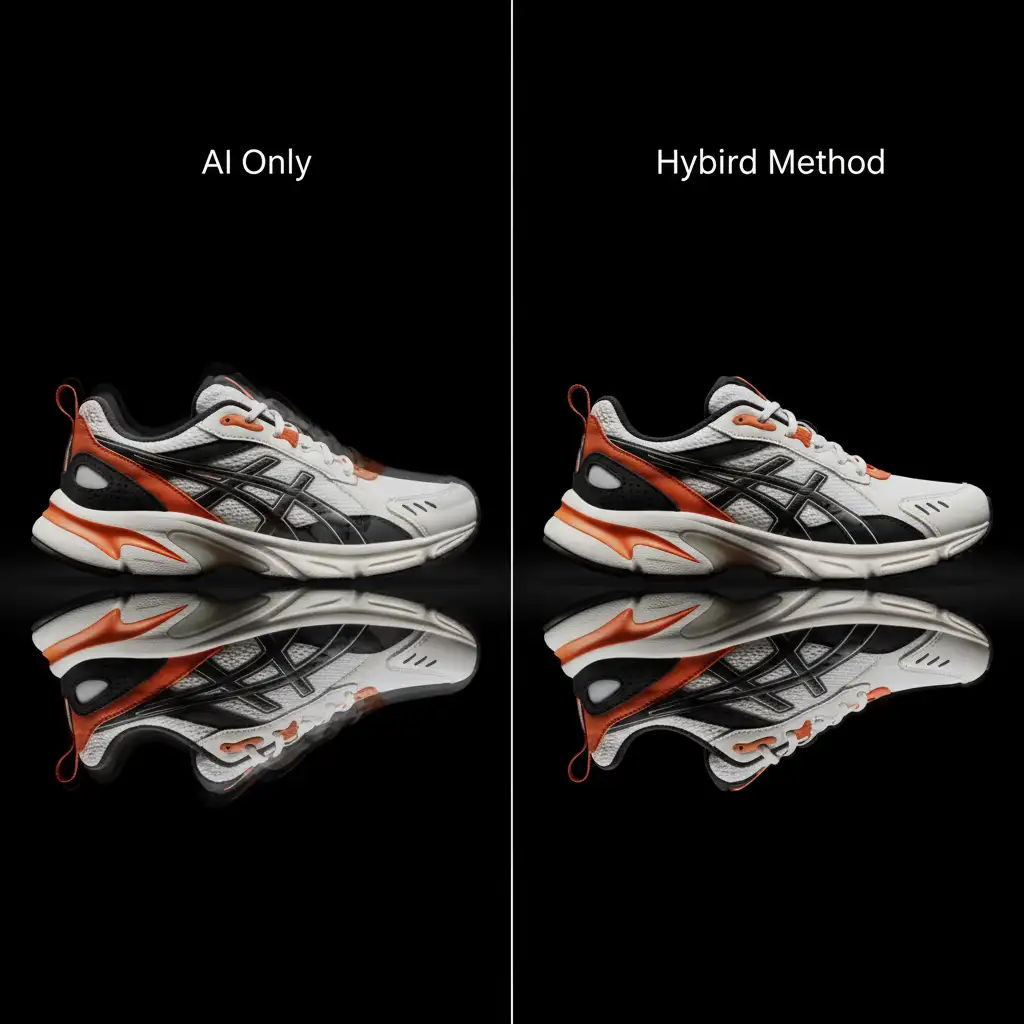
For high-end e-commerce editing, relying purely on AI is too risky. The Hybrid Method guarantees perfect physical accuracy by using the actual product pixels, reserving Generative Fill only for environmental blending.
The Fix:
- Duplicate your isolated product layer.
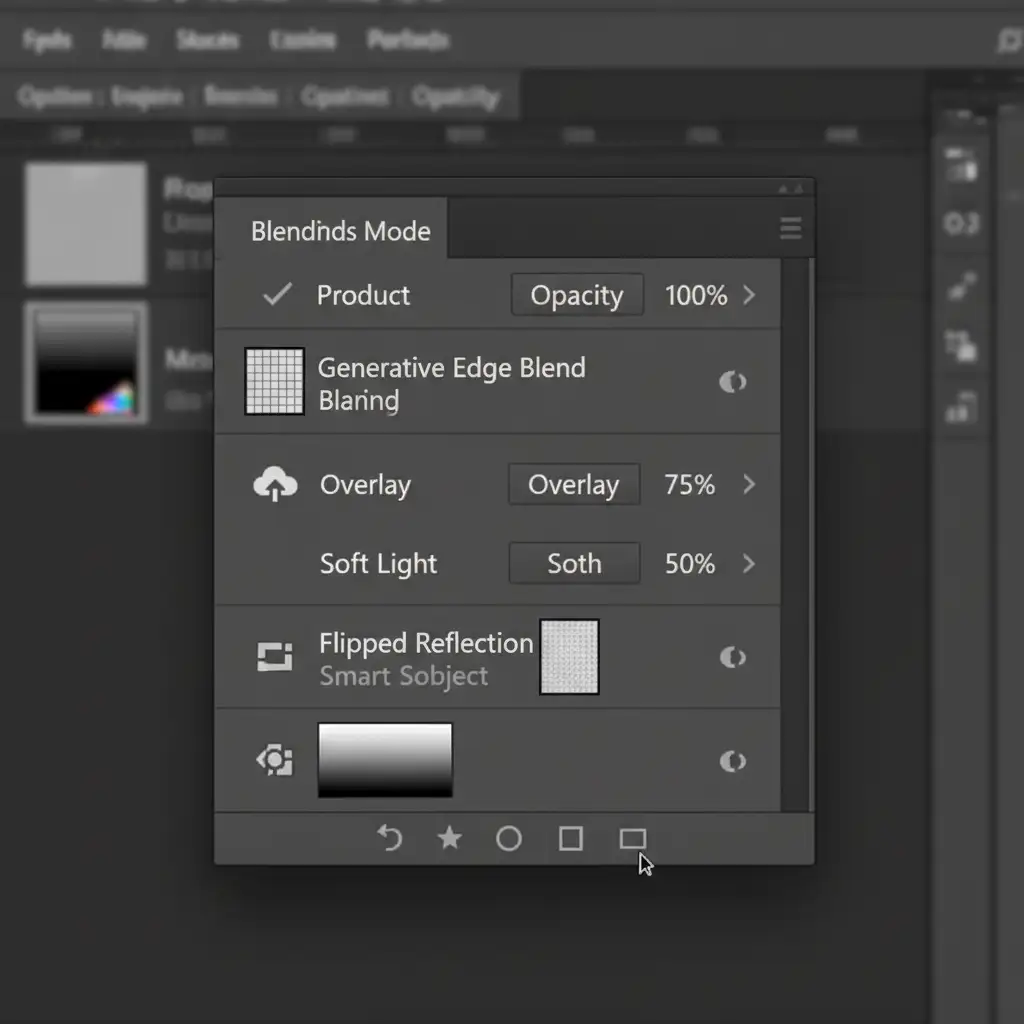
- Flip the duplicated layer vertically (Edit > Transform > Flip Vertical) and drag it below the original product.
- Convert the flipped layer to a Smart Object so you can apply non-destructive filters later.
- Add a Layer Mask to the Smart Object and apply a black-to-white gradient to create a natural, fading falloff.
- Finally, make a loose selection around the edges where the reflection meets the floor. Use Generative Fill with the prompt “subtle floor shadow and blend” to seamlessly marry the manual reflection to the background.
Method 3: The Technical Deep-Dive (Reference Images & Displacement Maps)
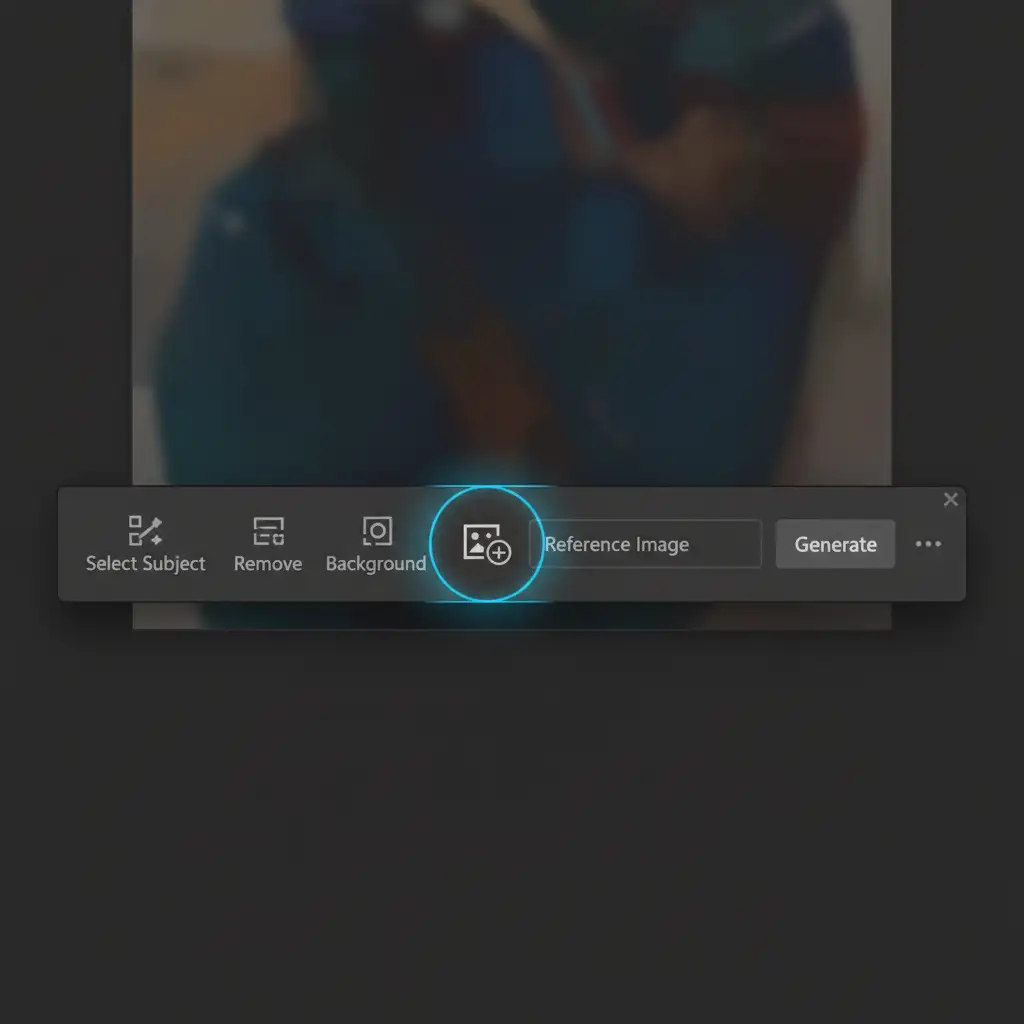
If you are using Photoshop v25.6 or later, Adobe introduced a massive workflow upgrade: the Reference Image feature located in the Contextual Task Bar.
The Fix:
- Use the Hybrid Method to create your flipped product reflection. Save this flipped version as a separate JPG.
- Make your selection for the reflection area.
- In the Contextual Task Bar, click the Reference Image icon and upload your flipped JPG. This forces the diffusion model to use the actual geometric shapes of your product rather than hallucinating a new one.
- For complex textures (like water or ripples): Generate your reflection, then apply a Displacement Map filter (Filter > Distort > Displace). Use a high-contrast black-and-white PSD of your background texture as the map source. This physically distorts the generated reflection to match the background’s geometry, creating perfect realism.
Scale Your E-Commerce Editing with Image Work India & Cloud Retouch
Fixing Photoshop Generative Fill reflection artifacts manually ensures top-tier quality, but it is incredibly time-consuming. When you are processing hundreds or thousands of SKUs for an e-commerce catalog, spending five minutes fixing ghosting on every single image destroys your profit margins.
You don’t have to fight with AI artifacts. Let the professional retouching team at Image Work India and Cloud Retouch handle the heavy lifting. Our expert retouchers specialize in pixel-perfect e-commerce editing, advanced compositing, and physically accurate shadow and reflection creation.
Stop losing hours to perspective distortion and messy diffusion models. Partner with us for flawless, commercial-grade product imagery delivered on time, every time. Contact Image Work India today to streamline your post-production workflow.




