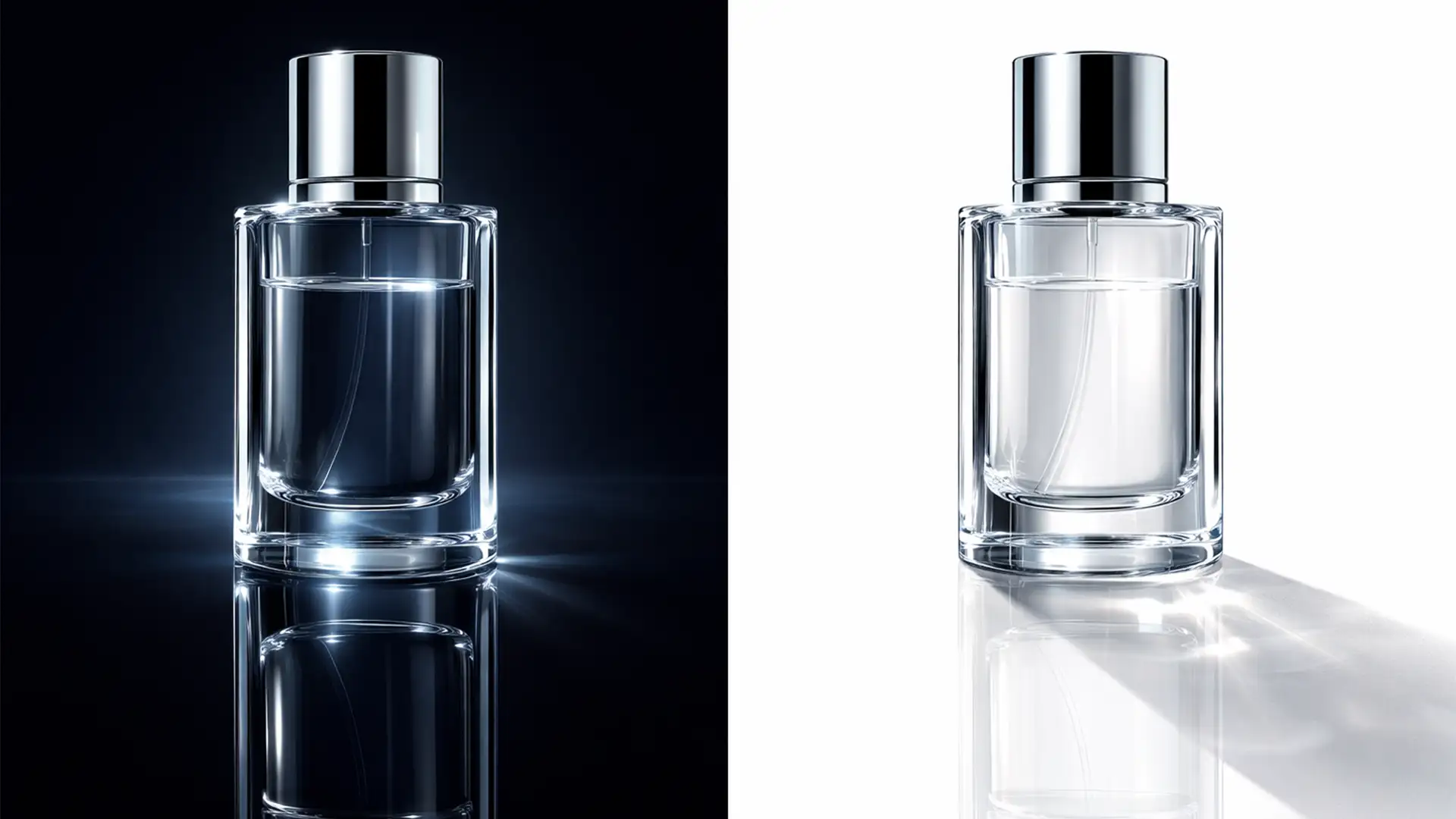

If you sell glassware online, you already know the nightmare of cutting out transparent products. Glass relies entirely on its environment for texture, reflections, and refraction. When you isolate a glass object to create a transparent PNG, adding a realistic reflection shadow often results in a muddy, white-haloed mess—especially when placed over dynamic website backgrounds. You drop the opacity, but that milky gray residue remains, ruining your web design. Sound familiar?
In this guide, we will show you exactly how to create a flawless reflection shadow for transparent glass PNGs using Adobe Photoshop v25.x (2024). Whether you need a quick fix or a professional luminosity masking technique, these methods will ensure your product imagery looks pristine on any background.
Why Glass Reflections Fail on Transparent Backgrounds
The core issue with glass in e-commerce photography is its refractive index. When a glass object is isolated, retaining its transparency without picking up the original background color is incredibly difficult.
Generating a reflection shadow for a transparent PNG compounds this problem. Standard opacity adjustments leave a gray residue because the software is simply making solid pixels semi-transparent, rather than separating the light (highlights) from the dark (shadows). To get a truly adaptable PNG, advanced users must utilize alpha channels, specific luminosity selections, and blend modes.
How to Create a Reflection Shadow for Transparent Glass PNGs
We have broken down the solutions into three methods, ranging from a basic quick fix to a professional technical deep-dive.
Method 1: The Quick Fix (Basic Duplicate & Fade)
If you are working with a solid, predictable background on your website, this basic method might be all you need.
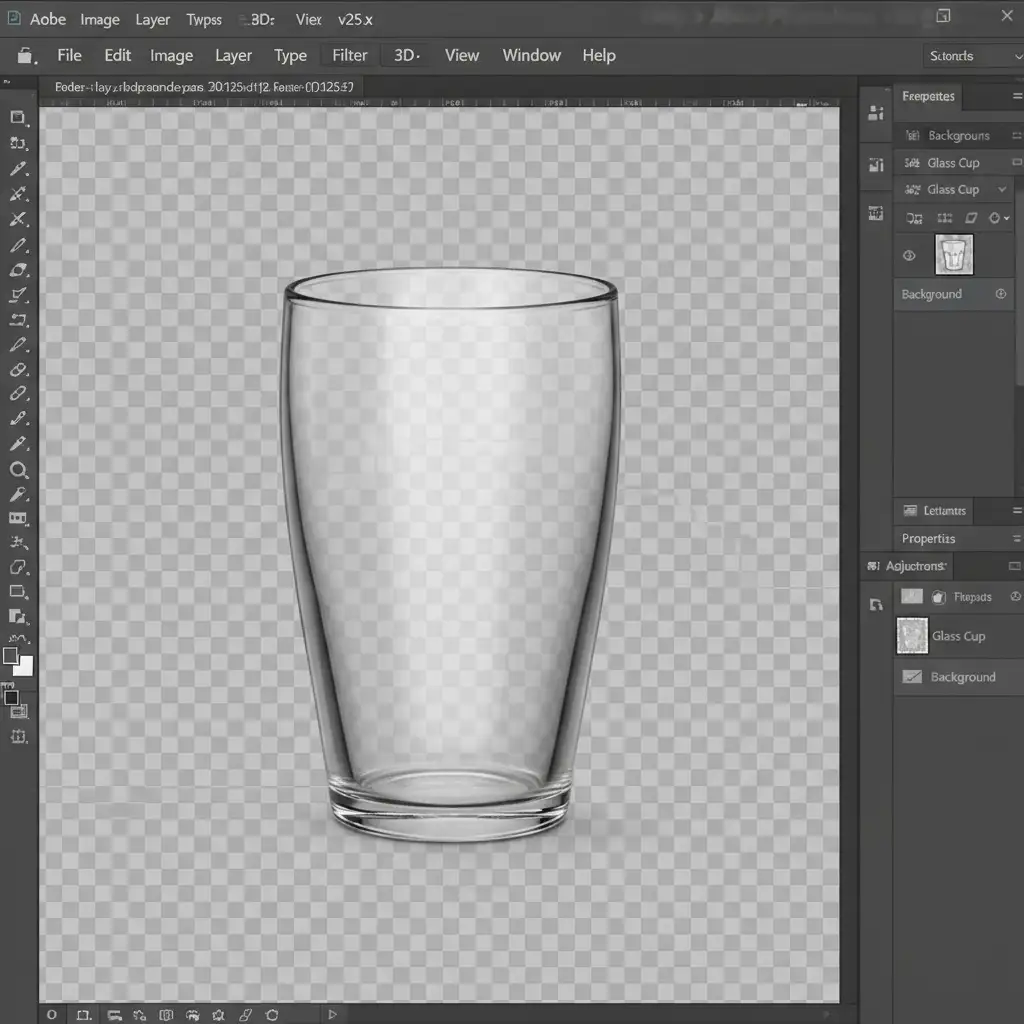
- Isolate Your Object: Cut out your glass object using a precise clipping path and place it on a transparent layer.
- Duplicate and Flip: Duplicate the layer (Ctrl/Cmd+J) and flip it vertically (Edit > Transform > Flip Vertical).
- Align: Move the flipped layer so it perfectly aligns with the bottom edge of the glass object.
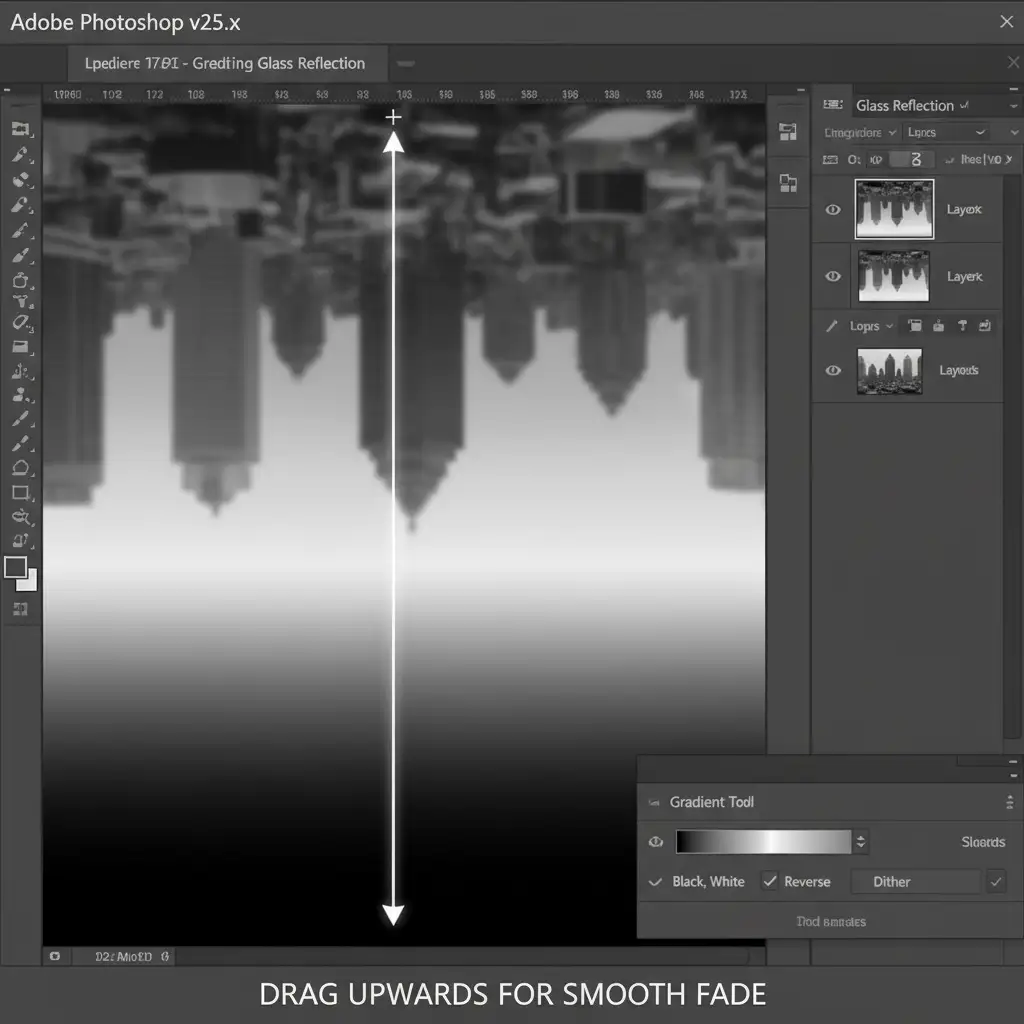
- Fade the Reflection: Add a Layer Mask to the duplicated layer. Select the Gradient Tool (G), set it to Black-to-White, and drag from the bottom up to fade the reflection into transparency.
- Adjust Opacity: Drop the layer opacity to around 30%.
Method 2: The Pro Workaround (Smart Objects & Blend Modes)
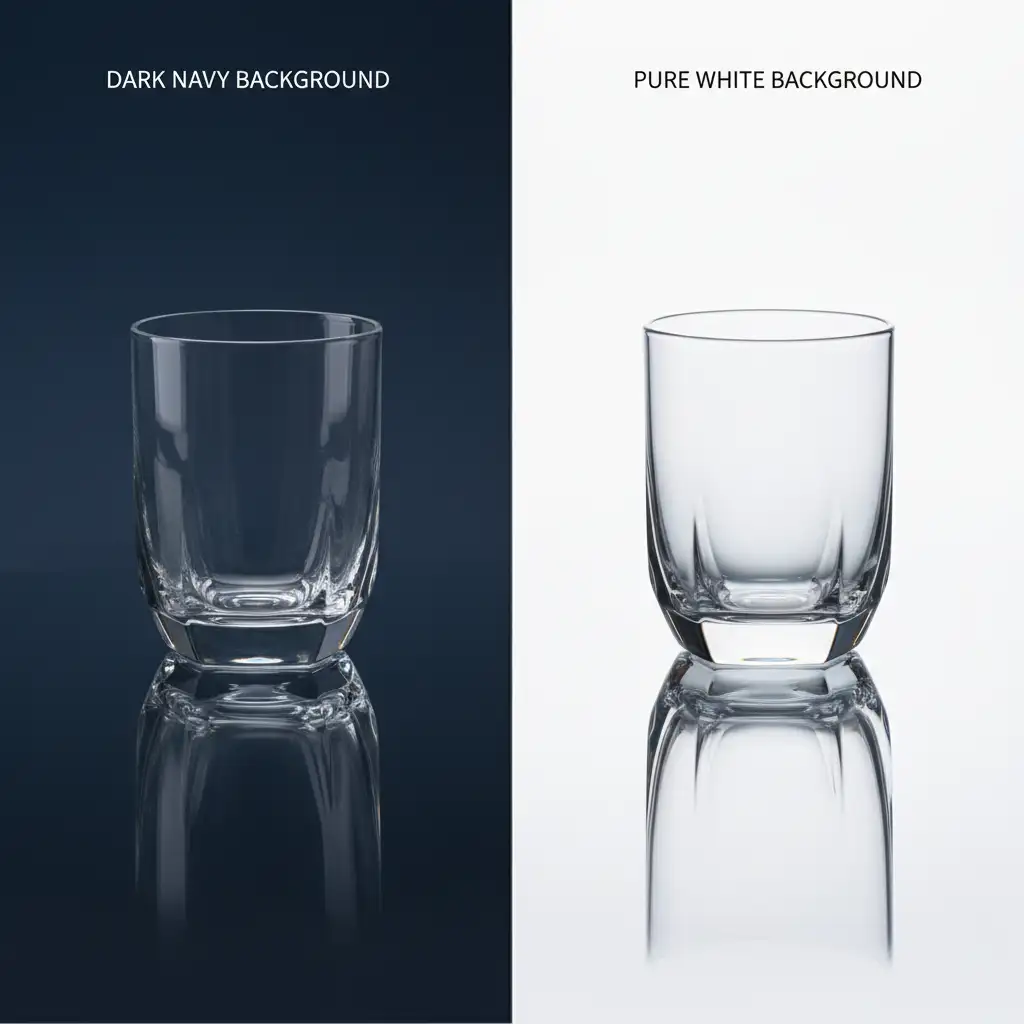
For better adaptability across different website themes (like dark mode and light mode), you need to utilize Smart Objects and Blend Modes.
- Convert to Smart Object: Right-click your isolated glass layer and select “Convert to Smart Object.” This preserves the image data non-destructively.
- Duplicate and Flip: Just like Method 1, duplicate the layer and flip it vertically.
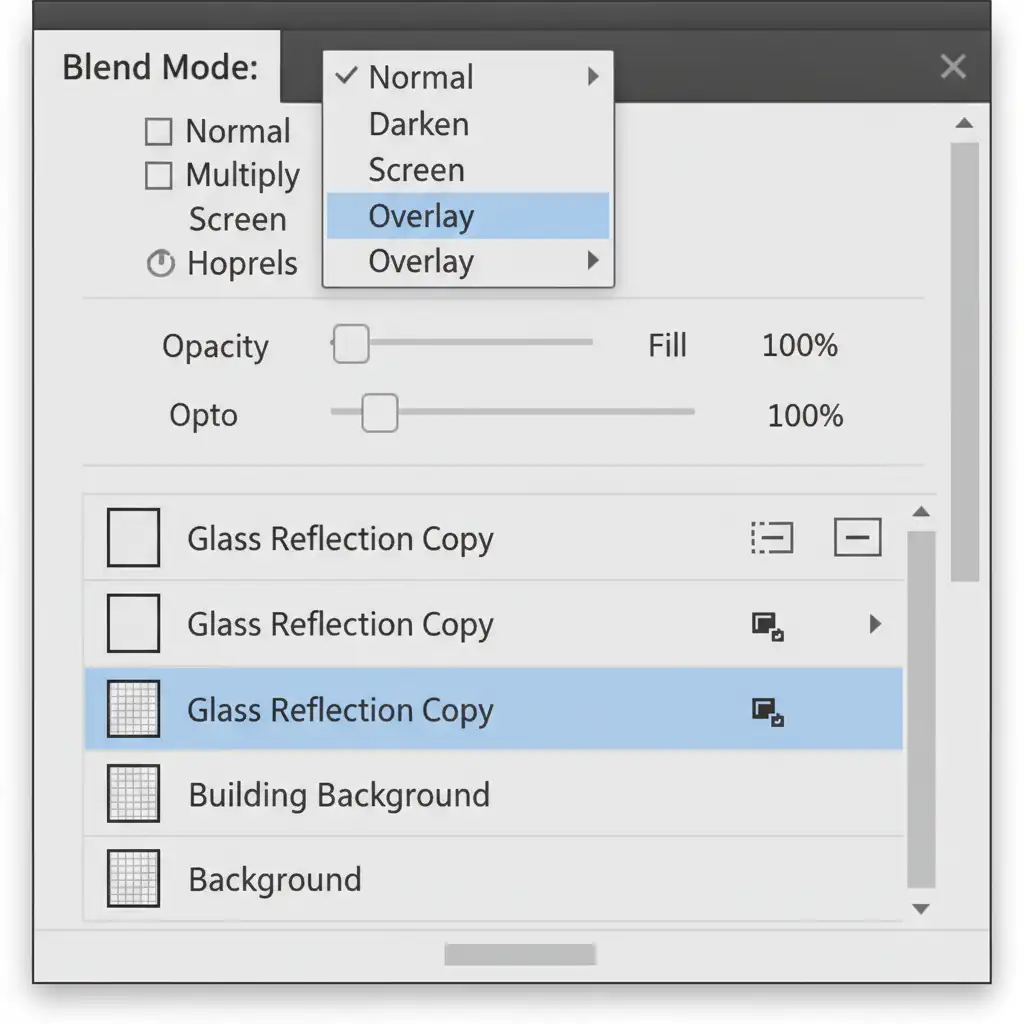
- Apply Blend Modes:
- If your website background is dark, change the reflection layer’s Blend Mode to Screen.
- For maximum versatility, duplicate the reflection layer twice. Set the bottom one to Multiply (to handle the shadows) and the top one to Screen (to handle the highlights).
- Add Depth of Field: Go to Filter > Blur > Gaussian Blur and apply a 1-2px blur to the reflection Smart Object to simulate realistic depth of field. Apply your gradient mask to fade it out.
Method 3: The Technical Deep-Dive (Luminosity Channels for True Transparency)
This is the ultimate method for creating a reflection shadow for transparent glass PNGs that guarantees zero background color contamination, no matter where the image is placed.
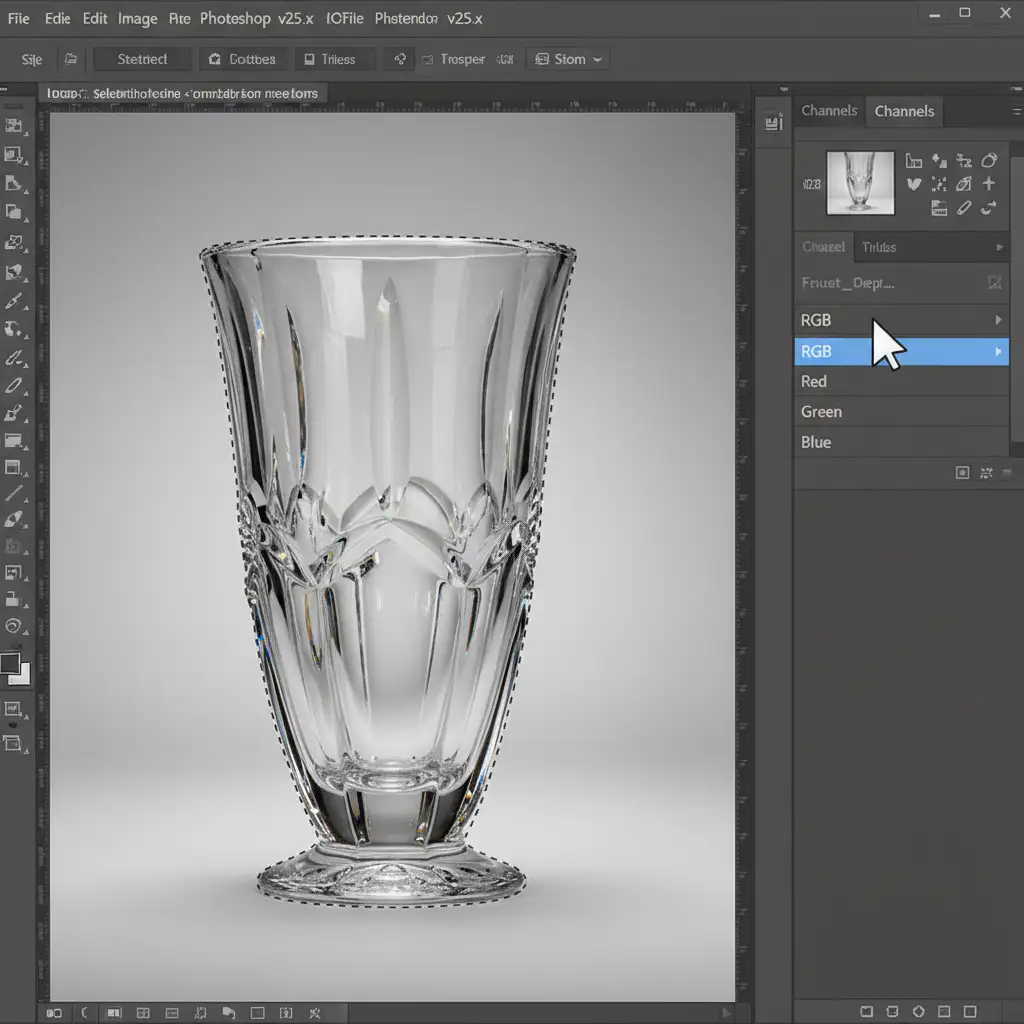
- Select Luminosity: Navigate to the Channels panel. Hold Ctrl/Cmd and click the RGB channel thumbnail. This creates a luminosity selection, targeting only the highlights of the glass.
- Extract Highlights: Create a new layer, fill the active selection with pure white, and set the Blend Mode to Screen.
- Extract Shadows: Invert the selection (Ctrl/Cmd+Shift+I). Intersect this selection with your original glass shape outline. Create another new layer, fill it with pure black, and set the Blend Mode to Multiply.
- Group and Reflect: Group these pure highlight and shadow layers together. Duplicate the entire group, flip it vertically to form the reflection, and apply a gradient mask to fade it.
Because you have separated pure light and pure shadow using an alpha channel technique, exporting this as a PNG will yield a dynamic reflection that seamlessly adapts to any background color behind it.
Outsource Your Shadow Making to the Experts
Creating the perfect reflection shadow for transparent glass PNGs requires time, patience, and a deep understanding of Photoshop’s luminosity and blending tools. If you are managing an e-commerce store with hundreds or thousands of glass products, editing each one manually is a massive drain on your resources.
Struggling to get crystal-clear glass reflections for your e-commerce catalog? Let the professionals handle it. Hire Image Work India and Cloud Retouch for pixel-perfect shadow making, transparent masking, clipping paths, and high-end retouching services. Our team specializes in complex transparent object extraction, ensuring your products look flawless and ready to convert on any website background.
Contact us today to streamline your post-production workflow and elevate your product imagery.




