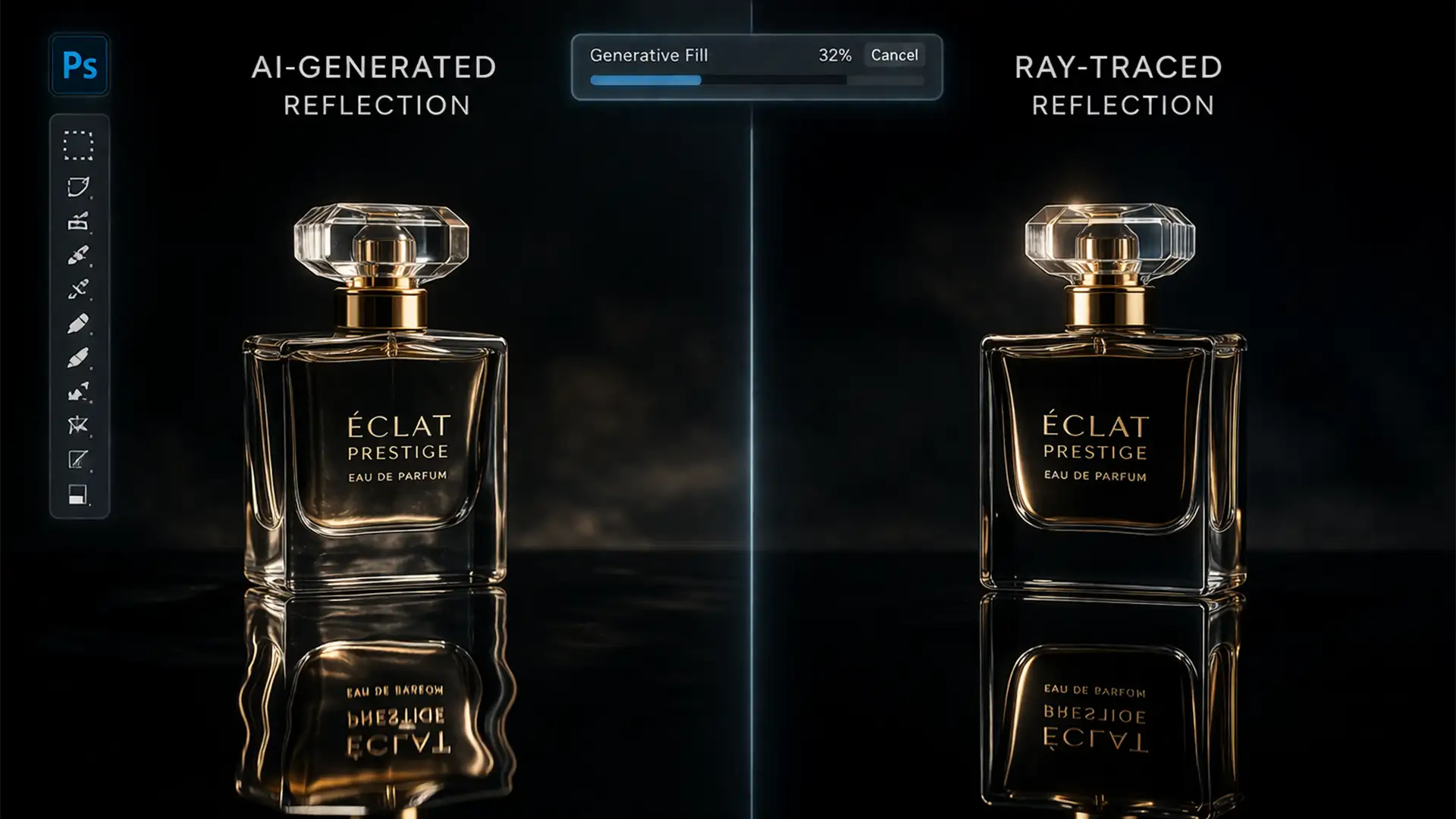

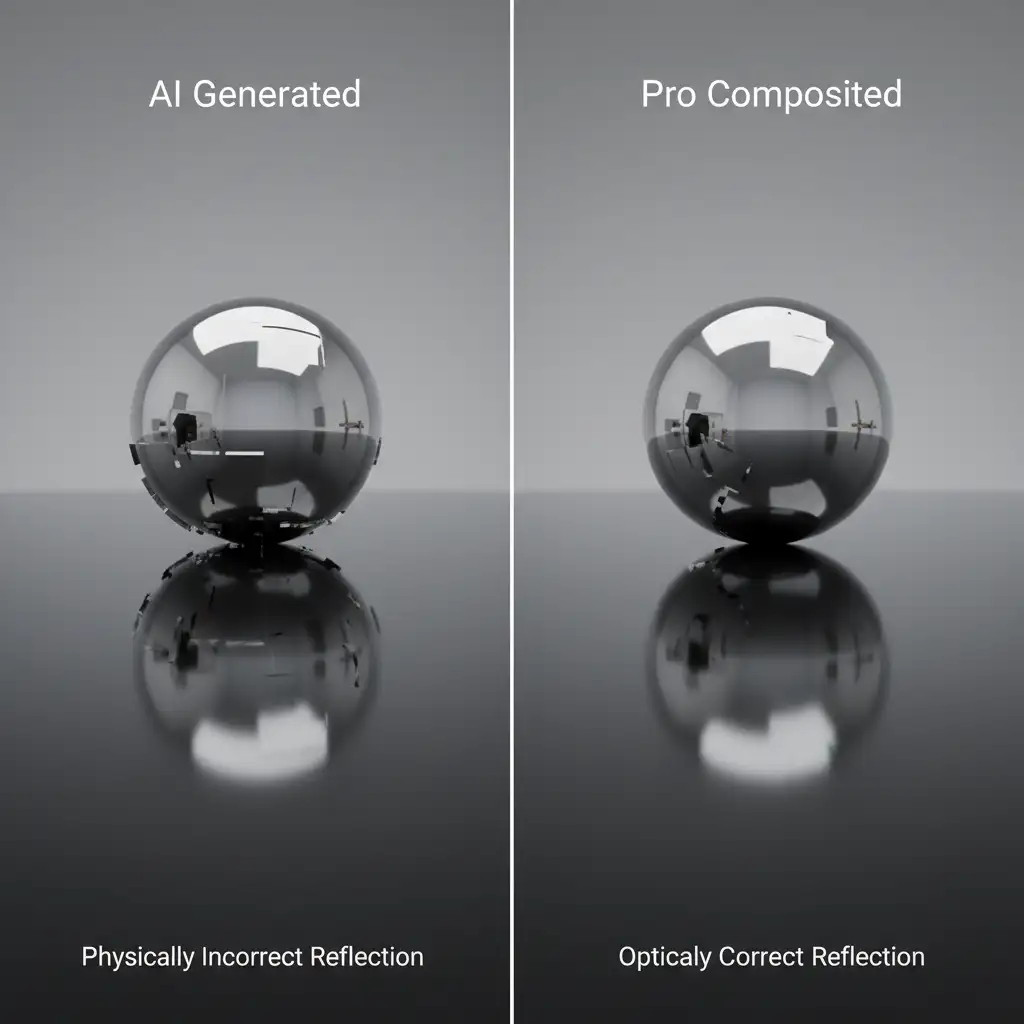
Have you ever used Photoshop’s Generative Fill to create a stunning subject, only to look down and see a mangled, physically impossible reflection? You aren’t alone. When you need to fix generative fill distorted reflections in Photoshop, simple text prompts usually aren’t enough. The AI might generate a flawless primary object, but the mirrored surface often looks disjointed or entirely ignores the bounce angle of light.
This is a massive bottleneck for professional retouchers. In this guide, we will explain why the AI fails at rendering accurate physics and walk you through three professional compositing techniques to achieve perfect symmetry correction and flawless reflections.
Why Does Photoshop Generative Fill Distort Reflections?
In Photoshop v25.0 and newer, the Generative Fill tool is powered by Adobe’s Firefly Image Models. While incredibly powerful, Firefly currently relies on 2D pattern matching rather than true 3D spatial awareness.
When you ask the AI to generate a reflective surface, it doesn’t calculate actual ray-tracing or understand the depth and volume of the subject above it. Instead, it attempts to guess what a reflection should look like based on flat pixel data. This lack of physics calculation results in distorted reflections, broken perspective planes, and mismatched lighting. To fix this, we have to combine AI generation with manual, physics-accurate compositing.
3 Pro Methods to Fix Generative Fill Distorted Reflections in Photoshop
Method 1: The Quick Fix (Advanced Prompt Engineering)
Before diving into manual compositing, you can give the AI a better chance of success by providing more spatial context and strictly defining your text prompts.
- Make your initial selection around the area where the reflection should be.
- Go to Select > Modify > Expand and expand the selection by 20–30 pixels. This ensures the “marching ants” overlap slightly with the main subject, giving the AI vital contextual data about the object it needs to mirror.
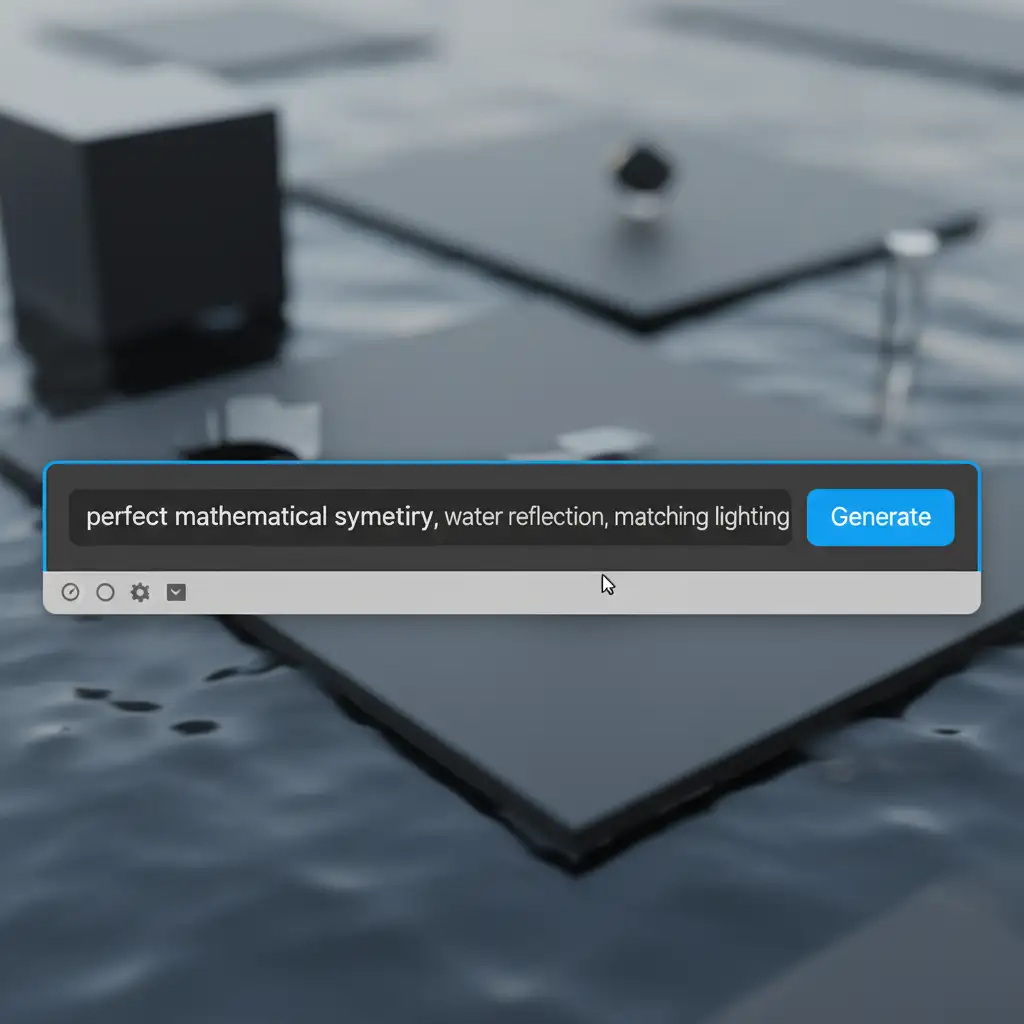
- Instead of leaving the prompt blank, use specific, physics-based commands.
Method 2: The Pro Workaround (Smart Object Mirroring)
If the AI still fails to calculate the bounce angle correctly, the most reliable method is to skip Generative Fill for the reflection entirely. Instead, use the successfully generated main subject to create a manual reflection.
- Select the layer containing your perfectly generated main subject.
- Duplicate the layer and immediately convert it into a Smart Object. This protects the pixel data.
- Go to Edit > Transform > Flip Vertical and drag the flipped subject down to the reflection line.
- Add a Layer Mask to the Smart Object.
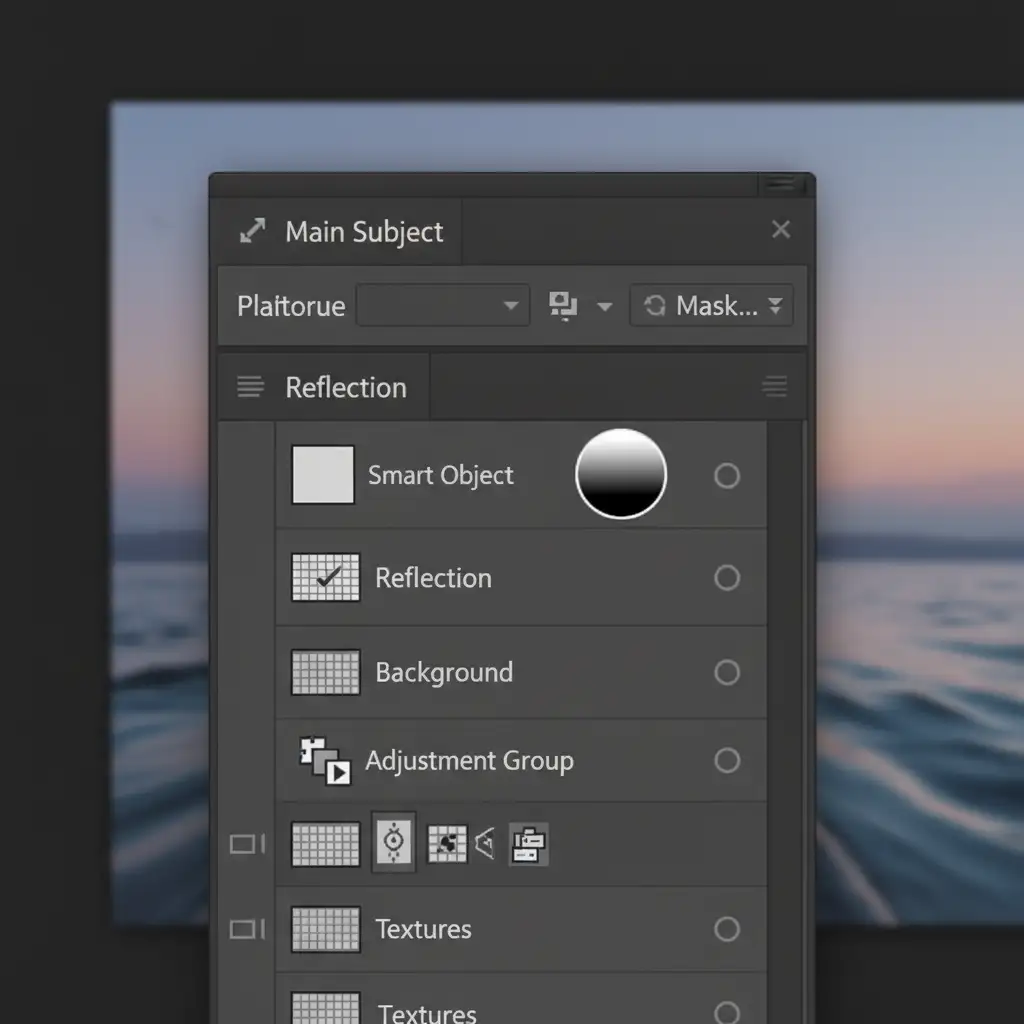
- Select the Gradient Tool (G) and apply a black-to-white gradient from the bottom of the reflection pulling upward. This creates a realistic fade, simulating the falloff of light. Adjust your Blend Modes (such as Screen or Soft Light) depending on the surface material.
Method 3: The Technical Deep-Dive (Displacement Maps & Perspective Warp)
For complex, uneven surfaces like rippled water or textured glass, a simple vertical flip will look fake. You need to map the reflection to the physical texture of the surface.
Step 1: Create the Displacement Map
Hide your subject and reflection layers. Save a copy of your background layer (the water or textured surface) as a high-contrast black-and-white PSD file. This will act as your Displacement Map.
Step 2: Displace the Reflection
Unhide your flipped reflection layer. Go to Filter > Distort > Displace. Choose a scale (usually between 5 and 15) and select the black-and-white PSD you just saved. Photoshop will mathematically warp your reflection to perfectly match the peaks and valleys of the surface ripples.
Step 3: Correct the Perspective
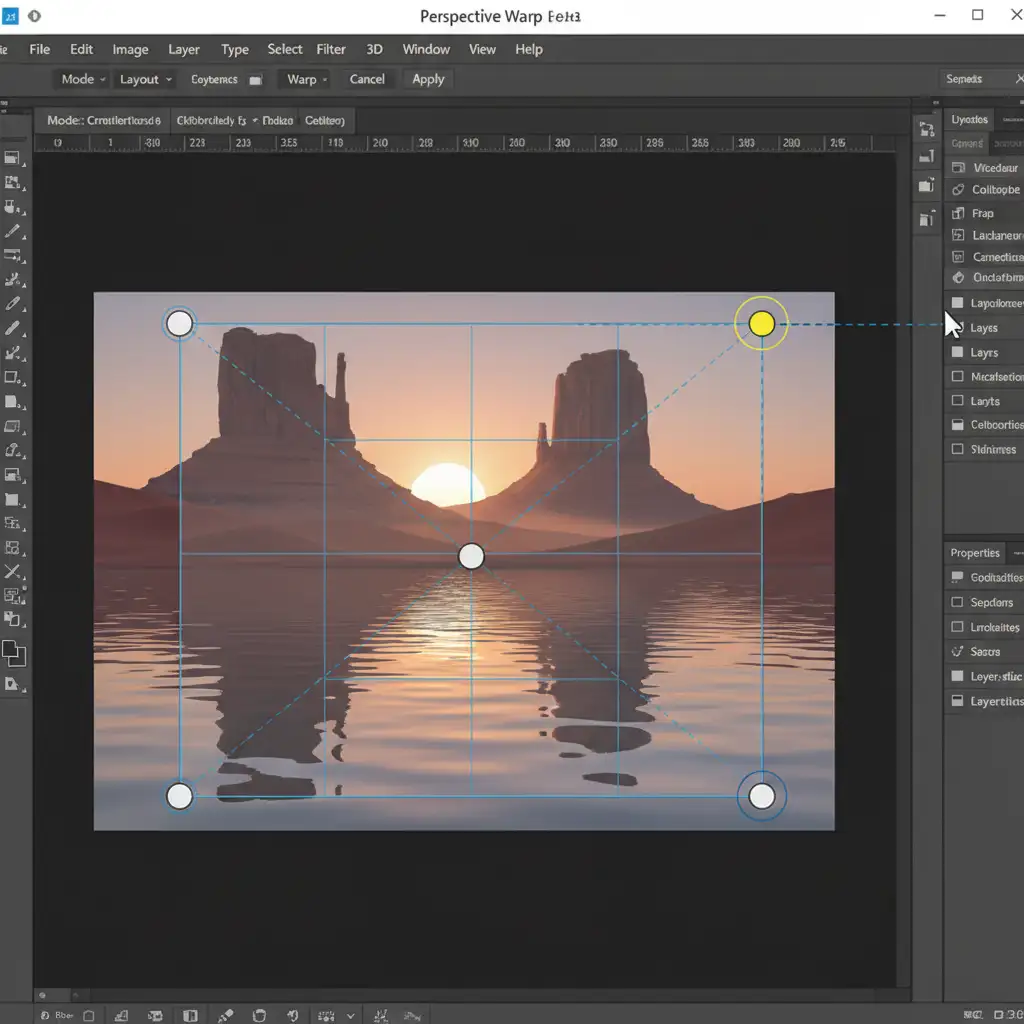
Finally, use Edit > Perspective Warp to align the displaced reflection to the specific angle of the surface plane. Draw your grid over the reflection, switch to “Warp” mode, and drag the pins to match the vanishing point of your background.
Stop Fighting the AI: Scale Your Image Editing
Knowing how to fix generative fill distorted reflections in Photoshop is essential for high-end compositing, but it is incredibly time-consuming. When you are processing hundreds of product images for an e-commerce catalog or preparing a massive editorial spread, you can’t afford to manually build displacement maps and perspective grids for every single shot.
Struggling with inconsistent AI results at scale? Let Image Work India and Cloud Retouch handle your complex compositing needs. Our expert retouchers combine the speed of AI generation with pixel-perfect, manual precision to deliver flawless, physics-accurate images every time.
Stop settling for distorted reflections. Contact us today to learn how our professional retouching services can streamline your workflow and elevate your brand’s visual standard.




