

Editing product photography on the go has never been easier, but if you’ve tried creating a realistic glass reflection in Photoshop for iPad 2024, you’ve likely hit a wall. Without the desktop version’s advanced rendering filters or 3D mapping capabilities, achieving authentic depth, refraction, and surface glare can feel impossible. But it doesn’t have to be. The latest v5.x update packs powerful nondestructive editing tools right at your fingertips. By leveraging precise Apple Pencil dynamics, layer masks, and blend modes, you can mimic high-end desktop retouching directly on your tablet. Here is exactly how to do it.
Why Glass Reflections on the iPad Used to Be Hard (and What’s Changed)
Historically, mobile editors struggled to replicate the complex refraction of light through glass. Desktop users rely on advanced warp tools and complex Smart Objects. However, the 2024 updates to Photoshop for iPad prioritize nondestructive editing workflows that make these workarounds obsolete.
You no longer need to destructively rasterize layer data to get a good result. Thanks to robust masking capabilities and full access to desktop-grade blend modes, mobile retouchers can build professional-grade reflections using fundamental, scalable techniques.
How to Create a Realistic Glass Reflection in Photoshop for iPad 2024
Depending on the complexity of the product shape, you can use one of these three research-backed methods to achieve the perfect reflection.
Method 1: The Quick Fix (Best for Flat Surfaces)
If you are working with a simple, flat-bottomed glass product (like a cosmetics jar), this method takes less than a minute.
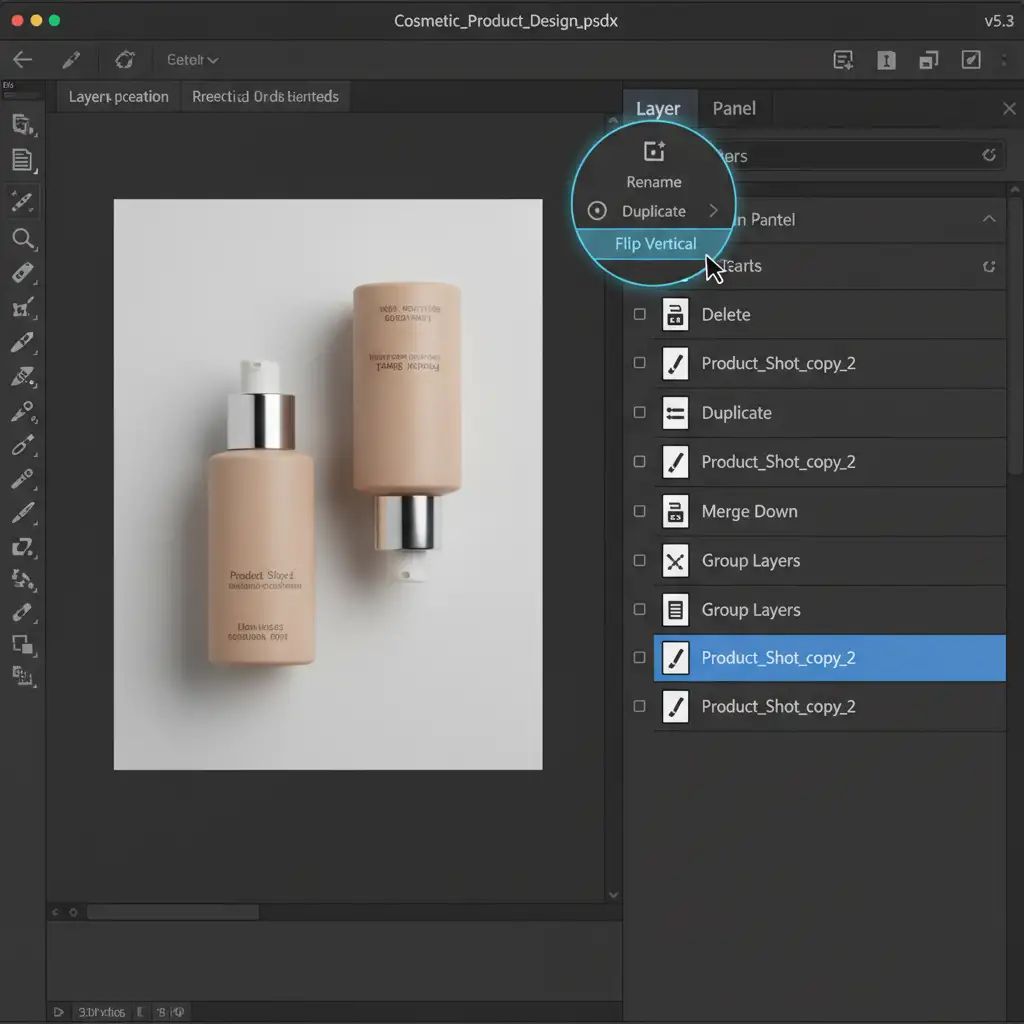
- Duplicate and Flip: Select your isolated product layer. Duplicate it, then use the Transform tool to flip the duplicated layer vertically. Position it directly below the original product so the bases touch.
- Adjust Opacity: Open your layer properties and drag the opacity slider down to roughly 30 percent.
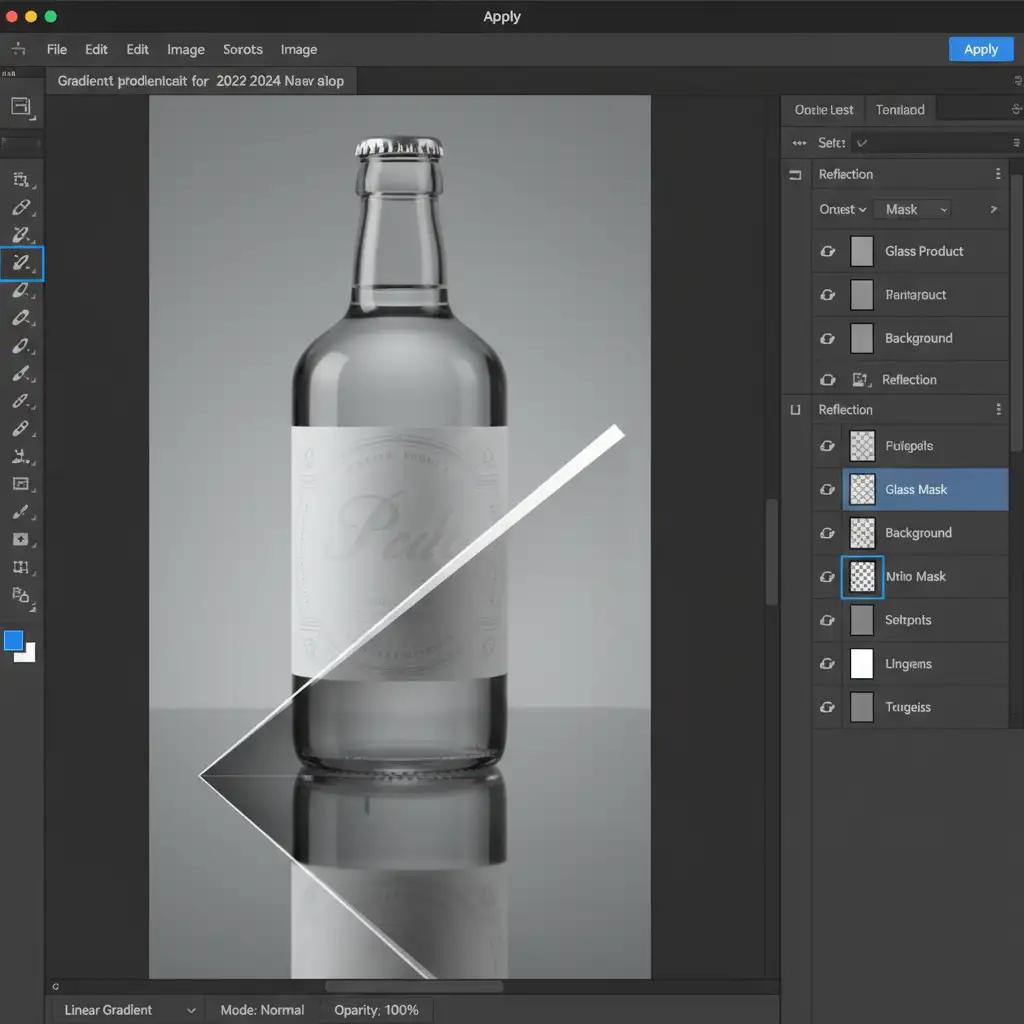
- Apply a Fade: Add a layer mask to the flipped layer. Select the gradient tool (set to black-to-white) and drag it from the bottom of the reflection up toward the base of the product. This creates a natural, fading falloff.
Method 2: The Pro Workaround (Adding Surface Glare)
A reflection isn’t just what happens underneath the product; it’s also how the environment reflects off the glass surface. To create authentic surface glare:
- Draw the Glare: Use the pen or brush tool to draw a solid white, curved shape over the edge of the glass where the light would naturally hit.
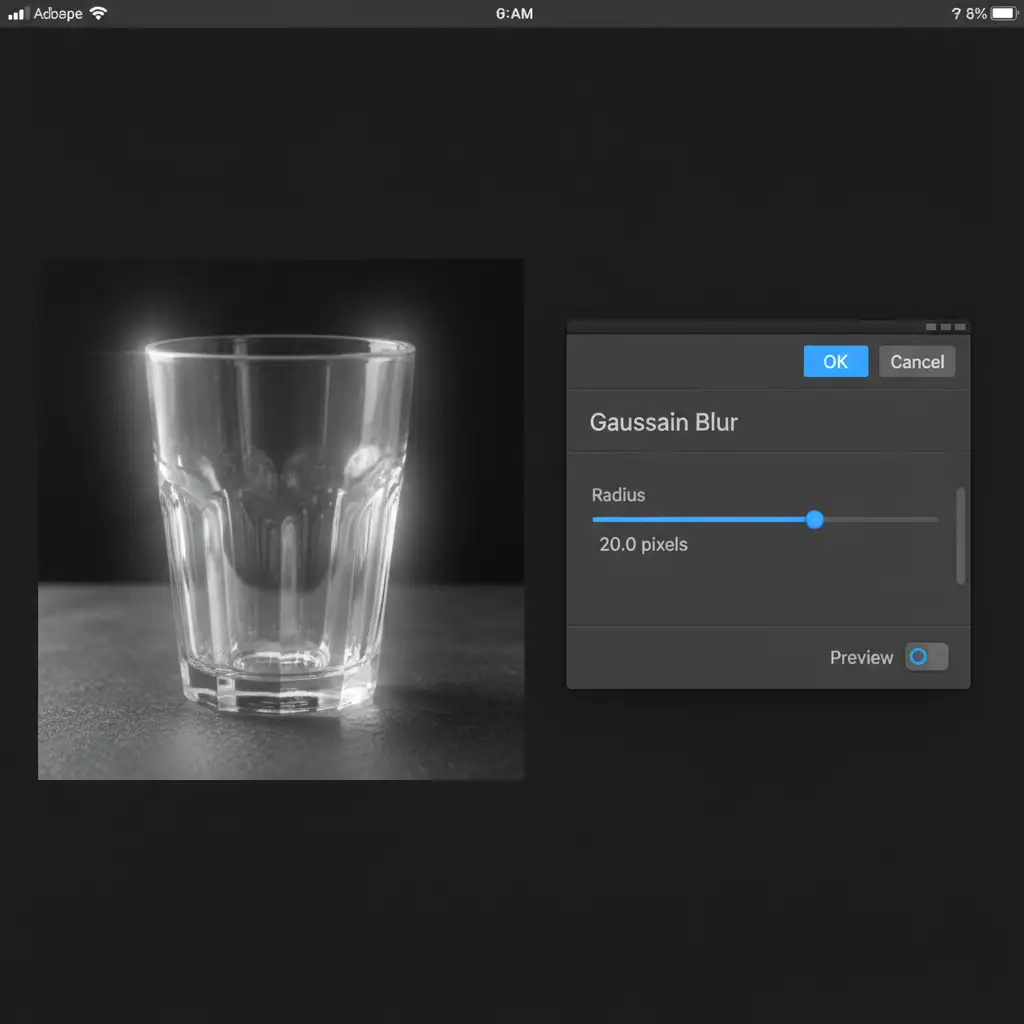
- Soften the Edge: Navigate to the Filters menu and apply a Gaussian blur. Adjust the slider until the harsh white shape diffuses into a soft highlight.
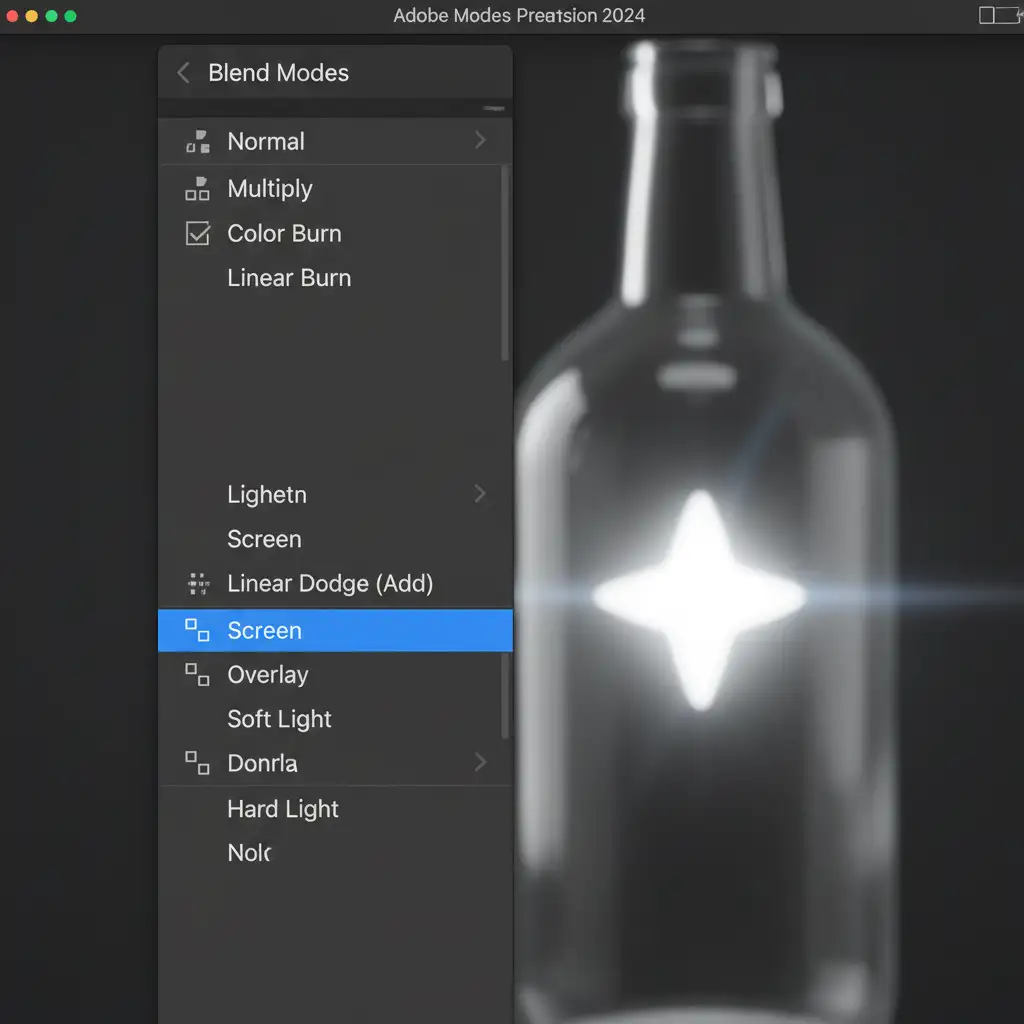
- Blend and Restrict: Open your blend modes panel and change the layer to Screen blending. Finally, tap the layer and select “Create Clipping Mask” to restrict the glare strictly to the boundaries of the glass object, preventing light spill onto the background.
Method 3: The Technical Deep-Dive (Complex Refractions)
For faceted glass, perfume bottles, or complex shapes, a single flipped layer won’t look realistic. You need to simulate complex refractions.
- Layer Stacking: Duplicate your product layer multiple times.
- Assign Blend Modes: Set one duplicated layer to Screen (to capture highlights) and another to Multiply (to capture shadows).
- Manual Painting: Add a black layer mask to both layers to hide them entirely. Select a soft-round brush. Ensure your Apple Pencil pressure sensitivity is enabled for both Flow and Opacity. Carefully paint with white on the masks to reveal localized highlights and shadows precisely where the glass bends. This manual control mimics desktop-level Dodge and Burn techniques.
Scale Your E-Commerce Retouching with Cloud Retouch & Image Work India
Mastering a realistic glass reflection in Photoshop for iPad 2024 is a great skill for editing on the go. However, when you have hundreds of e-commerce product images that need flawless, consistent reflections, shadows, and color correction, doing it manually on a tablet simply isn’t scalable.
Need flawless, high-volume product images without the tedious manual labor? Hire Image Work India or Cloud Retouch. Our expert teams specialize in professional-grade e-commerce retouching, delivering perfect glass reflections, precise clipping paths, and studio-quality shadows every single time. Focus on growing your business and shooting great products—let us handle the pixel-perfect details. Contact us today for a custom quote!




