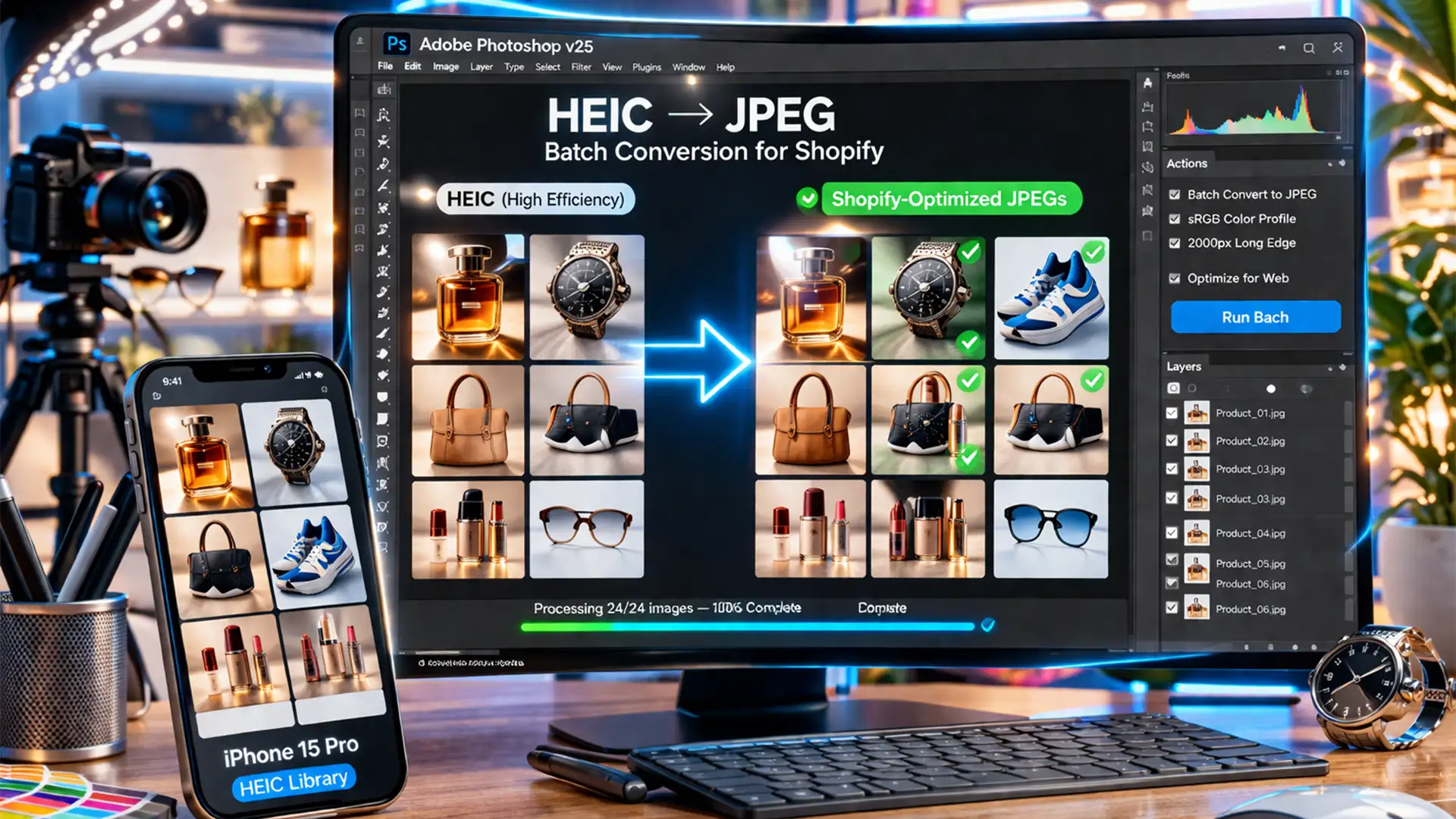

You just shot a stunning new product catalog on your iPhone, but the moment you upload those photos to your Shopify store, disaster strikes. The vibrant colors look dull, the edges are muddy, and the crisp details are gone.
This is a common nightmare for mobile-first ecommerce sellers. Because Apple defaults to the HEIC format, importing these files to Windows or older macOS environments for standard JPEG conversion often results in severe color shift and compression artifacts.
If you want to batch edit iPhone HEIC for Shopify without quality loss, you need a bulletproof, lossless workflow. In this guide, we will show you exactly how to configure Adobe Photoshop and Camera Raw to process thousands of HEIC files while preserving perfect color accuracy.
Why iPhone HEIC Files Look Dull on Shopify
The root of the problem lies in color profiles. iPhones shoot photos in the HEIC/HEIF format using the Display P3 color space, which captures a 25% wider color gamut than standard web formats.
However, Shopify and modern web browsers require the sRGB color space. If you force a standard format conversion without properly mapping the colors, the vibrant Display P3 data is discarded, resulting in a noticeable color shift (usually making reds and greens look washed out). To maintain a lossless workflow, you must deliberately handle the sRGB conversion during the batch editing process.
Here are the three best methods to achieve this using Photoshop v24.x to v25.x (2024).
Method 1: The Quick Fix Using Adobe Bridge and Camera Raw
If you need to quickly adjust exposure and convert a folder of product photos, Adobe Camera Raw handles HEIC files natively and beautifully.
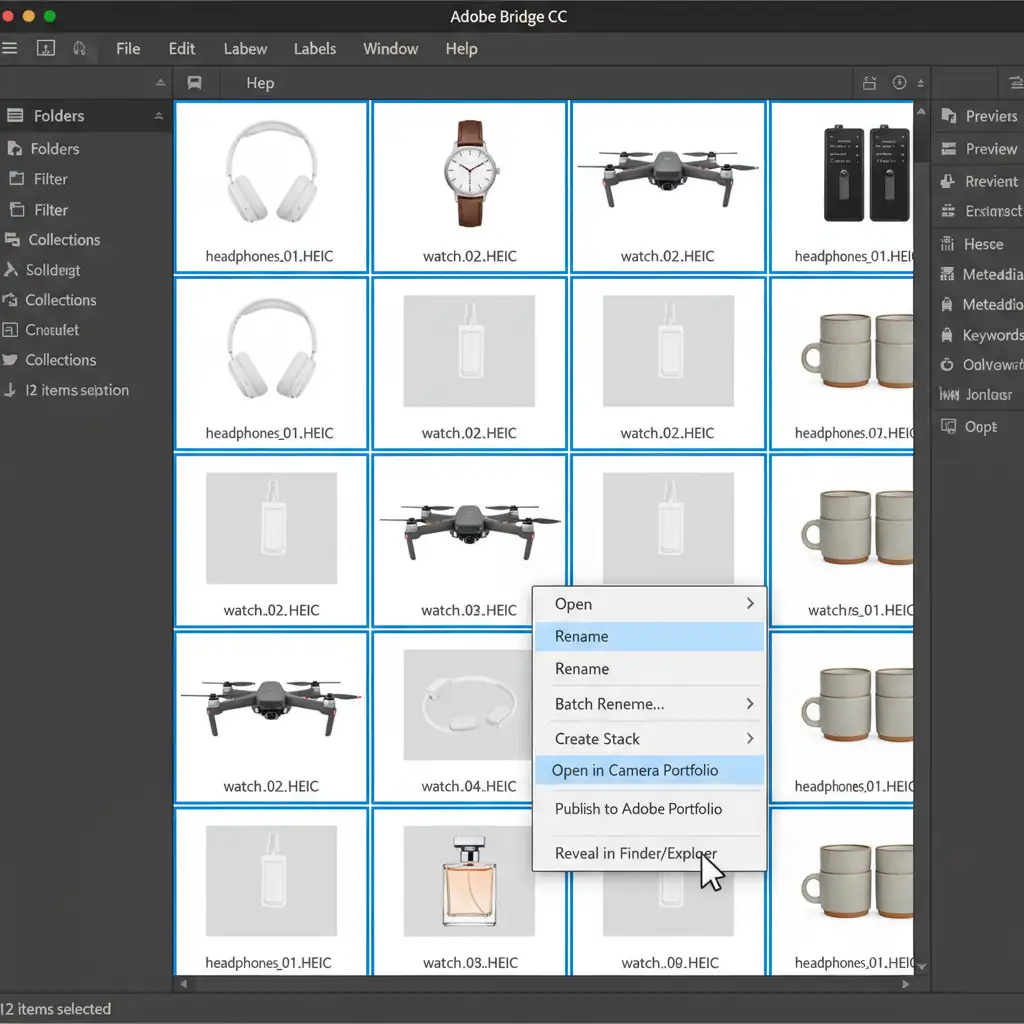
- Open Adobe Bridge and navigate to your folder of HEIC product photos.
- Press Ctrl + A (Windows) or Cmd + A (Mac) to select all images.
- Right-click and select Open in Camera Raw.
- In Camera Raw, select all images again from the filmstrip panel. Make any basic lighting or color adjustments.
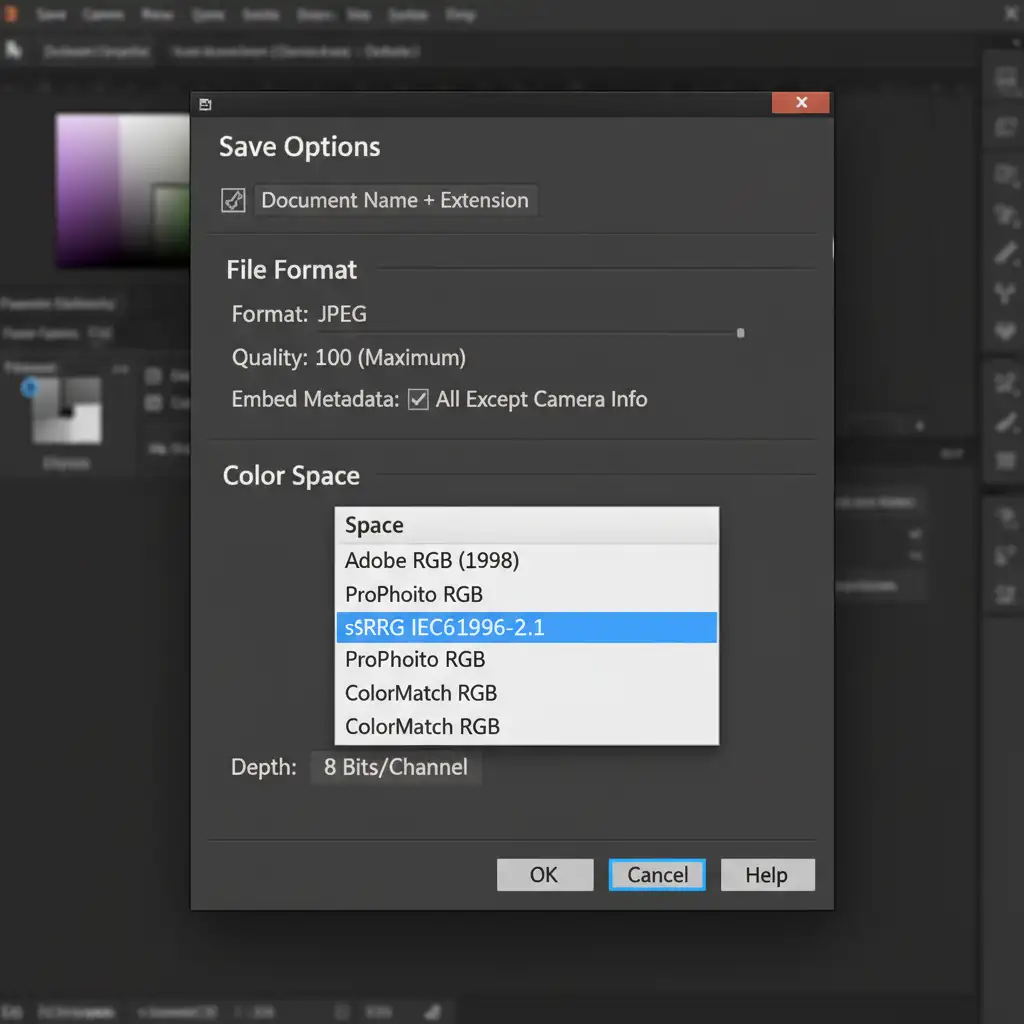
- Click the Save icon (top right) to open the Save Options dialog.
- Under Color Space, explicitly choose sRGB. Set the format to JPEG and Quality to Maximum.
Method 2: The Pro Workaround with Photoshop Batch Automate Actions
For sellers who need to apply specific adjustments—like watermarking, sharpening, or resizing pixel dimensions—creating custom Batch Automate Actions is the most powerful route.
Step 1: Record Your Custom Action
- Open a single HEIC file in Photoshop.
- Open the Actions panel (Window > Actions) and create a New Action named “Shopify HEIC to JPEG”. Hit Record.
- Go to Edit > Convert to Profile and select sRGB IEC61966-2.1.
- Go to Image > Image Size and set your desired Shopify pixel dimensions (e.g., 2048x2048px).
- Go to File > Export > Save for Web (Legacy). Choose JPEG, set Quality to 80 (or higher), and ensure “Convert to sRGB” is checked. Save the file and close the document.
- Stop recording the Action.
Step 2: Run the Batch Process
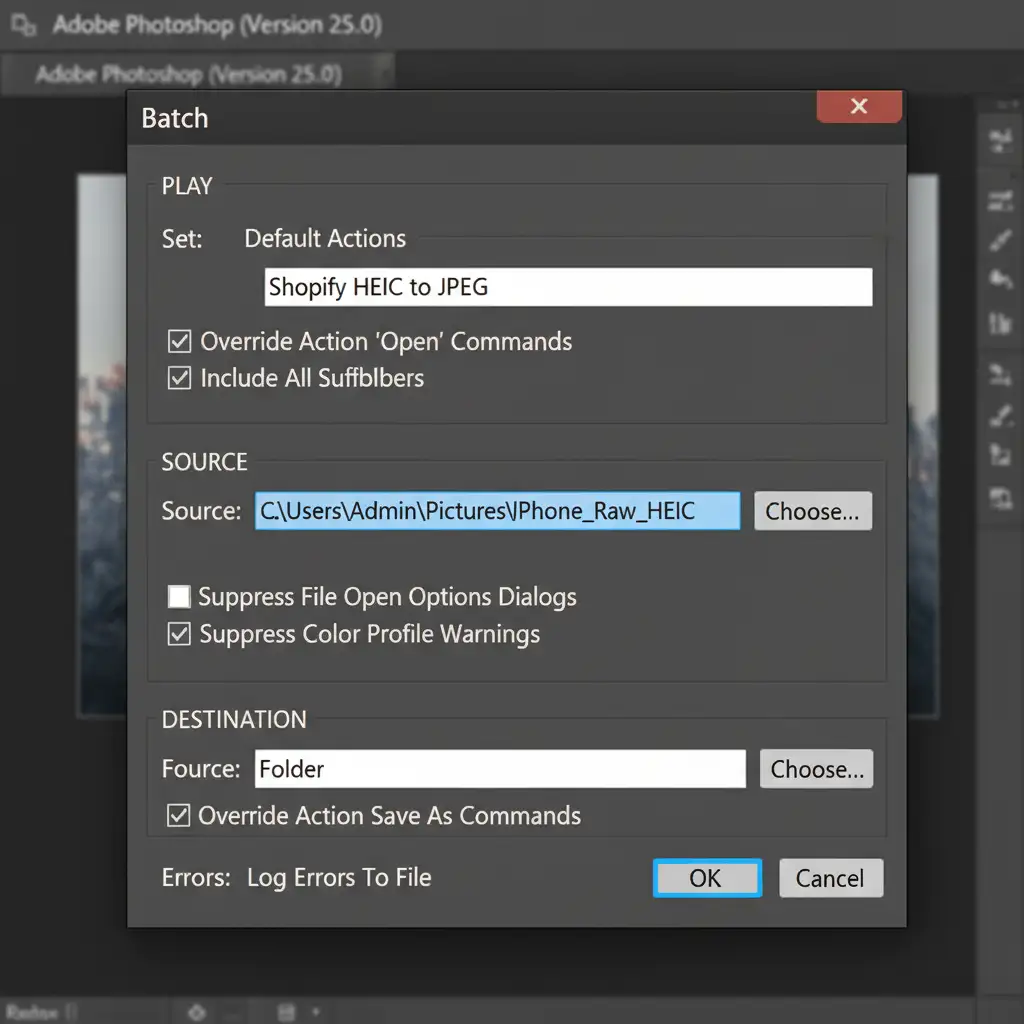
- Go to File > Automate > Batch.
- Select your newly created “Shopify HEIC to JPEG” Action.
- Choose your source folder full of HEIC files.
- Choose your destination folder. Let Photoshop run the process.
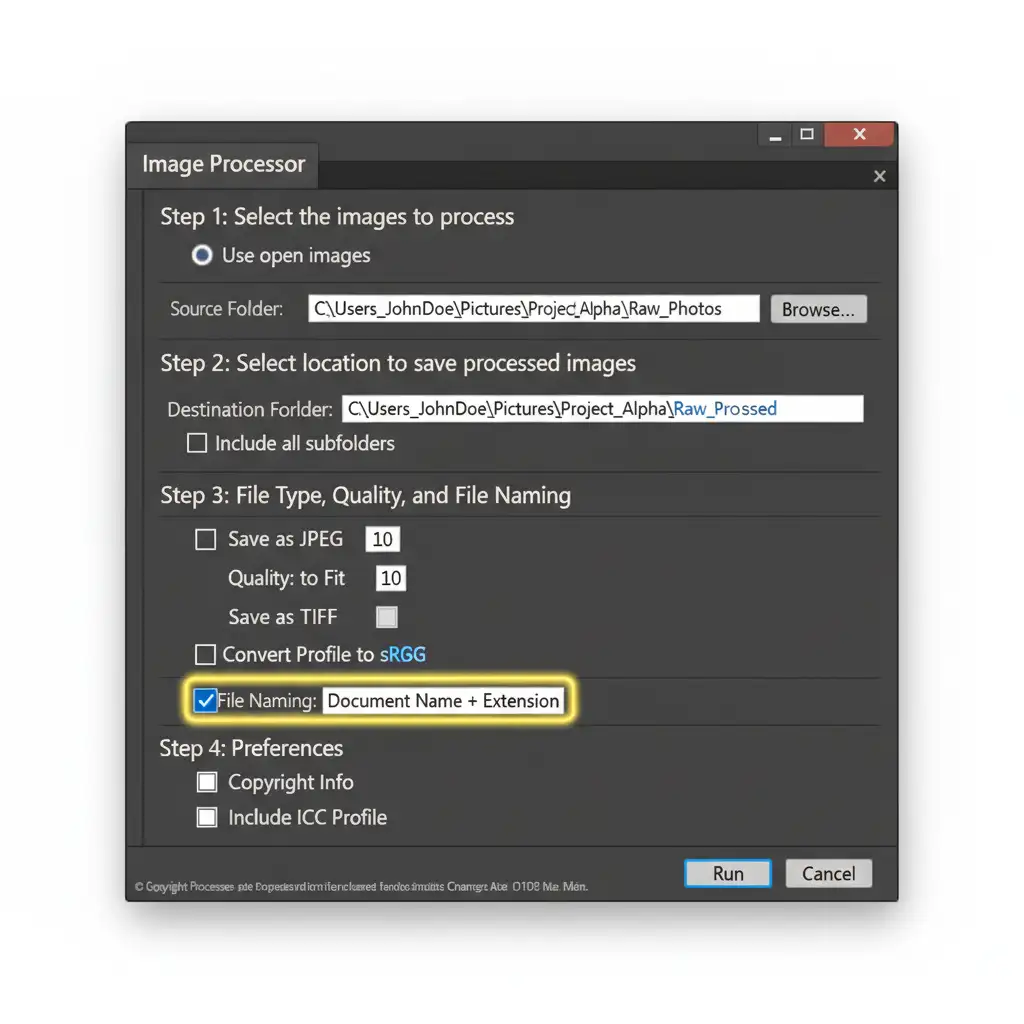
Method 3: The Technical Deep-Dive Using the Image Processor Script
If you want the absolute fastest way to convert hundreds of files without manually recording an Action, Photoshop’s built-in Image Processor script is your best friend.
- In Photoshop, navigate to File > Scripts > Image Processor.
- Select the images to process: Choose the folder containing your iPhone HEIC files.
- Select location to save processed images: Choose a new output folder.
- File Type: Check “Save as JPEG”. Set the Quality to 10 (this is Photoshop’s high-quality script equivalent, scaling from 1-12).
- Crucial Step: Check the box that says Convert Profile to sRGB. This is what prevents the color shift.
- Click Run.
Troubleshooting: Windows 11 HEIC Loading Errors
If you are operating on a PC and Photoshop refuses to open your HEIC files, you are likely missing the necessary OS-level codecs. Photoshop relies on your operating system to read the HEIC/HEIF format container.
The Fix: Open the Microsoft Store on your Windows 11 machine and download both the HEIF Image Extensions and the HEVC Video Extensions. Once installed, restart your computer. Photoshop will now recognize and open your files natively without generating compression artifacts.
Scale Your Shopify Store with Professional Bulk Image Editing
Mastering how to batch edit iPhone HEIC for Shopify without quality loss will save you hours of frustration and ensure your products look incredibly vibrant to your customers. However, as your store grows, managing file conversions, removing backgrounds, and retouching hundreds of product photos in-house becomes a massive bottleneck.
You don’t have to do it alone.
At Image Work India and Cloud Retouch, we specialize in high-volume, pixel-perfect ecommerce image editing. Whether you have 50 or 5,000 iPhone product photos, our expert retouching teams handle the color correction, sRGB conversions, background removals, and flawless formatting to meet Shopify’s exact standards.
Stop wrestling with software scripts and get back to growing your brand. Contact Image Work India today for a free trial, and let us handle your bulk ecommerce image editing with zero quality loss and lightning-fast turnarounds.




