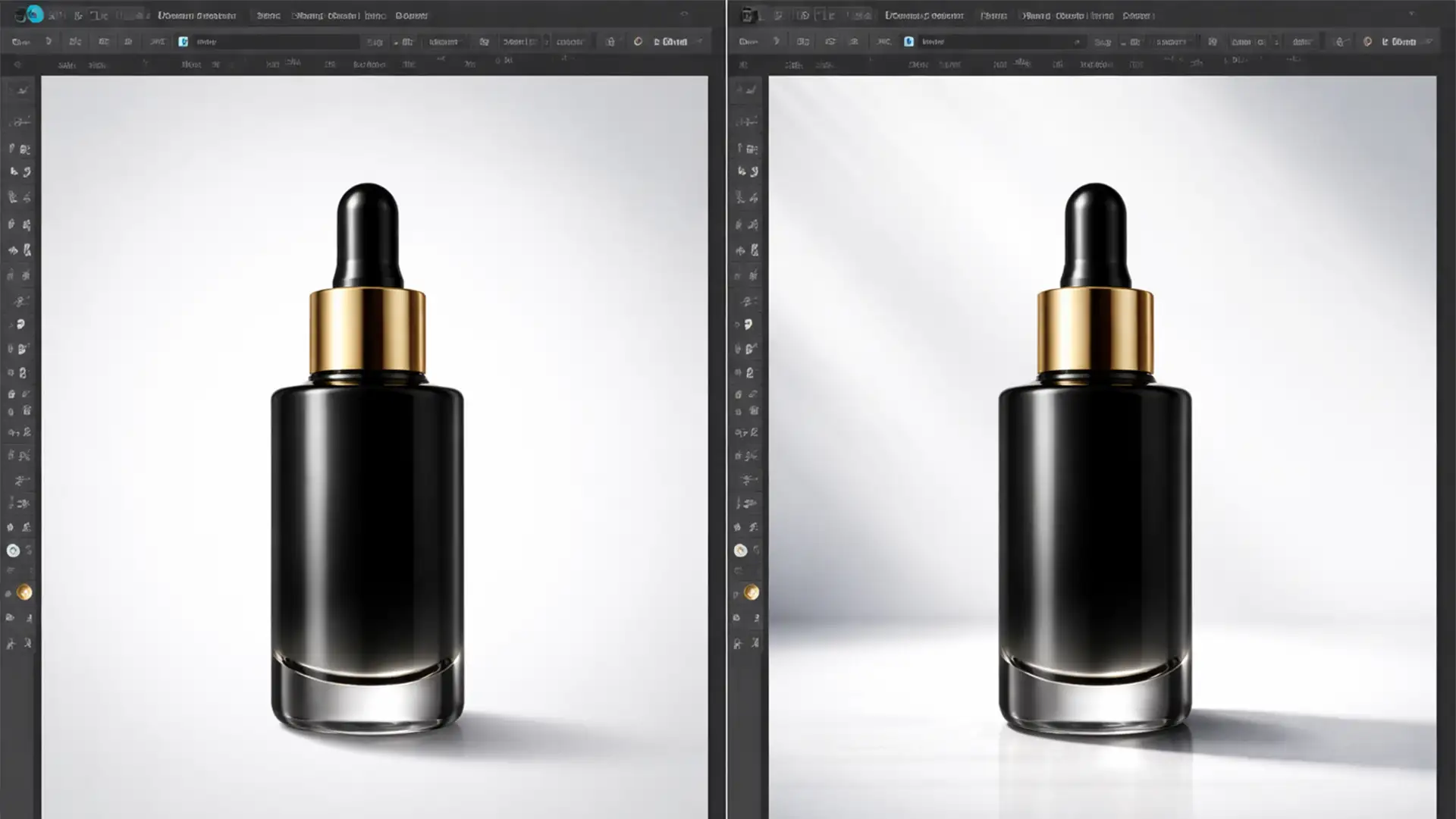

You’ve just generated a stunning lifestyle background using Adobe Firefly or Photoshop’s Generative Fill. You drop your studio-lit ecommerce product onto the canvas, and… it looks terrible.
It looks like a cheap sticker floating in mid-air. This “floating product” syndrome is the biggest giveaway of amateur AI compositing. Contradictory light directions, missing ambient occlusion, and completely wrong shadow colors instantly break the illusion. If you want your products to look like they actually belong in these AI-generated environments, standard drop shadows won’t cut it.
Here is the ultimate guide to realistic shadow matching for AI product backgrounds.
The Core Problem: Why AI Backgrounds Make Products “Float”
With the rise of Photoshop v25.x and higher, ecommerce retouchers face a unique compositing challenge. While Adobe Firefly generates highly convincing backdrops, pasting a traditionally lit product onto an AI background results in immediate lighting mismatches.
The human eye is incredibly adept at spotting physics errors. When a product is placed on a generated surface, it usually lacks three critical elements:
- Accurate Light Direction: The AI background’s light source contradicts the product’s studio lighting.
- Ambient Occlusion: The lack of deep, tight micro-shadows where the product physically touches the surface.
- Color Match: Shadows are rarely pure black; they absorb the ambient color of the surface they fall on.
To fix this, you need to blend traditional raster adjustments with AI-assisted shadow generation.
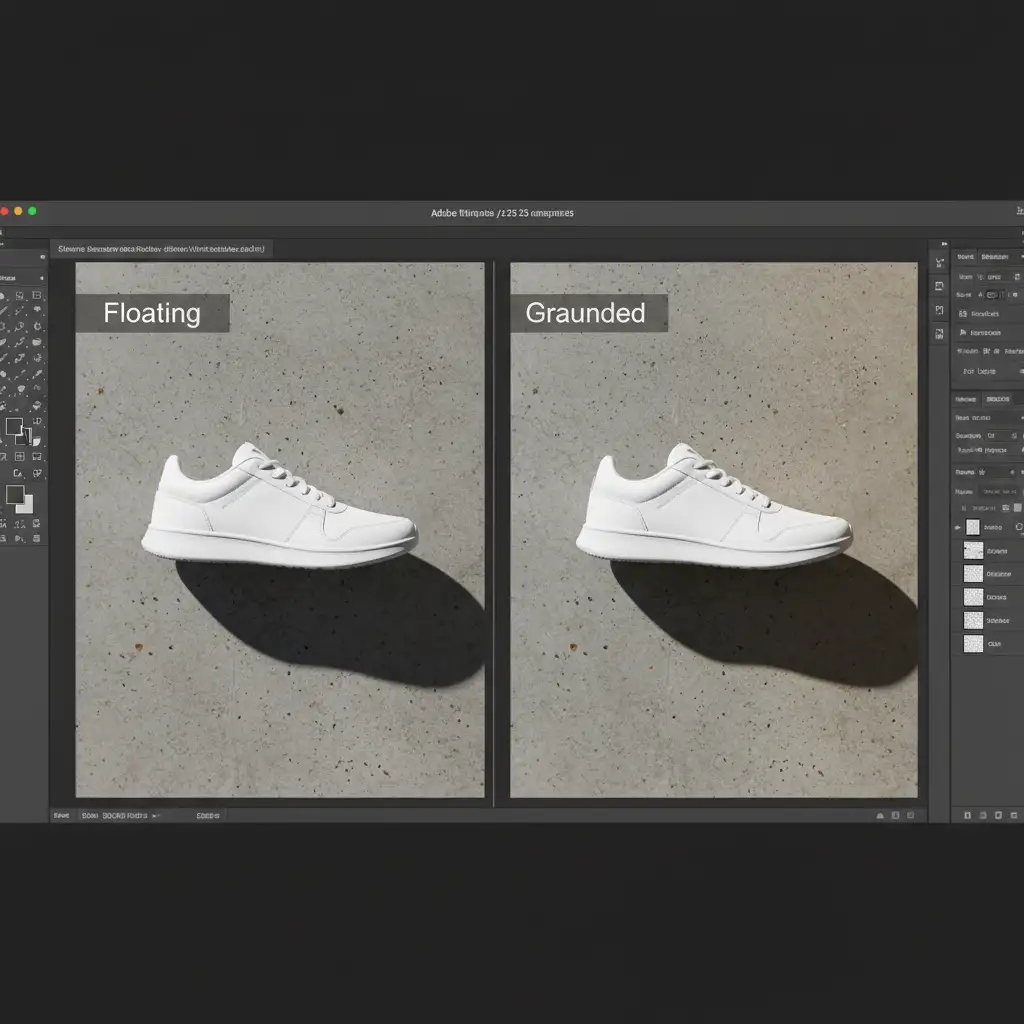
3 Pro Methods for Realistic Shadow Matching for AI Product Backgrounds
Depending on your timeline and quality requirements, there are three distinct ways to tackle shadow realism in your ecommerce workflow.
Method 1: The Quick Fix (Perspective Transform)
If you need a rapid solution for a simple flat lay, you can manipulate standard layer styles to match the AI environment.
- Add a standard Drop Shadow layer style to your product layer.
- Right-click the “Drop Shadow” effect in your Layers panel and select Create Layer. This separates the shadow into its own editable raster layer.
- Select the new shadow layer and use Free Transform (Distort).
- Drag the corners to warp the shadow, matching it to the exact perspective and Light Direction of the AI-generated background.

Method 2: The Two-Tiered Pro Workaround (Contact & Cast Shadows)
For high-end ecommerce catalogs, a single shadow is never enough. Professional compositing requires separating the shadow into two distinct elements.
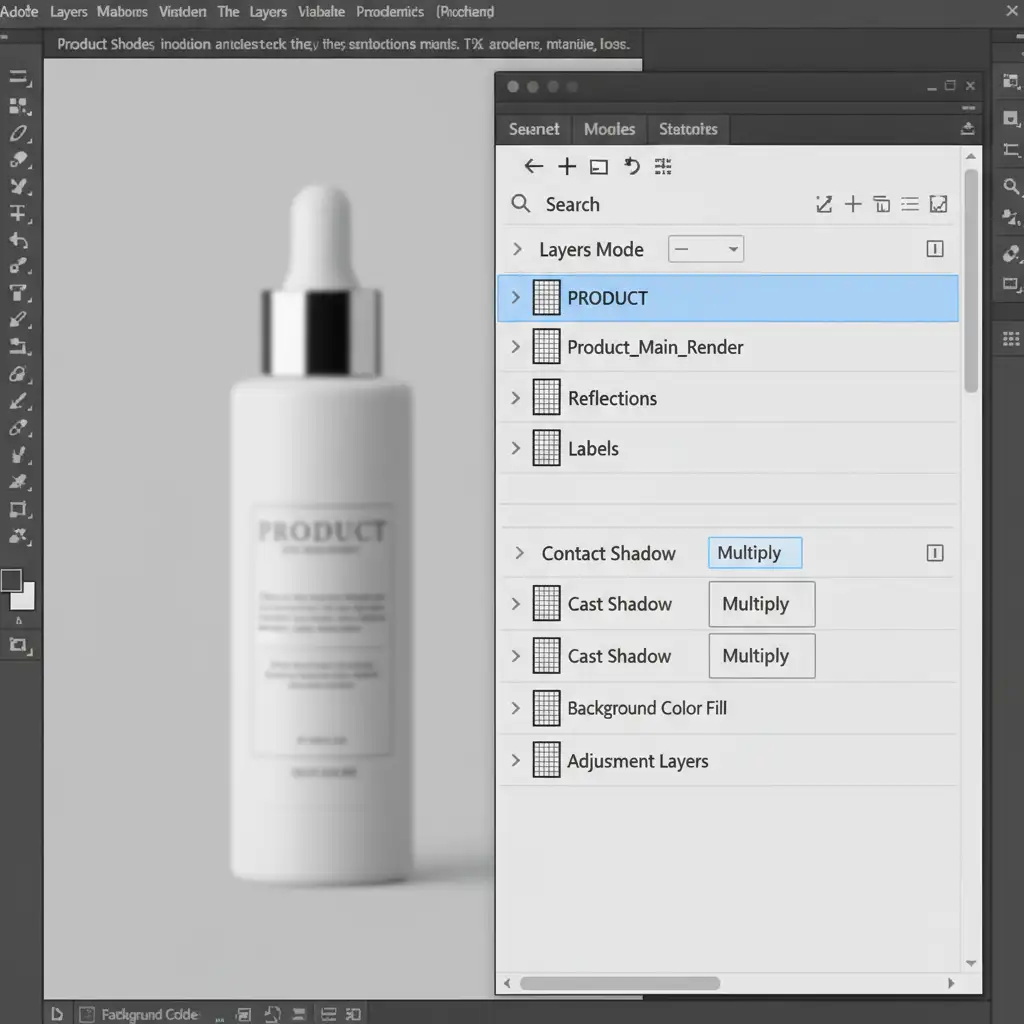
Step 1: The Contact Shadow Create a new layer beneath your product. Using a soft black brush, paint a very tight, dark shadow directly under the base of the product where it touches the floor. Set this layer’s blending mode to Multiply. This simulates Ambient Occlusion.
Step 2: The Cast Shadow Create a second layer below the contact shadow. Paint a larger, softer shadow mapped to the background’s light source direction. Apply a Gaussian Blur to soften the edges. Pro Tip: Never use pure black for a cast shadow. Use a Color Match technique by tinting this shadow with the core ambient color of the AI background (e.g., a deep navy blue if the product is on a cool-toned slate surface).
Method 3: The Technical Deep-Dive (Curves & AI Hybrid)
When dealing with highly textured AI backgrounds (like wood grain, sand, or fabric), painting black shadows looks muddy. Instead, we must darken the existing background texture.
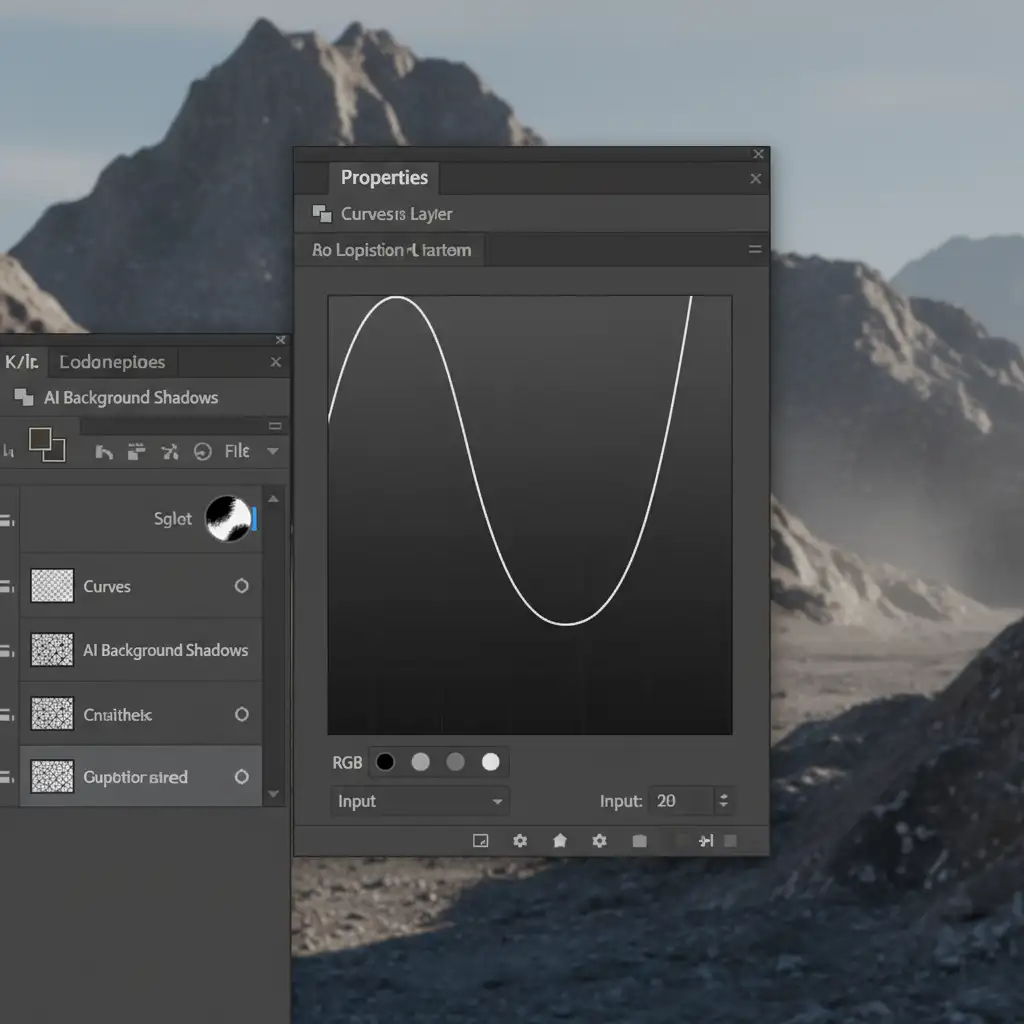
- Create a Curves adjustment layer and pull the midtones down to significantly darken the image.
- Invert the layer mask to hide the effect.
- Paint with white on the mask to reveal the darkened texture exactly where the shadow should fall. This acts as a Clipping Mask of darkness that preserves 100% of the AI background’s texture.
- The AI Assist: Make a precise lasso selection around the shadow area. Open the Generative Fill prompt bar and type: “soft natural shadow”. Adobe Firefly will calculate the lighting model and seamlessly blend your manual Curves adjustment with the generated environment.
Glossary of Essential Shadow Compositing Terms
- Ambient Occlusion: The soft, dark shadows occurring where two surfaces meet, blocking out ambient light.
- Contact Shadow: The darkest part of a shadow directly underneath an object, anchoring it to the surface.
- Cast Shadow: The longer, softer shadow projected away from the object, dictated by the primary light direction.
- Multiply Blending Mode: A layer setting that darkens the underlying pixels, perfect for blending shadows into backgrounds.
- Perspective Transform: Manipulating a 2D object (like a shadow layer) to match the 3D depth and angle of a background.
Scale Your Ecommerce Imagery with Image Work India
Mastering realistic shadow matching for AI product backgrounds requires a deep understanding of lighting physics, advanced Photoshop techniques, and a lot of patience. When you are processing hundreds or thousands of SKUs, manually painting contact shadows and warping perspective transforms becomes a massive bottleneck.
Struggling to scale your ecommerce imagery with AI? Image Work India and Cloud Retouch offer expert hybrid retouching services. We blend the rapid efficiency of AI background generation with pixel-perfect human compositing. Our professional retouchers ensure every product is perfectly grounded with flawless ambient occlusion, accurate color matching, and realistic cast shadows.
Stop settling for floating products. Let Image Work India deliver the seamless, high-converting product catalogs your brand deserves. Contact us today to streamline your ecommerce retouching workflow.




