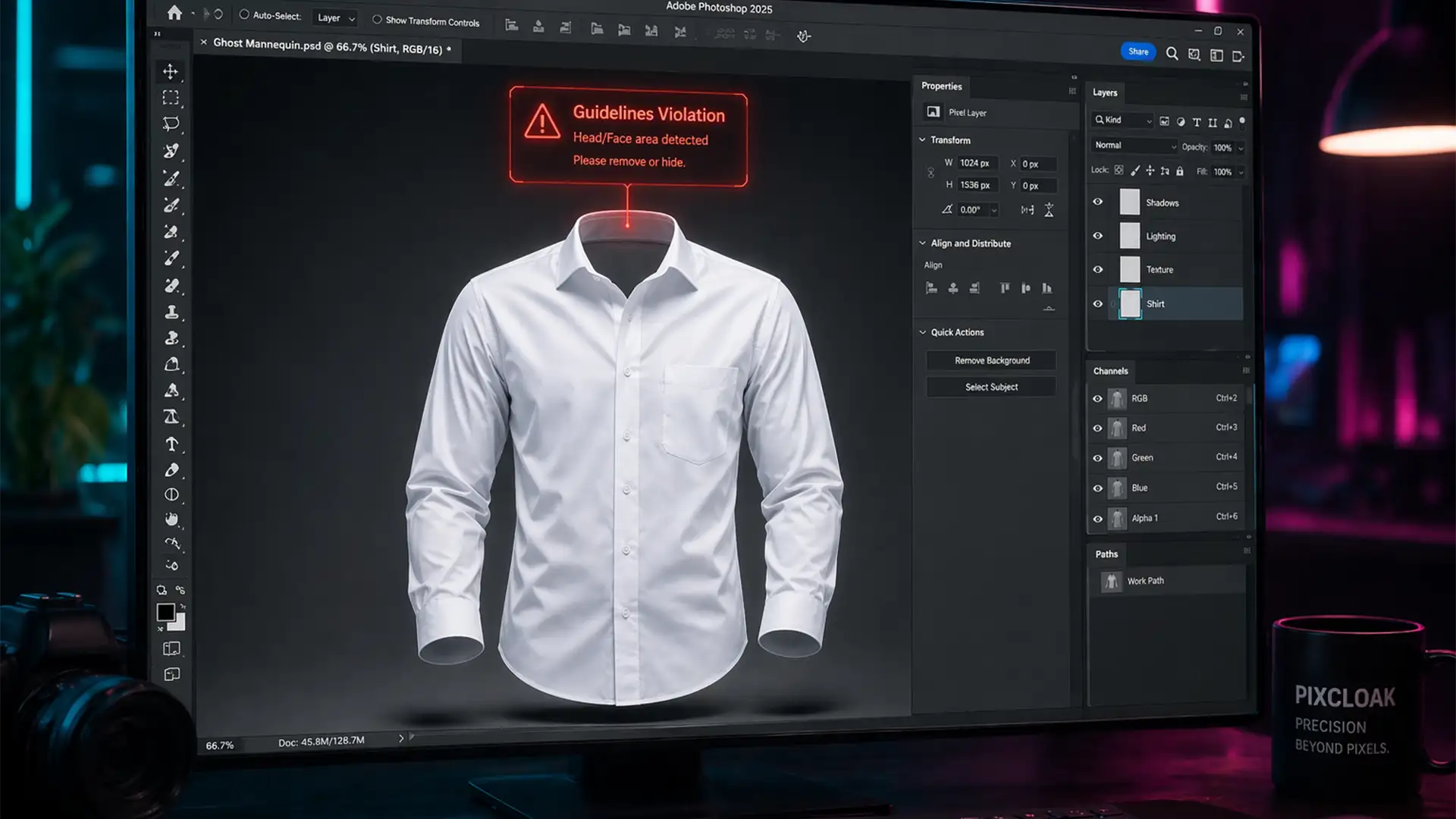

You are in the middle of a massive e-commerce retouching batch, reconstructing ghost mannequin necklines. You make your selection, hit “Generate,” and instead of a seamless collar, Photoshop slaps you with a red warning. Your workflow halts instantly.
Since Adobe integrated Firefly AI into Photoshop v25.0, this false-positive AI filter has become a major headache for apparel editors. The system frequently misinterprets deep necklines, swimwear, and lingerie as inappropriate content, blocking the generation process entirely.
If you are tired of this bottleneck, this guide will show you exactly how to bypass a Generative Fill guidelines violation for clothing using three proven, professional methods.
Why Does Adobe Firefly AI Flag Apparel Photos?
Adobe Firefly AI enforces strict safety guidelines to prevent the generation of explicit content. However, when editing e-commerce apparel, the AI often lacks the nuance to distinguish between a hollow piece of clothing and actual human anatomy.
When you attempt to fill the back of a collar or edit a swimsuit, the AI analyzes the garment’s shapes, shadows, and the text in your prompt. If it detects shadows that mimic body contours, or if you use anatomical terms like “chest,” “skin,” or “bust,” the system triggers a false-positive AI filter. This instantly locks the Contextual Taskbar, stopping your e-commerce retouching dead in its tracks.
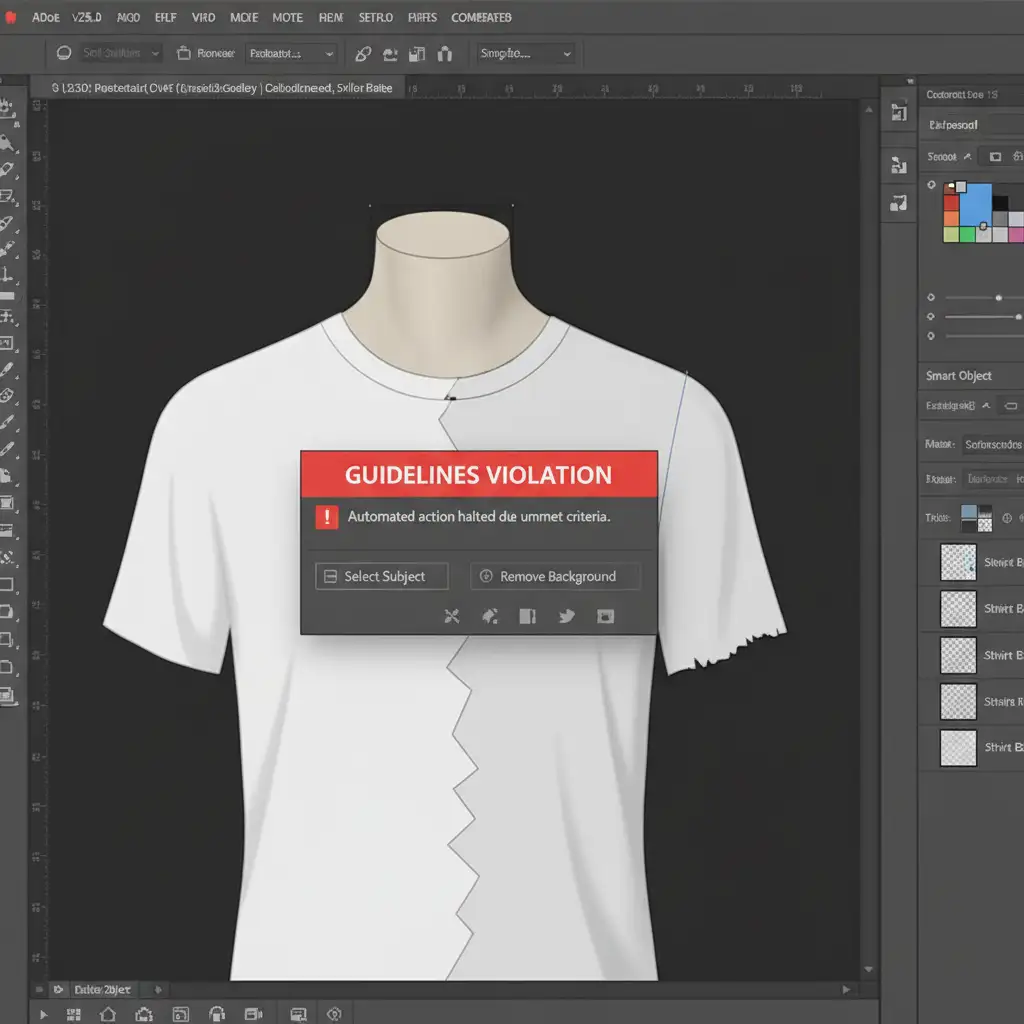
3 Ways to Fix a Generative Fill Guidelines Violation for Clothing
You do not need to abandon AI tools completely when editing difficult garments. By slightly adjusting your approach, you can guide the AI to focus purely on fabric rather than anatomy.
Method 1: The Quick Fix (Prompt Engineering for Apparel)
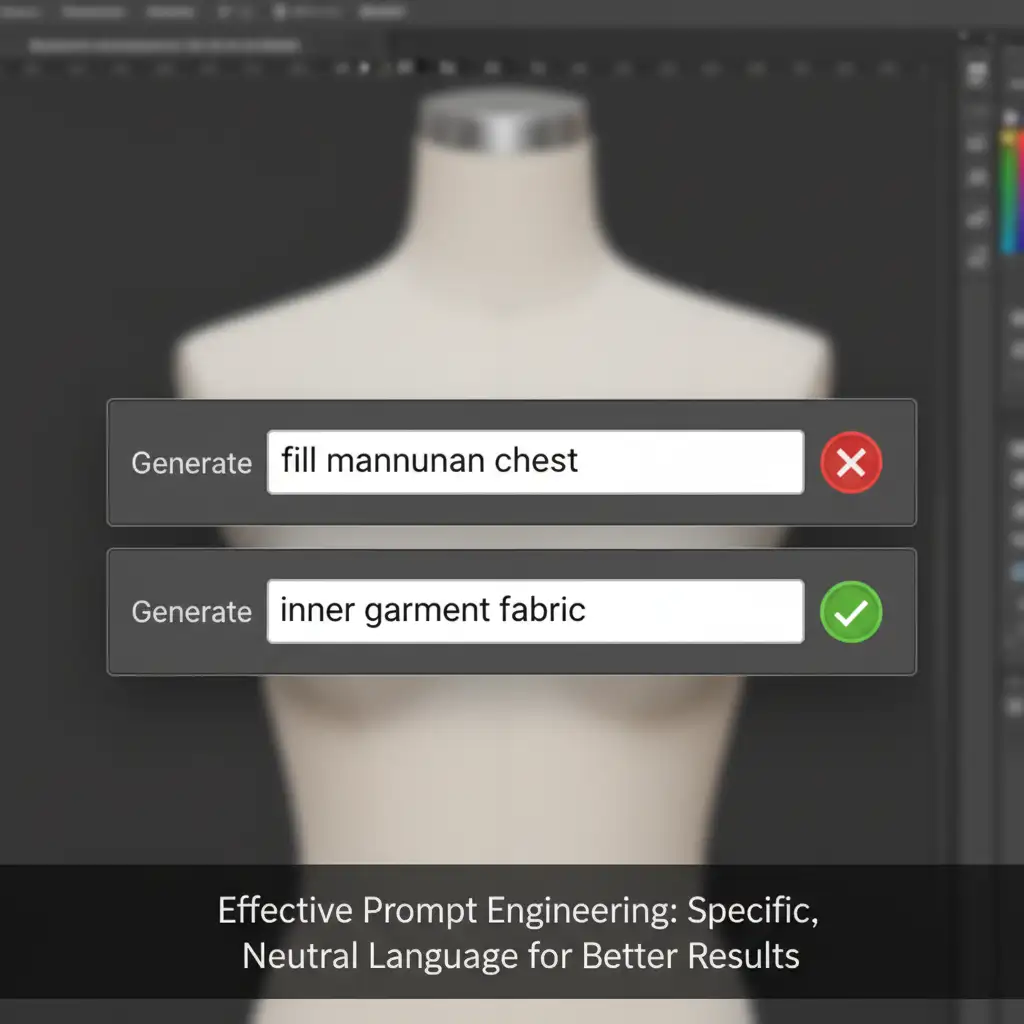
The most common reason for a guidelines violation error is poor prompt engineering. Using terms that describe what you are trying to replace (e.g., “reconstruct back of neck” or “fill chest gap”) will immediately trigger the safety filters.
The Fix: Remove anatomical terms completely.
- Leave it blank: Select the neckline and leave the prompt field completely empty. This forces Adobe Firefly AI to rely purely on the surrounding pixels rather than text analysis.
- Use sterile, material-focused terms: If a blank prompt does not yield the right texture, use highly specific fabric terms. Try prompts like “inner fabric,” “seamless grey cloth,” or “solid backdrop.”
Method 2: The Pro Workaround (Pre-Filling the Base Layer)
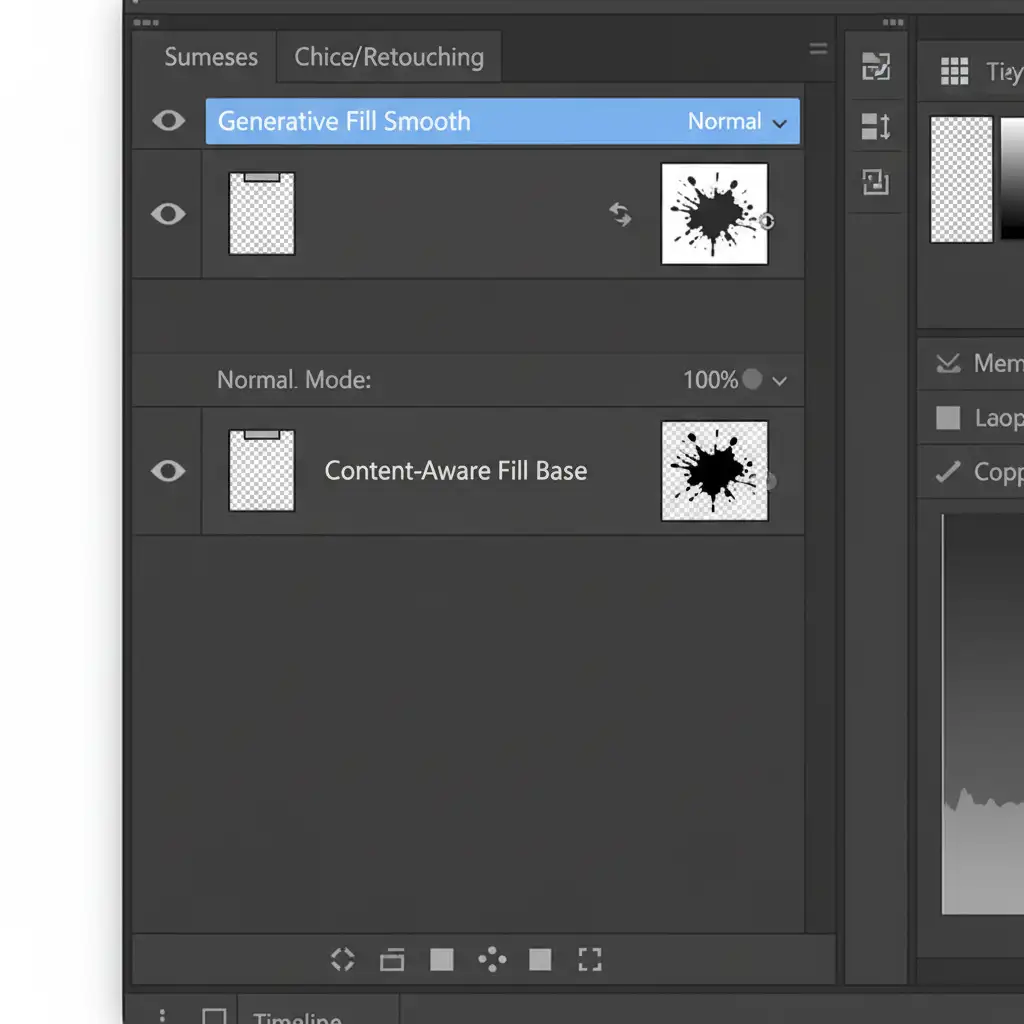
Sometimes, the shape of the empty space itself—such as a deep V-neck—is enough to trigger the filter, regardless of your prompt. In these cases, you need to establish a “safe” base layer before calling on Generative Fill.
The Fix:
- Create a new layer and use the standard Content-Aware Fill or the Clone Stamp tool to roughly patch the missing clothing piece.
- Do not worry about perfect lighting or texture at this stage; your goal is simply to close the anatomical shape with fabric pixels.
- Once this non-triggering base is established, make a rough selection over your patched area.
- Run Generative Fill with a blank prompt. The AI will now see a solid block of fabric rather than a suspicious gap, allowing it to smooth the textures and lighting seamlessly without triggering the filter.
Method 3: The Technical Deep-Dive (Context Isolation)
Generative Fill analyzes your entire canvas to evaluate safety. If the overall shape of the garment (like a bikini or lingerie piece) triggers the filter, you must remove the rest of the garment’s context from the AI’s view.
The Fix:
- Duplicate your master layer.
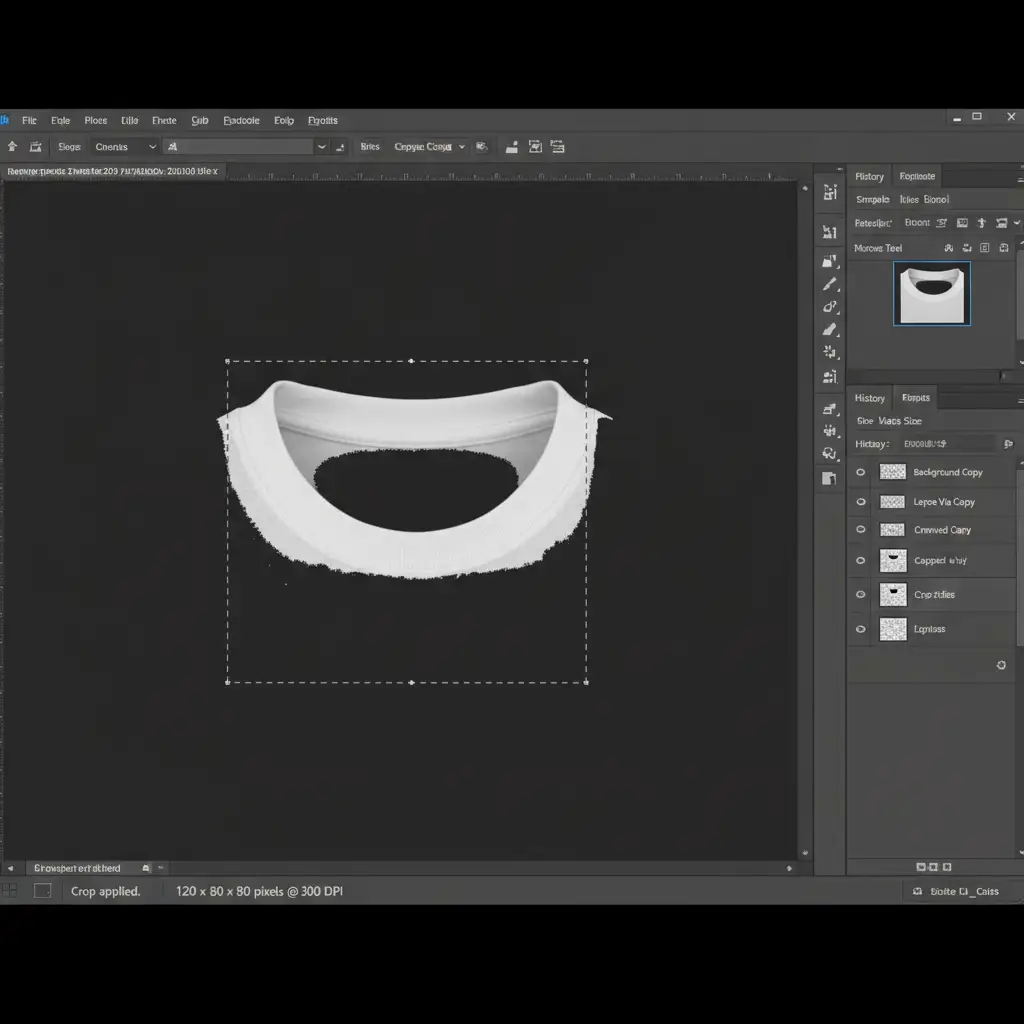
- Crop the canvas tightly just around the collar or the specific area you need to edit.
- By removing the rest of the garment, the AI only sees a small, abstract patch of fabric rather than a recognizable piece of clothing.
- Apply Generative Fill to this isolated, tightly cropped document.
- Once the generation is successful, drag and drop the fixed section back into your original master file as a Smart Object, using layer masking to blend the edges.
Stop Fighting AI Filters and Scale Your Workflow
Dealing with a Generative Fill guidelines violation for clothing slows down your production pipeline and frustrates your editing team. While these three workarounds—prompt optimization, pre-filling, and context isolation—will get your ghost mannequin retouching back on track, they still add manual steps to an already time-consuming process.
If you are tired of fighting with unpredictable AI filters to meet your e-commerce deadlines, let the professionals handle it. Outsource your ghost mannequin editing, apparel retouching, and complex visual reconstructions to the experts at Image Work India and Cloud Retouch. Our dedicated teams utilize advanced manual techniques and optimized workflows to deliver flawless, rapid, and hassle-free results at scale. Contact us today to streamline your post-production pipeline.




