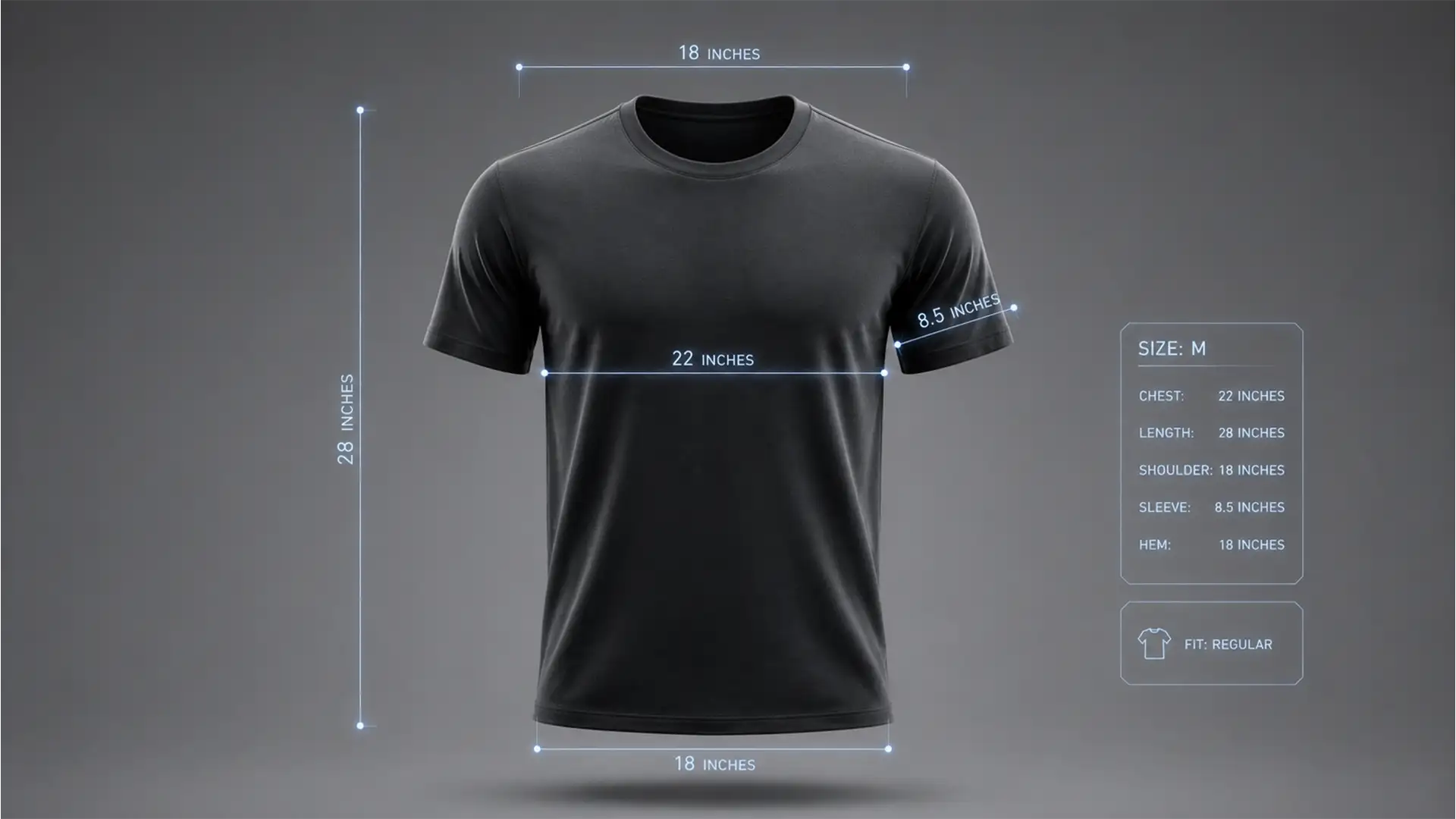

Are sizing-related returns eating into your e-commerce profits? You’ve perfected the ghost mannequin technique, but translating physical garment measurements onto high-resolution digital composites is an entirely different challenge.
Struggling to maintain a consistent pixel-to-inch ratio across your files means your digital overlays end up inaccurate, confusing buyers and breaking customer trust. If you want to stop guessing and start scaling your production, you need to implement automated measurement overlays for ghost mannequins.
In this guide, we’ll show you exactly how to set up pixel-perfect dimensions in Photoshop (v24.x and v25.x) to streamline your workflow and drop your return rates to zero.
Why Accurate Sizing Matters for E-commerce Composites
When customers shop online, they rely entirely on your visual data. A standard size chart is helpful, but showing exact dimensions directly on the garment—such as pit-to-pit width or collar-to-hem length—removes all ambiguity. However, manually drawing these lines on every single SKU is a massive workflow bottleneck.
To solve this, Photoshop offers varying levels of automation, from basic vector tools to advanced batch processing using CSV data.
3 Ways to Add Measurement Overlays in Photoshop (v24.x – v25.x)
Depending on your volume, you can choose a quick manual fix or a fully automated, data-driven approach.
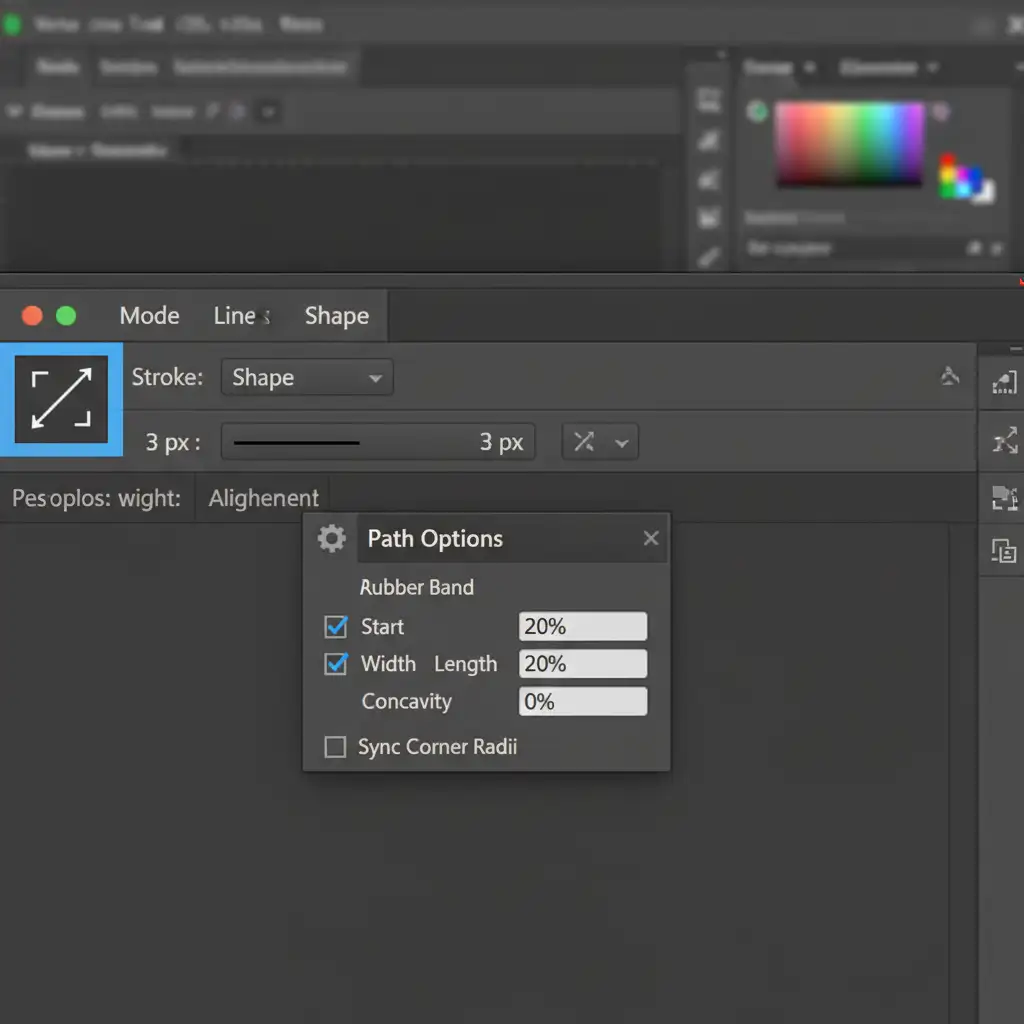
Method 1: The Quick Fix (Vector Line Tool)
If you only have a handful of images to process, you can manually draw your dimensions. This method relies on visual estimation rather than mathematical precision, but it gets the job done for small batches.
- Open your e-commerce composite in Photoshop.
- Select the Vector Line Tool (U) from the toolbar.
- In the top Options bar, click the gear icon to access the arrowhead settings. Enable arrowheads at both the “Start” and “End” of the line.
- Draw your lines across the key measurement points of the garment.
- Add Text Layers above the lines to input the physical measurements (e.g., “20 in”).
Method 2: The Pro Workaround (Custom Measurement Scale)
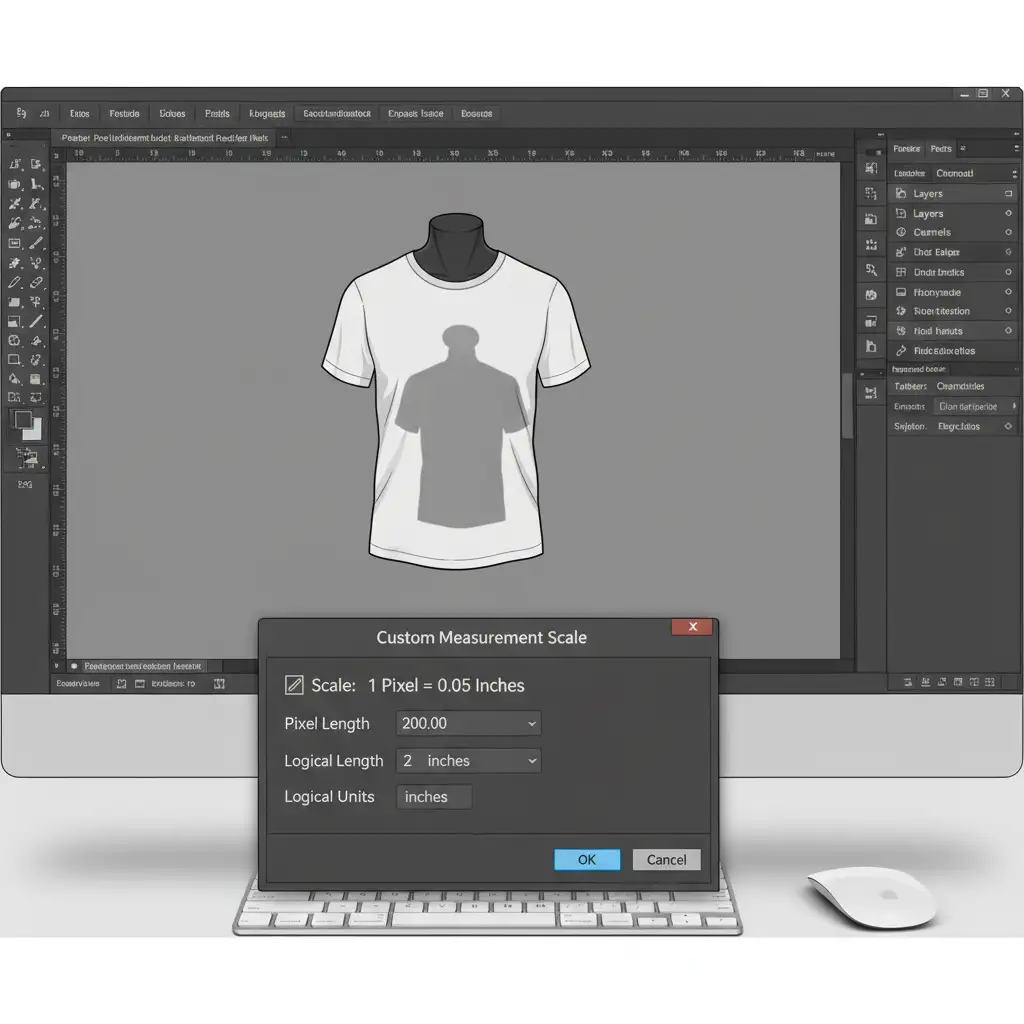
To ensure your digital lines perfectly match the physical garment, you need to establish a strict pixel-to-inch ratio. Photoshop’s Measurement Log is the perfect tool for this.
- Find a known physical measurement on your garment (e.g., a 2-inch logo).
- Go to Image > Analysis > Set Measurement Scale > Custom.
- Use the Ruler Tool to draw a line over that 2-inch logo on your digital file.
- In the Custom Measurement Scale dialog box, set the “Logical Length” to 2 and the “Logical Units” to inches.
- Now, whenever you use the Ruler Tool to measure a new part of the garment, click Image > Analysis > Record Measurements. Photoshop will log the exact physical distance in the Measurement Log panel, allowing you to create perfectly accurate text overlays.
Method 3: The Technical Deep-Dive (Data-Driven Graphics)
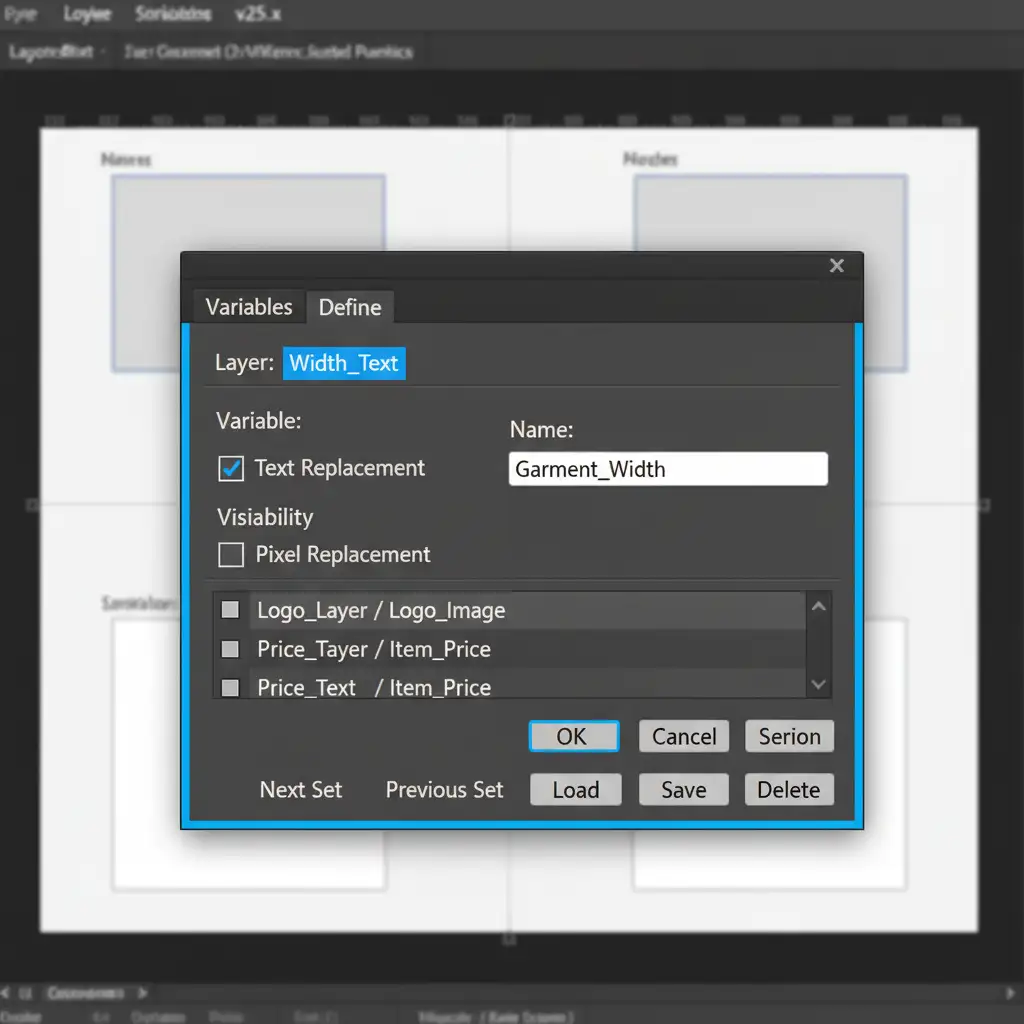
For high-volume Etsy or Poshmark sellers, manually typing measurements for hundreds of SKUs is inefficient. By using Data-Driven Graphics and Variable Data Sets, you can generate automated measurement overlays for ghost mannequins in bulk.
- Design your Template: Create a master Photoshop file with your ghost mannequin base layer. Add text layers for your measurements (e.g., “Width_Text”, “Length_Text”) and use Smart Objects for the directional arrows.
- Define Variables: Go to Image > Variables > Define. Select your text layers and assign them as Text Replacement variables.
- Prepare your CSV: Create a spreadsheet containing your SKU names and their corresponding width and length measurements. Export this as a CSV file.
- Import and Automate: Go to Image > Variables > Data Sets and import your CSV. Photoshop will automatically map the measurements from your spreadsheet to the text layers on your image.
- Batch Export: Go to File > Export > Data Sets as Files to instantly generate hundreds of accurately measured ghost mannequin images.
The Final Result: Precision Sizing
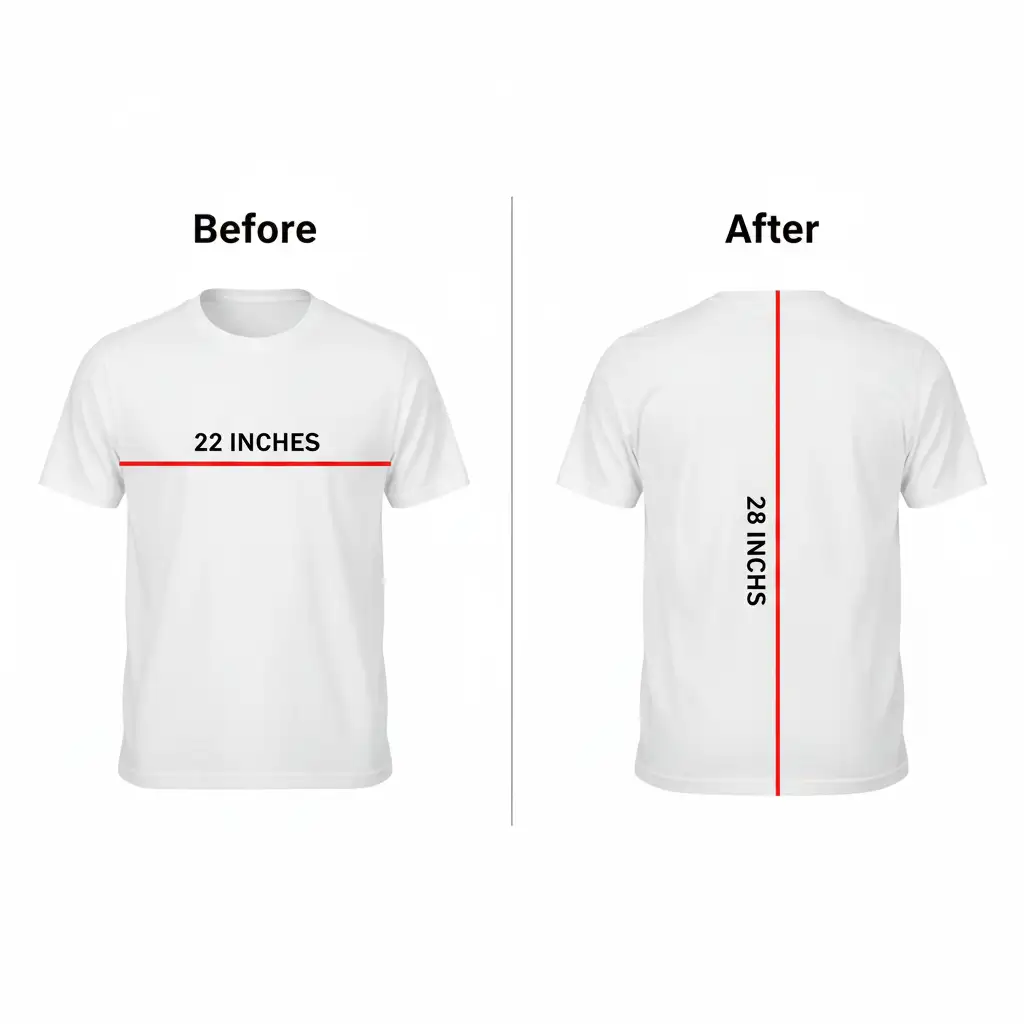
By implementing these workflows, you eliminate the guesswork for your buyers. A clean, accurately measured ghost mannequin shot provides all the visual and dimensional data a customer needs to click “Add to Cart” with confidence.
Streamline Your E-Commerce Imagery Today
Setting up variables, calculating pixel scales, and processing CSV files takes time—time you could be spending sourcing new inventory or marketing your brand.
If you need precise, high-volume ghost mannequin editing with automated measurement overlays for ghost mannequins, let the experts handle it. Hire Image Work India or Cloud Retouch to streamline your e-commerce imagery. We deliver pixel-perfect, retail-ready composites that boost buyer confidence and eliminate sizing-related returns. Contact us today to scale your visual content effortlessly.




