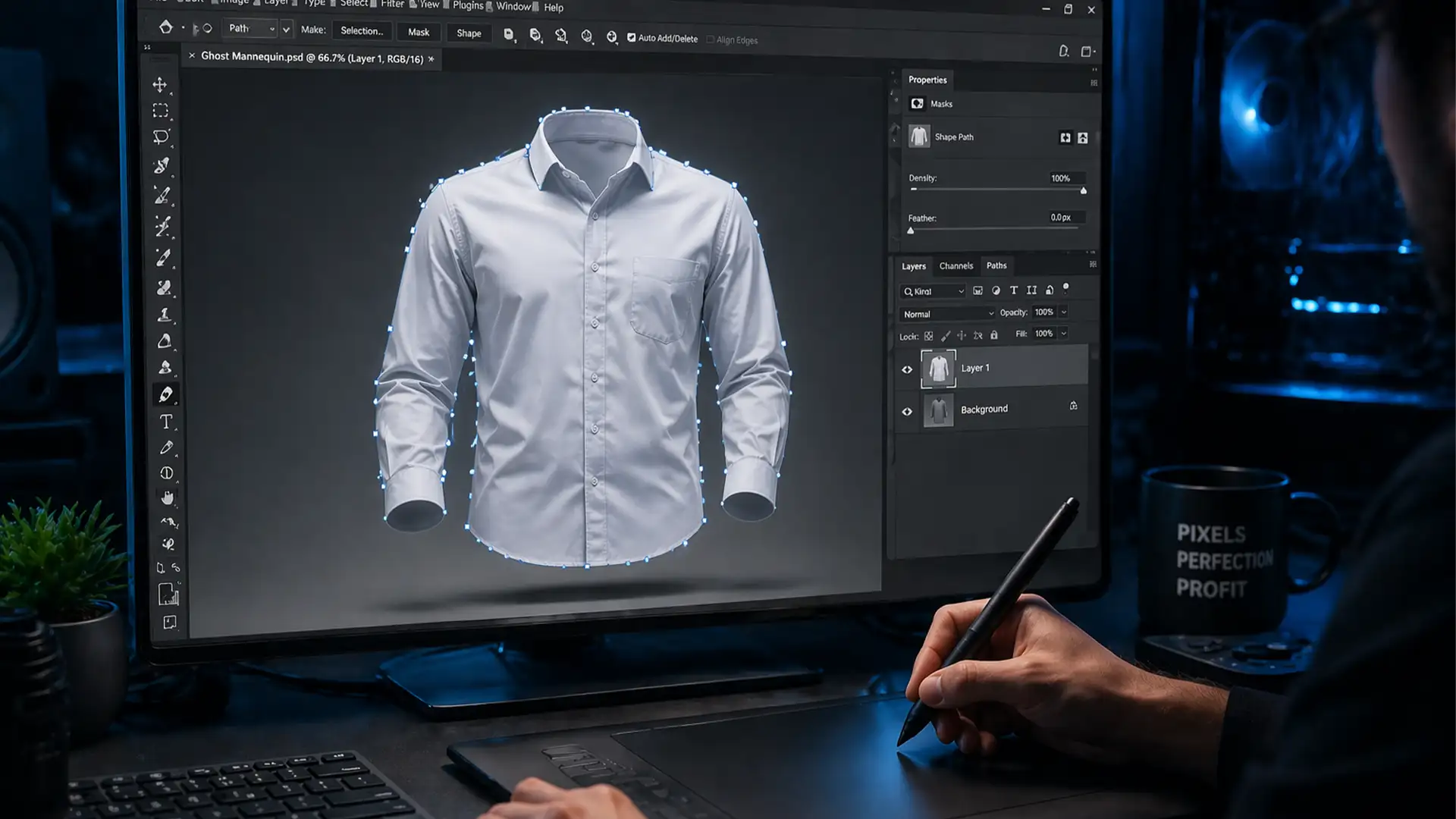

Plotting an anchor point only to wait a full second for the bezier curve to appear is maddening. If you are running Adobe Photoshop v25.12 on macOS Sequoia, you have likely experienced this extreme Pen Tool latency. For product retouchers handling high-volume ghost mannequin edits or intricate clipping paths, this stuttering isn’t just an annoyance—it is a massive hit to your hourly output and profitability.
The good news? This isn’t a hardware failure. It is a known conflict between macOS Sequoia’s WindowServer and Photoshop’s Metal GPU acceleration. Here is the exact, step-by-step technical guide to fixing the Photoshop v25.12 Pen Tool lag fix on macOS Sequoia so you can get back to flawless editing.
Why is the Pen Tool Lagging in Photoshop v25.12?
The root cause of the stuttering lies in how macOS Sequoia handles graphical rendering. Apple’s updated WindowServer occasionally miscommunicates with Photoshop’s Native Canvas and Metal GPU acceleration. When you try to draw a precise bezier curve, the system struggles to render the live path preview, resulting in heavy latency.
This latency disrupts the creation of a clean vector mask, which is critical when you need to rasterize elements or isolate apparel for a ghost mannequin composite. Fortunately, by adjusting a few specific settings, we can bypass this rendering conflict entirely.
3 Methods to Fix Pen Tool Stuttering
Method 1: The Quick Fix (Disable the Rubber Band Option)
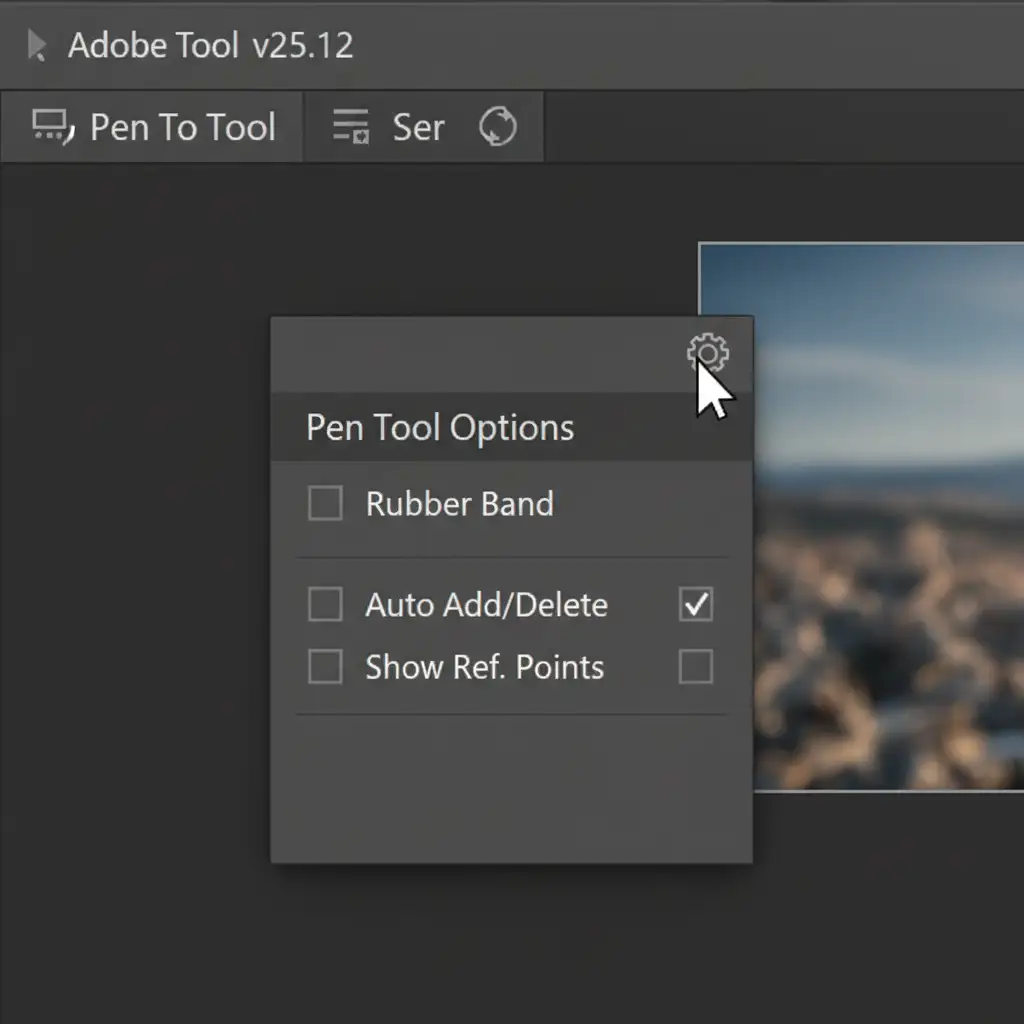
The easiest way to stop instant stuttering is to disable the live preview feature of the Pen Tool. The “Rubber Band” setting forces Photoshop to constantly render the path between your last anchor point and your cursor, which taxes the GPU on macOS Sequoia.
- Select the Pen Tool (P) from your toolbar.
- Look at the top Options Bar and click the Gear Icon (Settings).
- Uncheck the Rubber Band option.
Method 2: The Pro Workaround (Tweak GPU Acceleration)
If disabling the rubber band doesn’t completely smooth out your clipping path workflow, the next step is to adjust how Photoshop utilizes your graphics card.
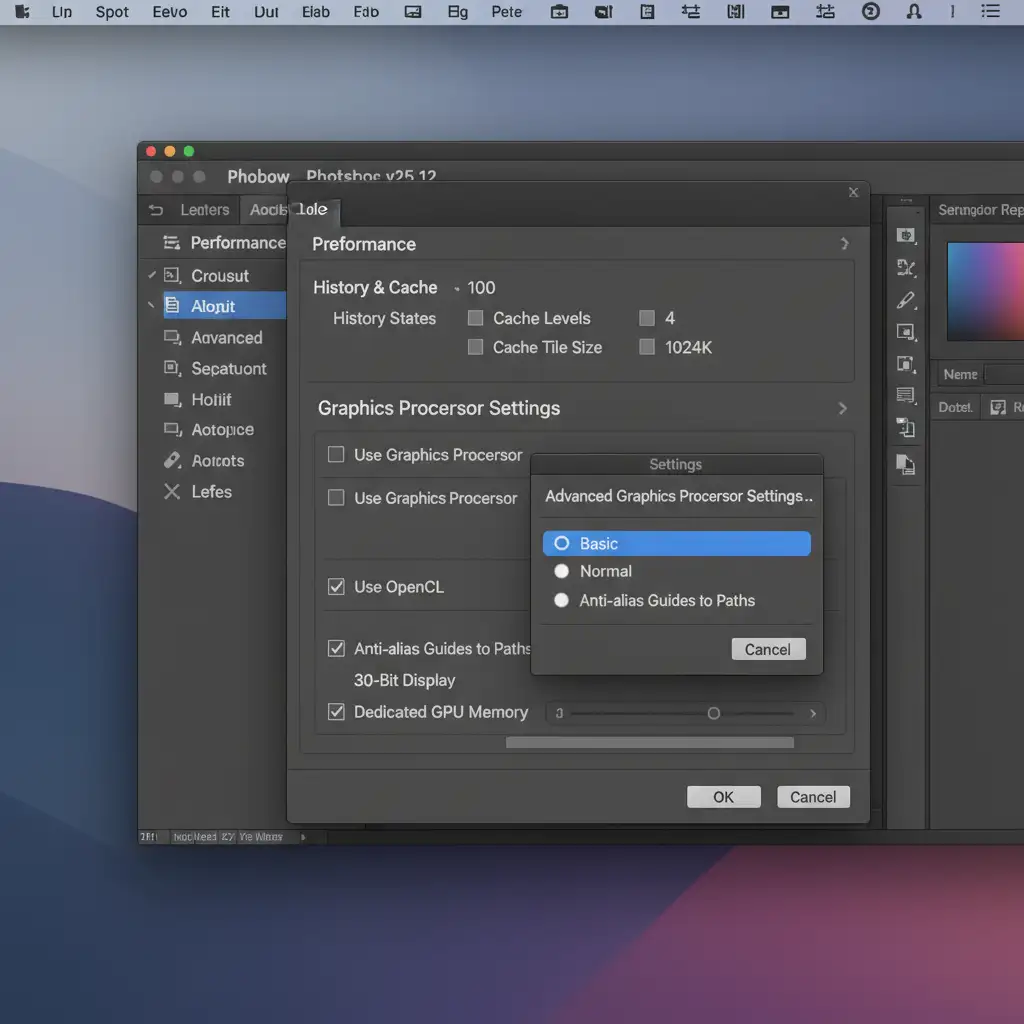
- Navigate to Photoshop > Settings > Performance (or Edit > Preferences > Performance on Windows).
- Under the Graphics Processor Settings, click Advanced Settings.
- Change the Drawing Mode from Advanced to Basic.
- Optional: If lag persists, you can temporarily uncheck “Use Graphics Processor” entirely, though this may disable certain visual enhancements.
Method 3: The Technical Deep-Dive (Native Canvas & RAM Allocation)
For power users who need maximum performance for high-end product retouching, we need to dig into Photoshop’s Technology Previews and system memory.
Step 1: Adjust RAM and Deactivate Native Canvas
- Go back to Photoshop > Settings > Performance.
- Increase your RAM allocation to exactly 85 percent. This ensures Photoshop has enough memory to process complex paths without starving macOS Sequoia of background resources.
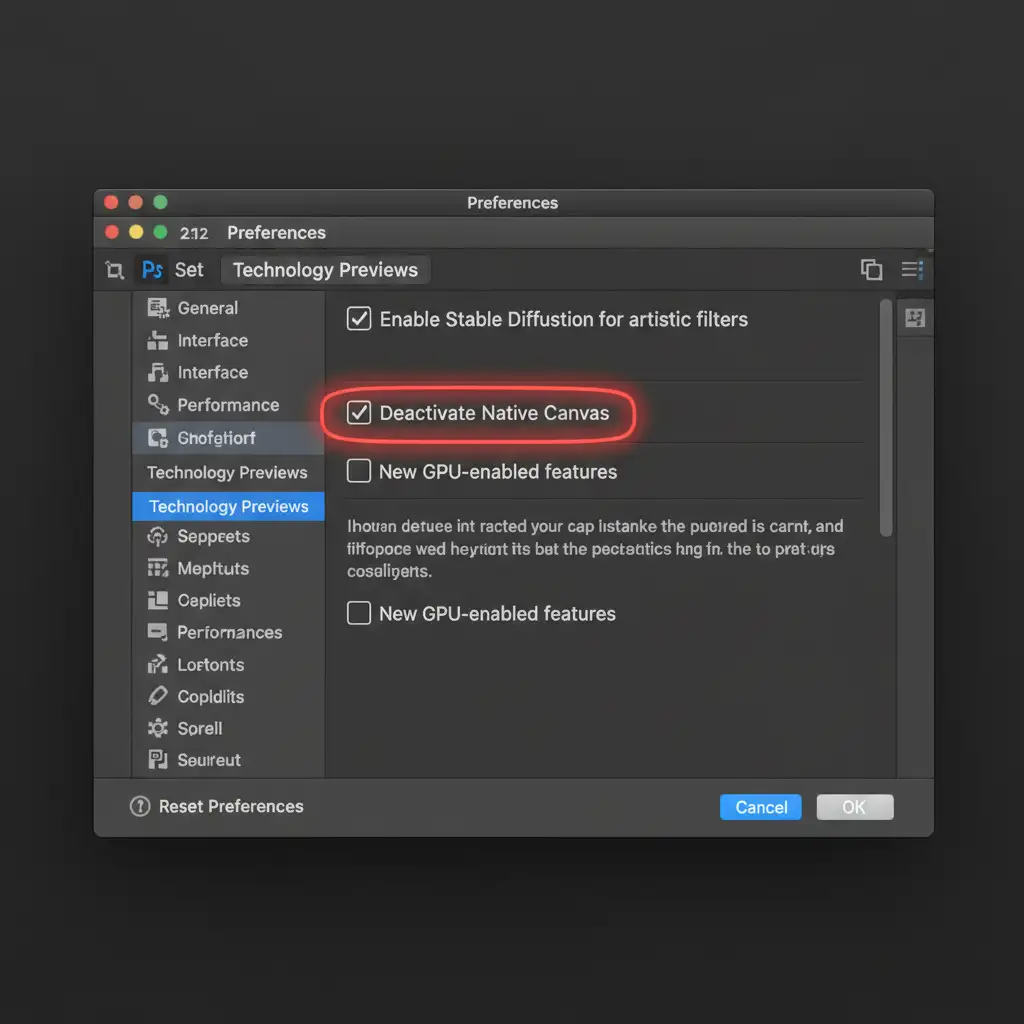
- Next, navigate to Settings > Technology Previews.
- Check the box labeled Deactivate Native Canvas. This stops Photoshop from using the newer, sometimes buggy rendering engine that conflicts with Sequoia.
Step 2: System Permissions and Tablet Drivers
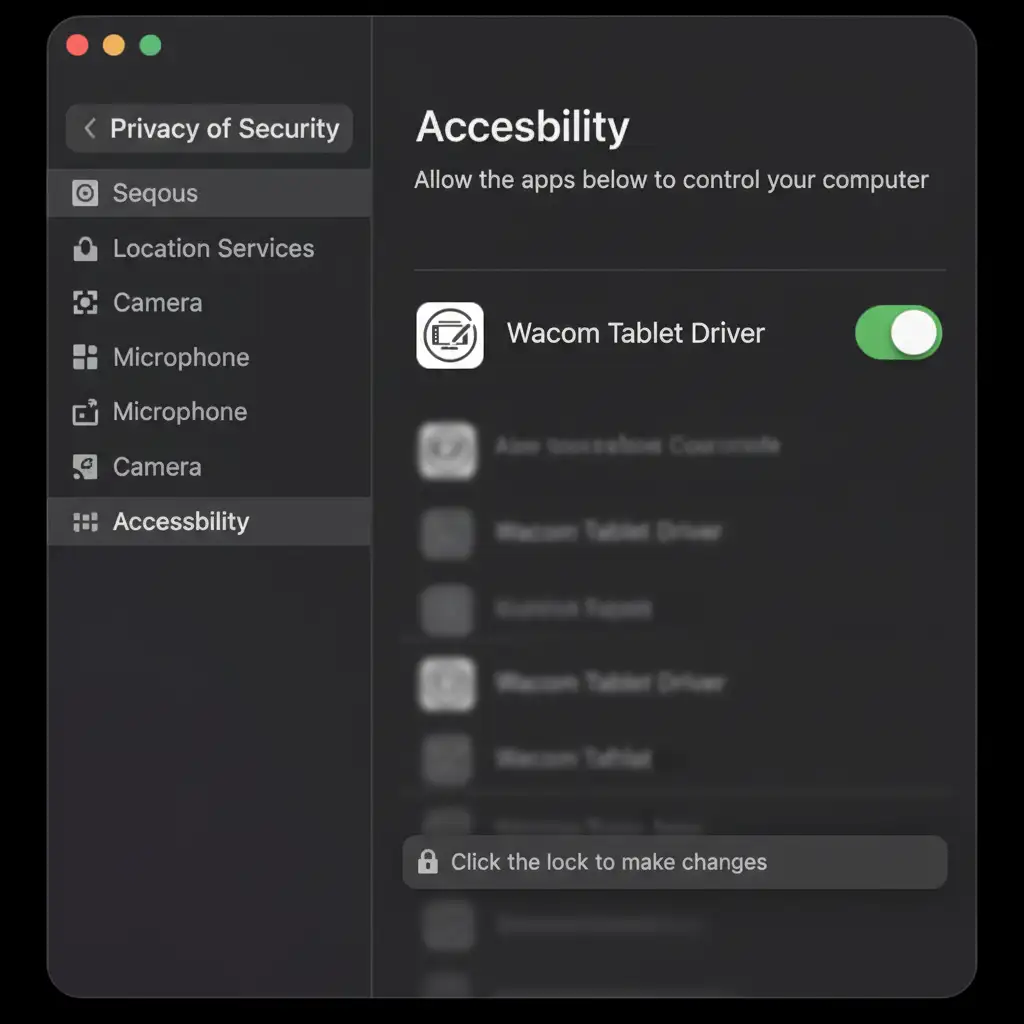
Finally, macOS Sequoia has strict privacy features that can throttle input from graphic tablets (like Wacom or Huion), masquerading as software lag.
- Open your Mac System Settings > Privacy & Security > Accessibility.
- Ensure your tablet driver is toggled ON. If it is already on, toggle it off and back on to force a permission reset.
- Clear your Photoshop cache (Edit > Purge > All), update your tablet drivers to the latest Sequoia-compatible version, and reboot your machine.
Stop Troubleshooting and Start Scaling
Dealing with the Photoshop v25.12 Pen Tool lag fix on macOS Sequoia takes time away from what you do best: delivering stunning imagery to your clients. Software updates, OS conflicts, and hardware troubleshooting are an inevitable drain on your studio’s productivity.
Don’t let software lag slow down your post-production.
If you want to bypass these technical headaches entirely, partner with Image Work India and Cloud Retouch. We specialize in flawless, high-volume ghost mannequin editing, pixel-perfect clipping paths, and advanced product retouching. Our dedicated teams use optimized, enterprise-grade setups to ensure your images are processed quickly, accurately, and affordably.
[Contact Cloud Retouch today] to outsource your image editing and scale your business without the technical stress.




