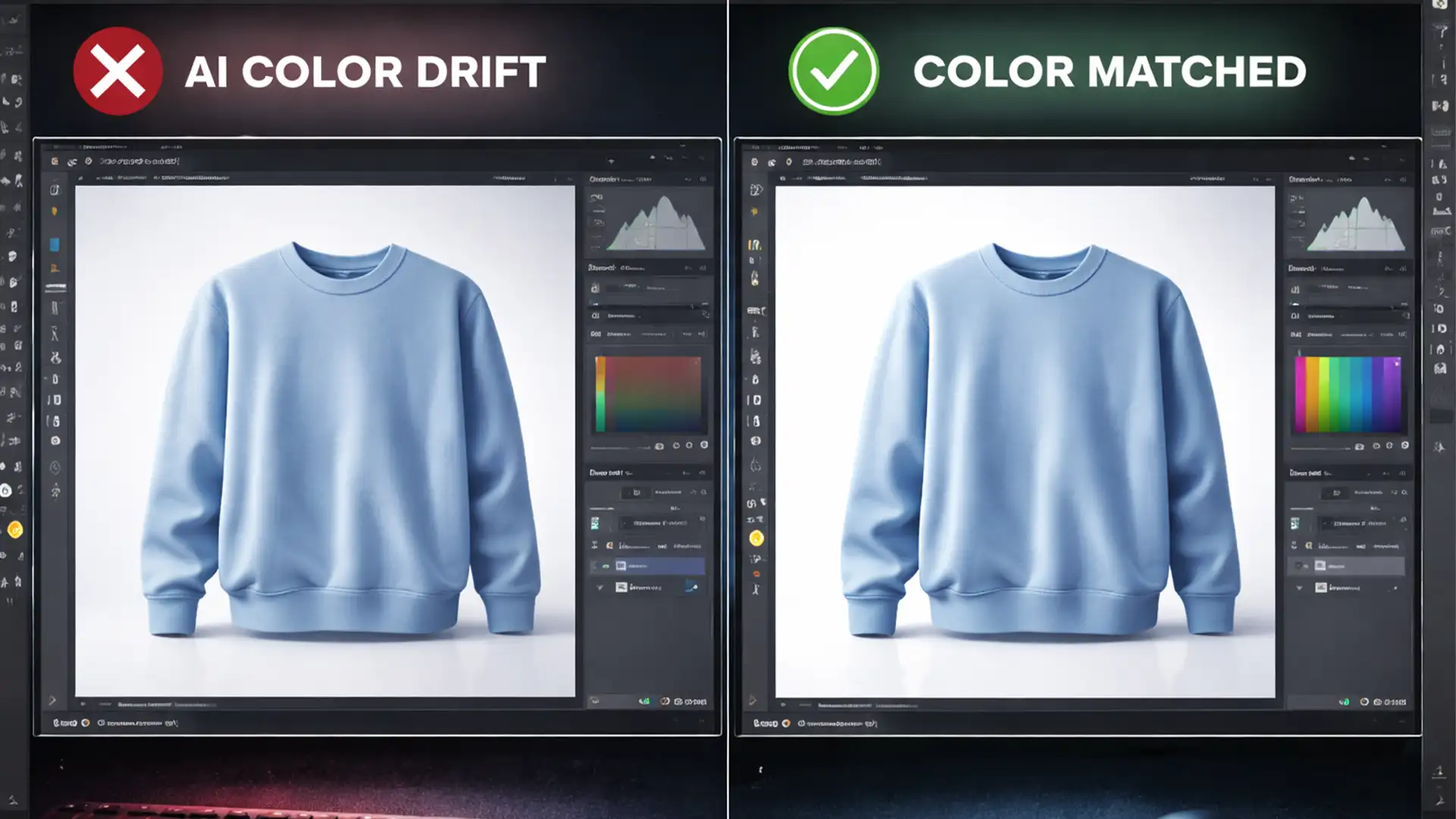

E-commerce brands are quietly bleeding revenue from “item not as described” returns. The culprit? You recently started using AI to extend backgrounds or create product variants, but the colors are suddenly wrong.
When generating backgrounds or altering scenes, AI models often hallucinate lighting and environmental reflections. This inadvertently overrides the precise hex codes of your original product, causing a frustrating phenomenon known as color drift. If your product photography doesn’t perfectly match the physical item, your conversion rates drop and return costs skyrocket.
Here is the definitive guide to the Photoshop Generative Fill color accuracy fix, ensuring your product images remain pixel-perfect.
Why Firefly Image 3 Causes “Color Drift”
In Adobe Photoshop v25.0 and the newer v26.x updates, Generative Fill is powered by the highly advanced Firefly Image 3 Model. While incredible at understanding context, the AI analyzes surrounding pixels and ambient lighting to blend the newly generated content.
For e-commerce, this is a massive problem. The algorithm prioritizes realistic lighting over brand guidelines, causing unacceptable color discrepancies. To maintain strict color fidelity, you have to force the software to separate the AI’s generated lighting and texture from the actual color data.
Here are three proven workflows to achieve non-destructive editing and eliminate color shifting.
3 Workflows for the Photoshop Generative Fill Color Accuracy Fix
Method 1: The Quick Fix (Blend Mode Override)
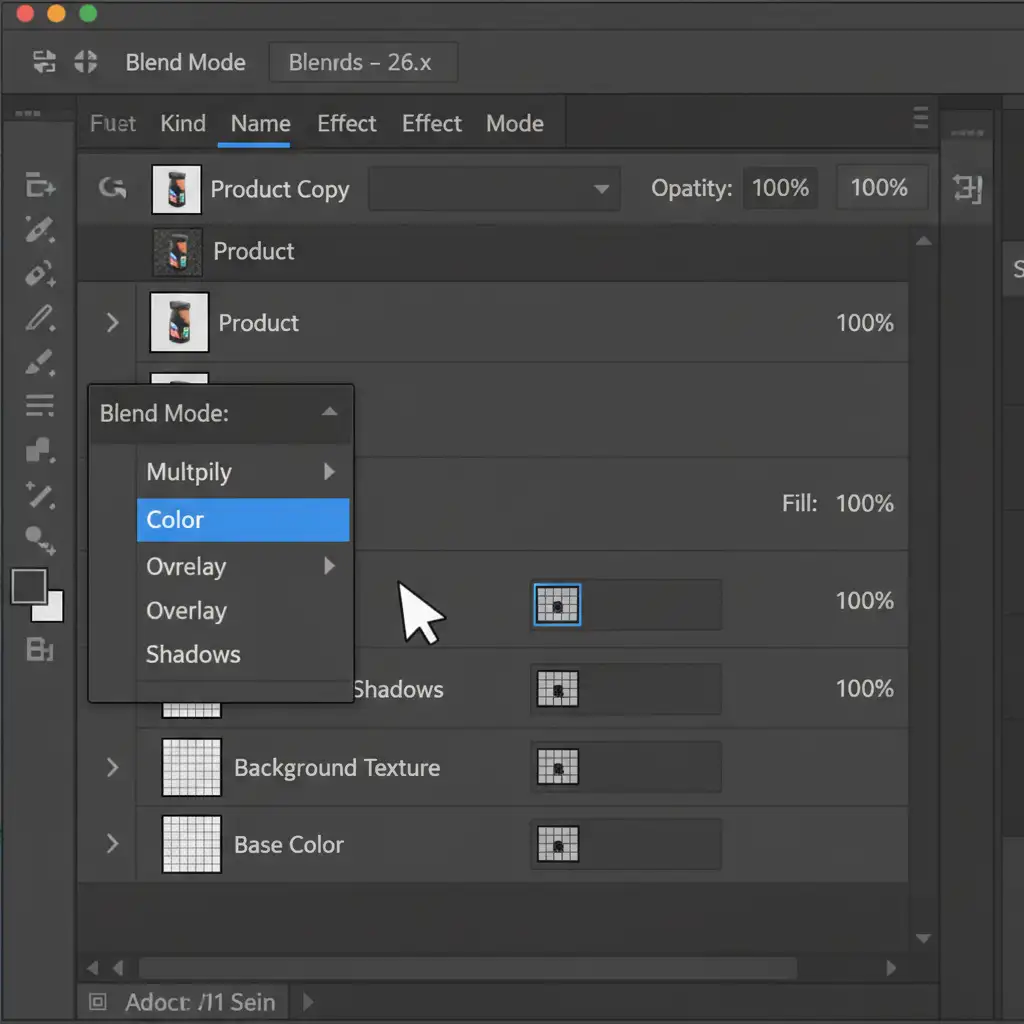
If you need a rapid solution to restore exact hex values after generating an AI background, leveraging Blend Modes is your fastest route.
- Run your Generative Fill prompt to create the new background or variant.
- Duplicate your original, unedited product layer.
- Move this duplicated layer to the absolute top of your layer stack.
- Change this top layer’s Blend Mode from ‘Normal’ to ‘Color’.
By doing this, you force the underlying AI-generated lighting, shadows, and textures to adopt the exact color data of your original product.
Method 2: The Pro Workaround (Clipped Adjustment Layers)
For professional retouchers who need granular control over specific color channels without affecting the entire composition, clipped adjustment layers provide the ultimate non-destructive editing workflow.
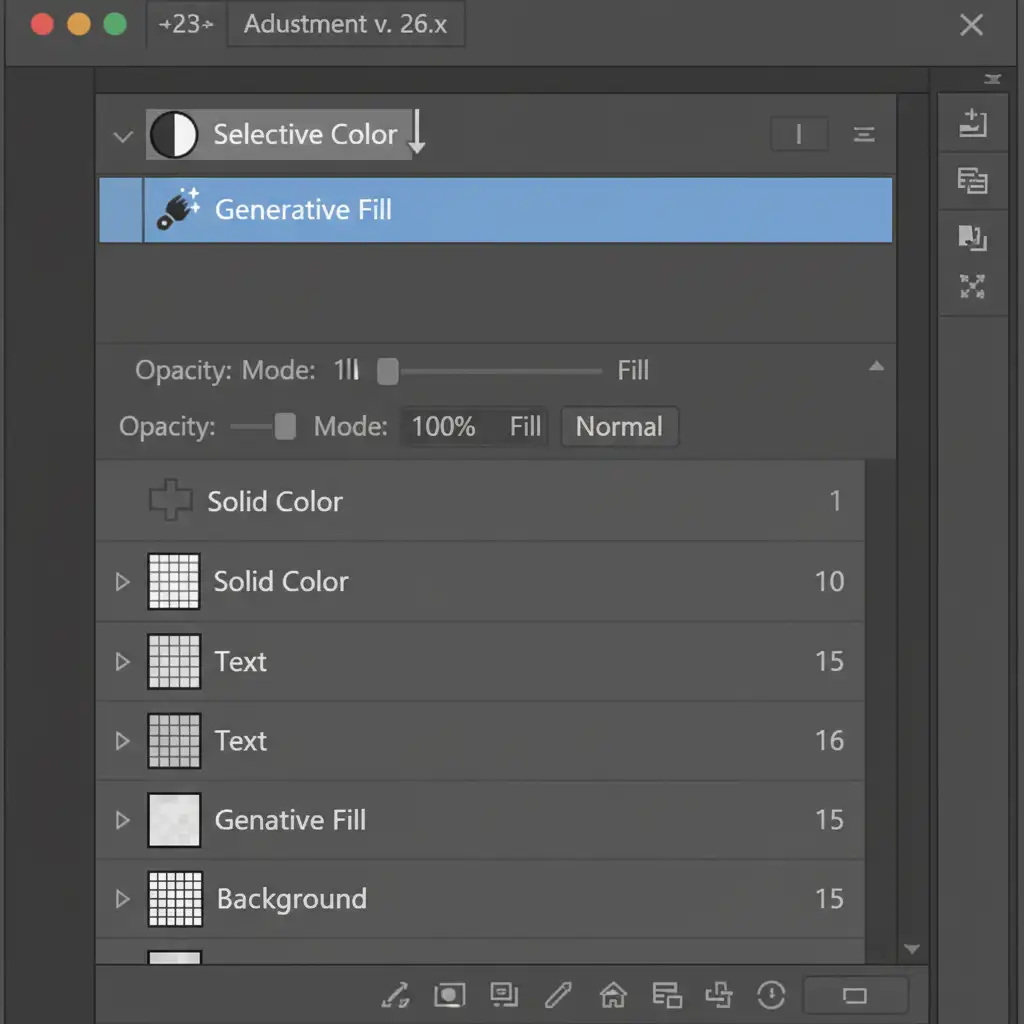
- Add a Selective Color or Hue/Saturation Adjustment Layer directly above your Generative Fill layer.
- Right-click the Adjustment Layer and select Create Clipping Mask. (A small downward arrow will appear next to the layer).
- Use the eyedropper tool to sample your exact product color.
- Manually shift the sliders to correct the AI’s output, matching it perfectly to your physical product.
Because the adjustment layer is clipped, it only corrects the color drift on the AI-generated layer, leaving the rest of your composite completely untouched.
Method 3: The Technical Deep-Dive (Reference Image & Color Profiles)
Prevention is better than correction. Unmatched color profiles between the AI generation space and your document space are a primary cause of algorithmic color shifting. By combining strict color profiling with the new Contextual Task Bar features, you can guide the AI before it even generates the pixels.
Step A: Enforce Strict sRGB Profiling
Before doing any e-commerce editing, you must lock your color profile.
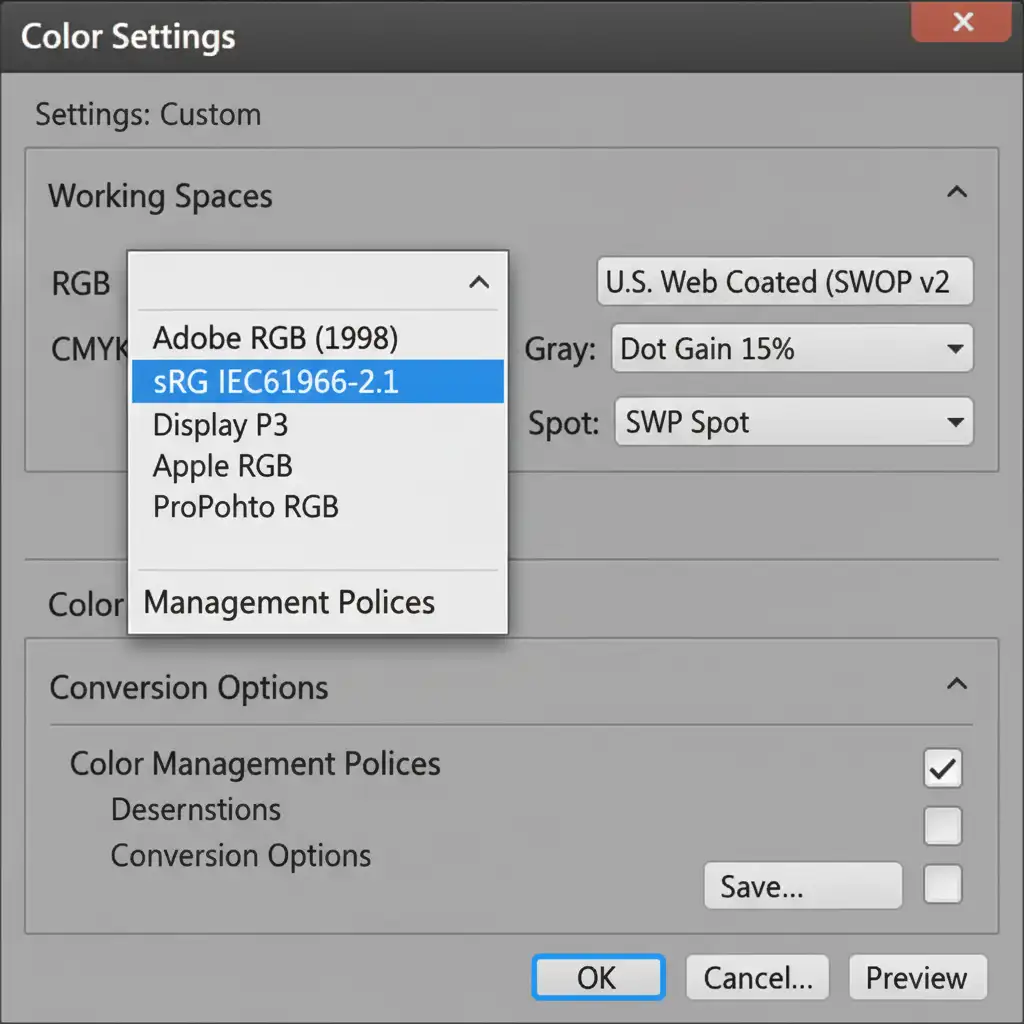
- Navigate to Edit > Color Settings.
- Under ‘Working Spaces’, ensure your RGB dropdown is strictly set to sRGB IEC61966-2.1.
Step B: Utilize the Reference Image Feature
In recent Photoshop builds, Adobe introduced a powerful way to anchor the AI’s output.
- Make your selection for Generative Fill.
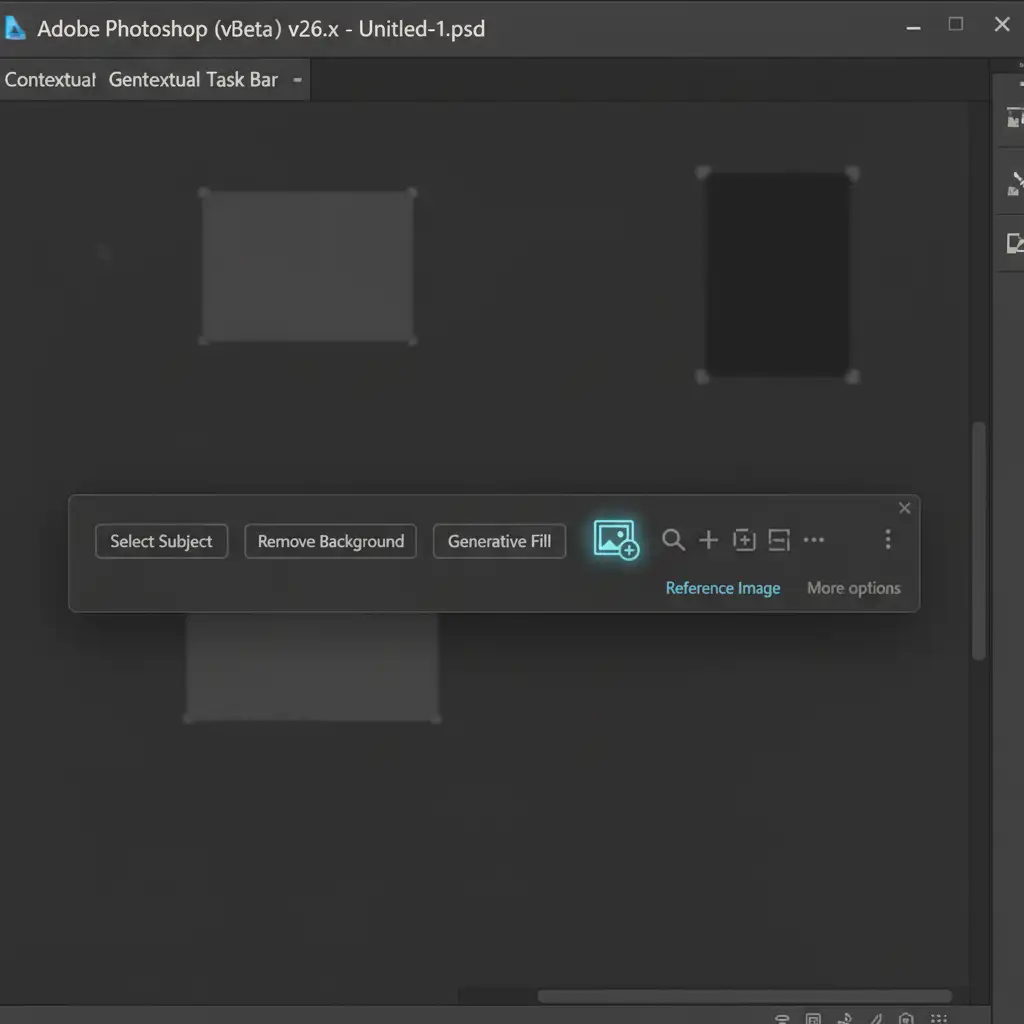
- Look at the Contextual Task Bar floating on your screen.
- Click the Reference Image icon.
- Upload or select your original product photo.
This forces the Firefly Image 3 model to use your exact product colors as the baseline for its generation, drastically reducing the chances of environmental color drift.
Stop Losing Revenue to Inaccurate Edits
Mastering the Photoshop Generative Fill color accuracy fix is essential for modern e-commerce, but managing color profiles, clipping masks, and blend modes across thousands of SKUs is incredibly time-consuming.
Don’t let AI color shifts ruin your e-commerce conversion rates or inflate your return logistics. If you need to scale your image production without sacrificing quality, partner with Image Work India and Cloud Retouch.
Our teams specialize in pixel-perfect, color-accurate product photo editing at scale. We combine industry-leading AI tools with expert human oversight to ensure every single image perfectly matches your physical product. Contact us today to streamline your post-production workflow and protect your brand’s reputation.




