

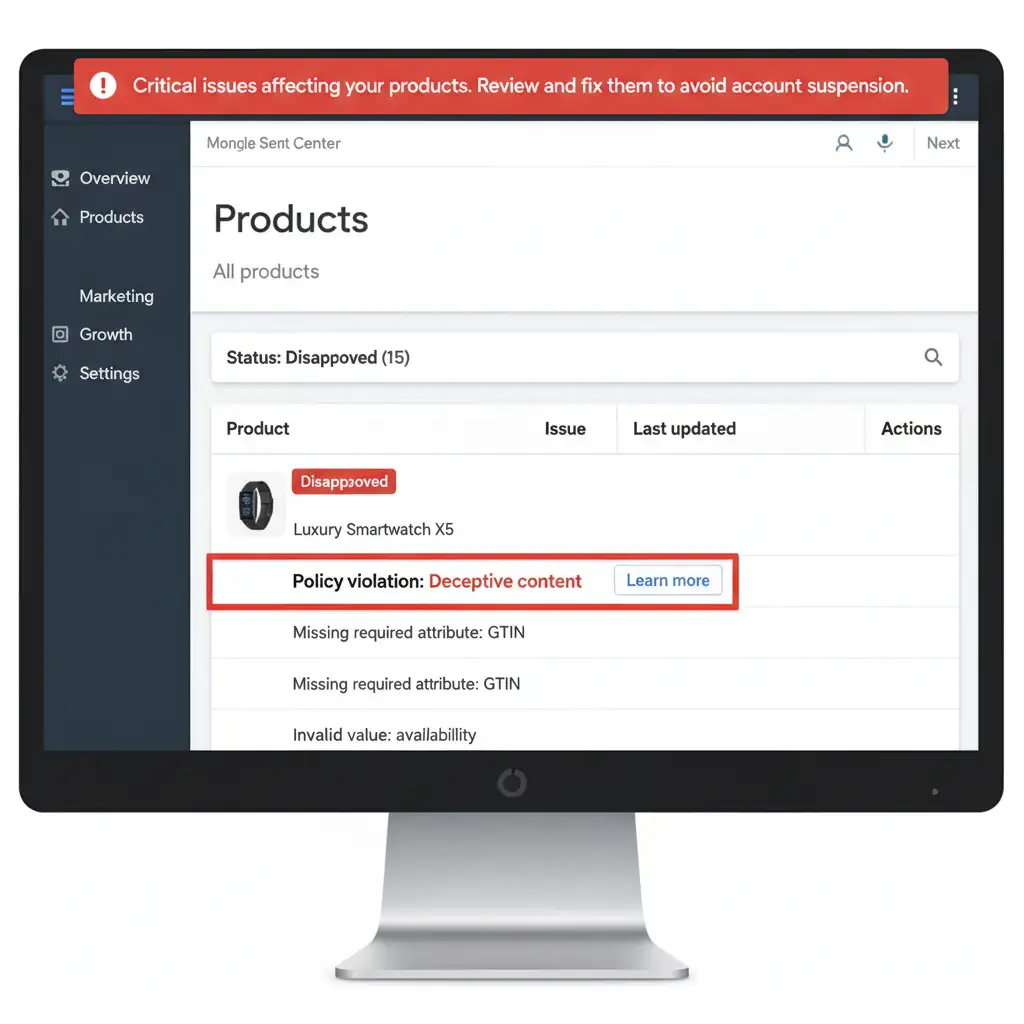
You spent hours perfecting your product photos using AI, carefully tagging them in Photoshop with the required IPTC metadata. But the moment you upload them to Shopify, disaster strikes. Google Merchant Center hits you with a “Deceptive content” policy violation and suspends your listings.
Why? Because Shopify’s aggressive image CDN automatically strips EXIF and IPTC data to improve page speeds. This inadvertently deletes the critical DigitalSourceType tag that Google demands for AI-generated images. If you are losing sales to unfair AI image disapprovals, here is the exact technical workflow to bypass Shopify’s CDN, preserve your metadata, and get your product feed approved.
The Root Cause: Why Shopify Erases Your IPTC Metadata
Google Merchant Center’s deceptive content policy requires absolute transparency regarding AI-generated or heavily manipulated images. To comply, your images must contain specific IPTC metadata—specifically, the DigitalSourceType tag must be set to either compositeSynthetic or algorithmicMedia.
The core of the problem is a direct conflict between Shopify’s infrastructure and Google’s crawler requirements. When you upload a perfectly tagged image to the Shopify admin dashboard, the native Shopify CDN applies aggressive lossless compression. This process automatically strips all non-essential EXIF data and IPTC metadata to optimize file sizes and improve page load times.
Consequently, when Google’s crawlers inspect the [image_link] attribute from your Google Merchant Center Feed, the AI metadata is entirely missing. This triggers an immediate disapproval or, worse, an account-level suspension.
How to Execute a Google DigitalSourceType Metadata Shopify Fix
To resolve this, you must bypass Shopify’s default image compression. Here are three proven methods, ranging from a quick workaround to a highly technical feed integration.
Method A: The Quick Fix (External Image Hosting)
The most straightforward way to preserve your metadata is to stop hosting your AI-generated images on Shopify altogether.
- Tag Your Images: Ensure your images are correctly tagged in Photoshop v25+ or Lightroom.
- Host Externally: Upload these metadata-tagged photos to an external server that does not strip EXIF data, such as AWS S3, Google Cloud Storage, or a dedicated web hosting account.
- Update Your Feed: Instead of using the Shopify-generated URLs, map these direct external URLs in your Google Merchant Center product feed for the [image_link] attribute.
When Google crawls the external link, the algorithmicMedia tag remains fully intact.
Method B: The Pro Workaround (Third-Party CDN Apps)
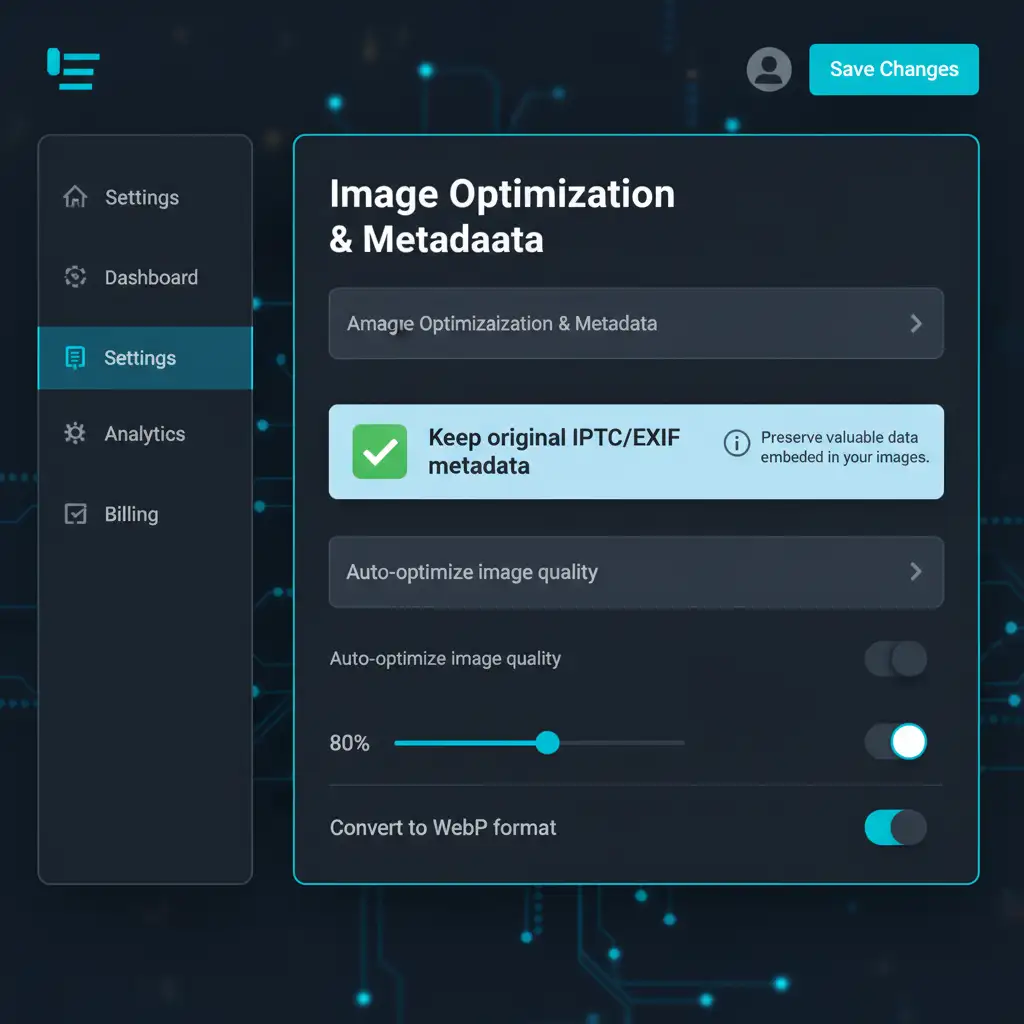
If you have a massive catalog and manual external hosting isn’t viable, you can replace Shopify’s native image delivery with a specialized third-party CDN app like Cloudinary.
By integrating a third-party CDN with your Shopify store, you gain granular control over how your images are processed. You can configure the app’s delivery settings to specifically check a box to ‘Preserve original IPTC/EXIF metadata’. When your feed app pushes the [image_link] to Google, it will use the third-party CDN URL, ensuring the required DigitalSourceType tags survive the journey.
Method C: The Technical Deep-Dive (ExifTool & Feed Rules)
For advanced users who want to keep assets within the Shopify ecosystem without third-party CDN apps, you can use a combination of command-line metadata injection and Shopify’s GraphQL API.
Step 1: Inject Metadata via ExifTool First, use ExifTool in your command line terminal to manually append the exact required tag. Run the following command on your image:
exiftool -DigitalSourceType=http://cvc.iptc.org/newscodes/digitalsourcetype/algorithmicMedia image.jpg

Step 2: Upload via Shopify GraphQL API Do not upload this file through the standard Shopify product image uploader. Instead, upload the image as a ‘Generic File’ via the Shopify GraphQL API. The Generic File API applies significantly less aggressive compression than the standard product image pipeline, allowing the EXIF data to survive.
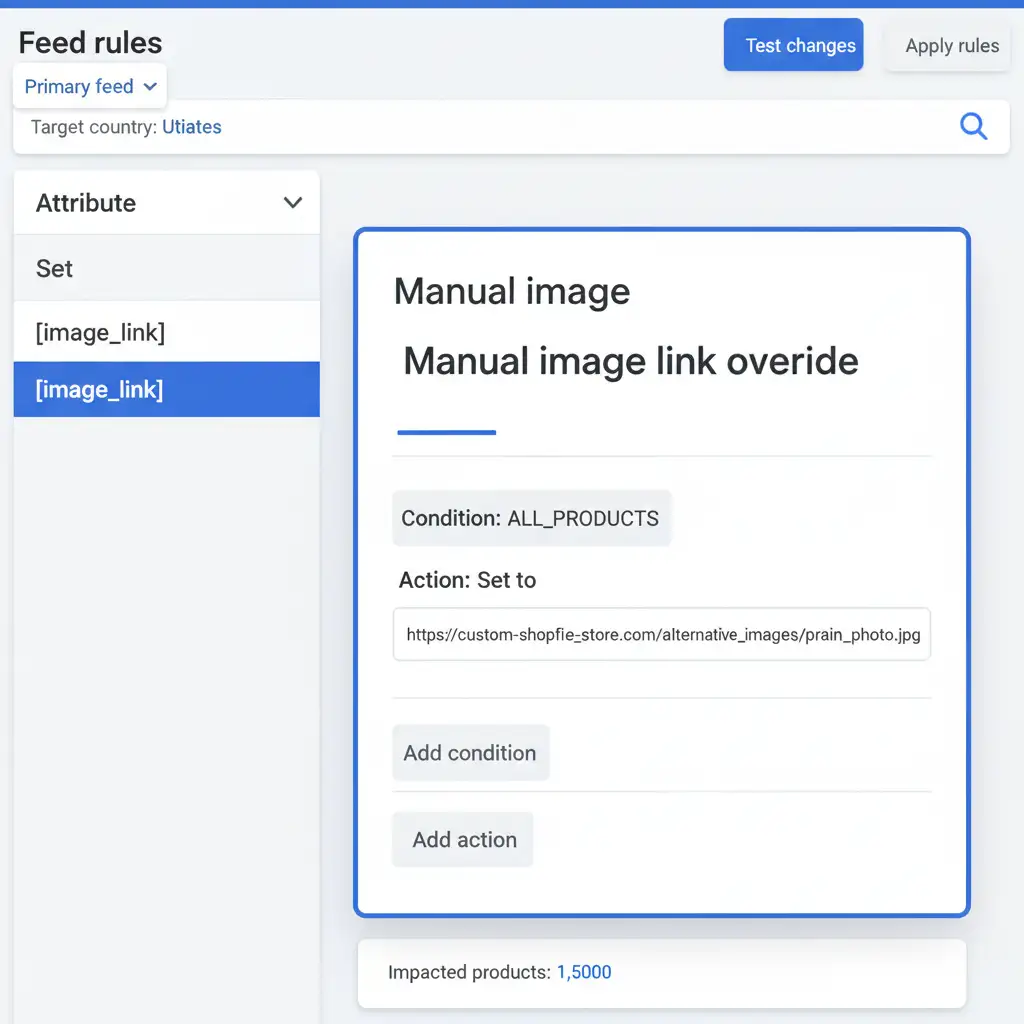
Step 3: Implement GMC Feed Rules Finally, log into Google Merchant Center. Navigate to your Feed Rules and create a rule that overrides the default [image_link] attribute, replacing it with the specific URL generated by your Generic File upload.
Never Worry About Google Merchant Center Disapprovals Again
Managing strict IPTC metadata compliance, configuring feed rules, and bypassing Shopify CDN compression requires significant technical overhead. If you make a single mistake, your top-selling products can be suspended from Google Shopping overnight.
Don’t let technical metadata issues cost you sales. At Image Work India and Cloud Retouch, we provide end-to-end image editing and metadata management for enterprise e-commerce brands. Let our experts process your entire product catalog, guaranteeing flawless retouching, strict EXIF metadata compliance, and zero Google Merchant Center disapprovals.
Contact us today to ensure your AI-generated and heavily edited product images are perfectly optimized, fully compliant, and ready to convert.




