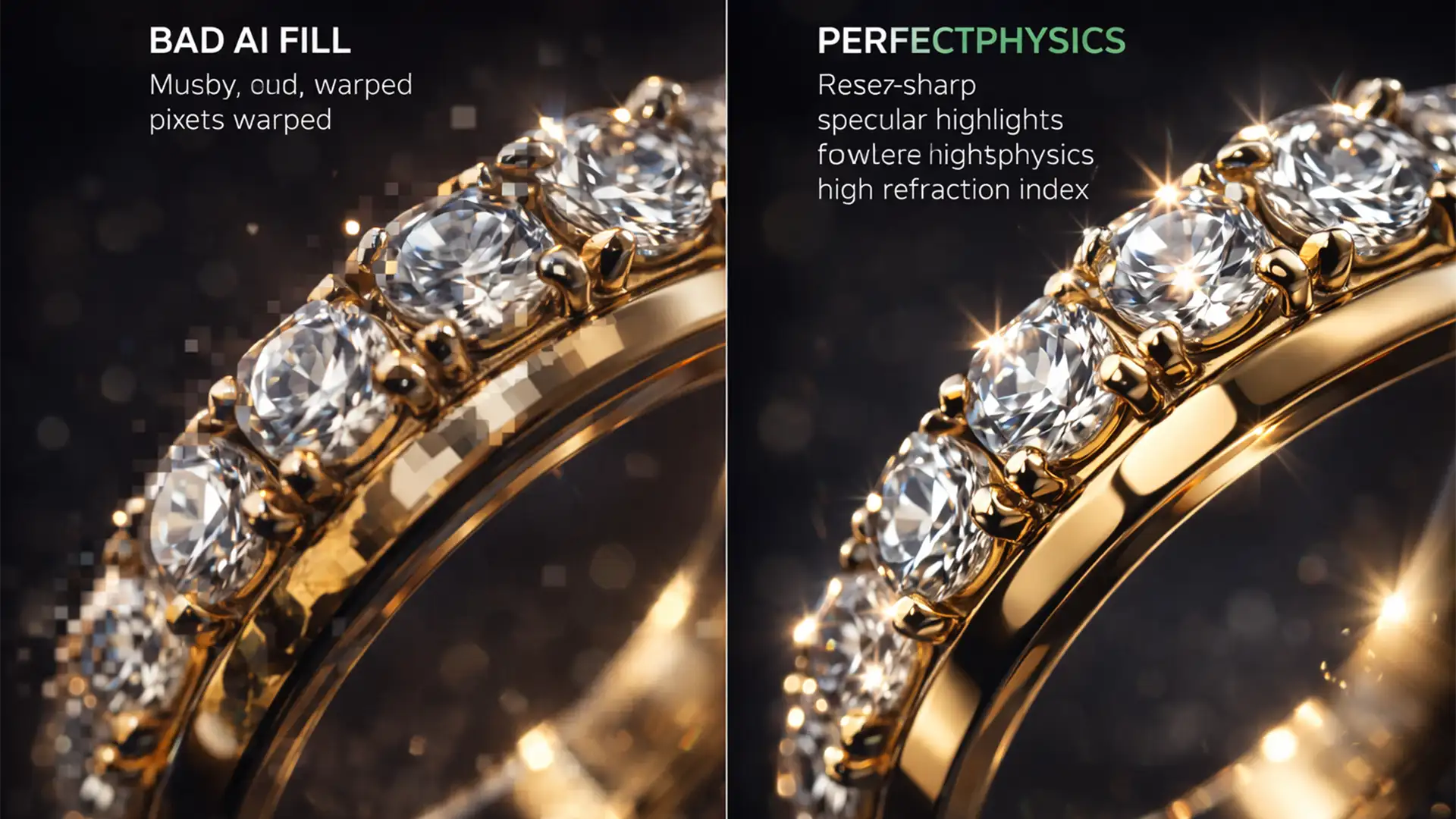

Generative Fill is a massive time-saver for expanding backgrounds, but if you shoot high-end jewelry, you already know its fatal flaw. In recent Photoshop versions (v25.0 to v27.x), AI background generation consistently destroys the complex optical physics of metallic and gemstone surfaces. You get a beautiful new background, but your diamonds, gold, and chrome are left with muddy, warped pixels.
Why? The AI model interpolates reflections based on low-resolution training data of generic metallic surfaces, stripping away the crisp specular highlights and photorealistic contrast your client demands.
If you’re tired of AI ruining your environmental bounce light, this guide breaks down the exact 2026 masking workflows to seamlessly blend real-world light physics with AI-generated backgrounds.
Why Generative Fill Fails High-Refraction Index Materials
When you use Generative Expand or Generative Fill on a jewelry image, the AI tries to predict how the new environment should reflect on the subject. However, high-refraction index materials like diamonds and polished gold require precise calculation of light physics. The AI cannot replicate these micro-contrasts, resulting in Generative Fill artifacts that look like smudged paint rather than polished metal.
To perform a flawless AI reflection cleanup in Photoshop for jewelry, you cannot rely on automated tools. You must use hybrid compositing techniques to rescue the original reflections.
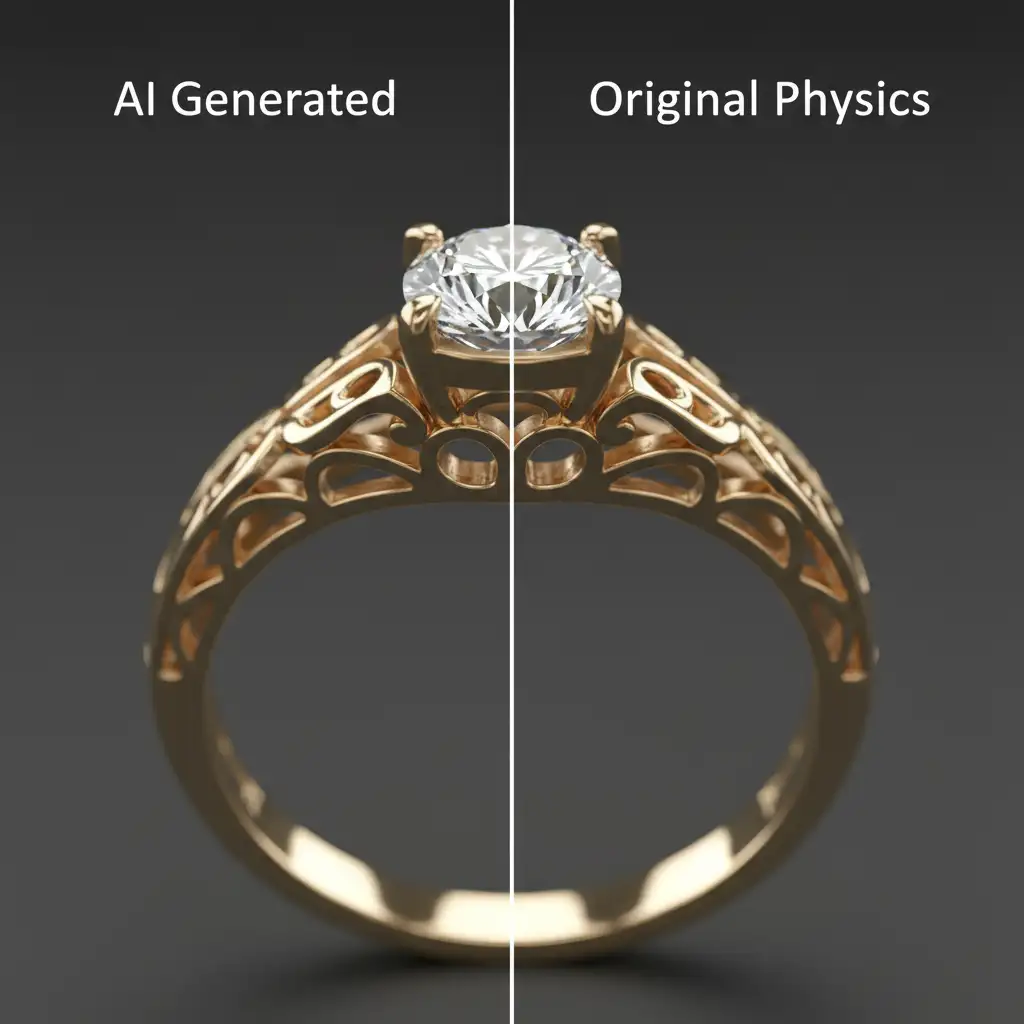
3 Workflows for AI Reflection Cleanup in Photoshop (Jewelry Edition)
Depending on the severity of the Generative Fill artifacts, you can use one of these three professional workflows to restore your image.
Method 1: The Quick Fix (Blend Modes)
If the AI only slightly dulled your environmental bounce light, you can quickly restore the original shine using layer blend modes.
- Duplicate your original, unedited jewelry layer.
- Drag this duplicate layer above your Generative Fill layer in the Layers Panel.
- Change the Blend Mode of this duplicated layer to Lighten or Screen.
- Apply a black layer mask and use a soft white brush to paint back only the original specular highlights, masking out any dark artifacts or original background elements.
Method 2: The Pro Workaround (Blend If & Luminosity Masking)
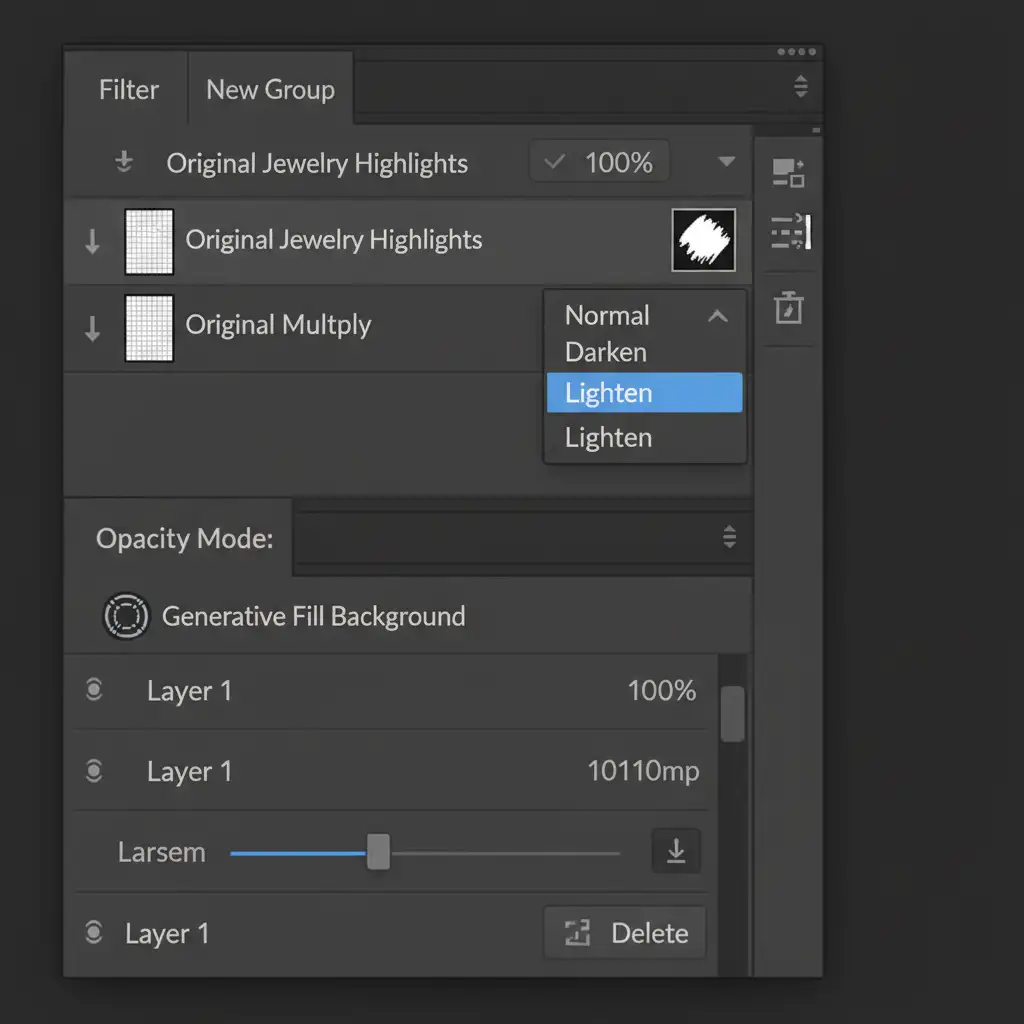
For complex reflections where the AI generated decent shadows but muddy highlights, luminosity masking via Smart Objects is the industry standard.
- Convert your original, unedited jewelry layer to a Smart Object. Place it above the AI layer.
- Double-click the layer to open the Layer Style panel.
- Navigate to the Blend If section (Underlying Layer).
- Hold Alt (or Option on Mac) to split the black slider. Drag the right half toward the midtones.
- This isolates the midtones and highlights of the original reflection, effectively clipping the muddy AI generation only to the shadows where it belongs.
Method 3: The Technical Deep-Dive (Frequency Separation)
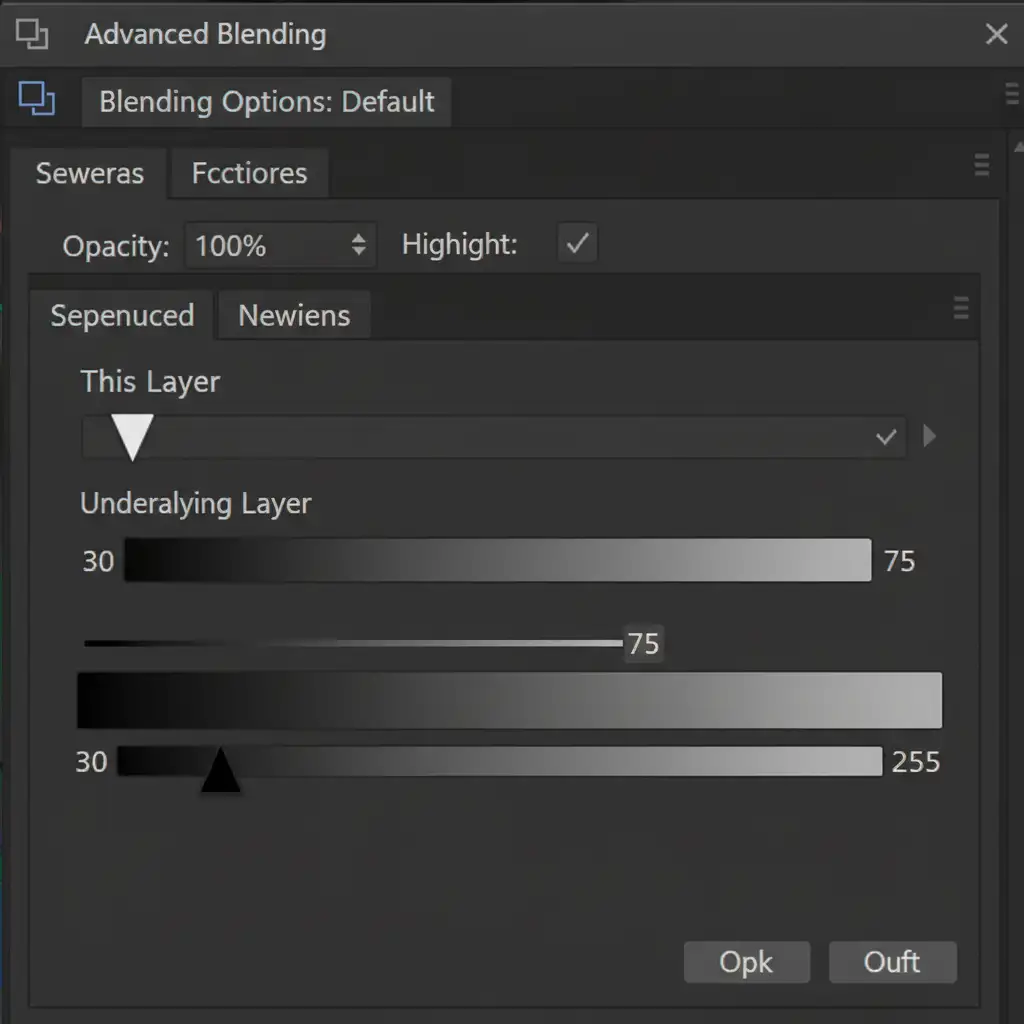
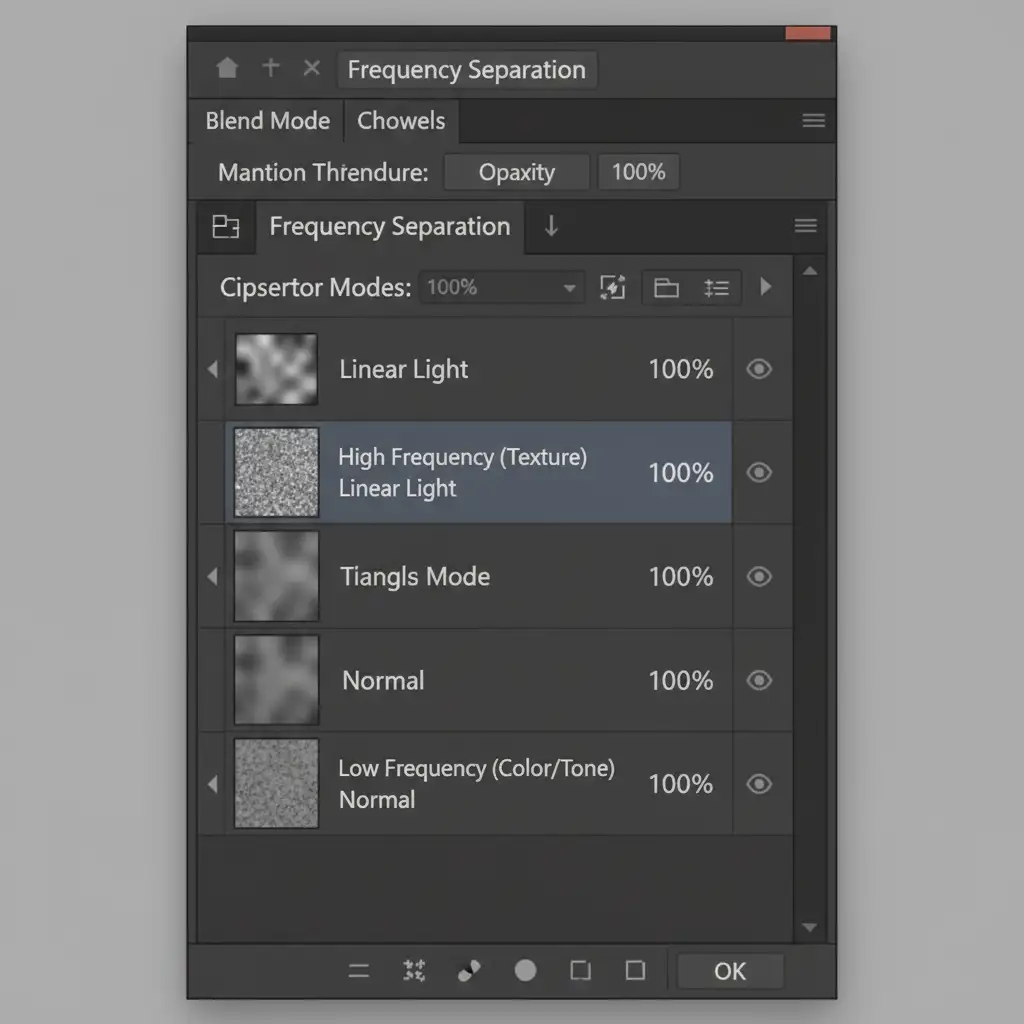
When dealing with highly detailed textures (like brushed metal or micro-pavé diamonds) where the AI warped the texture but got the color gradient right, frequency separation is your best weapon.
- Group your AI-generated layer and merge a copy (Ctrl+Alt+Shift+E).
- Run a standard Frequency Separation action to split this merged layer into High (texture/micro-details) and Low (color/tone/bounce light) frequencies.
- Select the Low-frequency layer. Use the Clone Stamp tool (set to a soft brush, 20% opacity) to clone the clean, original metallic color gradients over the muddy AI colors.
- Because you are only painting on the Low layer, you preserve the AI’s micro-textures on the High-frequency layer, ensuring a seamless blend of light physics and texture.
Why Outsource Your High-End Jewelry Retouching?
Mastering AI reflection cleanup in Photoshop for jewelry requires a deep understanding of light physics, refraction indexes, and advanced masking. While Generative Fill artifacts can be fixed using Blend If sliders and Frequency Separation, doing this across a catalog of hundreds of SKUs is incredibly time-consuming.
You shouldn’t have to choose between fast AI backgrounds and premium, photorealistic subject details.
Need flawless, high-end jewelry edits without the muddy AI artifacts? Outsource your complex retouching to Image Work India and Cloud Retouch. Our expert retouchers specialize in pixel-perfect compositing, ensuring your diamonds sparkle, your metals shine, and your backgrounds blend seamlessly.
Contact Image Work India today to scale your jewelry photography workflow with uncompromising quality.




