

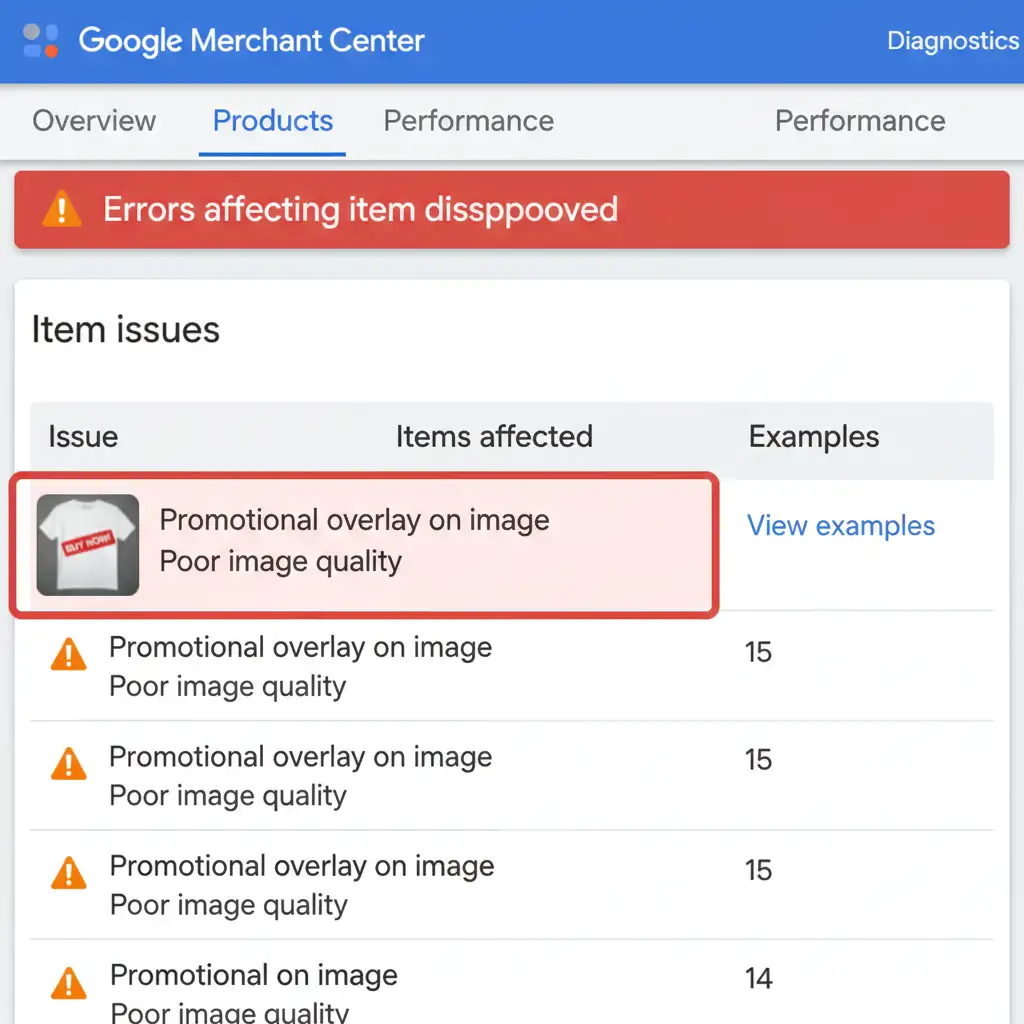
You spent hours generating the perfect lifestyle backgrounds for your e-commerce products using AI, only to wake up to a nightmare: suspended Google Shopping campaigns. If you are staring at a flooded GMC diagnostics tab filled with “Poor image quality” or “Promotional overlay on image” errors, you are not alone.
Google’s automated image scanners have become incredibly aggressive at detecting synthetic visuals. When the algorithm spots AI-generated backgrounds, it immediately flags the image_link attribute, restricting your product visibility.
Fortunately, you do not need to scrap your entire catalog. In this guide, we will break down the exact google merchant center ai image quality disapproval fix you need to bypass automated scanners, unify your visuals, and get your products approved.
Why is Google Merchant Center Flagging My AI Images?
Google’s primary goal is to provide shoppers with accurate, realistic representations of products. Recent updates to their automated quality checks are specifically trained to hunt down generative fill artifacts. The algorithm triggers a promotional overlay error or quality flag based on three main factors:
- IPTC Metadata & Content Credentials: Tools like Adobe Photoshop v25.0+ automatically attach hidden metadata indicating an image uses Generative Fill. Google reads this instantly.
- Mismatched Lighting Vectors: AI backgrounds often have different light sources than your original product photography, creating an unnatural composite.
- Synthetic Noise Patterns: AI generates pixels differently than a camera sensor. Google’s scanners look for a lack of realistic contact shadows and unnatural pixel smoothness.
To get your listings back online, you must address both the visual composite and the hidden file data.
3 Ways to Fix Google Merchant Center AI Image Disapprovals
Depending on your timeline and Photoshop skills, here are three proven methods to clear your GMC diagnostics errors.
Method 1: The Quick Fix (Solid White Background)
If you need your shopping campaigns active immediately, the fastest route to compliance is removing the AI background entirely. Google heavily favors pure white backgrounds for main product images.
Steps:
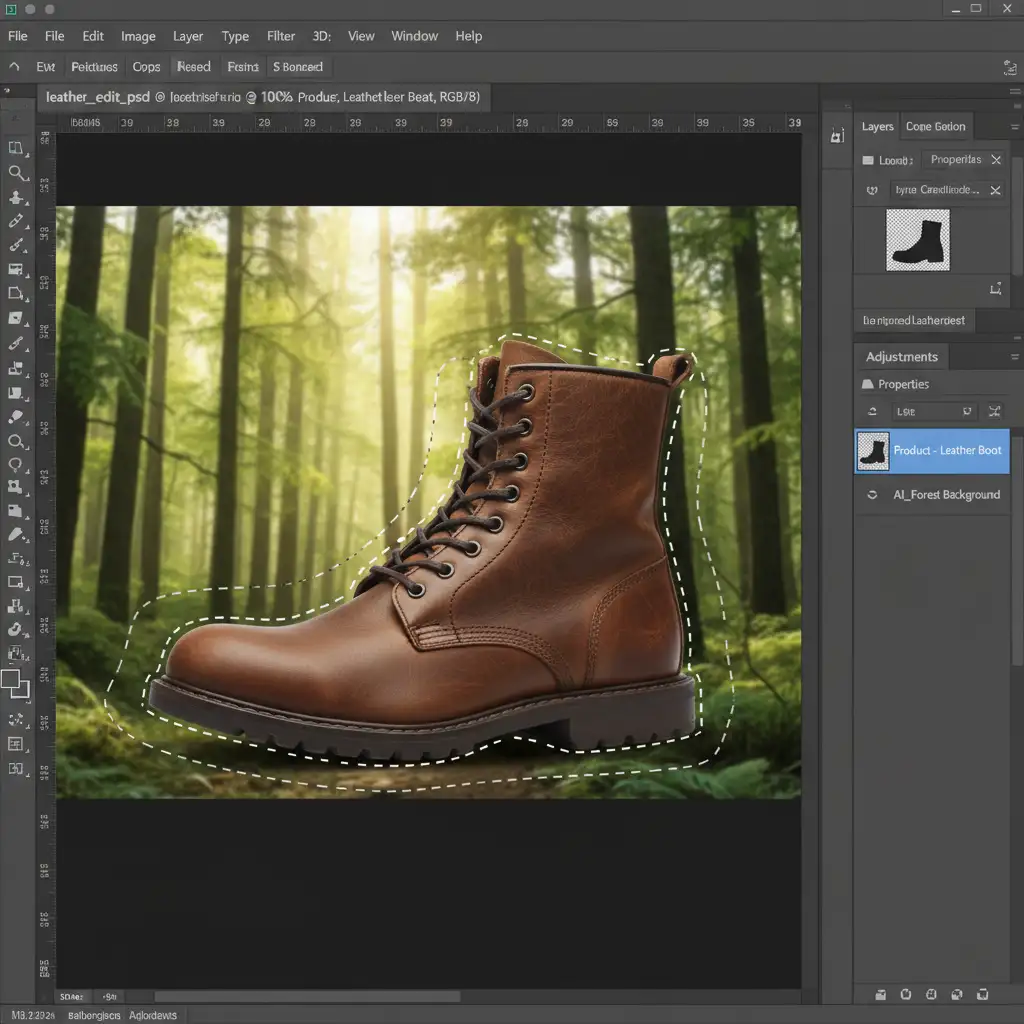
- Open your flagged image in Photoshop.
- Use the Object Selection Tool or Magic Wand to isolate your core product.
- Mask out the problematic AI background.
- Add a Solid Color adjustment layer beneath your product and set the hex code to exactly #FFFFFF.
Method 2: The Pro Workaround (Shadow & Texture Unification)
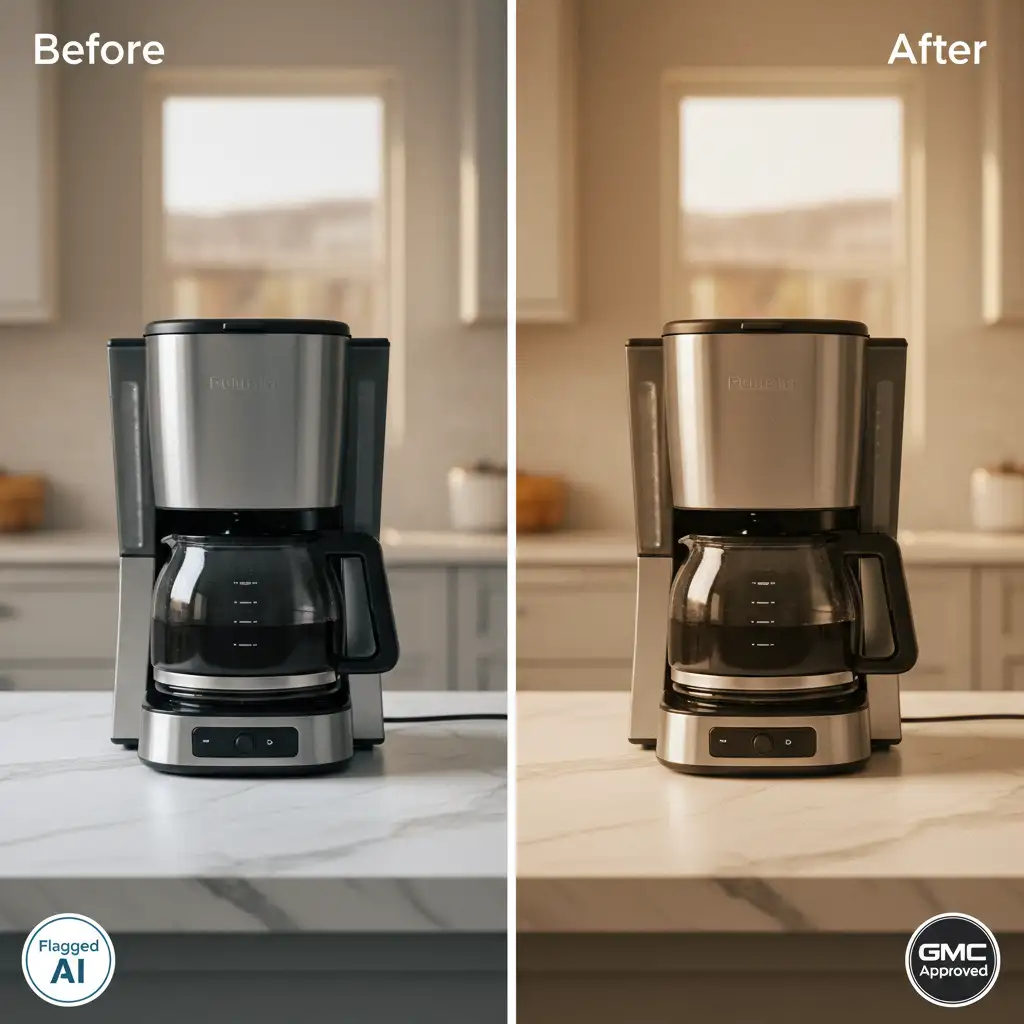
If you want to keep your AI-generated lifestyle environments, you must trick Google’s scanners by executing proper shadow synchronization and pixel noise unification. You need to make the AI background and the real product look like they were captured by the same camera lens.
Steps:
- Unify the Lighting: Create a Curves adjustment layer clipped to your product layer. Adjust the highlights and shadows to perfectly match the ambient lighting of the AI environment.
- Anchor the Product: Paint realistic contact shadows under the product using a soft brush on a Multiply layer.
- Disguise Synthetic Pixels: Flatten the image. Go to Filter > Noise > Add Noise. Apply a 1-2 percent uniform noise filter across the entire flattened image. This breaks up the synthetic AI pixel patterns, masking them from Google’s automated texture detection.
Method 3: The Technical Deep-Dive (Metadata Scrubbing)
Even if your image looks perfectly realistic, hidden Content Credentials will trigger an automatic disapproval. You must strip this tracking data before uploading the image to your server.
Steps:
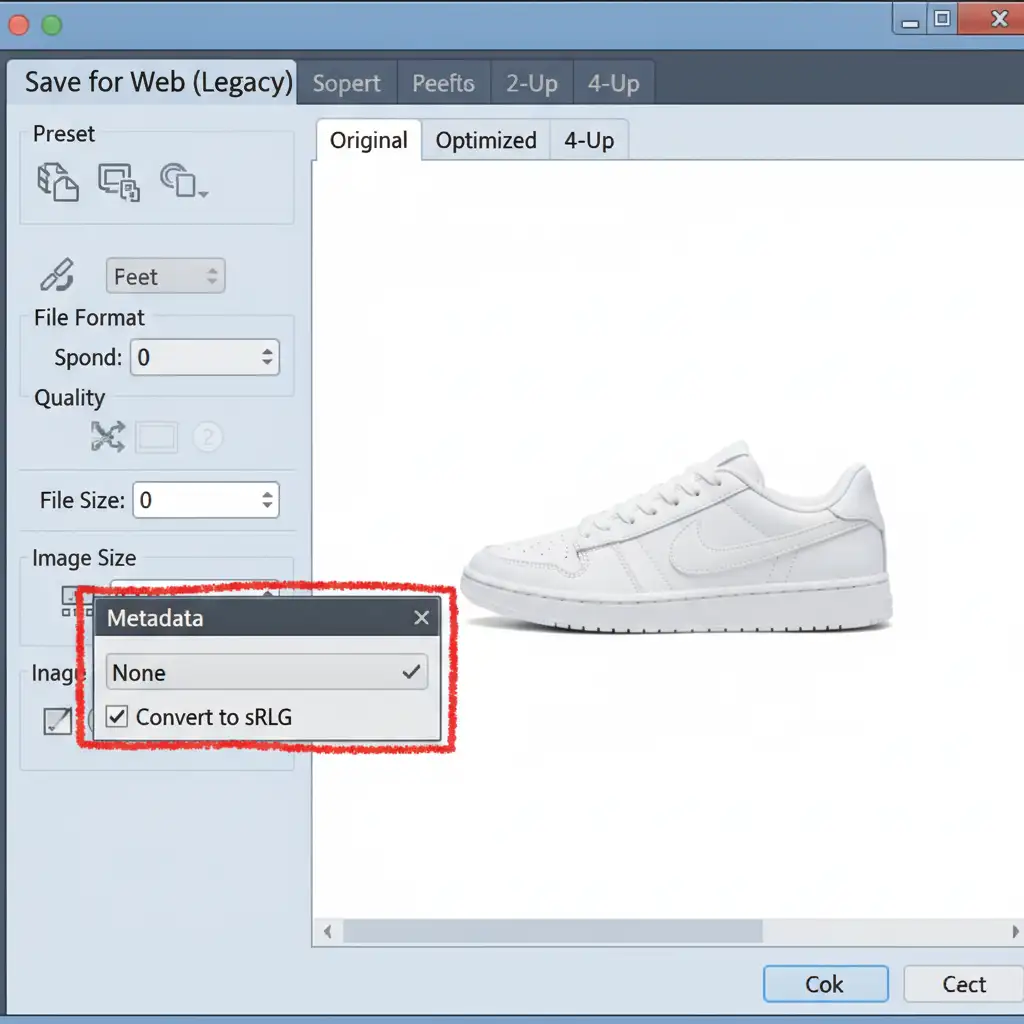
- Once your editing is complete, do not use the standard “Save As” function.
- Navigate to File > Export > Save for Web (Legacy).
- In the export dialogue box, locate the Metadata dropdown menu and change it to None.
- Check the box for Embed Color Profile and ensure it is set to an sRGB color profile (Google’s preferred color space).
- Ensure your image meets the minimum size requirements (250×250 pixels for apparel, 100×100 for other products) while keeping the file size under 16MB.
Stop Fighting the Algorithm. Let the Experts Handle It.
Navigating the constant updates to Google’s automated quality checks can be exhausting, especially when you are trying to scale your e-commerce business. While executing a google merchant center ai image quality disapproval fix is entirely possible in-house, it is incredibly time-consuming to manually scrub metadata, paint contact shadows, and unify pixel noise for hundreds or thousands of SKUs.
Struggling with GMC image disapprovals? Hire Image Work India and Cloud Retouch to professionally optimize and edit your product photos. Our expert retouching teams understand exactly what Google’s algorithms are looking for. We will process your catalog to guarantee compliance with all Google Shopping guidelines, ensuring your campaigns stay active and your products keep selling.
Contact us today to get your product visuals GMC-approved and ready to convert.




