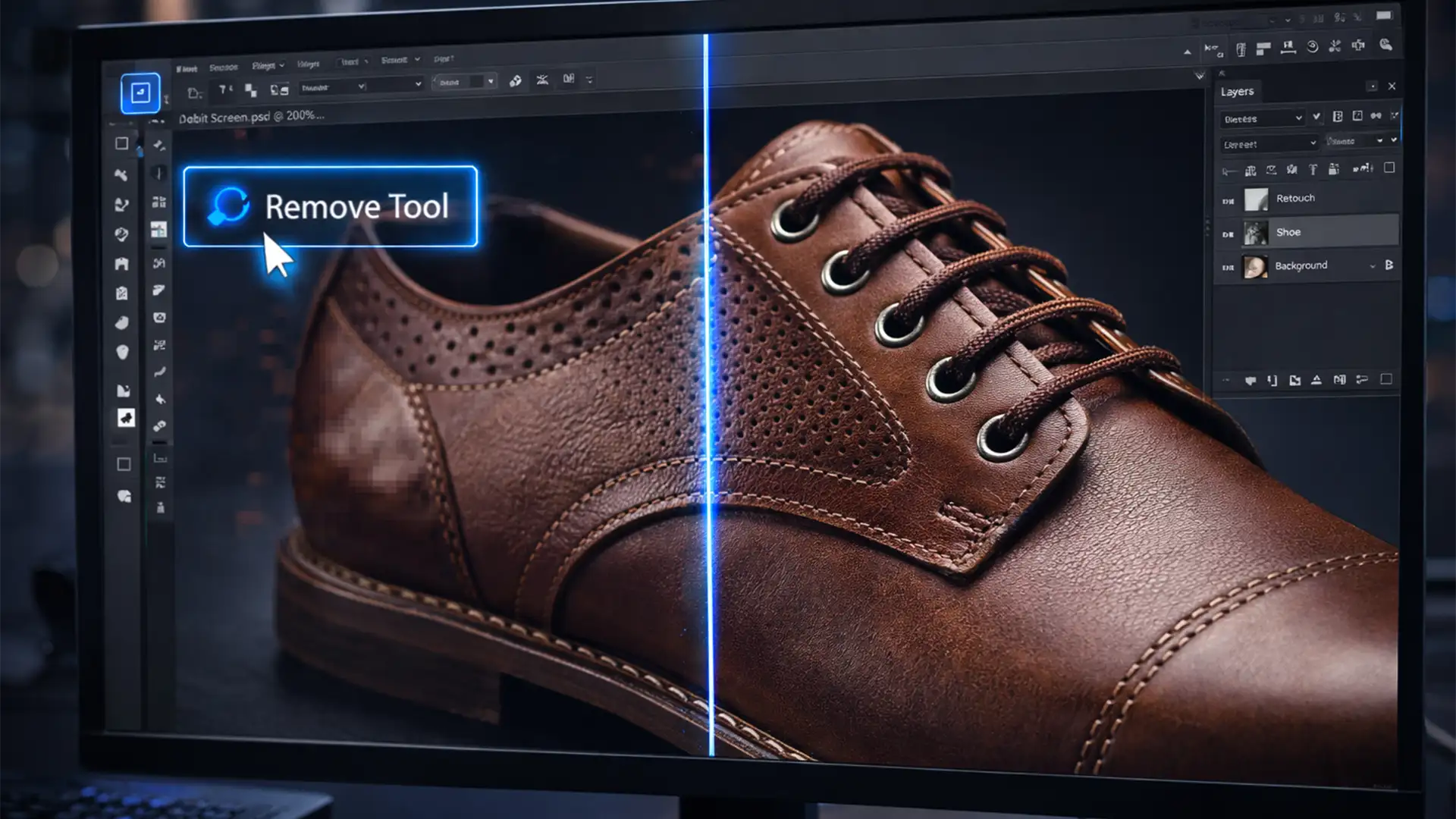

You just spent hours shooting a high-resolution e-commerce campaign, only to find that your cleanup process is ruining the image quality. You select the new AI-powered Remove Tool, brush over an imperfection, and wait for the magic to happen. But instead of a seamless fix, you are left with a soft, blurry patch that completely destroys the high-frequency textures of your product.
If you are struggling with the Photoshop 2026 Remove Tool blurry fix, you are not alone. While the v27.x update introduced incredible machine learning models, its default settings are optimized for speed, not commercial quality.
Here is exactly why Photoshop is ruining your high-res edits and the professional workflows you need to fix it.
Why Does the Photoshop 2026 Remove Tool Leave Blurry Patches?
In Photoshop 2026, Adobe’s AI generation tools, including the Remove Tool and Generative Fill, rely heavily on cloud processing. To speed up server processing and network transfer times, the software performs cloud processing downsampling.
When you brush over an area, Photoshop compresses that image patch, sends it to the cloud, processes the AI removal, and sends it back. When that low-resolution patch is upscaled to fit your original 45-megapixel raw file, it lacks the original pixel density. The result? A noticeable, blurry artifact where crisp texture used to be.
Furthermore, if your local system suffers from poor VRAM allocation, Photoshop will automatically throttle the tool to use lower-quality generation models to prevent crashing.
Fortunately, you can bypass these limitations using three proven methods.
How to Fix the Blurry Remove Tool in Photoshop 2026
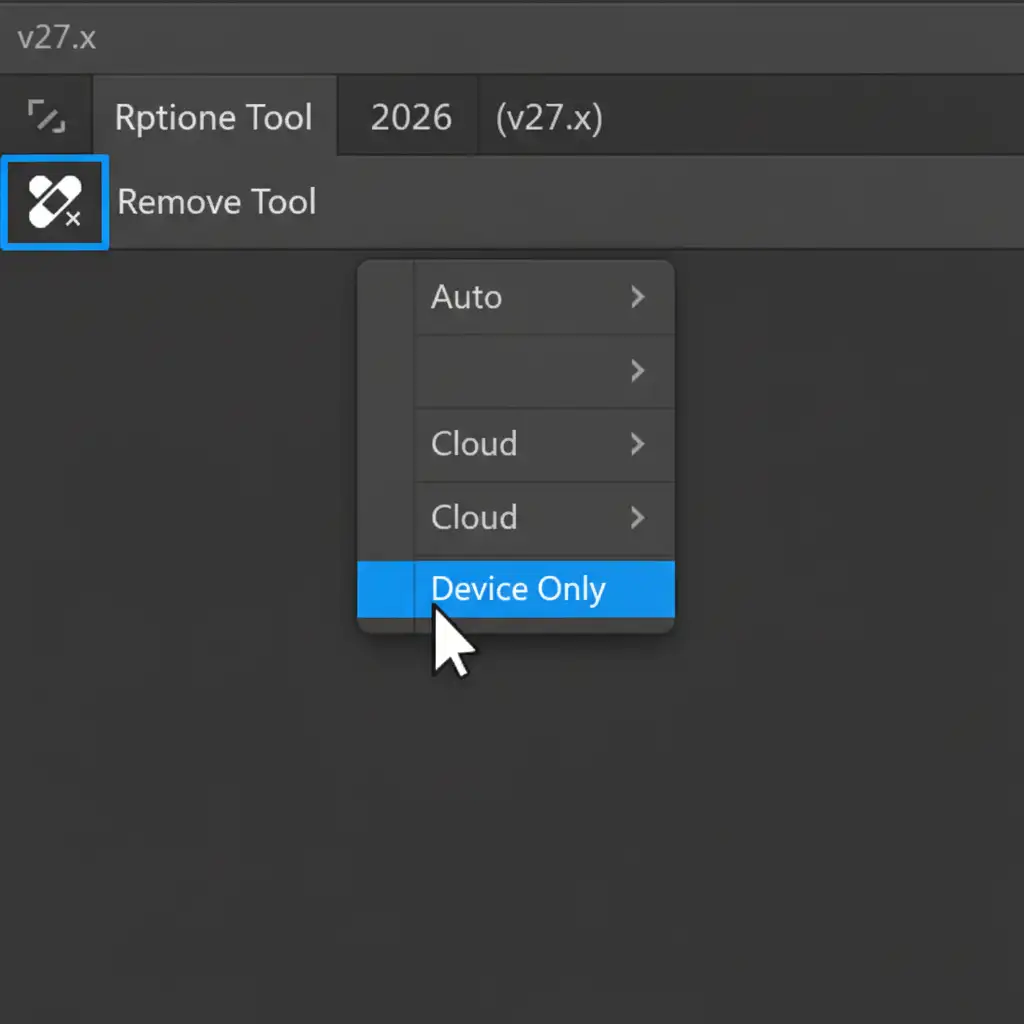
Method 1: The Quick Fix – Switch to “Device Only” Processing
The fastest way to stop cloud processing downsampling is to force Photoshop to use your local machine’s hardware to calculate the pixel replacement.
- Select the Remove Tool (J) from your toolbar.
- Look at the top Options Bar.
- Locate the processing dropdown menu (which is set to “Auto” or “Cloud” by default).
- Change this setting to Device Only.
By forcing device-based processing, Photoshop will utilize your local machine’s uncompressed data to generate the fill, completely bypassing the cloud compression algorithm.
Method 2: Optimize GPU Acceleration and VRAM Allocation
If you switch to “Device Only” but your computer lacks the optimized settings to handle local AI generation, Photoshop will still struggle, potentially leading to software lag or degraded outputs. You must optimize your system for local AI.
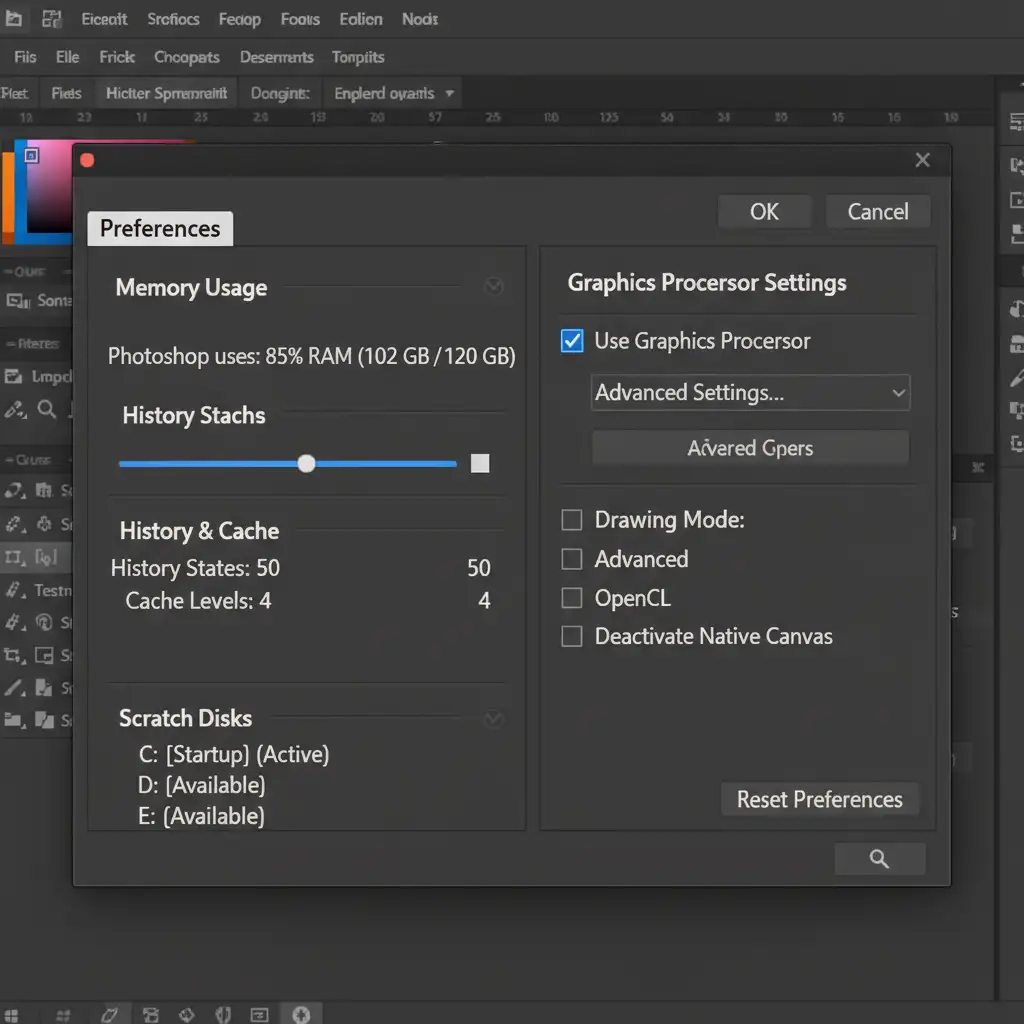
- Navigate to Edit > Preferences > Performance (Windows) or Photoshop > Settings > Performance (Mac).
- Under Memory Usage, increase your RAM allocation to 85 percent to ensure the Image Cache has enough memory to process high-res files without bottlenecking.
- Ensure the Use Graphics Processor checkbox is enabled.
- Click on Advanced Settings and verify that GPU Compositing is checked to maximize GPU acceleration.
- Crucial Step: Update your graphics drivers. Standard gaming drivers will cause AI throttling. Install the latest Nvidia Studio or AMD Pro drivers.
Method 3: The Pro Workaround – Frequency Separation
For high-end e-commerce retouching, even local AI processing might struggle to perfectly replicate complex fabrics, leather grains, or skin pores. The ultimate non-destructive editing solution is to combine the Remove Tool with Frequency Separation.
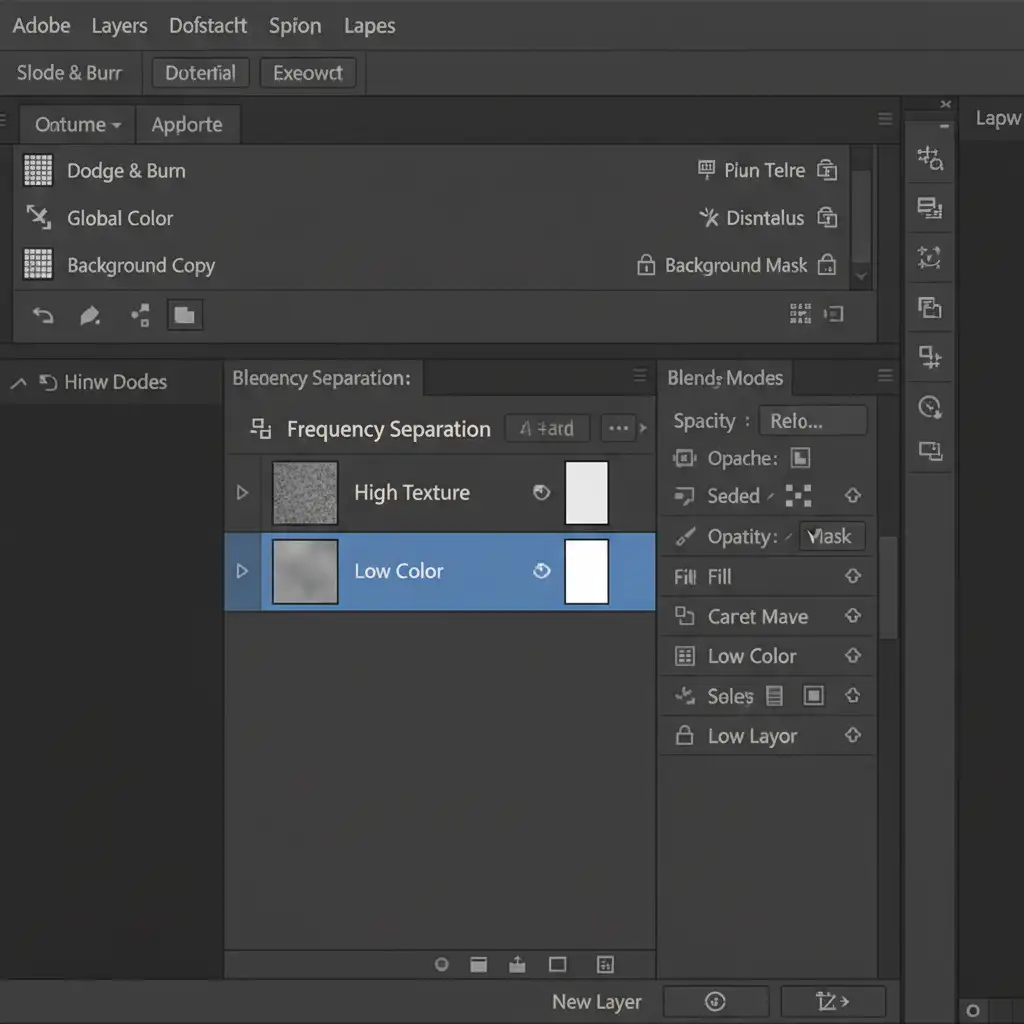
Frequency Separation splits your image into two layers: a Low layer (color and tone) and a High layer (high-frequency textures).
- Run your standard Frequency Separation action to split your background layer.
- Select the Low (Color) layer.
- Use the Remove Tool strictly on this Low layer to seamlessly blend the distracting colors and shadows. Because this layer contains no texture, the AI will not create blurry artifacts.
- Select the High (Texture) layer.
- Use the traditional Clone Stamp Tool (S) to sample clean texture from a nearby area and stamp it over the imperfection.
This guarantees that the original, razor-sharp texture is preserved while the AI handles the heavy lifting of color blending.
Scale Your Ecommerce Retouching with the Experts
Fixing the Photoshop 2026 Remove Tool blurry artifact is essential for maintaining image quality, but managing VRAM allocation, running Frequency Separation, and tweaking AI settings takes valuable time. When you are processing hundreds or thousands of product images for a seasonal launch, you don’t have time to troubleshoot software updates.
That is where we come in.
At Image Work India and Cloud Retouch, our teams of professional retouchers specialize in high-volume, pixel-perfect e-commerce editing. We don’t rely on automated cloud shortcuts that degrade your files; we utilize industry-standard, non-destructive workflows to ensure your products look flawless and your high-frequency textures remain razor-sharp.
Stop fighting with software updates and let us handle the heavy lifting. Contact Image Work India and Cloud Retouch today to streamline your post-production workflow and guarantee premium results for your next campaign.




