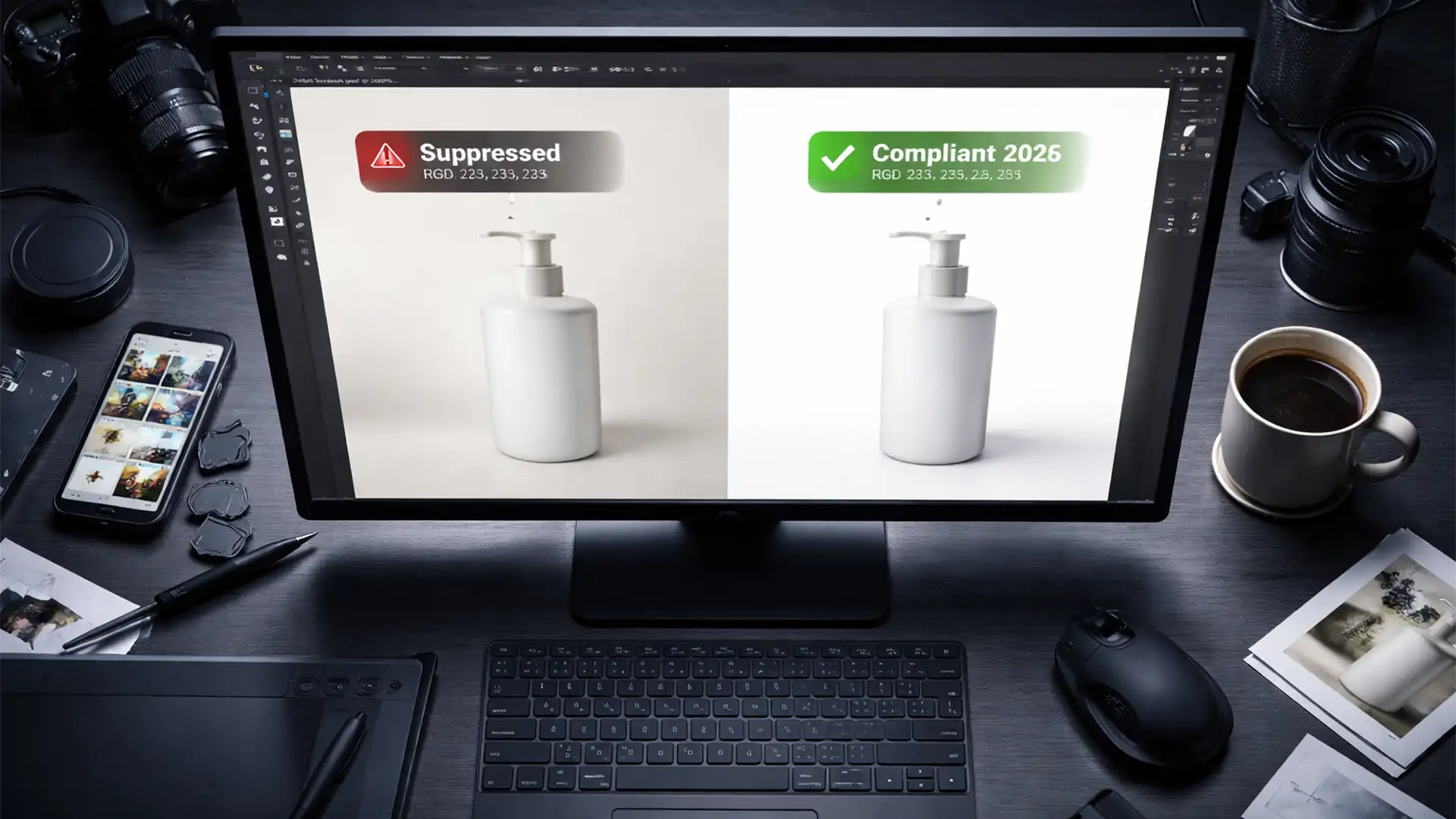

Imagine waking up to find your top-selling Amazon listing suddenly suppressed. The culprit? Your product image background isn’t purely white.
As we approach the rollout of the Amazon RGB 255 background compliance 2026 updates, the platform’s automated validation algorithm is becoming ruthlessly strict. If your main product image background is even slightly off—like RGB 253, 253, 253 instead of a perfect RGB 255, 255, 255 (Hex #FFFFFF)—your product simply drops out of search results. Relying on cheap, one-click auto-removal tools often leaves behind dirty pixels or jagged anti-aliasing artifacts that ruin your product’s premium feel.
Here is the definitive Photoshop workflow to ensure 100% compliance with Amazon’s upcoming standards while preserving crisp edges and natural drop shadows.
Why Amazon is Enforcing Strict RGB 255 Compliance in 2026
Amazon’s goal is a seamless, uniform shopping experience. When sellers upload images with varying shades of off-white, light gray, or cream, the search grid looks cluttered.
To combat this, the 2026 automated product image validation algorithm will instantly scan the RGB color space of your main image. If it detects pixels that are not absolute white (Hex #FFFFFF), it triggers an automatic product suppression. This means lost visibility, lost ranking, and lost sales.
Step 1: How to Check Your Images for Pure White
Before editing, you need to diagnose your current images. Never rely on your naked eye or a poorly calibrated monitor.
- Open your image in Photoshop v25.0 or newer.
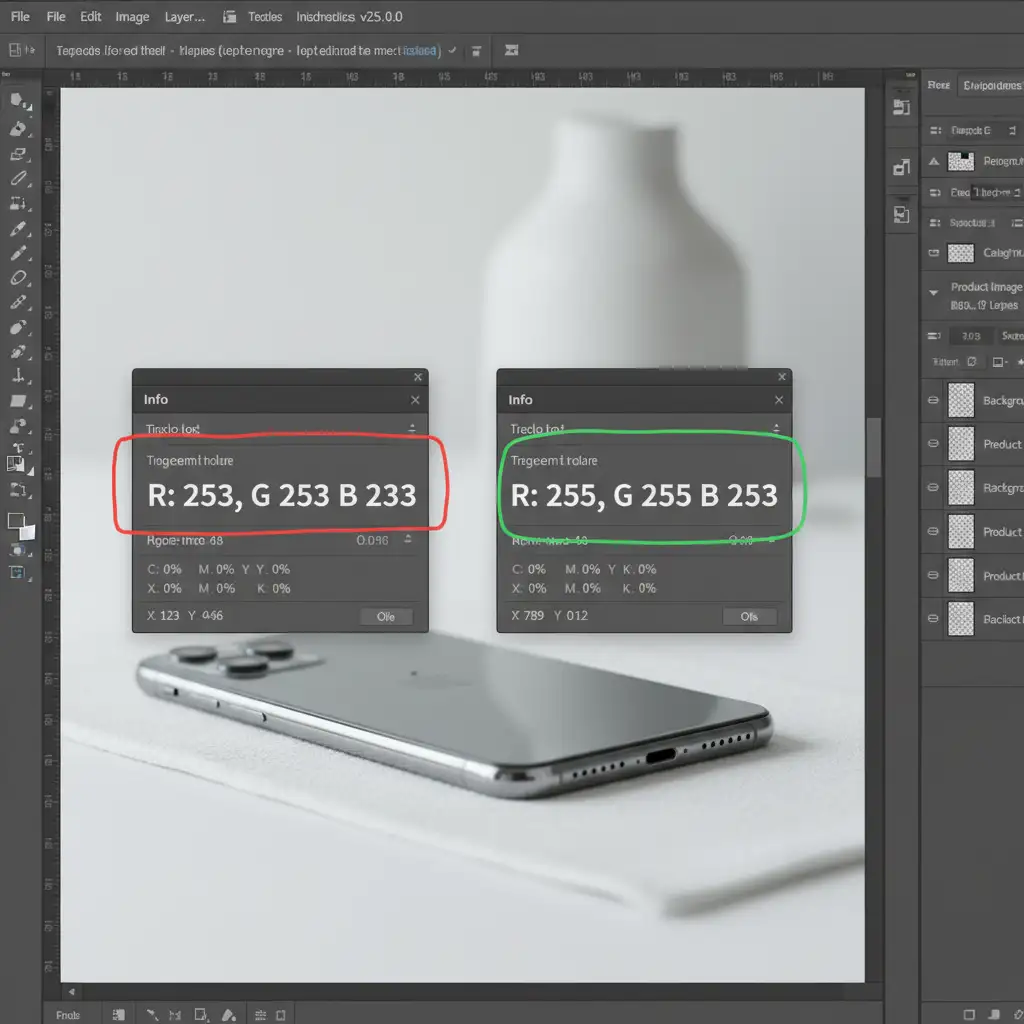
- Open the Info Panel (Window > Info).
- Select the Color Picker tool and hover over the background areas closest to your product.
- Watch the RGB values in the Info Panel. If you see anything other than R: 255, G: 255, B: 255, your image will fail Amazon’s compliance check.
3 Professional Workflows to Achieve Perfect RGB 255 Backgrounds
Depending on the complexity of your product and the original photograph, choose one of the following three methods to achieve compliance without destroying your image quality.
Method A: The Quick Fix Using Levels (For Minor Off-White Issues)
If your background is already very close to pure white and your product has high contrast, a simple Levels adjustment can force the background to absolute white.
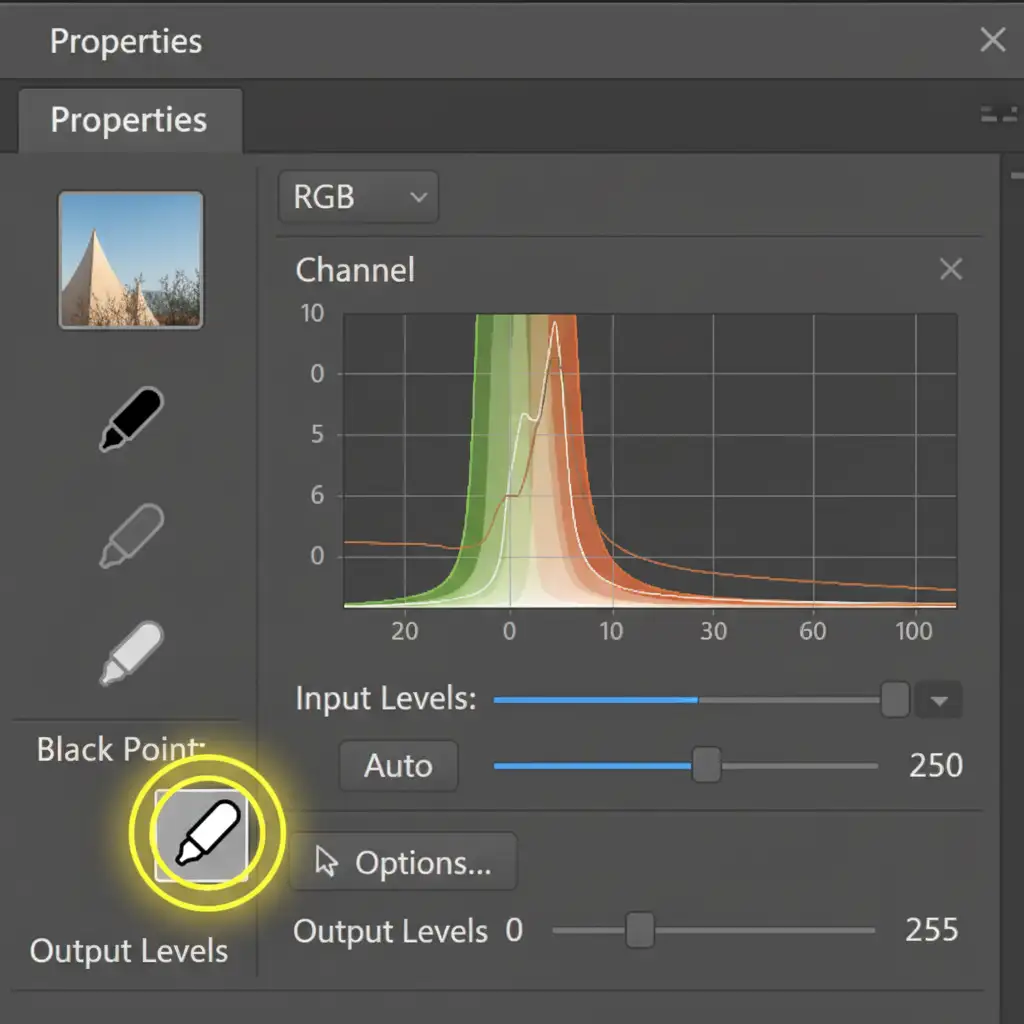
- Add a Levels Adjustment layer (Layer > New Adjustment Layer > Levels).
- In the Properties panel, locate the three eyedropper tools on the left side.
- Select the White Point Eyedropper (the bottom one).
- Click on the darkest part of your off-white background.
- Photoshop will instantly recalculate the Threshold, forcing those pixels—and everything lighter than them—to pure 255, 255, 255.
Pro Tip: Always verify the result with the Info Panel to ensure the product highlights weren’t blown out.
Method B: The Pro Workaround (100% Guaranteed Compliance)
For complex products, auto-selection tools often create jagged edges due to poor anti-aliasing. The industry-standard method for e-commerce is the manual Clipping Path.
- Select the Pen Tool (P) and carefully trace the hard edges of your product to create a precise Clipping Path.
- Convert the path to a selection (Right-click > Make Selection with a 0.5px feather).
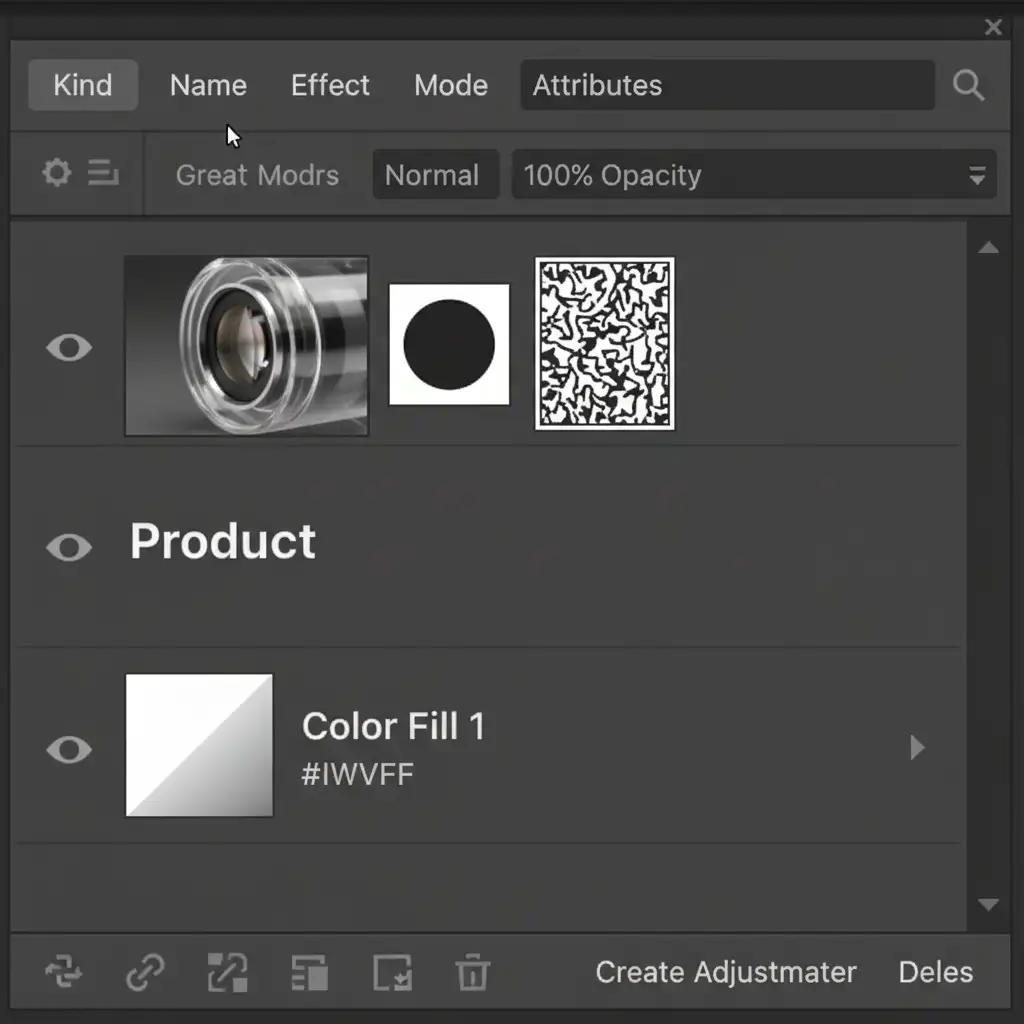
- Apply this selection as a Layer Mask to your product layer.
- Below your masked product layer, create a Solid Color Fill layer (Layer > New Fill Layer > Solid Color).
- Set the hex code to exactly #FFFFFF.
This guarantees a flawless, Amazon-compliant background while keeping your product edges sharp and professional.
Method C: Retaining Natural Shadows with Blend-If (Advanced)
Placing a product on a pure white background can sometimes make it look floating and unnatural. To pass the Amazon RGB 255 background compliance 2026 check while keeping your original drop shadows, use the Blend-If feature.
- Complete “Method B” to isolate your product over a pure white Solid Color Fill layer.
- Duplicate your original, unmasked image layer and place it between the pure white background and your masked product layer.
- Change this duplicated layer’s blending mode to Multiply. (This makes the white background invisible but keeps the dark shadow).
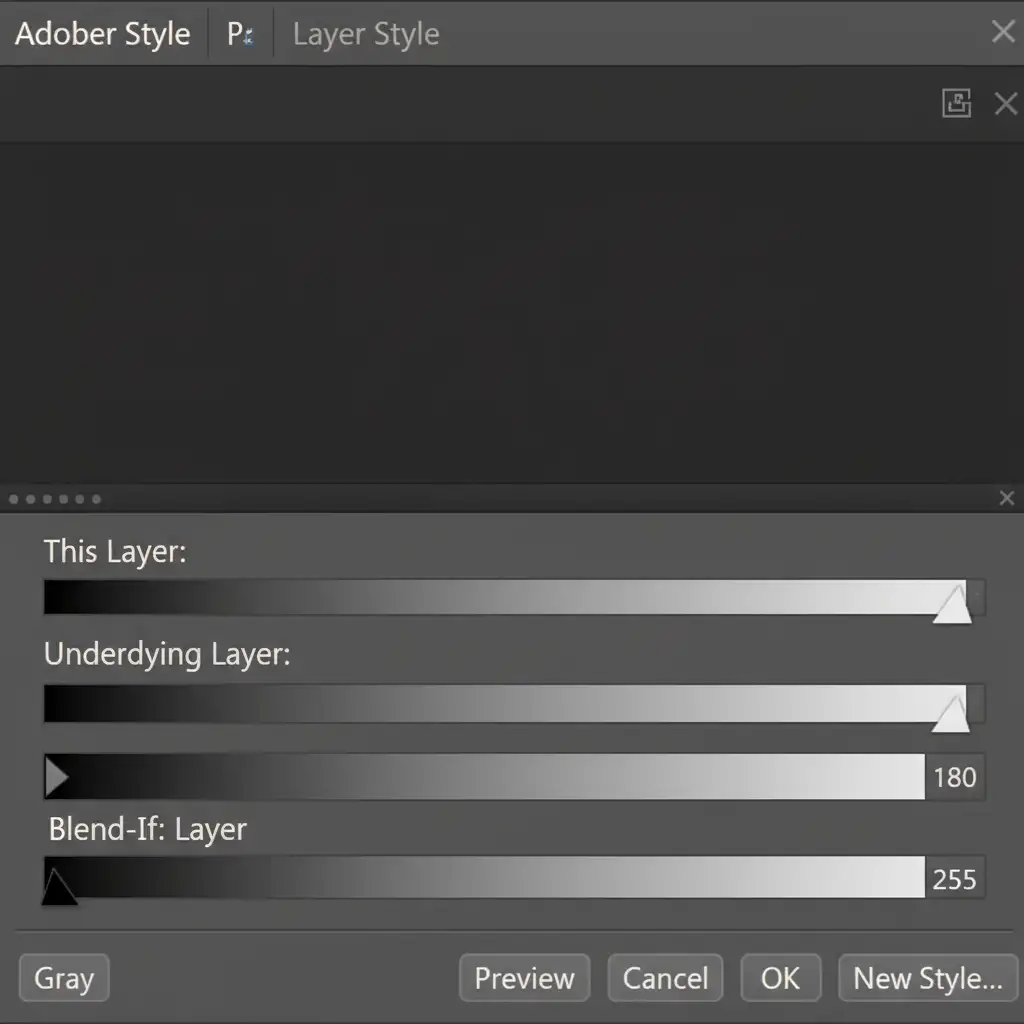
- Double-click the shadow layer to open the Layer Style dialog.
- In the Blend-If section, locate the Underlying Layer slider.
- Hold Alt (or Option) and drag the right (white) slider apart to smoothly drop out the remaining off-white pixels, blending the original shadow seamlessly into the pure #FFFFFF background.
Scale Your Amazon Image Compliance with Image Work India & Cloud Retouch
Mastering the Amazon RGB 255 background compliance 2026 standards is critical, but manually editing hundreds or thousands of SKUs using Clipping Paths and Blend-If sliders is incredibly time-consuming.
You don’t have to risk product suppression or waste hours of your team’s time.
At Image Work India and Cloud Retouch, our expert retouchers specialize in bulk, e-commerce-compliant photo editing. We manually draw pixel-perfect clipping paths, apply precise Solid Color Fills, and reconstruct natural shadows to ensure every single image in your catalog is 100% Amazon-compliant, guaranteed.
Don’t let a few off-white pixels ruin your Amazon rankings. Contact Image Work India and Cloud Retouch today to streamline your image processing and future-proof your e-commerce business!




