

You are ready to launch your new product line, but there is a massive roadblock: the Shopify Admin editor is acting up. You click the magic eraser, and the processing bar hangs indefinitely at 99 percent. Finally, the dreaded “Image processing failed” error pops up.
If you are desperately searching for a “Shopify background removal tool not working fix,” you are not alone. The latest Shopify 2026 admin updates have introduced strict rendering limits that are wrecking workflows for store owners. Stop wrestling with automated glitches. In this guide, we will explain exactly why this happens and provide three proven workflows to bypass the error, ensure perfect product photography, and get your listings live.
Why is the Shopify Background Removal Tool Failing?
The native background removal tool in Shopify relies heavily on integrated Magic Eraser technology. While convenient for quick edits, the 2026 updates have exposed several vulnerabilities in how the platform handles image processing.
If your tool is timing out, it is likely due to one of the following triggers:
- File Size Limits: High-resolution files exceeding 20MB will crash the server-side processor.
- Unsupported Color Profiles: Uploading CMYK files (meant for print) instead of sRGB.
- Format Conflicts: Specific next-gen formats like WebP often fail during the alpha channel generation phase.
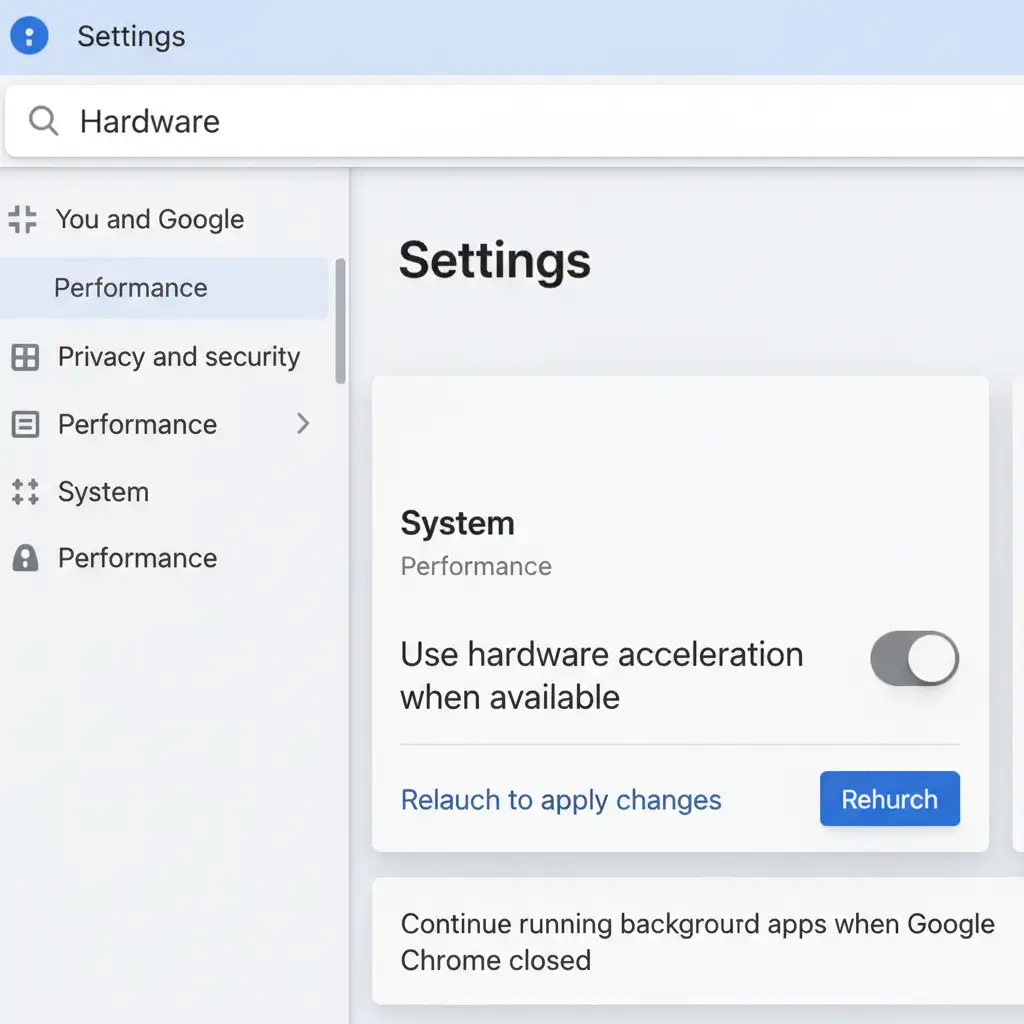
- Browser Resource Exhaustion: Memory leaks in Chromium browsers or conflicts with WebGL acceleration can cause the processing bar to freeze entirely.
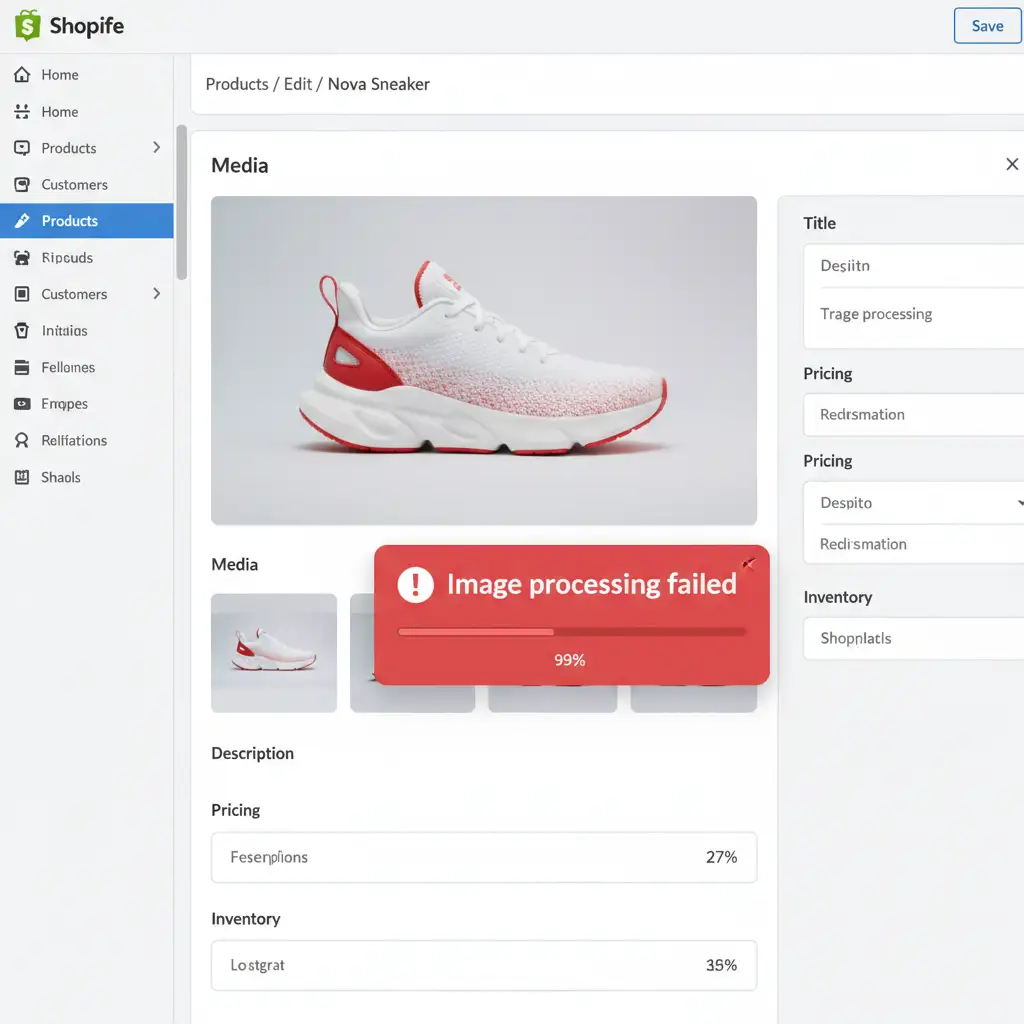
How to Fix the Shopify Background Removal Tool
Do not let a software glitch delay your product launch. Here are three reliable methods to overcome the native editor’s limitations, ranging from quick browser tweaks to professional design workflows.
Method A: The Quick Fix (Browser & File Optimization)
If you must use the native Shopify Admin editor, you need to lighten the load on your browser and Shopify’s servers.
- Disable WebGL Acceleration: In Google Chrome or Microsoft Edge, navigate to your browser settings. Search for “Hardware Acceleration” and toggle off the setting that says Use hardware acceleration when available. Relaunch your browser.
- Clear CDN Caching: Clear your browser cache specifically for Shopify.com to remove any corrupted local data.
- Pre-Optimize Your Image: Ensure your product photo is strictly in sRGB format, compressed to under 20MB, and saved as a standard JPG or PNG before uploading. Keep your aspect ratio consistent to avoid unnecessary cropping strain on the editor.
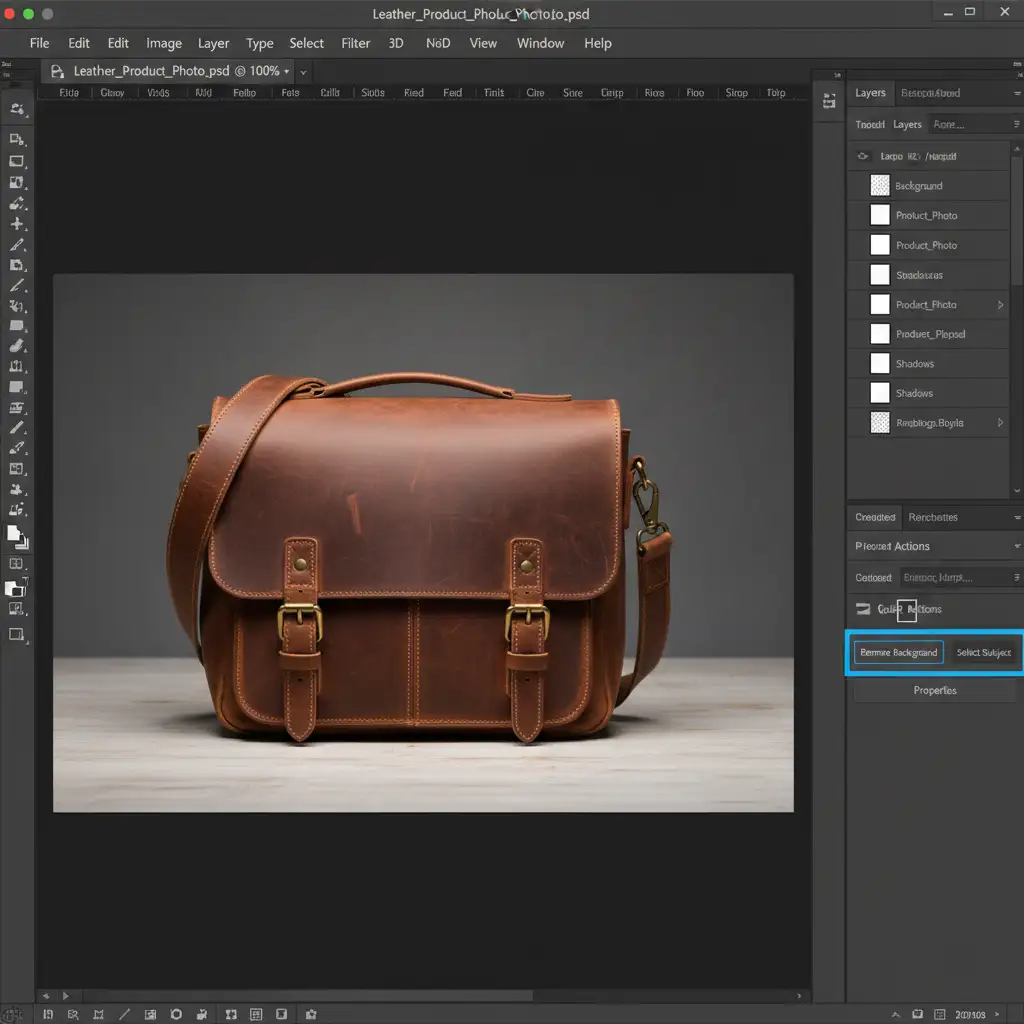
Method B: The Pro Workaround (Photoshop Layer Masking)
Automated tools often struggle with complex edges like hair, fur, or transparent plastics. For high-end product photography, bypassing Shopify’s native tool in favor of Adobe Photoshop guarantees a flawless result.
- Download your original product photo to your desktop.
- Open the file in Adobe Photoshop.
- Navigate to the Properties panel and locate the Quick Actions menu.
- Click Remove Background. Photoshop’s AI will generate a precise layer masking effect.
- Refine the mask edges manually if necessary to ensure a perfect alpha channel.
- Export the image as a transparent PNG-24 to preserve edge quality, then upload it directly to your Shopify Media gallery.
Method C: The Technical Deep-Dive (Third-Party APIs)
If you handle bulk image editing, processing photos one by one in Photoshop or fighting with Shopify’s native editor is not scalable.
Instead, bypass the native WebGL rendering limits entirely by integrating a third-party API tool or a dedicated Shopify App (such as remove.bg or Pixc). These tools process the images on their own robust servers, returning a clean, transparent image directly to your Shopify media folder without taxing your local browser memory.
Automated Cutouts vs. Professional Clipping Paths
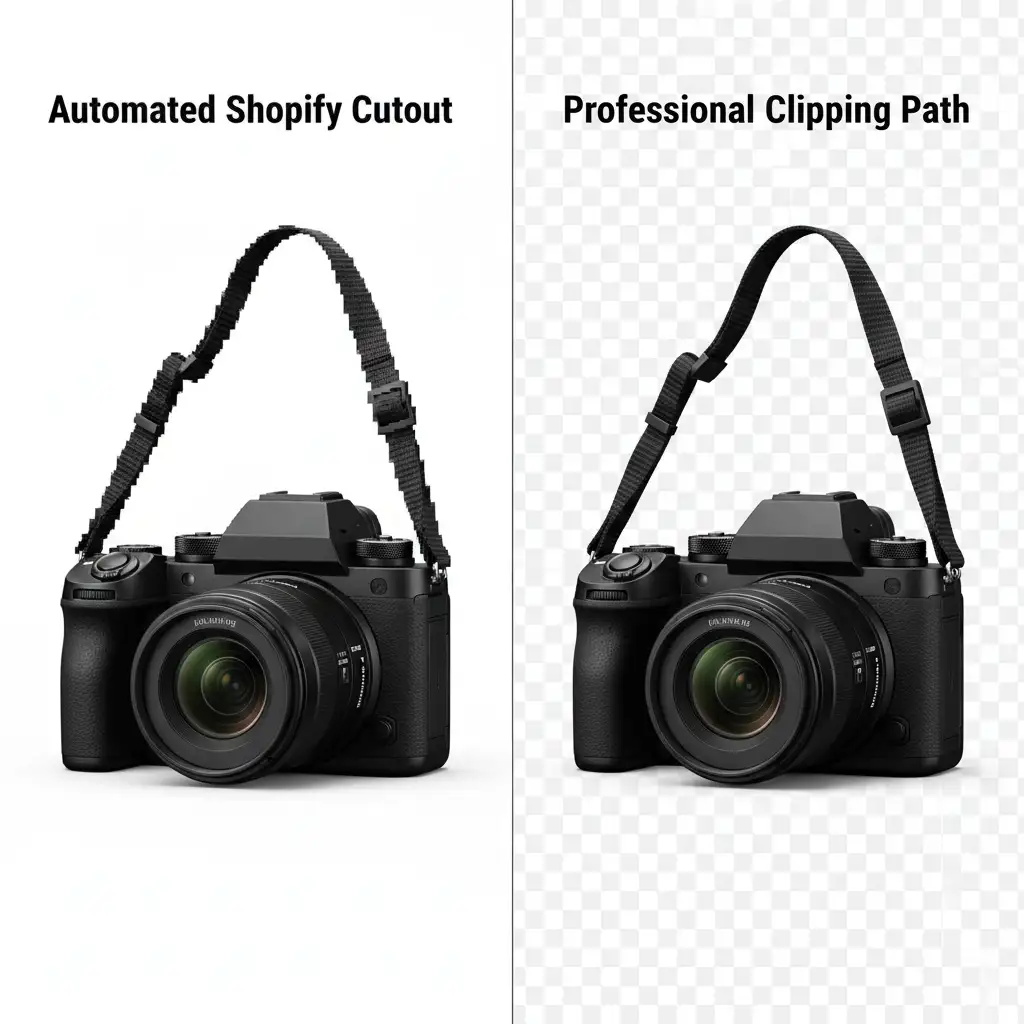
Even when Shopify’s background removal tool works, the results are often subpar. Automated AI tools frequently leave jagged edges, accidentally delete parts of the product, or fail to handle complex lighting.
For e-commerce, user trust is directly tied to visual quality. A hand-drawn clipping path created by a professional retoucher ensures pixel-perfect precision. It separates the product from its background flawlessly, preserving the exact shape and lighting necessary to convert browsers into buyers.
Stop Wasting Time on Glitchy Editors
Dealing with a Shopify background removal tool not working fix drains hours of your week—time you should be spending scaling your business. Automated tools will always have limitations, especially when you are scaling up your catalog.
Stop wrestling with automated glitches and browser crashes. Hire Image Work India and Cloud Retouch for your bulk image editing needs. Our expert team delivers pixel-perfect clipping paths, flawless layer masking, and guaranteed fast turnarounds that elevate your brand.
Contact us today to streamline your product photography workflow and ensure your store looks perfectly professional, every single time.




