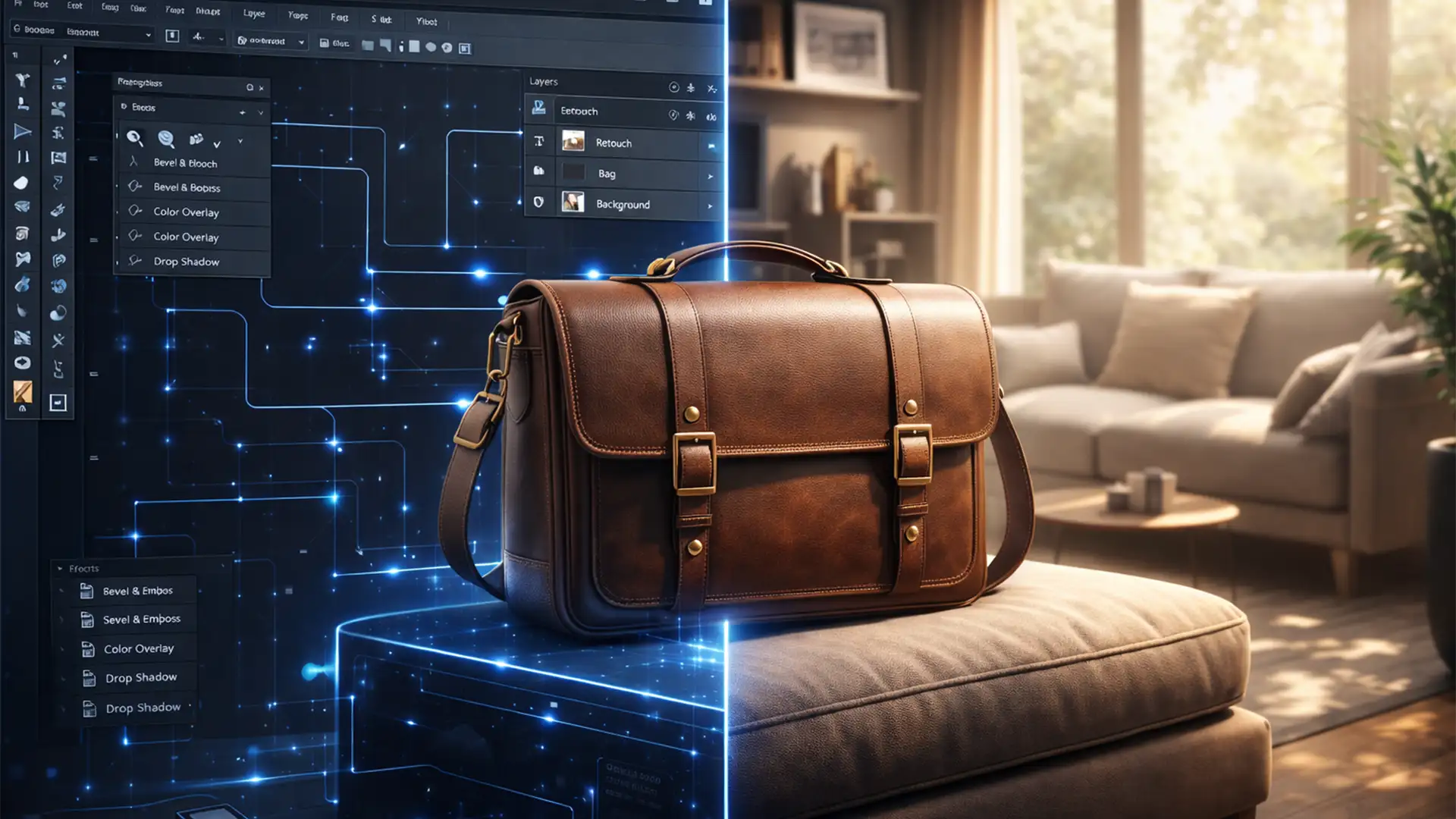

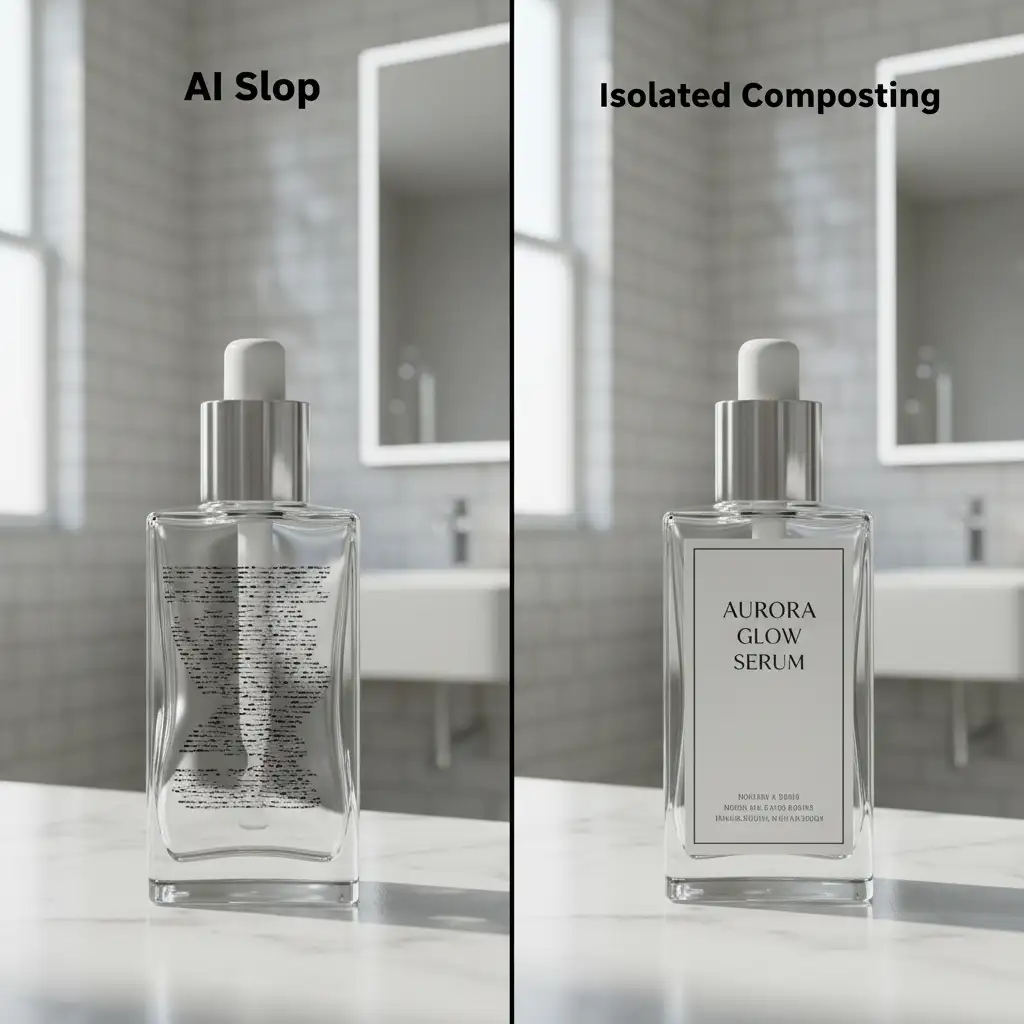
You upload a perfectly retouched product photo into Photoshop, select the background, and type a prompt into Generative Fill. You expect a stunning, high-converting lifestyle image. Instead, you get “AI slop.” The product’s logo is warped, the scale is entirely wrong, and the lighting makes it look like it’s floating.
If you manage an e-commerce catalog, this is a massive bottleneck. The core technical issue in Photoshop v26.x and v27.x stems from how the underlying diffusion model operates. These AI models are trained to prioritize overall scene cohesion over exact product preservation. When you prompt an entire scene, the AI naturally tries to redraw your primary subject to make it fit the new environment, destroying your brand’s exact product specifications in the process.
To fix this and successfully use a Reference Image for ecommerce lifestyle AI generation, you must anchor the base product using precise raster masks. By leveraging the Reference Image exclusively for background plate generation, you effectively bypass the AI’s tendency to alter your product. Here is the exact workflow to achieve flawless scale, rotation, and lighting.
Method A: The Quick Fix for Background Generation
The most immediate way to protect your product while generating a compelling environment is to strictly control your selection masks and utilize the Contextual Task Bar.
- Isolate the Product: Make a precise, hard-edged selection of your product using the Object Selection or Pen Tool.
- Invert the Selection: Press Shift + Ctrl + I (Windows) or Shift + Cmd + I (Mac) to target only the transparent background.
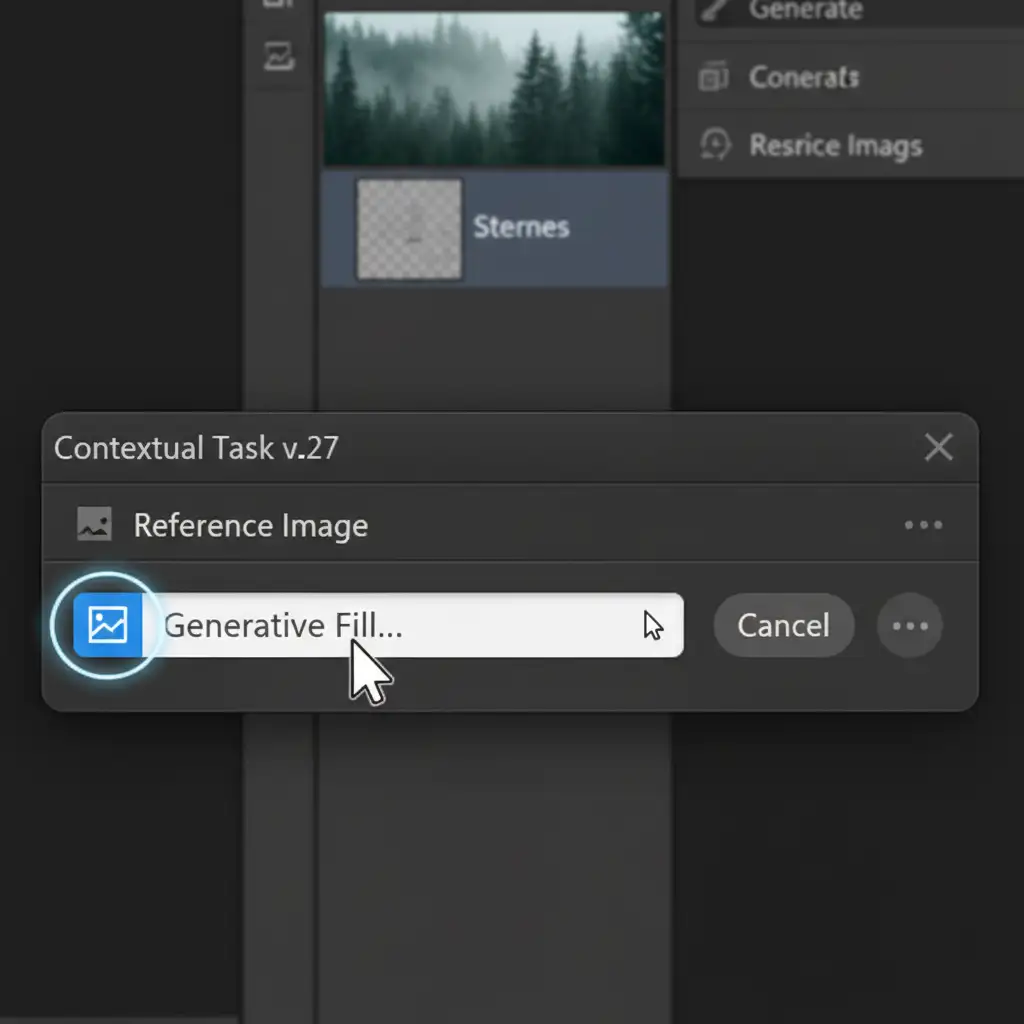
- Activate Generative Fill: Click Generative Fill in the Contextual Task Bar.
- Use Reference Image: Click the Reference Image icon (the small picture icon next to the prompt box) and upload your chosen lifestyle reference photo.
- Prompt the Scene: Enter a descriptive prompt like “modern living room desk with morning sunlight” and hit Generate.
Because your product was excluded from the selection mask, the diffusion model generates the scene around the untouched product, using your reference photo to guide the aesthetic, colors, and composition.
Method B: The Pro Workaround Using Smart Objects
While Method A is fast, professional e-commerce retouching requires non-destructive workflows. The “Pro Workaround” isolates the product entirely from the AI generation process, giving you complete control over contact shadows and positioning.
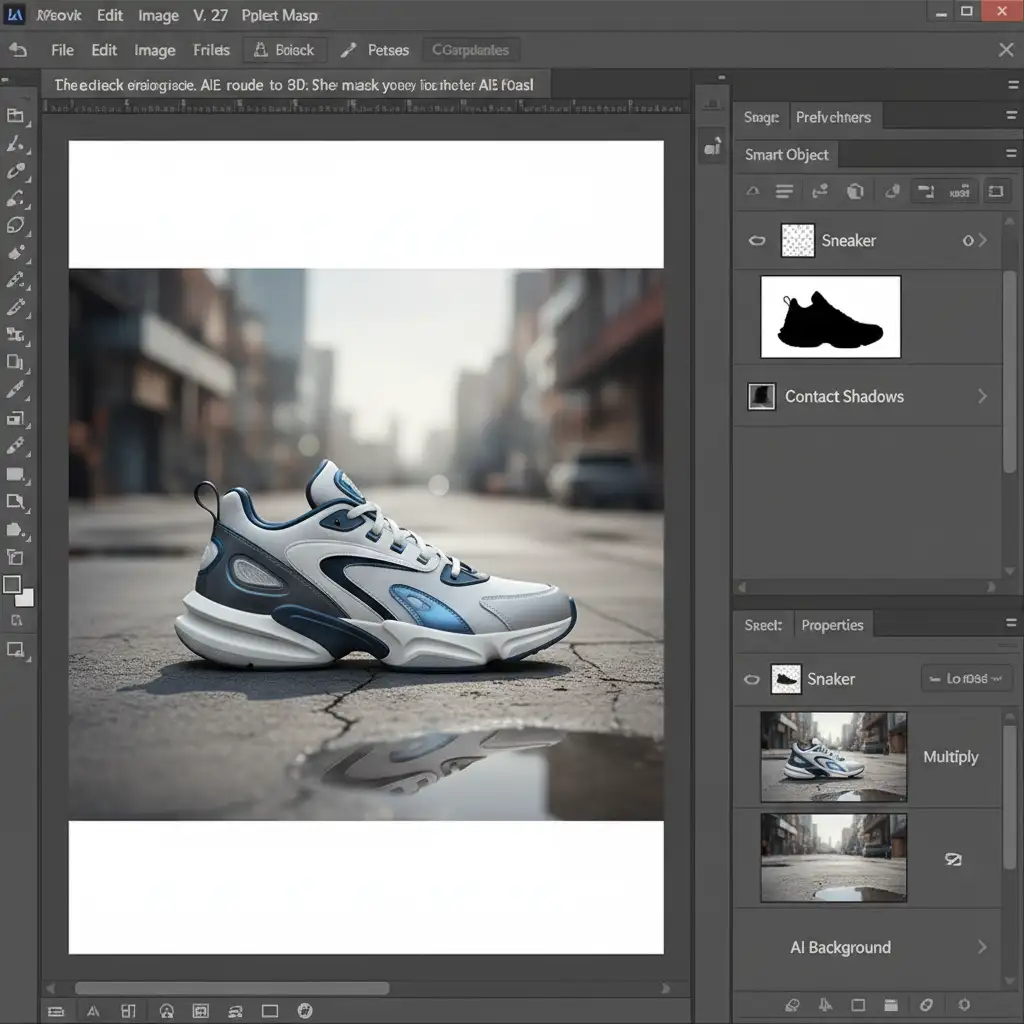
- Convert to Smart Object: Right-click your product layer and select “Convert to Smart Object.” This protects your original pixels.
- Apply a Layer Mask: Add a precise Layer Masking to remove the original background completely.
- Separate Background Generation: Create a new, blank layer below your product. Use the Reference Image tool on this layer to generate your background plate independently.
- Paint Manual Shadows: Create another blank layer between the product and the background. Select a soft round brush, set the color to black, and change the layer blend mode to Multiply. Manually paint the contact shadows where the product touches the generated surface, adjusting the opacity to 30-50% to ground the product realistically.
Method C: The Technical Deep-Dive for Perfect Lighting
The final hurdle in compositing e-commerce products into AI backgrounds is matching the lighting and color grading. Even with perfect masking and shadows, a product shot in studio lighting will look unnatural in an AI-generated sunset scene. You need to adjust the Global Light and color values to match.
Instead of manual curve adjustments, use Photoshop’s built-in neural matching tools.
- Select the Product: Click on your isolated product layer.
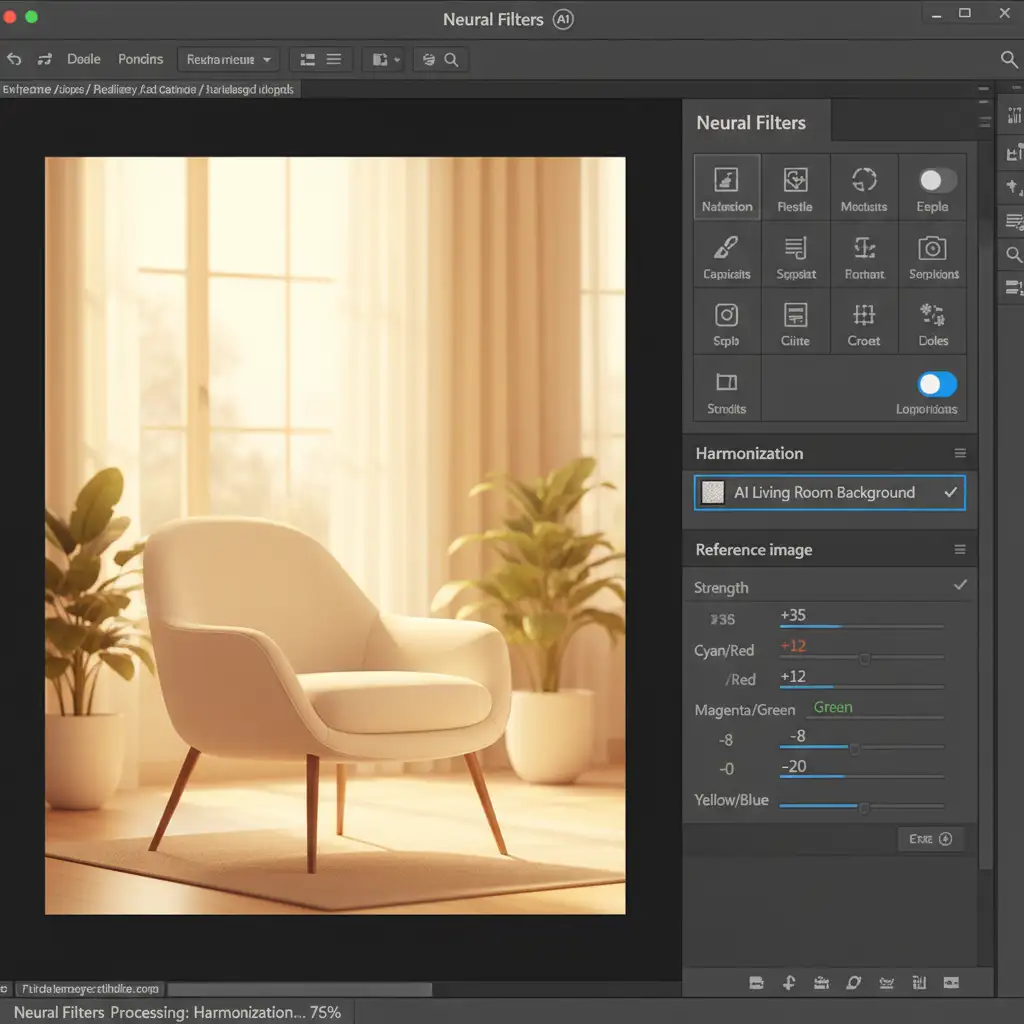
- Open Neural Filters: Navigate to Filter > Neural Filters.
- Activate Harmonization: Toggle on the Harmonization Neural Filter.
- Set the Reference: In the filter settings panel, select your AI-generated background layer as the reference layer. Photoshop will mathematically analyze the background and adjust the RGB curves, color grading, and lighting direction of your product to match the environment.
- Refine with Dodge and Burn: Output the Harmonization filter as a Smart Filter. Finally, create a new layer above the product, fill it with 50% gray, and set the blend mode to Overlay. Use the Dodge and Burn tools non-destructively to enhance highlights and deepen shadows based on the AI background’s light source.
Scale Your Ecommerce Imagery Without the AI Headaches
Mastering the Reference Image tool and complex masking workflows can yield incredible results, but it requires significant time, technical skill, and quality control. When you are managing hundreds or thousands of SKUs, manually fixing “AI slop,” painting contact shadows, and tweaking Harmonization filters for every single image simply isn’t scalable.
Need flawless, high-volume lifestyle imagery without the AI artifacts and endless manual tweaking? Hire Image Work India and Cloud Retouch. Our expert teams specialize in pixel-perfect product compositing, complex shadow creation, and professional e-commerce retouching. We combine the efficiency of modern tools with the precise, critical eye of senior retouchers to deliver retail-ready lifestyle images that convert. Contact us today to streamline your post-production workflow.




