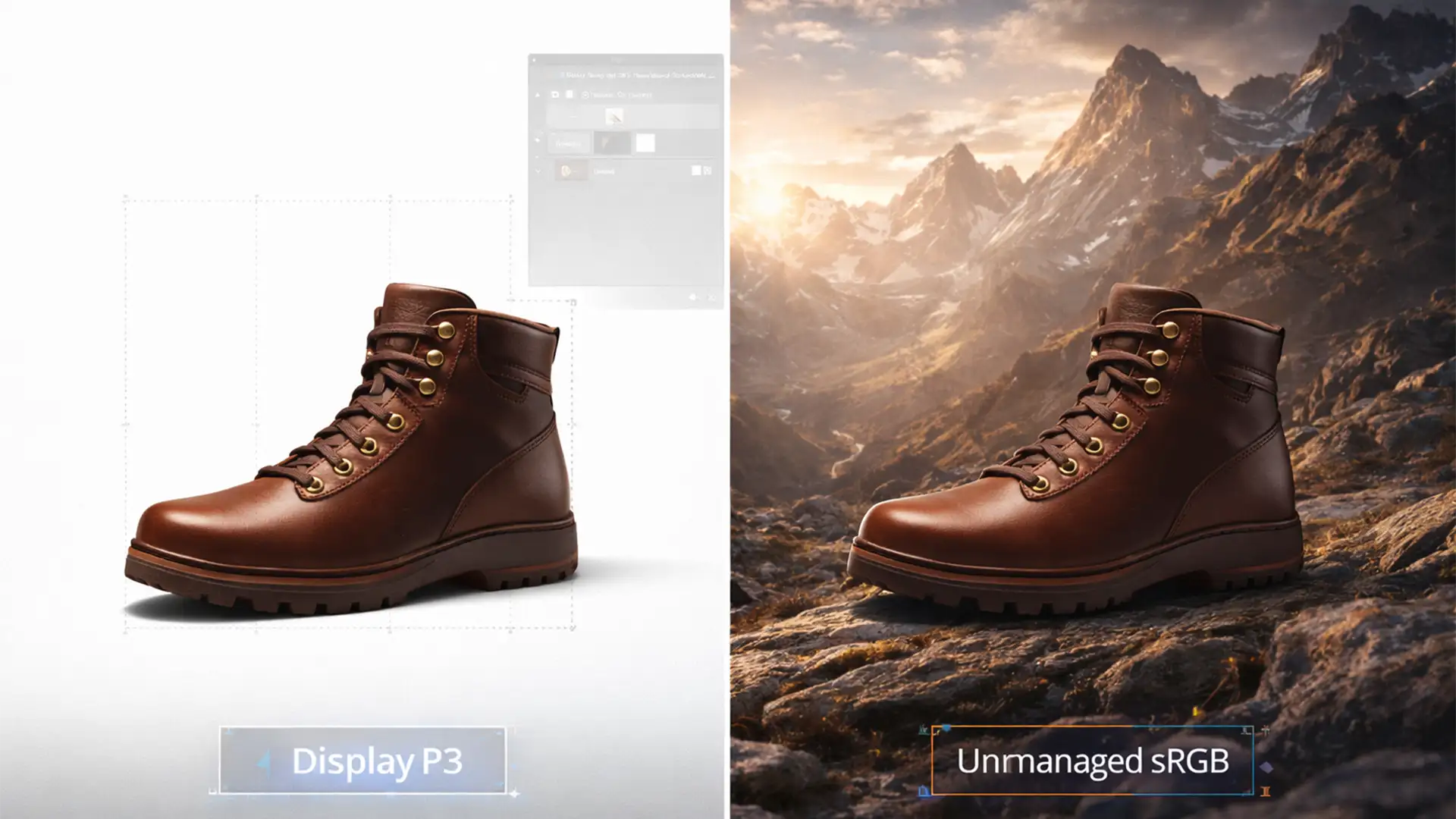

You spend hours crafting the perfect lifestyle background using Generative Fill, upload your listing to Amazon, and wake up to a seller suspension notice. What went wrong? Amazon’s algorithm flagged your image for misrepresenting the physical product.
When AI alters even a fraction of your product’s texture, lighting, or scale, it violates strict marketplace accuracy policies. But you don’t have to abandon the efficiency of AI. You just need a smarter approach.
The secret is the hybrid AI product photography workflow—a technique that guarantees 0% pixel alteration on your actual product while leveraging Adobe Firefly to build stunning, high-converting environments. Here is how to execute this workflow safely in Photoshop v25.0 and newer.
Why E-commerce Marketplaces Ban AI-Generated Images
Amazon and other major marketplaces employ both automated algorithms and manual reviewers to enforce their ‘accurate representation’ policies. If you generate an entirely new image of your product using a text prompt, the AI synthesizes the pixels. It might change the exact weave of a fabric, the precise curve of a handle, or the specific reflection on a metallic surface.
When a customer receives the item and it doesn’t match those synthetic details, return rates spike. To combat this, marketplaces penalize sellers whose primary product images lack strict product fidelity.
To maintain marketplace compliance, your workflow must rely on non-destructive editing. The core product must originate from a real camera sensor, and the AI should only be allowed to touch the environment around it.
The Hybrid AI Product Photography Workflow Explained
The hybrid approach isolates your exact product photography and restricts Generative Fill exclusively to the background. Here are the three methods to achieve this, ranging from a quick fix to a professional standard.
Method 1: The Quick Fix (Inverted Selection)
If you need a fast turnaround, you can use Photoshop’s selection tools to protect your product from the AI generation process.
- Open your original product photo in Photoshop v25+.
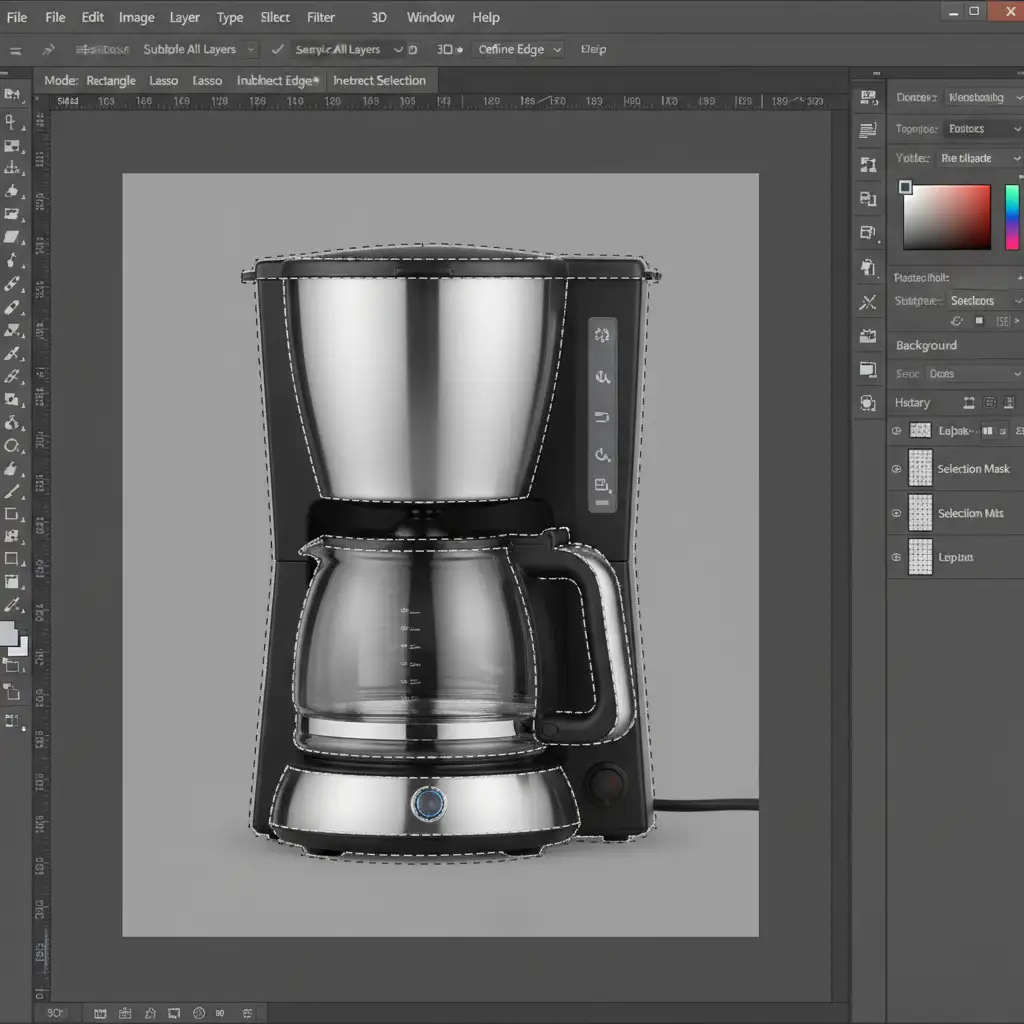
- Select the Object Selection Tool. Hover over your product and click to isolate it.
- Once you see the marching ants surrounding your item, navigate to Select > Inverse (or press Shift+Ctrl+I).
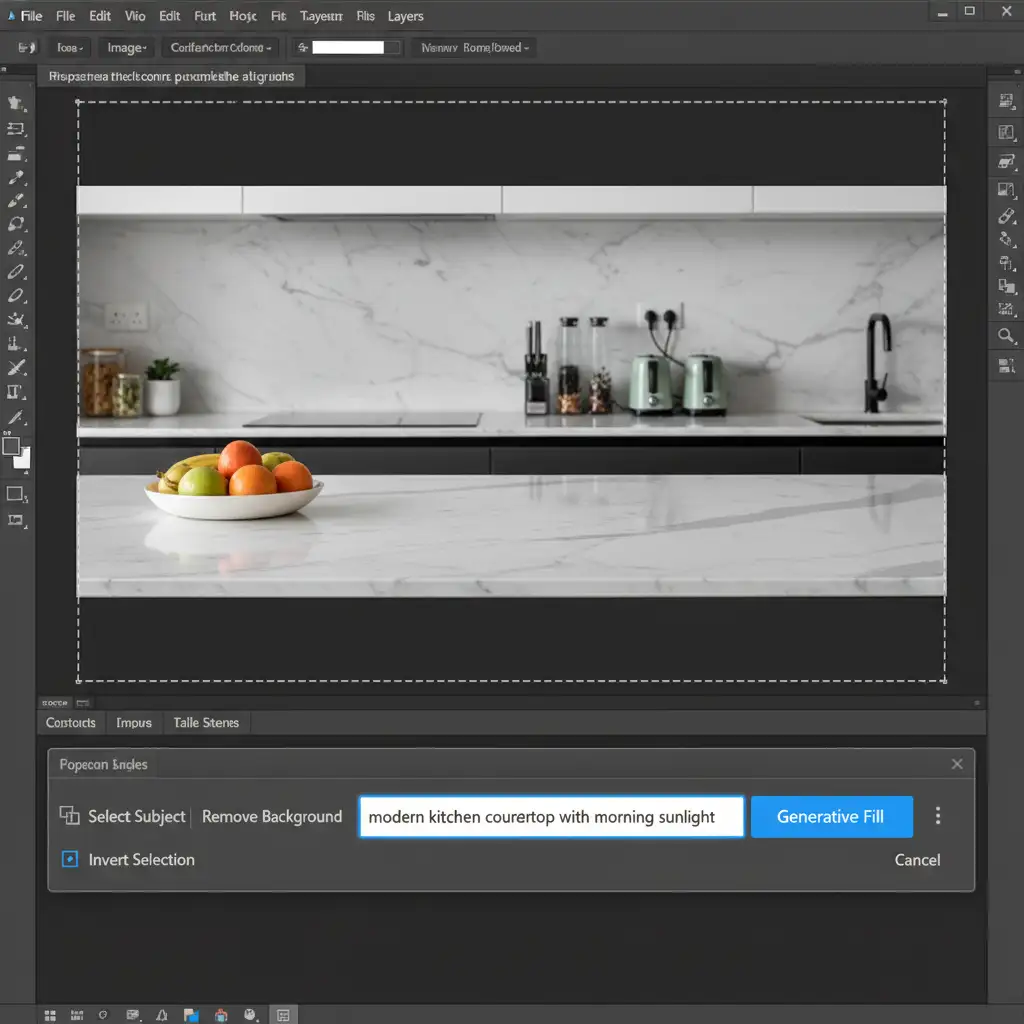
- With the background now selected instead of the product, type your environment prompt into the Contextual Task Bar and hit Generate.
Method 2: The Pro Workaround (Smart Objects & Masks)
For true professional control, the quick fix isn’t enough. AI blending can sometimes create harsh edges. The Pro Workaround guarantees your original pixels remain untouched while ensuring the product sits naturally in its new environment.
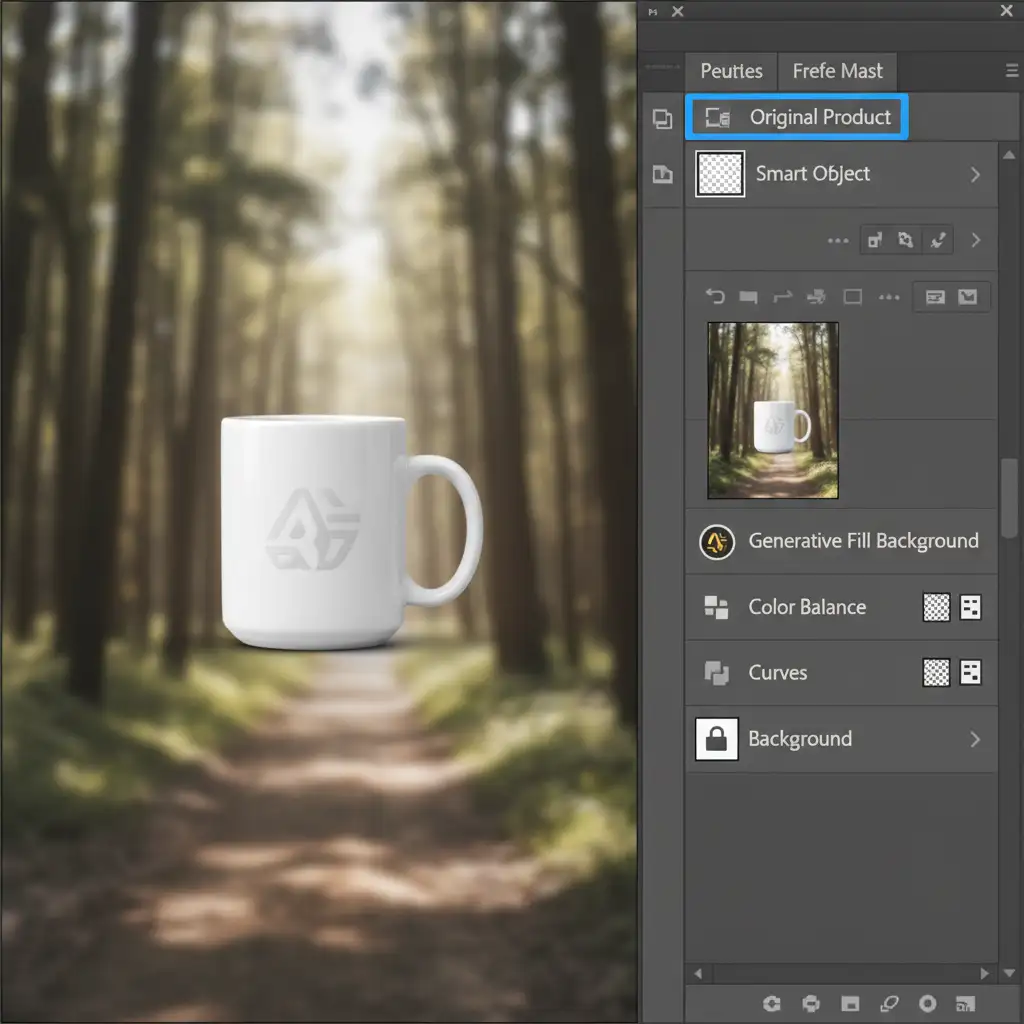
- Open your original photo. Right-click the background layer and select Convert to Smart Object. This locks in your original pixels.
- Duplicate this Smart Object. Hide the top layer for now.
- On the bottom layer, use Generative Fill powered by Adobe Firefly to create your lifestyle scene.
- Turn the top layer back on. Apply a Layer Mask to this top layer to hide the original background.
- Apply a 1px feather to the layer mask properties. This minuscule feathering blends the real product edges into the AI background perfectly without altering the core product pixels.
Method 3: The Technical Deep-Dive (Metadata & Content Credentials)
Even if your image looks perfect, Amazon’s backend algorithms might still flag it if the file metadata looks suspiciously synthetic. You must prove to the marketplace that the core image came from a camera.
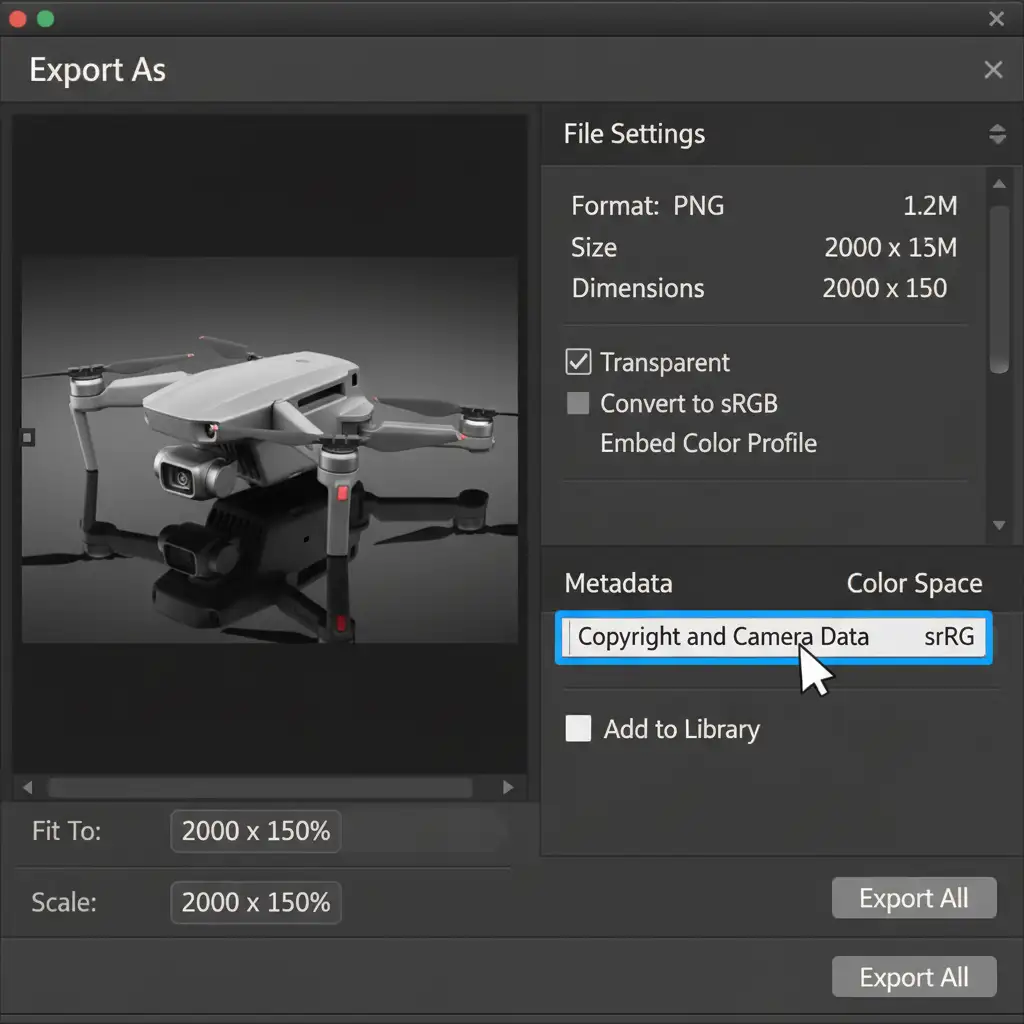
When exporting from Photoshop, you must manage your Content Credentials and EXIF data.
- Go to File > Export > Export As.
- In the right-hand panel, locate the Metadata section.
- Ensure the dropdown is set to include Camera Data (EXIF). This attaches the original camera make, model, and exposure settings to the final JPEG, proving the image’s photographic origin.
- If you are using Content Credentials (Photoshop’s built-in transparency tool), ensure it is configured to show that while AI was used for the background, the primary layer is a photograph.
Stop Risking Your Seller Account: Let the Pros Handle It
Mastering the hybrid AI product photography workflow requires a deep understanding of layer masking, metadata preservation, and marketplace compliance algorithms. One wrong click or a slightly aggressive AI blend can result in a suspended listing, costing you thousands in lost daily revenue.
You don’t have to navigate this technical minefield alone.
At Image Work India and Cloud Retouch, our expert retouchers specialize in marketplace-compliant ecommerce imagery. We utilize cutting-edge hybrid workflows to isolate your exact products with pixel-perfect precision, building breathtaking, conversion-optimized lifestyle backgrounds that strictly adhere to Amazon’s guidelines.
Protect your seller account and elevate your brand’s visuals. Contact Image Work India and Cloud Retouch today for professional, compliant product photo editing.




