
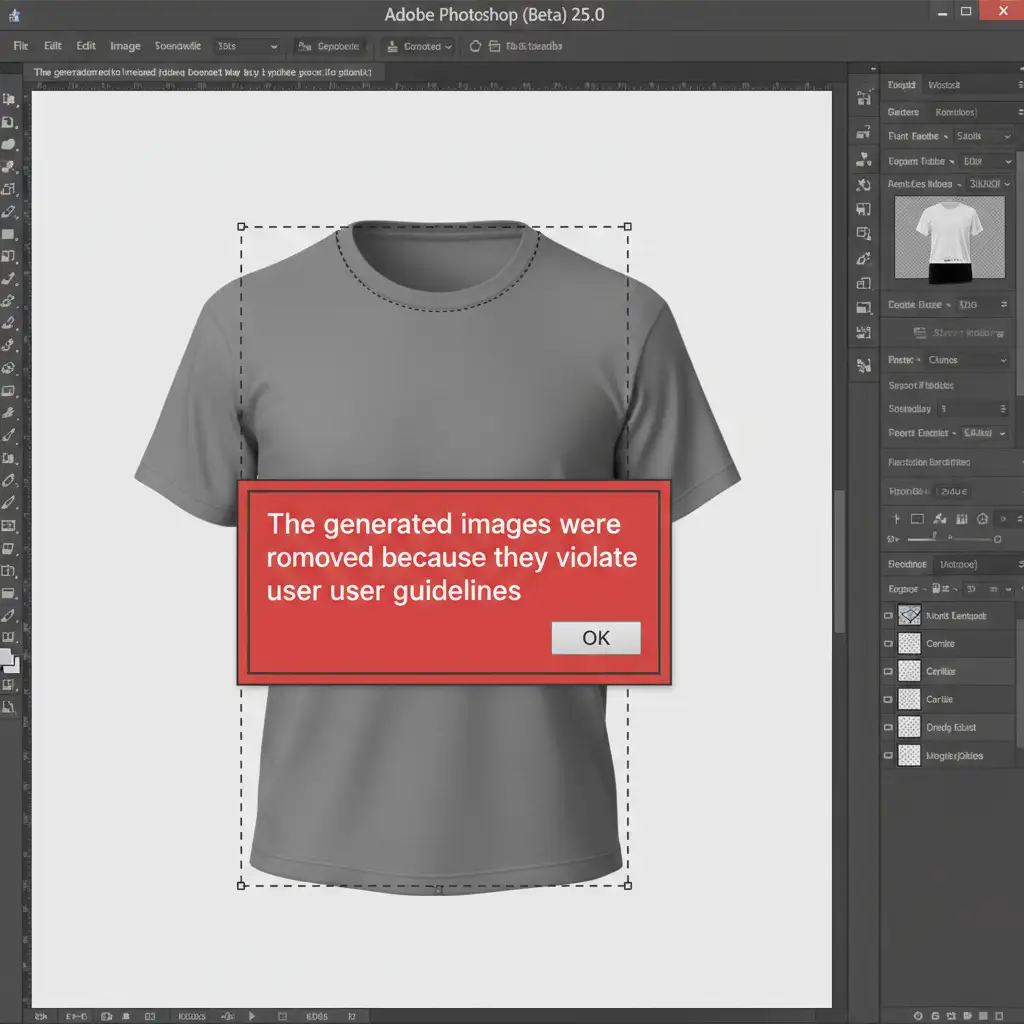
You are in the middle of a high-volume e-commerce retouching batch, utilizing Photoshop’s Generative Fill to seamlessly recreate the inner collar of a garment. Suddenly, your workflow halts. A red warning pops up: “The generated images were removed because they violate user guidelines.”
For apparel retouchers using Photoshop v25.0 and above, this content violation error has become a massive bottleneck. Adobe’s strict AI filters frequently misinterpret the empty voids, harsh shadows, or skin-toned mannequins used in neck joint masking as inappropriate content. Worse, triggering this filter repeatedly can result in temporary suspensions of your Adobe account.
Finding a reliable Adobe Generative Fill content filter ghost mannequin fix is essential to keeping your production pipeline moving. In this guide, we break down the technical reasons behind these false flags and provide three professional workarounds to bypass them.
Why Does Adobe Firefly AI Flag Ghost Mannequin Edits?
Adobe Firefly AI powers the Generative Fill feature and operates under incredibly strict safety guidelines designed to prevent the generation of NSFW (Not Safe For Work) or harmful imagery.
When you select the empty neck cavity of a garment and hit “Generate,” the AI scans the surrounding pixels to understand the context. In ghost mannequin photography, the AI often gets confused by:
- Flesh-Toned Mannequins: The AI misinterprets the plastic skin tones bordering the garment as actual human skin.
- Dark Cavities: The deep, harsh shadows inside an unedited collar can trigger self-harm or inappropriate content algorithms.
- Ambiguous Voids: Asking the AI to fill a completely empty, oddly shaped void with zero prompt guidance forces it to guess—and when in doubt, the safety filter blocks the output.
To achieve seamless blending without triggering the system, you must change how you feed visual and textual data to the AI.
3 Professional Workarounds to Bypass the Content Filter
Method 1: The Quick Fix (Strategic Prompt Engineering)
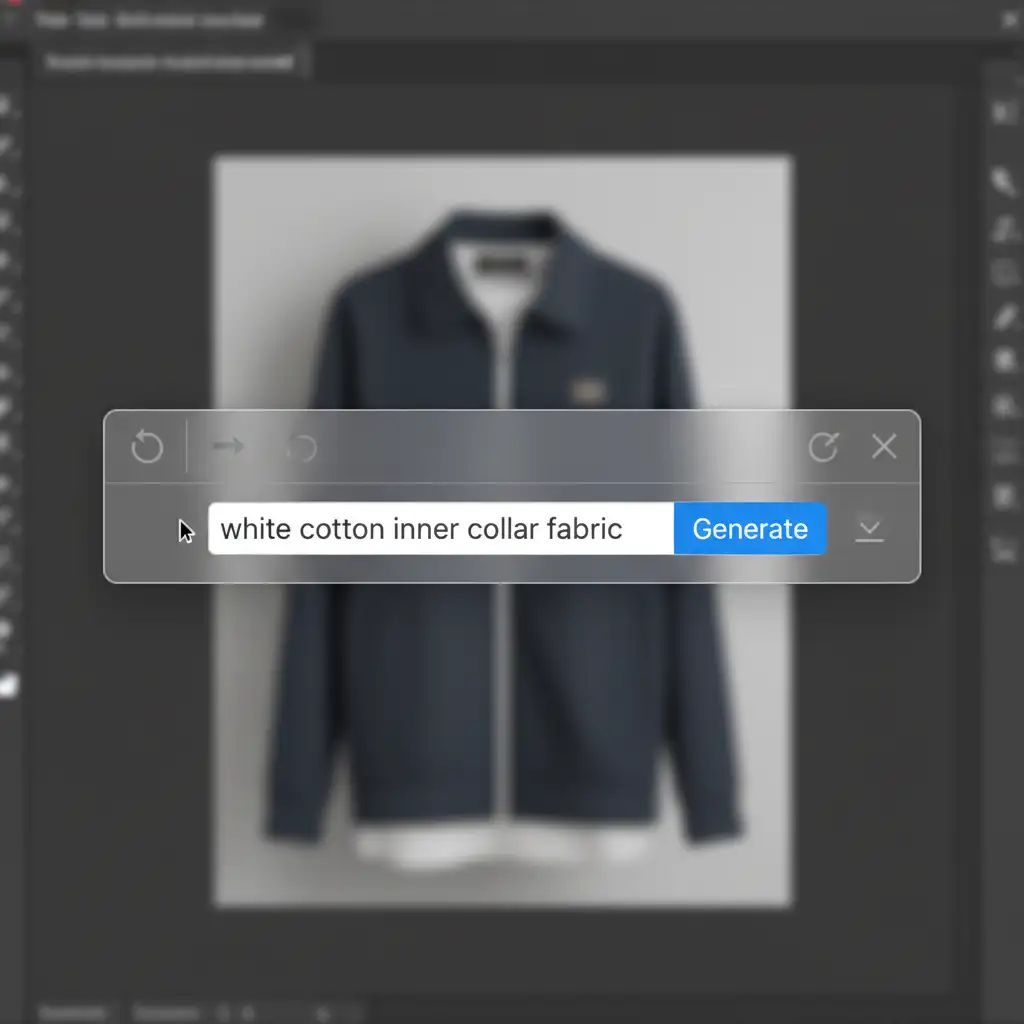
The most common mistake retouchers make is leaving the Generative Fill text prompt blank. When left blank, the AI relies entirely on the surrounding pixels. By utilizing basic prompt engineering, you can explicitly tell the AI what it is looking at, steering it away from flesh or shadow misinterpretations.
Instead of hitting generate on an empty box, type highly specific, non-triggering material descriptions.
Recommended Prompts:
- “White cotton inner collar fabric”
- “Grey studio background”
- “Smooth blue denim textile”
This grounds the AI in safe, textile-based generation, drastically reducing the chance of a content violation error.
Method 2: The Pro Workaround (Baseline Pre-Painting)
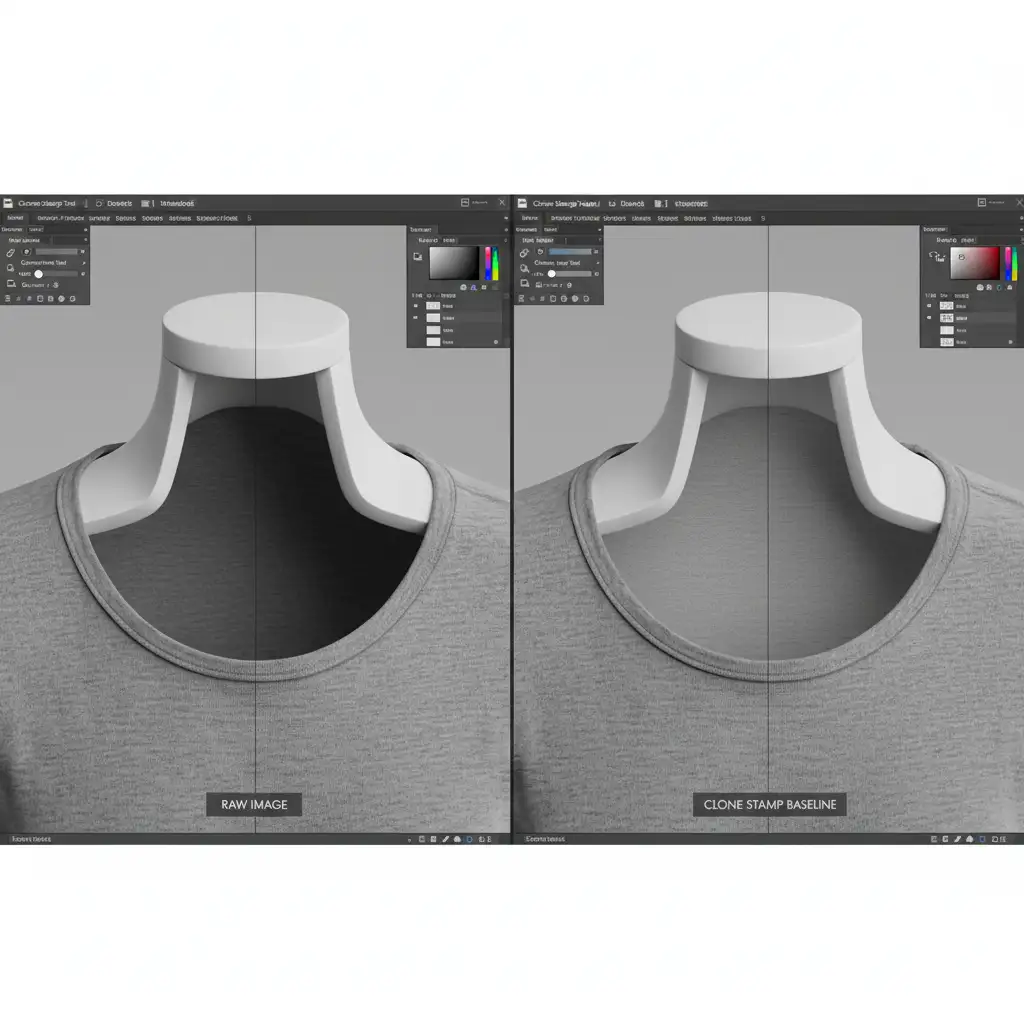
If prompt engineering isn’t enough, you need to alter the visual data the AI is reading. The AI panics when it sees a massive, dark, untextured void. You can bypass this by providing a safe baseline texture.
Before using Generative Fill, use the Clone Stamp Tool or a soft Brush Tool to roughly block in the basic shape, color, and lighting of the inner collar.
- Create a new layer.
- Sample a clean area of the garment’s fabric.
- Roughly paint over the harsh shadows and mannequin remnants in the neck cavity.
- Select this pre-painted area and run Generative Fill.
Because the AI now sees flat fabric colors instead of a dark void, it will focus purely on adding realistic fabric textures and seamless blending, completely bypassing the filter trigger.
Method 3: The Technical Deep-Dive (Piece-Meal Generation)
Large, complex selections are heavily scrutinized by Adobe’s algorithms. If you are trying to generate the entire back of a collar, the inner tag area, and the rear neckline all at once, you are highly likely to get flagged.
The solution is piece-meal generation combined with traditional layer masking.
- Use the Marquee or Lasso tool to select only the left side of the inner collar.
- Run Generative Fill (using Method 1’s prompts).
- Select only the right side of the collar and generate.
- Finally, select the center tag area and generate.
- Use the Patch Tool and manual layer masks to blend the seams of your three generations together.
By breaking the neck joint masking into smaller, manageable chunks, the AI processes less ambiguous data per generation, keeping you safely under the radar of the content filter.
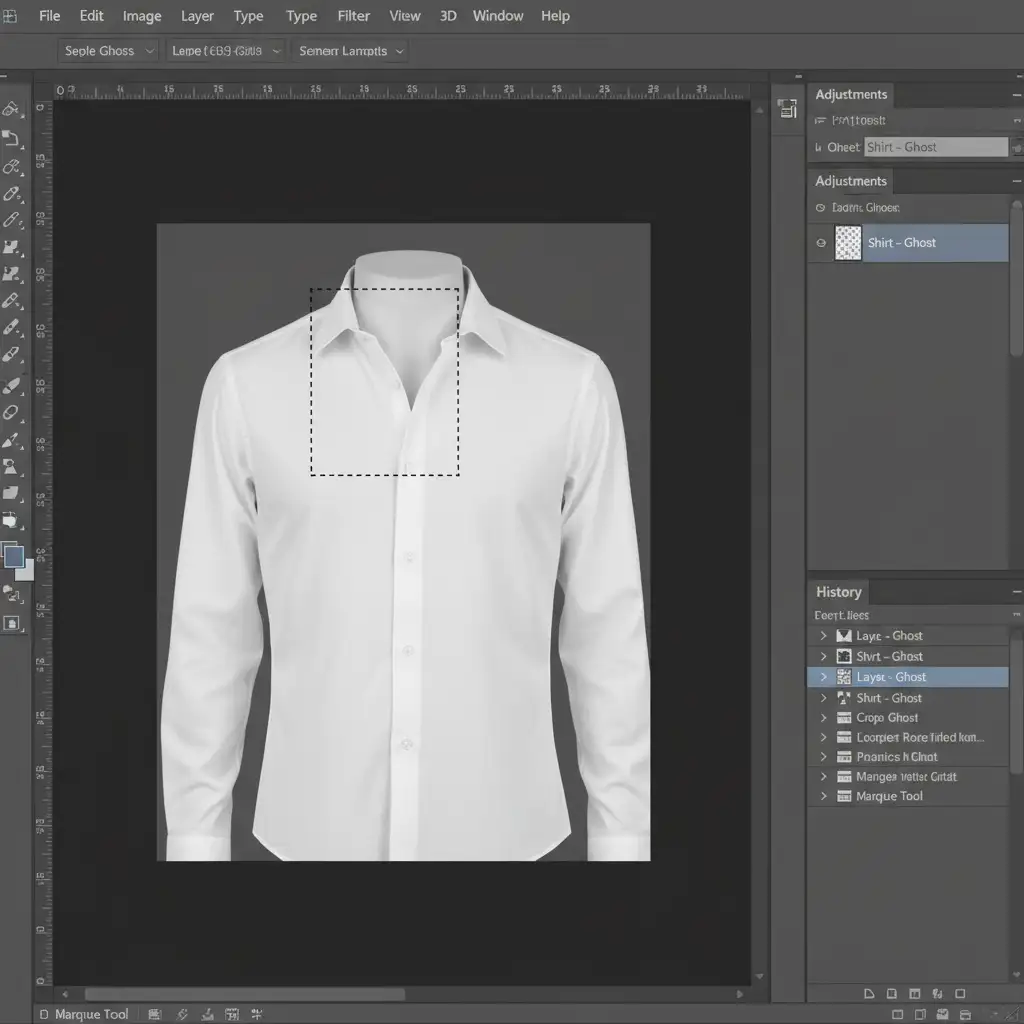
Stop Fighting Adobe’s AI: Let the Experts Handle High-Volume Retouching
Navigating AI false positives, engineering the perfect prompts, and manually pre-painting base layers can severely slow down your production times. When you are managing hundreds of product photos a day, you don’t have time to fight with an overactive Adobe Firefly AI content filter.
Skip the frustrating errors and let the experts handle your high-volume e-commerce retouching. At Image Work India and Cloud Retouch, our dedicated teams specialize in flawless, filter-free ghost mannequin effects. We combine advanced AI workflows with expert manual retouching to deliver pixel-perfect neck joints, color correction, and seamless blending—delivered on time, every time.
Don’t let software limitations bottleneck your business. Contact Image Work India or Cloud Retouch today to streamline your e-commerce post-production.




