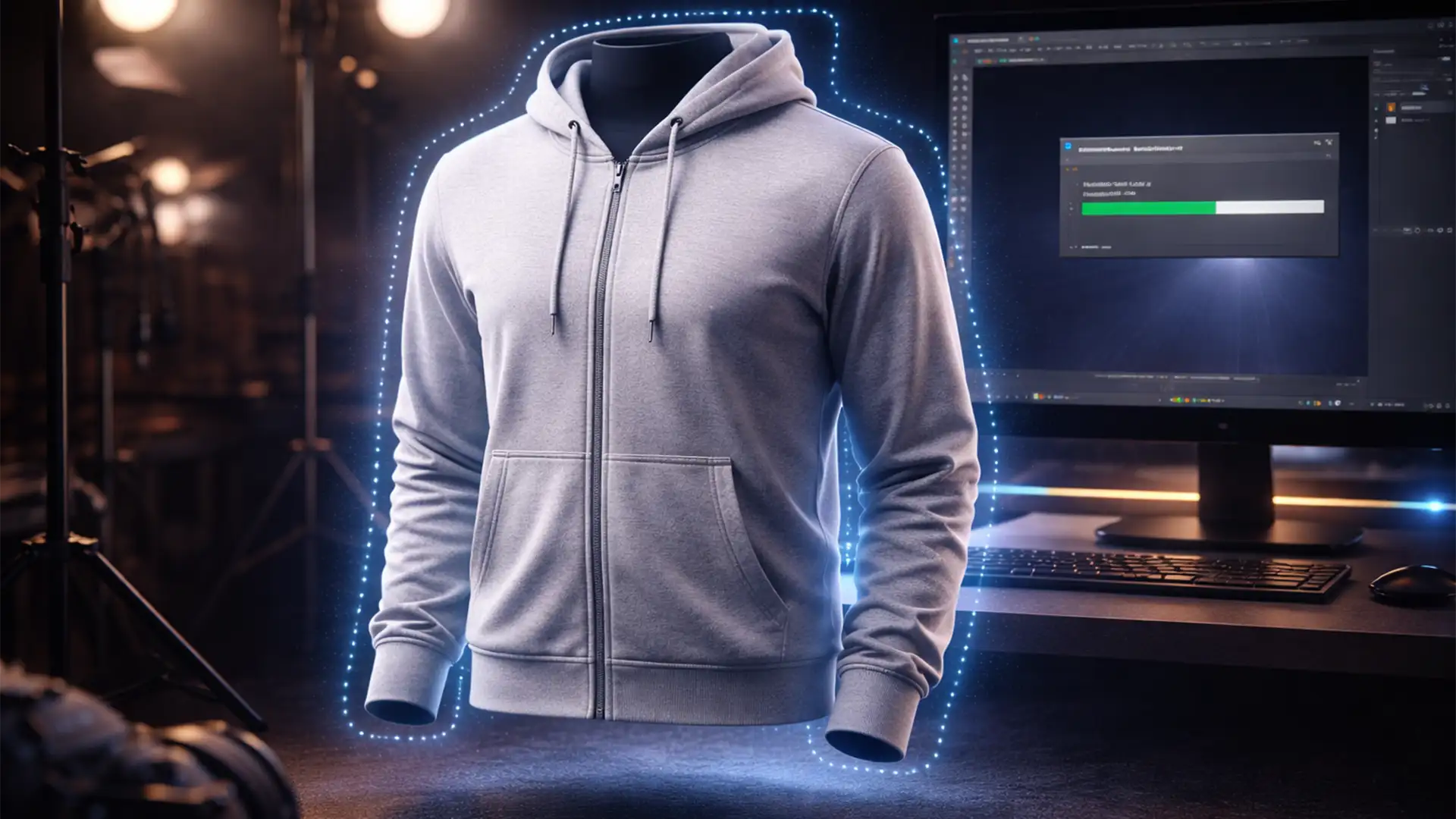

If you run an e-commerce studio, you already know the nightmare of processing thousands of apparel SKUs. Manually creating the invisible mannequin effect is a massive, soul-crushing time sink. You spend hours meticulously masking the front garment, cutting out the plastic dummy, and perfectly aligning the inner neck joint. Traditional Photoshop actions fail because every garment drapes differently, requiring dynamic, shape-specific selections.
But what if you could automate this entirely? By leveraging a batch ghost mannequin photoshop action ai masking workflow, you can slash your post-production time in half. In this guide, we will show you exactly how to combine Adobe Photoshop’s latest AI features with advanced automation to scale your apparel editing flawlessly.
Why Traditional Actions Fail for the Invisible Mannequin Effect
For years, e-commerce retouching teams relied on static Photoshop Actions to speed up their work. However, the ghost mannequin technique requires compositing two separate images: the front of the garment and the inside back (the neck joint).
Because mannequins vary in shape and garments warp differently on the dummy, a static lasso or pen tool recording will cut off collars or leave plastic mannequin parts visible. The solution lies in Photoshop v24.x and v25.x (2024 releases), which allow you to record dynamic AI selections directly into your Action scripts.
The Solution: Combining AI Masking with Batch Automation
By integrating the Object Selection Tool and AI Select Subject into your macros, your Action becomes “context-aware.” It dynamically finds the edges of the specific garment in the photo, applies precision layer masking, and prepares the file for compositing.
Here is how to set up this workflow, ranging from a quick fix to a fully automated scripting setup.
Method A: The Quick Fix (Basic AI Action Setup)
If you need to rapidly strip the background and dummy out of your front garment shots, you can record a basic dynamic action.
- Open a sample front garment image in Photoshop.
- Go to Window > Actions and create a new Action (name it “AI Garment Mask”).
- Hit Record.
- Navigate to Select > Subject (Photoshop’s AI will isolate the apparel).
- Click the Layer Masking icon in the Layers panel to hide the background and mannequin.
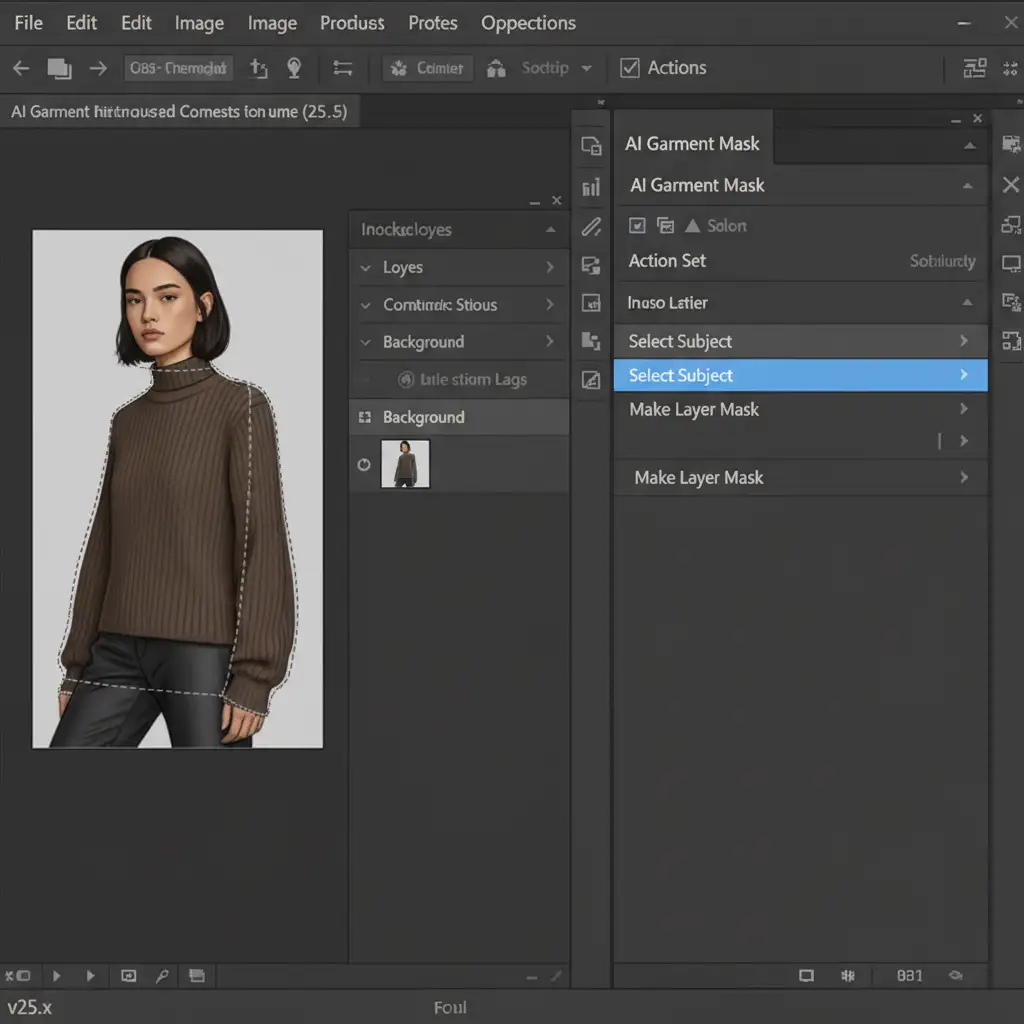
You can now apply this to hundreds of images by navigating to File > Automate > Batch, selecting your new action, and pointing it at your raw folder.
Method B: The Pro Workaround (AI Masking & Auto-Align)
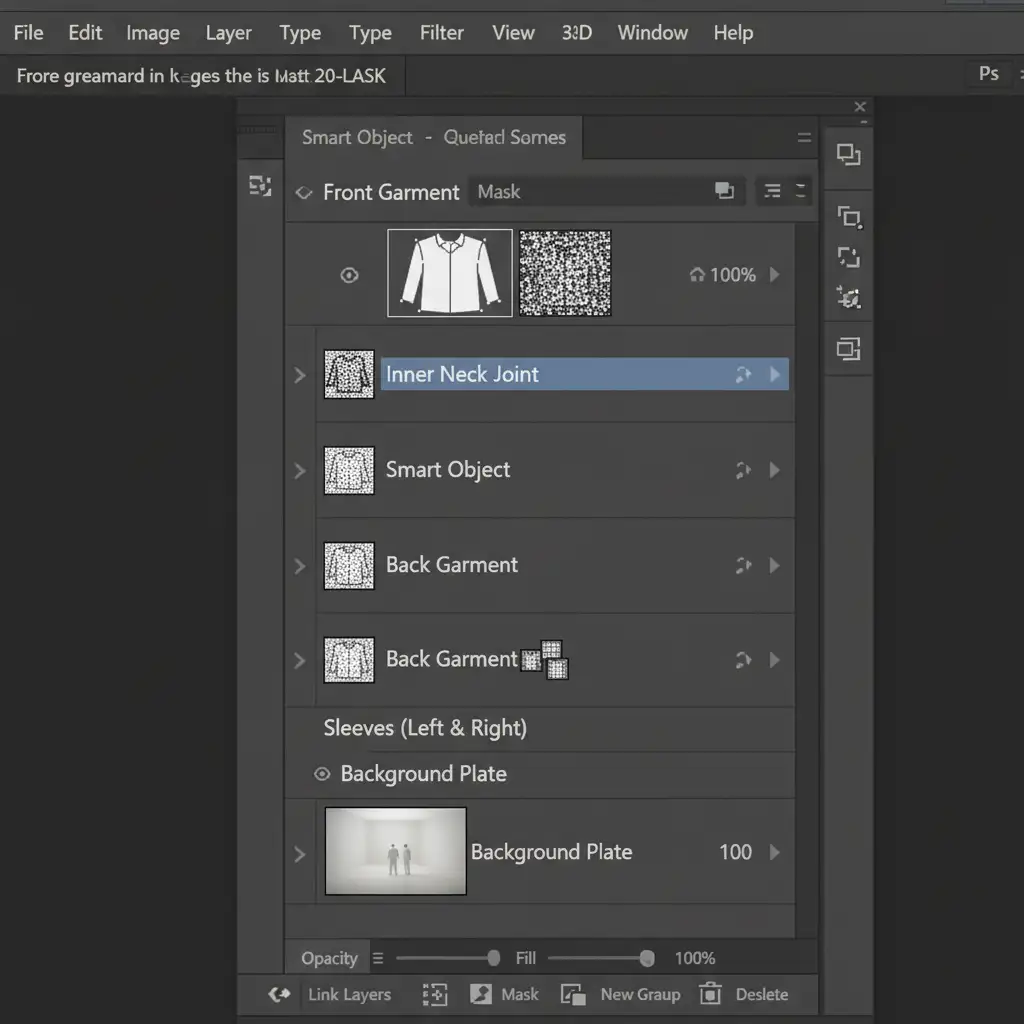
For a true ghost mannequin composite, you need to seamlessly merge the front garment with the inner neck joint. This requires Auto-Align Layers and Smart Objects to ensure non-destructive editing.
- Prepare the Files: Open your front garment image. Place the corresponding neck/inner back image as a secondary layer on top.
- Convert to Smart Objects: Right-click both layers and convert them to Smart Objects to protect the original pixel data.
- Record the Action: Create a new Action named “Ghost Mannequin Composite”.
- Auto-Align: Select both layers and go to Edit > Auto-Align Layers (choose ‘Auto’ based on content). This aligns the collar of the neck joint with the collar of the front garment.
- AI Masking: Select the front garment layer. Trigger Select > Subject to mask out the exterior mannequin pieces.
- Reveal the Neck: Invert the selection on the neck joint layer to reveal only the inside of the collar, completing the 3D illusion.
Method C: Technical Deep-Dive (Droplet Automation & Scripting)
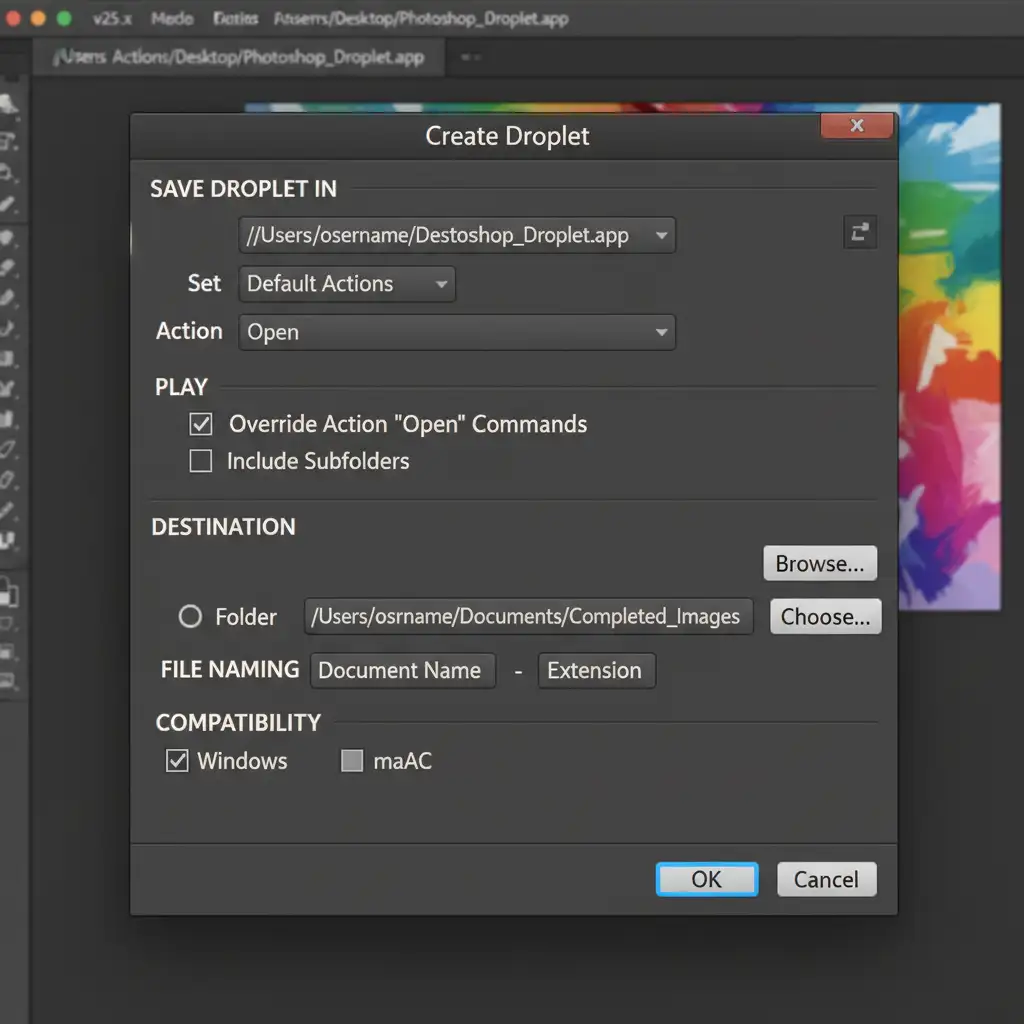
If you are processing thousands of SKUs, manually running a batch command is still too slow. You need a Photoshop Droplet—a standalone executable file that applies your Action to any folder dragged onto it.
- Go to File > Automate > Create Droplet.
- Choose a save destination for the Droplet app (e.g., your desktop).
- Select the “Ghost Mannequin Composite” action you created in Method B.
- Crucial Step: Check the box for “Override Action ‘Open’ Commands” to ensure it processes the dragged files seamlessly.
- Set your Destination to a designated “Completed” folder and configure your automated naming conventions.
Pro Tip for Scripting: For ultimate control, e-commerce studios use JavaScript (.jsx) to conditionally check for neck joint files in the directory. The script matches the filename of the front garment (e.g., SKU123_Front.jpg) with its corresponding neck shot (SKU123_Neck.jpg) before running the batch automation, ensuring zero errors during unattended overnight rendering.
Scaling Your E-commerce Retouching Workflow
Implementing a batch ghost mannequin photoshop action ai masking system transforms how your studio operates. By relying on AI to handle the tedious pathing and masking, your retouchers can focus on high-level color correction, shaping, and quality control.
However, even with advanced batch automation, AI isn’t perfect. Complex garments with sheer fabrics, fuzzy textures, or extreme draping will still require a human touch to ensure the final product looks premium and realistic to buyers.
Let the Experts Handle Your High-Volume SKUs
Building custom droplets and troubleshooting AI masking actions takes time—time you could spend shooting more products and growing your business.
Need pixel-perfect ghost mannequin edits for thousands of SKUs without the technical headache? Image Work India and Cloud Retouch provide scalable, high-end e-commerce retouching services. Our team of expert retouchers combines cutting-edge AI workflows with meticulous manual finishing to deliver flawless invisible mannequin composites at unbeatable turnaround times.
Contact us today to automate your post-production workflow and elevate your e-commerce imagery.




