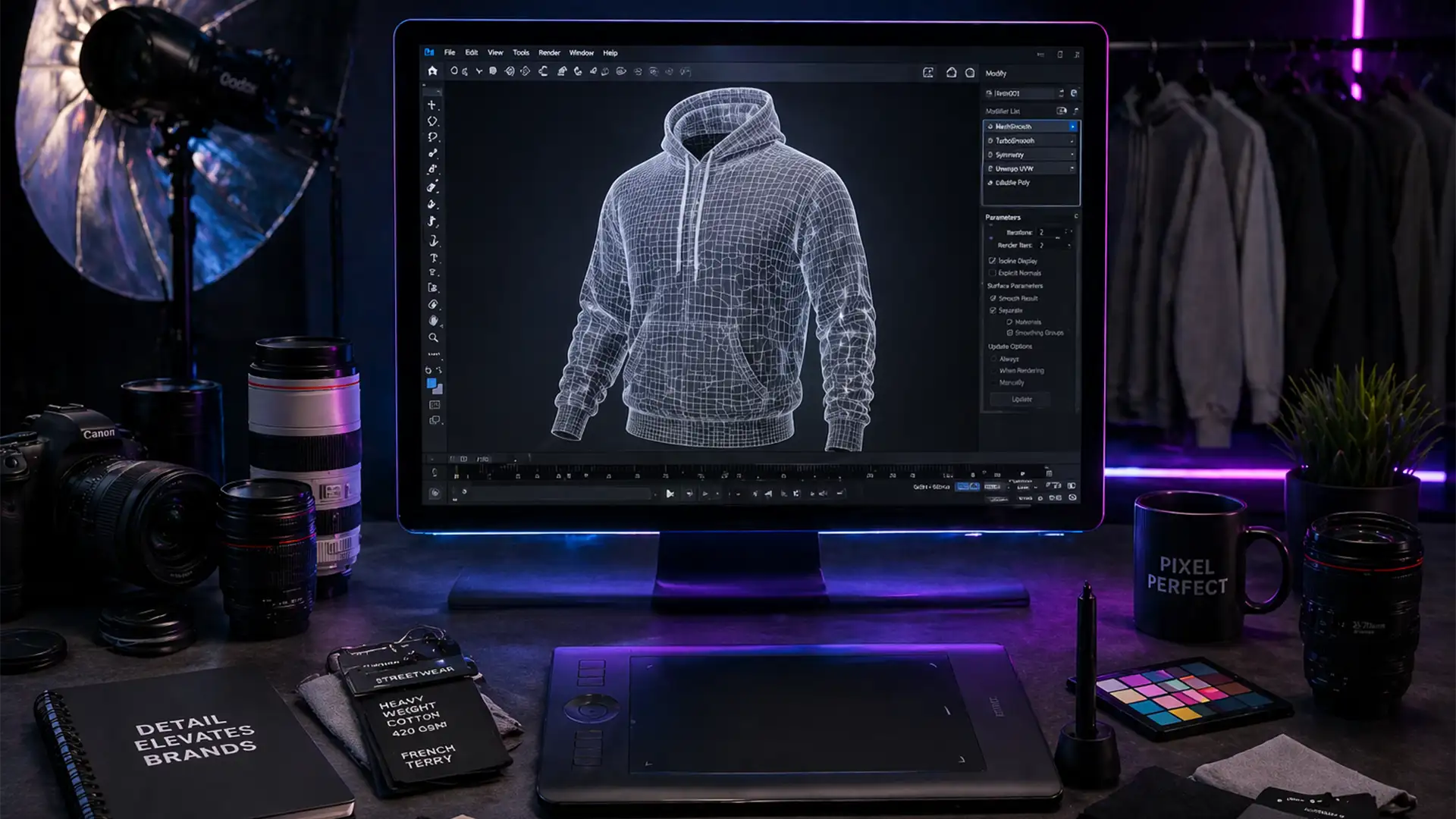

If you are running a high-volume dropshipping apparel brand, manual image editing is likely the biggest bottleneck delaying your product launches. When dealing with 50+ high-res RAW files daily, the repetitive manual alignment of the front garment and the inner neck inset drains hours of studio time. Add in heavy RAM consumption and inconsistent camera angles causing software crashes, and your profit margins start shrinking alongside your productivity.
To scale efficiently, you need to reduce your per-image processing time from a sluggish 5 minutes to under 60 seconds. In this guide, we will break down a highly optimized bulk ghost mannequin workflow for dropshipping using advanced Photoshop automation, AI masking, and operating system-level performance tuning.
Why Manual Invisible Mannequin Editing Fails at Scale
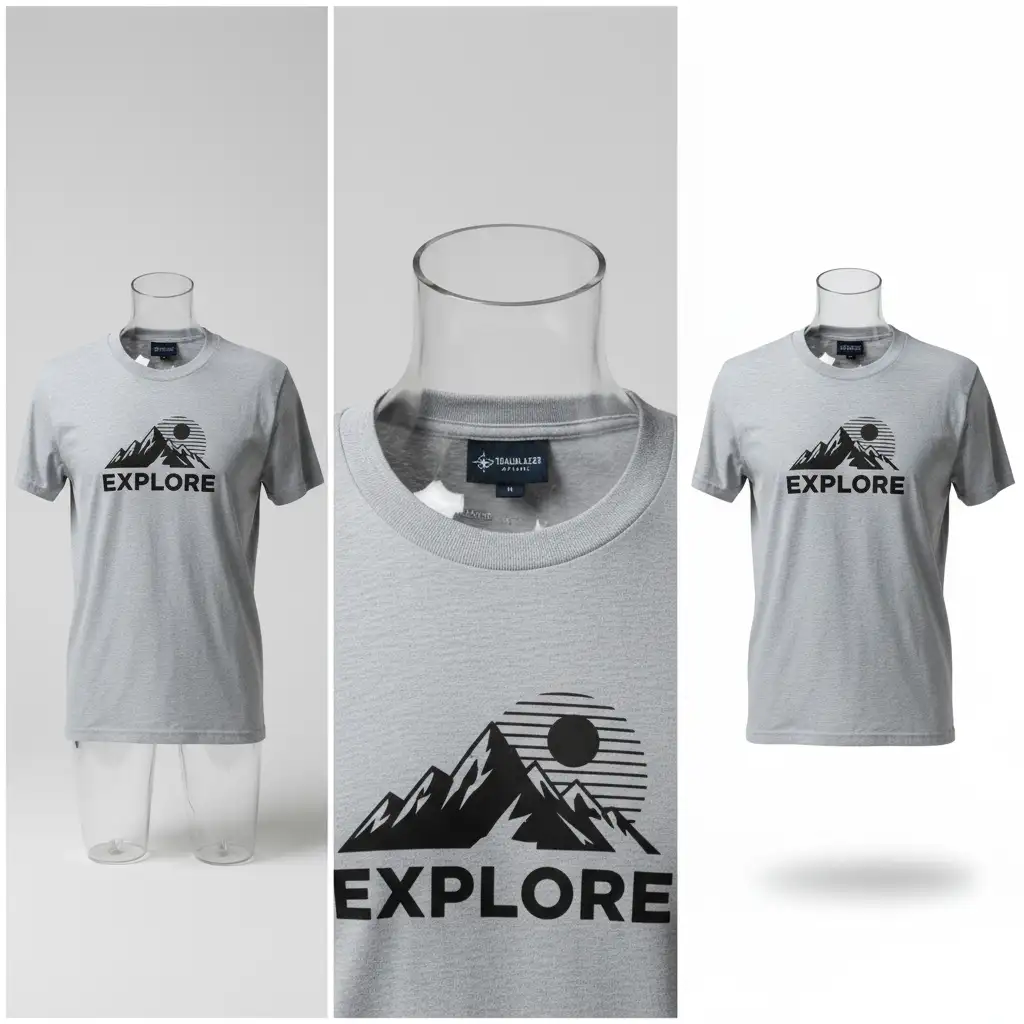
Creating a flawless invisible mannequin effect requires combining two separate photographs: the exterior garment and the interior back/neck label. When studios rely on manual clipping paths and hand-drawn masks for hundreds of SKUs, the results are often inconsistent.
Technical bottlenecks typically include:
- Auto-Align Failures: Inconsistent camera angles between the front shot and the neck inset cause Photoshop’s alignment algorithms to fail.
- Hardware Crashes: Processing large batches of RAW files simultaneously overloads system memory.
- Repetitive Friction: Manually painting every neck joint mask limits an editor’s output to just a handful of images per hour.
To fix this, we need a hybrid approach utilizing Photoshop actions, smart objects, and system optimization.
Phase 1: The Quick Fix Using Photoshop Actions & AI
The foundation of batch processing is automation. By leveraging Adobe Sensei AI Subject Selection in Photoshop (v24.x and v25.x), you can eliminate the manual labor of cutting out the primary garment.
How to set it up:
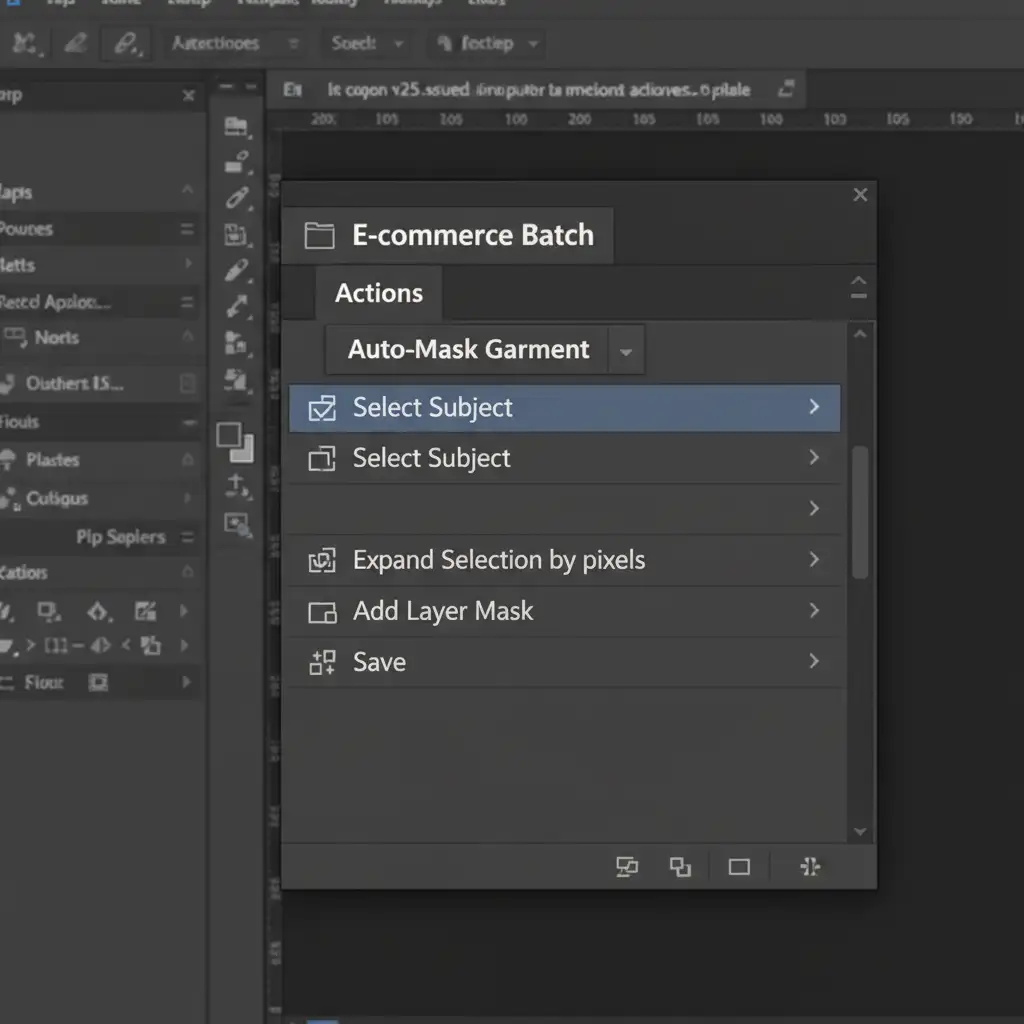
- Open your Actions panel (Window > Actions) and create a new action named “Auto-Mask Garment”.
- Hit Record. Go to Select > Subject.
- To prevent edge halos, go to Select > Modify > Expand and set it to 2 pixels.
- Apply a layer masking step by clicking the mask icon in the Layers panel.
- Add a “Save As” step pointing to a dedicated output folder, then stop recording.
- Run this across a folder of images by navigating to File > Automate > Batch.
Phase 2: The Pro Workaround for Perfect Neck Joints
Automation handles the cutout, but the neck joint requires precision. If your camera angles vary slightly between the front garment shot and the neck insert shot, manual alignment will slow you down. The solution is using Smart Objects paired with automated alignment.
How to execute perfect alignment:
- Open both the front garment image and the neck inset image as layers in the same document.
- Convert both layers to Smart Objects. This is critical—it preserves non-destructive scaling and prevents pixel degradation.
- Select both layers in the layers panel.
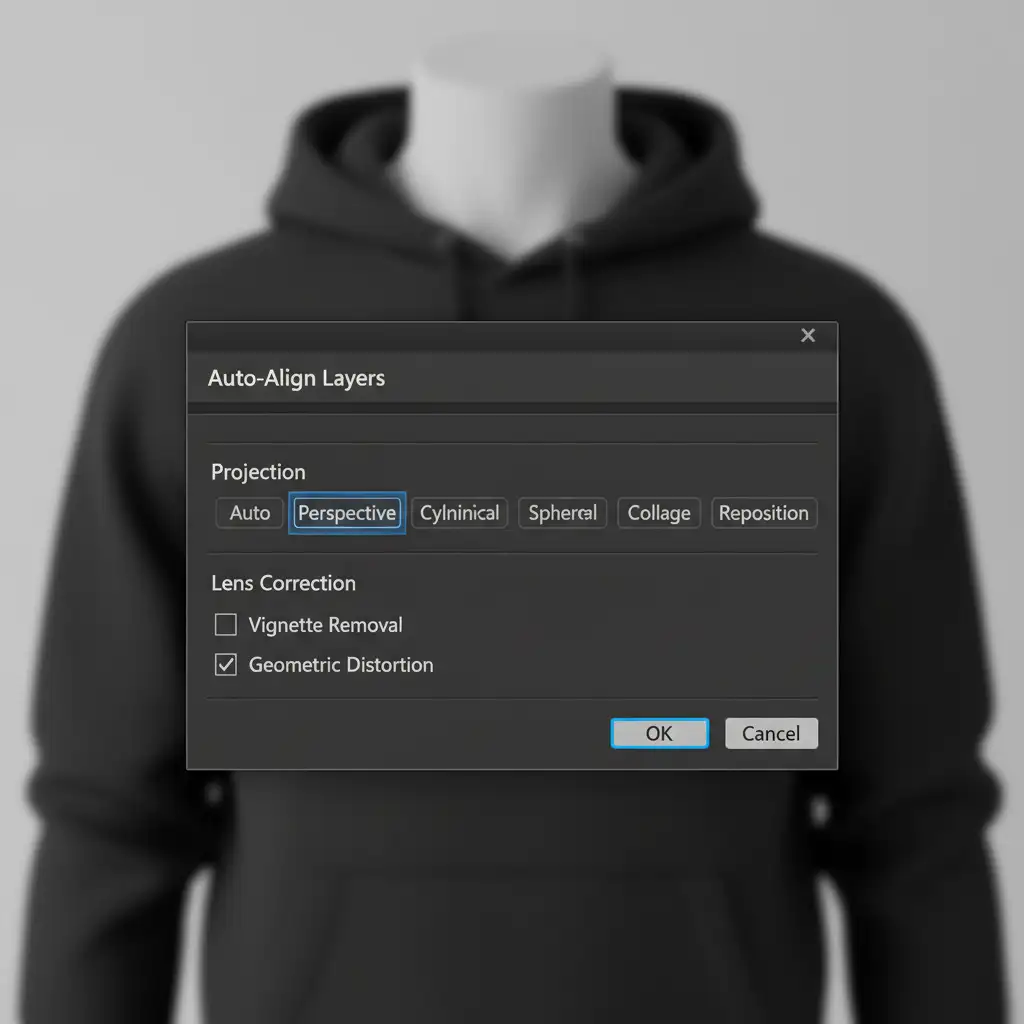
- Navigate to Edit > Auto-Align Layers.
- Select the “Auto” projection mode and click OK. Photoshop will mathematically match the collar seams.
- Once aligned, apply a layer mask to the front garment and use a soft-edge brush to seamlessly blend the neck joint.
Phase 3: The Technical Deep-Dive into Droplets & Performance Tuning
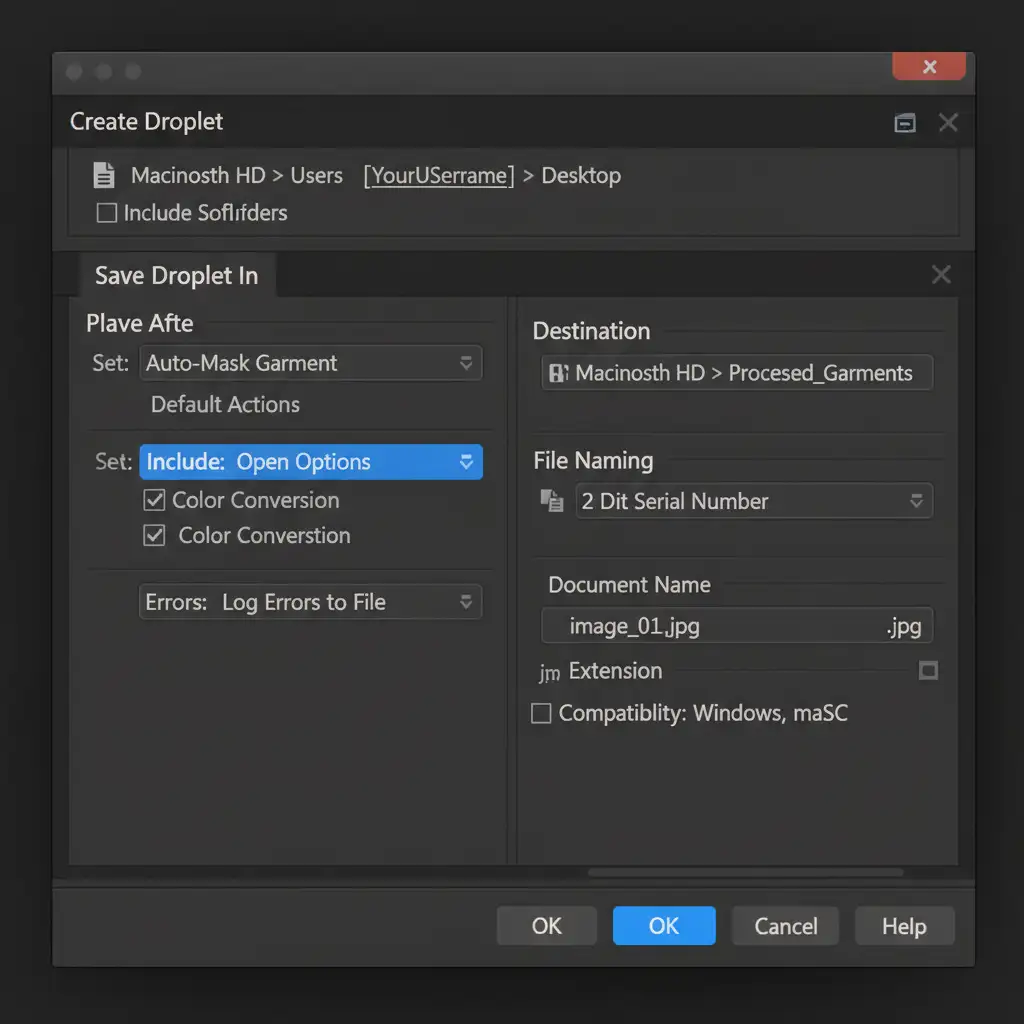
When dealing with hundreds of seasonal SKUs, opening Photoshop to trigger a batch process is still an extra step. Photoshop droplets allow you to trigger your automated workflows directly from your operating system desktop.
Furthermore, processing these heavy files requires strict scratch disk optimization.
Creating the OS-Level Droplet
- Go to File > Automate > Create Droplet.
- Choose a save location on your OS desktop and name it “Ghost_Mannequin_Batch.exe” (or .app).
- Select the “Auto-Mask Garment” action you created in Phase 1.
- Set your Destination folder and configure your file naming structure.
- Click OK. You can now drag and drop folders of hundreds of dropshipping images directly onto this desktop icon to process them in the background.
Hardware Performance Tuning
To prevent Photoshop from crashing while the droplet processes 100+ images:
- Navigate to Edit > Preferences > Performance.
- Allocate exactly 80% of available RAM to Photoshop.
- Set your Cache Levels to 4 (ideal for high-res photo editing).
- Go to the Scratch Disks tab and assign a dedicated, high-speed NVMe SSD. Never use your OS boot drive as your primary scratch disk for bulk processing.
Scale Your Dropshipping Brand with Image Work India
Mastering a bulk ghost mannequin workflow for dropshipping can save your team countless hours, but it still requires dedicated hardware, technical troubleshooting, and manual touch-ups for complex neck joints. If you are processing thousands of seasonal SKUs, your time is better spent marketing your brand and sourcing products—not wrestling with layer masks.
Stop wasting studio hours on repetitive editing. Hire Image Work India and Cloud Retouch for pixel-perfect, bulk ghost mannequin services. Our expert retouchers combine enterprise-level AI tools with meticulous hand-drawn clipping paths to deliver flawless, high-volume apparel imagery with rapid turnaround times.
Ready to launch your catalog faster? Contact Image Work India today to get a custom quote for your dropshipping image editing needs.




