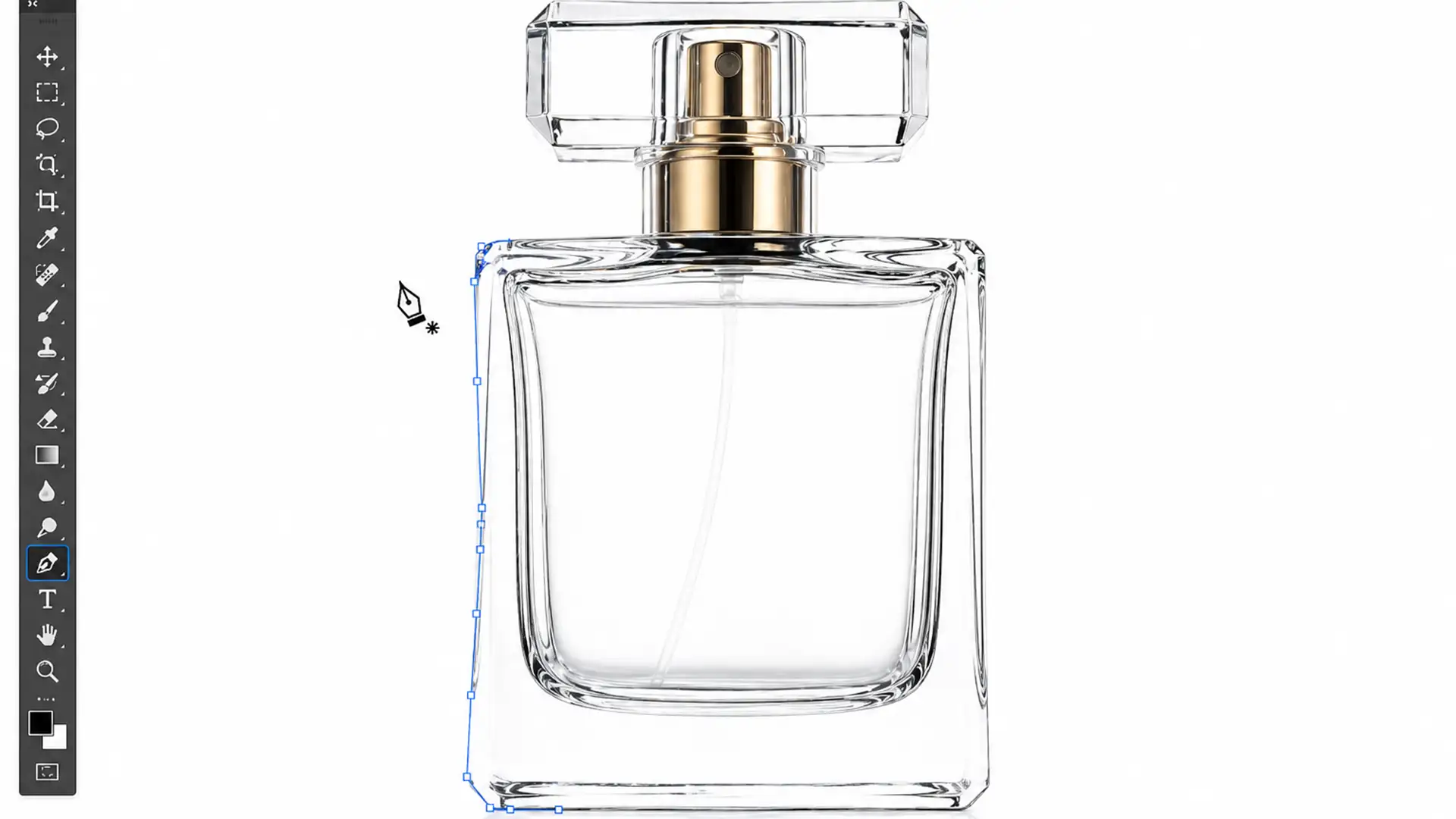

You click “Remove Background” on a beautiful glass product photo, and Photoshop spits back a jagged, opaque, dirty-looking mess. The crisp reflections are gone, the delicate transparency is destroyed, and it looks absolutely nothing like the premium item you want to sell. For e-commerce brands, this is a massive conversion killer.
Automated AI background removers fail spectacularly on transparent materials because algorithms simply cannot tell the difference between surface reflections and the background environment bleeding through the glass. If you want pristine, Amazon-ready pure-white backgrounds without losing your product’s high-end feel, you need to stop relying on one-click tricks and master the art of masking transparent glass for e-commerce.
Here is the technical blueprint for achieving pixel-perfect transparency.
Why AI Fails at Masking Transparent Glass
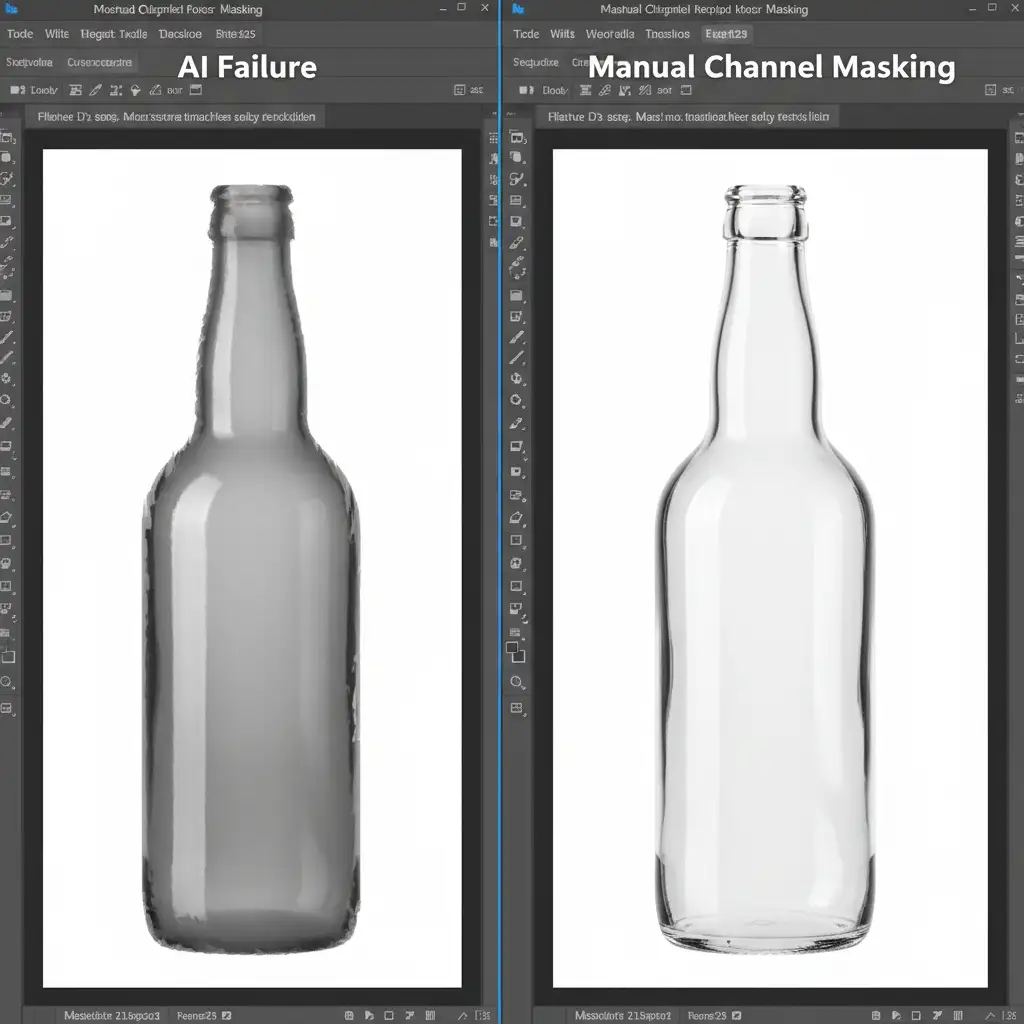
In Photoshop CC (v24.x – v26.x), machine learning features like ‘Select Subject’ are trained on solid objects. When applied to glass, bottles, or acrylic, the algorithm panics. It cannot differentiate between the structural refraction of the glass edge and the background colors showing through the center.
The result? Hard, jagged edges, a complete loss of semi-transparent mid-tones, and a product that looks heavily outlined. To achieve professional e-commerce standards, human retouchers must step in to manually isolate the opaque reflections (specular highlights) from the transparent glass body using advanced luminance data.
3 Professional Methods for Perfect Glass Masking in Photoshop
Depending on the complexity of your product and the lighting conditions of your photography, there are three primary ways professional retouchers tackle glass masking.
Method A: The Quick Fix (Blending Modes)
When you need a fast workflow for simple backgrounds, blending modes can artificially recreate transparency.
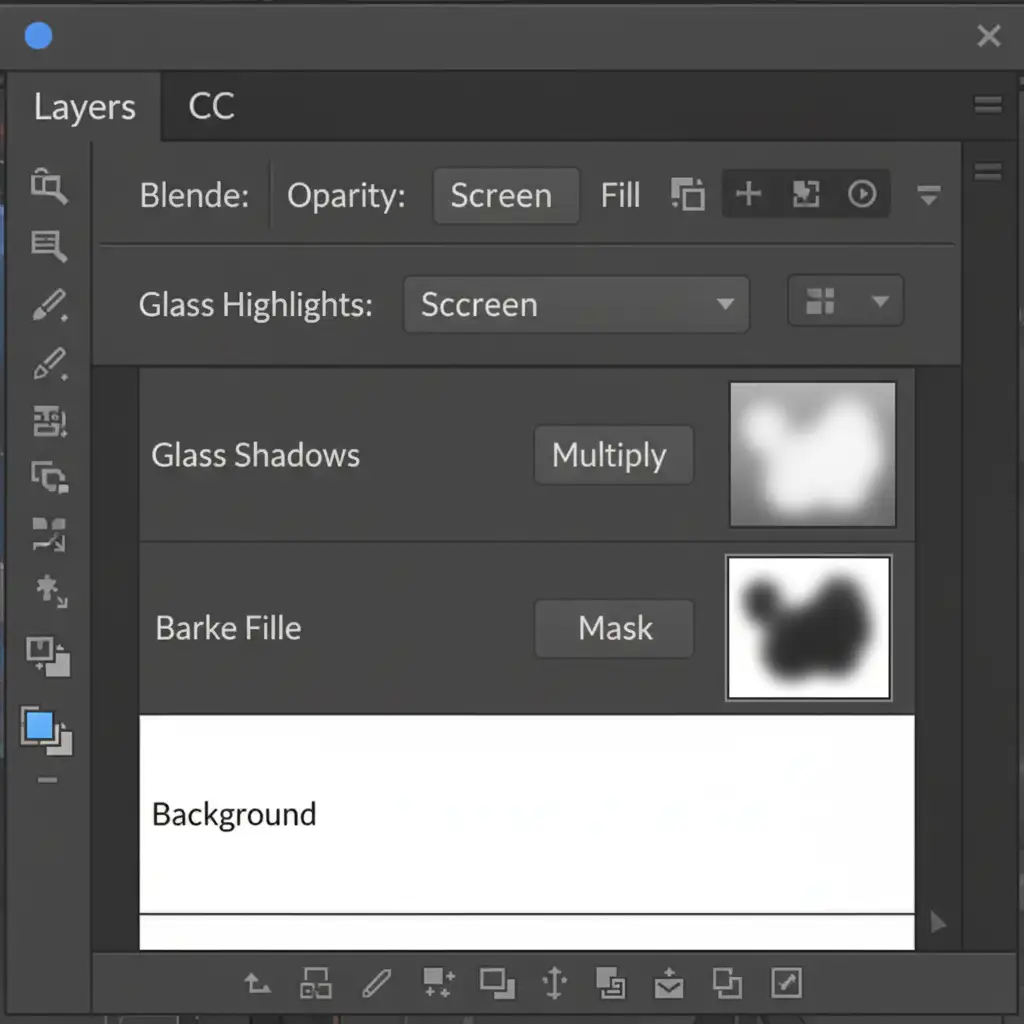
- Duplicate your glass image layer twice and place them over a solid white background layer (RGB 255,255,255).
- Set the first duplicate layer to ‘Multiply’. This preserves the dark edges, shadows, and structural contours of the glass.
- Set the top duplicate layer to ‘Screen’. This forces the dark pixels to become transparent while retaining the pure white specular highlights.
- Apply a layer mask to both and use a soft brush to seamlessly blend the transparent body, effectively faking a transparent look.
Method B: The Pro Workaround (Pen Tool Isolation & Layer Masks)
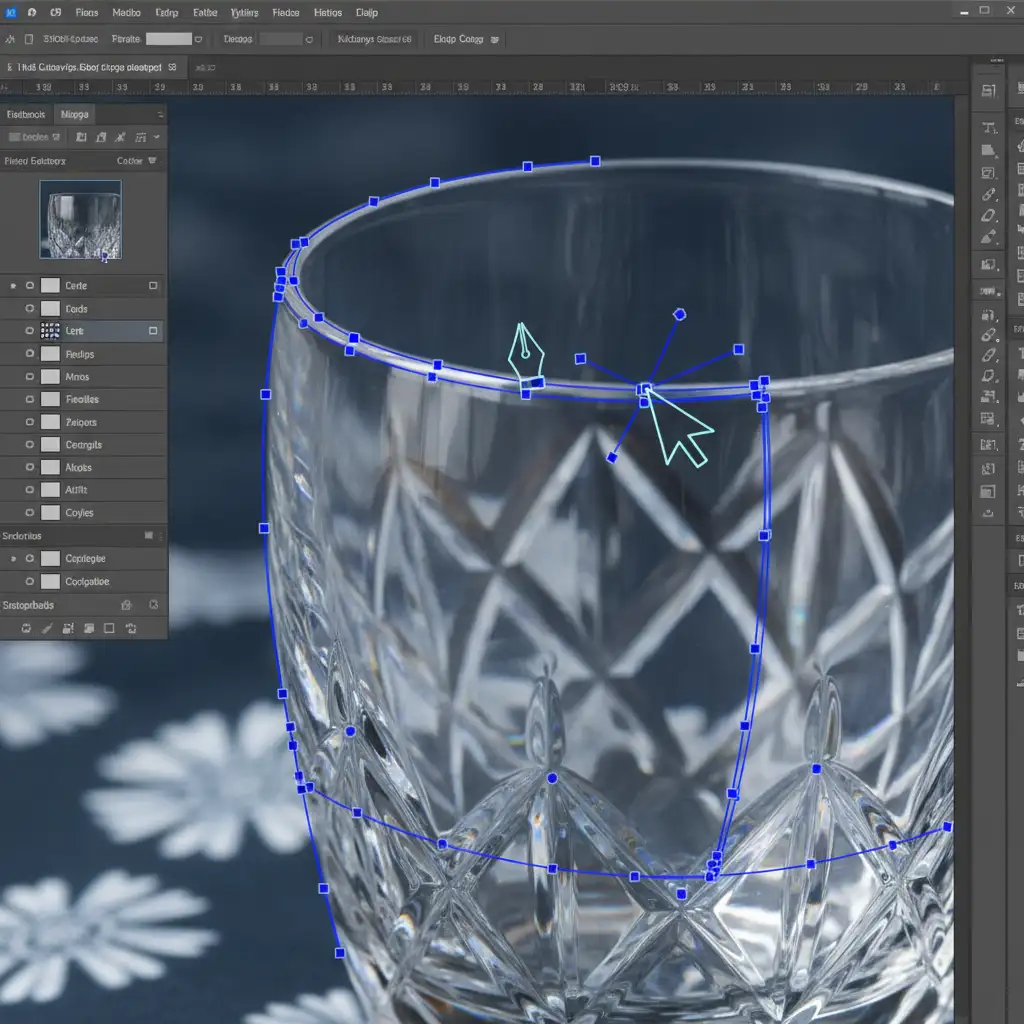
For complex backgrounds that require deep color decontamination, you need absolute edge control. This is where Pen Tool isolation becomes mandatory.
- Select the Pen Tool (P) and create a flawless hard edge (Clipping Path) around the exact perimeter of the glassware.
- Convert the path to a selection (watching the marching ants appear), invert it, and apply a Layer Mask to isolate the object from its environment.
- Lower the fill/opacity of the glass body layer to simulate transparency.
- Create a new layer above it and manually paint back the highlights and refractions using a white, soft-edge brush on a new mask.
Method C: The Technical Deep-Dive (Alpha Channel Extraction)
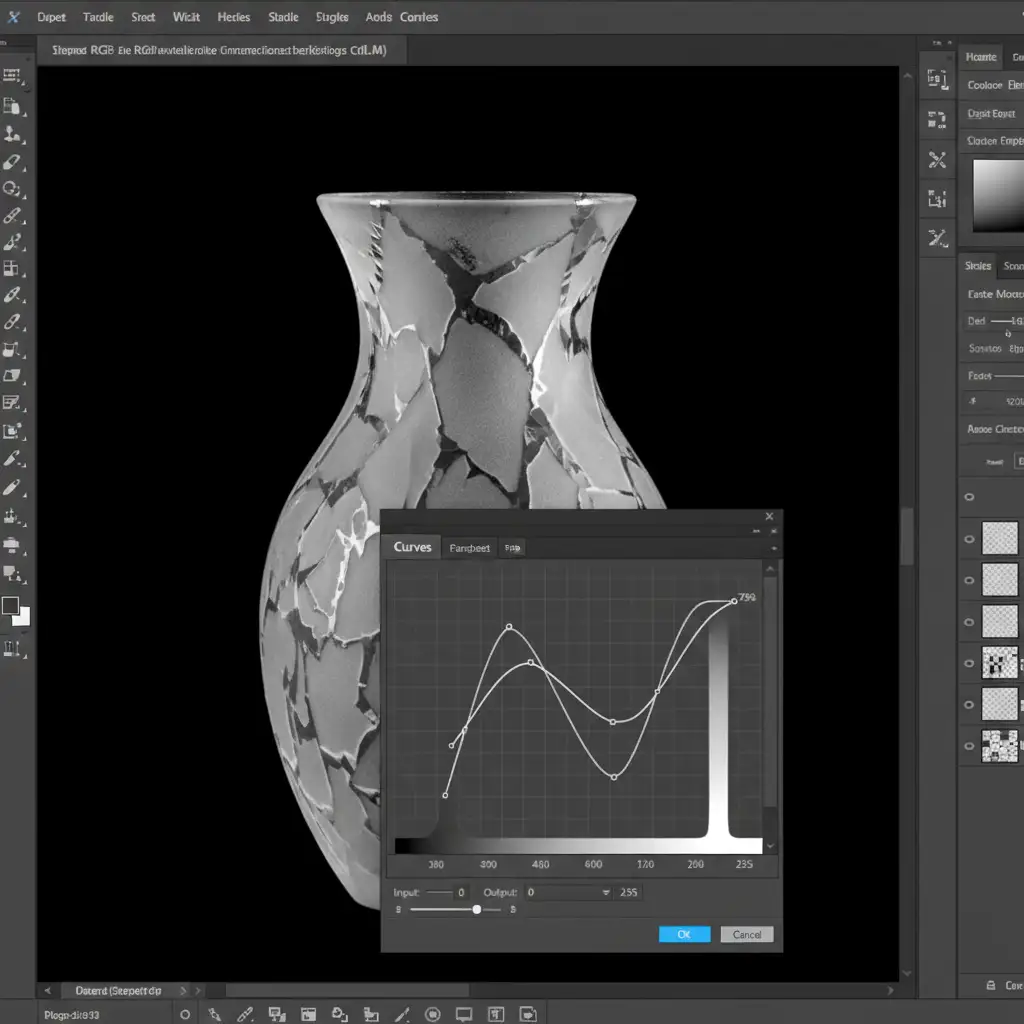
This is the industry standard for high-end e-commerce image editing. Alpha Channel extraction uses the image’s own light data to create absolute pixel-perfect transparency that retains all micro-reflections and shadow falloff.
- Open the Channels panel and inspect the Red, Green, and Blue channels. Find the channel with the highest contrast (typically the Blue or Red channel).
- Duplicate this high-contrast channel.
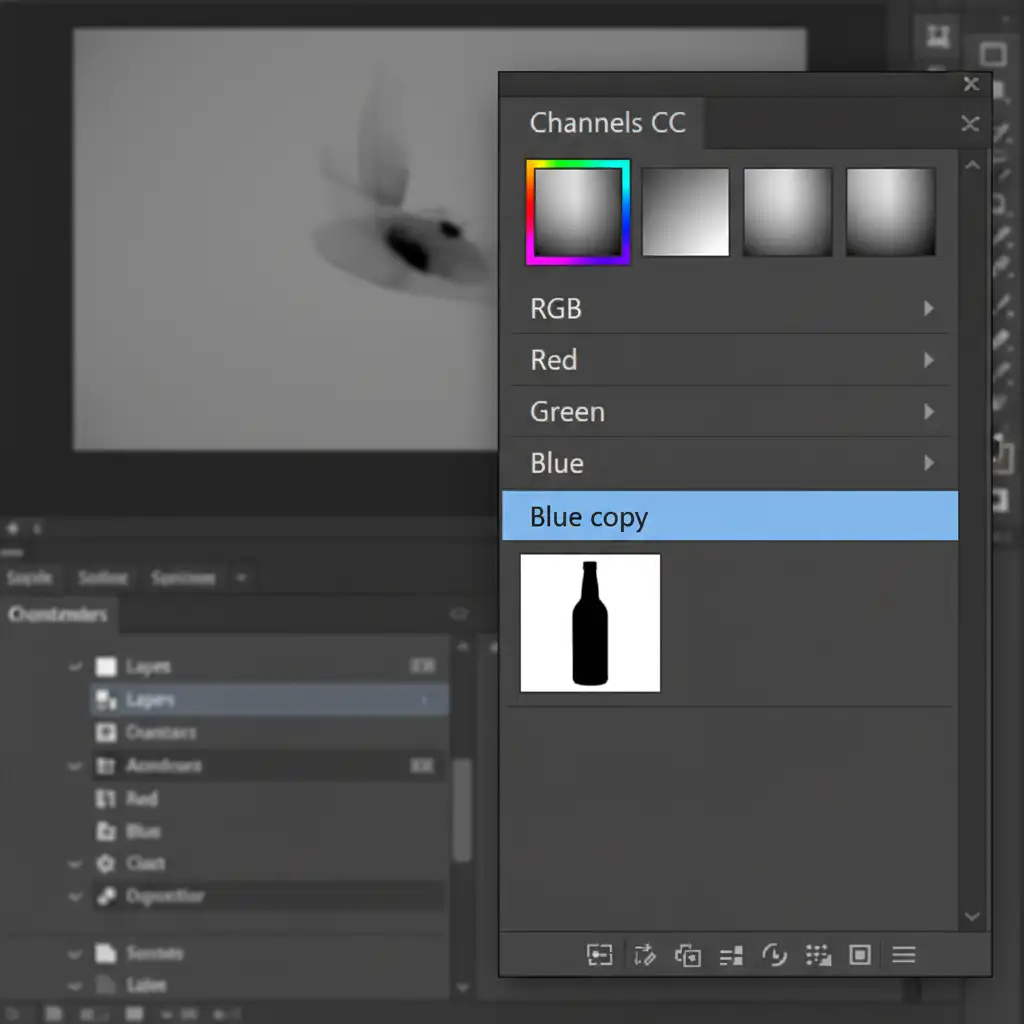
- Go to Image > Adjustments > Curves (Ctrl/Cmd+M). Aggressively push the blacks to pure black and the whites to pure white on this duplicated channel.
- Ctrl-click (or Cmd-click) the duplicate channel thumbnail to load it as a luminosity selection.
- Return to your RGB layers and apply this selection as a Layer Mask on your original image layer.
Stop Struggling with Glassware: Let the Experts Handle It
Masking transparent glass for e-commerce requires meticulous attention to detail, an understanding of light physics, and hours of tedious Pen Tool work that automated algorithms simply cannot replicate. If your product photos look fake, flat, or jagged, your customers will notice—and they will buy from a competitor.
You don’t have to spend hours adjusting curves and painting layer masks. At Image Work India and Cloud Retouch, our team of expert retouchers specializes in pixel-perfect transparency, professional clipping path services, and premium e-commerce retouching.
Whether you have fifty glass bottles or five thousand, we deliver Amazon-ready imagery with flawless reflections and pure-white backgrounds that are guaranteed to boost your conversions.
Ready to make your products shine? [Contact Image Work India and Cloud Retouch today] for a free trial and let us perfect your product photography.




