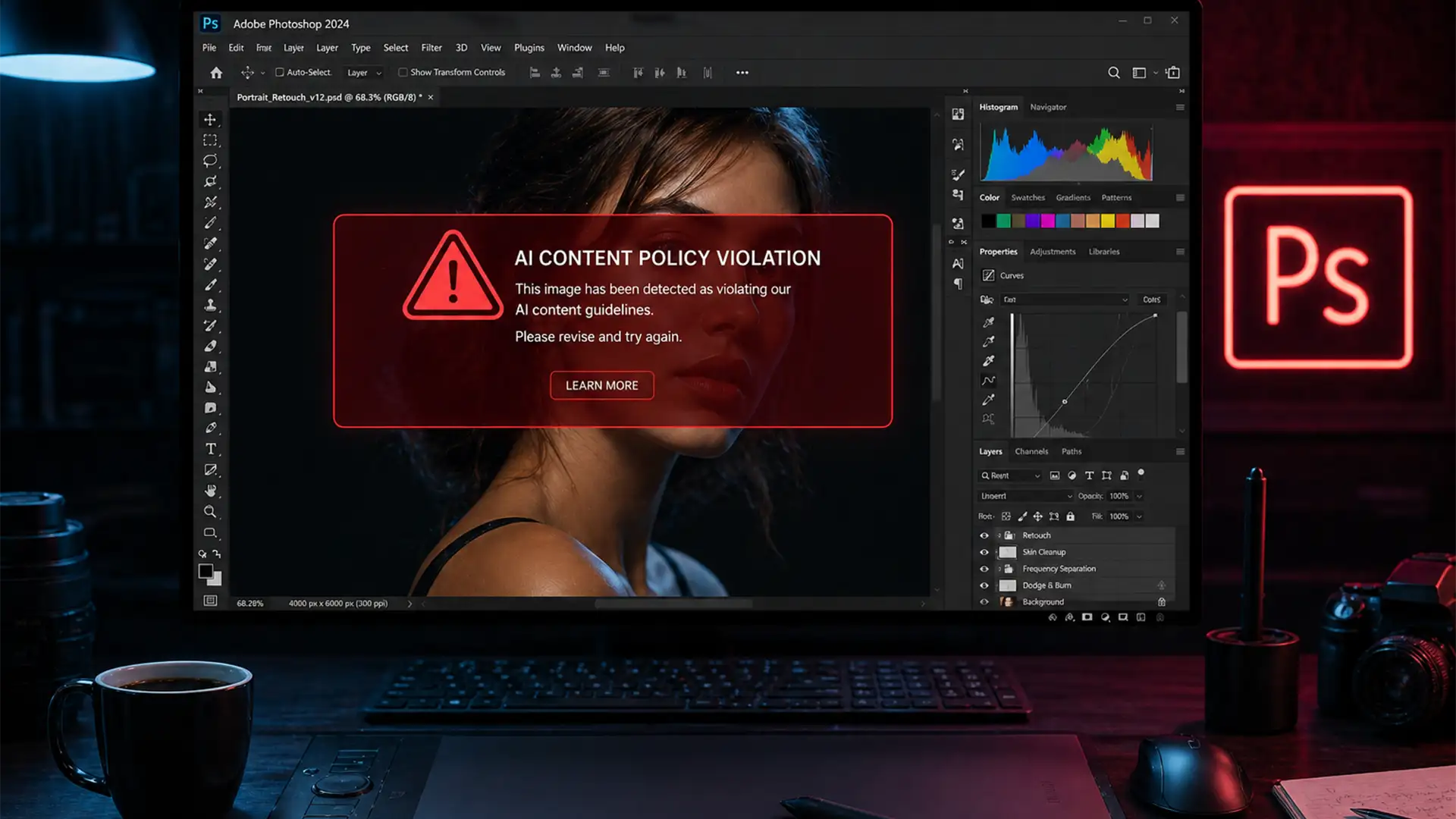

You are deep into editing a high-end maternity shoot or boudoir session. You make a standard selection to expand the background or clean up a distraction, hit “Generate,” and suddenly your workflow hits a brick wall. A red banner appears: “We have encountered a prompt that violates Adobe usage guidelines.”
It is a completely safe, professional photograph, yet Photoshop refuses to cooperate. This NSFW false positive is one of the most frustrating bottlenecks in modern portrait editing. If you are struggling with the Photoshop Generative Fill violation error during skin retouching, you are not alone.
In this guide, we will break down exactly why Adobe Firefly is flagging your safe images and provide three professional workarounds to bypass the algorithm and get your edits done.
Why Does Generative Fill Block Safe Skin Retouching?
In Adobe Photoshop v25.0 and later, Generative Fill is powered by Adobe Firefly. Because this relies on cloud-based AI processing, Adobe has implemented a highly aggressive content moderation filter to prevent the generation of illicit, violent, or NSFW imagery.
The problem? The algorithm lacks contextual nuance. It evaluates the skin-to-clothing ratio within your lasso selection. If you select a large area of exposed skin—even on a perfectly benign portrait, maternity belly, or shoulder—the system triggers a false positive. Furthermore, using anatomy-specific keywords in your prompt (like “skin,” “chest,” or “body”) will almost guarantee an automatic rejection.
Here is how to bypass the filter and take control of your retouching.
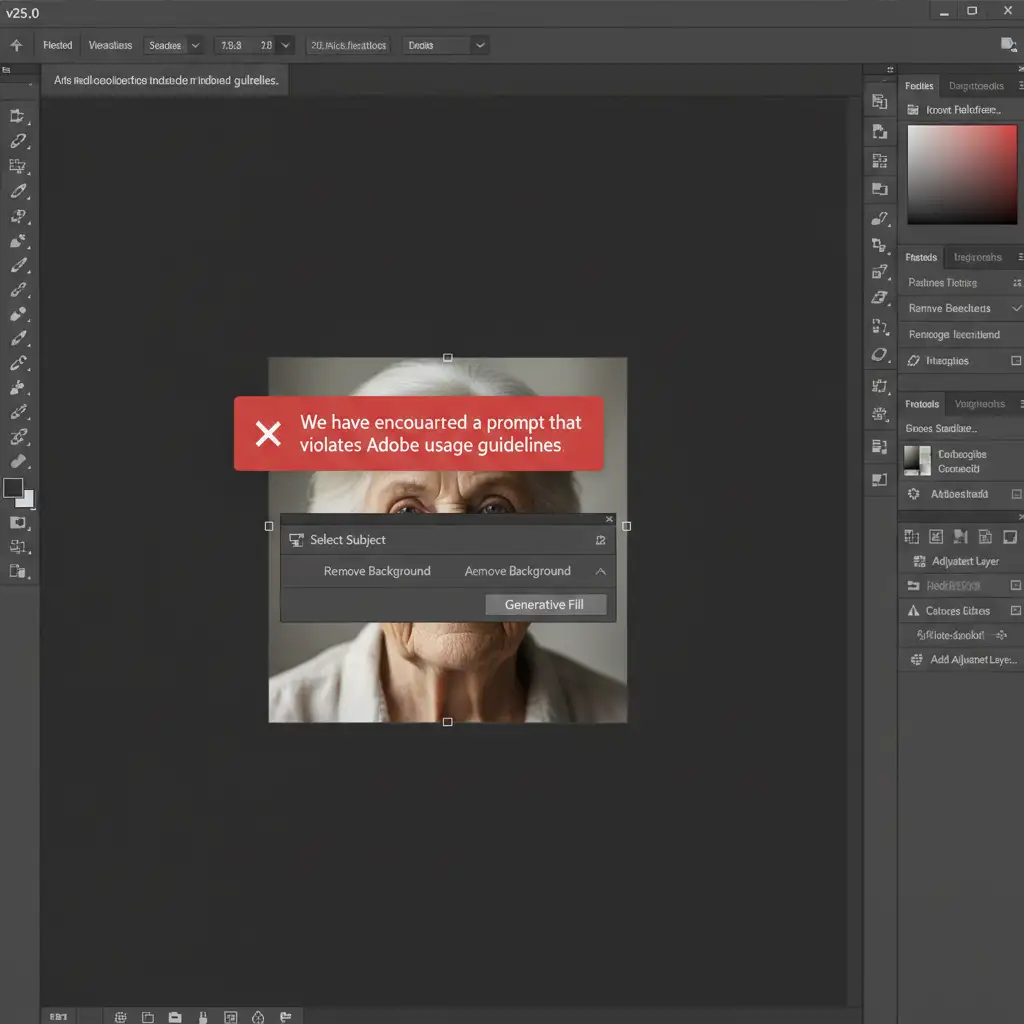
Method A: The Quick Fix (Prompt Engineering)
The most common mistake retouchers make is over-describing what they want the AI to do. If the AI filter is tripping over your words, you need to change your prompt engineering strategy.
1. Use the “Blank Prompt” Technique
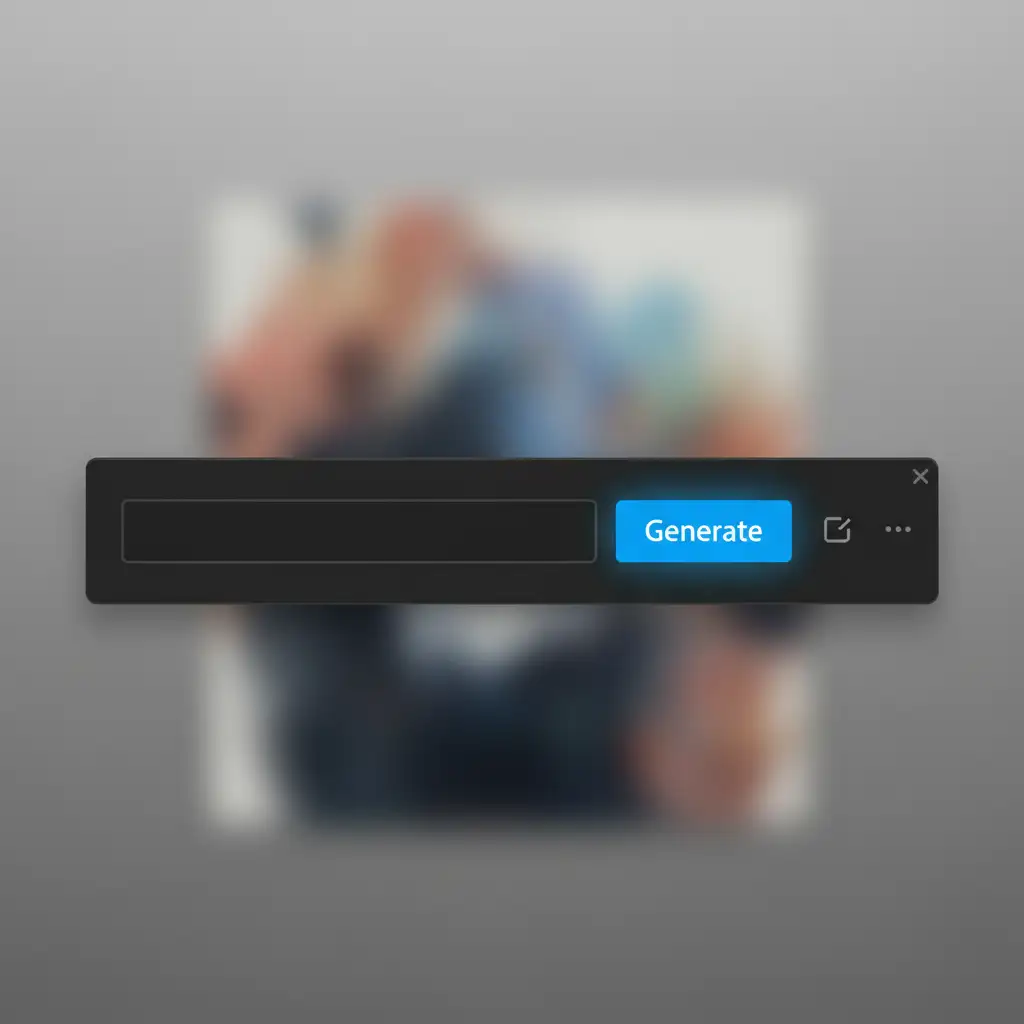
When dealing with skin or body expansions, do not type anything into the text box. By leaving the prompt completely empty and simply clicking “Generate,” you force Adobe Firefly to rely solely on the surrounding pixels rather than running your text through its strict semantic filters.
2. Use Safe Descriptors
If a blank prompt does not yield the right texture, avoid anatomical words entirely. Instead of typing “smooth skin,” type “smooth texture.” Instead of “fix arm,” use “color match” or “seamless gradient.”
Method B: The Technical Deep-Dive (Micro-Masking)
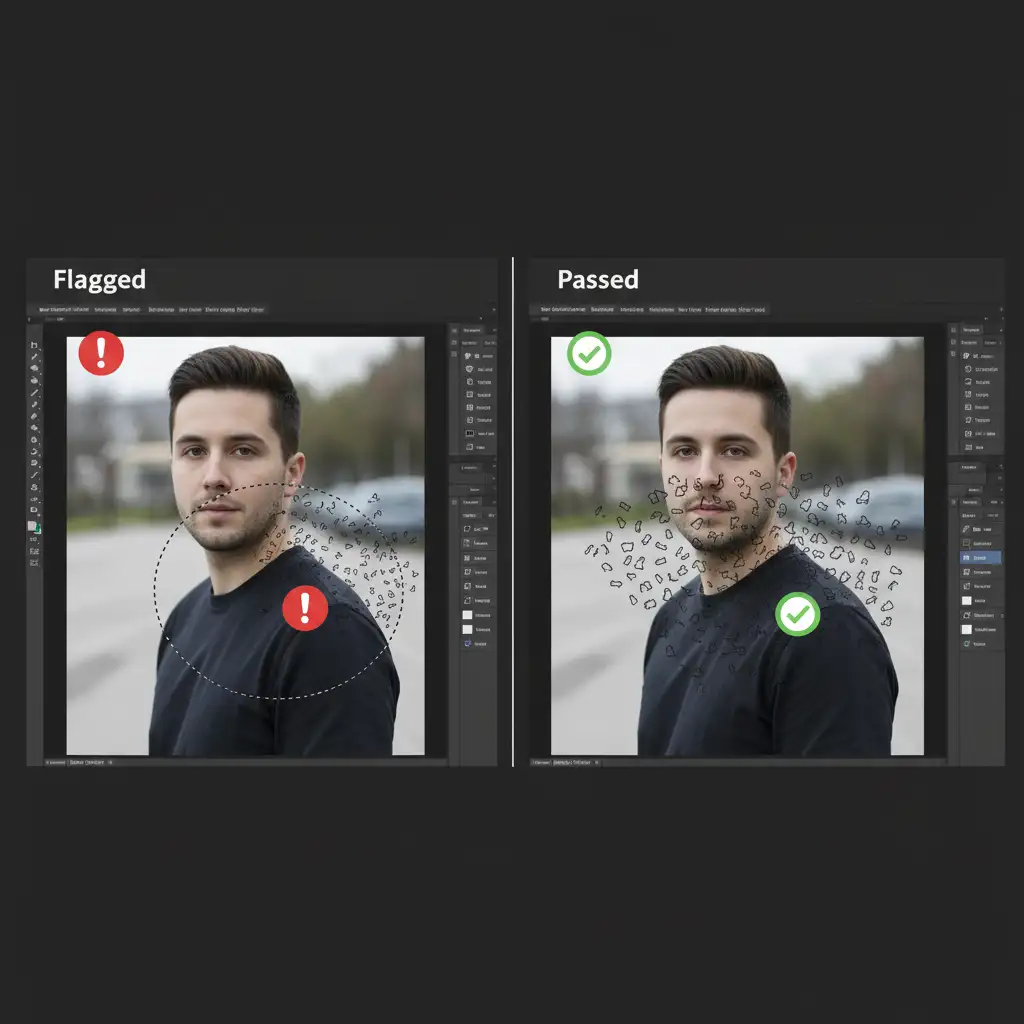
If prompt engineering fails, the issue is the size of your selection. The AI evaluates the entire selected area. If a large percentage of that selection contains skin tones, it hits the algorithmic threshold for a violation.
The solution is micro-masking.
How to Execute Micro-Masking:
- Ditch the Large Selection: Do not select the entire arm, torso, or background area at once.
- Break it Down: Use the Lasso tool to select much smaller, disjointed pieces of the area you need to fix.
- Generate in Patches: Apply Generative Fill to one small patch of skin or background at a time.
Because the selection is minimal, the ratio of “flagged pixels” drops below Adobe’s automated threshold, allowing the cloud-based AI to process the fill without triggering a violation.
Method C: The Pro Workaround (Frequency Separation & Content-Aware Fill)
When cloud-based AI processing completely fails you, it is time to rely on the foundational, offline tools that professional retouchers have used for years. By bypassing Generative Fill entirely, you eliminate the content moderation filter.
Step 1: Content-Aware Fill for Backgrounds
If you are trying to expand a background around a subject with exposed skin, use the traditional Content-Aware Fill (Edit > Content-Aware Fill). Because this tool processes locally on your machine rather than through Adobe Firefly, it has zero NSFW restrictions.
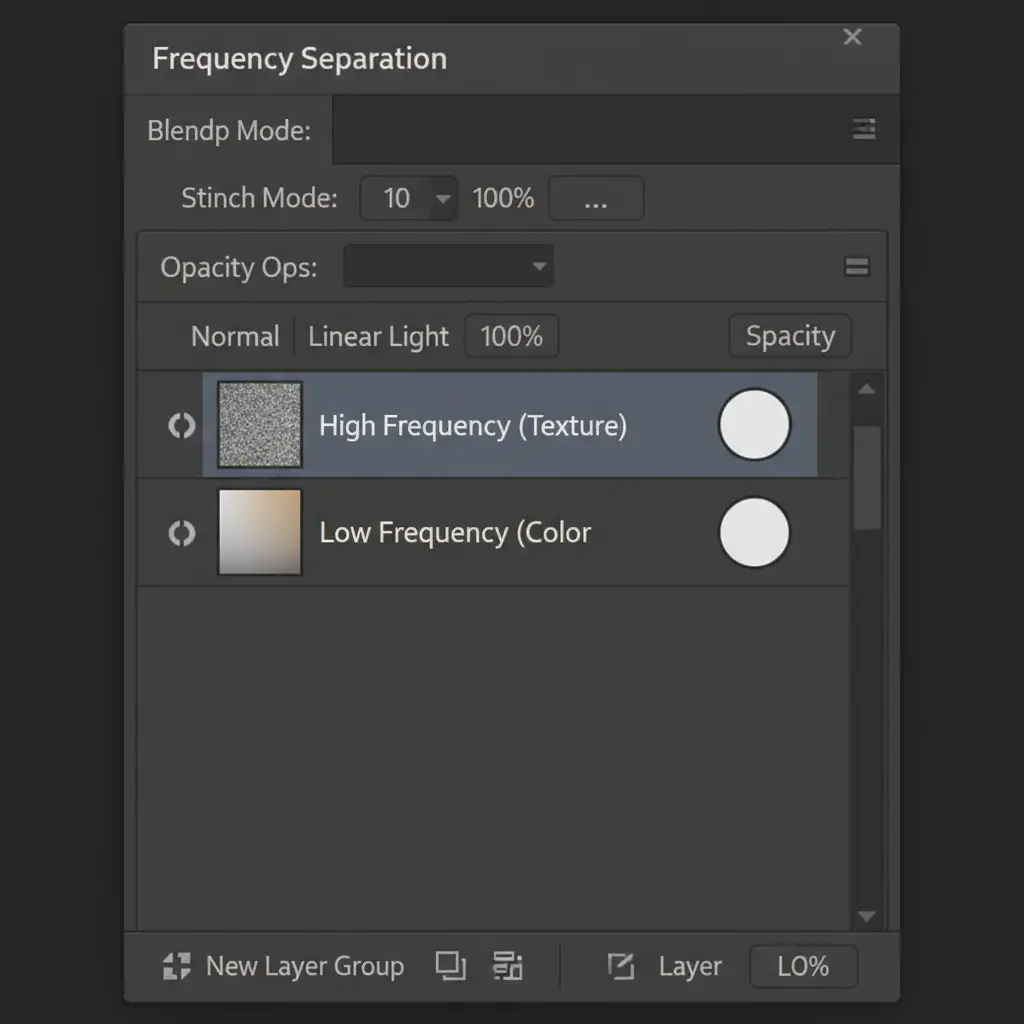
Step 2: Frequency Separation for Skin Texture
If you need to clean up skin blemishes, shadows, or textures that the AI refuses to touch, set up a Frequency Separation workflow.
- Duplicate your image into two layers.
- Blur the bottom layer (Low-Frequency) to handle color and tone blending.
- Apply “Apply Image” to the top layer (High-Frequency) to isolate the skin texture.
- Manually clone the texture on the high-frequency layer and use the mixer brush to blend colors on the low-frequency layer.
This method guarantees absolute precision and completely ignores AI moderation.
Stop Fighting the Algorithm. Let the Experts Handle It.
Dealing with the Photoshop Generative Fill violation error during skin retouching costs you valuable time. While prompt engineering and micro-masking are effective workarounds, high-volume portrait, maternity, and boudoir editing require a flawless, uninterrupted workflow.
Why spend hours fighting AI filters and manually running Frequency Separation actions when you can outsource the heavy lifting?
At Image Work India and Cloud Retouch, our teams of expert, human retouchers specialize in high-end portrait and skin retouching. We deliver pixel-perfect, natural results without the frustration of automated false positives.
Ready to scale your photography business? [Contact Cloud Retouch and Image Work India today] and let our professionals perfect your portraits.




