

You just spent hours meticulously dodging, burning, and clone-stamping a high-end portrait. You deliver the final file, but your client asks, “Did you just use AI for this?” Worse, you upload it to Instagram, and it gets automatically flagged with an “AI-generated” label.
Professional photographers and editors are losing their credibility to false algorithmic flags. The solution? C2PA metadata for retouched photos. By mastering Adobe Photoshop’s Content Credentials, you can cryptographically prove your manual pixel-pushing, differentiate your work from generative AI, and protect your professional reputation.
Here is exactly how to configure your workflow to maintain client trust.
The Problem: Why Manual Retouching Gets Flagged as AI
The Coalition for Content Provenance and Authenticity (C2PA) is an open technical standard designed to trace the origin of media. In Adobe Photoshop v24.0 and later, this technology is integrated as Content Credentials.
The primary pain point for modern retouchers is algorithmic confusion. Traditional tools like the Healing Brush, Clone Stamp, or Content-Aware Fill are manual, pixel-level adjustments. However, if you use a single instance of Generative Fill (Photoshop v25.0+), the file’s EXIF data is automatically tagged as AI-generated. If you don’t properly configure your image provenance, platforms and clients cannot tell the difference between a fully AI-generated image and a manually retouched photograph with minor AI-assisted cleanup.
To fix this, you must implement a standardized C2PA workflow.
How to Configure C2PA Metadata in Photoshop
Method 1: The Quick Fix – Enable Content Credentials
The foundational step is telling Photoshop to record your manual editing steps. By default, this feature might be turned off to save processing power.
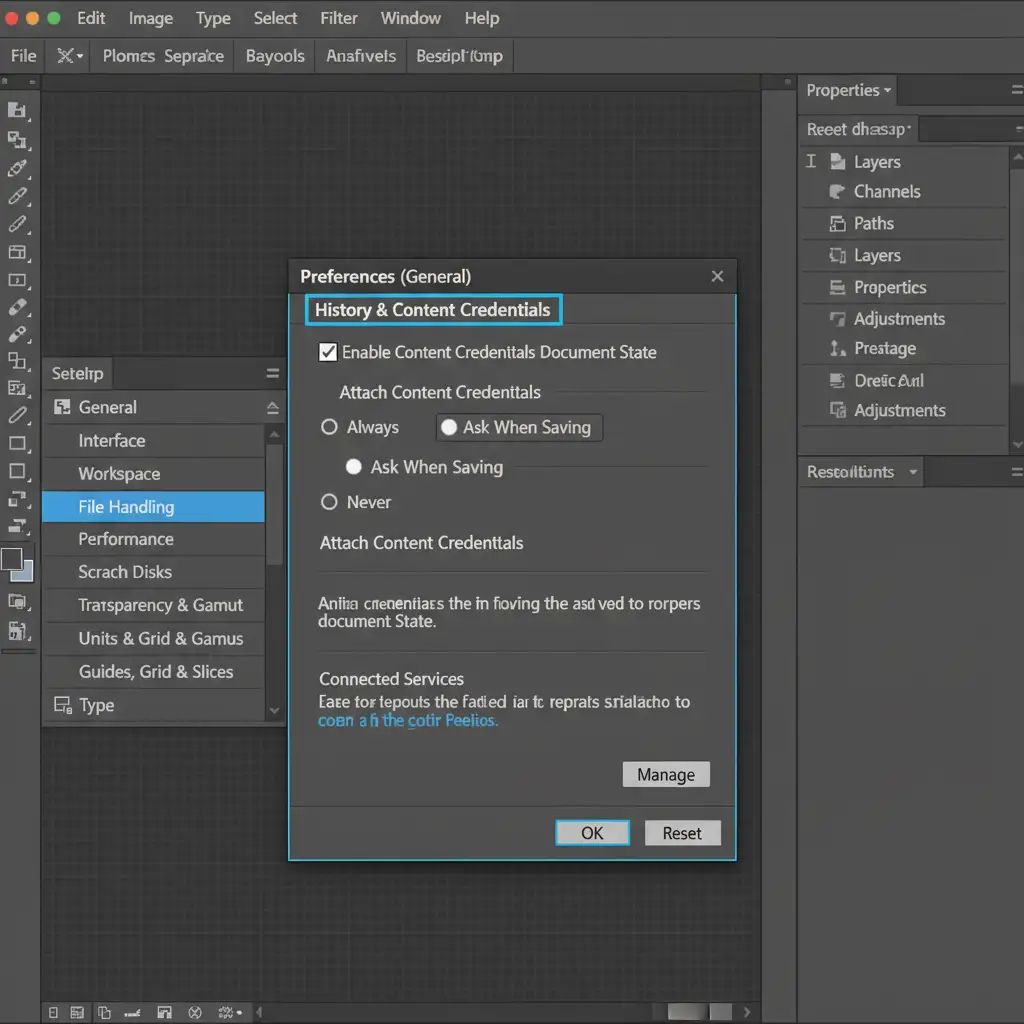
- Open Photoshop and navigate to Edit > Preferences > History & Content Credentials (Windows) or Photoshop > Settings > History & Content Credentials (Mac).
- Check the box labeled Enable Content Credentials.
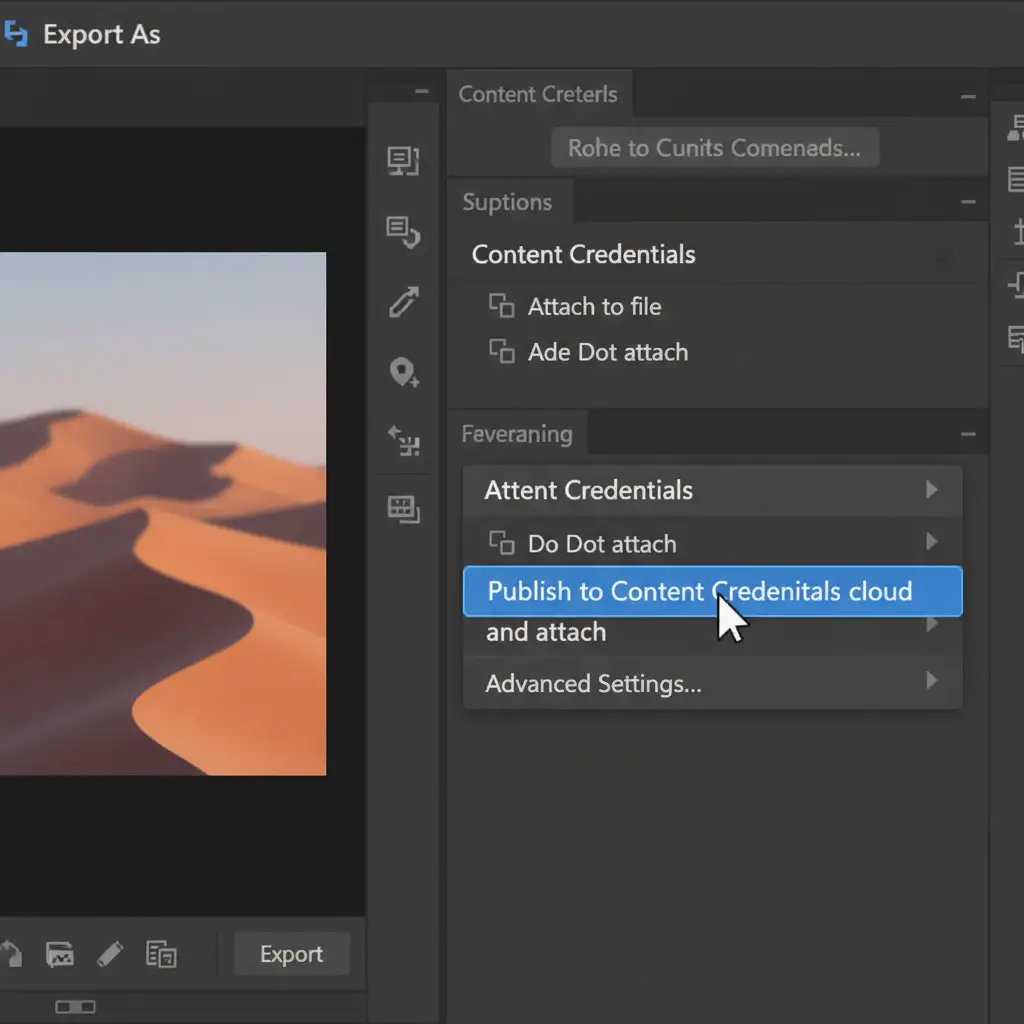
- When you are ready to save your final image, go to File > Export > Export As.
- Look for the Content Credentials section in the right-hand panel.
- Select Publish to Content Credentials cloud and attach from the dropdown menu.
Method 2: The Pro Workaround – Layered Metadata Control
If your workflow involves a mix of heavy manual retouching and light AI usage, you need to control how your edits are reported. You don’t want a single AI-generated background extension to invalidate hours of manual skin retouching.
To maintain transparency:
- Isolate AI Edits: Keep all Generative Fill or AI adjustments on isolated Smart Objects or distinct layers.
- Review Your History: Before exporting, open the Window > Content Credentials panel.
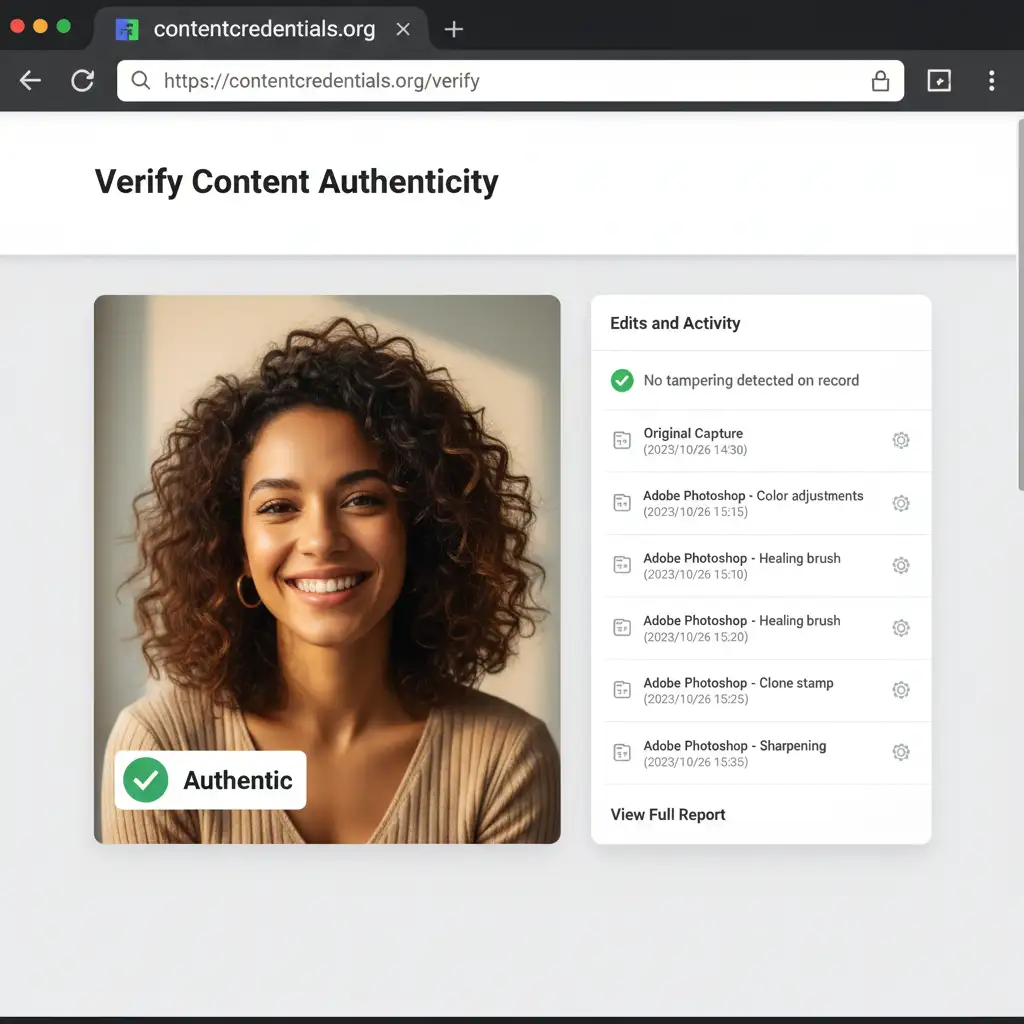
- Audit Edits and Activity: Review the ‘Edits and Activity’ list. This panel acts as a digital signature, allowing you to preview exactly what the client will see. It transparently separates manual adjustments (like color grading, dodging, or burning) from AI additions.
Method 3: The Technical Deep-Dive – Defeating Metadata Stripping
The biggest threat to image provenance is metadata stripping. Most social media platforms (like Instagram, X, or Facebook) automatically strip EXIF data and embedded C2PA data upon upload to reduce file sizes. When this happens, your proof of manual labor disappears.
To prevent the total loss of your digital signature:
- Use the Cloud: Always choose “Publish to Content Credentials cloud and attach” rather than just embedding the data into the file.
- Verify the Cryptographic Hash: When published to the Adobe C2PA Cloud, your image’s editing history is tied to a cryptographic hash. Even if social media strips the embedded tags from the JPEG or WebP file, the visual fingerprint remains matched in the cloud.
- Inspect with the Verify Tool: Go to contentcredentials.org/verify and upload your exported image. You should see a successful provenance check detailing your exact Photoshop actions. You can send this specific verification link to clients to prove your work is authentic.
Protect Your Brand with Authentic Retouching
In a market flooded with generative imagery, proving the authenticity of your work is no longer optional—it is a business necessity. Utilizing C2PA metadata for retouched photos ensures your clients know they are paying for expert, manual craftsmanship.
Don’t want to worry about managing metadata, avoiding AI flags, or spending hours pixel-pushing? Let the experts handle it.
Image Work India and Cloud Retouch provide premium, high-volume post-production services tailored for professional photographers and agencies. We guarantee 100% manual, C2PA-compliant retouching that protects your brand’s integrity and client trust. Contact us today to outsource your retouching workflow and ensure your images maintain their authentic, premium value.




