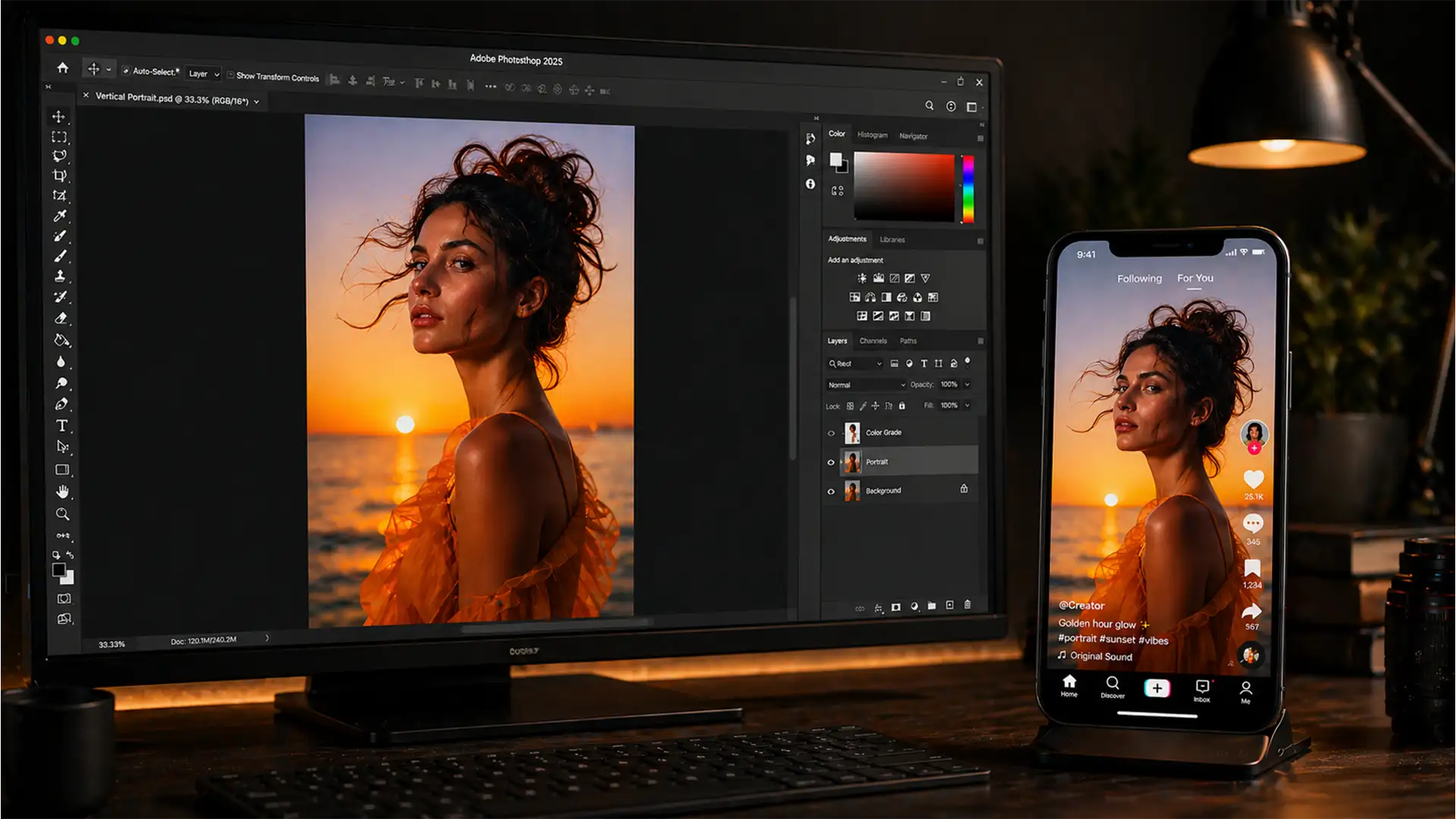

You’ve just spent hours perfectly retouching a portrait or product shot in Photoshop. The colors pop, the details are razor-sharp, and it looks flawless on your calibrated monitor. But the moment you upload it to TikTok as a photo swipe, the platform’s aggressive compression algorithm kicks in. Suddenly, your masterpiece looks blurry, the colors are flat, and that premium quality you worked so hard for is completely gone.
Sound familiar? In 2024, TikTok heavily compresses static images that exceed its optimal dimensions or fall outside standard color profiles. To achieve that coveted “4K quality” perception on mobile screens, you have to play by the app’s rules.
Here is the definitive guide to the best Photoshop export settings for TikTok 4K quality 2024, ensuring your images survive the upload process and look exactly as you intended.
Why Does TikTok Ruin Your Photo Quality?
While TikTok supports 4K video uploads, static image carousels and photo swipes are treated differently. The platform’s compression algorithm is designed to load content instantly on mobile networks. If you upload a massive 30-megapixel file straight from your camera, TikTok will aggressively downscale it, destroying fine details in the process.
Furthermore, if your image is in Adobe RGB or ProPhoto RGB, TikTok will forcefully convert it to the sRGB color space, causing immediate color shifts—usually resulting in dull, desaturated skin tones and muted colors.
The secret to maintaining maximum visual fidelity is pre-scaling your images to an aspect ratio of 9:16 (specifically 1080×1920 pixels) and utilizing metadata stripping techniques before the file ever leaves Photoshop.
The Ultimate Photoshop Export Settings for TikTok
Depending on your workflow and the level of precision you need, there are three proven ways to export your images from Photoshop (v25.x and v26.x) for perfect TikTok playback.
Method 1: The Quick Fix (Export As Dialog)
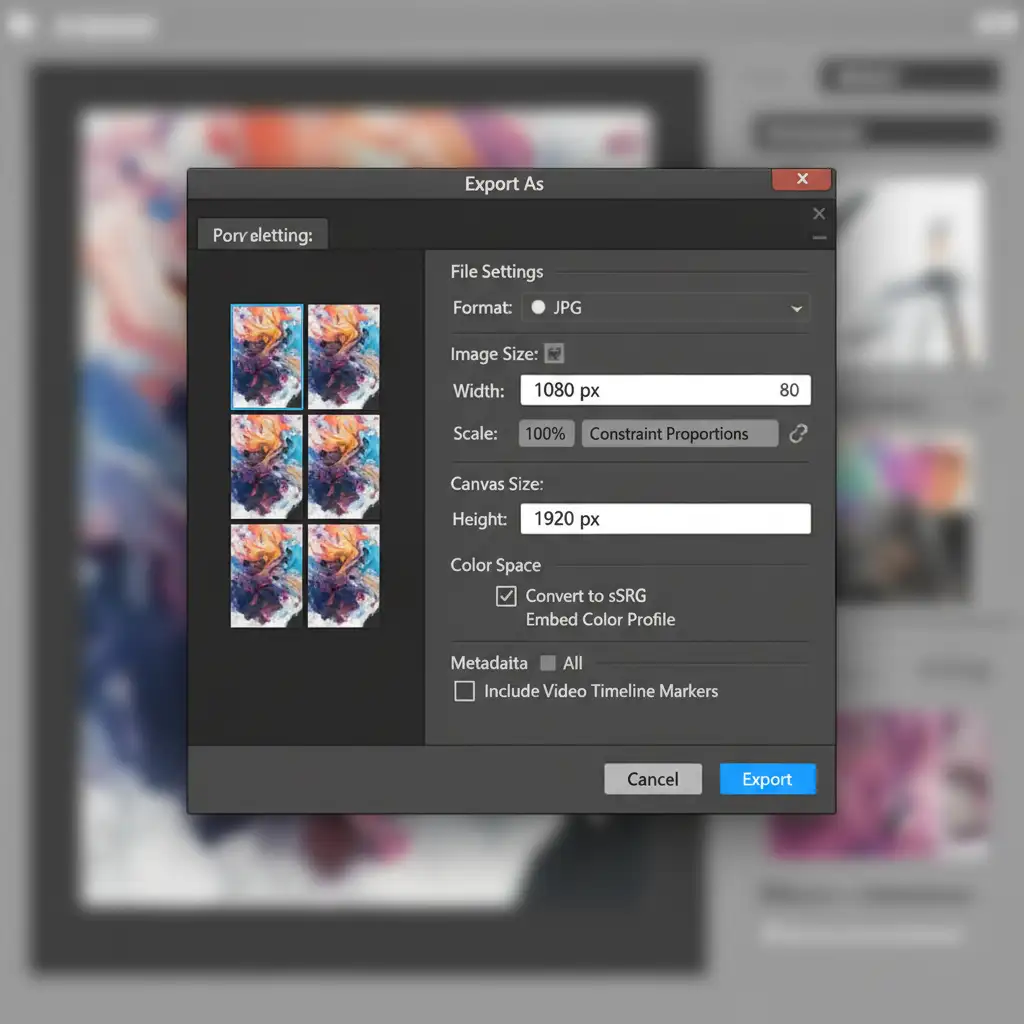
If you need to export a finished image rapidly while guaranteeing the correct dimensions and color profile, the standard Export As dialog is your best bet. Avoid using “Save As,” which retains unnecessary metadata that bloats the file size.
- Navigate to File > Export > Export As.
- Set the Format to JPG. (PNG is acceptable, but JPG often compresses better for social platforms without losing visual data).
- Under Image Size, set the Width to 1080px and Height to 1920px.
- Under Color Space, ensure both Convert to sRGB and Embed Color Profile are checked.
- Click Export.
Method 2: The Pro Workaround (Smart Objects & Micro-Contrast)
When an image is downscaled by TikTok, it naturally loses sharpness. To combat this, professional retouchers add strategic micro-contrast that survives the app’s compression algorithm.
- Convert your final image layer to a Smart Object (Right-click layer > Convert to Smart Object).
- Resize your canvas and image to 1080×1920 pixels.
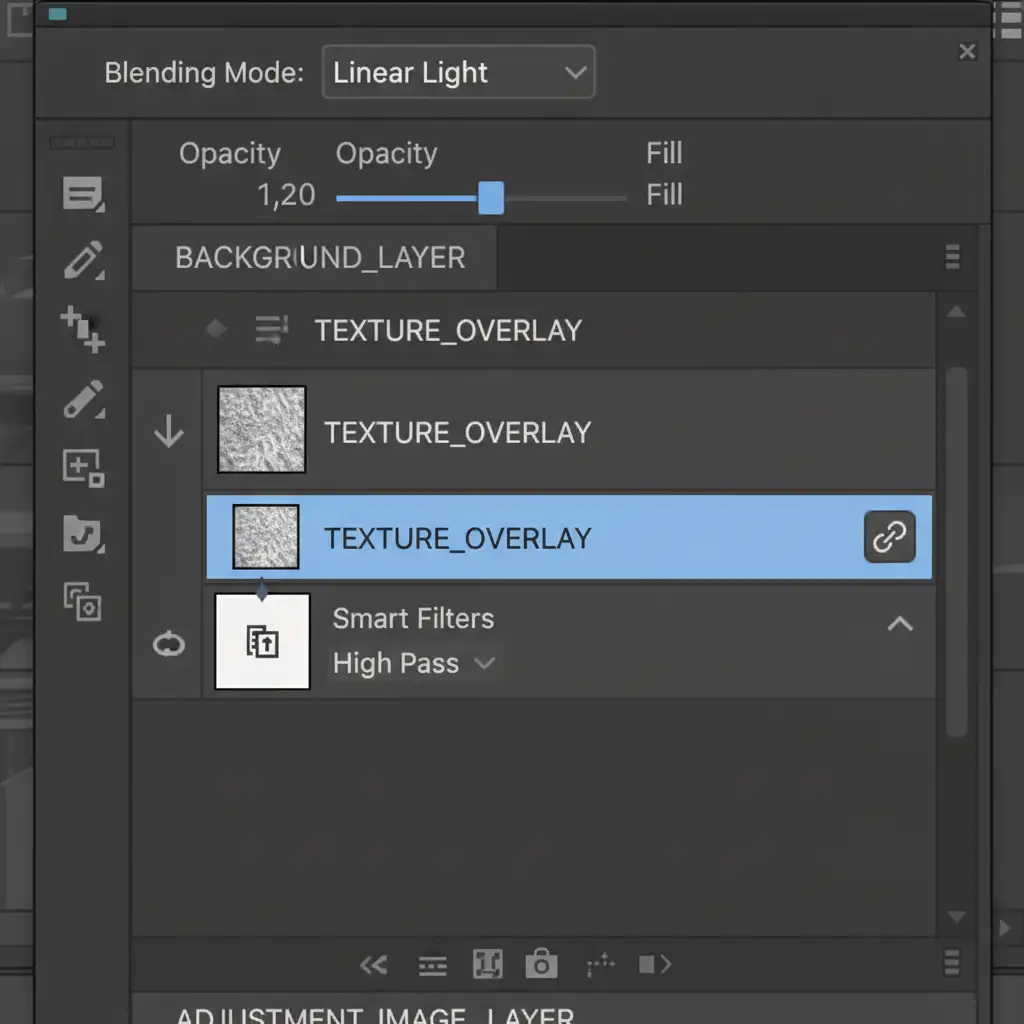
- Go to Filter > Other > High Pass. Set the Radius to a subtle 1.5px and click OK.
- In your Layers panel, change the blending mode of the High Pass layer (or Smart Filter) to Linear Light.
- This creates a halo-free sharpening effect that will look slightly over-sharpened on your monitor, but perfect once compressed by TikTok.
Method 3: The Technical Deep-Dive (Save for Web Legacy)
For the absolute highest quality control, old-school retouchers still rely on Save for Web Legacy. This engine is incredibly efficient at metadata stripping and utilizes superior resampling algorithms.
- First, navigate to Edit > Convert to Profile and select sRGB IEC61966-2.1.
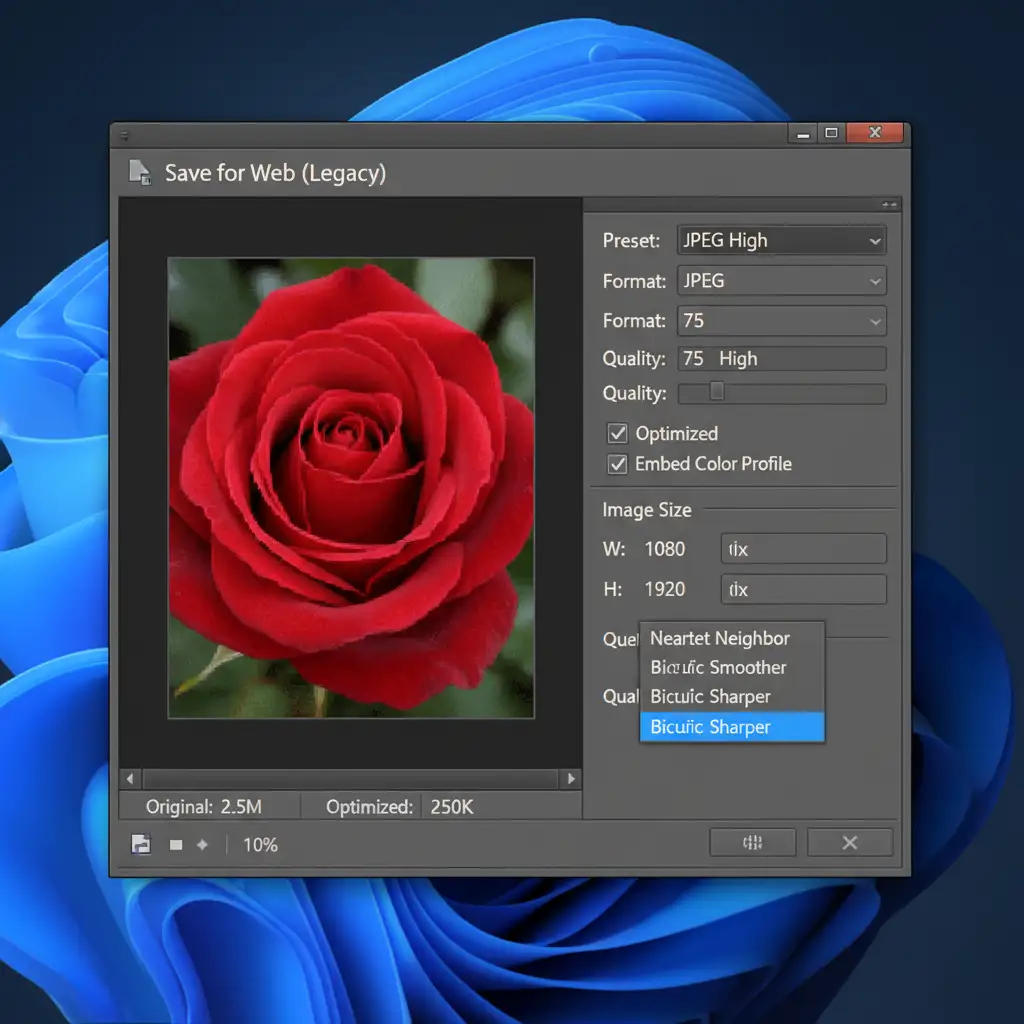
- Go to File > Export > Save for Web (Legacy).
- Choose JPEG format and set Quality to High (70-80 is the sweet spot for file size vs. quality).
- Ensure the Optimized and Embed Color Profile checkboxes are ticked.
- In the bottom right corner, set the Image Size to 1080×1920.
- Crucially, change the Quality resampling dropdown to Bicubic Sharper. This specific algorithm is designed to preserve detail when reducing image dimensions.
Stop Fighting Compression: Let the Pros Handle It
Mastering the exact Photoshop export settings for TikTok 4K quality 2024 is essential for photographers, influencers, and e-commerce brands who want to stand out. By pre-scaling to a 9:16 aspect ratio, forcing the sRGB color space, and applying targeted micro-contrast via a High Pass filter, you take control away from TikTok’s destructive compression algorithm.
However, if you are managing a massive catalog of product photos, campaign assets, or daily social media content, individually resizing and exporting every single file is a massive drain on your time.
Struggling to keep your product photos looking crisp on social media? Let Image Work India and Cloud Retouch handle your batch image processing and retouching. Our team of expert retouchers understands the exact technical specifications required for perfect cross-platform optimization—from TikTok to Instagram to Amazon. Focus on growing your brand, and let us deliver flawless, ready-to-post 4K visuals every single time. Contact us today to streamline your post-production workflow.




