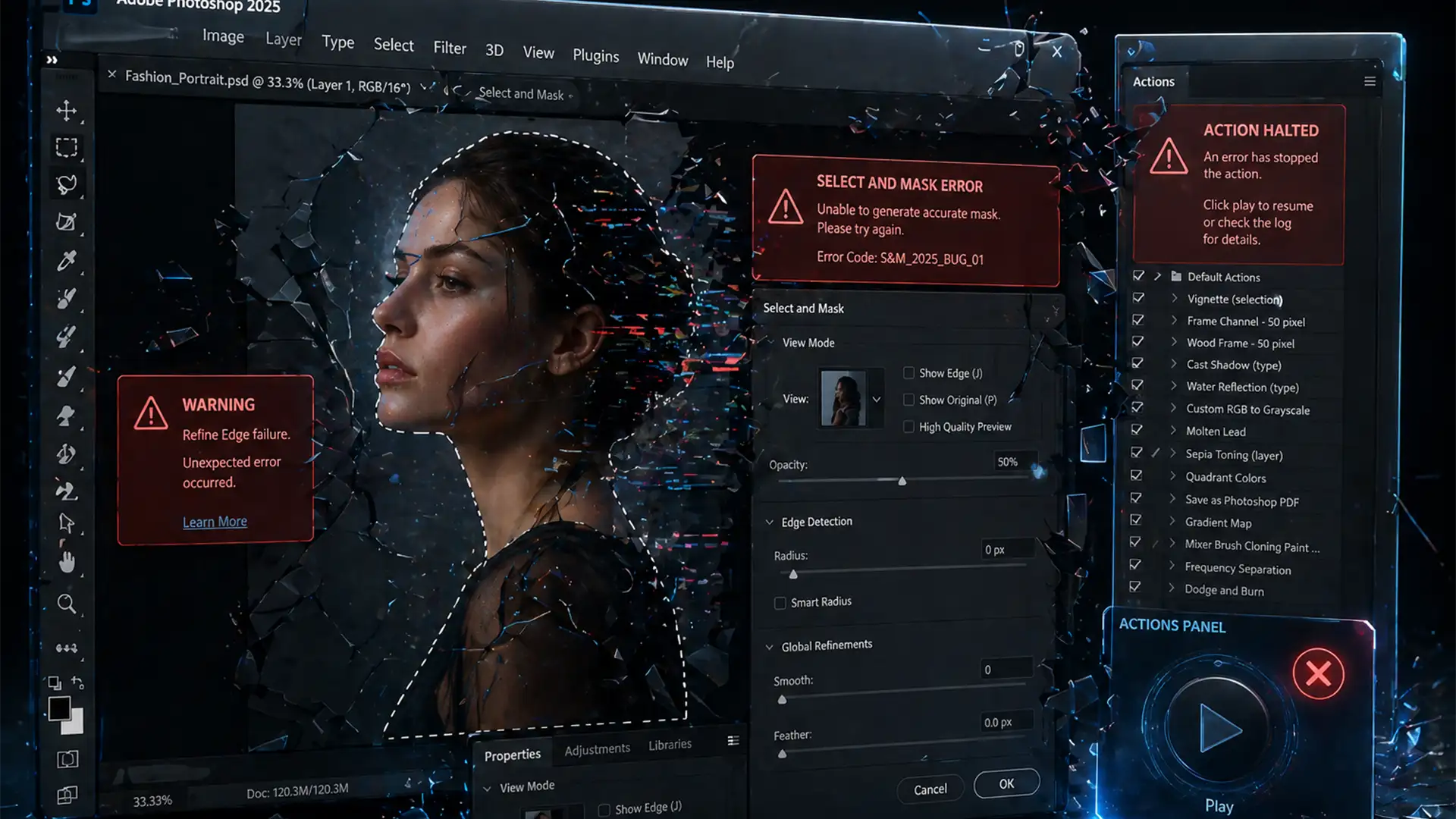

You set up a massive batch processing run before stepping away from your desk, only to return and find Photoshop frozen on the very first image. If you are dealing with the notorious Photoshop 2025 select and mask action bug, you are not alone.
In recent v25.9 and v26.0 updates, high-volume retouching workflows are grinding to a halt. Instead of seamlessly cutting out backgrounds, the action pauses, waiting for user input, or throws a frustrating “command not currently available” error. Here is exactly why this AI initialization bug happens and how to fix it permanently.
Why the Select and Mask Bug Happens in Photoshop 2025
Technical research into Photoshop v26.0 reveals that this bug is deeply tied to the updated AI Object Selection module. During rapid sequential processing (like running a batch action across hundreds of images), the software struggles to initialize the Select and Mask UI container.
Instead of executing the mask in the background, the software triggers memory timeouts or UI lockups. The system essentially gets confused between rendering the workspace dialog and executing the Select Subject AI, causing your automation to fail. Fortunately, there are three proven ways to bypass this glitch.
How to Fix the Select and Mask Batch Action Bug
Method 1: The Quick Fix (Disable Workspace Dialogs)
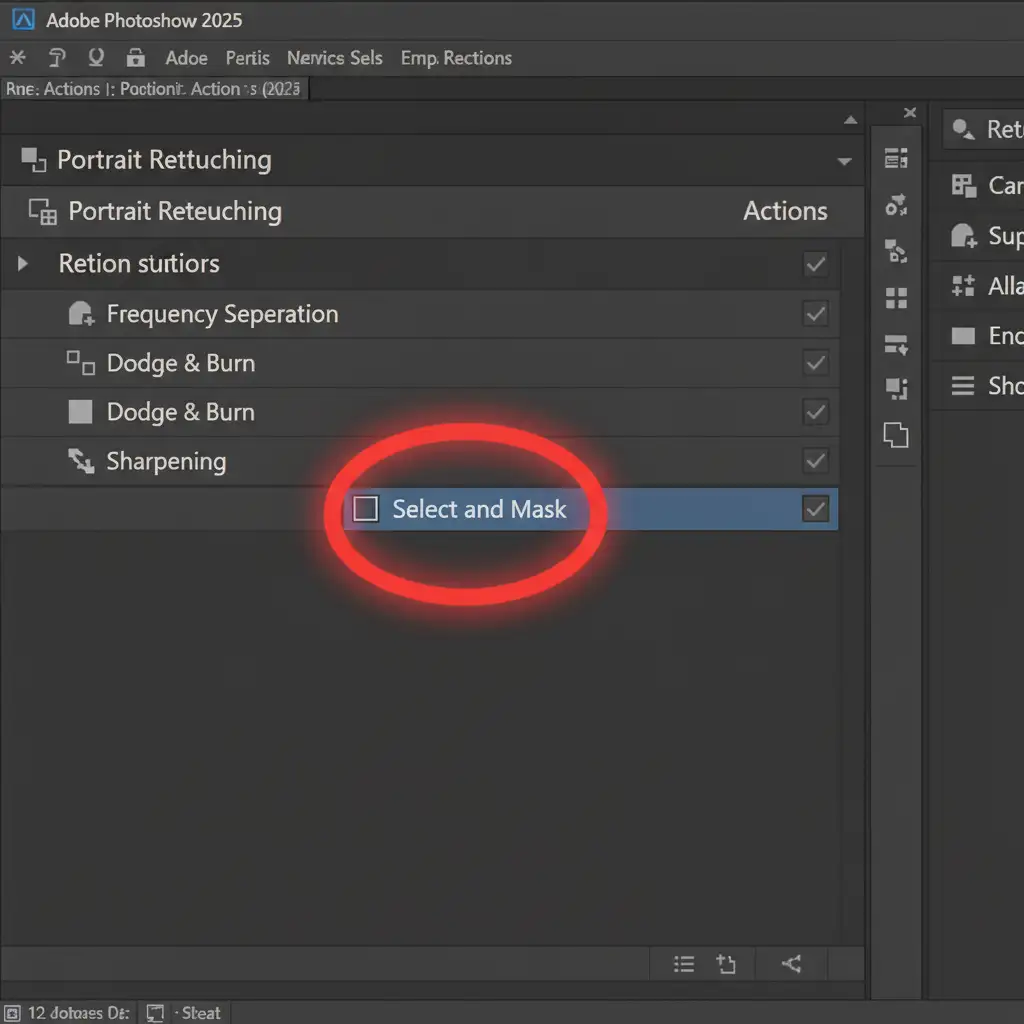
The most common reason your action halts is that Photoshop is trying to open the Select and Mask interface for every single photo. You can stop this directly inside the Actions Panel.
- Open your Actions Panel (Window > Actions).
- Expand the folder containing your failing batch action.
- Locate the specific step labeled Select and Mask.
- Look to the left of the checkmark. You will see a square icon representing the ‘Toggle Dialog On/Off’ setting.
- Click it to ensure the dialog box is completely disabled (the icon should disappear).
This prevents the interface from pausing the batch loop to ask for user input.
Method 2: The Pro Workaround (Bypass the UI Container)
If toggling the dialog off still results in a “command not currently available” error, you need to rebuild the action. This method uses the exact same AI engine but entirely bypasses the buggy UI container, removing the need for the traditional Refine Edge or Select and Mask workspace.
- Open your Actions Panel and delete the buggy ‘Select and Mask’ step from your action.
- Hit the Record button to add new steps to your existing action.
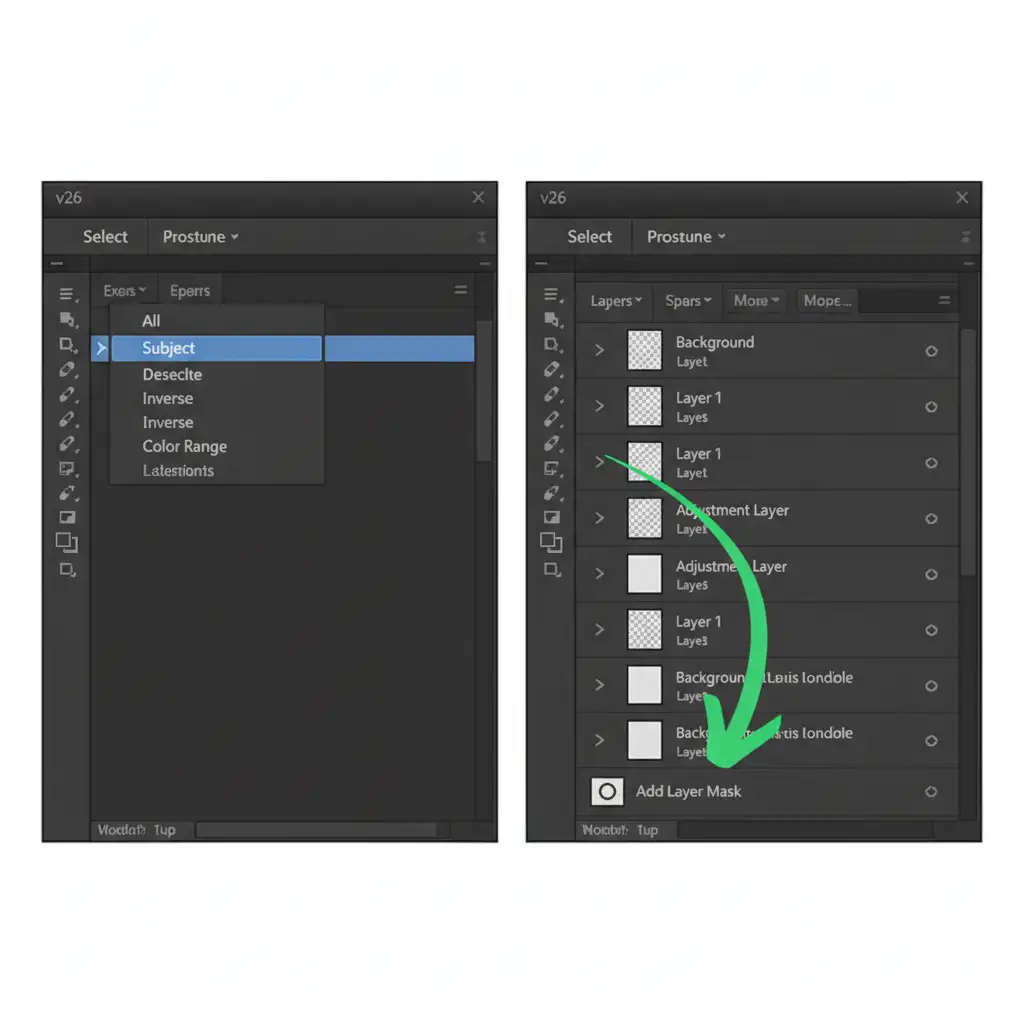
- Navigate to the top menu and click Select > Subject. (This utilizes the Object Selection Tool AI without opening a new workspace).
- Navigate to your Layers panel and click the Add Layer Mask icon at the bottom.
- Stop recording.
By splitting the process into two distinct commands—selection and layer masking—you eliminate the UI rendering bug entirely.
Method 3: The Technical Deep-Dive (Adjust GPU Acceleration)
If the bug persists, the issue is likely a GPU acceleration conflict. The bug frequently triggers due to UI GPU rendering conflicts during automated AI masking. Adjusting your performance preferences can stabilize the software.
- Navigate to Edit > Preferences > Performance (Windows) or Photoshop > Settings > Performance (Mac).
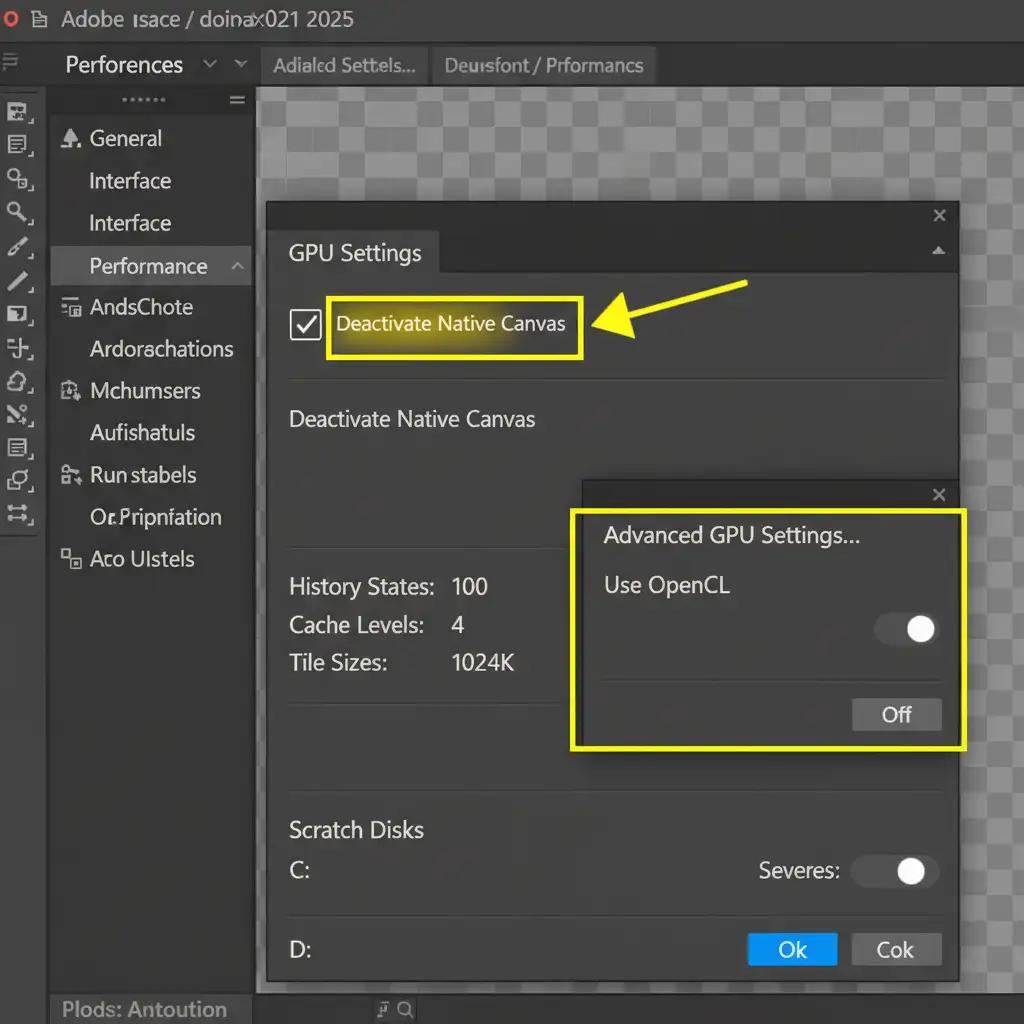
- In the Performance window, check the box for Deactivate Native Canvas.
- Next, click on Advanced Settings under the Graphics Processor Settings.
- Toggle Use OpenCL to the OFF position. Click OK.
- Finally, navigate to Edit > Purge > All to clear any corrupted action cache that might be lingering in your system memory. Restart Photoshop.
Stop Fighting Software Bugs. Start Scaling Your Output.
While these workarounds will get your batch processing back on track, managing constant software bugs is a massive drain on your productivity. Automated image isolation is great when it works, but AI masking still struggles with complex edges, hair, and transparent objects.
If you are tired of fighting inconsistent Photoshop automation, it is time to bring in the experts. Outsource your high-volume retouching to Image Work India and Cloud Retouch. We provide flawless, hand-drawn clipping paths and premium masking services that AI simply cannot match. Let us handle the tedious cutouts so you can focus on growing your business.
Contact us today to streamline your workflow and get a free trial of our professional retouching services!




