
Are you tired of uploading perfectly good product photos only to have TikTok Shop’s automated AI moderation flag them instantly? You are not alone. Thousands of sellers face shadowbans and listing errors because their images have hidden CMYK color profiles, bulky EXIF data, or backgrounds that are just one shade off from pure white.
In the fast-paced world of e-commerce, every rejected listing costs you sales. The secret to bypassing these frustrating platform errors isn’t just taking better photos—it’s mastering your export algorithm. Below, we break down the exact 2024 workflow to create a foolproof TikTok Shop image compliance Photoshop action that guarantees 1:1 aspect ratio perfection and zero rejections.
Why TikTok’s Automated AI Moderation Rejects Your Images
TikTok Shop has incredibly strict, machine-driven guidelines for product imagery. Unlike human moderators, the platform’s AI scraper reads the raw data of your image files. Even if an image looks perfect to the naked eye, it will be rejected if it violates any of the following backend rules:
- Incorrect Dimensions: Anything outside a strict 1:1 aspect ratio triggers an error.
- Dirty Backgrounds: The background must be exactly Hex #FFFFFF (255 pure white). A slightly off-white studio background will fail.
- Heavy Metadata: Bulky EXIF metadata from your DSLR camera can confuse the platform’s processing limits.
- Wrong Color Space: Uploading Adobe RGB or CMYK files results in washed-out colors or outright rejections.
Here is how to fix all of these issues using Photoshop v25.0+.
The Ultimate TikTok Shop Compliance Workflow
Method 1: The Quick Fix (One-Click Action Setup)
If you are processing hundreds of SKUs, doing this manually is a waste of time. You need to record a Photoshop Action that handles the heavy lifting.
- Open your Actions panel (Window > Actions) and click Create New Action. Name it “TikTok Shop Compliance”.
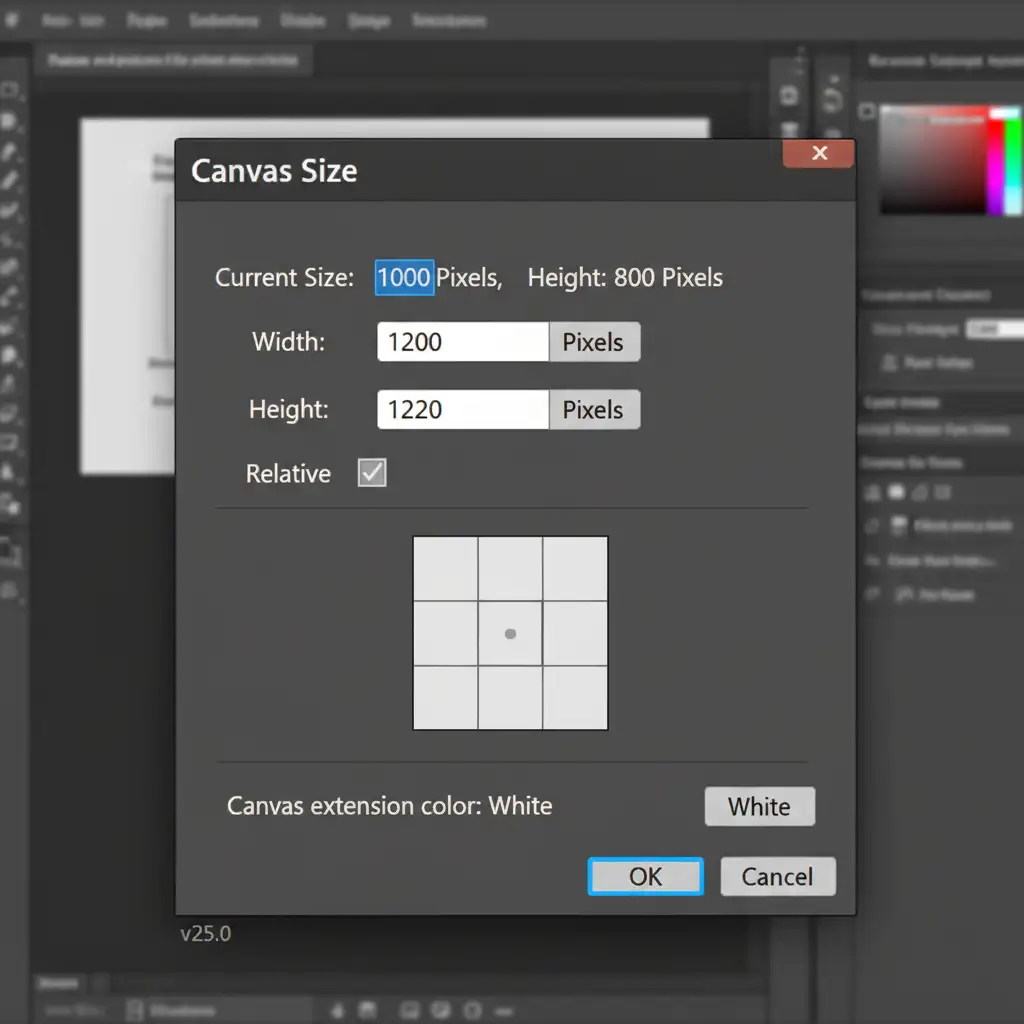
- Go to Image > Canvas Size.
- Change the units to Pixels, and set both Width and Height to 1200px to enforce a perfect 1:1 aspect ratio.
- Add a new layer, drag it to the bottom, and fill it with pure white (#FFFFFF).
- Stop recording. You now have a one-click fix for basic sizing.
Method 2: The Pro Workaround (Non-Destructive Isolation)
For products shot on complex backgrounds, a simple canvas resize won’t cut it. You need a pure white background without destroying the original product pixels.
- Smart Object Conversion: Right-click your product layer and select Convert to Smart Object. This protects your original image quality.
- Select Subject: Go to Select > Subject. Photoshop’s AI will automatically detect your product.
- Masking: Click the Add Layer Mask icon at the bottom of the Layers panel to isolate the item.
- Solid Color Background: Go to Layer > New Fill Layer > Solid Color. Enter #FFFFFF and drag this layer below your masked Smart Object.
This guarantees your background passes the AI scraper’s 255 white check every single time.
Method 3: The Technical Deep-Dive (Metadata and Color Profiling)
The most common reason for hidden rejections is improper file saving. You must strip EXIF metadata and enforce the sRGB color profile.
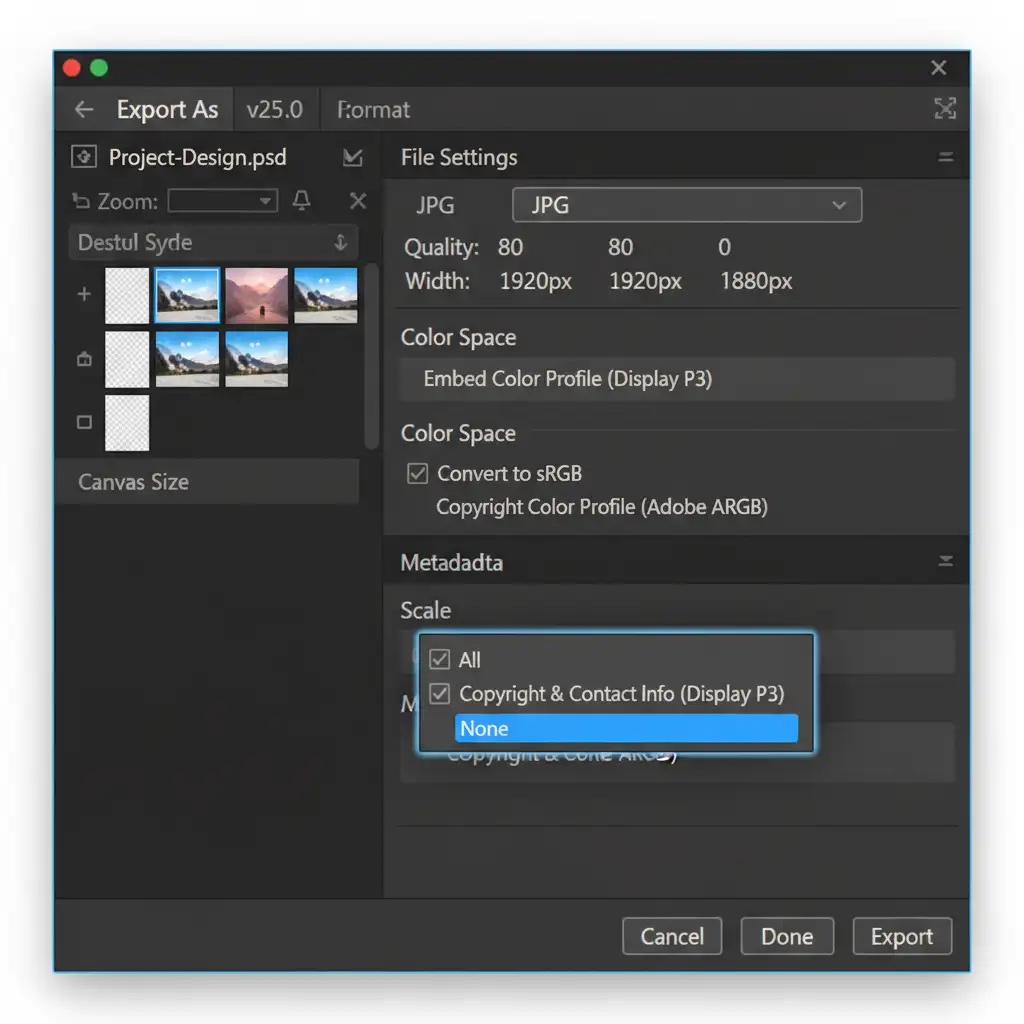
Go to File > Export > Export As. This dialogue box is your final checkpoint.
- Under Color Space, ensure Convert to sRGB is checked.
- Under Metadata, open the dropdown and strictly select None.
Alternatively, if you are struggling to keep your files under the platform’s 5MB limit while maintaining a lossless export, use File > Export > Save for Web (Legacy). This older tool is incredibly aggressive at stripping metadata and compressing file size without losing crispness.
Don’t Forget the 20% Safe Zone
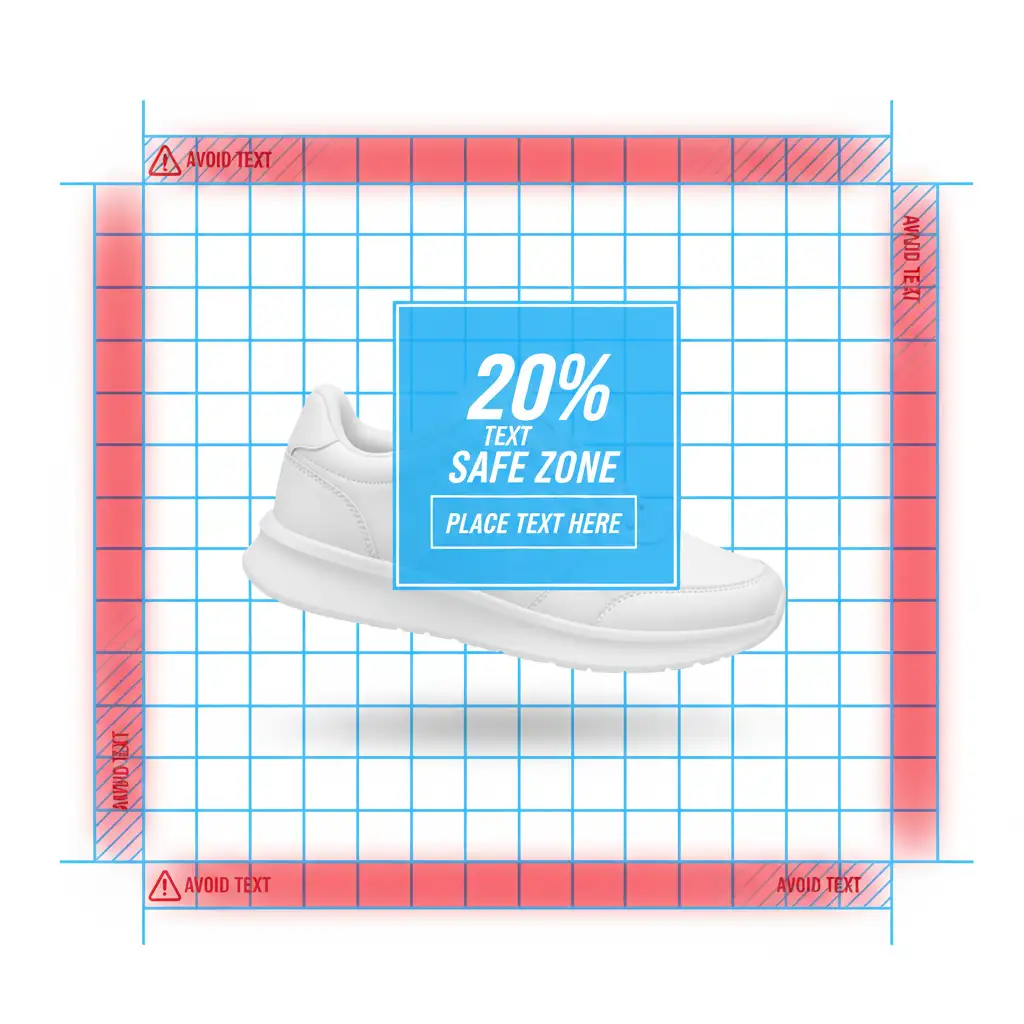
Even with perfect metadata and sizing, TikTok Shop will reject images with excessive text overlays. Promotional badges, logos, or sizing charts cannot cover more than 20% of the image real estate. Keep your text minimal and strictly within the central safe zone to avoid manual review triggers.
Scale Your E-Commerce Output with Image Work India
Setting up a TikTok Shop image compliance Photoshop action is a great first step for small sellers. But what happens when your catalog grows to 500, 5,000, or 50,000 SKUs? Managing aspect ratios, clipping paths, and metadata stripping in-house becomes a massive drain on your time and resources.
Stop wrestling with platform automated rejections and let the experts handle it. Image Work India and Cloud Retouch specialize in high-volume e-commerce image formatting. Our professional retouching teams guarantee 100% TikTok Shop compliance—delivering pixel-perfect, pure white backgrounds, optimized color profiles, and flawless masking at scale.
Focus on growing your brand and boosting your sales. Contact Image Work India today to streamline your product image workflow and never face a TikTok Shop rejection again.




