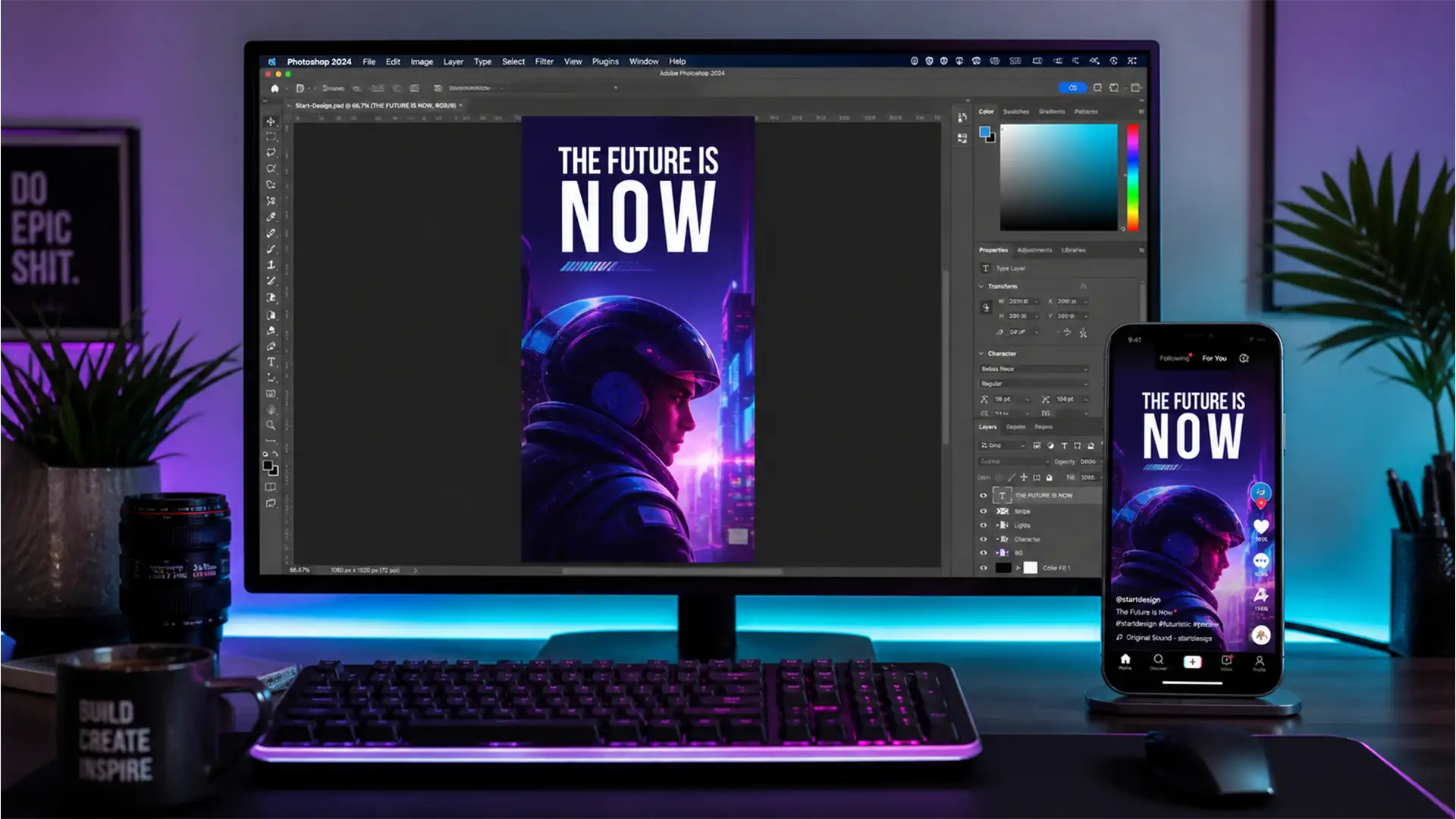

You’ve spent hours perfecting a stunning vertical graphic in Photoshop, but the moment you upload it to TikTok, it turns into a pixelated, washed-out mess. Sound familiar? You are not alone.
The 2024 TikTok algorithm is notoriously unforgiving. It aggressively compresses files that lack the correct dimensions, bit depth, or embedded color profiles. If you are tired of compression artifacts ruining your hard work, you need the precise TikTok 1080×1920 Photoshop export settings 2024.
In this comprehensive guide, we will show you the exact technical workflows to bypass TikTok’s downscaling degradation so your 9:16 aspect ratio content stays razor-sharp and vibrantly colored.
Why Does TikTok Ruin Your Photoshop Exports?
Before fixing the issue, it is vital to understand how TikTok’s backend processes your files. The primary user pain point in Photoshop 2024 (v25.x+) involves extreme edge softening and desaturation when uploading static frames or slideshows.
This happens because the platform expects a very specific format. If you upload CMYK files, massive 4K resolutions, or images using the Adobe RGB color profile, TikTok’s backend forcefully downscales and converts the colors. This forced conversion strips out data, resulting in muted tones and heavy compression artifacts.
To beat the algorithm, you must hand-feed TikTok exactly what it wants: a perfectly optimized 1080×1920 pixel file in the correct color space.
Step-by-Step: TikTok 1080×1920 Photoshop Export Settings 2024
Method 1: The Quick Fix (Optimal Export Settings)
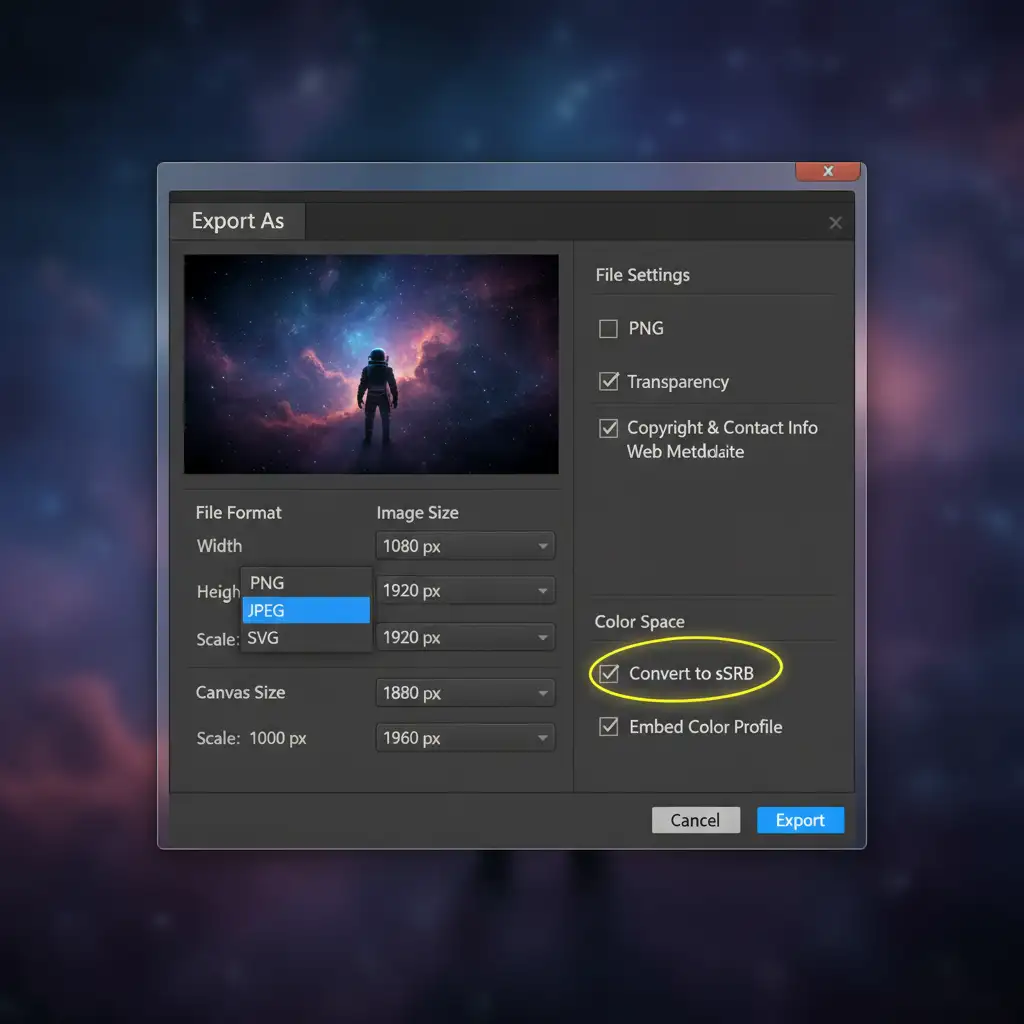
The fastest way to prevent washed-out colors and blurry edges is to master the Export As dialog.
- Navigate to File > Export > Export As.
- Set the format to PNG (specifically PNG-24 if using legacy Save for Web, though the modern Export As handles this automatically for maximum bit depth).
- Ensure your Canvas Size and Image Size dimensions are exactly 1080 px by 1920 px.
- Under the Color Space section, check Convert to sRGB.
- Check Embed Color Profile.
Failing to embed the sRGB color space is the number one reason images look dull on mobile devices.
Method 2: The Pro Workaround (Smart Sharpening & Safe Zones)
Even with perfect export settings, TikTok applies a baseline level of compression that can slightly soften your images. Professional designers combat this using a targeted sharpening technique.
- Group your finalized design layers and convert them into a Smart Object.
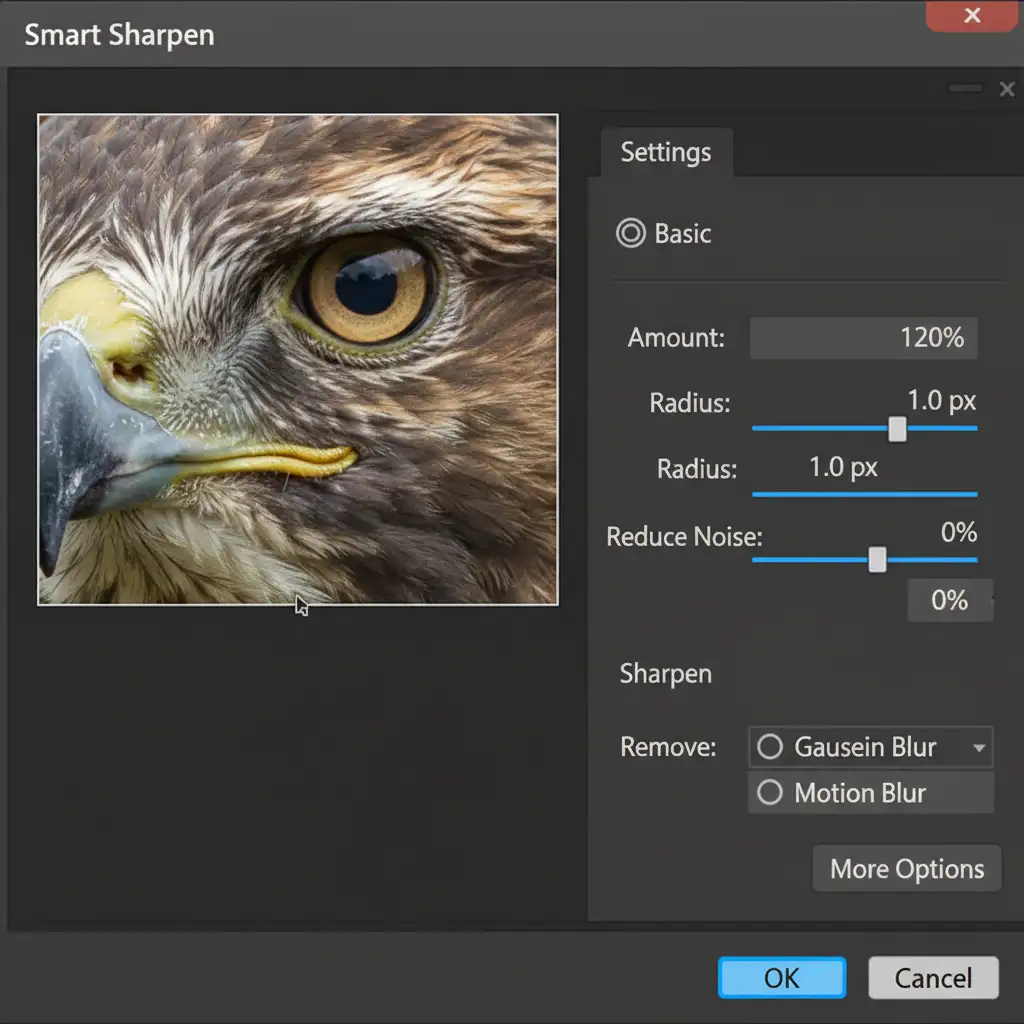
- Go to Filter > Sharpen > Smart Sharpen.
- Set the Amount to 120% and the Radius to 1.0 px. This specific ratio adds enough micro-contrast to survive TikTok’s compression without causing visual halos.
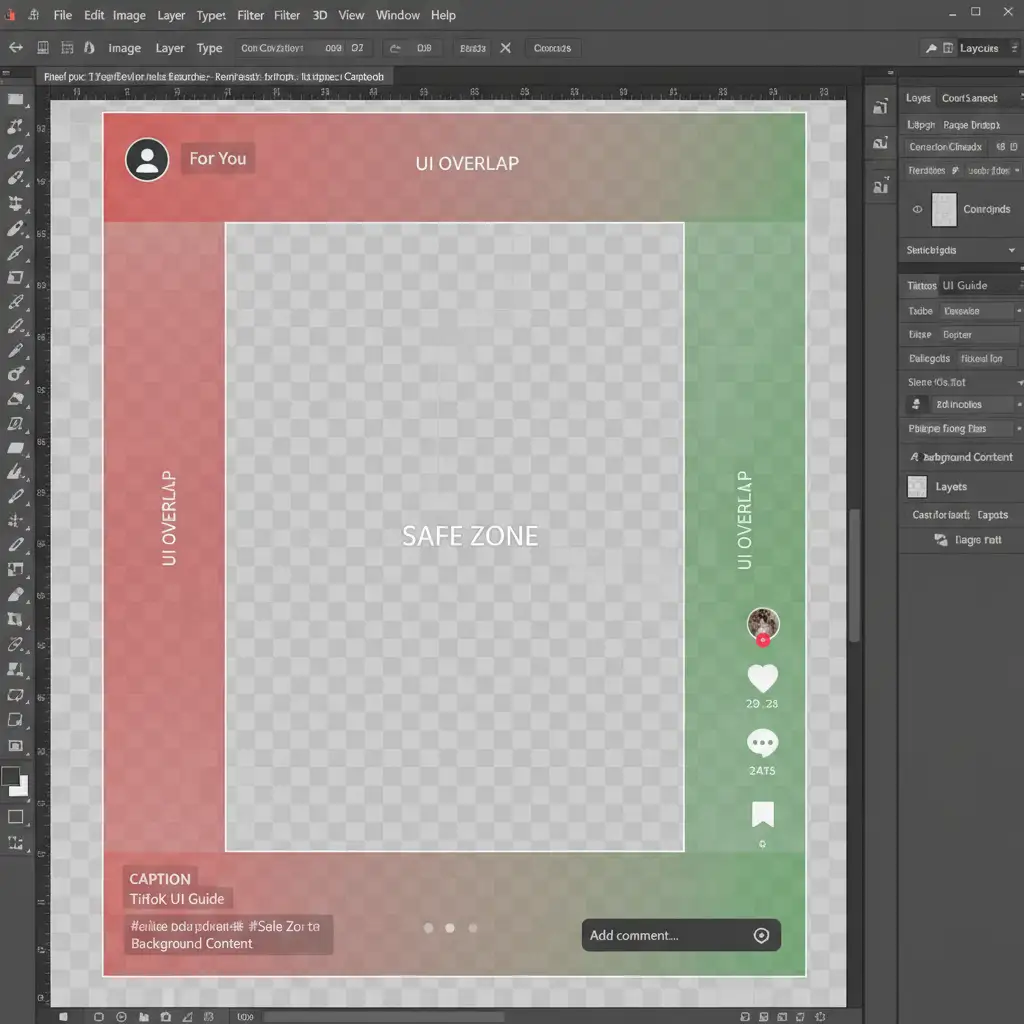
Additionally, always use a UI safe zone overlay while designing. TikTok’s interface (buttons, captions, profile picture) covers a significant portion of the screen. Keeping your critical text and focal points within the center safe zone guarantees they won’t be blocked.
Method 3: The Technical Deep-Dive (Video Sequences & Interpolation)
If you are rendering a video sequence directly via the Photoshop Video Timeline (such as an animated graphic or cinemagraph), your settings must shift slightly.
- Go to File > Export > Render Video.
- Choose Adobe Media Encoder.
- Set the format to the H.264 codec.
- Select the High Quality preset and strictly document the size as 1080×1920.
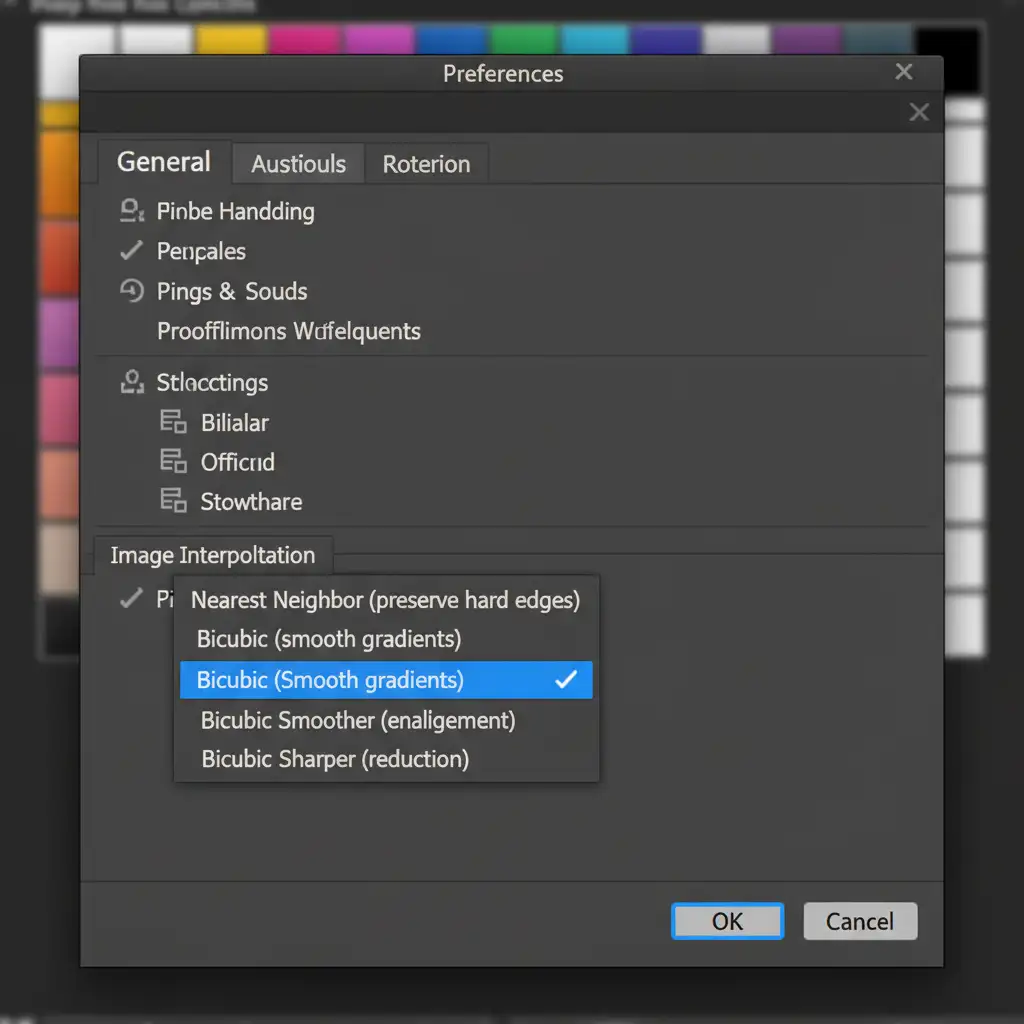
Furthermore, if your workflow involves dragging massive 4K or high-res assets into your 1080×1920 canvas, you need to change how Photoshop handles scaling.
Navigate to Preferences > General. Change your Image Interpolation method to Bicubic Sharper (reduction). This ensures that when Photoshop scales down large assets, it retains crisp sub-pixel detail before you even reach the final export stage.
Stop Struggling with Social Media Resizing
Dialing in the perfect TikTok 1080×1920 Photoshop export settings 2024 is essential for maintaining your brand’s visual standard, but it can be incredibly tedious—especially if you are managing campaigns across multiple platforms with different aspect ratio requirements.
Struggling to optimize bulk social media graphics? Let the professionals at Image Work India and Cloud Retouch handle your high-volume image resizing, color correction, and formatting. Our expert team ensures your assets are perfectly tailored for TikTok, Instagram Reels, YouTube Shorts, and beyond, so your brand always looks flawless without the technical headache.
Contact Image Work India and Cloud Retouch today to streamline your digital asset production!




