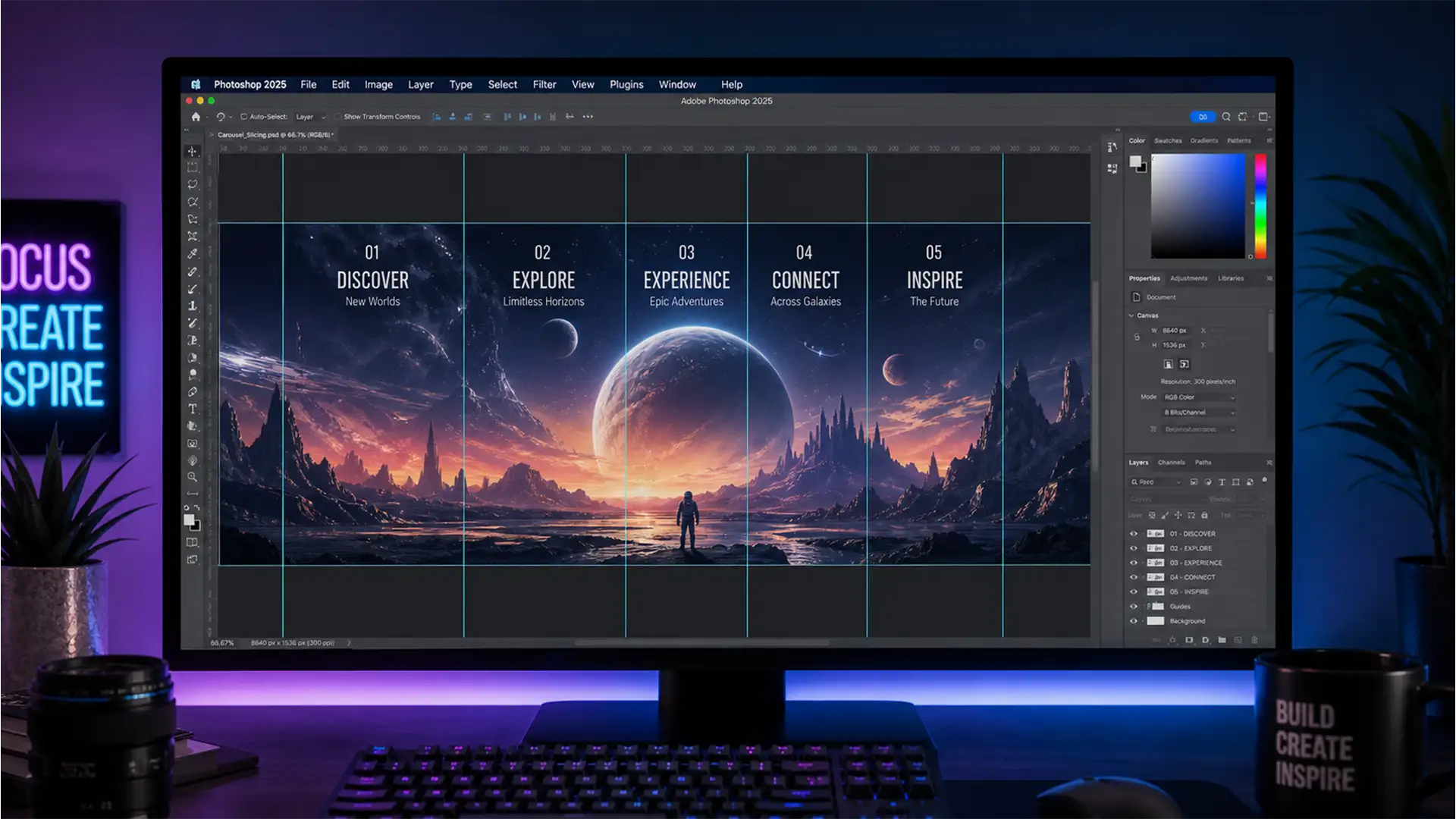

You have spent hours designing a stunning, continuous photo carousel for TikTok, but when you upload it, the aesthetic is ruined. A glaring 1px hairline gap breaks the seamless swipe. Or worse, the colors shift, and the edges suffer from blurry image compression. Stop letting sub-pixel rendering and bad canvas math destroy your social media assets.
If you are experiencing misaligned edges or color artifacts, your Photoshop export settings are the culprit. In this technical guide, we will show you exactly how to use Photoshop slices for seamless TikTok carousels. By mastering absolute integer math and strict export rules in Photoshop v25.x (2024), you will guarantee mathematically perfect, zero-gap transitions every single time.
Why Your TikTok Carousels Have 1px Gaps
In Photoshop v25.x, creating a flawless seamless carousel relies heavily on absolute integer math. TikTok’s recommended aspect ratio is 9:16, which translates exactly to 1080×1920 pixels per slide.
When you create a massive ultra-wide canvas to design a continuous panorama, a single fractional pixel rounding error will cause a visible seam when users swipe. The core technical hurdle is establishing exact vertical guides and exporting precise slices without triggering Photoshop’s sub-pixel rendering. When sub-pixel rendering occurs, Photoshop introduces anti-aliased edge bleeding, creating that dreaded hairline gap between your carousel slides.
Here are the three best methods to fix this and secure a perfect continuous swipe.
Method 1: The Quick Fix (Canvas Math & Guide Layout)
The most direct way to build a seamless continuous carousel is by calculating the exact canvas width before you even begin designing.
Step 1: Calculate Your Canvas Dimensions
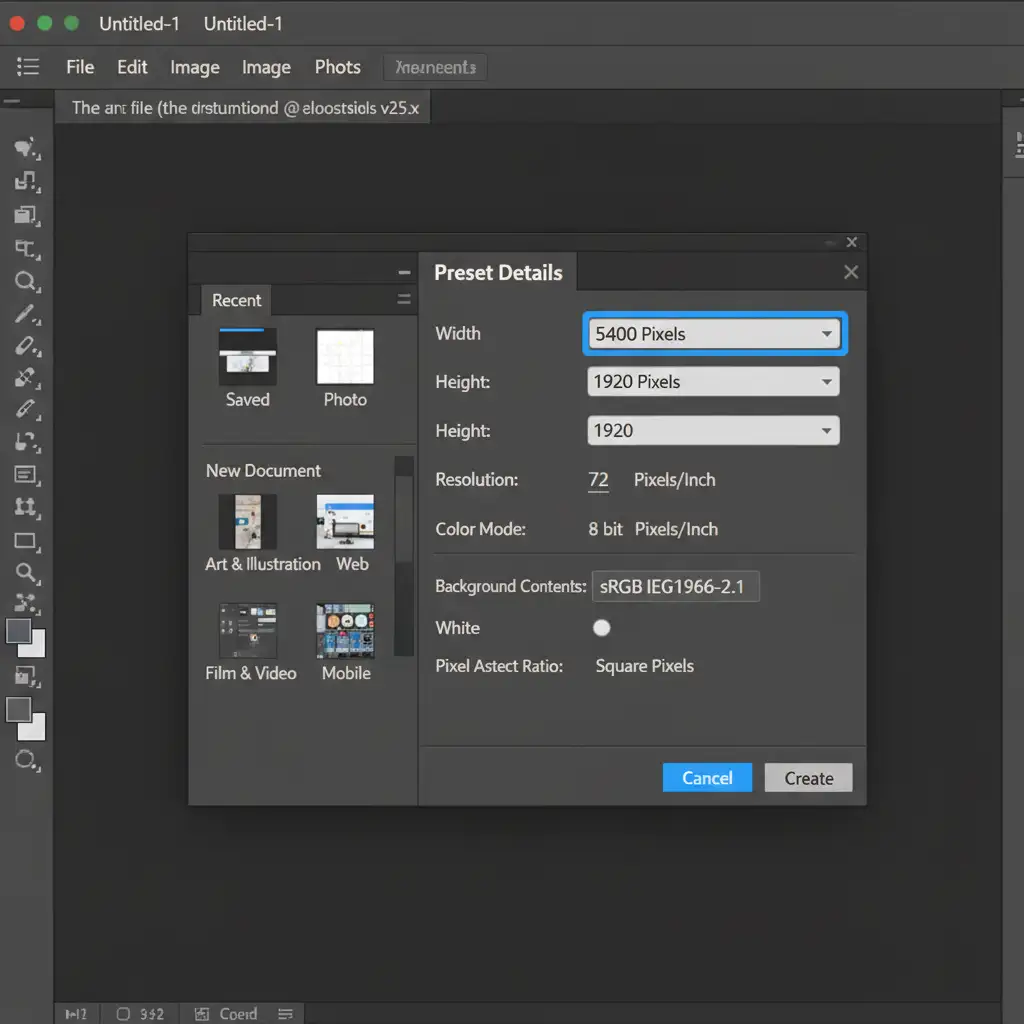
Multiply the standard TikTok width (1080px) by the number of slides you want. For a 5-slide carousel, multiply 1080 by 5 to get 5400px. Open Photoshop and create a new canvas with a width of 5400px and a height of 1920px.
Step 2: Apply a Zero Gutter Guide Layout
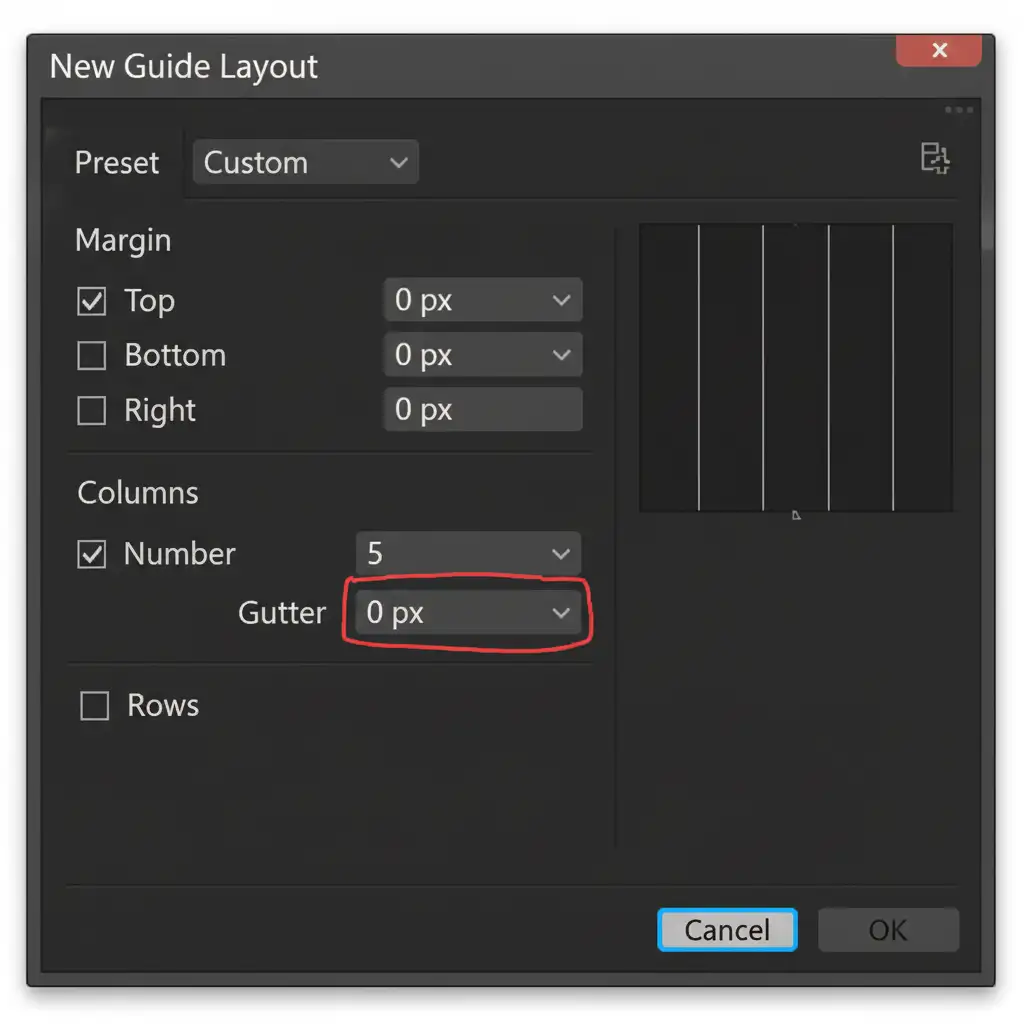
Go to View > Guides > New Guide Layout. Check the Columns box and enter your slide count (e.g., 5). The most critical step here is to set the Gutter to 0px. Click OK. This creates perfect mathematical divisions without fractional pixels.
Step 3: Generate the Slices
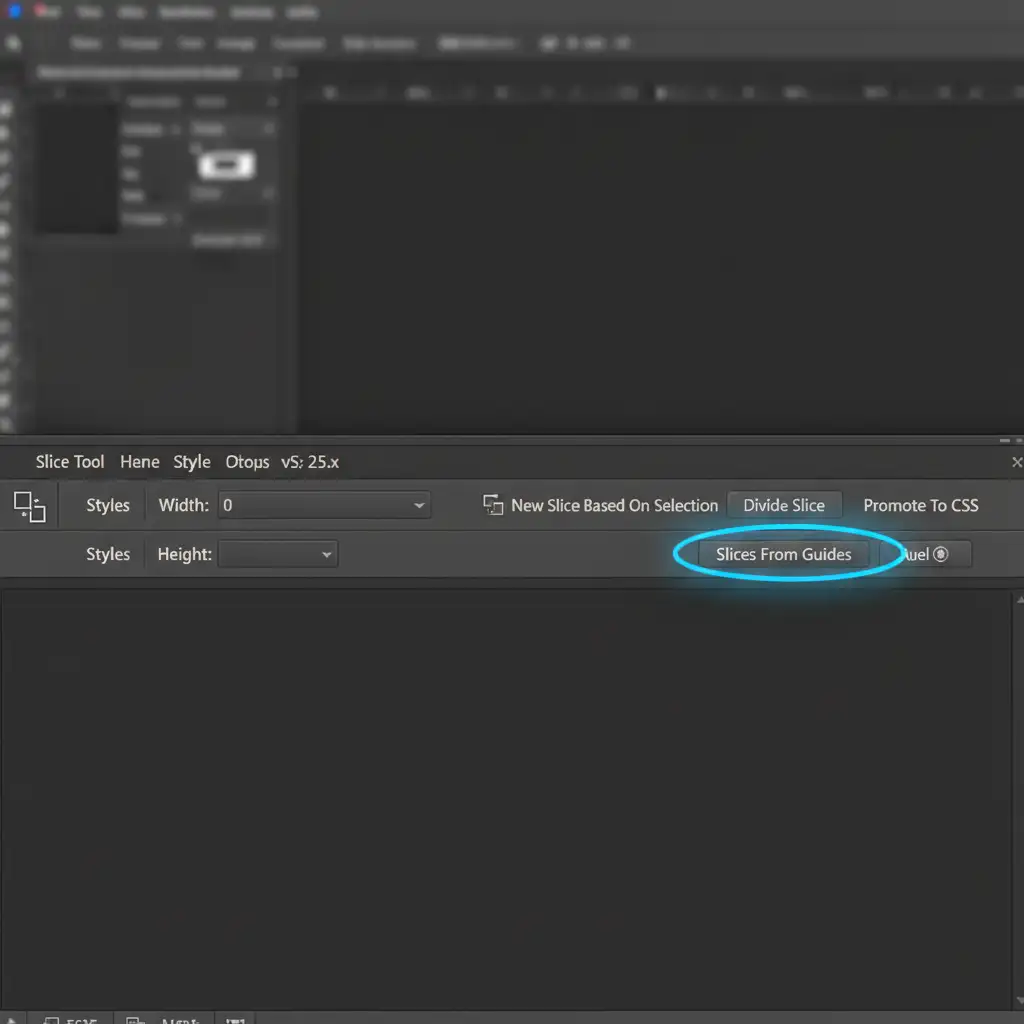
Select the Slice Tool (shortcut: C). Look at the top options bar and click the button that says Slices From Guides. Photoshop will instantly generate mathematically perfect slice boundaries along your cyan guides.
Method 2: The Pro Workaround (Artboard Tool & Smart Objects)
If working on a giant 5400px canvas slows down your machine, or you prefer a non-destructive workflow, you should use the Artboard Tool.
- Create a single 1080×1920 Artboard.
- Duplicate this Artboard perfectly side-by-side using the Artboard plus (+) icons so they snap together with zero gaps.
- Place your ultra-wide background design as a Linked Smart Object in the first Artboard.
- Duplicate that exact Smart Object into the adjacent Artboards.
- To align them perfectly, select the Smart Object in the second Artboard, go to the Properties panel, and adjust the X-axis position by exactly minus 1080px (-1080px). Repeat this (-2160px, -3240px) for subsequent slides.
This method completely bypasses the Slice Tool and guarantees a non-destructive seamless bleed across your entire carousel.
Method 3: The Technical Deep-Dive (Flawless Export Settings)
Whether you used Method 1 or Method 2, exporting correctly is the final barrier to preventing TikTok compression and 1px hairlines.
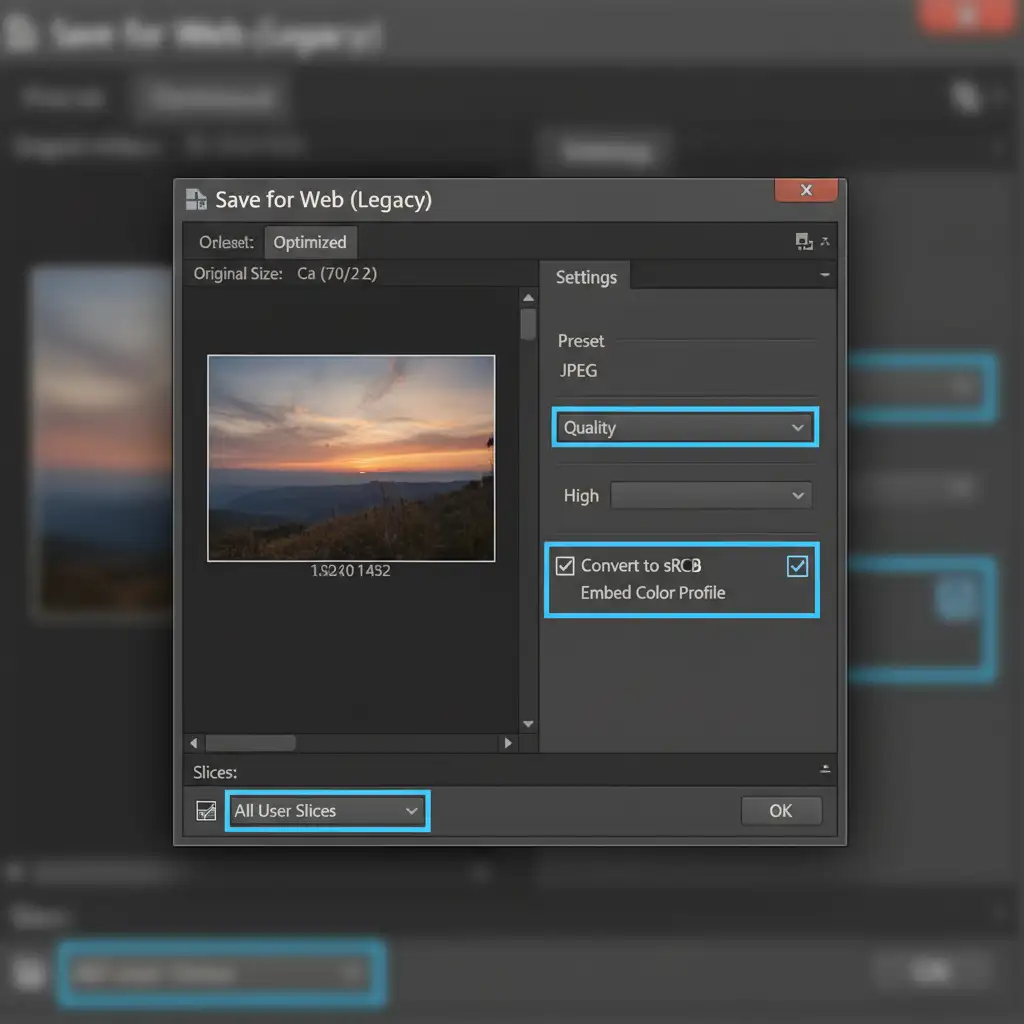
Always use Save for Web Legacy (File > Export > Save for Web (Legacy)). Standard export methods can sometimes introduce fractional pixels during compression.
Follow these strict parameters in the Save for Web dialog:
- Format: JPEG High
- Quality: 60-80 (Going to 100 often triggers heavy compression from TikTok’s algorithm upon upload).
- Color Checkboxes: Check Convert to sRGB and Embed Color Profile. This ensures an accurate sRGB Color Profile so your colors don’t look washed out on mobile screens.
- Image Size: Verify the output dimensions match perfectly (e.g., 5400×1920).
- Slices: At the very bottom of the export window, ensure the Slices dropdown is set to All User Slices.
Let the Experts Handle Your Social Media Formatting
Mastering Photoshop slices for seamless TikTok carousels requires precise math and strict technical workflows. While the steps above will solve the 1px hairline issue, managing these complex exports for daily or weekly content calendars can drain your creative energy and time.
Struggling to maintain flawless quality across your social media assets? Let the experts at Image Work India and Cloud Retouch handle your batch processing and graphic formatting. Our professional retouching and formatting teams ensure pixel-perfect, mathematically exact social media uploads every time, complete with correct aspect ratios and sRGB color profiles. Focus on capturing amazing content, and let us handle the technical execution.
Contact Image Work India today to streamline your post-production workflow!




