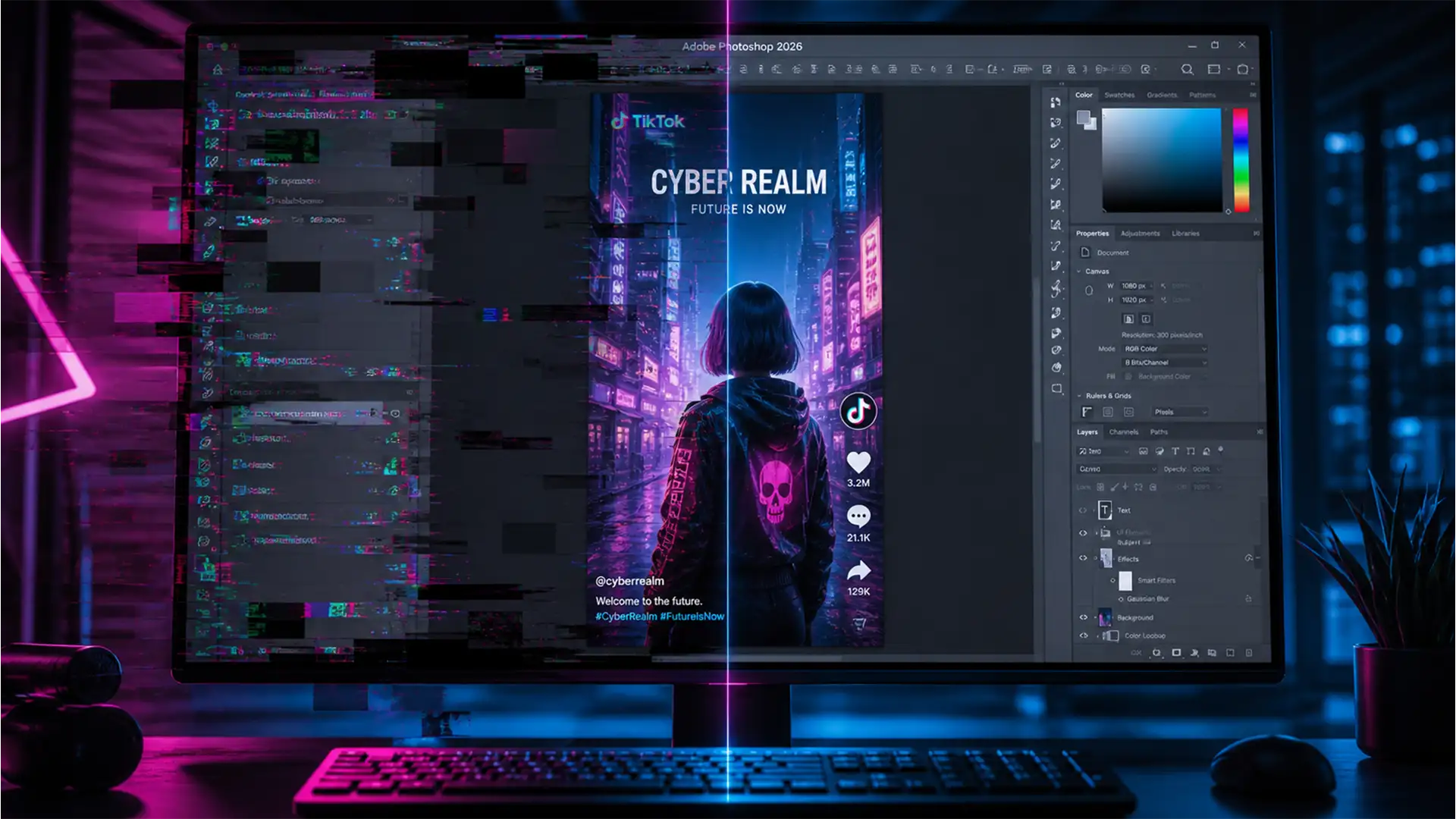

Are you trying to edit a high-resolution TikTok or Instagram Reel, only to have your screen throw an absolute fit? You zoom in to perfect a mask, and suddenly you’re hit with aggressive screen tearing, black boxes, and a strobe-like workspace. If this sounds familiar, you are experiencing the dreaded photoshop 2026 vertical canvas flickering bug.
This rendering glitch is currently driving social media creators crazy, but the good news is that it’s incredibly easy to resolve. The issue stems from the v27.x update, where the new rendering engine struggles to synchronize with dedicated GPUs on extreme vertical layouts.
In this guide, we will walk you through exactly how to stabilize your workspace rendering so you can get back to creating flawless content.
Why is Photoshop 2026 Flickering on Vertical Canvases?
To fix the problem, it helps to know why it’s happening. In Photoshop 2026 (v27.x), Adobe updated its “Native Canvas” rendering engine. However, when you create a high-resolution vertical document—specifically the standard 1080×1920 (9:16 aspect ratio) used for TikTok and Shorts—the software struggles to sync hardware refresh rates (V-Sync) with dedicated GPUs.
This synchronization failure triggers a redraw loop. The result? Severe workspace flickering, screen tearing, and black artifact boxes whenever you pan or zoom.
Fortunately, fixing this only takes a few clicks. Here are the three best methods to eliminate the glitch.
How to Fix the Photoshop 2026 Vertical Canvas Flickering Bug
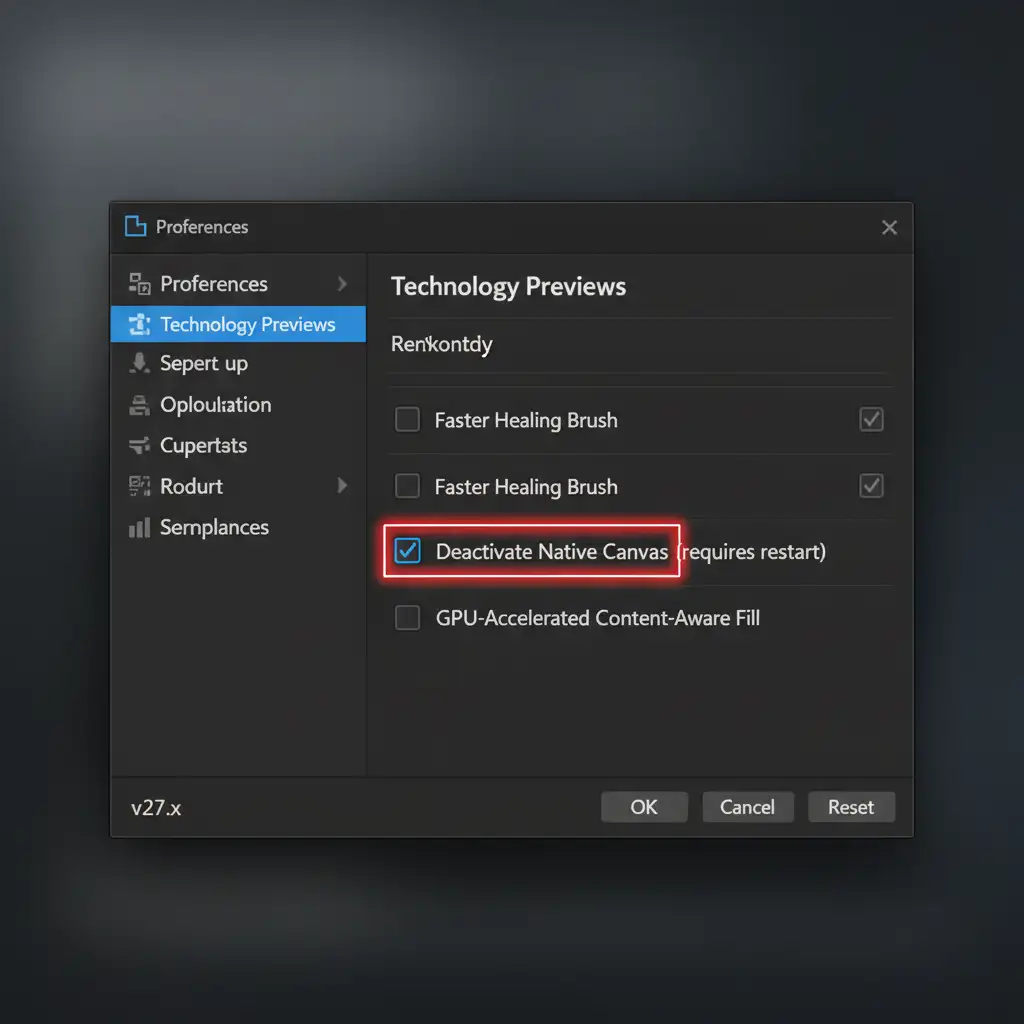
Method 1: The Quick Fix (Deactivate Native Canvas)
The fastest way to stop the flickering is to simply revert Photoshop to its legacy rendering engine by turning off Native Canvas.
- Open Photoshop 2026.
- Navigate to Edit > Preferences > Technology Previews (Windows) or Photoshop > Settings > Technology Previews (Mac).
- Look for the option labeled Deactivate Native Canvas and check the box.
- Click OK and restart Photoshop.
Method 2: The Pro Workaround (Ditch Artboards)
If you still want to use the Native Canvas engine for its performance benefits on standard images, the issue might be tied to how Photoshop calculates Artboard boundaries on vertical layouts. The constant recalculation is what triggers the redraw loop.
Instead of using Artboards for your social media content:
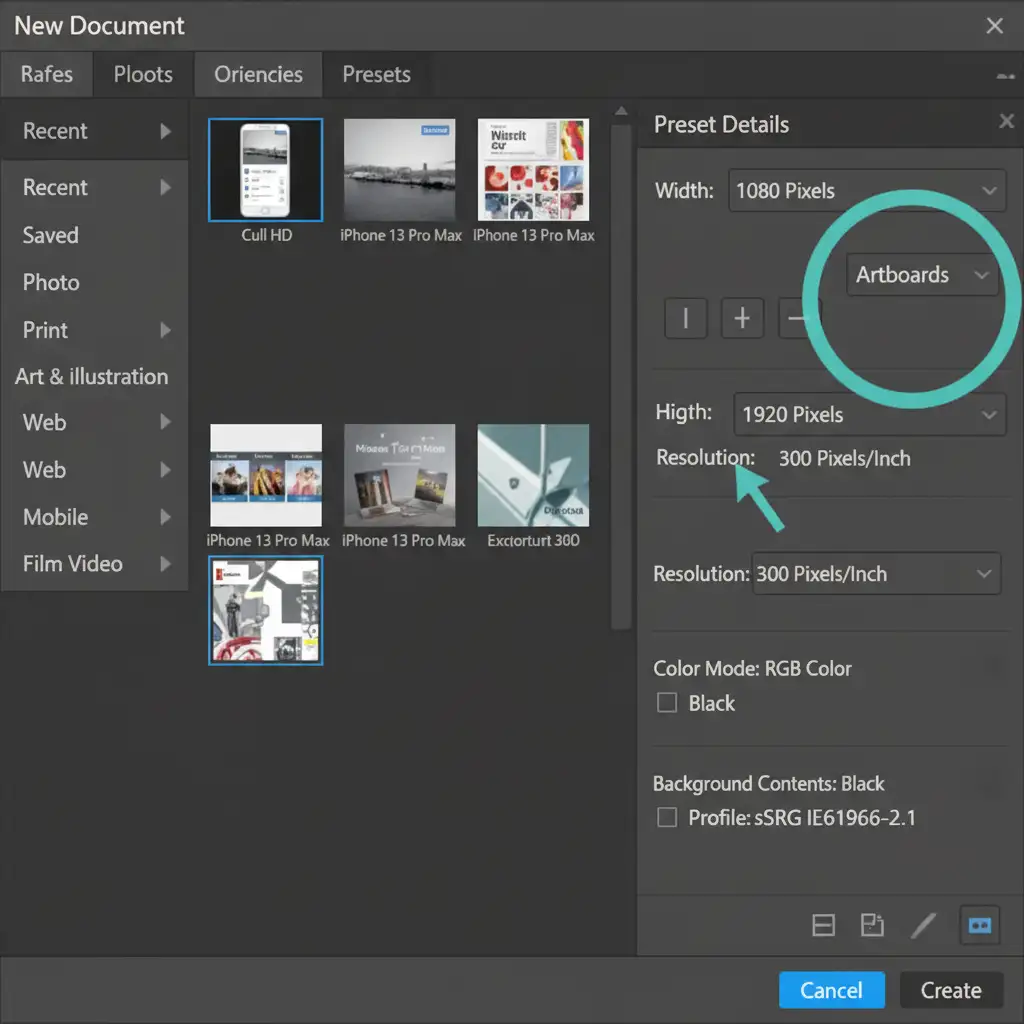
- Hit Ctrl+N (or Cmd+N) to open the New Document window.
- Set your dimensions to 1080 x 1920 pixels.
- Uncheck the ‘Artboards’ box located right next to the vertical orientation toggle.
- Use Layer Comps to manage your variations instead of multiple Artboards side-by-side.
Method 3: The Technical Deep-Dive (Advanced GPU Acceleration Settings)
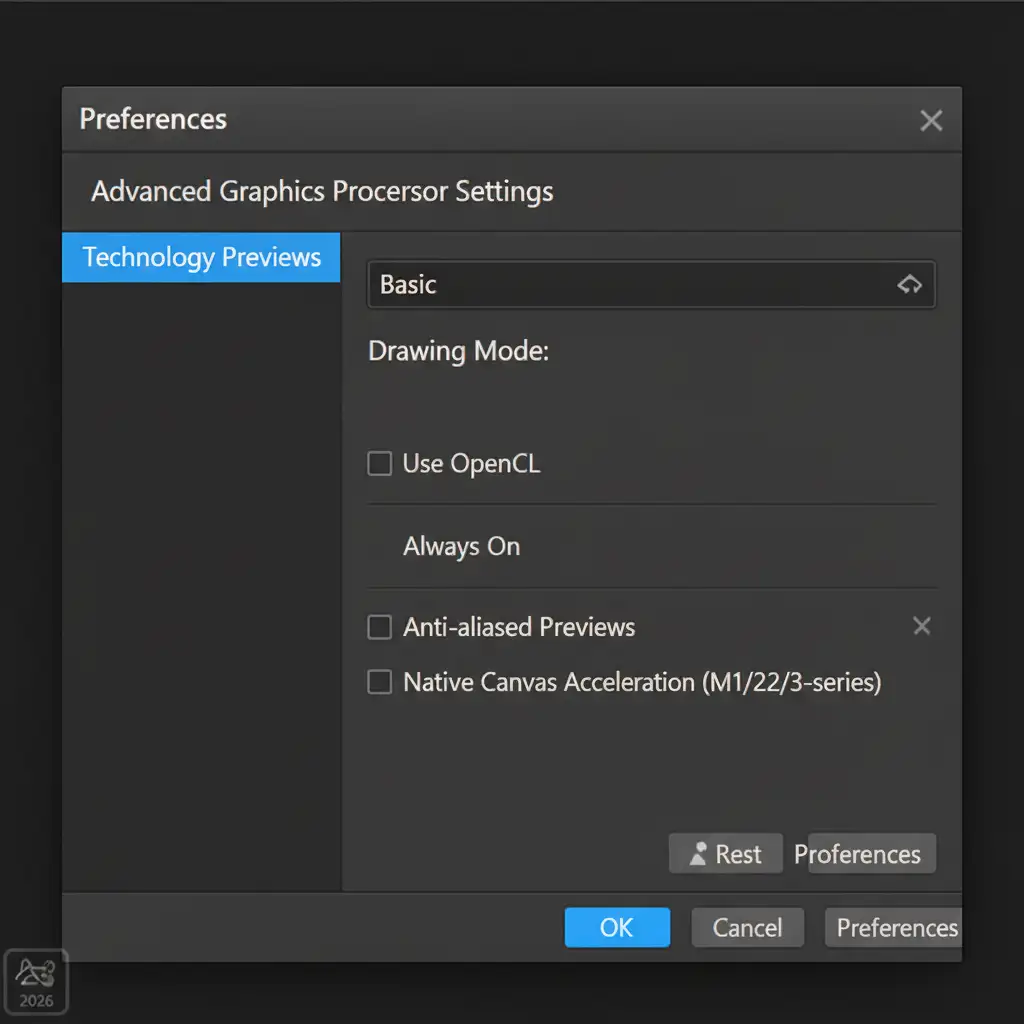
If you are still experiencing screen tearing, the root cause is a conflict between Photoshop’s advanced GPU acceleration and your specific display drivers. Scaling back how Photoshop utilizes your graphics card will stabilize the workspace.
- Go to Edit > Preferences > Performance.
- Under the Graphic Processor Settings section, click on Advanced Settings.
- Change the Drawing Mode dropdown from Advanced to Basic.
- Uncheck the box that says Use OpenCL.
- Click OK and restart the application.
Pro Tip: Always ensure you are running a clean install of your latest GPU drivers. For creative workflows, we highly recommend switching to NVIDIA Studio or AMD Pro display drivers rather than standard gaming drivers, as they are specifically optimized for workspace rendering stability.
Stop Wrestling with Software Bugs. Let the Pros Handle It.
Troubleshooting the photoshop 2026 vertical canvas flickering bug takes time away from what you do best: creating incredible content. While tweaking your OpenCL settings and disabling Native Canvas will get your software running smoothly again, managing high-volume editing for TikTok, Reels, and social media campaigns is an entirely different beast.
Why spend hours dealing with software glitches, intricate masking, and bulk retouching when you can outsource it to experts?
At Image Work India and Cloud Retouch, we specialize in high-end, high-volume image editing and retouching services. Whether you need pixel-perfect formatting for 9:16 aspect ratios, complex background removals, or professional color grading, our dedicated team of experts is ready to streamline your workflow.
Stop fighting your software and start scaling your creative vision. [Contact Image Work India and Cloud Retouch today] to learn how we can handle your heavy lifting!




