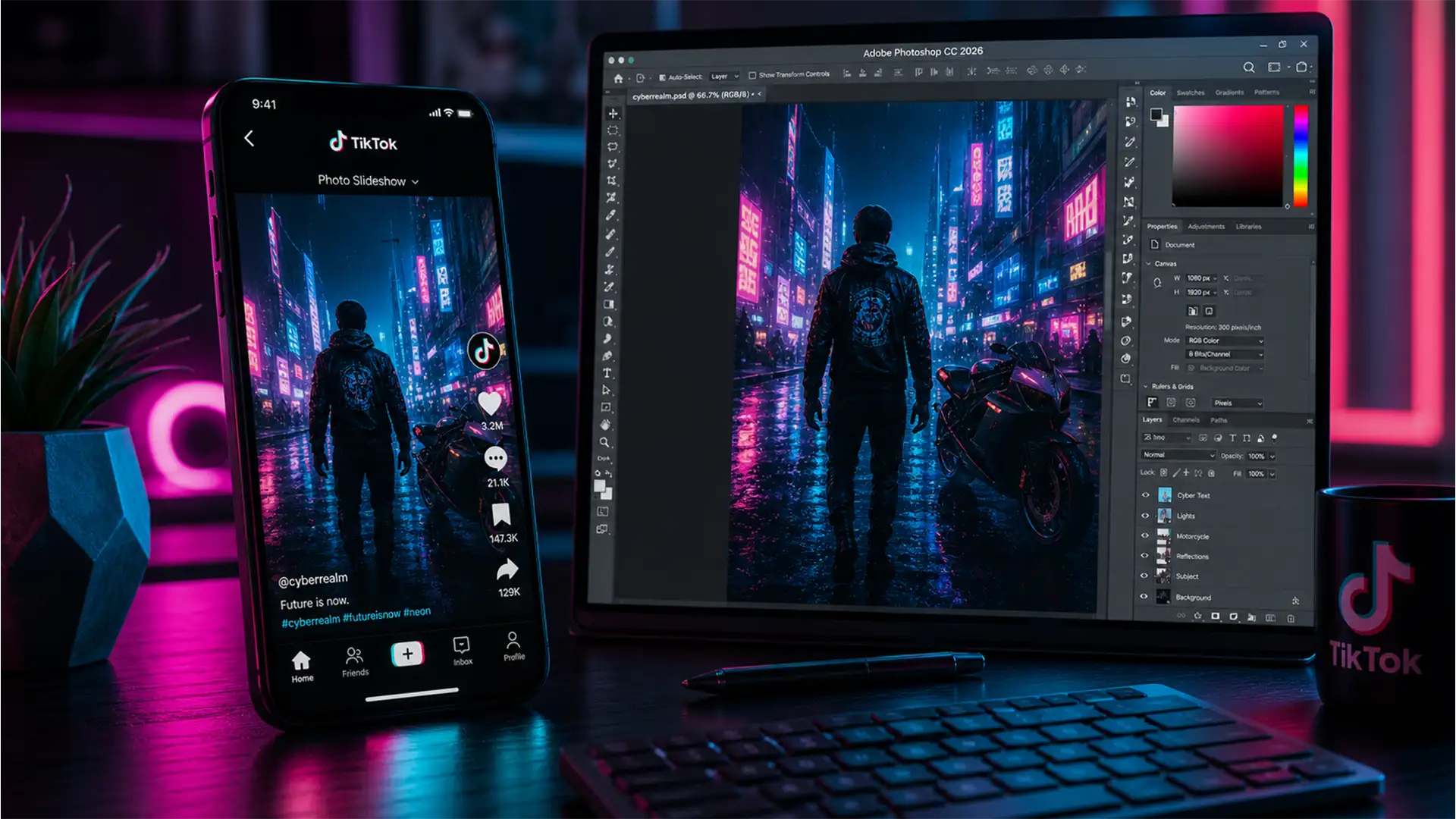

You spend hours retouching a stunning photo, upload it to a TikTok carousel, and suddenly it looks like it was shot on a 2005 flip phone. The edges are blurry, the colors are muddy, and the beautiful gradients are ruined by aggressive banding.
If this sounds familiar, you aren’t alone. Finding the perfect TikTok slideshow quality settings Photoshop 2026 requires bypassing the app’s brutal internal compression engine. When you upload a massive, high-resolution file, TikTok panics and crushes the data, resulting in a low-quality mess.
In this guide, we will break down exactly why TikTok ruins your images and provide three foolproof Photoshop methods to ensure your photo swipes stay razor-sharp.
Why TikTok Ruins Your High-Res Photos (The Technical Truth)
Before we fix the issue, you need to understand the trigger. TikTok’s proprietary compression engine is designed for speed, not visual fidelity. It heavily degrades images that exceed 1080×1920 pixels or 1MB in file size.
When you upload a high-resolution DSLR image (like 4K or 8K) or an image utilizing a wide color gamut (such as Adobe RGB or ProPhoto RGB), TikTok forces rapid downsampling and color conversion. In the 2026 app build, this mismatch results in severe artifacting, a loss of edge sharpness, and a desaturated color shift.
To beat the algorithm, you must pre-compress and format your images to TikTok’s exact limits before you hit upload.
How to Fix Blurry TikTok Carousels: The Ultimate Photoshop 2026 Guide
Here are three proven methods to maintain your pixel density and keep your slideshows looking professional.
Method 1: The Quick Fix (Export As Dialog)
The easiest way to stop TikTok from applying its own secondary JPEG compression is to feed it exactly what it wants: a perfectly sized, web-ready file.
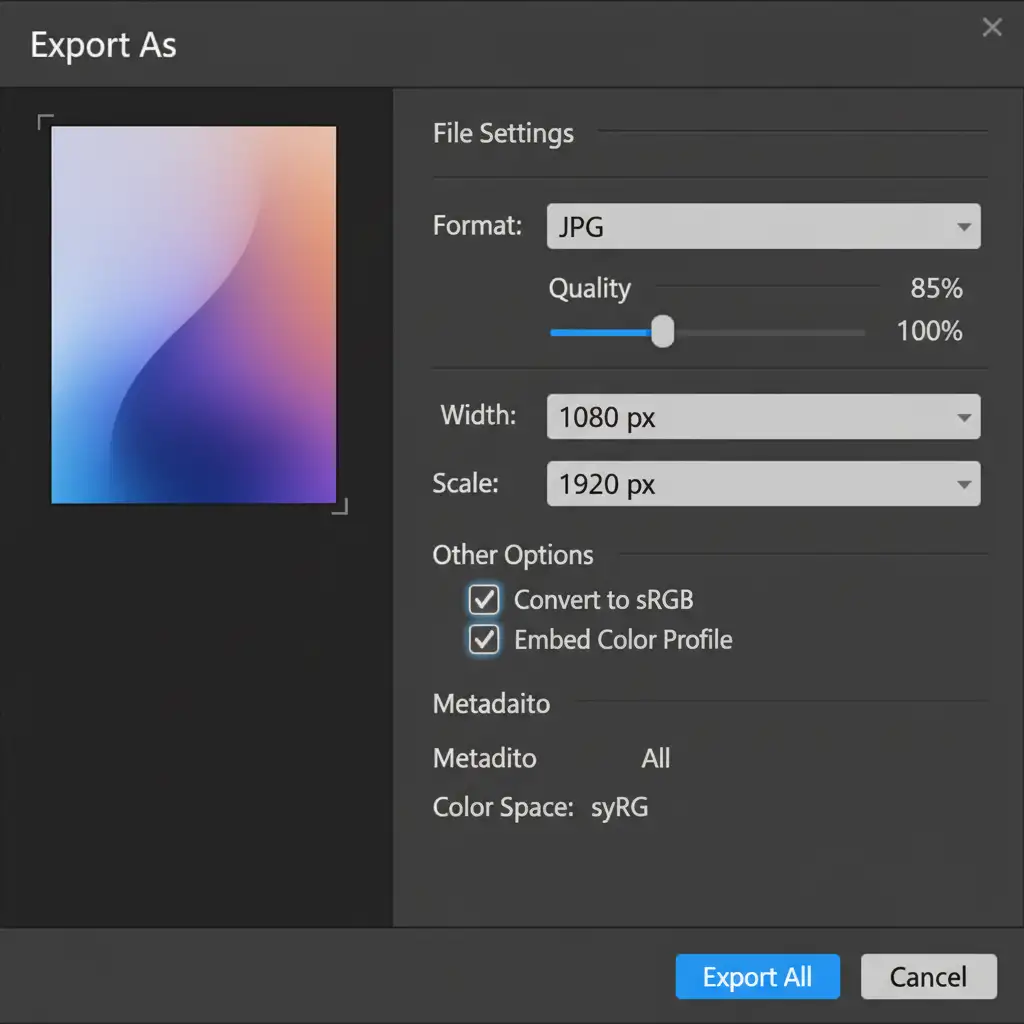
- Go to File > Export > Export As.
- Under Image Size, set the Width to 1080 and Height to 1920 pixels. This guarantees a perfect 9:16 aspect ratio.
- Set the Format to JPG and lower the Quality to 80-85%.
- Under Color Space, check both Convert to sRGB and Embed Color Profile. This ensures your colors won’t look washed out on mobile screens.
Method 2: The Pro Workaround (Micro-Contrast Sharpening)
Mobile screens are inherently soft. To counteract this, professional retouchers use a specific sharpening technique that survives TikTok’s compression beautifully.
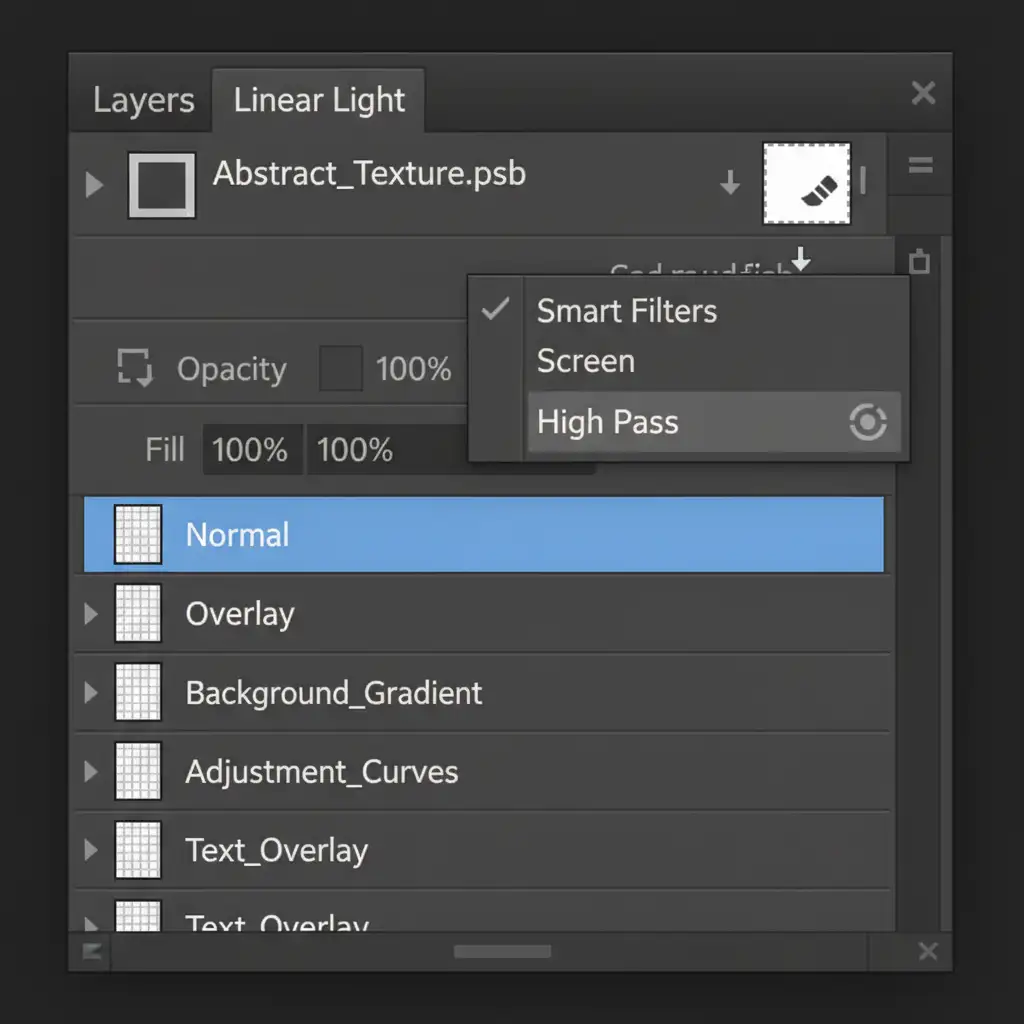
- Right-click your merged layers in the Layers panel and select Convert to Smart Object.
- Go to Filter > Other > High Pass.
- Set the radius to exactly 1.5px to target only the finest edge details.
- Change the layer blending mode from Normal to Linear Light.
Because you used Smart Filters, you can adjust this micro-contrast boost at any time without destroying your original pixels.
Method 3: The Technical Deep-Dive (Save for Web Legacy)
If you are still experiencing compression issues, you need to manually strip out heavy camera data and bypass TikTok’s algorithm triggers entirely using the Save for Web Legacy tool.
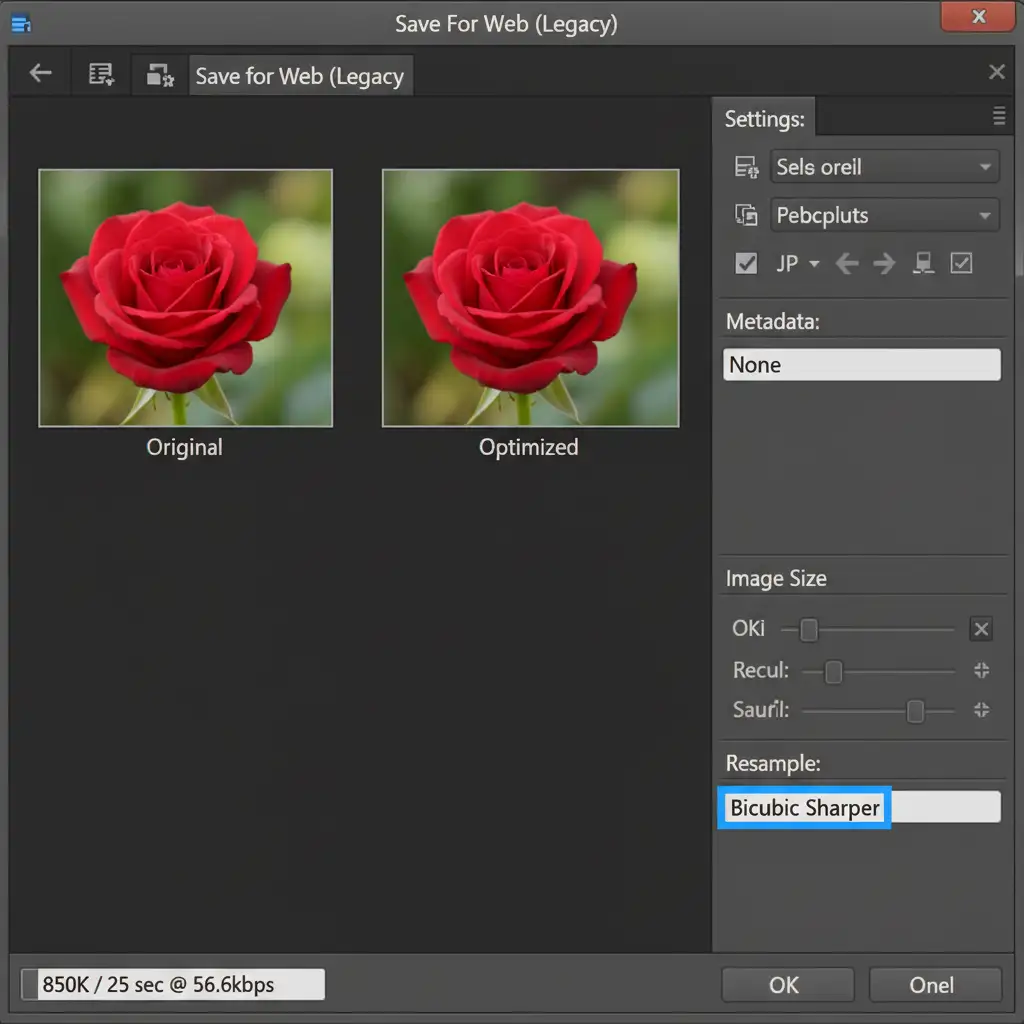
- Go to File > Export > Save for Web (Legacy).
- Strip out hidden file weight by setting the Metadata dropdown to None.
- Under Image Size, select Bicubic Sharper as your resampling method. This is the optimal algorithm when you are downscaling an image.
- Look at the bottom-left corner of the dialog box. Adjust your Quality slider until this file size indicator reads strictly under 900KB. Keeping the file sub-1MB prevents TikTok’s heavy artifacting engine from ever turning on.
Need Pixel-Perfect Consistency at Scale?
Mastering the sRGB color space and exact export settings is easy for one photo, but what happens when you have a massive marketing campaign with hundreds of carousel images? Manually resizing, converting, and applying micro-contrast to every single photo is a massive drain on your time.
Image Work India and Cloud Retouch are here to help. If you need flawless, pixel-perfect consistency across thousands of images, our expert team can handle your bulk formatting, color correction, and professional retouching. We ensure your social media campaigns look incredibly sharp, entirely bypassing mobile compression issues so you can focus on creating great content.
Ready to elevate your brand’s visual standards? Contact Image Work India and Cloud Retouch today to streamline your image processing workflow.




