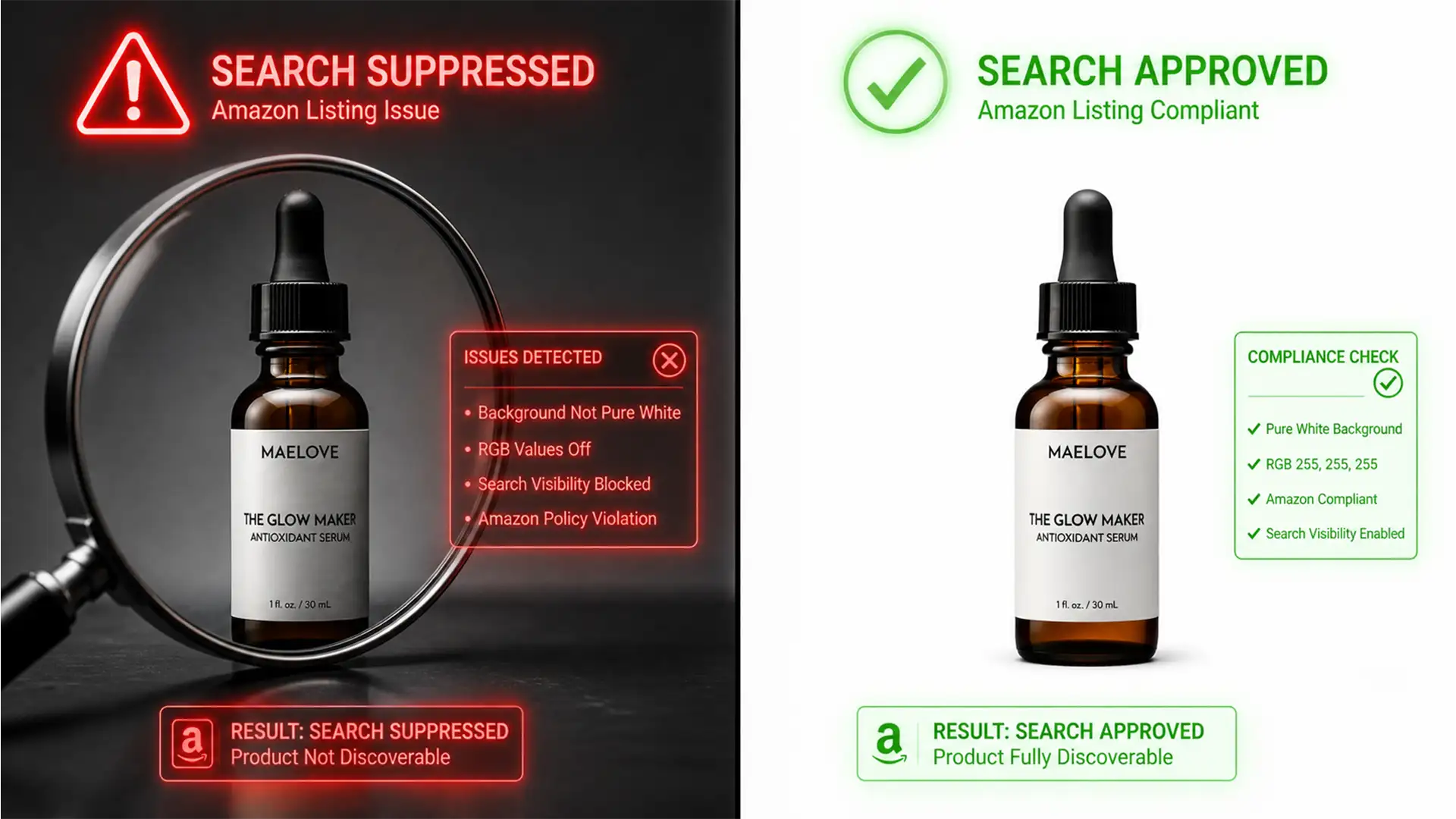

You wake up, check Seller Central, and see the dreaded red flag: “Search Suppressed.” Your best-selling product has been hidden from buyers by the Amazon A9 algorithm. The reason? Your main product image doesn’t have a pure white background.
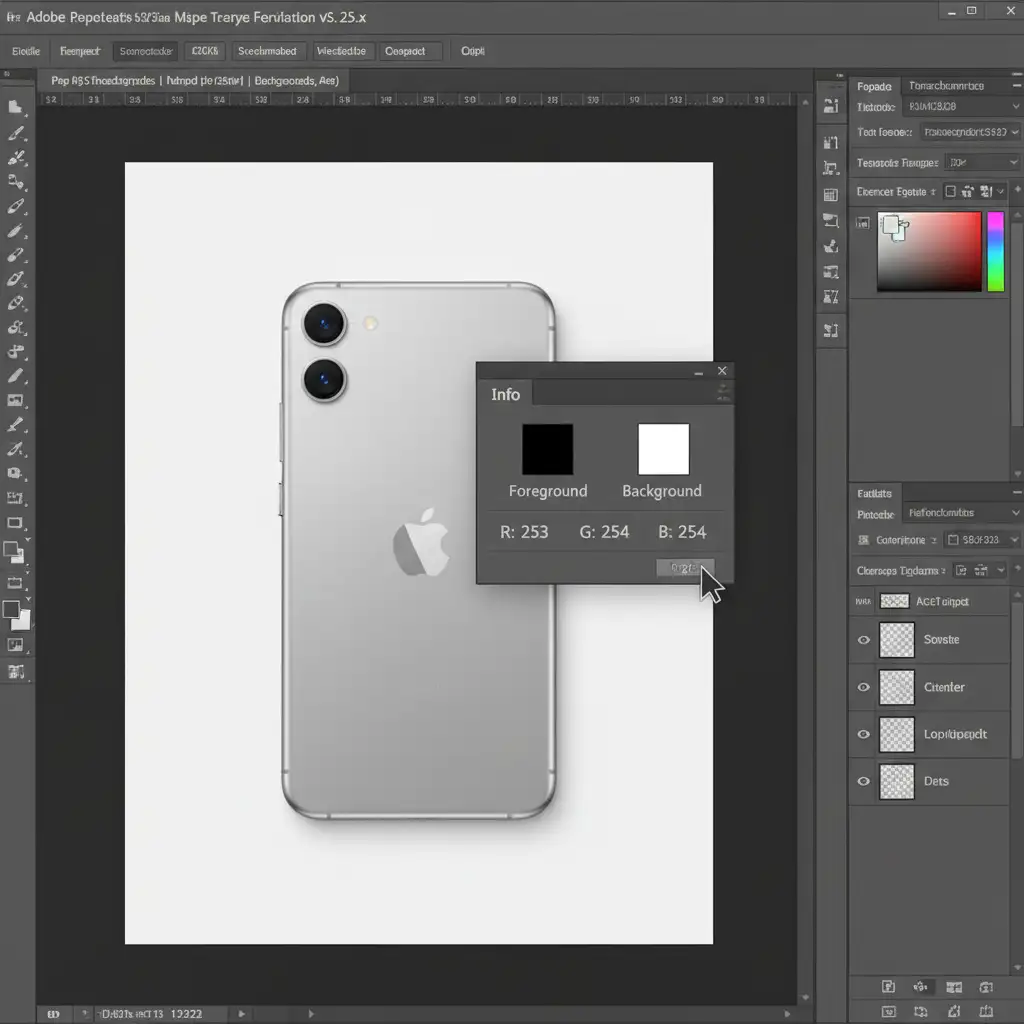
To your eyes, the background looks completely white. But Amazon’s automated image bots detected a stray off-white pixel (like RGB 254, 254, 254) or a 1% opacity shadow edge. This tiny technicality is bleeding your daily sales.
Don’t panic. In this technical guide, we will show you exactly how to execute an Amazon main image suppression 255 255 255 fix in Photoshop to satisfy Amazon’s strict compliance bots and get your listing active again.
Why Amazon Bots Flag “White” Backgrounds
Amazon’s main image requirements mandate that the background must be mathematically pure white. This means every single background pixel must register as RGB 255 255 255 (or HEX #FFFFFF).
Human vision easily forgives slight gradients, but automated bots do not. Here is why your seemingly white images are failing:
- Color Profile Shifts: In modern Photoshop versions (v24.x to v25.x), using “Save for Web” or “Export As” without strict settings can introduce slight color profile shifts. Converting from a Display P3 workspace to web standard can turn a 255,255,255 background into a 254,254,254 background.
- Invisible Artifacts: Poorly masked drop shadows or messy anti-aliasing edges from the Pen Tool can leave behind pixels with 1% to 2% opacity.
- Alpha Channels: Exporting a PNG with an unflattened alpha channel can cause rendering errors when Amazon processes the file, turning transparent areas slightly gray.
To fix this, we need precise color sampling, strict export settings, and professional masking.
How to Fix Amazon ‘Non-Pure White Background’ Suppression
Here are the three best methods to force a pure white background in Photoshop, ranging from a quick fix to a bulletproof professional workflow.
Method 1: The Quick Fix (Levels Adjustment)
If your image is already shot on a white backdrop but just needs a slight push to hit absolute white, a Levels Adjustment is your fastest option.
First, check your current RGB values to confirm the issue.
Step-by-Step Fix:
- Open your image in Photoshop.
- Go to the Layers Panel and add a Levels Adjustment layer.
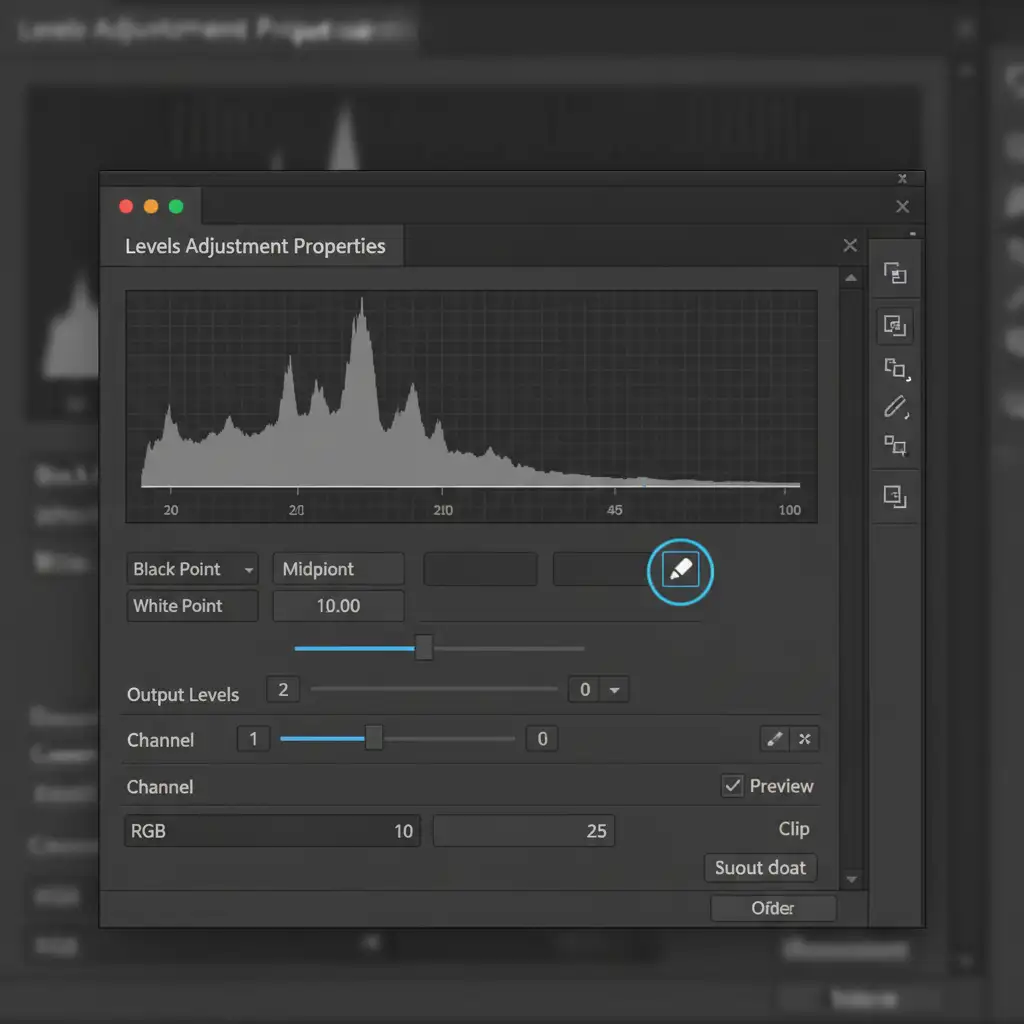
- In the Properties panel, locate the White Point Eyedropper tool (the rightmost eyedropper icon).
- Click on the darkest part of the background near your product. This forces the selected pixel—and everything brighter than it—to pure RGB 255, 255, 255.
- Right-click and flatten the image.
Method 2: The Pro Workaround (Pen Tool Clipping & Solid Color Fill)
If the Quick Fix blows out the highlights on your actual product, you need to isolate the item. This is the foolproof method used by professional retouchers to guarantee Amazon compliance.
Step-by-Step Fix:
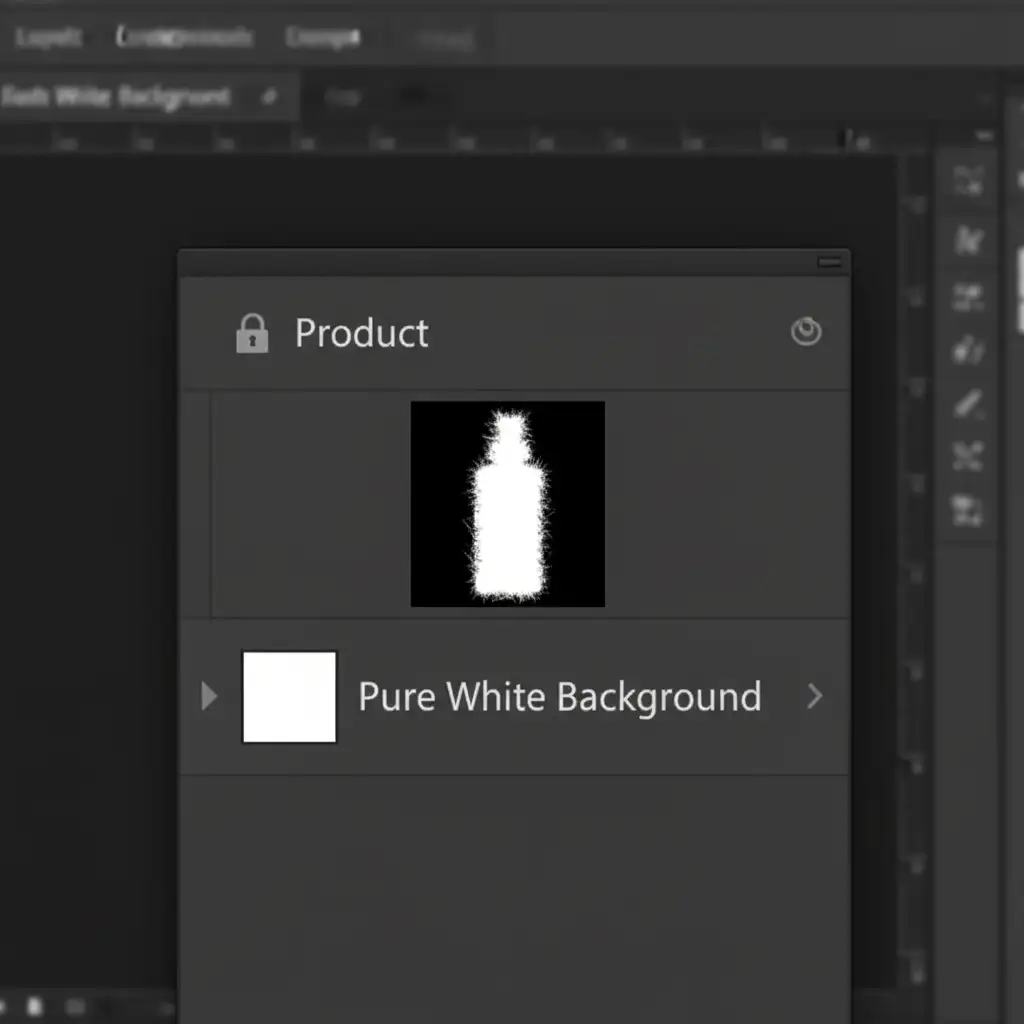
- Select the Pen Tool and create a precise Clipping Path around the edges of your product. Ensure you cut slightly inside the product edge to avoid capturing any dark anti-aliasing pixels from the original background.
- Convert the path to a selection and create a layer mask to isolate the product.
- Go to the Adjustments menu and add a Solid Color fill layer.
- Set the color strictly to HEX #FFFFFF (which translates to R:255, G:255, B:255).
- Drag this Solid Color layer below your isolated product layer.
Because the background is now generated mathematically by Photoshop rather than captured by a camera, it is guaranteed to pass Amazon’s bot checks.
Method 3: The Technical Deep-Dive (Color Profile & Export Settings)
Even if your layers are perfectly set to HEX #FFFFFF, incorrect export settings can ruin your file. You must ensure your image is exported in the correct color space without any lingering transparency.
Step-by-Step Fix:
- Before exporting, navigate to Edit > Convert to Profile.
- Set the Destination Space to sRGB IEC61966-2.1. This prevents the color shifts that occur when exporting from wider gamuts like Adobe RGB or Display P3.
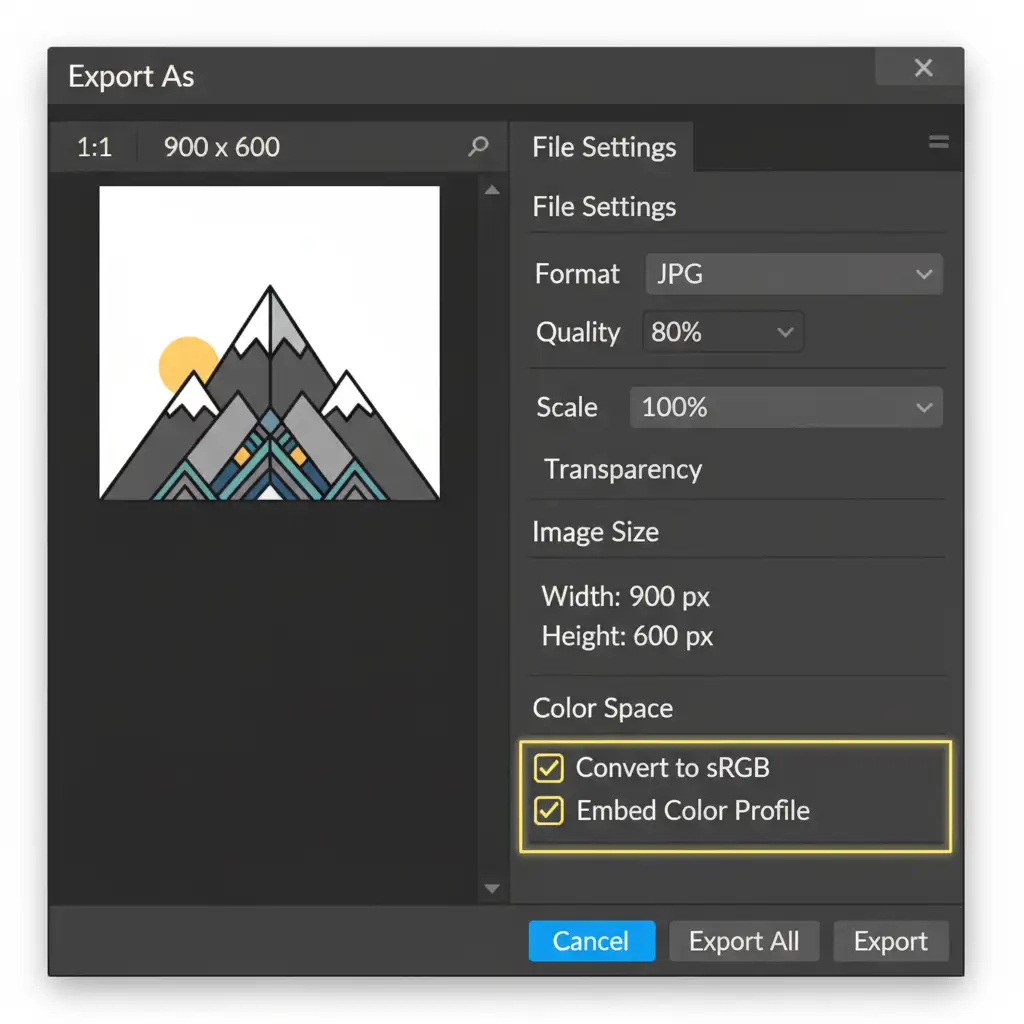
- Go to File > Export > Export As.
- Set the format to JPG.
- Critical Step: Uncheck “Transparency”. This flattens any hidden alpha channels that confuse the A9 algorithm.
- Under Color Space, ensure both Embed Color Profile and Convert to sRGB are checked.
Stop Losing Sales to Image Suppression
Dealing with an Amazon main image suppression 255 255 255 fix is frustrating, especially when you have hundreds of SKUs in your catalog. A single anti-aliasing error or a slight color profile shift can instantly tank your product’s visibility.
You shouldn’t have to spend hours zooming in on pixels just to keep your listings active.
Struggling to keep up with Amazon’s strict image requirements? Let the experts at Image Work India and Cloud Retouch handle your e-commerce image editing. Our professional retouching team specializes in pixel-perfect clipping paths, shadow-edge corrections, and strict pure-white background formatting.
We guarantee your images will meet Amazon’s exact mathematical standards every single time, so you can stop worrying about bot rejections and focus on scaling your sales. Contact us today for a free trial on your toughest product images.




