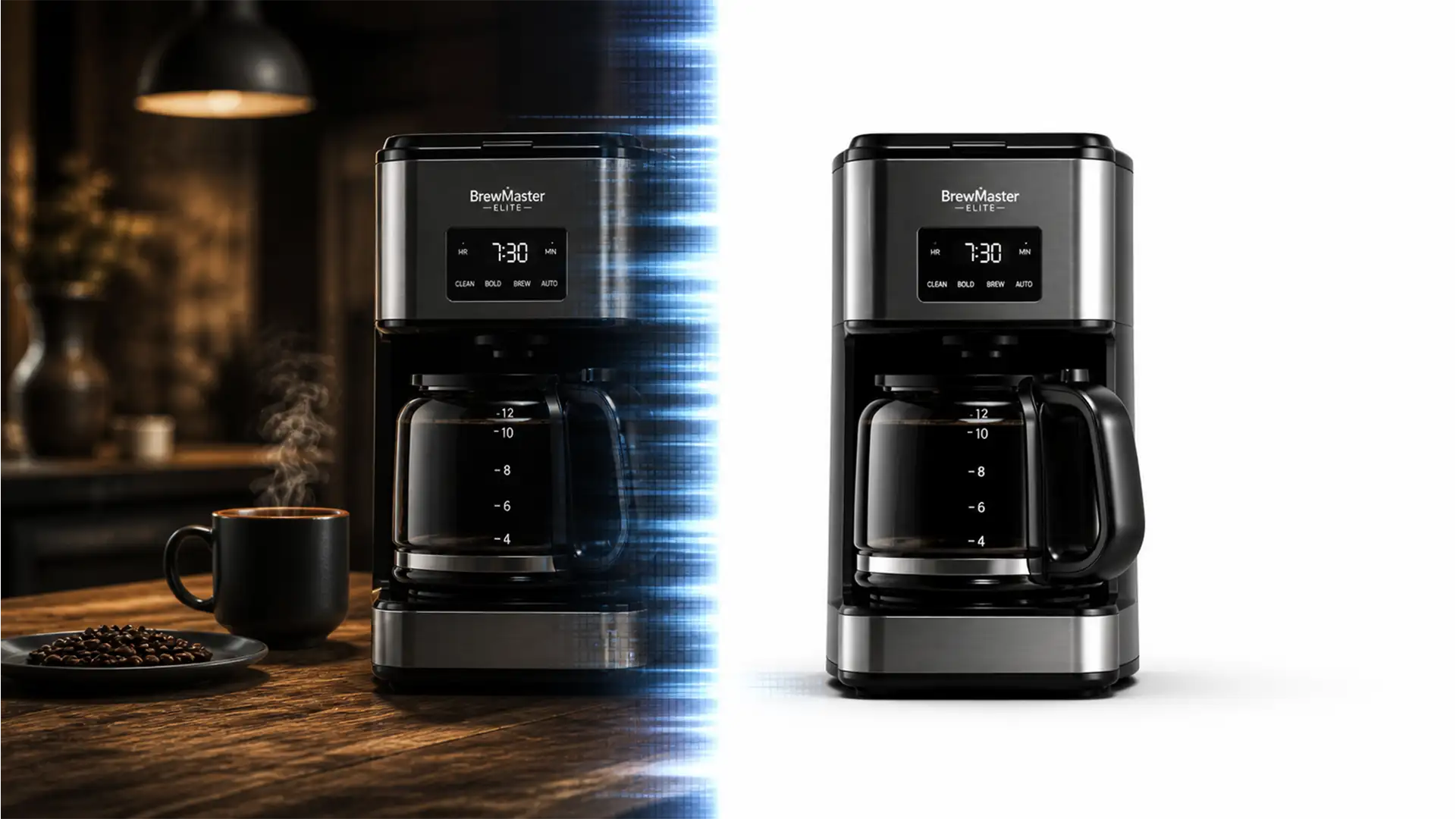

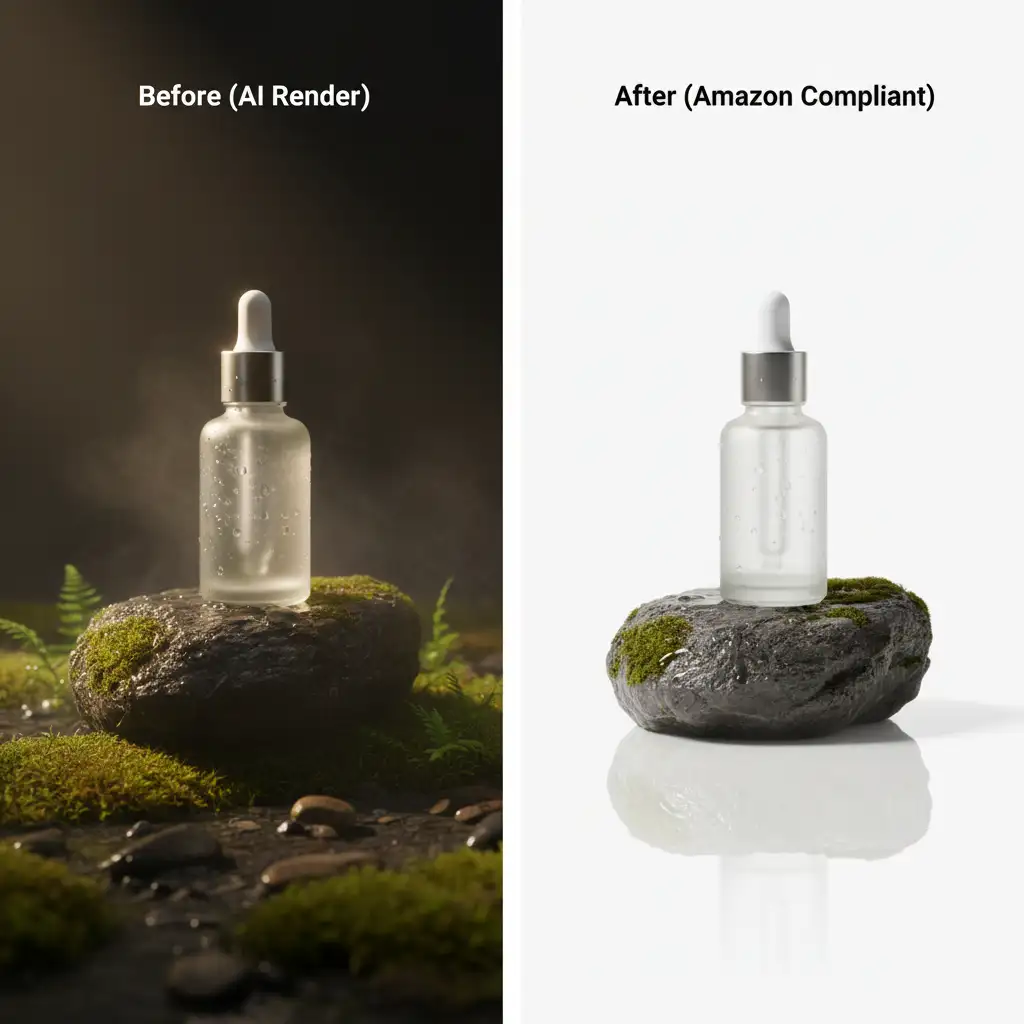
Midjourney and Photoshop v25.x Generative Fill have revolutionized product photography, allowing sellers to create stunning lifestyle renders in minutes. But there is a massive technical roadblock: Amazon product photography guidelines strictly mandate a pure white background (RGB 255, 255, 255) for main listing images.
Because AI renders lack inherent precise depth maps, the generated subjects and complex backgrounds blend at the pixel level. If you try a basic magic wand selection, you are left with pixelated edge halos, color bleeding, and the complete destruction of realistic, algorithmically generated drop shadows.
In this guide, we will walk you through the exact professional workflows to cleanly separate your product from a stylized AI environment, ensuring 100% Amazon compliance without sacrificing realism.
The Challenge: Pixel-Level Blending in AI Renders
When you generate an image using AI, the software doesn’t separate the foreground from the background on different layers. It bakes the environmental lighting, reflections, and shadows directly into the product’s pixels.
Converting AI lifestyle images to Amazon main images requires more than an automated background remover. You need a multi-tiered masking approach to handle hard edges, soft shadows, and translucent elements perfectly.
3 Professional Methods for Perfect Extraction
Depending on the complexity of your AI-generated product, you will need to choose the right extraction technique. Here are the three industry-standard methods.
Method 1: The Quick Fix (For Simple Silhouettes)
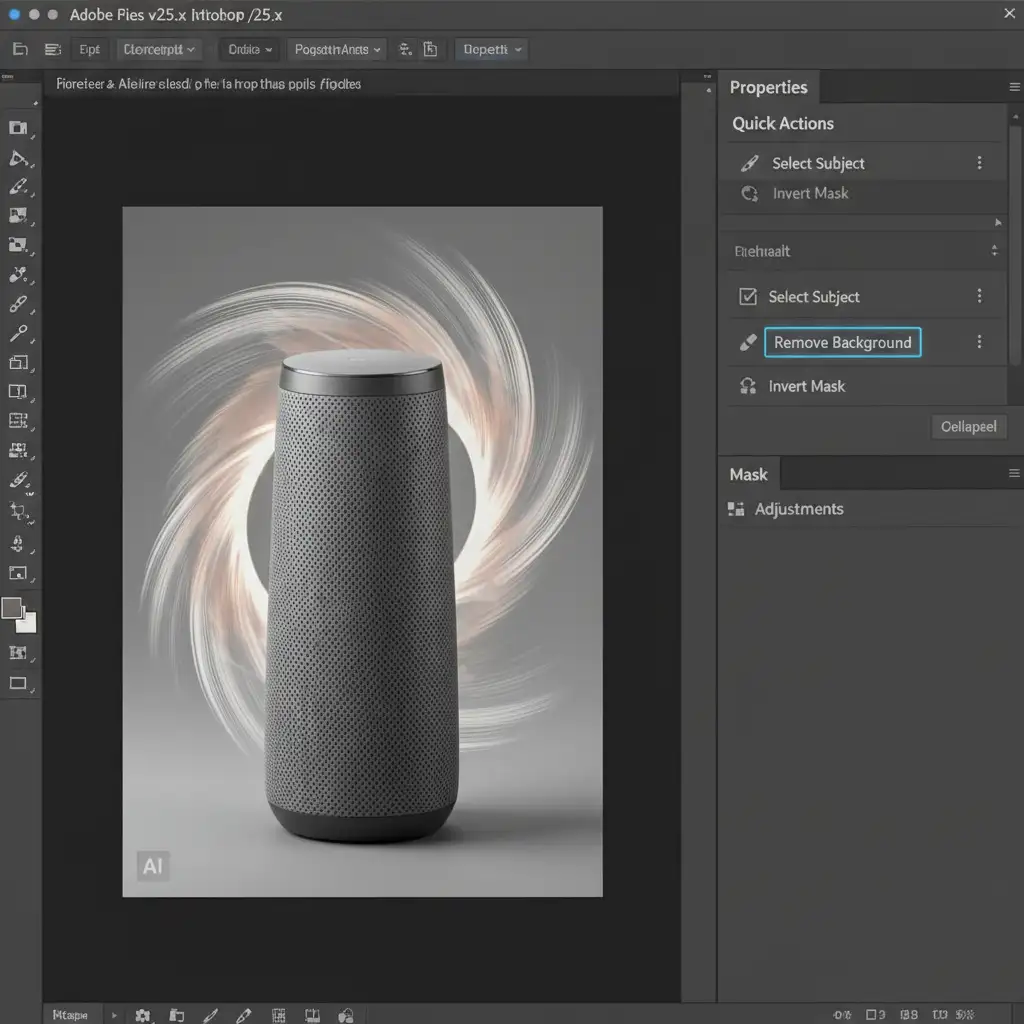
If your AI render features a product with sharp, distinct edges and high contrast against its background, you can leverage Photoshop’s native AI tools for a rapid extraction.
- Open your AI image in Photoshop v25 or newer.
- Navigate to the Properties panel.
- Click the Remove Background quick action button.
- Create a Solid Color adjustment layer, set the hex code to #FFFFFF (pure white background), and drag it beneath your subject layer.
Method 2: The Pro Workaround (For Soft Edges and Shadows)
For most AI images, the quick fix will leave jagged edges or destroy the shadow. To maintain realism, you need a combination of hard and soft masking.
- Select the Pen Tool and create a highly precise clipping path around the hard edges of your product.
- Convert the path to a selection.
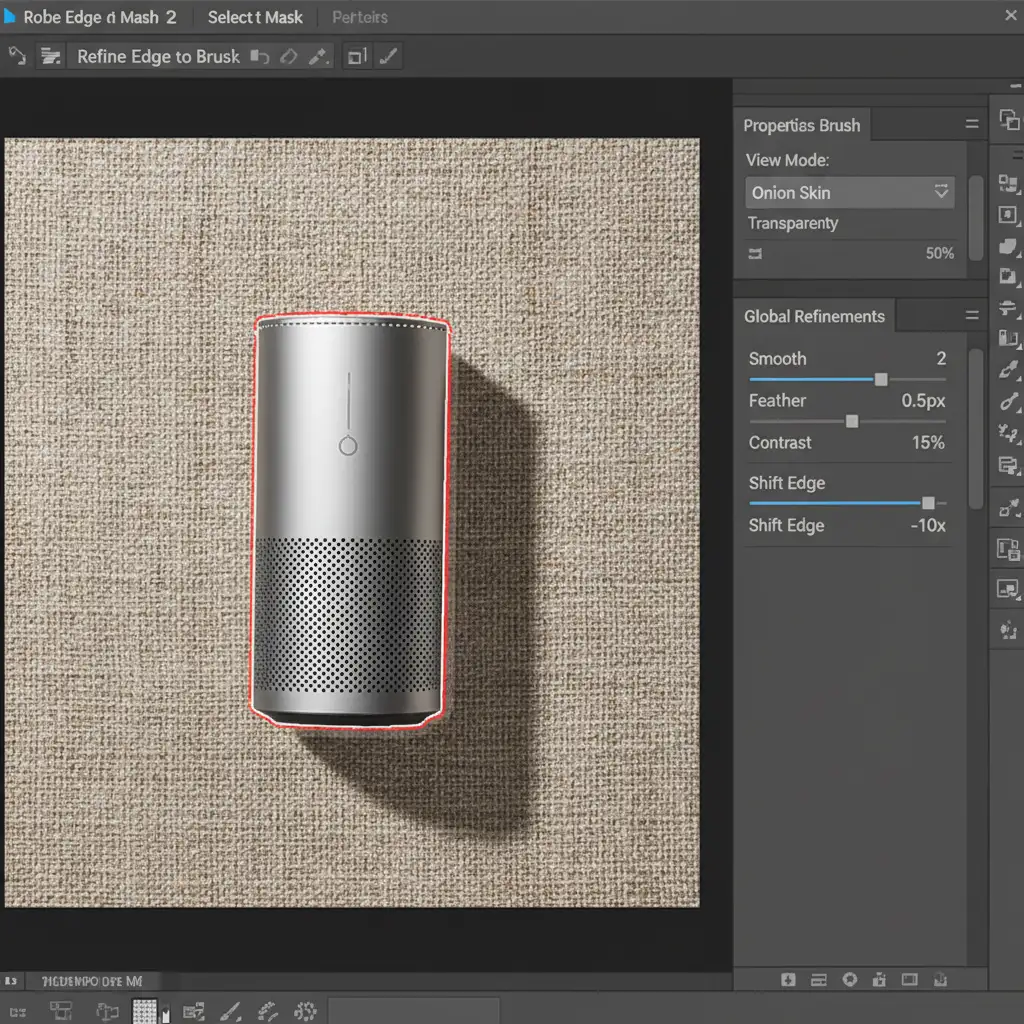
- Open the Select and Mask workspace.
- Use the Refine Edge Brush to paint over soft elements, such as fuzzy textures, reflections, or the edges of the AI-generated drop shadow.
- Adjust the edge refinement sliders (Smooth, Feather, Contrast) to eliminate any background color fringing.
- Set the Output To: Layer Mask to ensure non-destructive editing.
Method 3: Technical Deep-Dive (For Transparencies and Glass)
Extracting AI-generated glass, translucent liquids, or complex reflections requires advanced channel masking. AI often bakes the background colors into the glass, making standard extraction impossible.
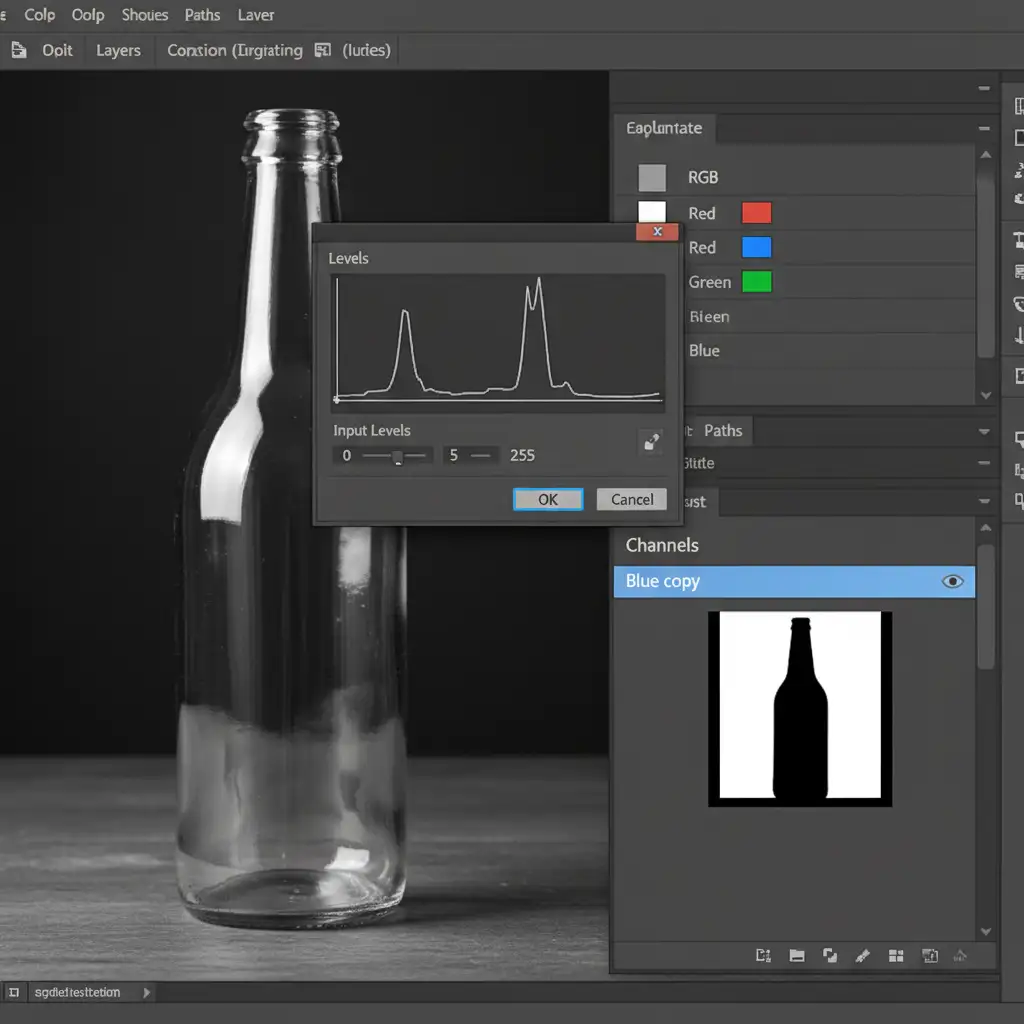
- Open the Channels panel in Photoshop.
- Inspect the Red, Green, and Blue channels. Find the one with the highest contrast between your product and the background.
- Duplicate this high-contrast channel.
- Open the Levels adjustment (Ctrl/Cmd + L) and dramatically adjust the shadows and highlights to isolate the product silhouette (turning the product entirely black and the background entirely white, or vice versa).
- Ctrl/Cmd + Click the duplicated channel thumbnail to load it as an alpha channel selection.
- Apply this selection as a layer mask on your original RGB layer over a new pure white background layer. This preserves the delicate AI reflections while dropping out the background.
Mastering Drop Shadow Extraction
One of the biggest giveaways of a poorly edited AI image is a floating product. To maintain the illusion of reality, drop shadow extraction is critical.
Instead of drawing a fake shadow, duplicate your original AI image layer, place it over your RGB 255 255 255 background, desaturate it, and set the blending mode to Multiply. Use a soft layer mask to brush away everything except the shadow itself. Combine this with your cleanly extracted product layer (from Method B or C) for a flawless finish.
The Final Result: Ready for Amazon
By utilizing Select and Mask, clipping paths, and channel masking, you can completely bypass the pixel-blending limitations of Midjourney and Photoshop Generative Fill. The result is a crisp, compliant image that ranks well and converts shoppers.
Need Perfect Amazon Listings? Let the Experts Handle It
Converting AI lifestyle images to Amazon main images is a highly technical, time-consuming process. If you want to scale your Amazon store without spending hours tweaking edge refinement sliders and channel masks, we can help.
Outsource your complex AI image extraction, background removal, and drop shadow reconstruction to the experts at Image Work India and Cloud Retouch. Our professional retouching team guarantees 100% compliance with Amazon product photography guidelines, delivering flawless pure white backgrounds that drive higher conversion rates. Contact us today to streamline your e-commerce visuals!




