

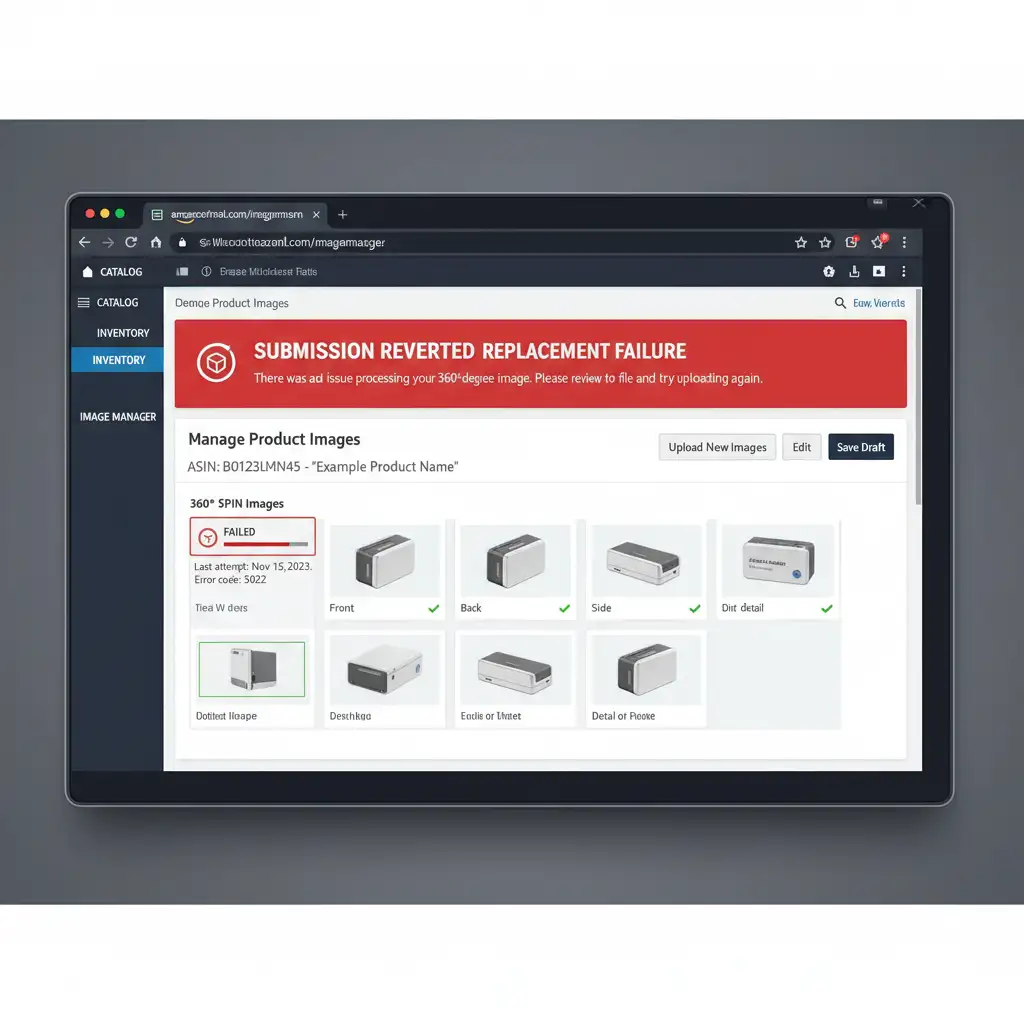
You’ve spent hours perfectly capturing and editing a 360-degree product spin. You zip the files, upload them to Amazon Seller Central, and wait. Then, the dreaded notification appears: “Submission Reverted.”
Dealing with an Amazon Image Manager replacement failure 360 error is one of the most frustrating bottlenecks in e-commerce. Amazon’s system is notoriously strict, rejecting entire batches over a single pixel mismatch, a nested folder, or a naming typo. If your 360-degree spins are stuck in upload purgatory, you’re losing valuable conversions. Let’s break down exactly why Amazon is rejecting your ZIP payload and how to fix it permanently.
Why Does the Amazon Image Manager Reject 360 Uploads?
Whether you are operating in Vendor Central or Seller Central, Amazon relies on automated scripts to parse bulk upload files. When you attempt to replace an existing 360-degree spin, the system enforces strict parity rules. If the new files deviate even slightly from Amazon’s backend expectations, the server aborts the process, resulting in a replacement failure.
The “Submission Reverted” Trigger Points
Most replacement failures boil down to three core violations:
- Broken ZIP Hierarchy: The ZIP file contains nested folders instead of a flat file structure.
- Invalid Naming Conventions: The individual frames do not match the strict ASIN sequence formula.
- Technical Spec Mismatches: The image dimensions exceed the 10,000px or 10MB limits, lack a pure white background, or contain varying crop ratios across the frame sequence.
How to Fix the Amazon Image Manager Replacement Failure 360 Error
To get your 360 views live, you need to systematically verify your formatting. Follow these three methods to bypass the rejection filters.
Method 1: The Quick Fix (Naming & ZIP Hierarchy)
The most common culprit behind a 360 spin rejection is how the files are packaged. Amazon requires a sequence count of 24 to 72 frames.
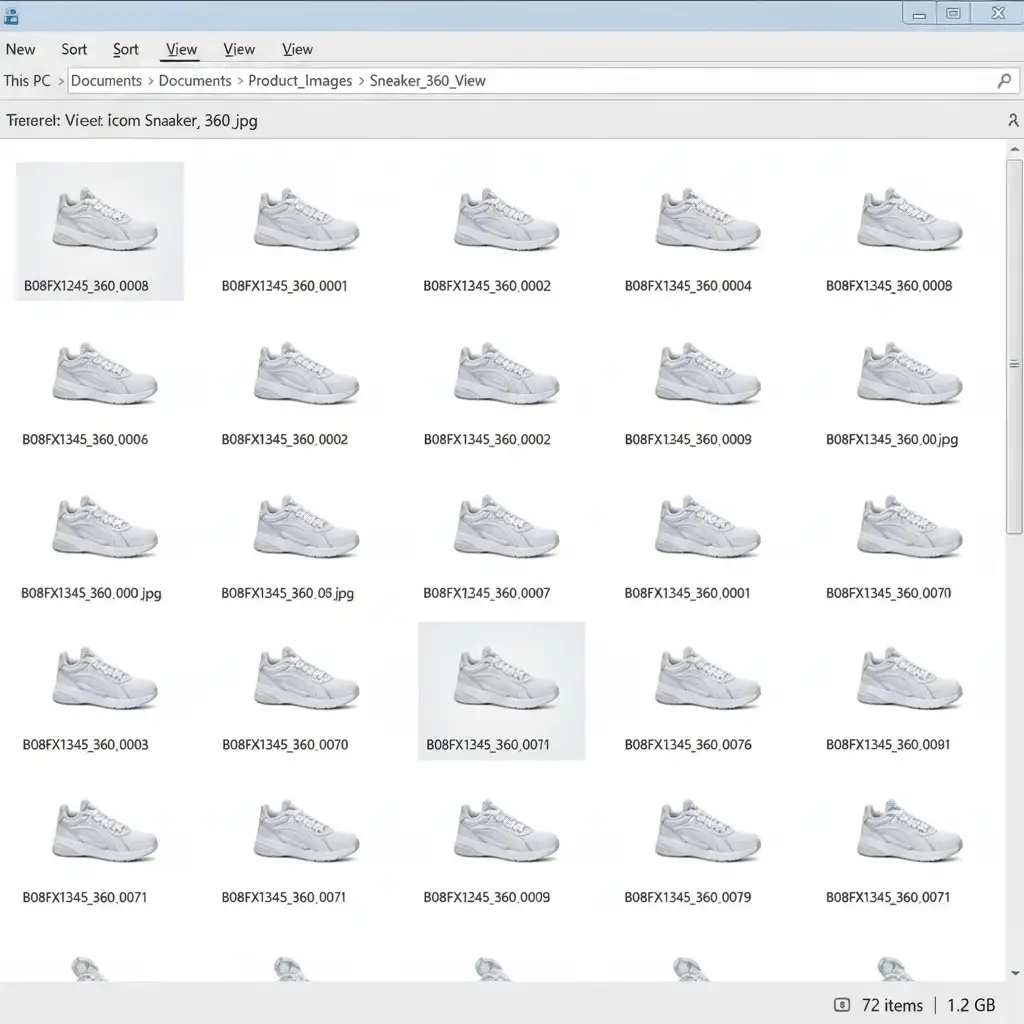
- Check Your File Names: Every single frame must be named using the exact ASIN identifier followed by the sequence number. The format is [ASIN]_360_0000.jpg through [ASIN]_360_0071.jpg. Do not skip numbers.
- Flatten Your ZIP File: When you compress your images, ensure you are zipping the files themselves, not the folder containing them. If Amazon’s server opens your ZIP and sees a folder named “Shoe_360_Final”, the submission will be reverted immediately.
Method 2: The Pro Workaround (Clearing the Amazon Cache)
If your ZIP structure is perfect but you are still encountering the Amazon Image Manager replacement failure 360 error, you are likely fighting a server caching issue. Amazon’s backend often struggles to overwrite existing 360 assets cleanly.
Instead of replacing the file, perform a clean slate upload:
- Navigate to the ‘Manage Images’ tool.
- Delete the existing 360 imagery tied to the ASIN.
- Wait exactly 24 hours. This step is non-negotiable; it takes time for Amazon’s global servers to clear the old cached files.
- Perform a fresh bulk upload of your new ZIP payload.
Method 3: The Technical Deep-Dive (Photoshop Standardization)
If Amazon accepts your ZIP file but rejects the images during processing, you have a metadata or pixel parity issue. Every frame in a 360-degree spin must be identical in dimension and color profile.
Open Adobe Photoshop and verify the following:
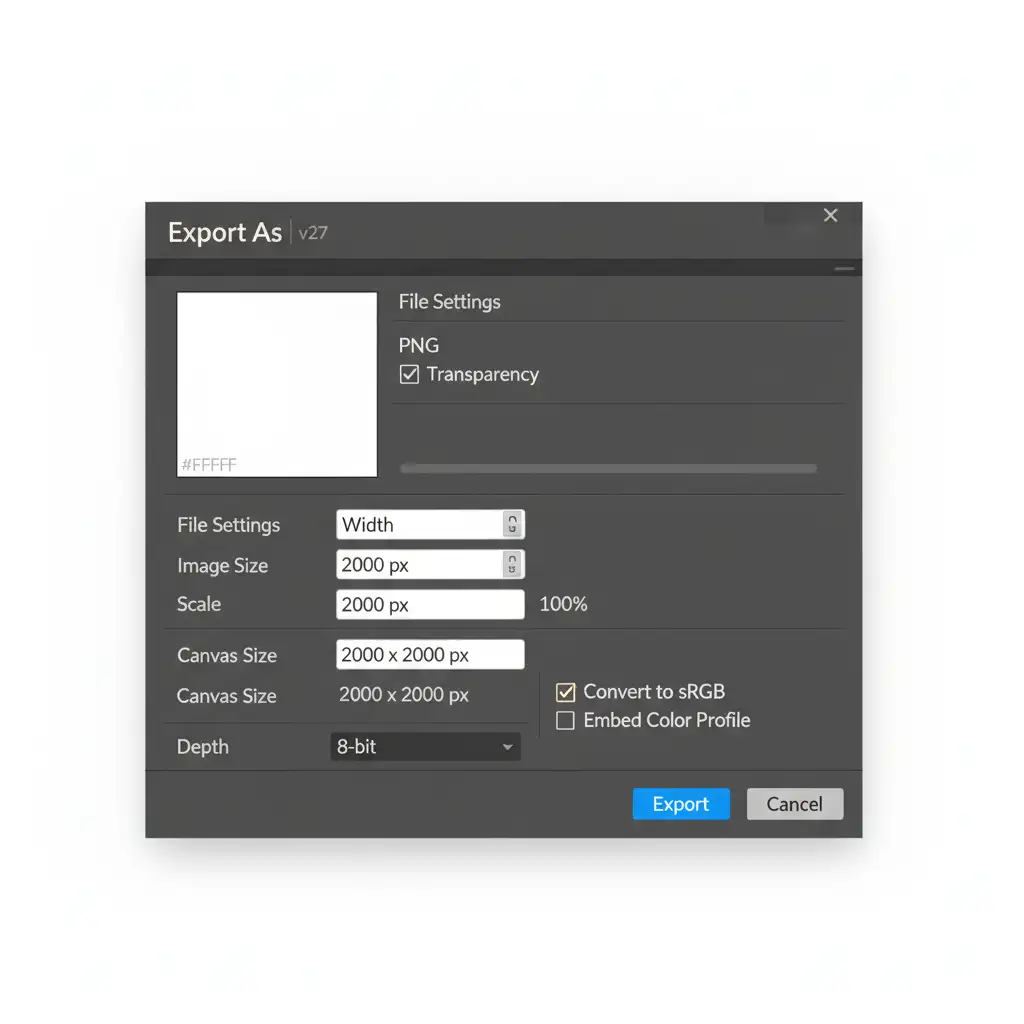
- Color Profile: Ensure all images are saved in an 8-bit sRGB color profile.
- Background: The background must be a pure white background. Verify with the eyedropper tool that the background is perfectly RGB 255, 255, 255 (Hex #FFFFFF).
- Dimensions: Maintain an identical crop ratio. If frame 0001 is 2000x2000px, frame 0045 cannot be 2000x2005px.
Pro Tip: Use Photoshop’s Image Processor script (File > Scripts > Image Processor) to batch convert and standardize the dimensions, color space, and quality of all 72 frames simultaneously before re-zipping.
Skip the Headache: Let the Experts Handle Your Amazon 360 Images
Troubleshooting an Amazon Image Manager replacement failure 360 error drains time that you should be spending on growing your brand. Achieving perfectly aligned crops, 100% pure white backgrounds, and flawless ZIP hierarchies across 72 frames requires precision and patience.
You don’t have to do it alone. Image Work India and Cloud Retouch specialize in e-commerce image editing and Amazon compliance. Our expert retouching teams will meticulously edit, format, and package your 360-degree product spins to meet Amazon’s exact technical specifications—guaranteeing a successful upload on the first try.
Stop fighting with “Submission Reverted” errors. Contact Image Work India and Cloud Retouch today, and let us prep your product imagery for flawless Amazon approval.




