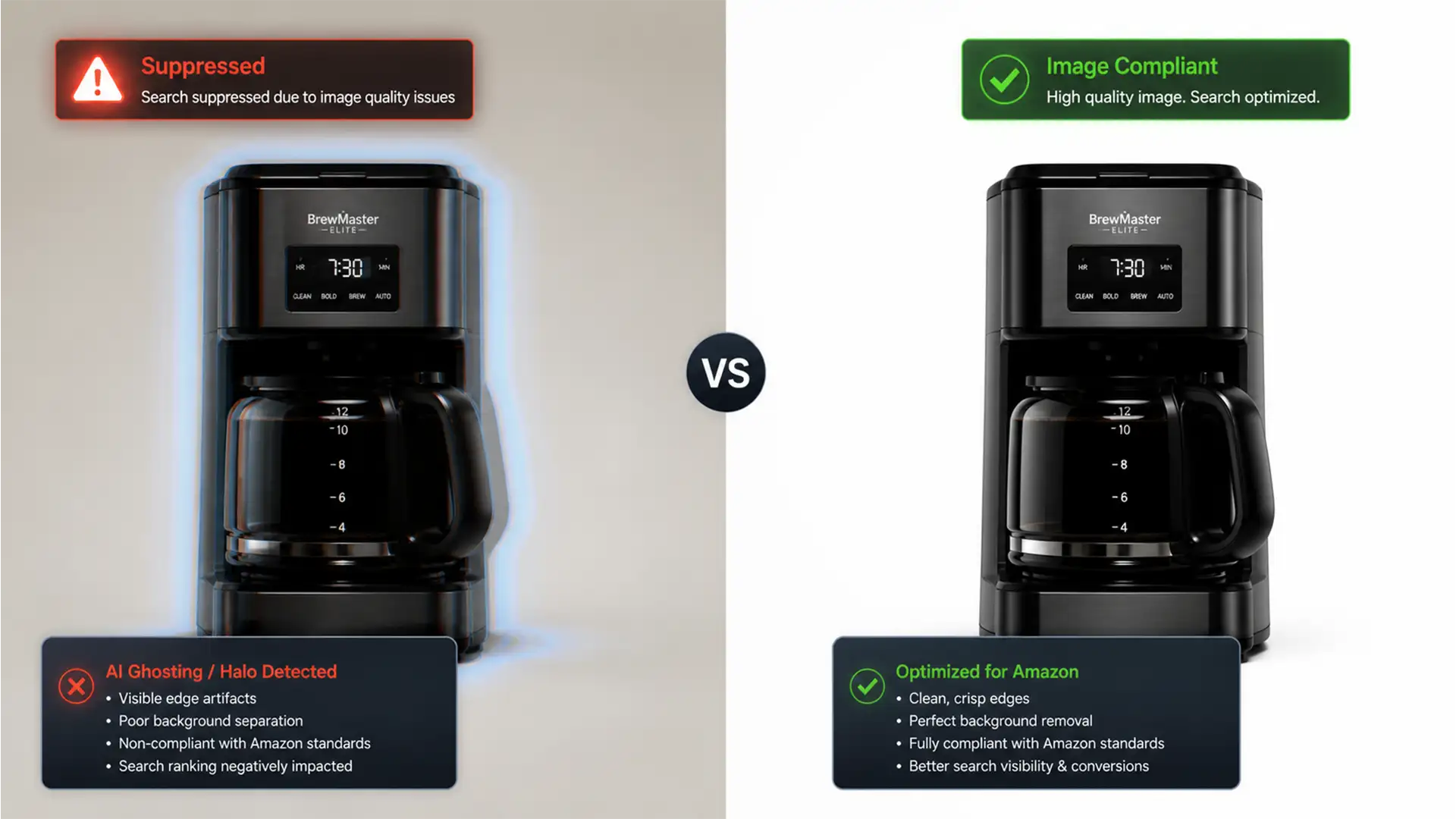

You check your Amazon Seller Central dashboard, ready to track sales, only to find a dreaded notification: your top-selling product listing is suppressed. The culprit? Your main image. If you relied on Amazon’s automated image tools, you are likely a victim of AI ghosting. These microscopic, semi-transparent pixels create a halo around your product, preventing the background from registering as a pure white background (RGB 255, 255, 255). Amazon’s strict guidelines show zero mercy for these artifacts. In this guide, we will show you the exact Amazon AI background removal ghosting fix using Photoshop to salvage your images and reactivate your listings.
Why Amazon’s AI Background Removal Triggers Suppressions
Amazon requires all main product images to have a flawless, pure white background. When you use automated background removers—including Amazon’s own built-in AI tool—the software often struggles with complex product edges. Instead of a crisp cut, it leaves behind semi-transparent pixels.
While these artifacts might be invisible to the naked eye on a standard monitor, the Amazon A9 algorithm scans pixel data mathematically. If it detects pixels that are RGB 250 instead of exactly RGB 255, it flags the image as non-compliant. This results in immediate listing suppression, tanking your organic ranking and halting sales.
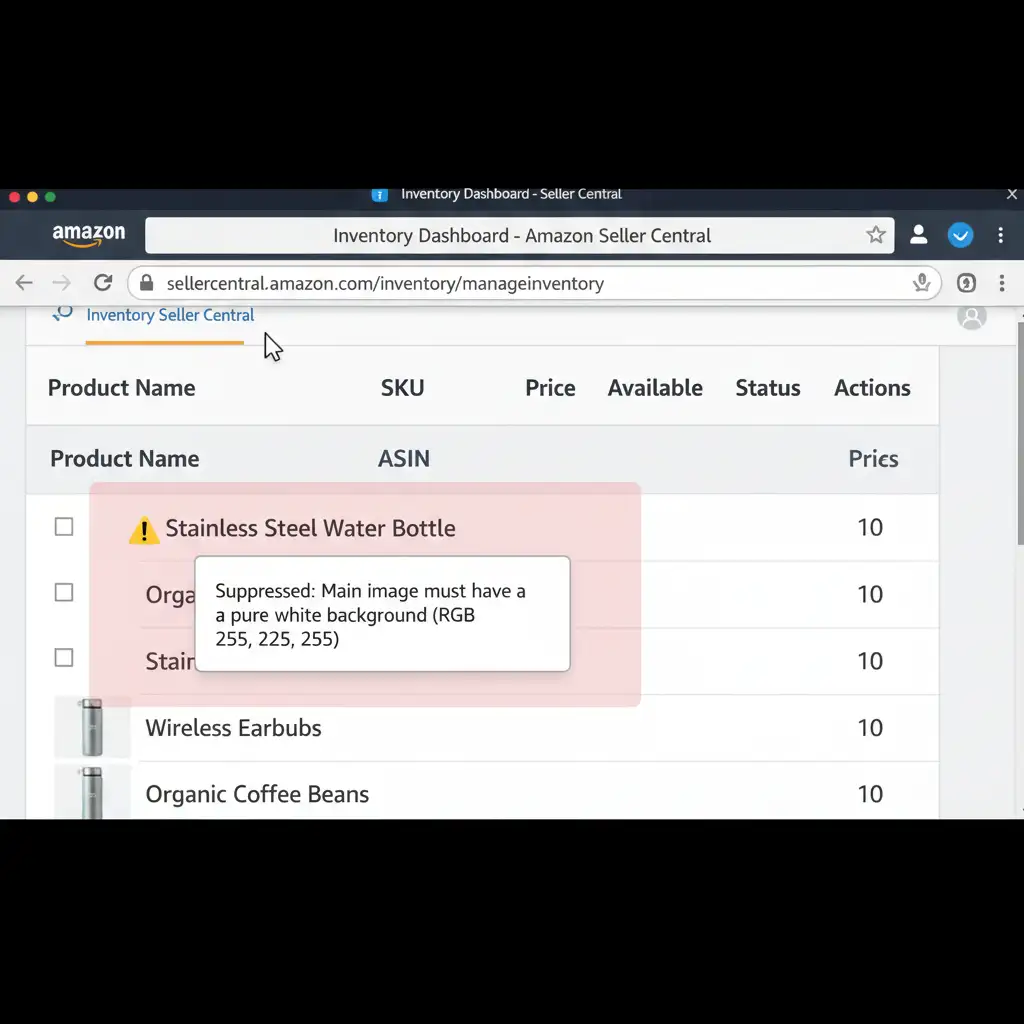
The Ultimate Amazon AI Background Removal Ghosting Fix
To salvage your suppressed images, you need to transition from automated guesswork to precision editing. Below are three proven methods using Adobe Photoshop (v24.x to v25.x) to eliminate AI ghosting and ensure 100% compliance.
Method 1: The Quick Fix Using a Levels Adjustment
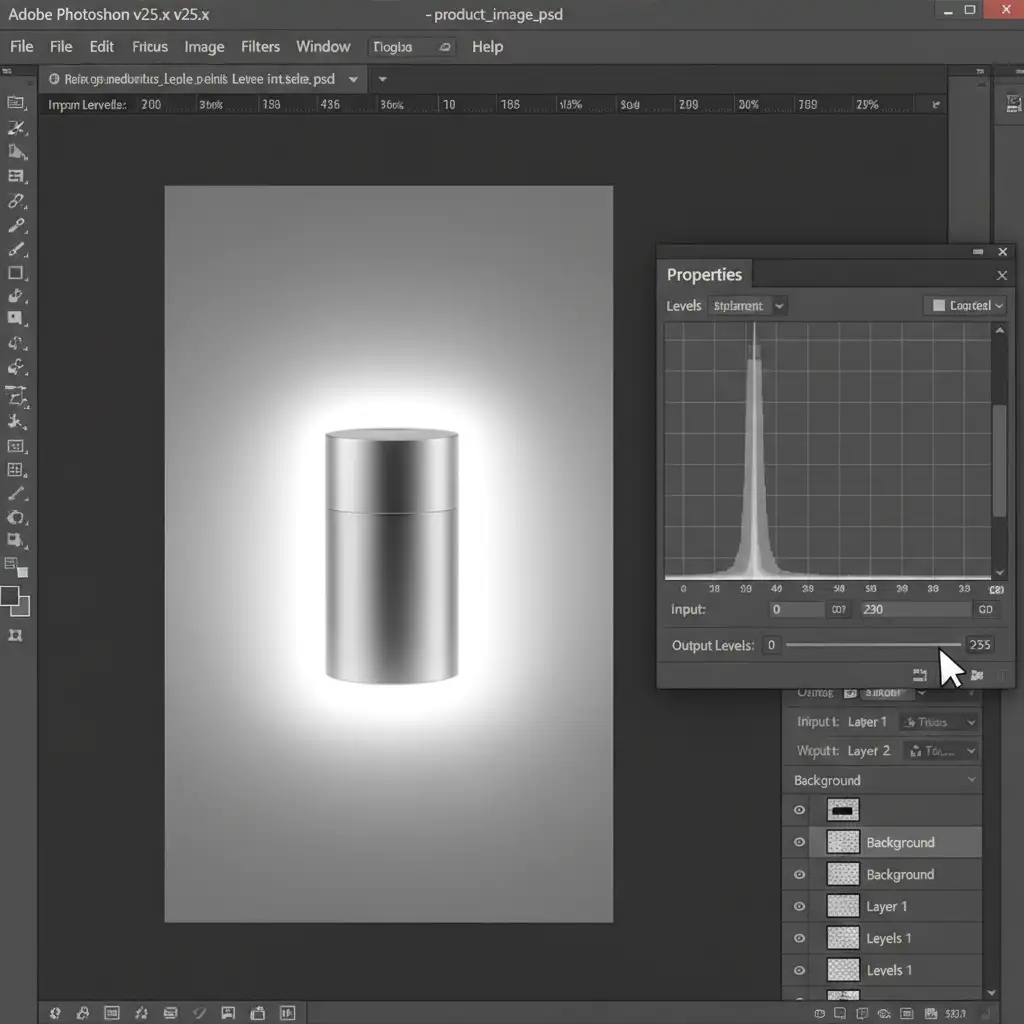
If the AI ghosting is minor and mostly consists of very light gray pixels, you can force them into pure white using a simple Levels adjustment.
- Open your suppressed image in Photoshop.
- Add a Levels Adjustment Layer (Ctrl+L on Windows or Cmd+L on Mac).
- In the Properties panel, locate the histogram.
- Click and drag the rightmost slider (the white point slider) slightly to the left.
This action forces near-white pixels to clip into absolute pure white (RGB 255), effectively erasing faint ghosting without requiring manual masking.
Method 2: The Pro Workaround with Select and Mask
When the edge of your product is complex and a Levels adjustment washes out the product’s highlights, you need a non-destructive editing approach.
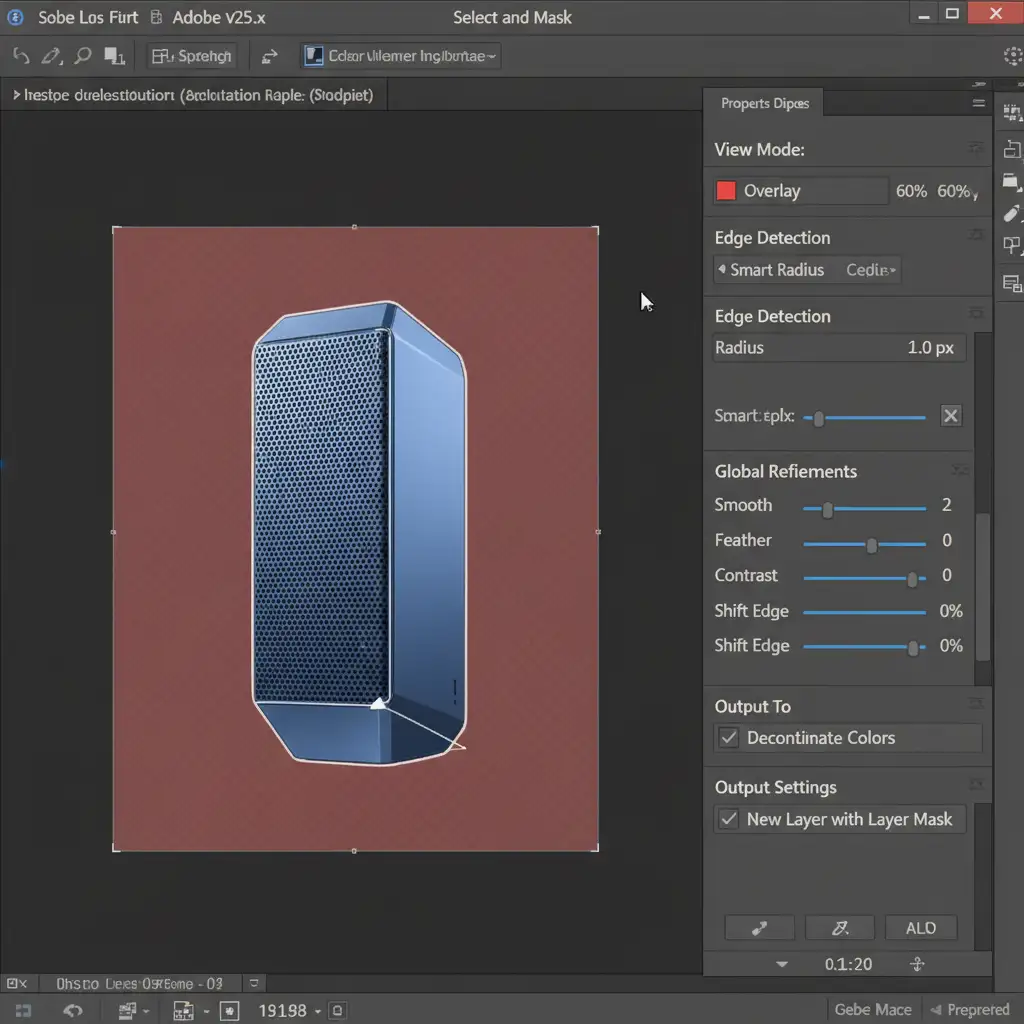
- Select your main product layer and use the Select Subject tool to generate the initial marching ants selection.
- Click Select and Mask in the top toolbar to open the workspace.
- In the Global Refinements panel, increase the Smoothness slightly to remove jagged AI cuts, and add a 1px Feathering to soften the edge.
- Under Output Settings, check “Decontaminate Colors” (if edge detection is struggling with color bleed) and set the output to New Layer with Layer Mask.
- Finally, place a Solid Color fill layer set to pure white (#FFFFFF) beneath your new layer.
This method completely replaces the flawed AI extraction with a clean, mathematically perfect background.
Method 3: The Technical Deep-Dive (Diagnostic Map)
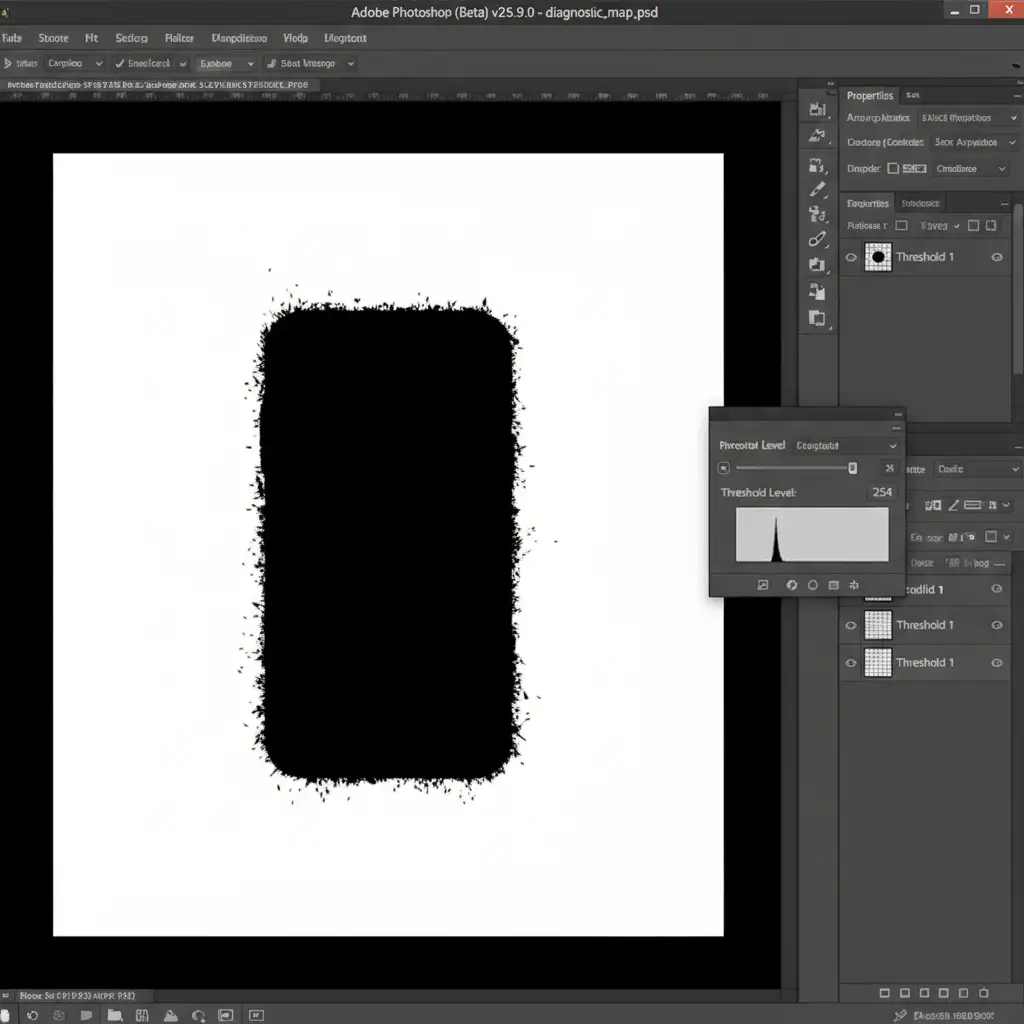
Sometimes, AI ghosting is entirely invisible to the human eye, hiding behind clipping masks or faint shadows. To guarantee your image will pass Amazon’s automated checks, use a diagnostic map.
- Add a Threshold adjustment layer at the very top of your layer stack.
- Set the Threshold level to exactly 254.
- Your image will turn entirely black and white. Because the threshold is set to 254, only pixels that are true RGB 255 will appear white. Any AI ghosting, stray pixels, or off-white backgrounds will instantly render as stark black.
- Select the layer mask of your product layer, grab a hard brush with black paint, and manually paint out the black artifact areas revealed by the Threshold map.
- Once the background is pure white on the map, delete the Threshold layer.
Stop Relying on Automated Tools: Get 100% Amazon Image Compliance
Fixing automated errors takes time away from scaling your business. While knowing the Amazon AI background removal ghosting fix is a great technical skill, manually auditing every single SKU with a threshold adjustment is not sustainable for high-volume sellers.
Struggling with Amazon image suppressions? Let the experts at Image Work India and Cloud Retouch handle it. Our professional retouching teams manually extract your products using advanced pen-tool techniques and proper non-destructive layer masking. We guarantee 100% pure white background compliance, zero AI ghosting, and guaranteed Amazon approval on the first upload.
Contact us today to ensure your main images drive clicks, not suppressions.




