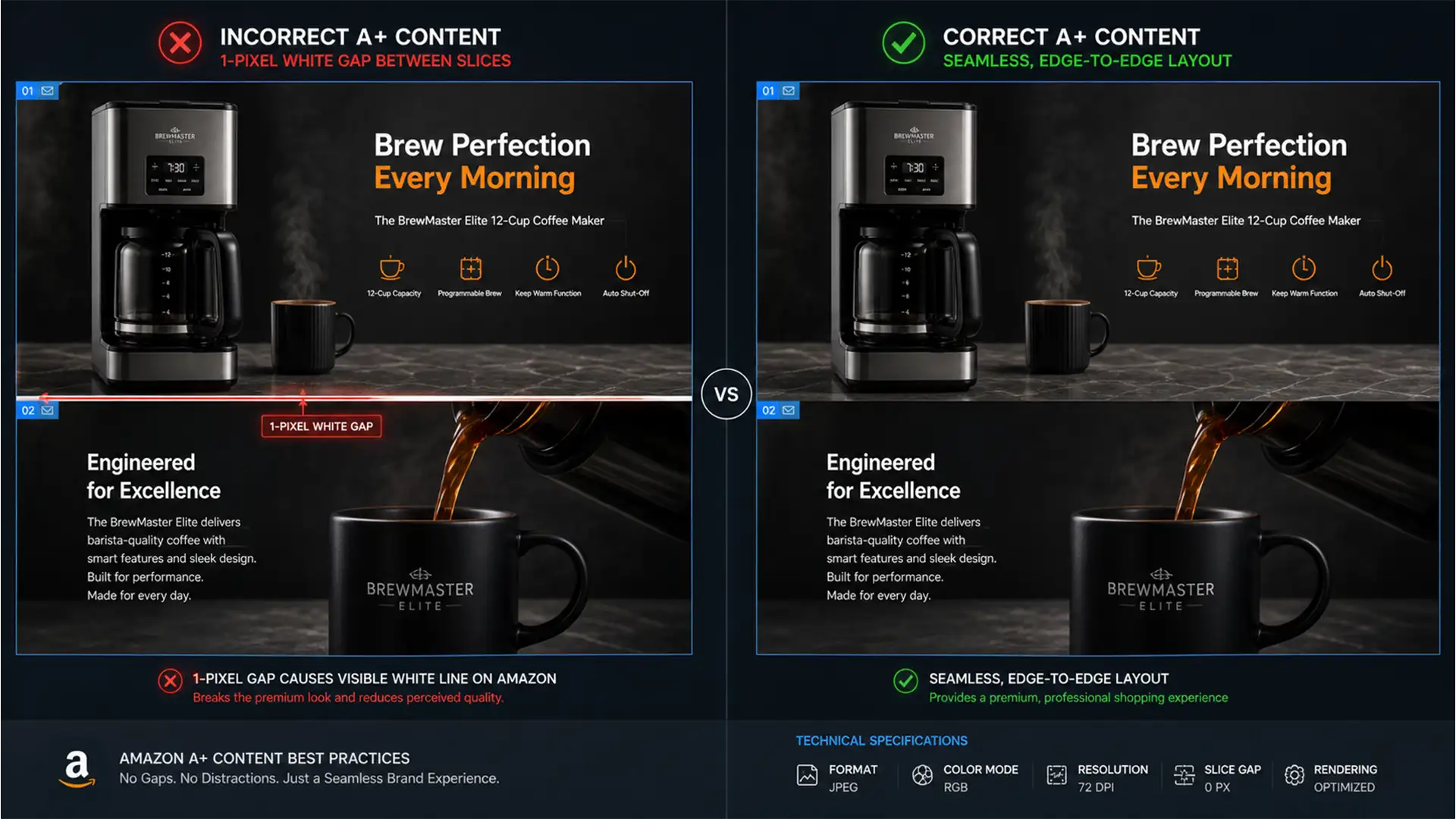

You’ve spent hours designing a stunning, continuous visual experience for your product listing. You slice it, upload it, and there it is-that infuriating, highly visible 1-pixel horizontal white line cutting right through your beautiful graphics. If you’re desperately searching for an Amazon A+ content white space gap fix, you aren’t alone.
This annoying gap ruins the illusion of a seamless mobile and desktop experience, subtly damaging your brand’s premium feel. The good news? It’s not an Amazon glitch; it’s an Adobe Photoshop export issue. Let’s dive into the exact technical settings you need to eliminate this gap for good.
Why Does the Amazon A+ Content White Space Gap Happen?
Before fixing the problem, it helps to understand why your Amazon A+ modules are breaking apart. The issue stems from how modern browsers and the Amazon rendering engine handle viewport scaling combined with Photoshop’s export behavior.
When you export sliced images from Adobe Photoshop v24.x or v25.x, you might accidentally create fractional slice dimensions (e.g., a height of 600.5 pixels instead of exactly 600 pixels). When Amazon rescales these images for different devices (mobile vs. desktop), sub-pixel rendering kicks in. The browser attempts to render that fraction of a pixel, resulting in anti-aliasing on the image edges. This fractional pixel is rendered as semi-transparent, allowing the white background of the Amazon webpage to bleed through, creating that dreaded 1-pixel gap.
How to Fix the Amazon A+ Content White Space Gap in Photoshop
To achieve a flawless, continuous layout, you must force Photoshop to respect strict whole-number pixel boundaries. Here are the three methods to ensure a perfect export.
Method 1: The Quick Fix (Pixel Grid Snapping)
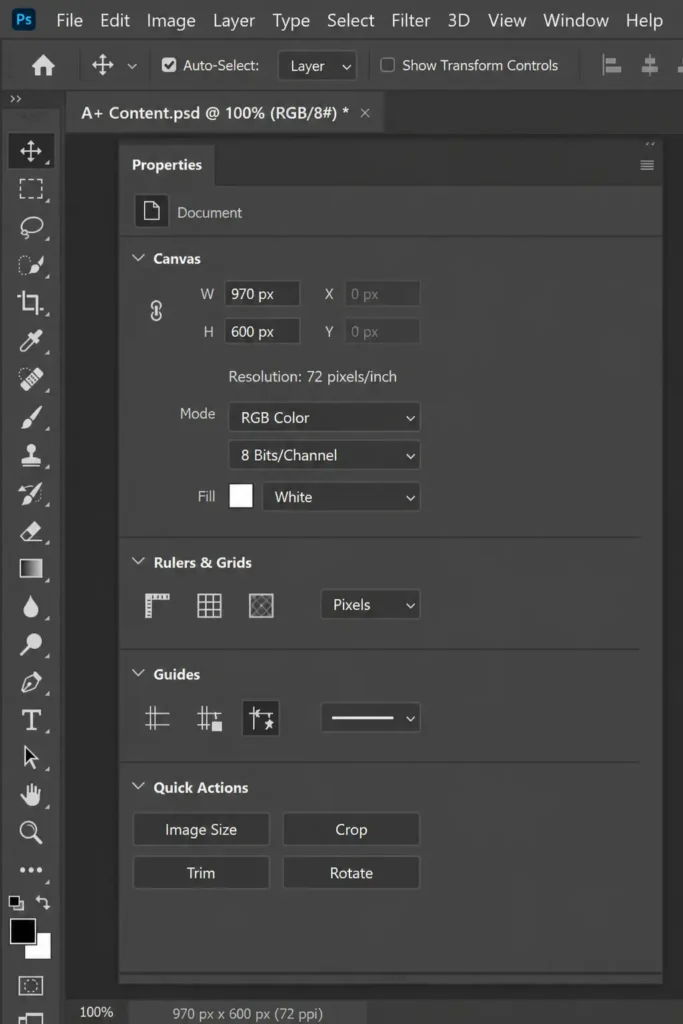
The most common culprit for the white gap is misaligned slices. If your slice lines fall between pixels, you will get fractional exports.
- Open your continuous design in Photoshop.
- Navigate to the top menu and click View > Snap To > Pixels.
- Verify that your canvas size and all individual slices are strictly whole numbers. If your canvas is 970px wide, ensure your slice heights are even numbers (e.g., 600px, not 600.3px).
Method 2: The Pro Workaround (Edge Bleed Extension)
Sometimes, despite perfect slicing, aggressive browser zooming can still trigger sub-pixel rendering. To counter this, professional designers use an edge bleed area.
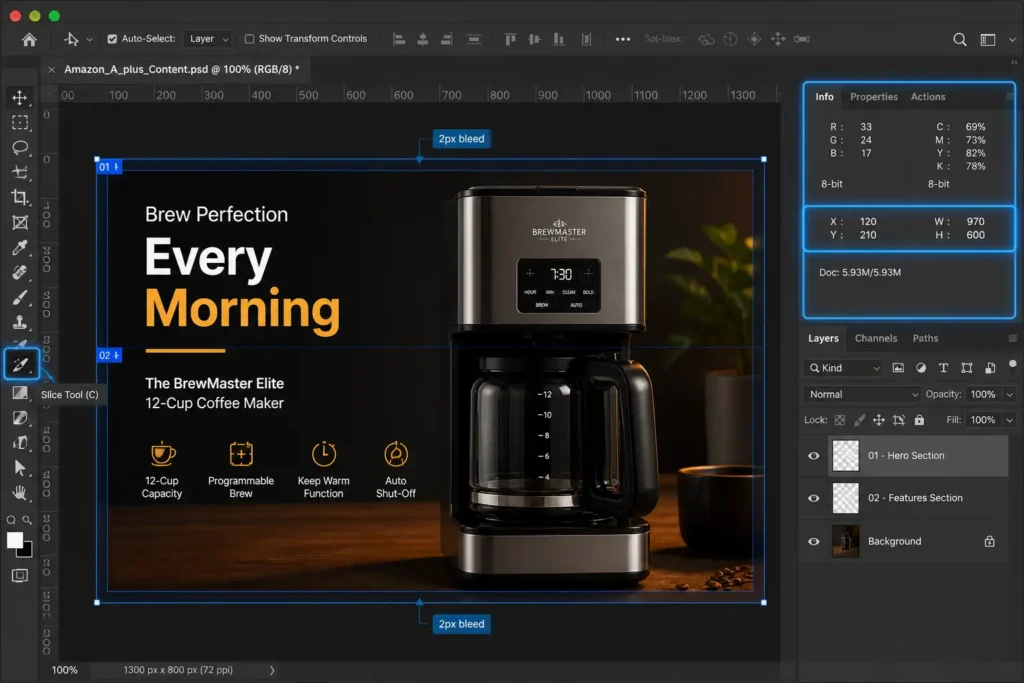
Instead of cutting the image exactly at the transition point, add a 1-pixel to 2-pixel bleed of identical color to the abutting edges.
- Add 2 extra pixels of the background color to the bottom of your top module.
- Add 2 extra pixels of the exact same color to the top of your bottom module.
If the browser’s anti-aliasing engine creates a sub-pixel gap, it will reveal the colored bleed underneath instead of the stark white Amazon background, rendering the gap completely invisible to the naked eye.
Method 3: The Technical Deep-Dive (Export Protocol)
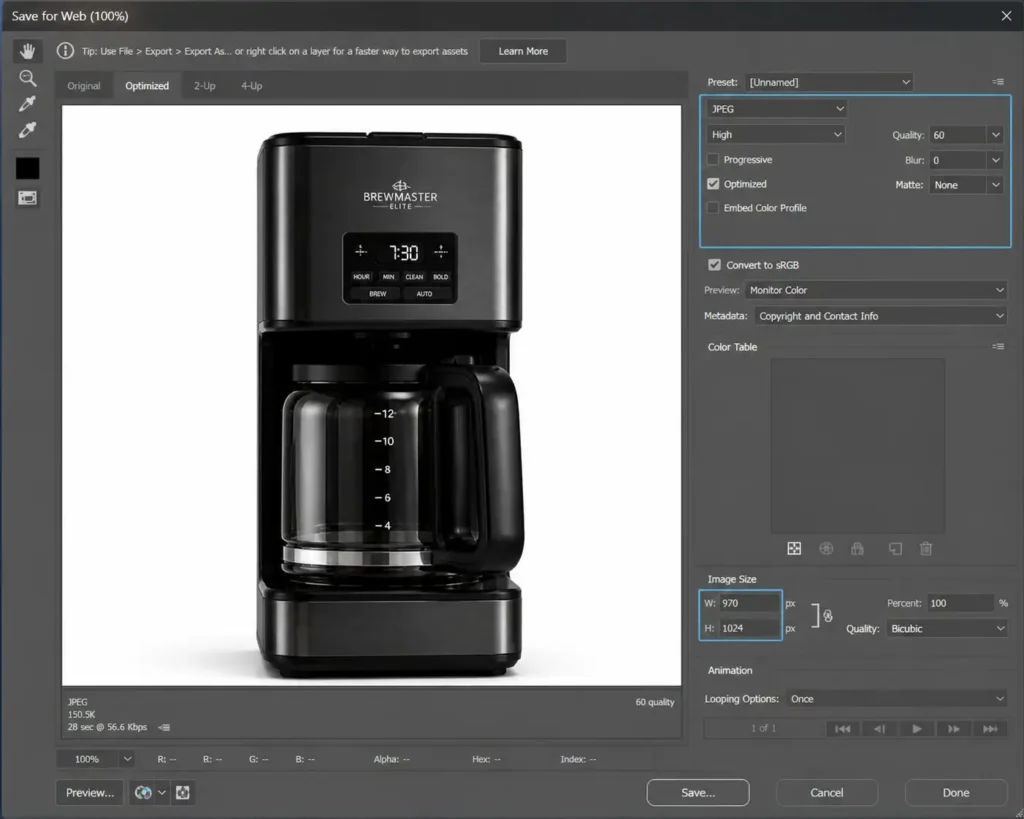
Do not use the standard “Export As” or “Quick Export” functions in Photoshop for continuous Amazon A+ modules. These modern export engines often force subtle resampling that softens the edges of your slices, triggering the white gap.
Instead, you must rely on a lossless export protocol using the legacy web tools:
- Go to File > Export > Save for Web (Legacy).
- Select your slices using the Slice Select Tool within the dialog box.
- Turn off anti-aliasing for the exact slice edges (if applicable to your layer styles).
- Ensure the final image width is exactly 970px and the height is an even number.
- Set the Matte to “None” to prevent edge feathering.
Stop Fighting Photoshop: Let the Experts Handle Your Amazon A+ Modules
Mastering pixel grid snapping, edge bleeds, and legacy export settings can be incredibly time-consuming, especially when you have dozens of products to list. One tiny mistake in your slice tool workflow means starting the upload process all over again.
Struggling with seamless Amazon A+ content? Let the experts at Image Work India and Cloud Retouch handle the technical heavy lifting. Our specialized e-commerce design teams know exactly how to design, slice, and optimize your listings for maximum conversions without the technical hassle. We guarantee pixel-perfect, edge-to-edge continuous graphics that look flawless on every device.
Contact Image Work India today, and let us elevate your Amazon brand presence with flawless, gap-free A+ Content.




