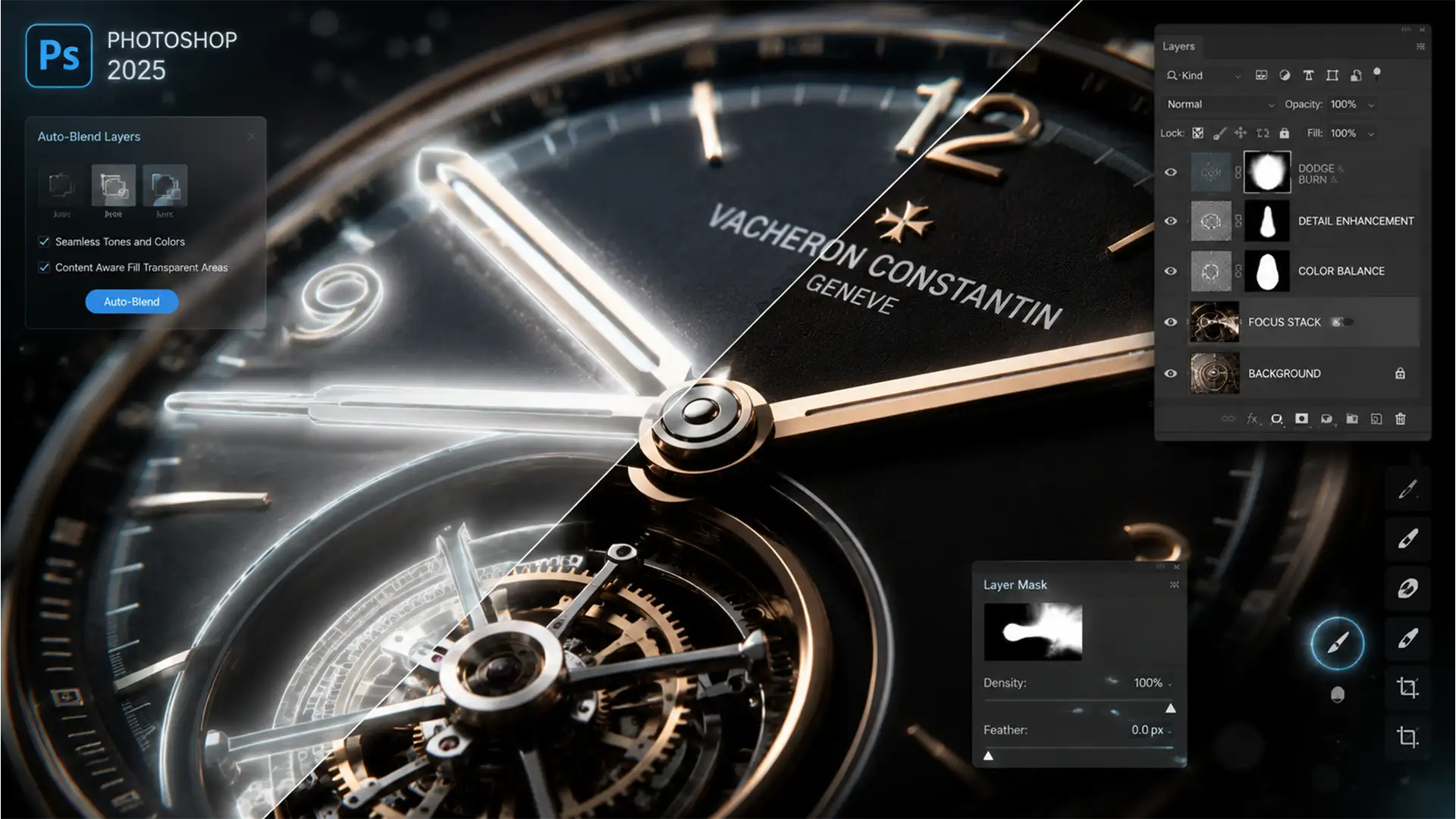

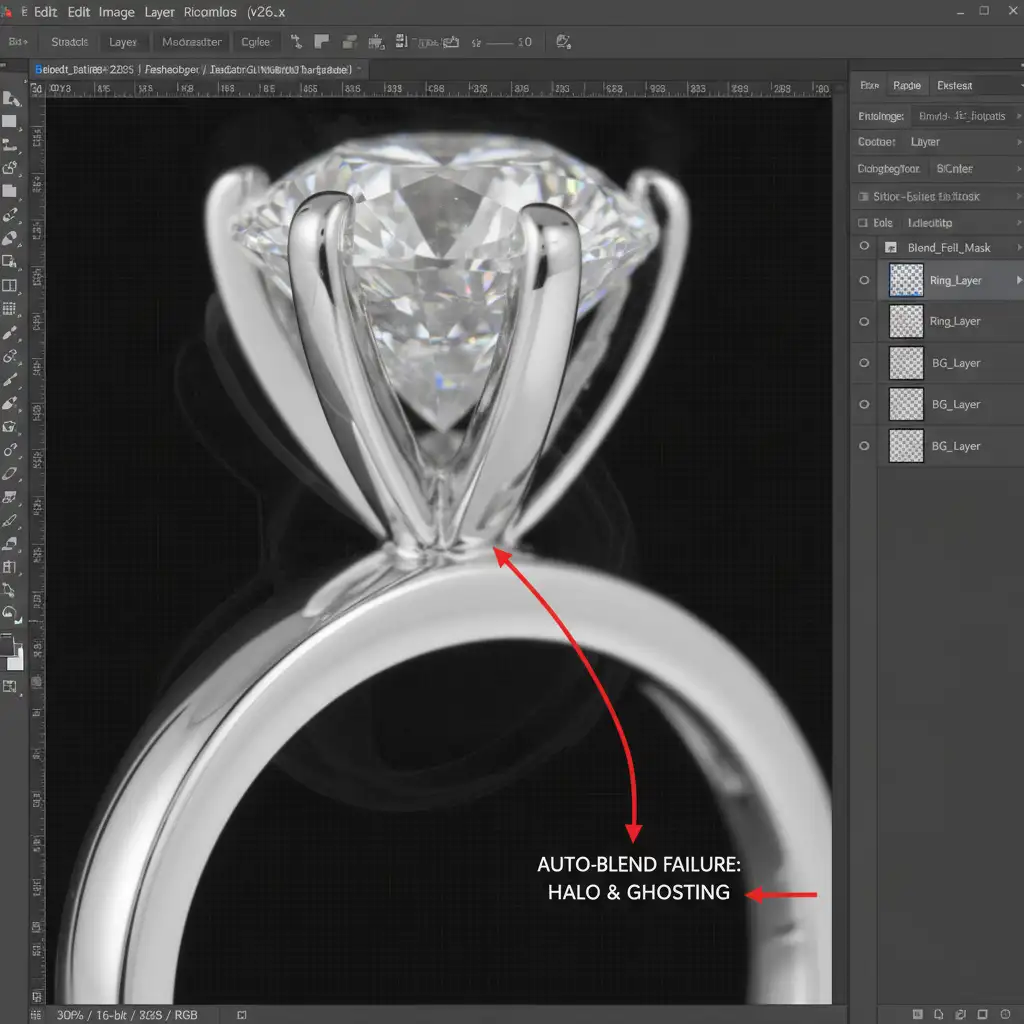
You’ve just spent hours capturing a meticulous 40-image macro sequence of a luxury watch, utilizing precise focus peaking to nail every detail. But when you merge the stack in Photoshop 2025, disaster strikes: ugly, translucent halos and ghosting artifacts bleed around the high-contrast metallic edges. If you shoot high-end jewelry or macro photography, this is a notorious workflow killer. The culprit? Photoshop’s depth map generation algorithm struggling with subtle parallax shifts and lens breathing between focal slices. Fortunately, a reliable photoshop 2025 focus stacking halo fix is within reach. Here is how to eliminate these translucent edges for pixel-perfect results.
Why Photoshop 2025 Creates Focus Stacking Halos
In Photoshop 2025 (v26.x), the Auto-Blend Layers feature is incredibly powerful, but it isn’t flawless. When shooting extreme close-ups, the physical movement of the lens elements changes the magnification slightly from the front of your subject to the back. This phenomenon is known as lens breathing.
Combine this with parallax shift (the apparent displacement of the subject against the background) and chromatic aberration along high-contrast edges, and Photoshop’s algorithm gets confused. It struggles to determine which pixels belong to the sharp edge and which belong to the out-of-focus background, resulting in translucent ghosting artifacts and halos.
3 Proven Methods to Fix Focus Stacking Halos
Depending on the severity of the halos and the complexity of your subject, you can approach this problem in three different ways.
Method 1: The Quick Fix (Post-Blend Cleanup)
If your macro photography stack resulted in only minor halos, you don’t need to rebuild the entire file. You can patch the errors non-destructively.
- Once your Auto-Blend process is complete, create a new blank layer at the top of your layer stack.
- Select the Clone Stamp Tool or the Remove Tool.
- Crucially, set the sample mode in the top toolbar to Current and Below.
- Carefully brush over the translucent edges. By sampling from the clean, sharp areas of the merged image, you can manually paint out the halos without destroying the underlying generated masks.
Method 2: The Technical Deep-Dive (Pre-Correction)
For professional jewelry and product retouchers, prevention is better than a cure. This method addresses the root causes—lens breathing and chromatic aberration—before Photoshop even attempts to build a depth map.
- Pre-Correct in Camera Raw: Open your sequence in Adobe Camera Raw. Navigate to the Optics panel and check “Remove Chromatic Aberration” and “Enable Profile Corrections.” This minimizes edge-fringing that confuses the blending algorithm.
- Align with Reposition: Load the images into Photoshop. Go to Edit > Auto-Align Layers. Instead of leaving it on “Auto,” select Reposition. This forces Photoshop to align the frames without warping or distorting them, which often exacerbates parallax shift.
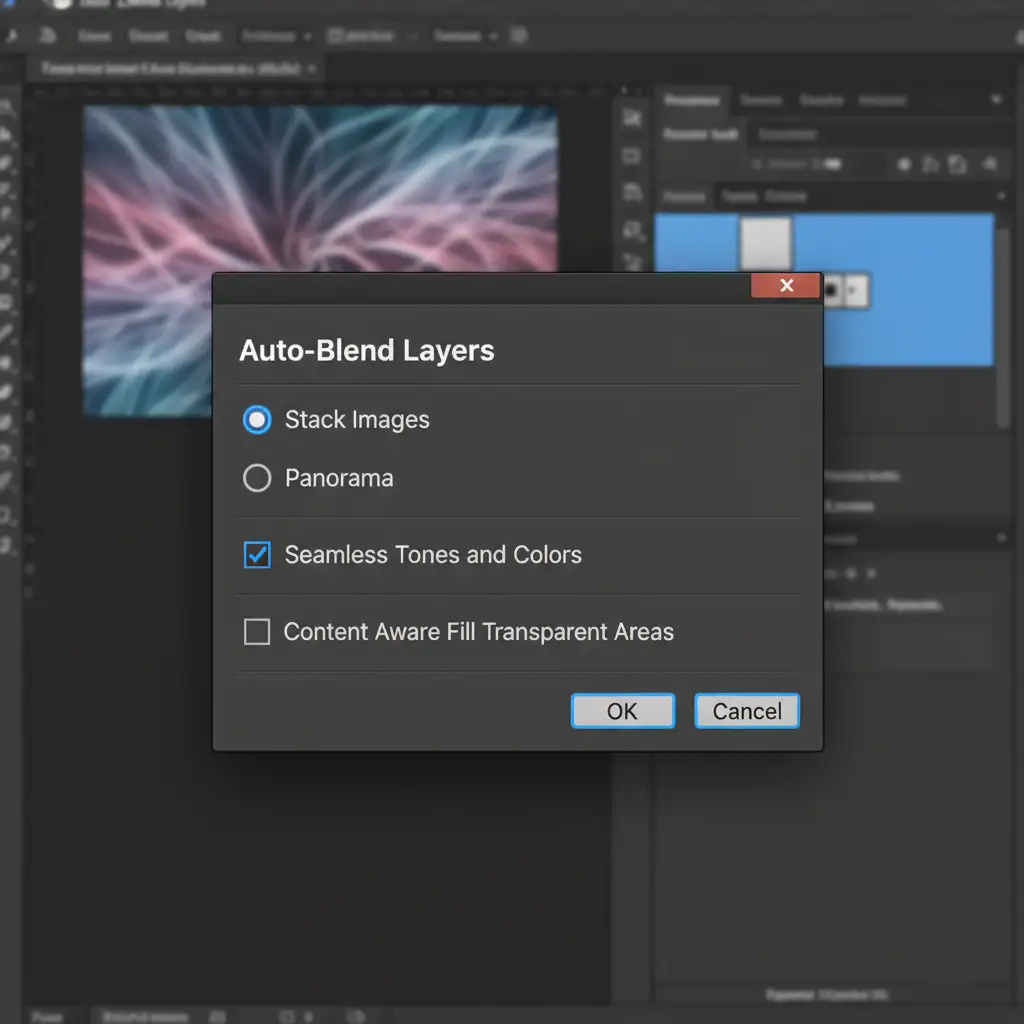
- Blend the Stack: Go to Edit > Auto-Blend Layers. Ensure Seamless Tones and Colors is checked.
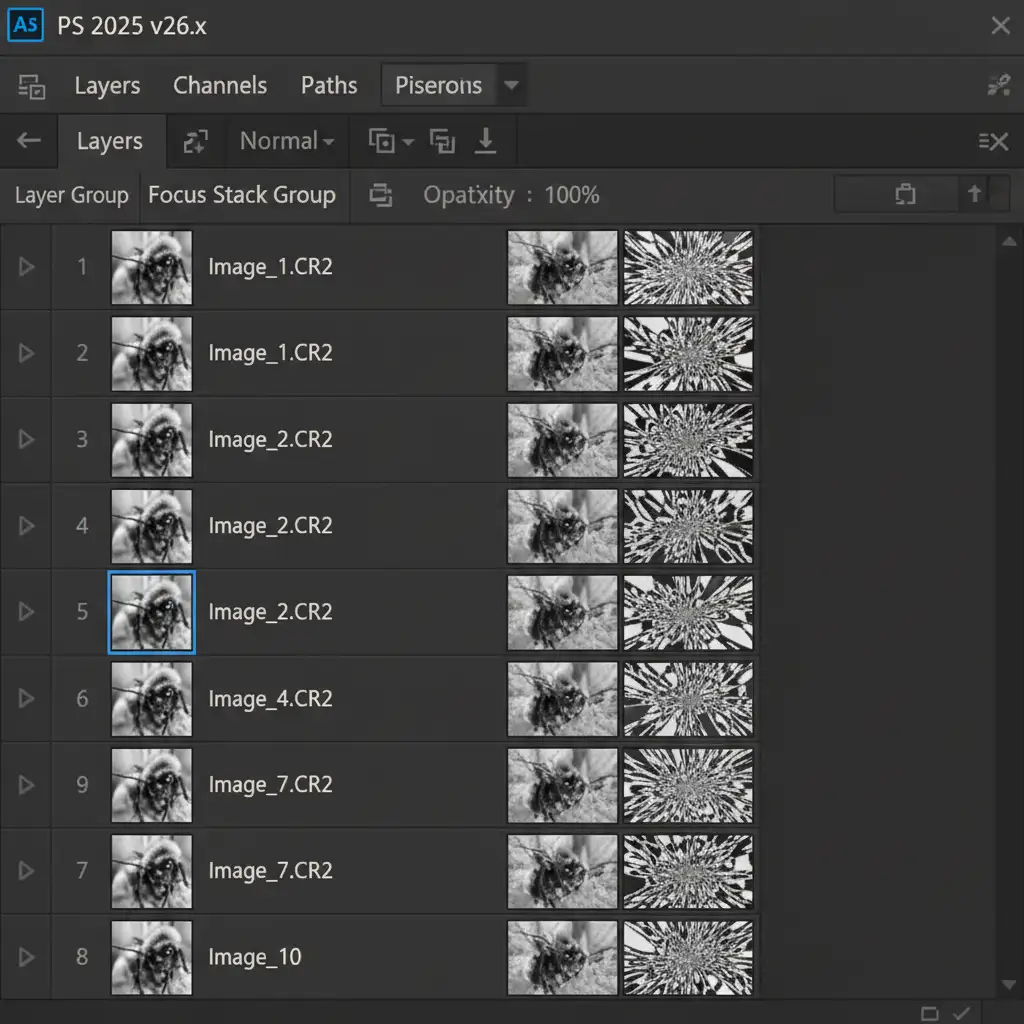
- Refine the Masks: Once blended, inspect the layer masks Photoshop automatically generated.
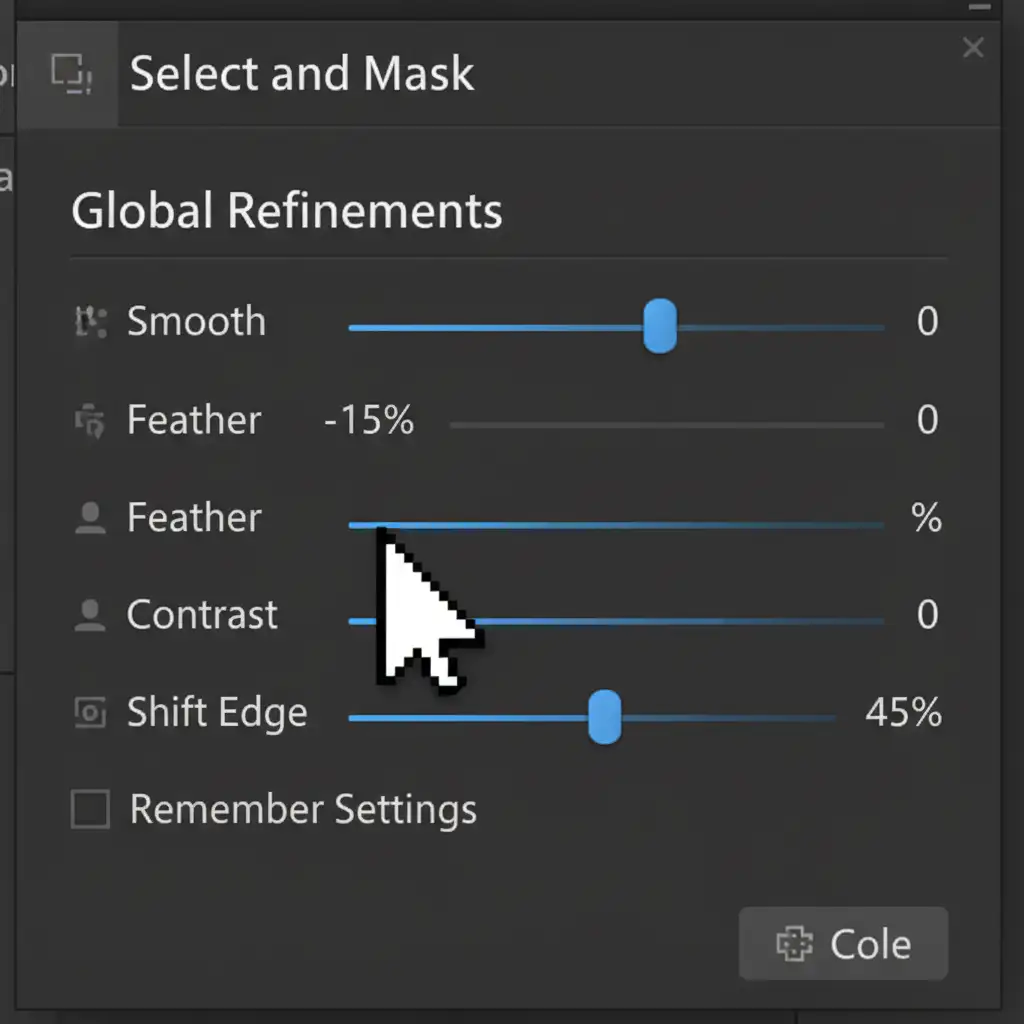
- Select and Mask: If you still see slight ghosting, click on the mask of the problematic layer. Open the Select and Mask workspace. Use the Shift Edge slider (moving it slightly to the left into negative values) to choke the mask, hiding the translucent halo. You can also adjust the Contrast slider to make the transition harsher, removing soft ghosting.
Method 3: The Pro Workaround (Manual Masking)
When the depth map algorithm completely fails on a highly complex subject (like a watch movement with overlapping gears), you must bypass Auto-Blend entirely for the problem areas.
- Run your standard Auto-Align Layers.
- Group all of your aligned layers into a single folder.
- Add a black layer mask to the group (holding Alt/Option while clicking the mask icon).
- Select a soft white brush. Manually paint over the specific areas of the image that are in focus. By doing this manually, you dictate exactly where the sharp edges begin and end, completely eliminating algorithm-induced ghosting.
Stop Fighting Photoshop: Let the Experts Handle Your Macro Retouching
Mastering the photoshop 2025 focus stacking halo fix requires a deep understanding of masking, lens optics, and advanced UI tools. When you are processing hundreds of macro shots for an e-commerce catalog or a high-end jewelry campaign, spending 20 minutes manually fixing ghosting artifacts on a single image simply isn’t scalable.
That’s where Image Work India and Cloud Retouch step in.
Struggling with flawless macro focus stacking? Outsource your complex jewelry, watch, and product editing to our team of expert retouchers. We specialize in high-volume, pixel-perfect focus stacking, ensuring every edge is razor-sharp and completely halo-free. Focus on capturing stunning photography, and let Image Work India and Cloud Retouch handle the technical heavy lifting. Contact us today to streamline your post-production workflow.




